Navigate between apps and menus
On this page
Every screen of Jaah is reached the same way: an app from the home menu or the sidebar, a menu of that app in the top bar, then a record. This page shows the three moves and how to get back. It applies to every user; the apps and menus you see depend on your access rights, so your grid may be shorter than the one in the screenshots.
Before you start
- You are signed in. The platform opens on the home menu after sign-in.
- The screenshots use the Contacts app; any app behaves the same.
- On a phone the top bar is shorter: the hamburger opens the app's menus and a floating button opens the home menu (see the FAQ).
Steps
- Open the home menu. It is already open after sign-in; from inside an app click Home menu, the first button of the top bar.
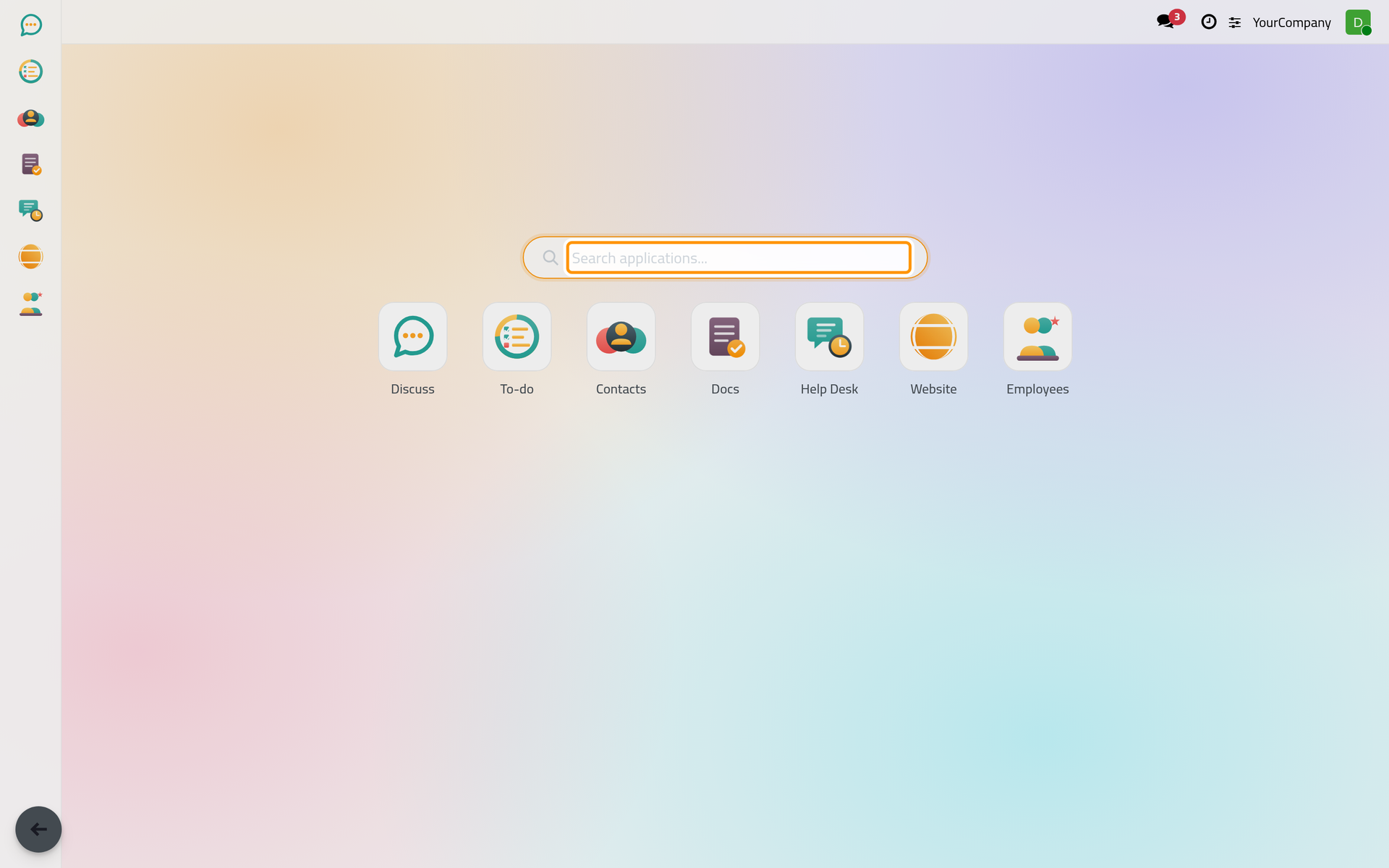
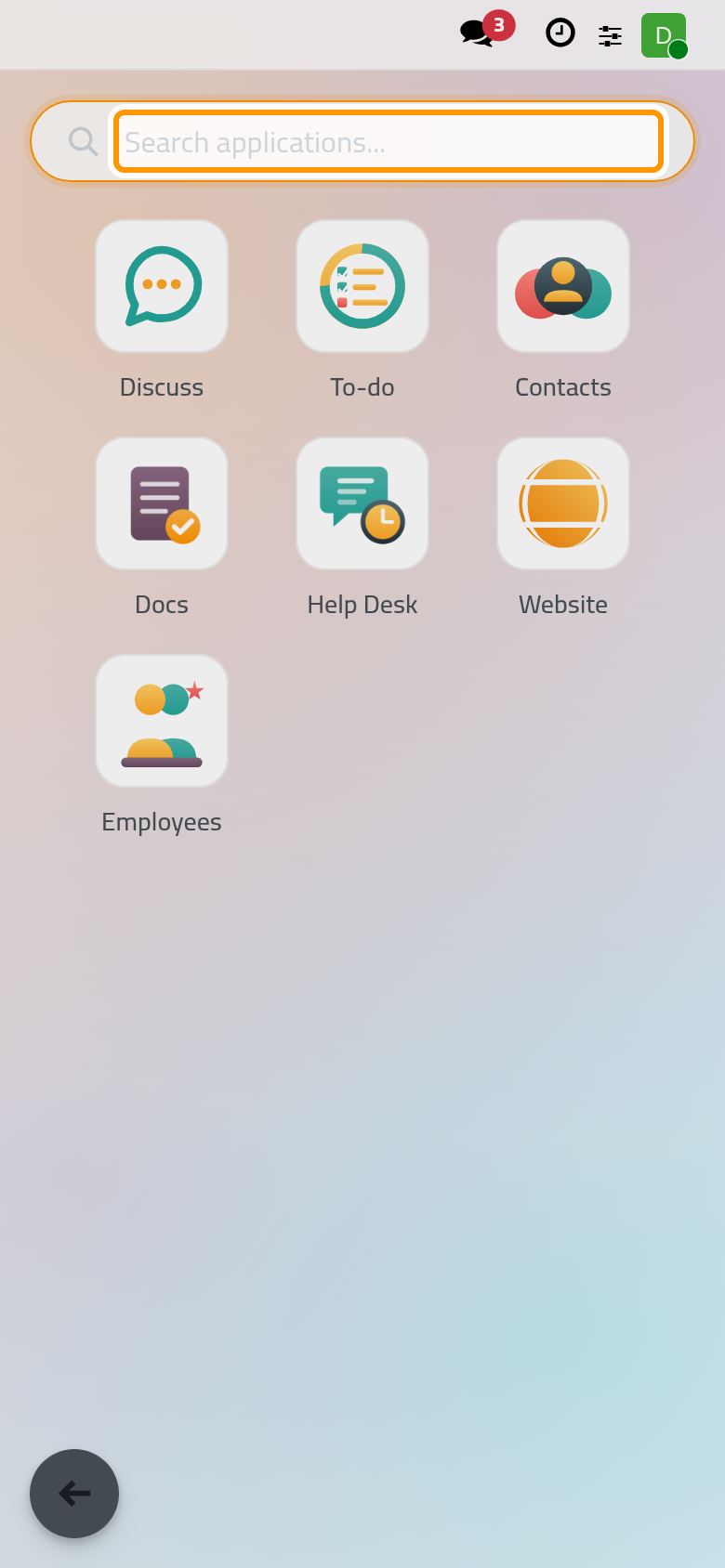
- Type part of the app's name in Search applications.... The box has the focus as soon as the grid opens, and typing anywhere on the page goes into it. The grid keeps only the matching apps; No applications found means nothing matches.
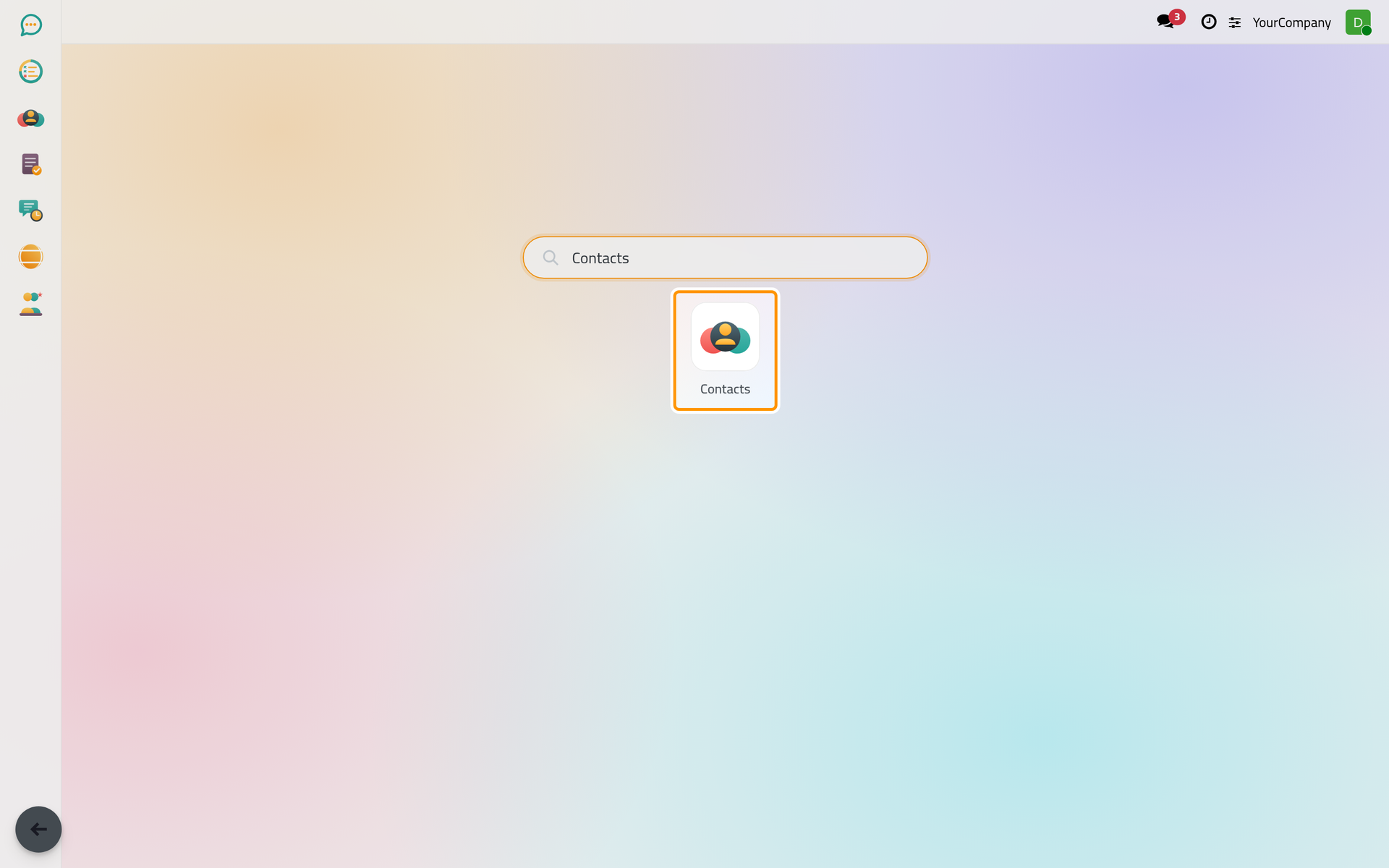
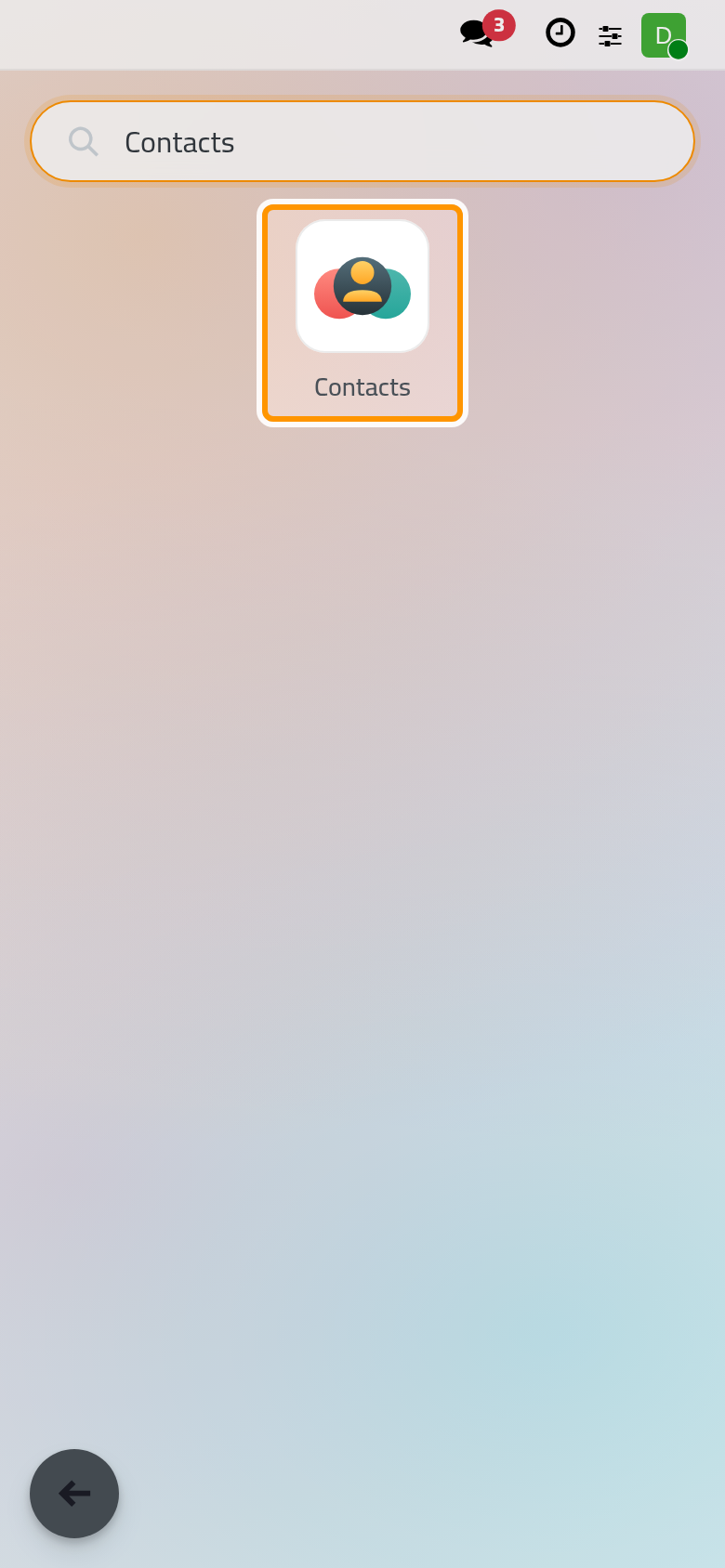
- Click the app. It opens on its first menu. The sidebar along the edge of the window now shows every app as an icon, with the current one highlighted; hover an icon to read its name, click it to switch app without going through the grid.
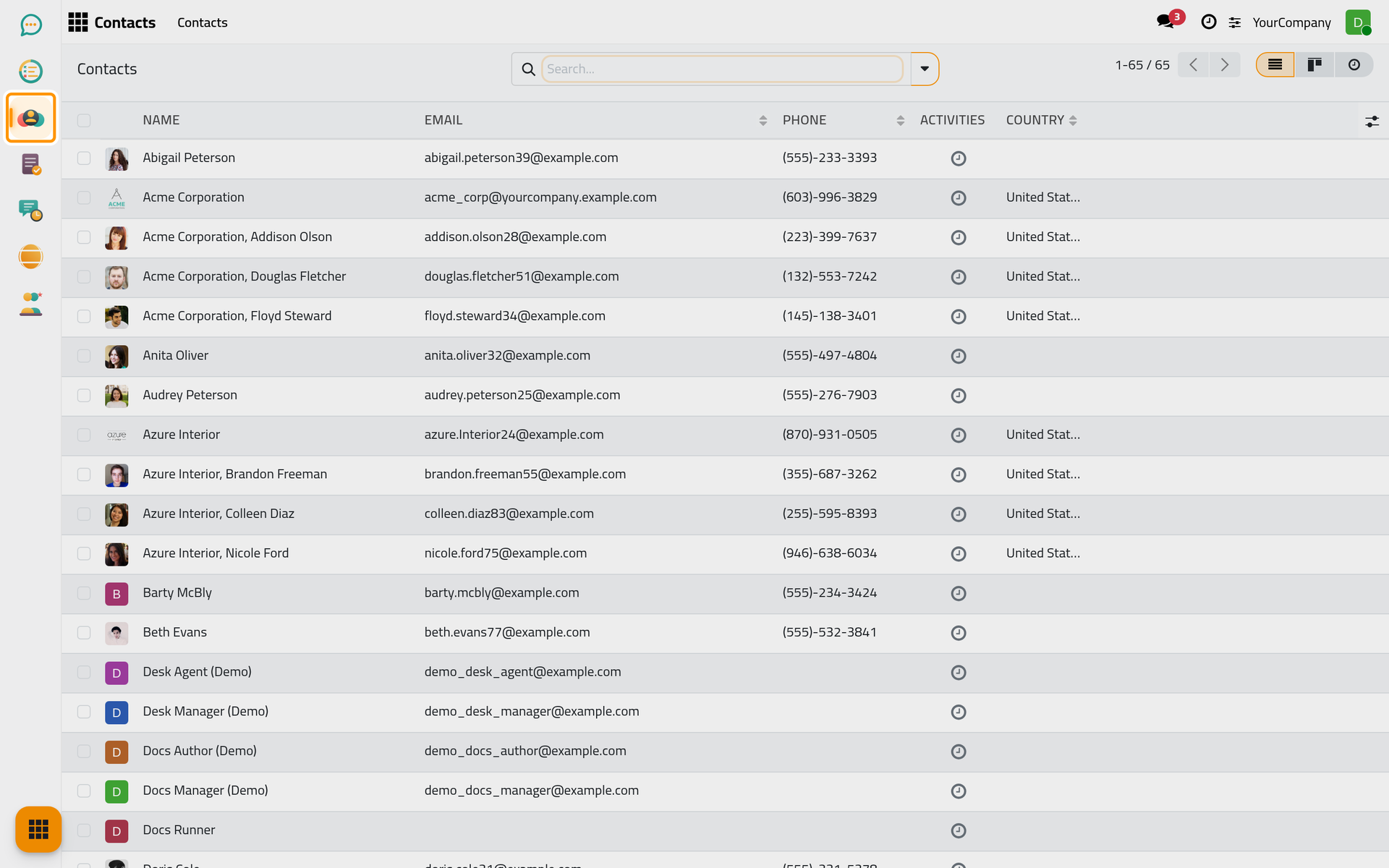
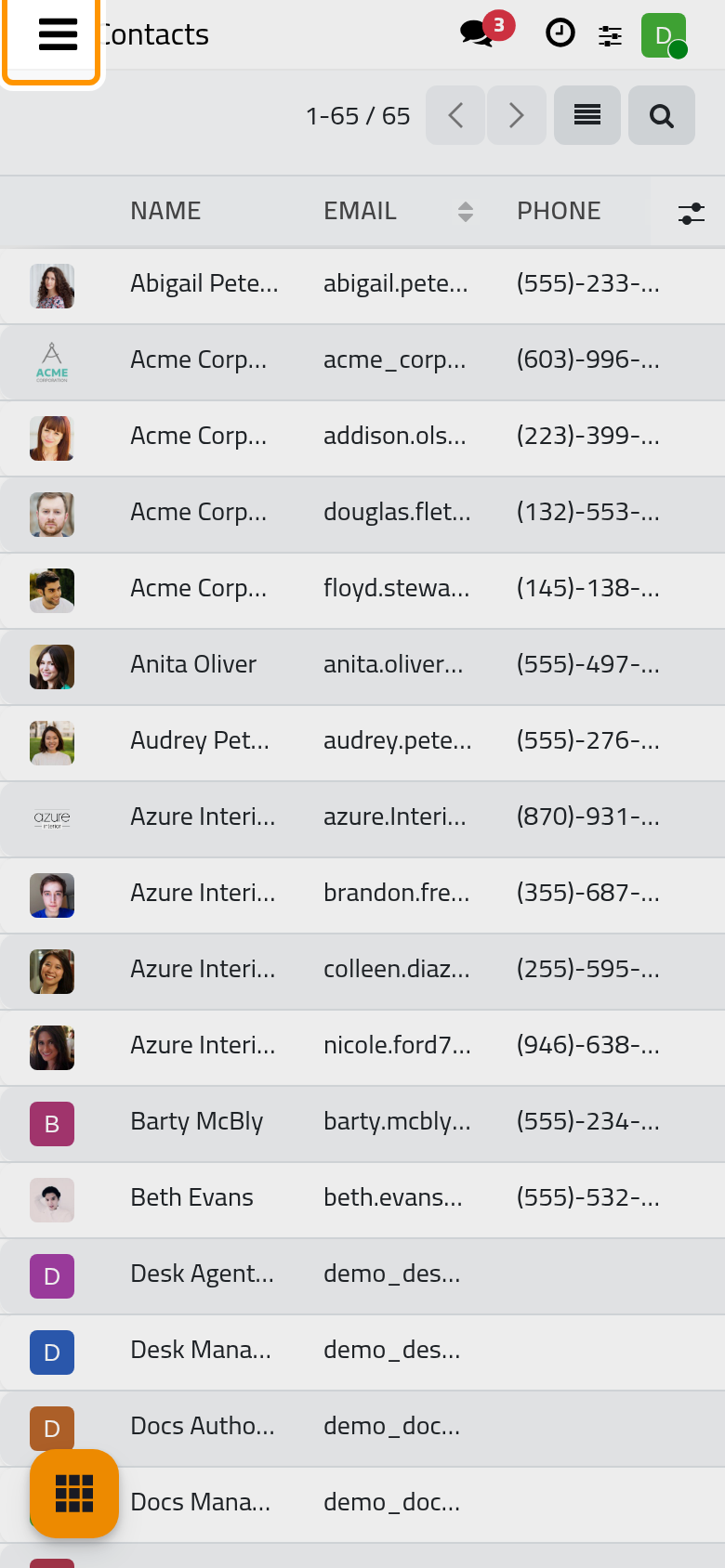
- Use the top bar. It shows the app name, then its menus; a menu with sub-entries opens a drop-down. Clicking a menu opens its screen: a list, a kanban board or a dashboard.
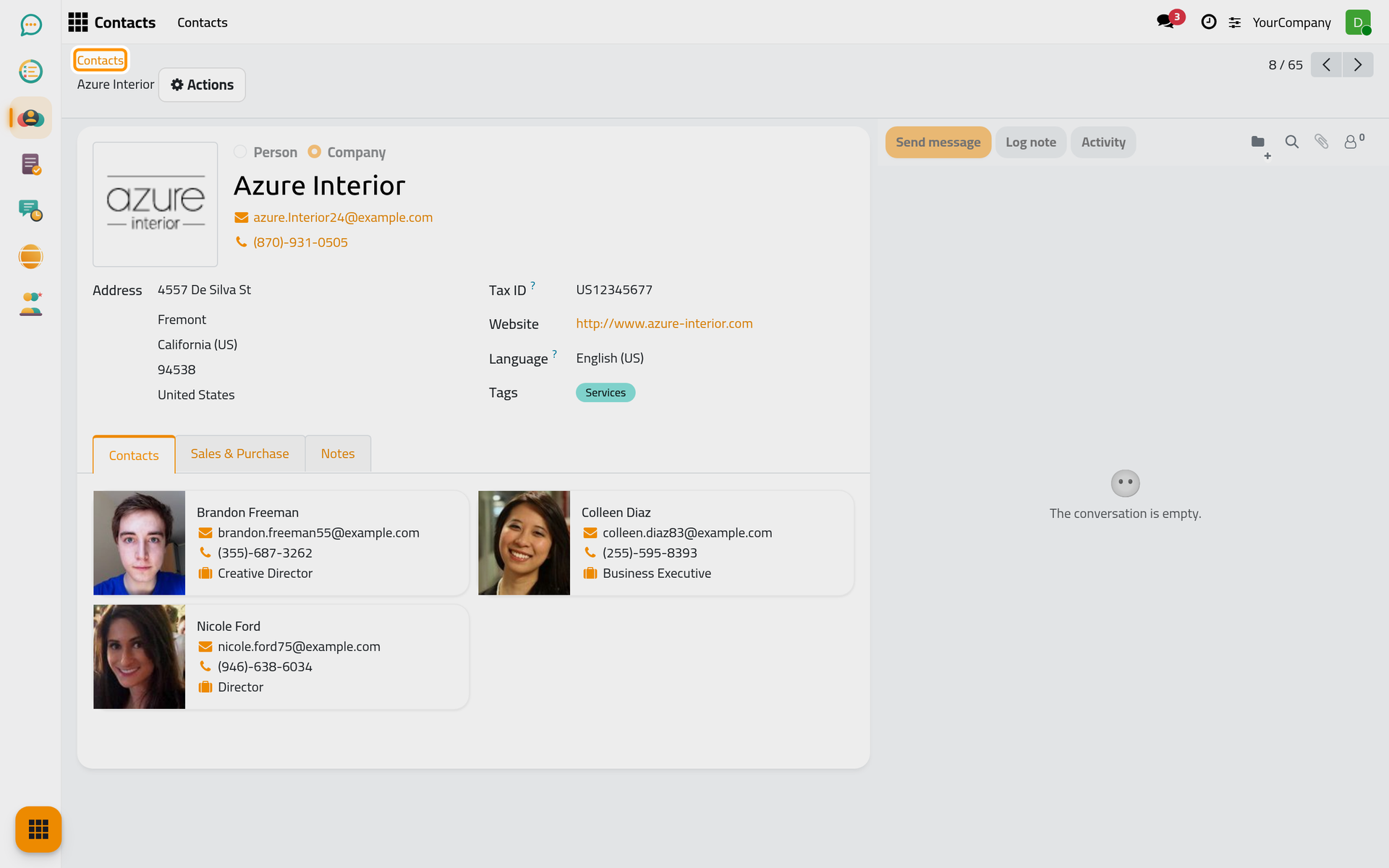
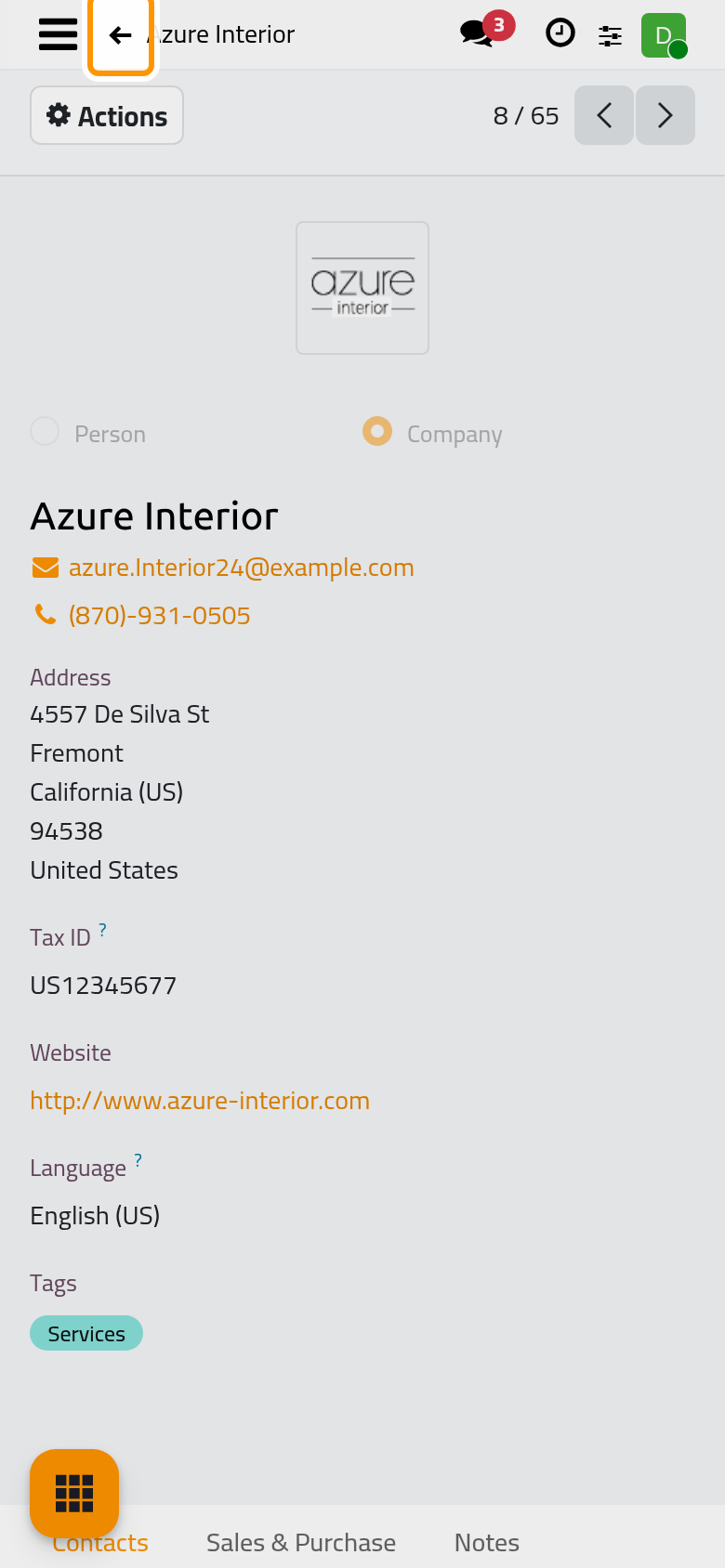
- Open a record, for example Azure Interior in the contacts list. Above the form, the breadcrumbs show where you are: the list you came from, then the record. Click an earlier crumb to go back to it with its search still applied.
- To return to the grid from anywhere, click Home menu again. While the grid is open over a screen the same button reads Previous view and closes the grid; Escape does the same.
Result
You can reach any screen in three clicks: the app in the grid or the sidebar, the menu in the top bar, the record in the list; and you can go back with the breadcrumbs, the sidebar or Home menu.
FAQ
Why is an app missing from my home menu?
The grid lists the apps your access rights allow. A new access right is granted by the person who manages users, under ; the app appears at your next page reload.
Can I change the order of the apps?
Yes. Press an icon in the sidebar, or a tile in the grid, keep it pressed for a moment and drag it to its new place. The order is a personal preference: it is saved with your user and is the same on every device you sign in from.
How does it work on a phone?
The hamburger at the start of the top bar opens a sidebar with the current app's icon, name and menus. A round floating button, Apps, opens the home menu from any screen and reads Back while the grid is open; press it for two seconds to drag it to the other edge. The browser's back button first closes an open dialog or menu before leaving the screen.
Is there a keyboard shortcut to jump to a menu?
Yes: the entry Shortcuts of your user menu, with its Ctrl+K badge, opens the command palette.
Was this page helpful?
Thank you for your feedback.