Follow a record: chatter, notes, followers and attachments
On this page
Most records on the platform carry a chatter: contacts, requests, documents and more. The chatter is the record's own history: the messages sent to its followers, the internal notes, the planned activities and the attached files, newest first. This page shows it on a contact, but every chatter works the same way. Any internal user can read it; to post on a record you need the right to edit it (a few apps allow posting with read access only).
Before you start
- Open a record that has a chatter, for example a contact from .
- Decide who should read what you write: a message reaches the followers, a note stays internal.
- A follower who has a user account receives messages the way they chose in their own preferences: by email, or in their inbox in Discuss. A contact without an account is reached by email.
- The chatter sits beside the form on wide screens or below it; you choose in the theme's settings hub (Chatter: Side or Bottom). The side chatter can be dragged wider or narrower by its inner edge.
Steps
- Open and click a contact. The top bar of the chatter holds Send message (Alt+M), Log note (Alt+Shift+M) and Activity (Alt+Shift+A), a magnifier (Search Messages), a paperclip (Attach files) and the followers button (Show Followers) with the number of followers.
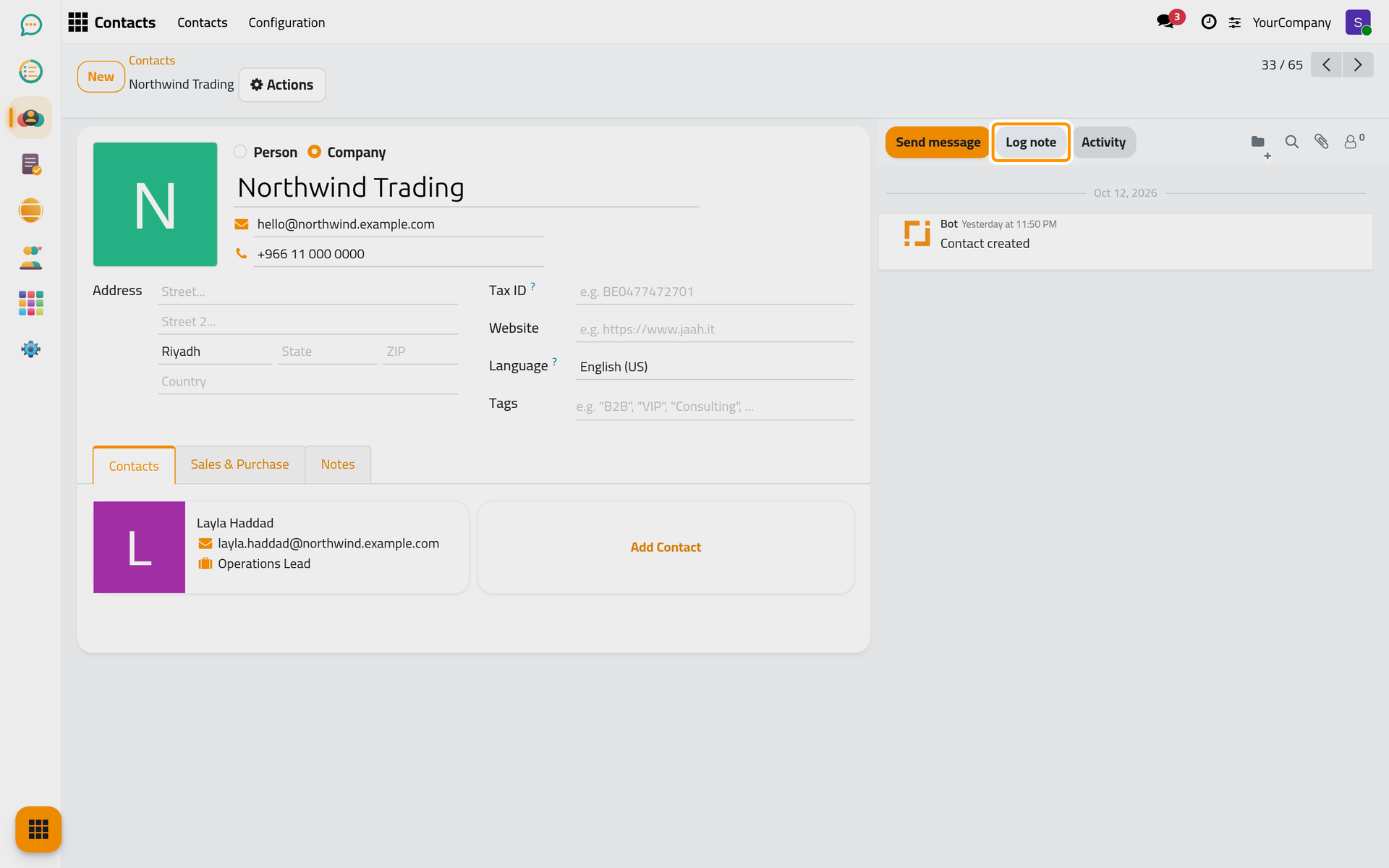
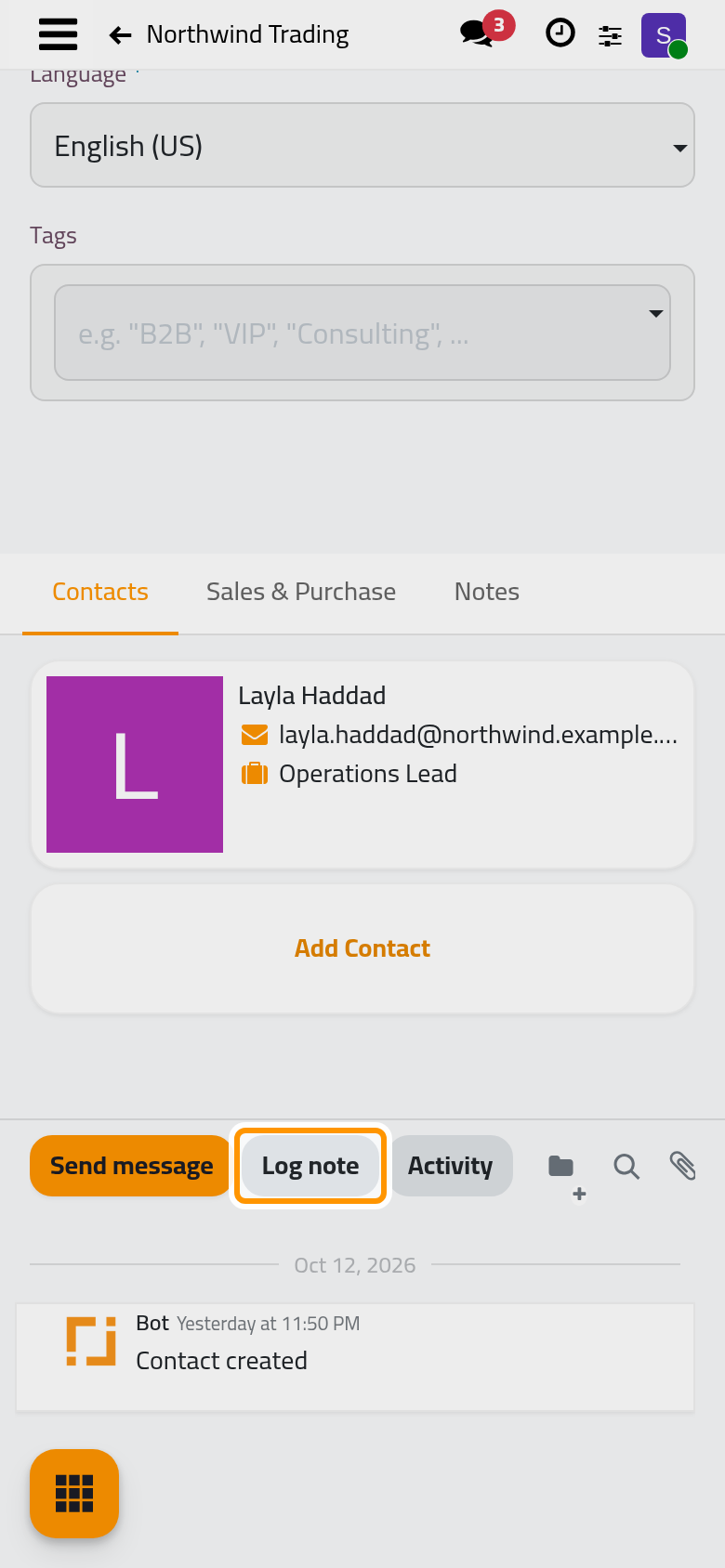
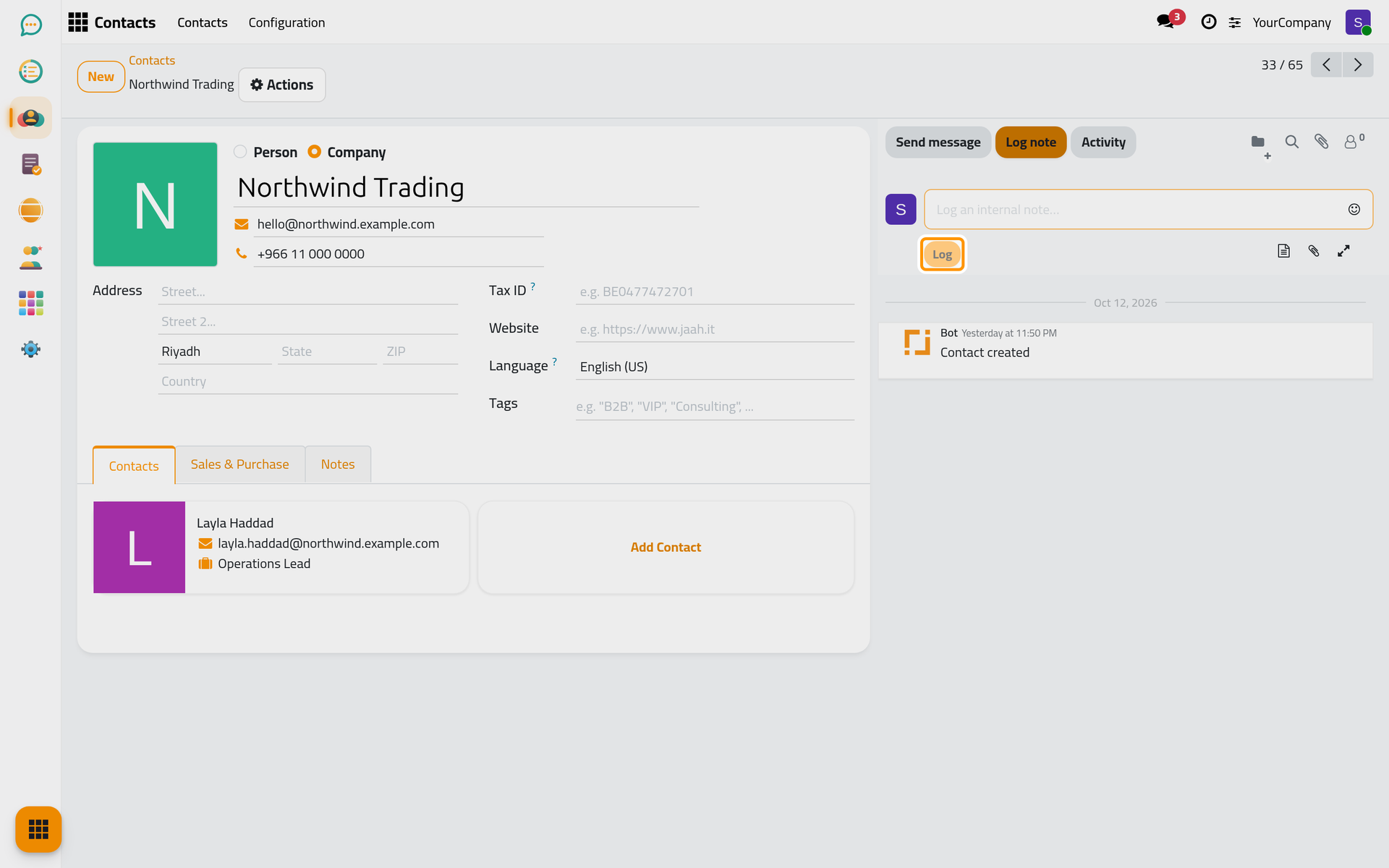
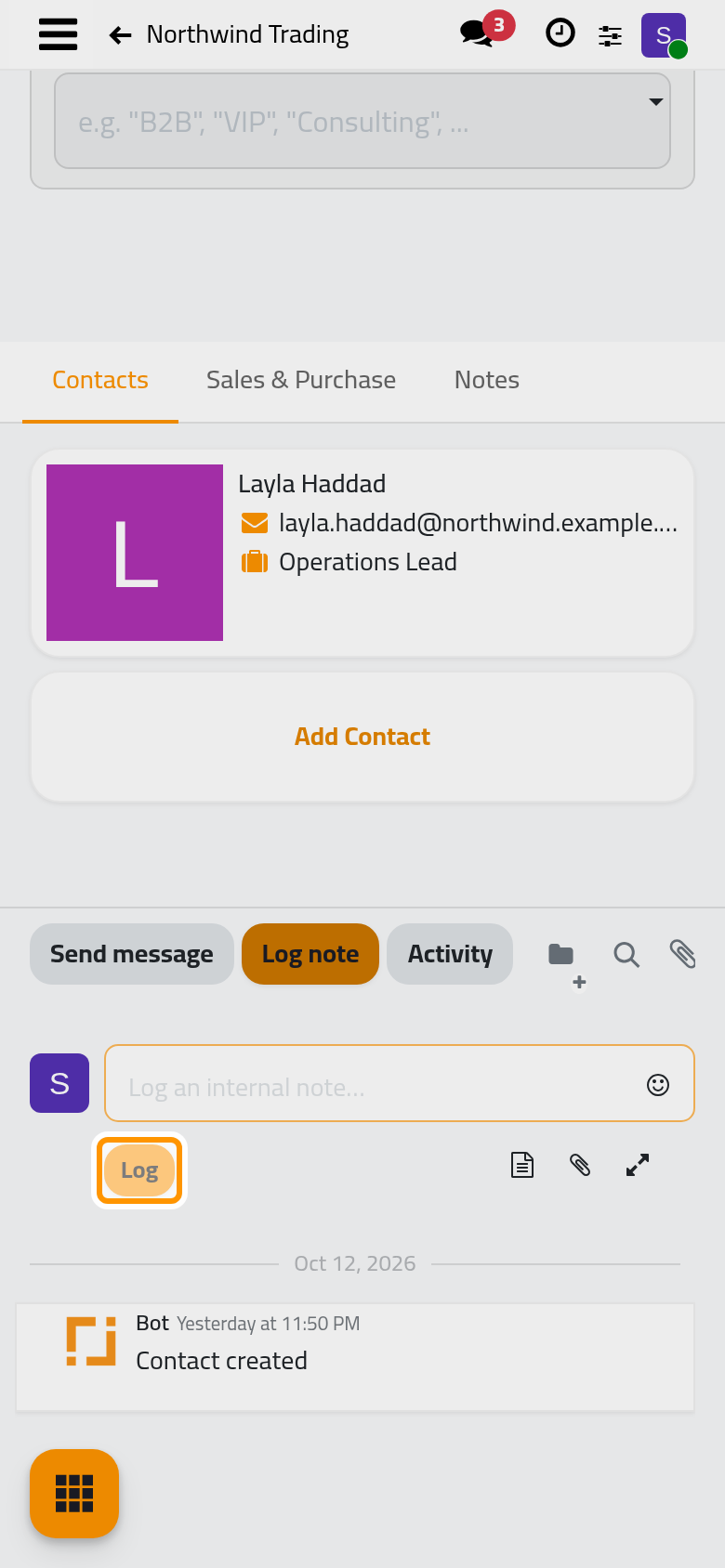
- To write for your colleagues, click Log note. The composer opens with the placeholder Log an internal note…. Type your text, mention a colleague with @ to notify them, then click Log. A note is never emailed to the contact or to the followers; the people you mention are notified.
- To write to the followers, click Send message. The To: row lists the recipients; you can add or remove some. Write the message and click Send. Every follower receives it by email or in their inbox, according to their preference.
- To plan work on the record, click Activity. In the Schedule Activity dialog pick the Activity Type, write a Summary, set the Due Date, choose who it is Assigned to (you by default) and add a Note if needed. Click Save; Mark Done records it as already done; Discard closes the dialog.
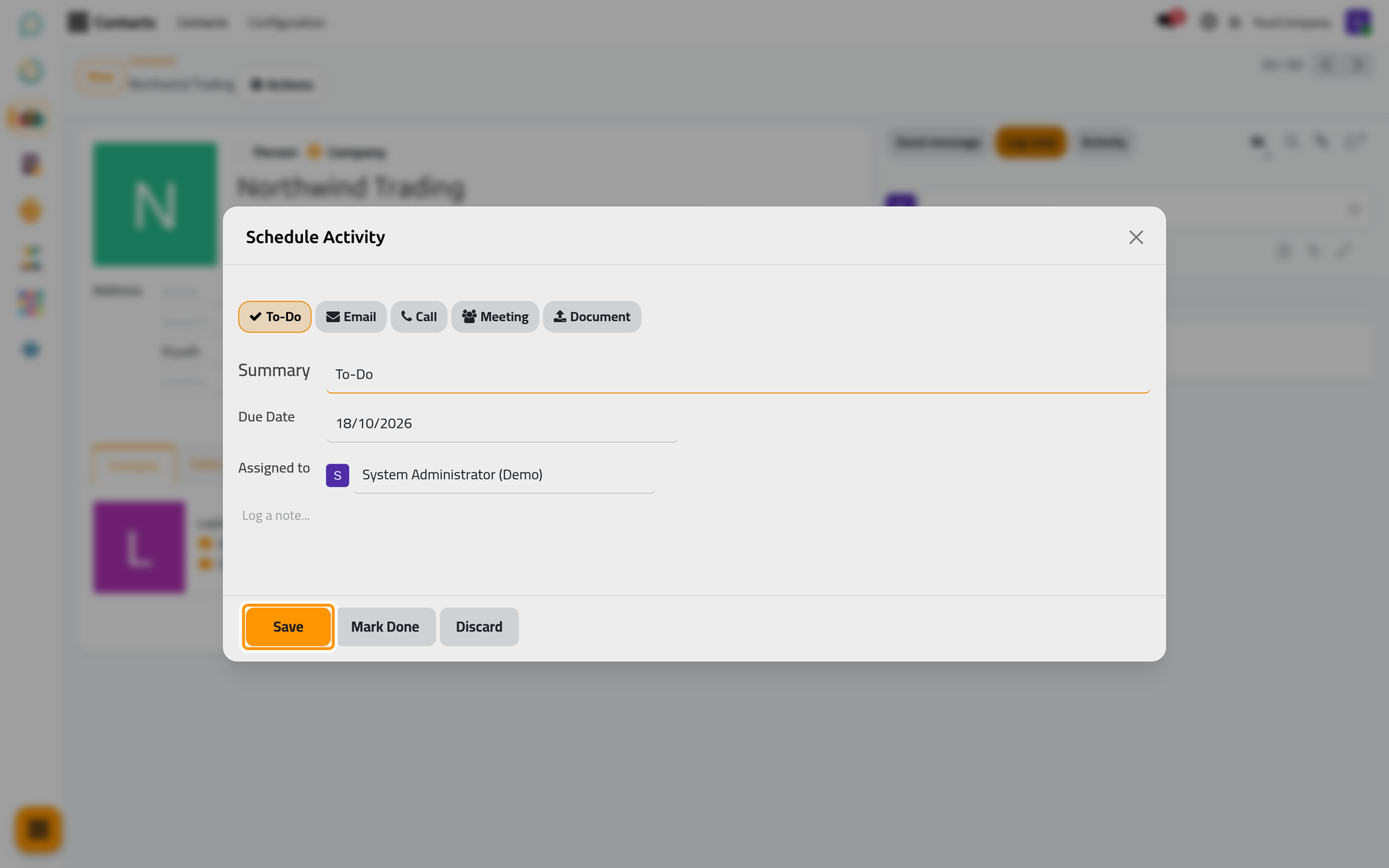
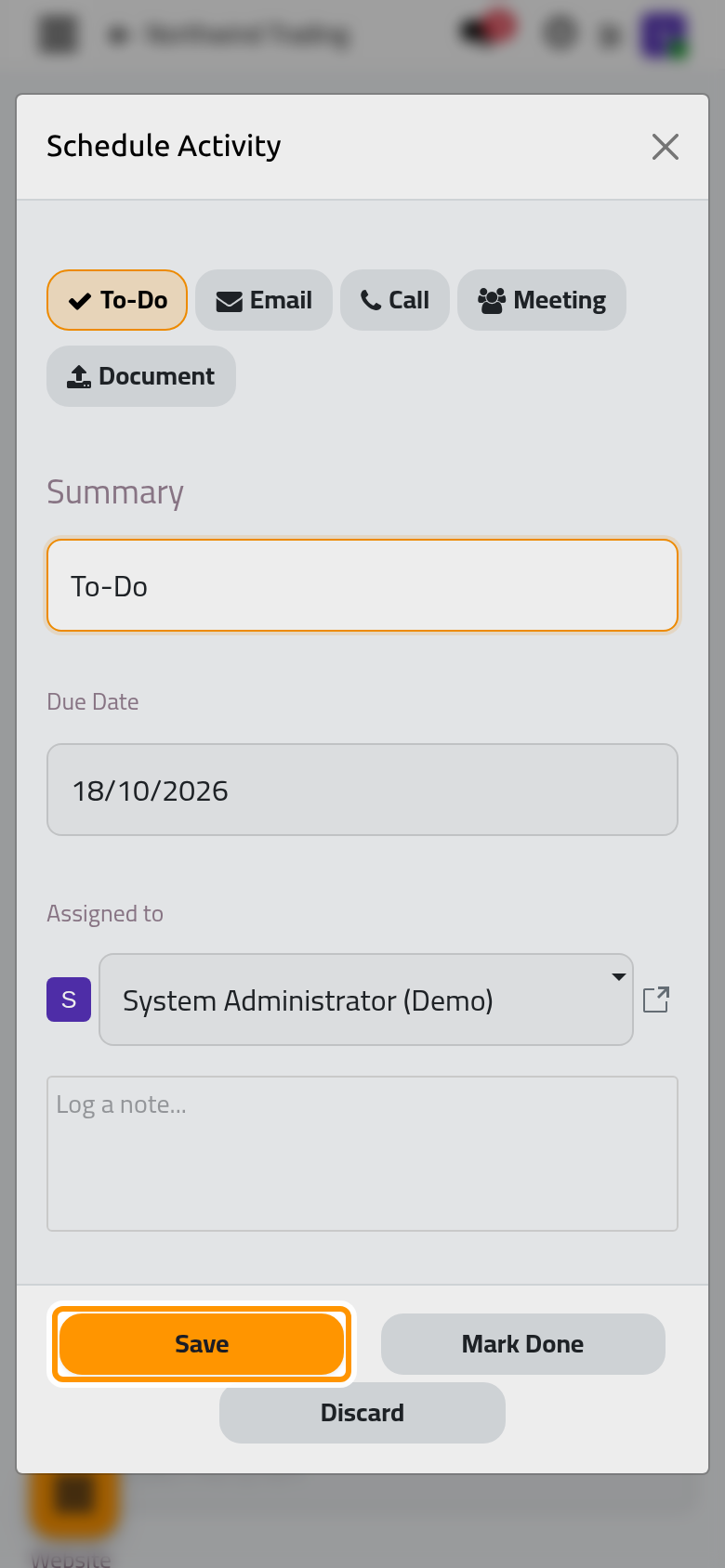
- Planned activities appear in the Planned Activities block at the top of the chatter, with how soon each one is due. From there you mark an activity done when it is finished (Mark as done).
- To attach a file, click the paperclip (Attach files). While the record has no attachment, your file picker opens directly. Once it has some, the button opens the Files box that lists them, with Attach files to add more and, on each file, Download and Remove. While the composer is open you can also drop files onto the chatter.
- To manage the followers, click the followers button (Show Followers). The list shows who follows the record. Follow or Unfollow applies to you; Add Followers opens a dialog to add colleagues or contacts; Edit subscription selects which kinds of events a follower receives.
Result
The chatter shows the messages, notes and activities in order, newest first, with the files in their box. Followers are informed of every message sent from the record; notes stay inside the team. The magnifier (Search Messages) finds a word anywhere in the history of the record.
FAQ
What is the difference between a message and a note?
A message goes to the followers of the record and to the recipients listed in To:, by email or in their inbox. A note is logged on the record only; nobody receives it unless you mention them with @.
Why did a colleague not get my message by email?
Each user chooses in My Preferences, under Notification, between By Emails and In Jaah. With the second choice, messages arrive in the inbox of Discuss, not in the mailbox. A colleague who does not follow the record receives nothing unless mentioned.
How do I stop following a record?
Click the followers button and choose Unfollow. You can still open the record; you only stop receiving its messages. Someone can add you back with Add Followers.
Can I move the chatter under the form?
Yes. Open the settings hub in the top bar (the sliders icon, Settings) and choose Bottom under Chatter. The choice is saved on your user account and applies on every device.
Was this page helpful?
Thank you for your feedback.