Set your preferences: language, password and two-factor authentication
On this page
Your preferences belong to your user account and follow you on every device: the language of the interface, your timezone, your email signature, how you are notified, your password, the devices signed in with your account and two-factor authentication. Every user sets them from the user menu; no administrator is needed, except to add a language the platform does not offer yet.
Before you start
- Know your current password: every action on the Security tab asks for it first.
- To turn on two-factor authentication, install an authenticator app on your phone (any app that generates time-based codes).
- A language appears in the list only when it is enabled on the platform; the Add a language button next to the field is for administrators.
Steps
- Click your avatar at the end of the top bar and choose My Preferences. The Change My Preferences dialog opens with three tabs: Preferences, Calendar and Security. The header shows your photo, your name and the fields Email and Phone, all editable.
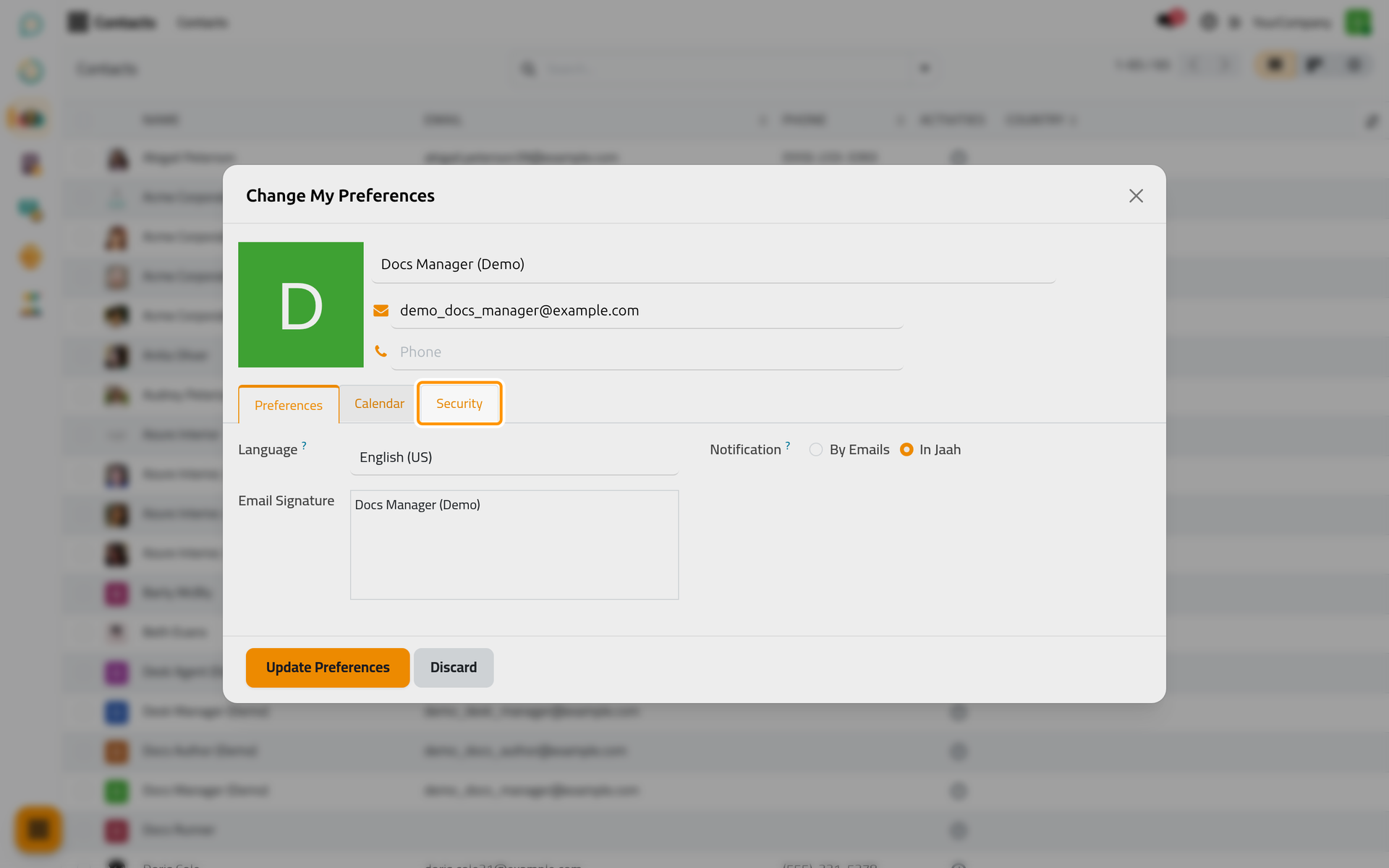
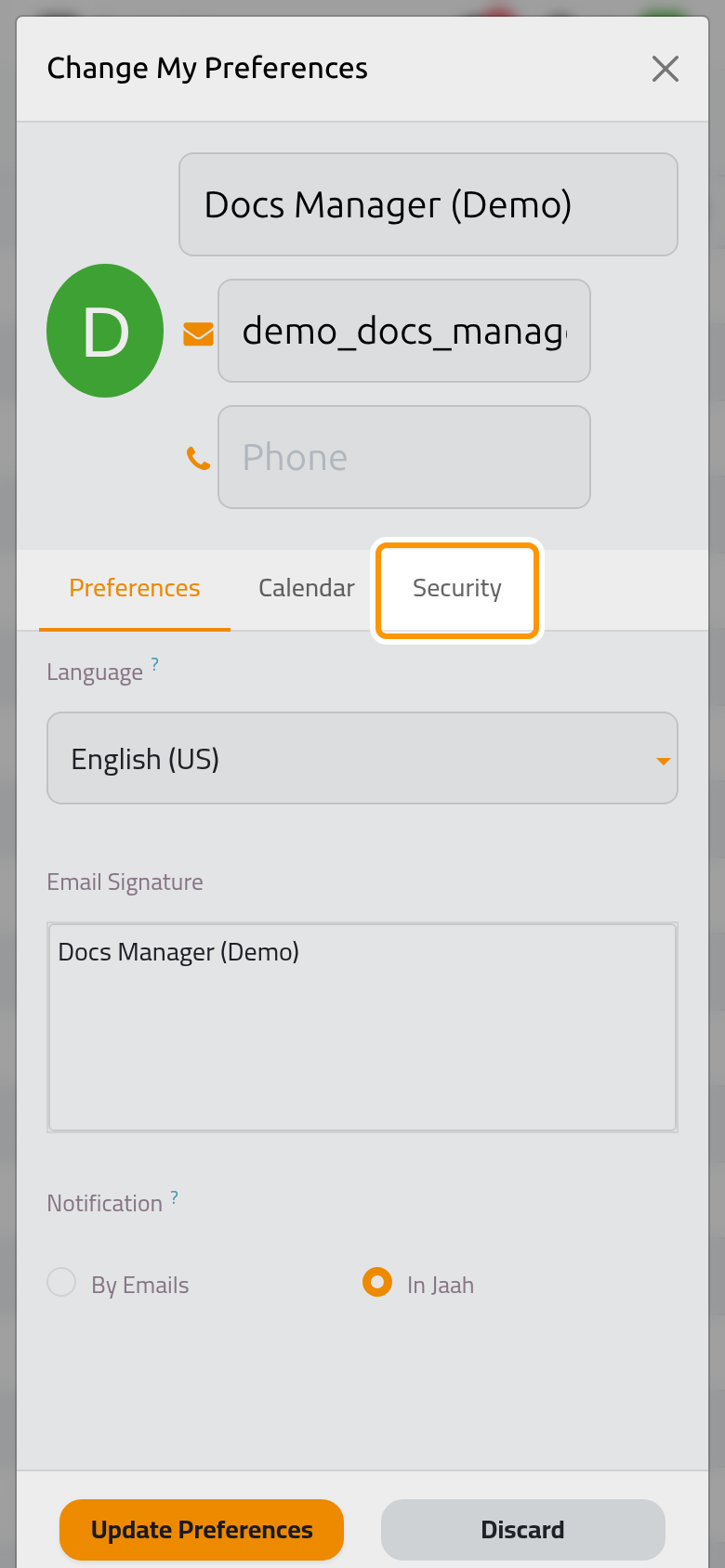
- On the Preferences tab choose your Language, write the Email Signature added to the messages you send from the chatter, and pick under Notification between By Emails and In Jaah. With the second choice, the messages of the records you follow arrive in your inbox in Discuss instead of your mailbox.
- On the Calendar tab set your Timezone (a warning appears when it differs from the one of your browser) and, if you will be away, the dates under Out-of-office with the message to show (Your out-of-office message...).
- Open the Security tab. It groups four things: Change Password with the Change password button; API Keys with Add API Key, keys that let external tools connect with your account; Devices, the sessions open with your account, with Log out from all devices; and Two-factor Authentication with Enable 2FA. Each button first opens the Access Control dialog: type your password under Let's first confirm it's you. Enter your current password: and click Confirm Password.
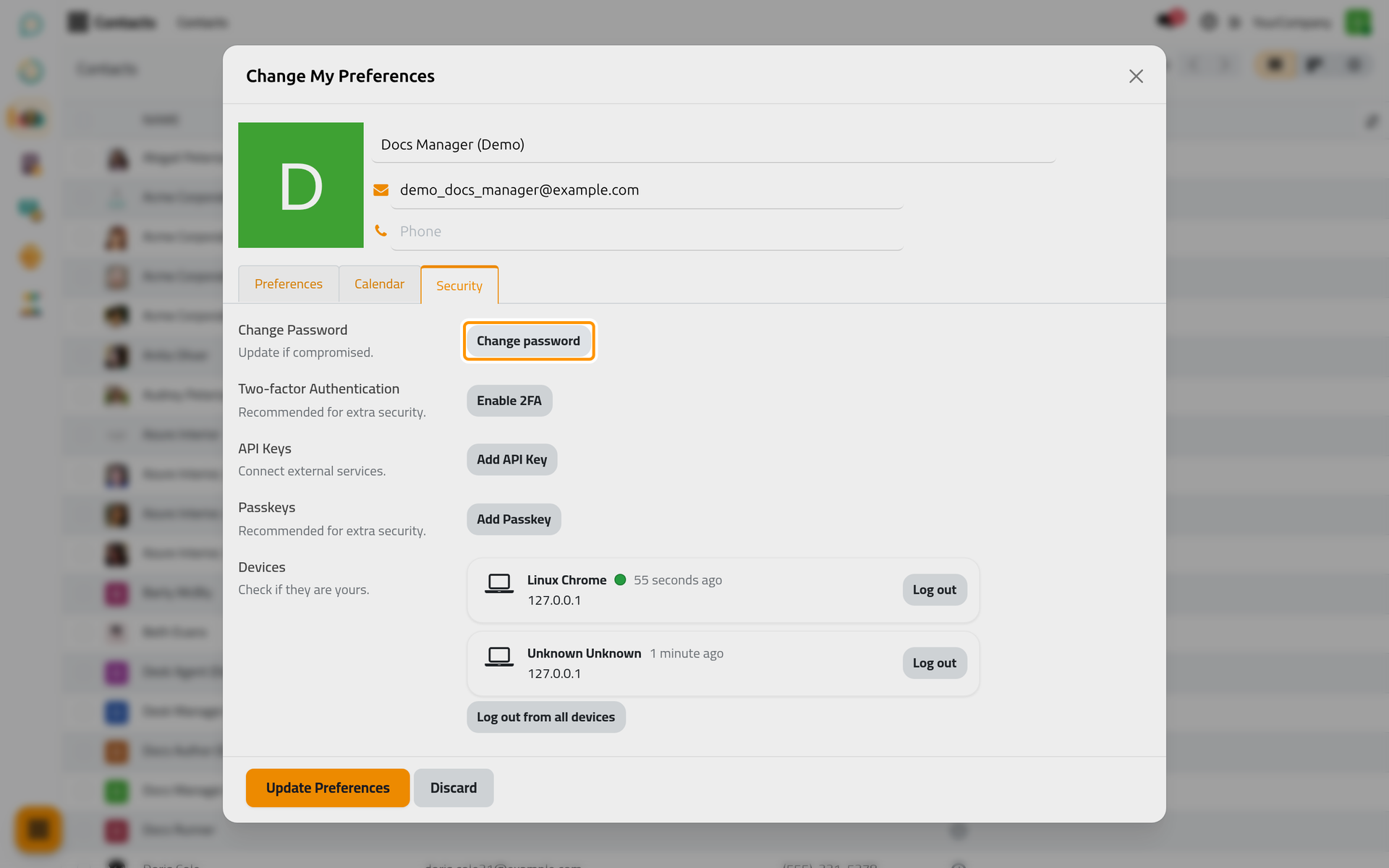
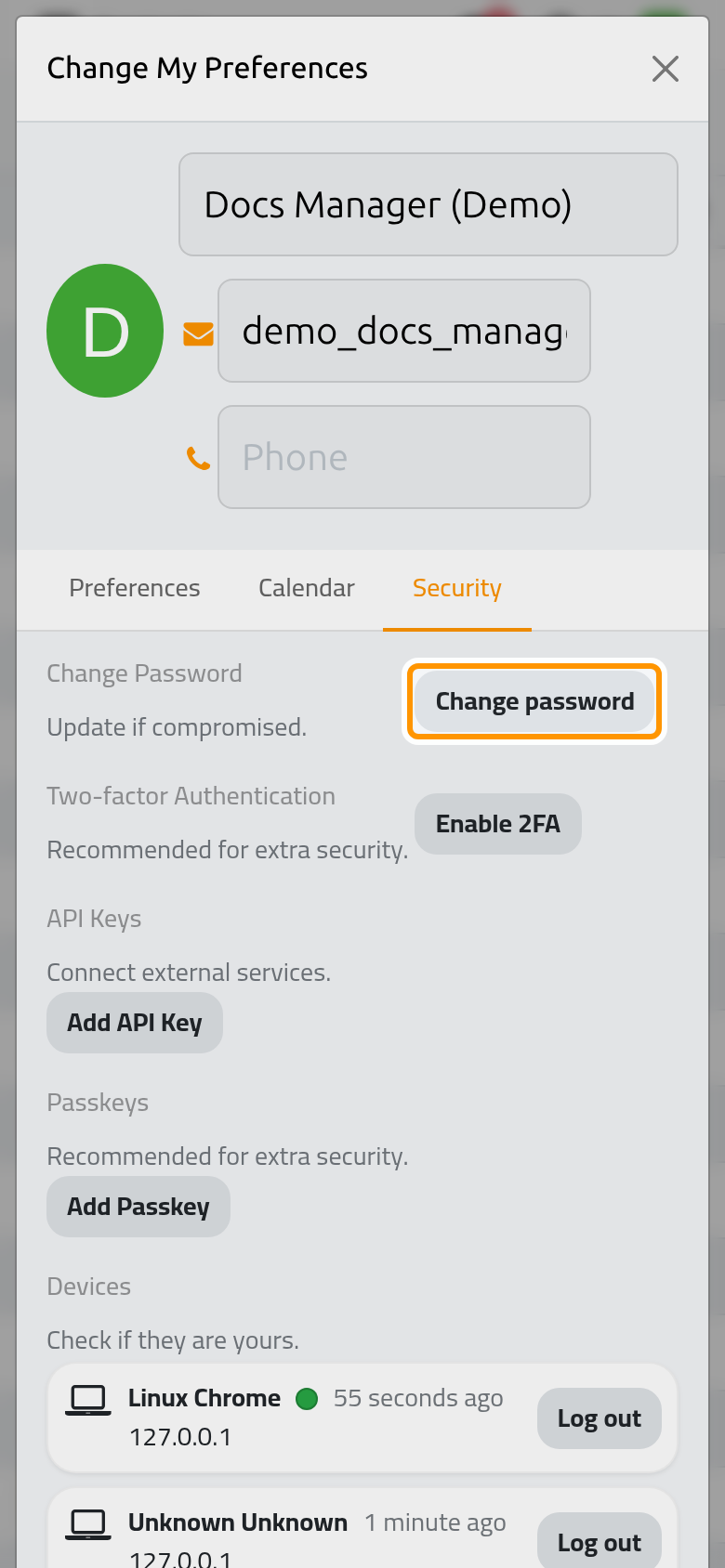
- To change your password, click Change password, confirm your identity, then fill New Password and New Password (Confirmation) and click Change Password. The page reloads; if the sign-in page appears, sign in with the new password.
- To turn on two-factor authentication, click Enable 2FA and confirm your identity. The Two-Factor Authentication Activation dialog shows a barcode: scan it with your authenticator app (on a phone the secret key is shown instead; on a computer Cannot scan it? reveals it). Type the six-digit code the app gives you in the Verification code field and click Enable Two-Factor Authentication. A notification confirms it: 2-Factor authentication is now enabled. From now on, after your password, every sign-in asks for the Authentication Code; tick Don't ask again on this device on a device you trust. The tab now shows Enabled and a Disable button.
- To end the sessions open elsewhere, click Log out from all devices and confirm your identity. The other devices are signed out; the session you are using stays.
- Click Update Preferences to save the first two tabs, or Discard to close without saving. The actions of the Security tab apply as soon as you confirm them.
Keep the secret key
When you enable two-factor authentication, copy the key shown under Cannot scan it? and keep it somewhere safe. With it you can set up the authenticator app again on a new phone.
Result
Your choices are stored on your user record, so the same language, timezone and notification mode apply wherever you sign in. The theme's settings hub in the top bar (the sliders icon, Settings) offers the same Language choice in one click, next to the look of the interface.
FAQ
How do I switch the interface language quickly?
Open the settings hub (Settings in the top bar) and click a language under Language; the page reloads in it. The same choice sits in My Preferences under Language.
I lost the phone with my authenticator app.
Ask an administrator: on your user record under , the Disable button next to Two-factor Authentication turns it off. Sign in again, then enable it with your new phone.
Why is my language missing from the list?
Only the languages enabled on the platform are listed. An administrator adds one with the Add a language button next to the Language field; it then appears for everyone.
Does "Log out from all devices" sign me out too?
No. It ends every other session of your account and keeps the one you are using. Change your password as well if you think someone else knows it.
Was this page helpful?
Thank you for your feedback.