Search, filter and group records
On this page
Every list and kanban board has the same search bar. What you type becomes a facet, a small chip above the records; the search panel next to it adds filters, groups and saved searches. The same gestures work in every app, so learn them once on the contacts list. Any user can search and save favorites for their own use.
Before you start
- Open a list, for example .
- Three kinds of facets exist: a search on a field (what you type), a filter (a fixed condition such as Companies) and a grouping (Group By). They combine: a record must satisfy all of them.
- Facets live as long as you stay on the screen; a favorite keeps them.
Steps
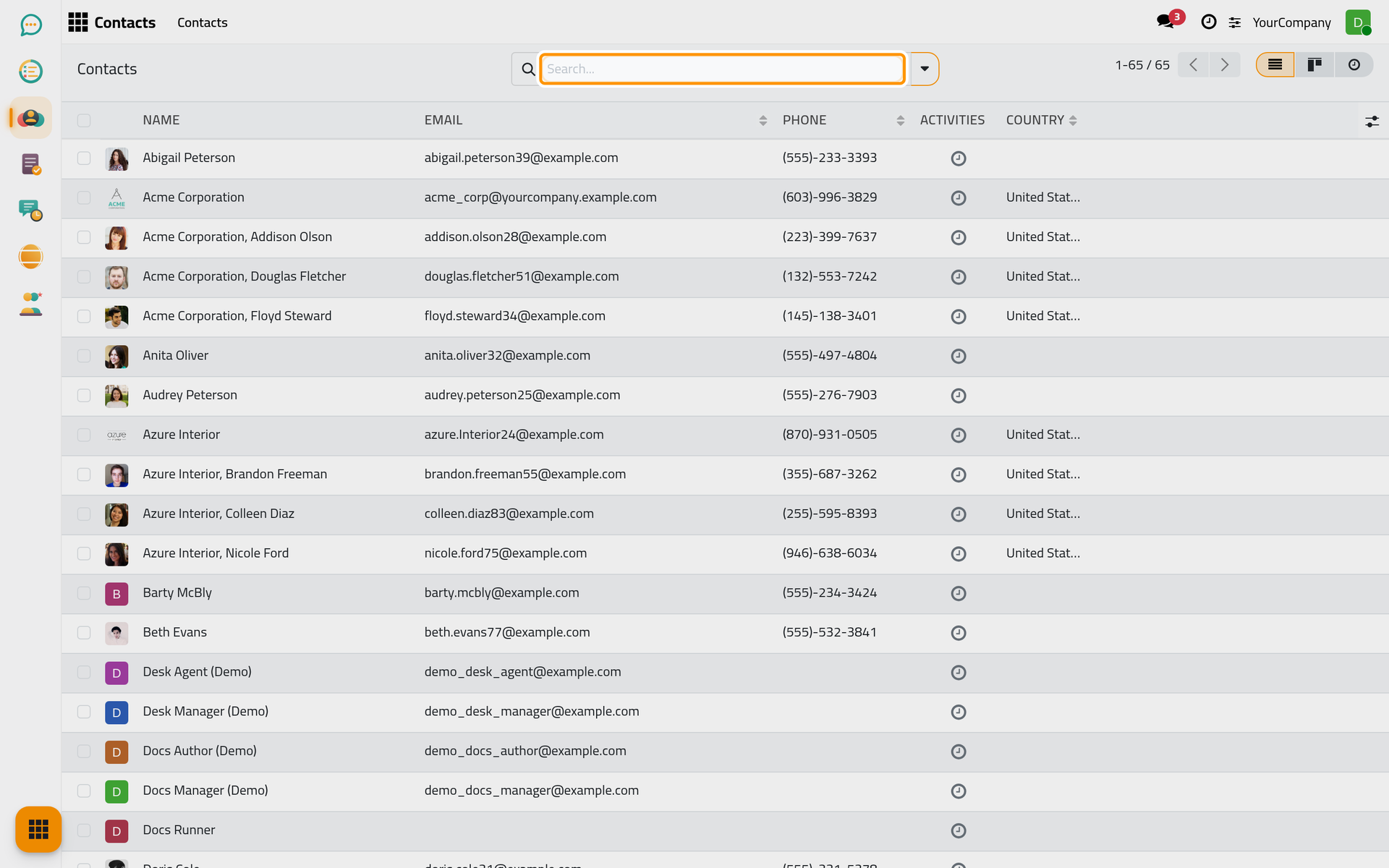
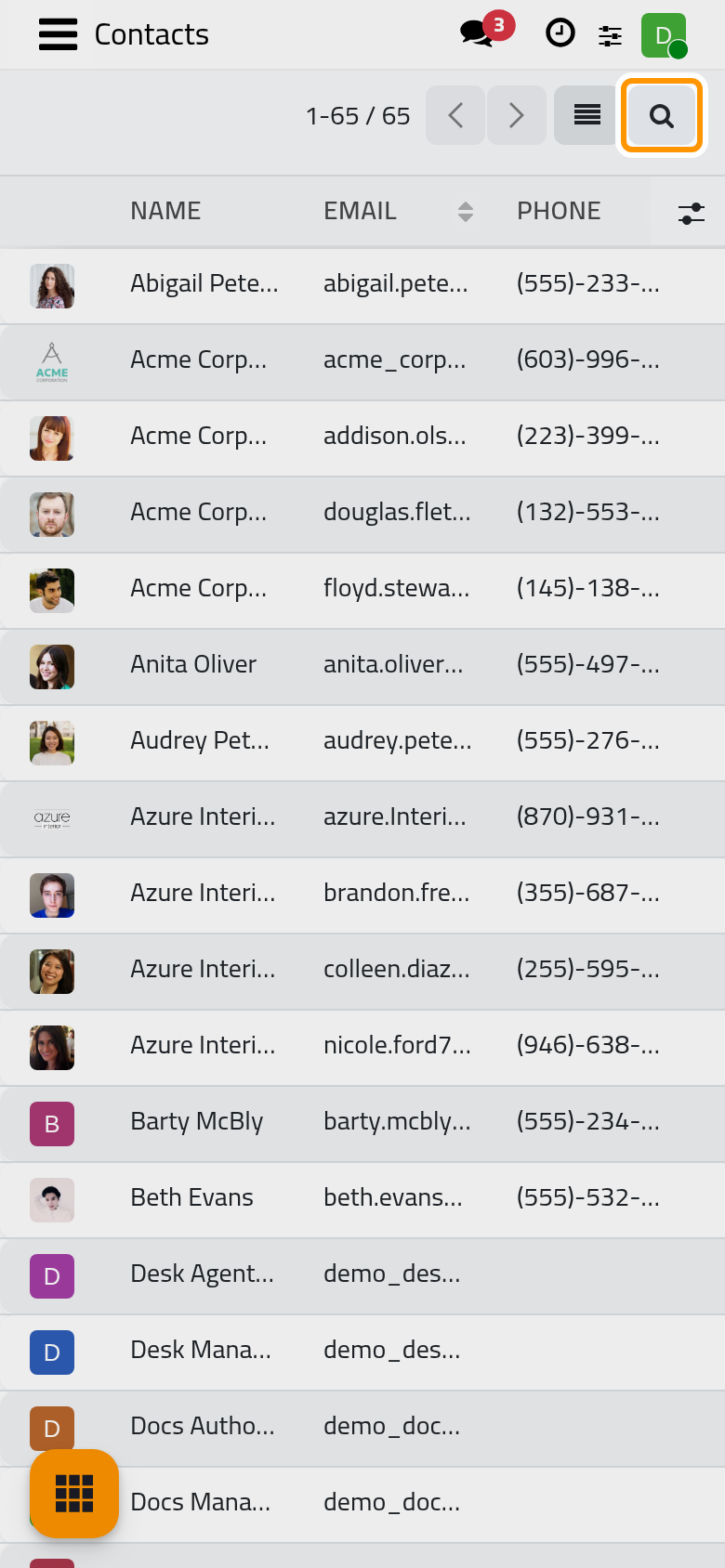
- Click in Search... and type a word, for example
Wood. A drop-down lists the fields that can be searched; the first entry searches the main field, the name here. Press Enter to take it, or click another field such as the email or the phone.
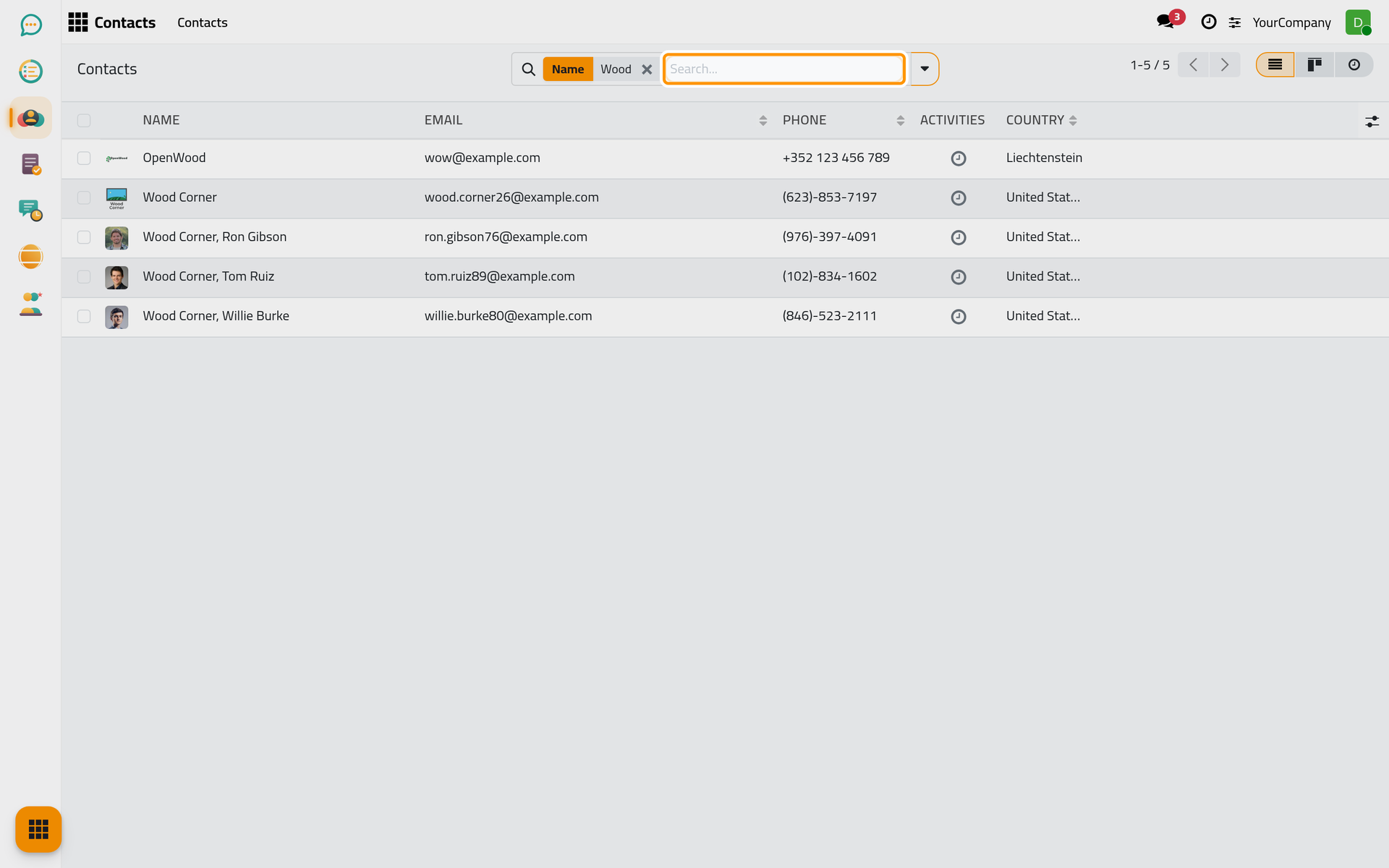
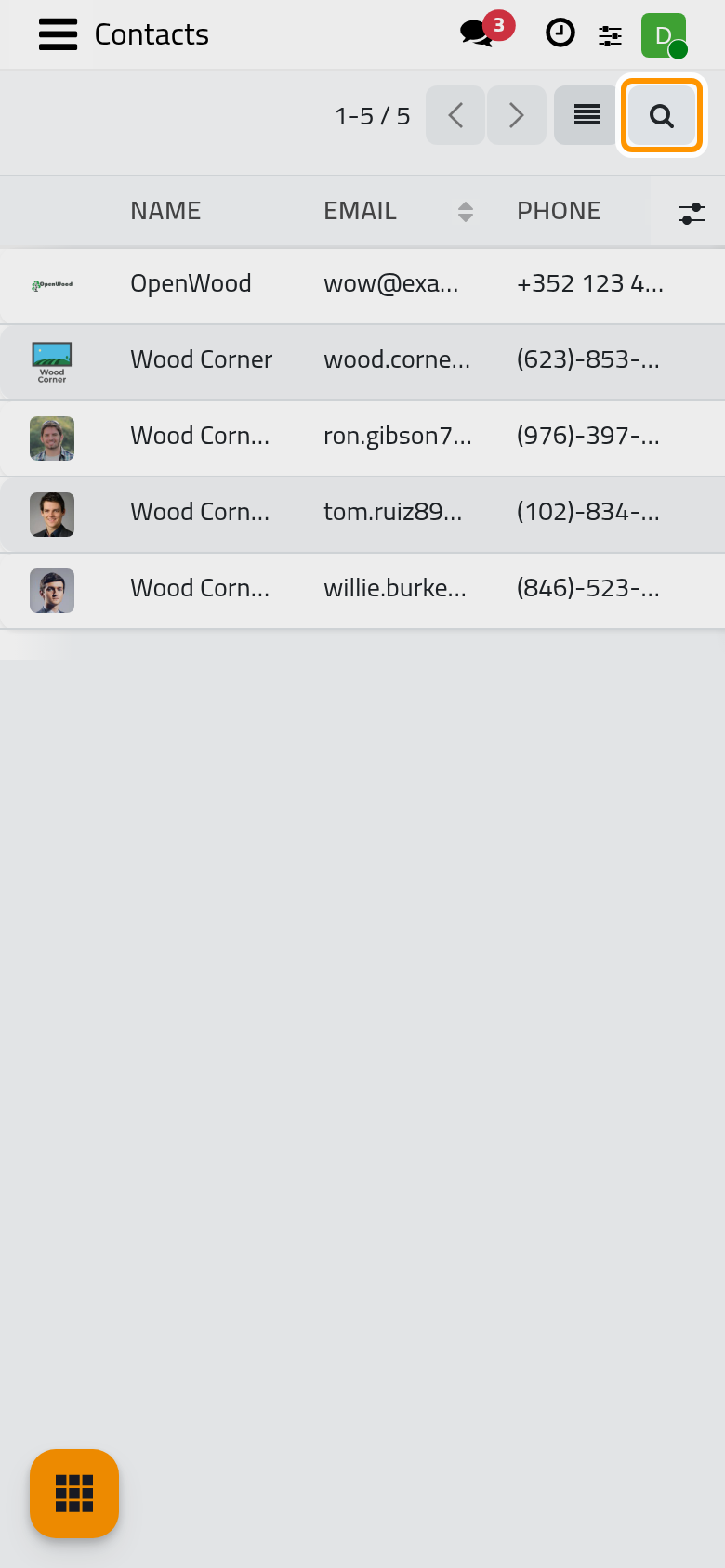
- The list keeps only the matching records and the facet shows the field and the value. Remove it with its cross, Remove, or press Backspace in the empty box to remove the last facet.
- Click Toggle Search Panel, the caret at the end of the bar. The panel has three columns: Filters, Group By and Favorites.
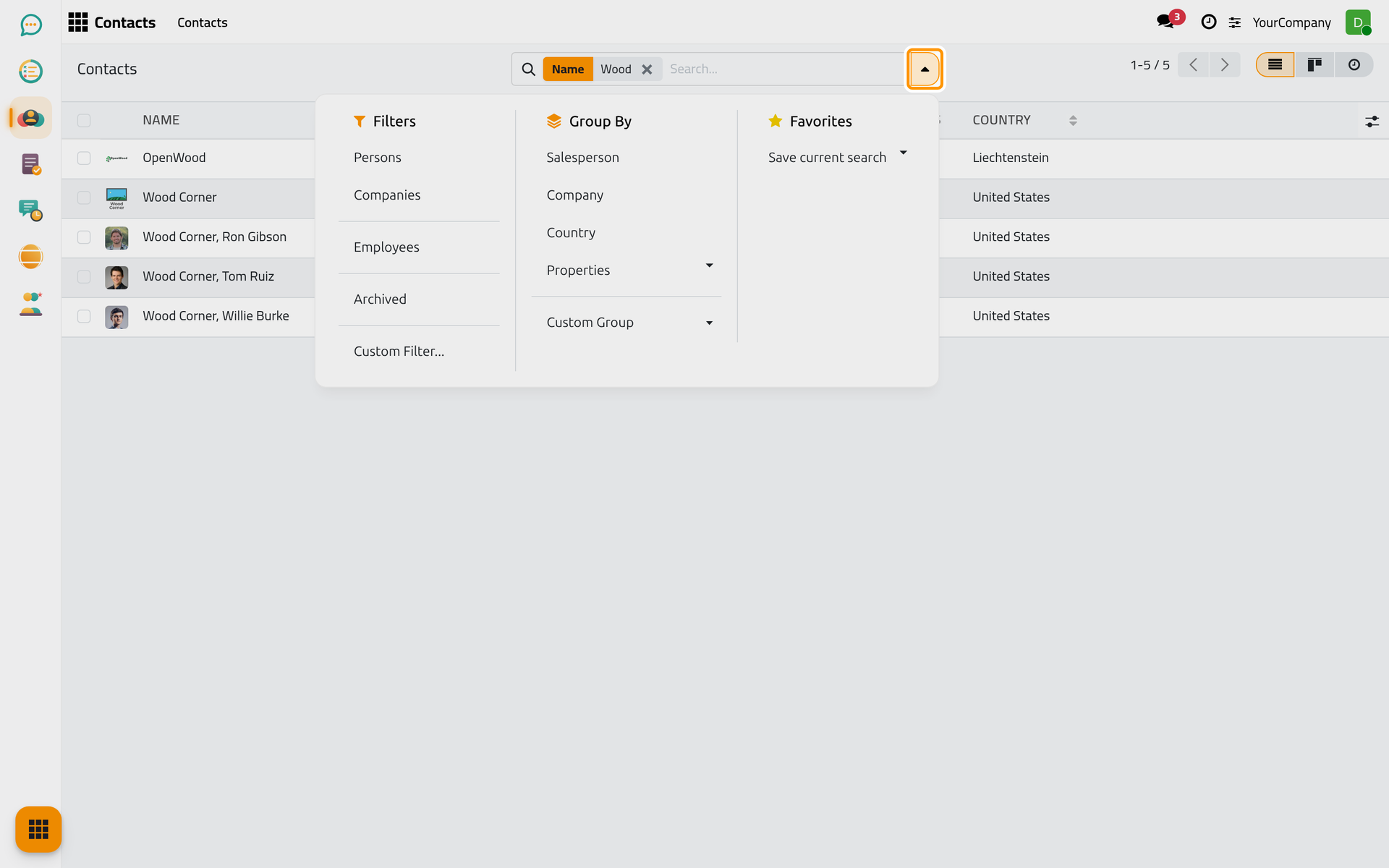
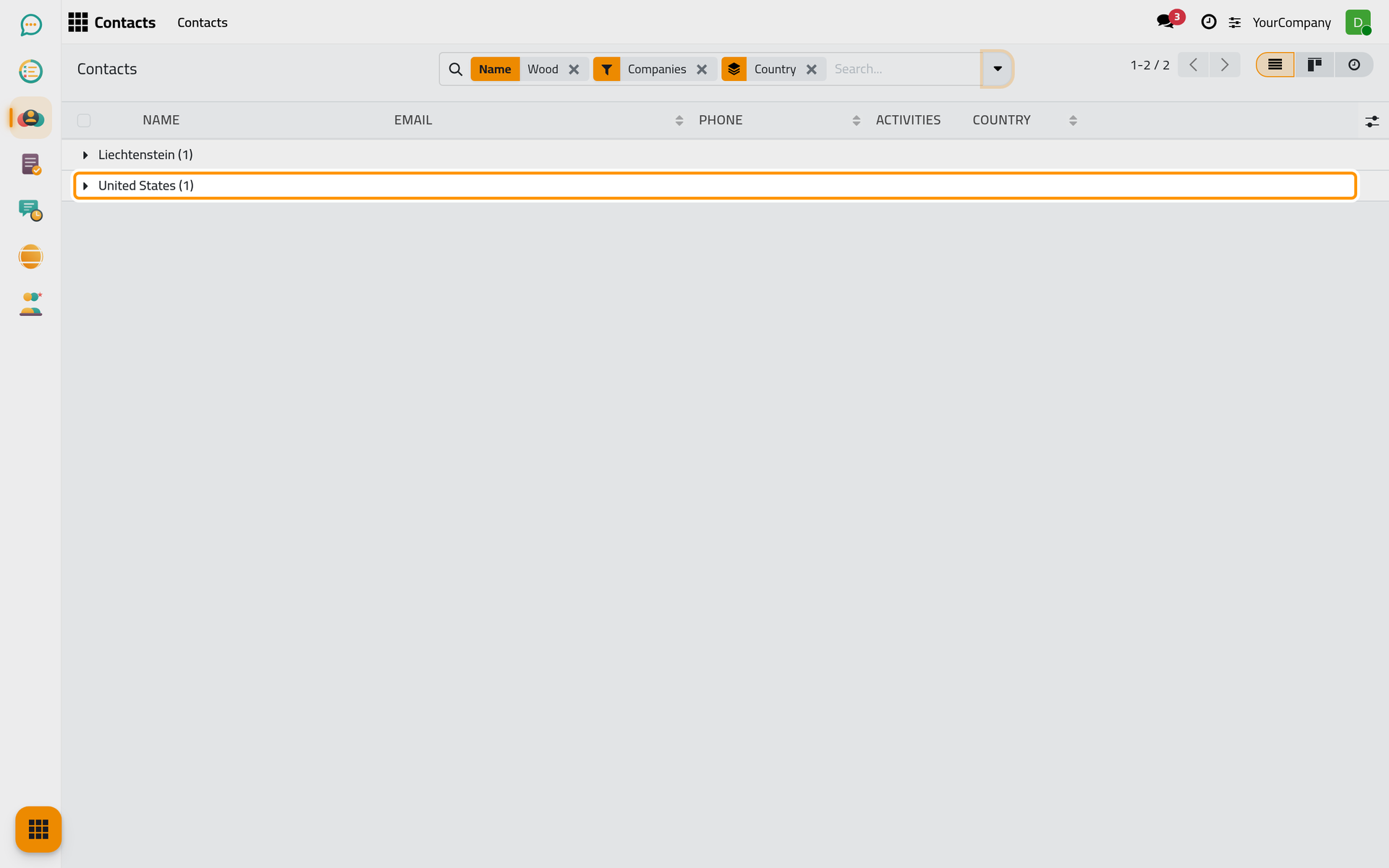
- Tick a filter, for example Companies. The contacts list also offers Persons and Archived. Filters of the same block are combined with "or", filters of different blocks with "and"; an active filter shows a check mark.
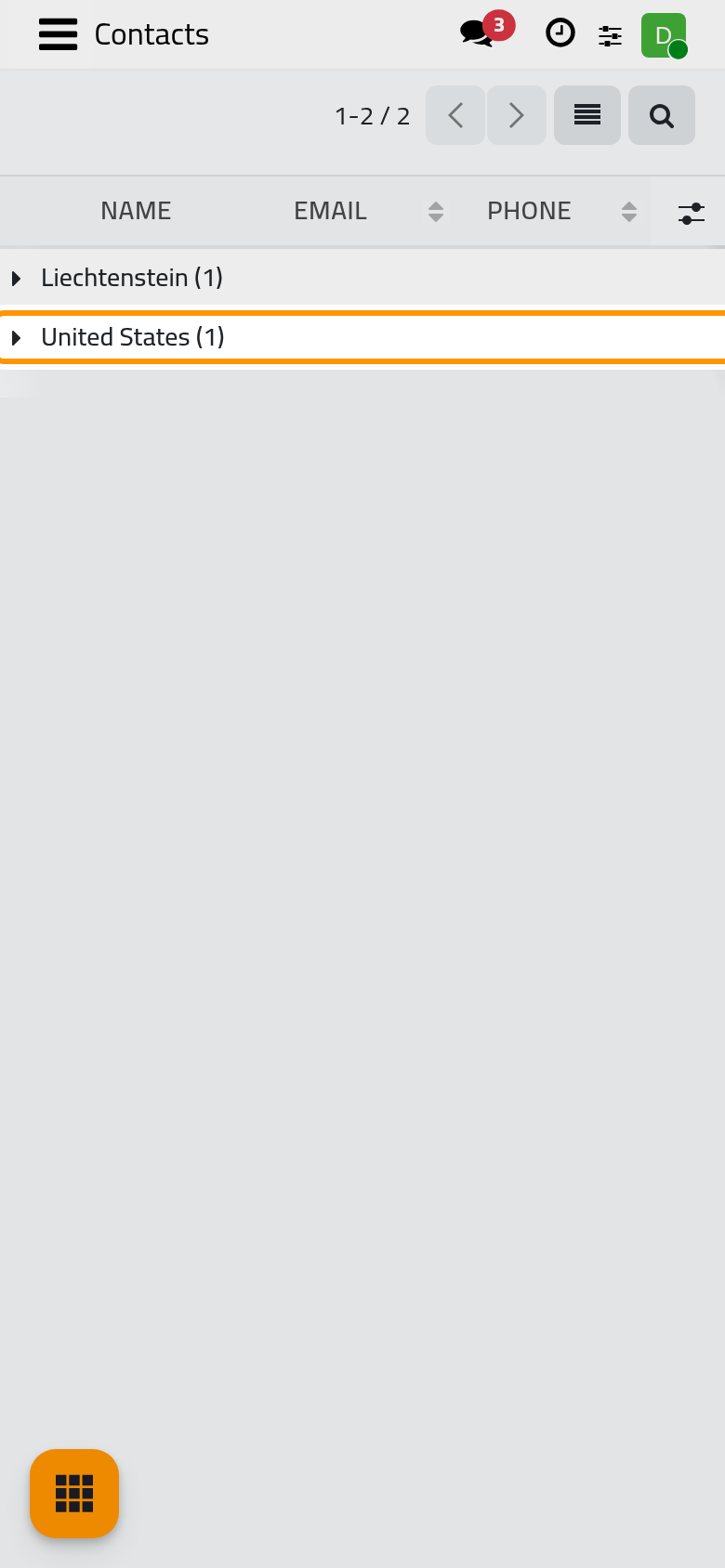
- Under Group By, click a field, for example Country; the contacts list offers Salesperson, Company and Country. The records fold into one group per value with its count; click a group to open it. A second field makes nested groups. The select Custom Group at the bottom of the column groups by any other field.
- To keep the combination, open Favorites, click Save current search, type a name and click Save. Tick Default filter before saving when the search must apply every time you open this screen. The favorite appears in the same column; the trash icon next to it, Delete item, removes it.
Result
The list shows only the records you need, grouped the way you read them, and your favorite brings the same view back in one click.
FAQ
How do I search in two fields at once?
Type the first value and pick its field, then type the second and pick another field. Two values on the same field are "or"; values on different fields are "and".
Why does my search disappear when I come back?
Facets belong to the screen you are on: they survive opening a record and coming back through the breadcrumbs, but not leaving the app. Save the search as a favorite to keep it.
Where are the archived records?
They are hidden by default. Tick the Archived filter to list them instead of the active ones; Unarchive in the Actions menu brings a record back.
What does Custom Filter... do?
Custom Filter..., at the bottom of the Filters column, opens an editor where you build a condition on any field, with "and", "or" and comparison operators. Use it when the ready-made filters are not enough.
Was this page helpful?
Thank you for your feedback.