Create a user and set access rights
On this page
- Before you start
- Steps
- Result
- FAQ
- Why does the user not see an app?
- How do I remove someone who left?
- What is the difference between User and Administrator?
- What are internal, portal and public users?
- How does a user reset a forgotten password?
- Why can I not add another user?
- Why are the Companies fields missing?
Every person who signs in to Jaah needs a user record. Creating one takes a minute: a name and a login email, a role, and an access level for each app. The Users list is open to administrators and to the members of the Access Rights group; the Administrator role is what lets you configure the system itself.
Before you start
- The person's email address: it becomes the login and receives the invitation.
- The apps they will use and at what level: in the Access Rights tab each app offers its own levels, from none to the app's administrator.
- Whether they must be an Administrator: only to configure the system (General Settings, Apps, users). Most people are a User.
- New users also receive the groups of the Default access for new users group, edited from Permissions › Default Access Rights in .
- With several companies, which companies they may open.
Steps
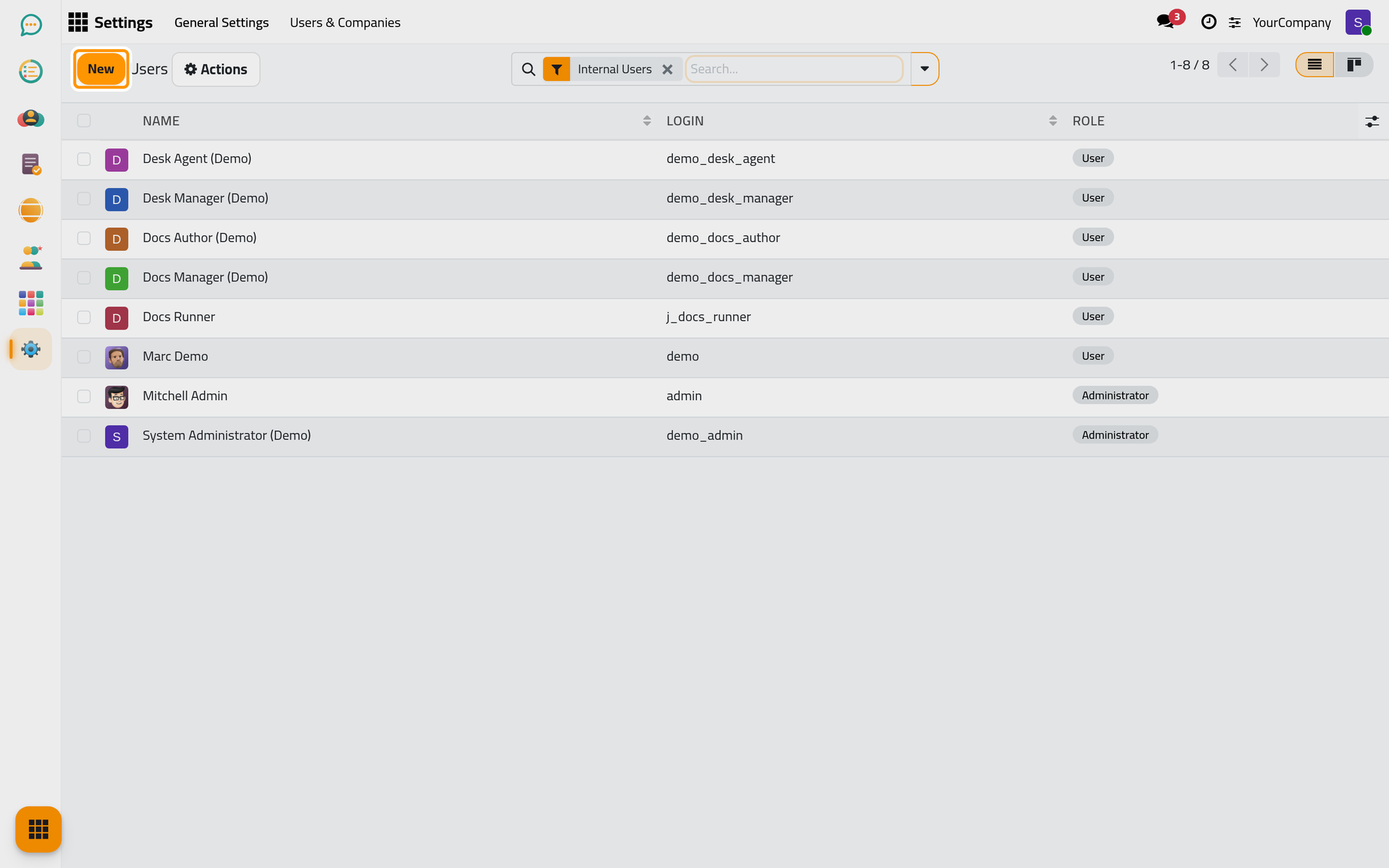
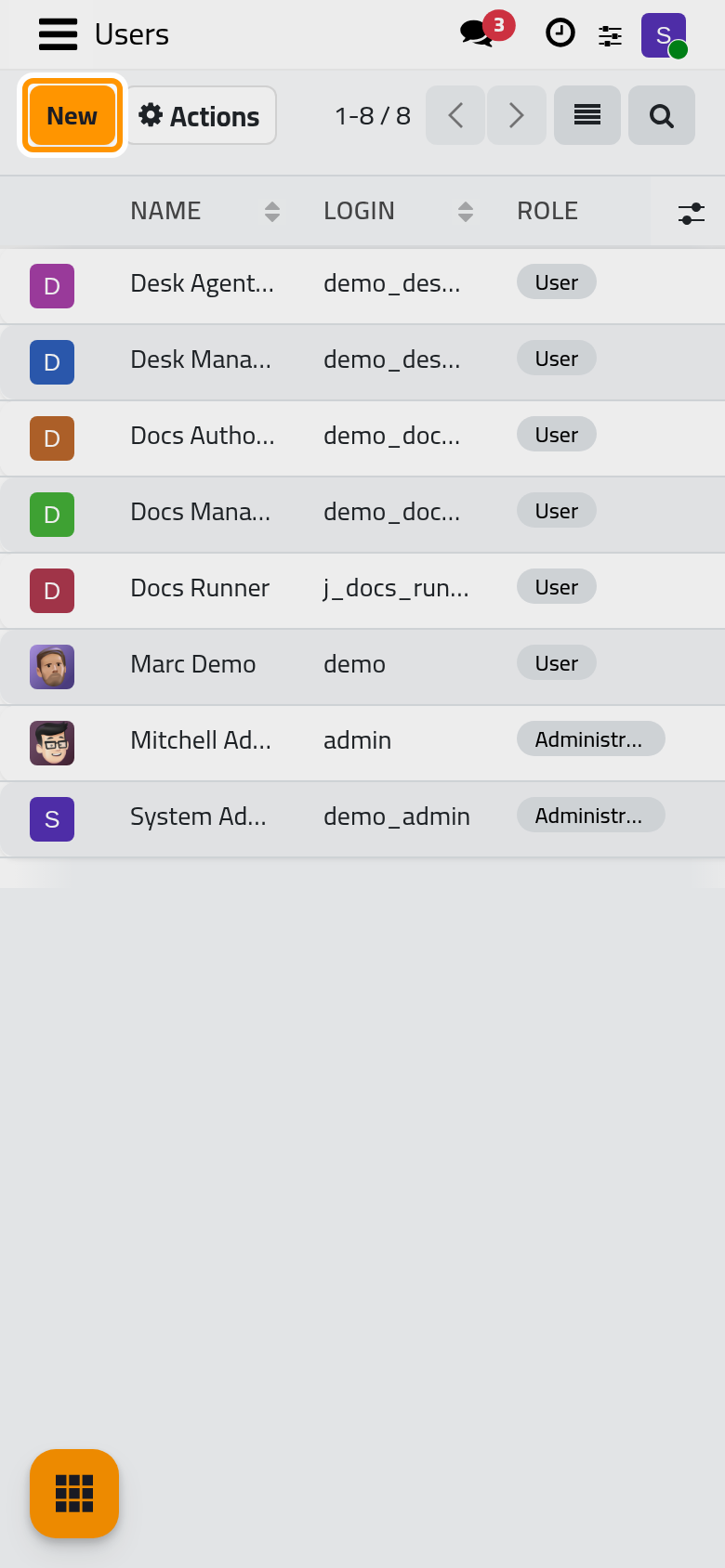
- Open . The list shows the Internal Users with their Name, Login and Role; the Portal Users and Inactive Users filters show the others. Click New.
-
Type the Name and, in Login, the person's email address. An address typed as login is copied to the email automatically, and the login is what the person types on the login page.
-
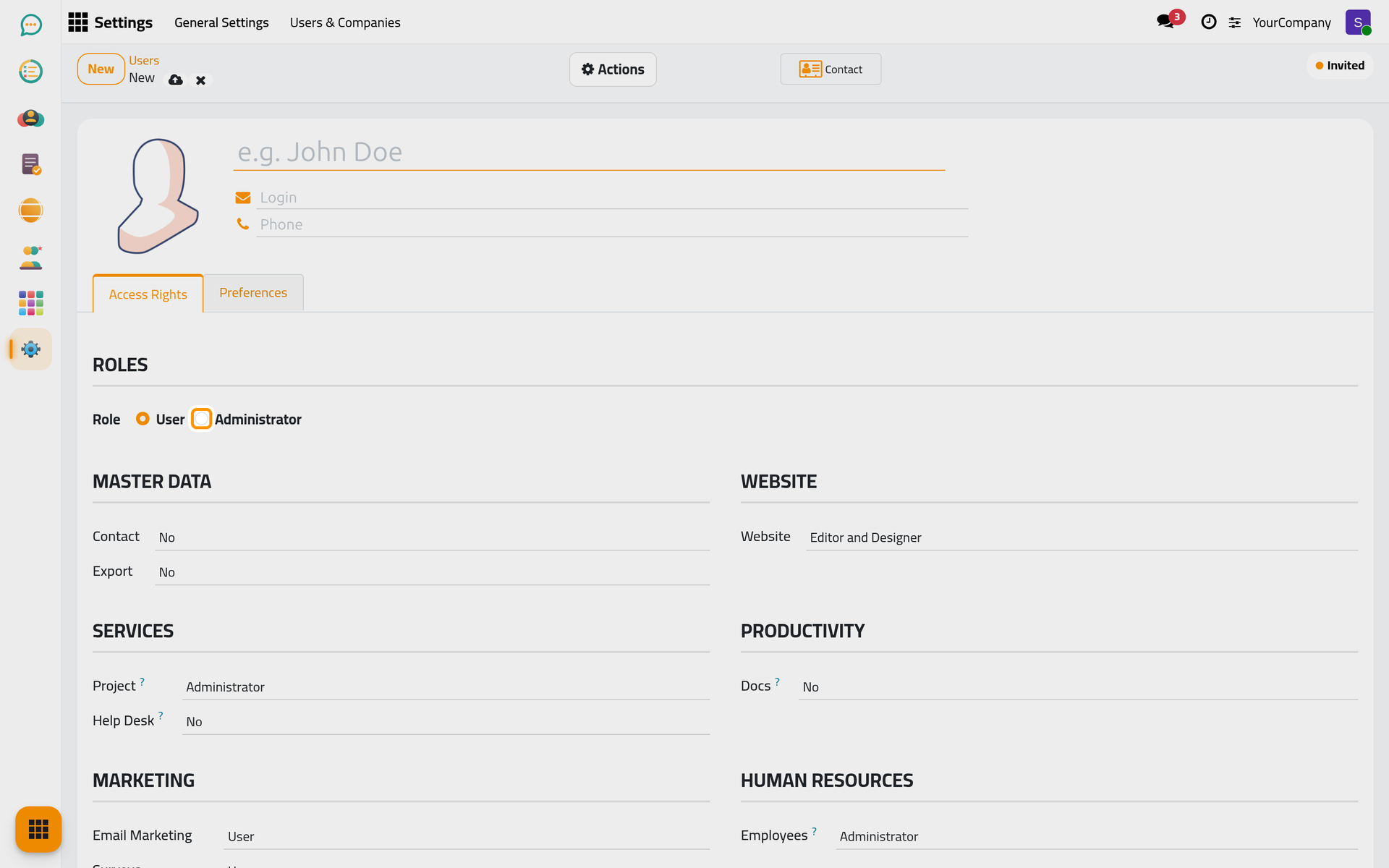
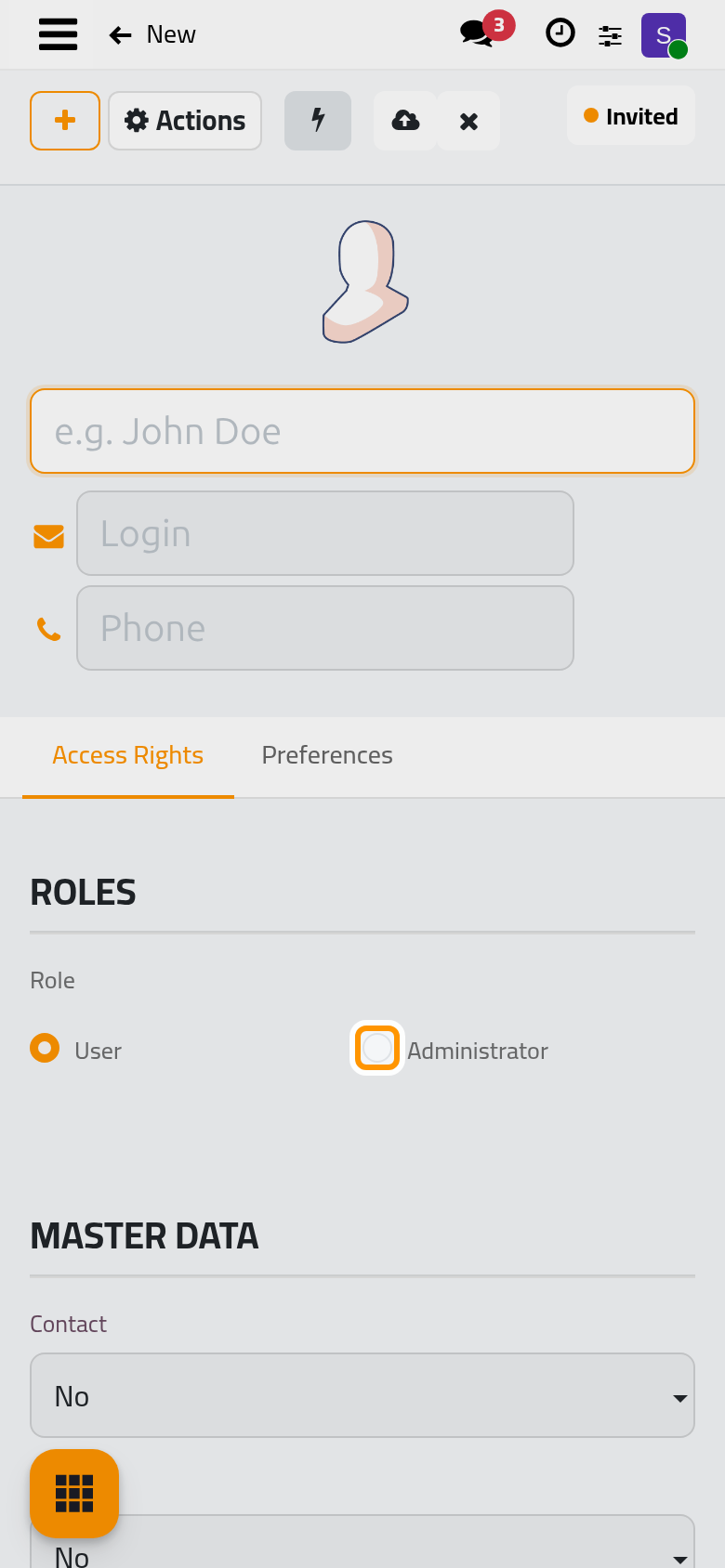
In the Access Rights tab, under Roles, choose the Role: User or Administrator. When the database has several companies, the Companies the user may open and their Default Company are set here too.
-
Below the roles, each installed app has a line: pick the access level in its list, or tick the box when the app has a single level. Leave an app empty to keep it hidden from this user.
-
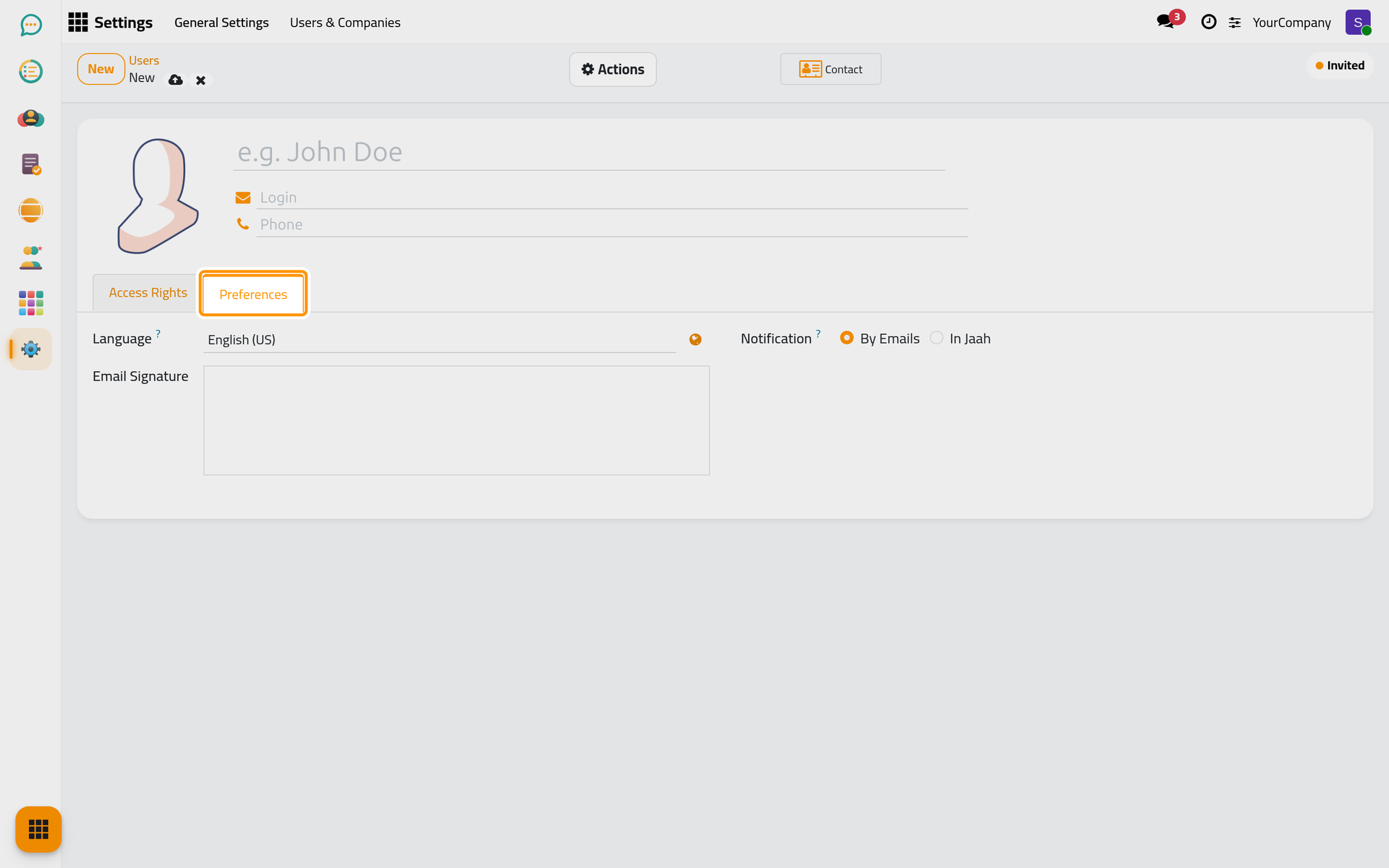
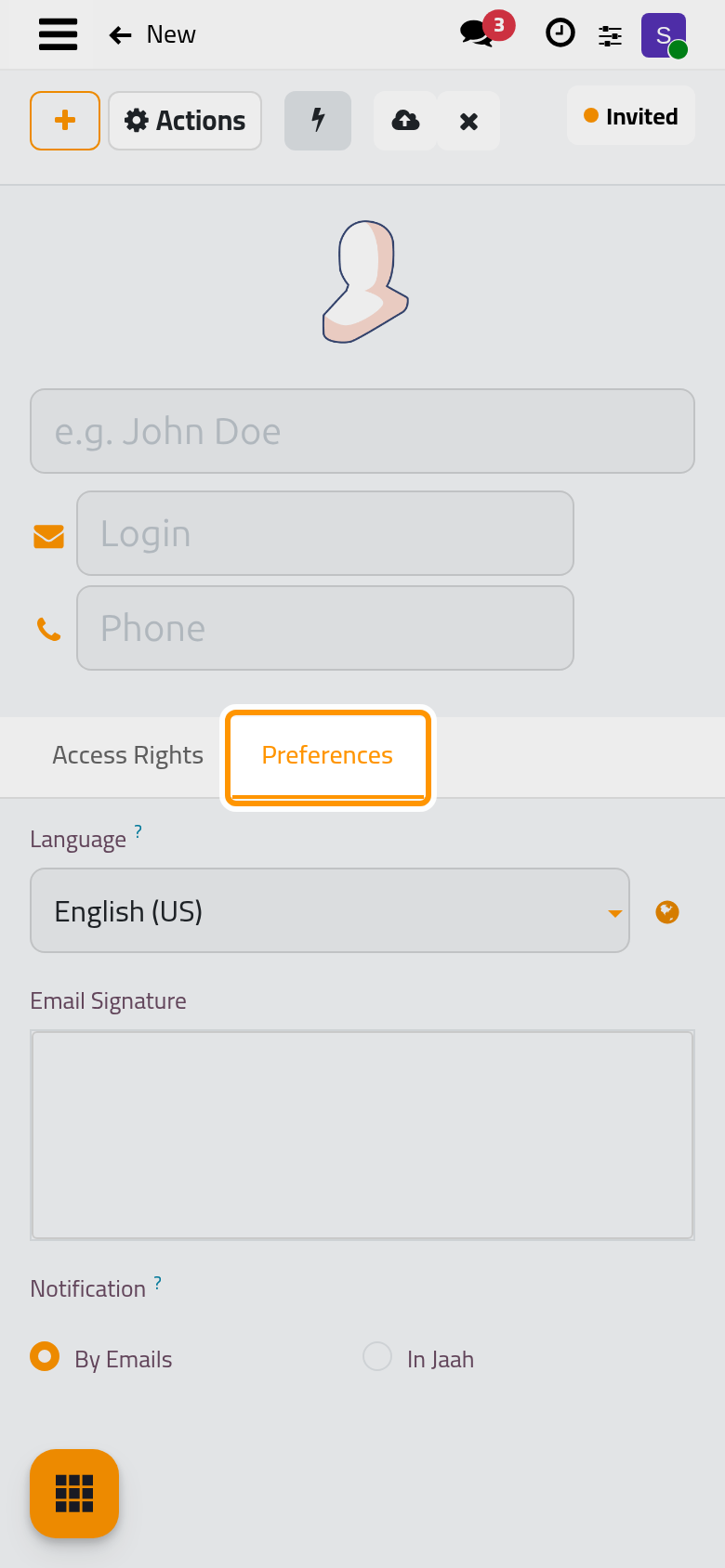
In Preferences, set the Language and, if you like, the Email Signature. In Calendar, check the Timezone: every date and time the user sees is converted to it, and a warning marks it when it differs from the browser's.
-
Leave the form or click the cloud icon Save manually. Because the user has an email address, an invitation email leaves at once with a link where the person chooses a password. The status shows Invited until their first login, then Confirmed. To send the invitation again while the user is still Invited, open Actions › Send an Invitation Email.
-
To set the password yourself instead, open the Security tab and click Change password: the Change Password dialog lists the user with User Login and New Password; type the password and click Change Password. The same Change Password action is offered in the Actions menu of the Users list, for several users at once.
-
The Security tab also lists the user's Devices: every browser session with its device and its last activity. Log out on a card ends that session; Log out from all devices ends them all, for example after a phone was lost. Each user finds the same list in their own My Preferences › Security.
Form buttons live in the Actions menu
On this platform the buttons of a form header are grouped in the Actions menu of the form, next to the status. Open it to find Send an Invitation Email, Archive and the other actions of the record.
Result
The user is in the list with their Role badge, signs in with the login and the password they chose or received, and sees only the apps you gave them. Changes you make later to their rights apply the next time they reload the page.
FAQ
Why does the user not see an app?
No level is chosen for that app in the Access Rights tab, or the app is not installed. Choose a level, save, and ask the user to reload the page.
How do I remove someone who left?
Do not delete the user: open the record and choose Actions › Archive. The person can no longer sign in, their history stays, the record carries an Archived ribbon, and the Inactive Users filter still finds it.
What is the difference between User and Administrator?
Administrator gives the Role / Administrator group: General Settings, Apps and the settings of every app, plus the right to manage users. User gives the Role / User group: the home menu and nothing more until you choose levels per app. Read Access rights: groups, rules and what they mean.
What are internal, portal and public users?
The Users list opens on the Internal Users filter: the people with a login and access rights, the ones a plan counts. Portal Users are customers and partners who signed up on the website or were invited to the portal: they see only their own documents and have no levels in the Access Rights tab. Public users stand for website visitors and are never created by hand.
How does a user reset a forgotten password?
With Password Reset ticked under Permissions in (it is on by default), the login page offers Reset Password: the user types their login and receives an email with a link to choose a new password. An administrator can also open the user and choose Actions › Send Password Reset Instructions once the user has confirmed their invitation, or set a password directly with Change Password as in step 7. The change touches this database only.
Why can I not add another user?
On a hosted subscription the plan sets a maximum of internal users. Creating one beyond it is refused with a message that names the maximum and points to Settings › Users & Companies › Increase User Limit, where you raise the limit for the days left in the current period; the new limit applies immediately. Archived users and portal users do not count.
Why are the Companies fields missing?
Companies and Default Company appear only when the database holds more than one company. See Companies and multi-company.
Was this page helpful?
Thank you for your feedback.