Companies and multi-company
On this page
One Jaah database can hold several companies: separate legal entities with their own address, tax number, currency, logo and document layout. A user works in one company at a time, the current company, and may be allowed to see the records of several. This page covers the company record, a second company or a branch, the companies of each user and the company switcher. You need the Administrator role.
Before you start
- Decide between a second company, a legal entity of its own listed in , and a branch, a company attached to a parent and listed in the parent's Branches tab.
- Gather the legal data: name, address, Tax ID, Company ID and Currency.
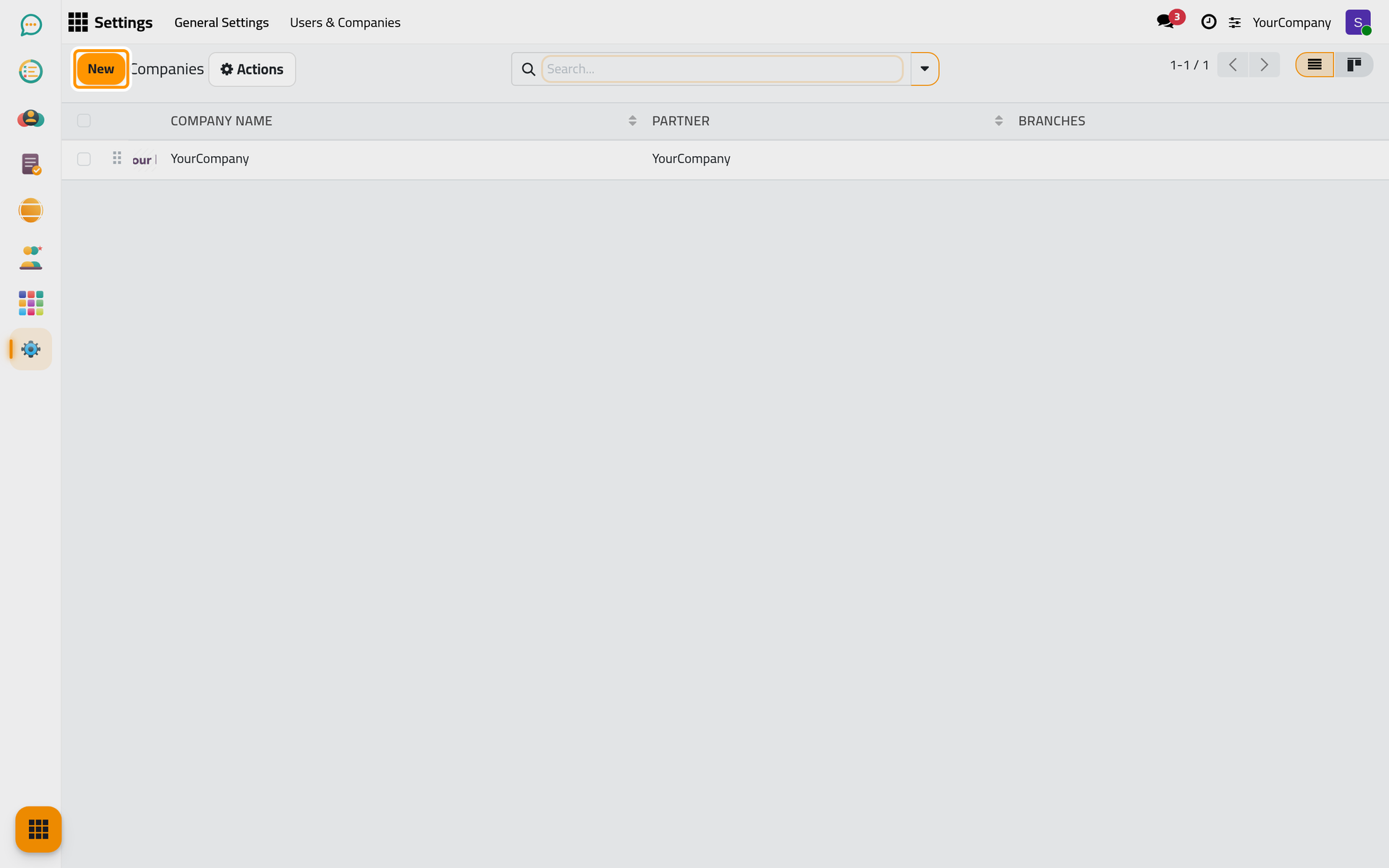
- The order of the companies in the list (drag the handle) is their order in the company switcher.
- Know which users should open which companies.
Steps
- Open . The list shows the main companies with their contact and their branches. Click New to add a company, or a line to open one.

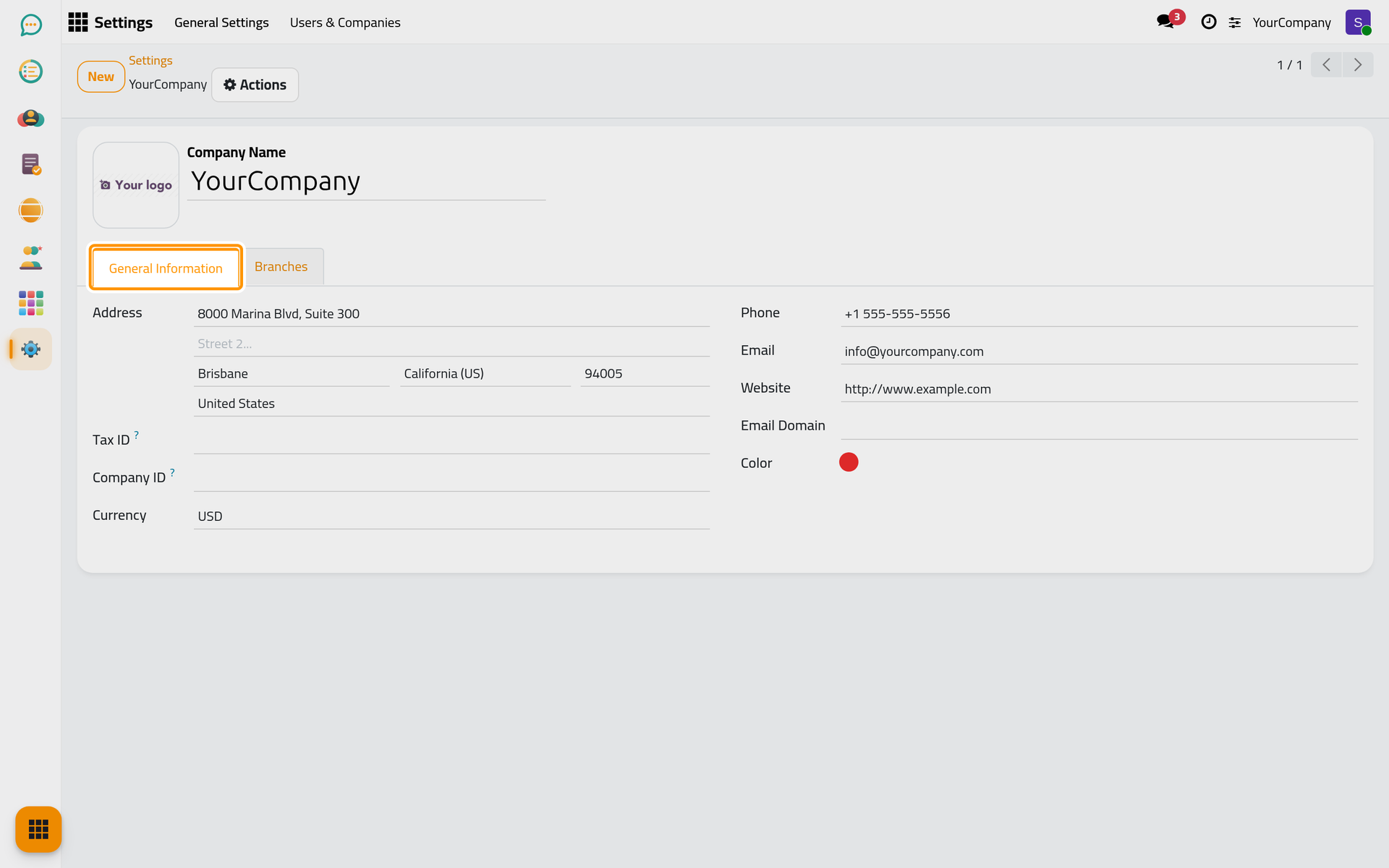
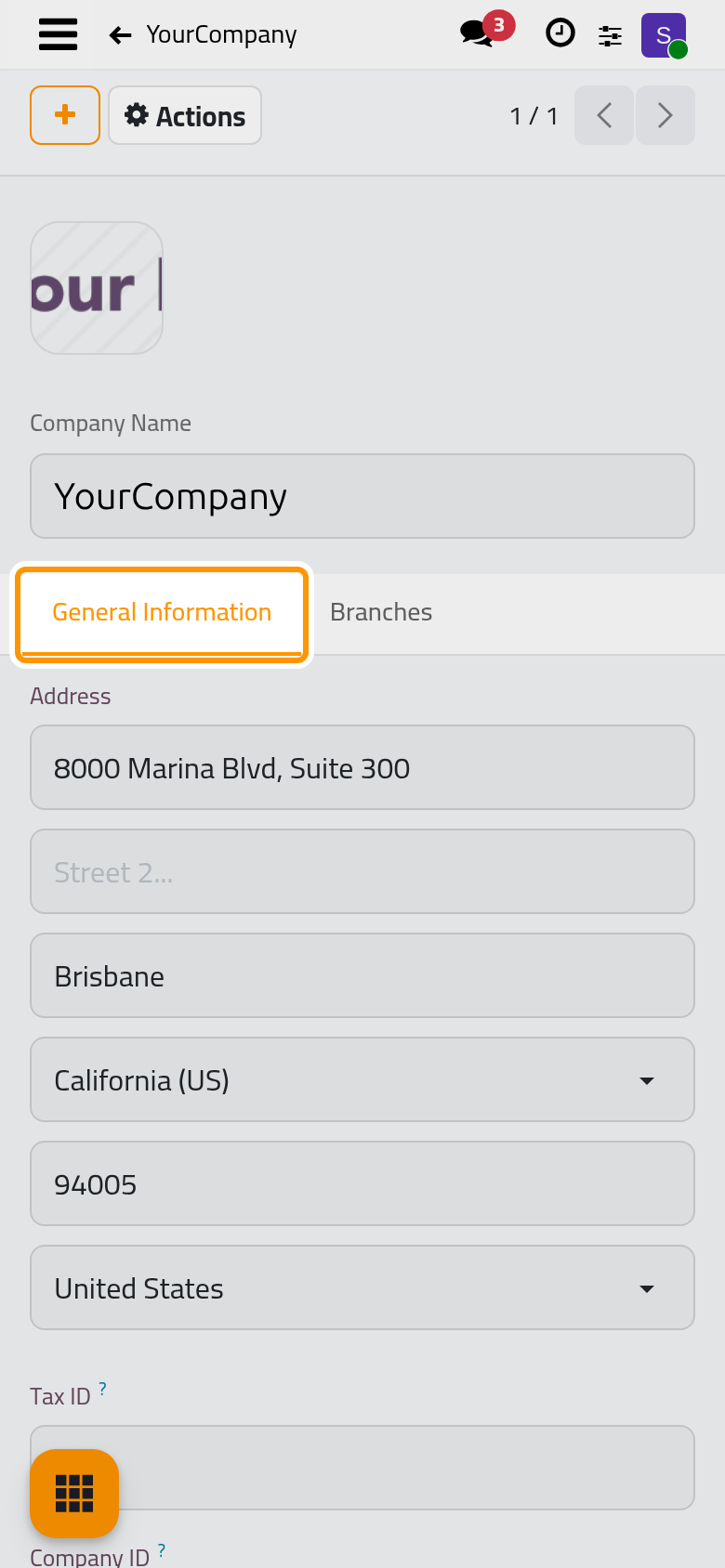
- Type the Company Name and click the image next to it to upload the Company Logo. In General Information, fill in the Address (Street..., City, State, ZIP, Country), the Tax ID, the Company ID, the Currency, the Phone, the Email, the Website and a Color, used wherever the company appears as a tag.
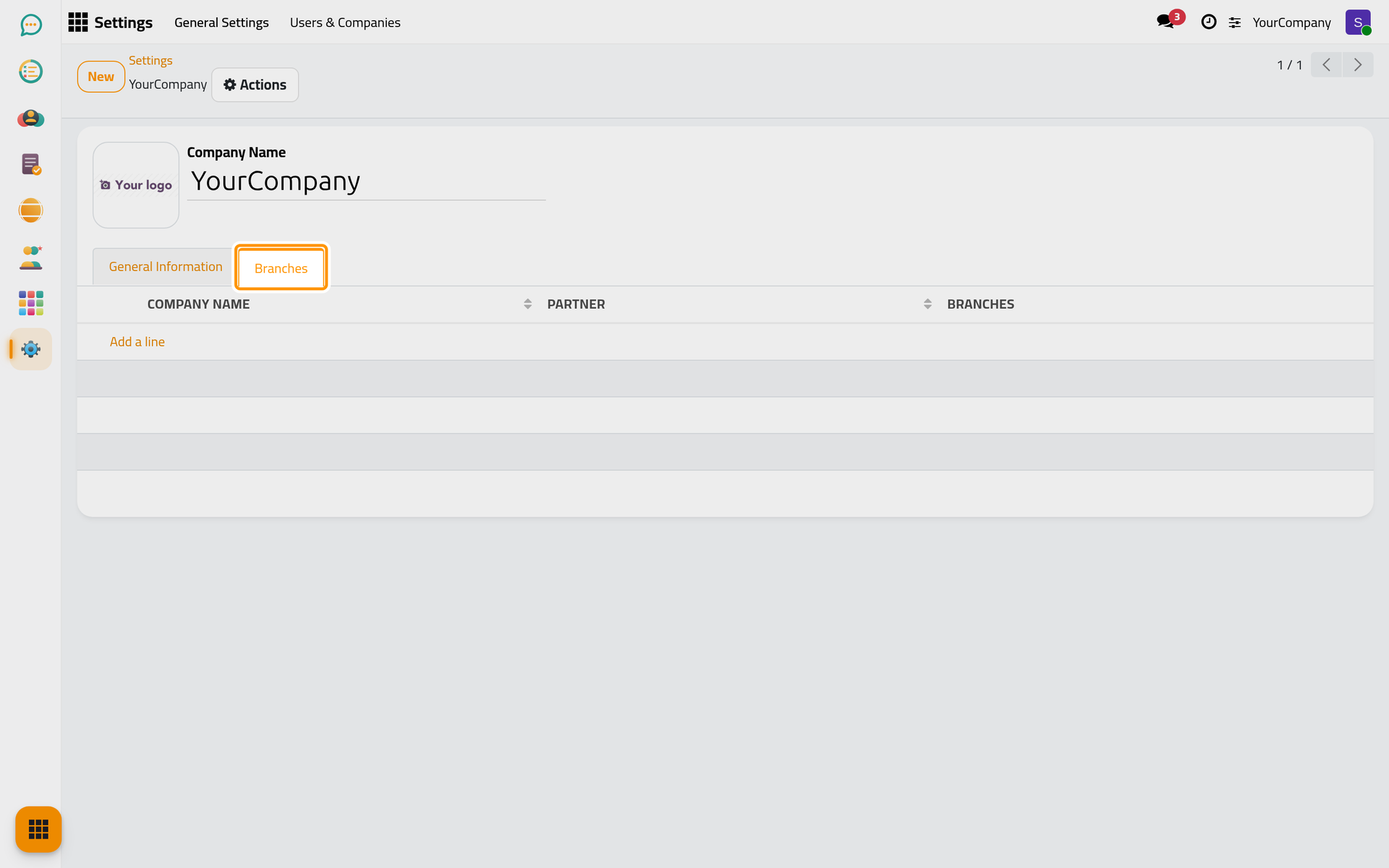
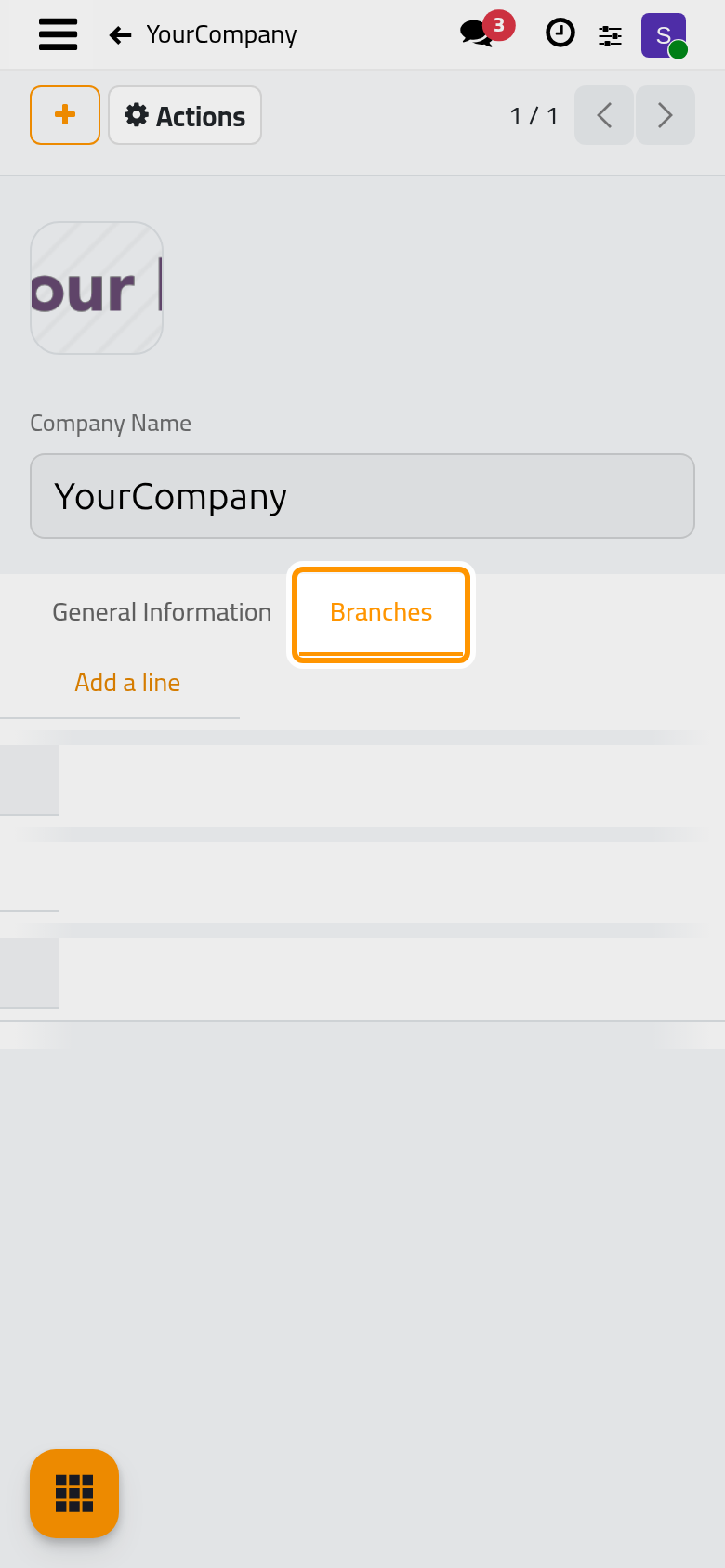
- For a branch, open the parent company, go to Branches and click Add a line: the branch form opens with the parent already set, and the branch stays under the parent instead of appearing in the Companies list.
-
Give users access: in , open the user and, in Access Rights › Roles, tick the Companies they may open and choose their Default Company. Both fields appear once the database has more than one company; users allowed in several companies receive the Multi Companies group automatically.
-
Switch company: the top bar shows the name of the current company (shortcut Shift+U). In the menu, click a company's name to make it current; tick the box before a company to show its records next to the current company's; Confirm applies the selection and Reset cancels it. The menu is disabled while the user may open a single company.
-
The document layout belongs to the company: switch to it, open › Companies and click Configure Document Layout. The same block shows Update Info, which opens the current company's form, and Manage Companies, which opens the list.
The current company decides where records go
A record is created in the current company, even when several companies are ticked in the switcher. Switch first, then create.
Result
Each company has its own record and layout; users open the companies you ticked and land in their default one; the top bar switches company and widens the view to several companies at once. New records are created in the current company.
FAQ
Why is the company switcher greyed out?
The menu is disabled when the user may open a single company: either the database has one company, or only one is ticked in Companies on the user's Access Rights tab.
A record ended up in the wrong company
It took the company that was current when it was created. Showing several companies in the switcher lets you see their records together, but new ones still go to the current company: switch to the right one before creating.
Branch or second company?
A branch has a parent company, is created from the parent's Branches tab and does not appear in the Companies list, which shows the main companies only; a parent with branches gets a Branches button at the top of its form. Use a branch for a site or division that stays under the parent, and a company for a separate legal entity.
How do I order the companies in the switcher?
Drag the handle at the start of each line in : the order of the list is the order of the switcher.
Was this page helpful?
Thank you for your feedback.