Email: outgoing and incoming servers
On this page
Everything Jaah sends, from a notification in the chatter to an invitation or a password-reset link, leaves through an outgoing mail server. Everything it should read from a mailbox arrives through an incoming mail server. Both are reached from the Emails block of General Settings, which needs the Role / Administrator role; the username and password of an outgoing server are readable by administrators only.
Before you start
- Get from your mail provider the SMTP host, port and encryption plus a login for the outgoing server, and the IMAP or POP host, port and SSL/TLS setting plus a login for the incoming server.
- Decide the sender domain. The Alias Domain setting of the same Emails block holds the domain used by your mail aliases.
- For the incoming server, decide which document each fetched email should create: that is the Create a New Record field of the server.
Steps
- Open and find the Emails block.
- Tick Use Custom Email Servers. Two links appear, Incoming Email Servers and Outgoing Email Servers, together with the options Use a Gmail Server and Use an Outlook Server. Click Save.
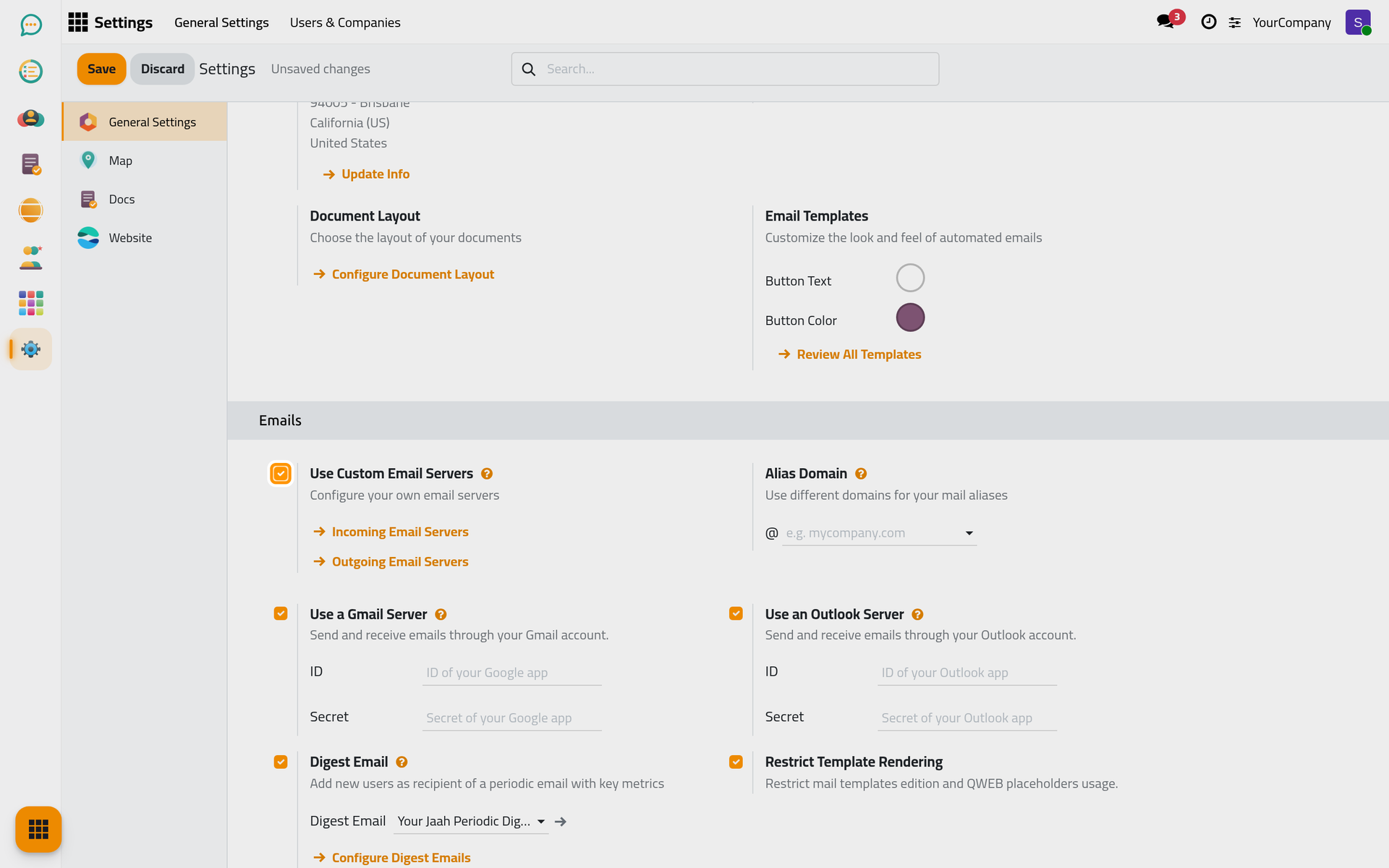
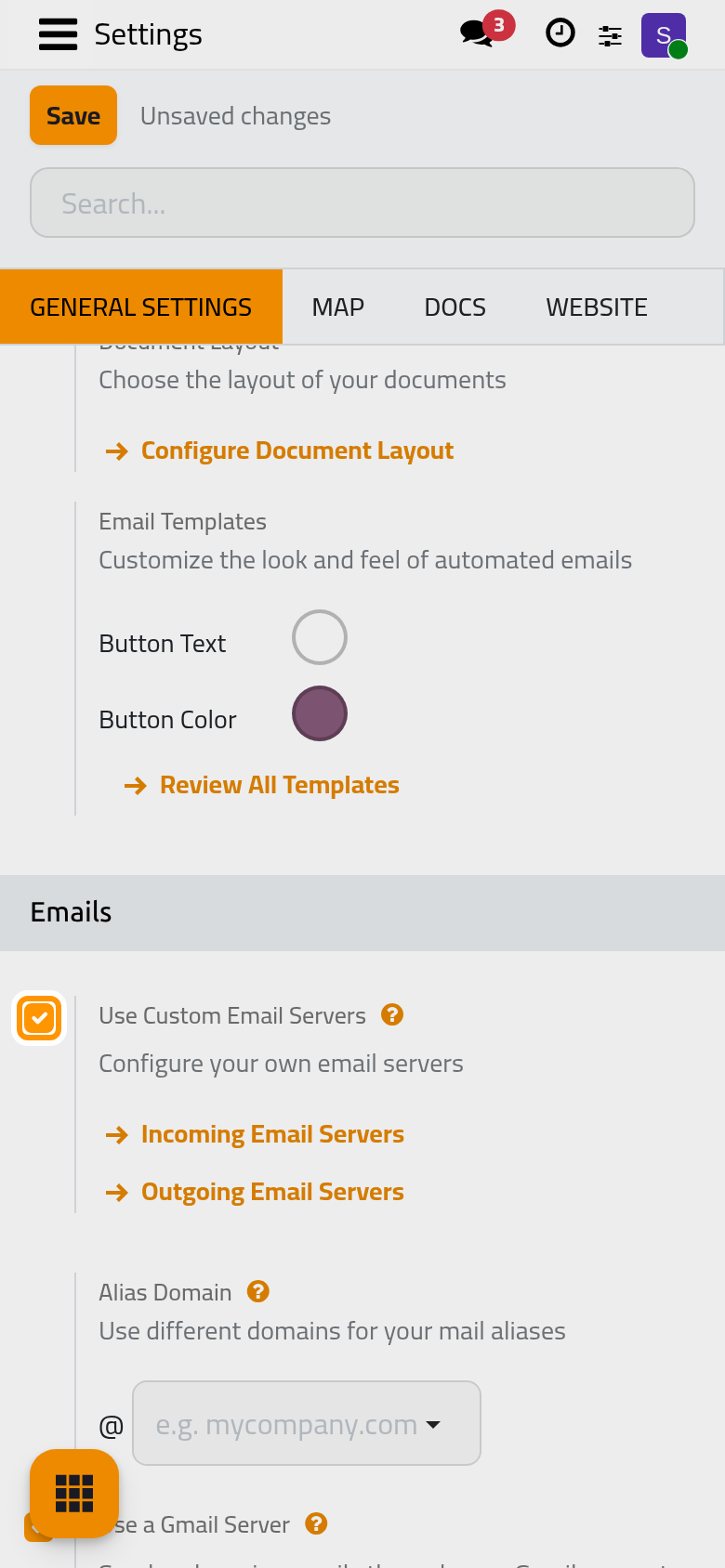
- Click Outgoing Email Servers, then New. Give the server a Name. On the Connection tab choose the Connection Encryption: None, TLS (STARTTLS), encryption and validation, TLS (STARTTLS), encryption only, SSL/TLS, encryption and validation or SSL/TLS, encryption only. Fill SMTP Server, SMTP Port (usually 465 for SSL, 25 or 587 in the other cases), Username and Password. Leave Authenticate with on Username unless your provider gave you an SSL Certificate.
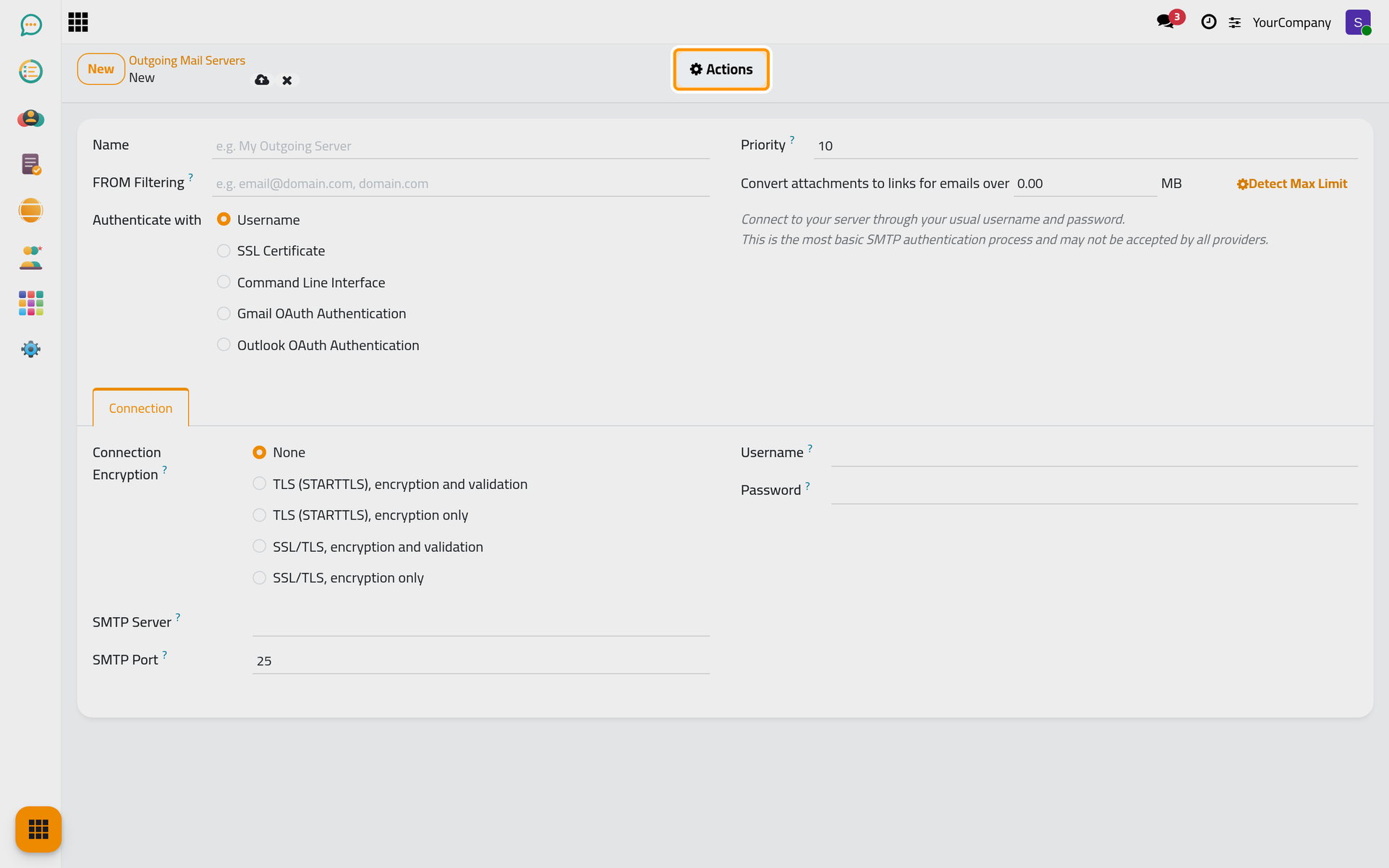
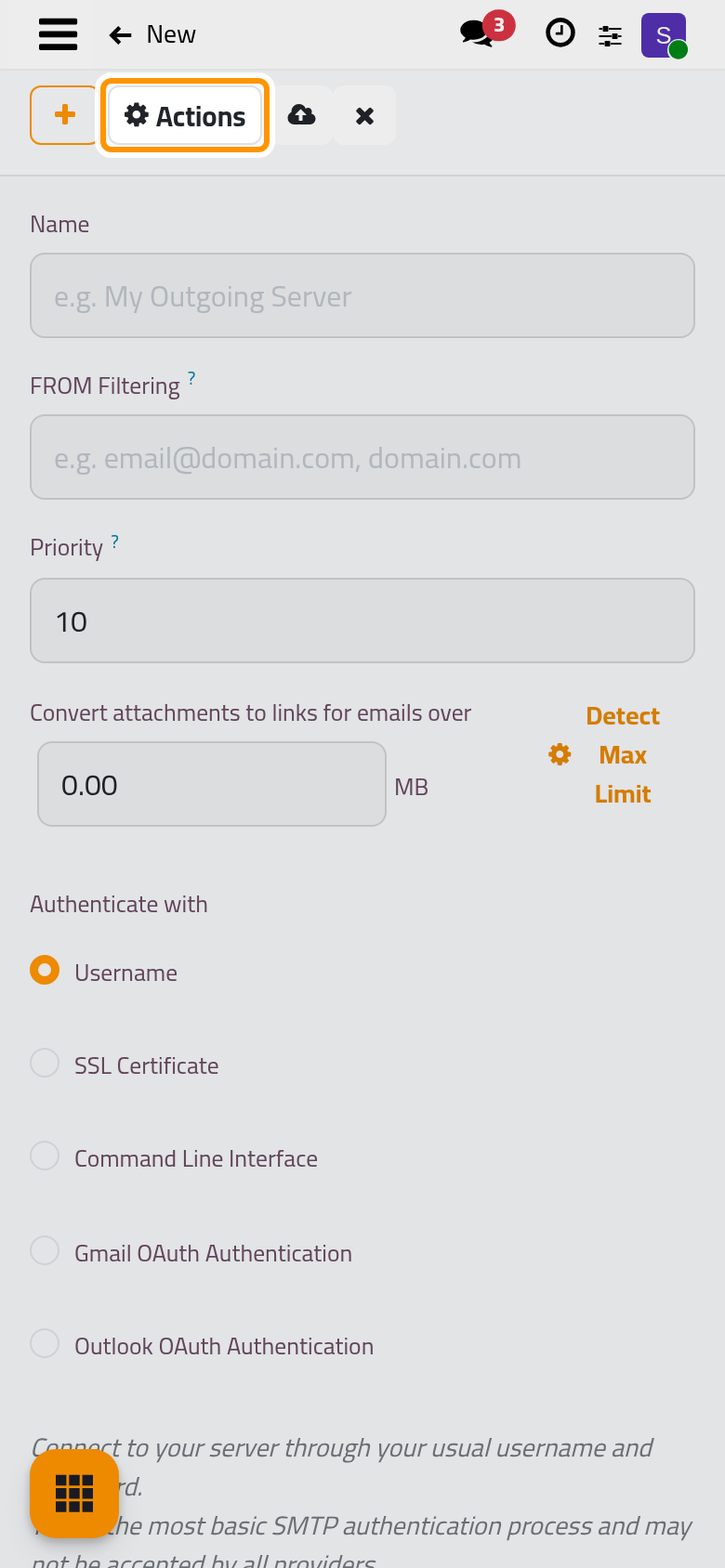
- Choose Actions › Test Connection. On success the message Connection Test Successful! appears. Otherwise the message names what went wrong: an invalid server name, no response on that port, a connection closed unexpectedly, or a refusal by the server with its reply. Save the server.
- Back in General Settings, click Incoming Email Servers, then New. Fill the Name and the Server Type: IMAP Server, POP Server or Local Server. On the Server & Login tab, under Server Information, enter the Server Name and tick SSL/TLS if your provider requires it; the Port is filled for you (993 or 143 for IMAP, 995 or 110 for POP, depending on SSL/TLS). Under Login Information enter the Username and Password. Under Actions to Perform on Incoming Mails, set Create a New Record to the document type each fetched email should create or continue.
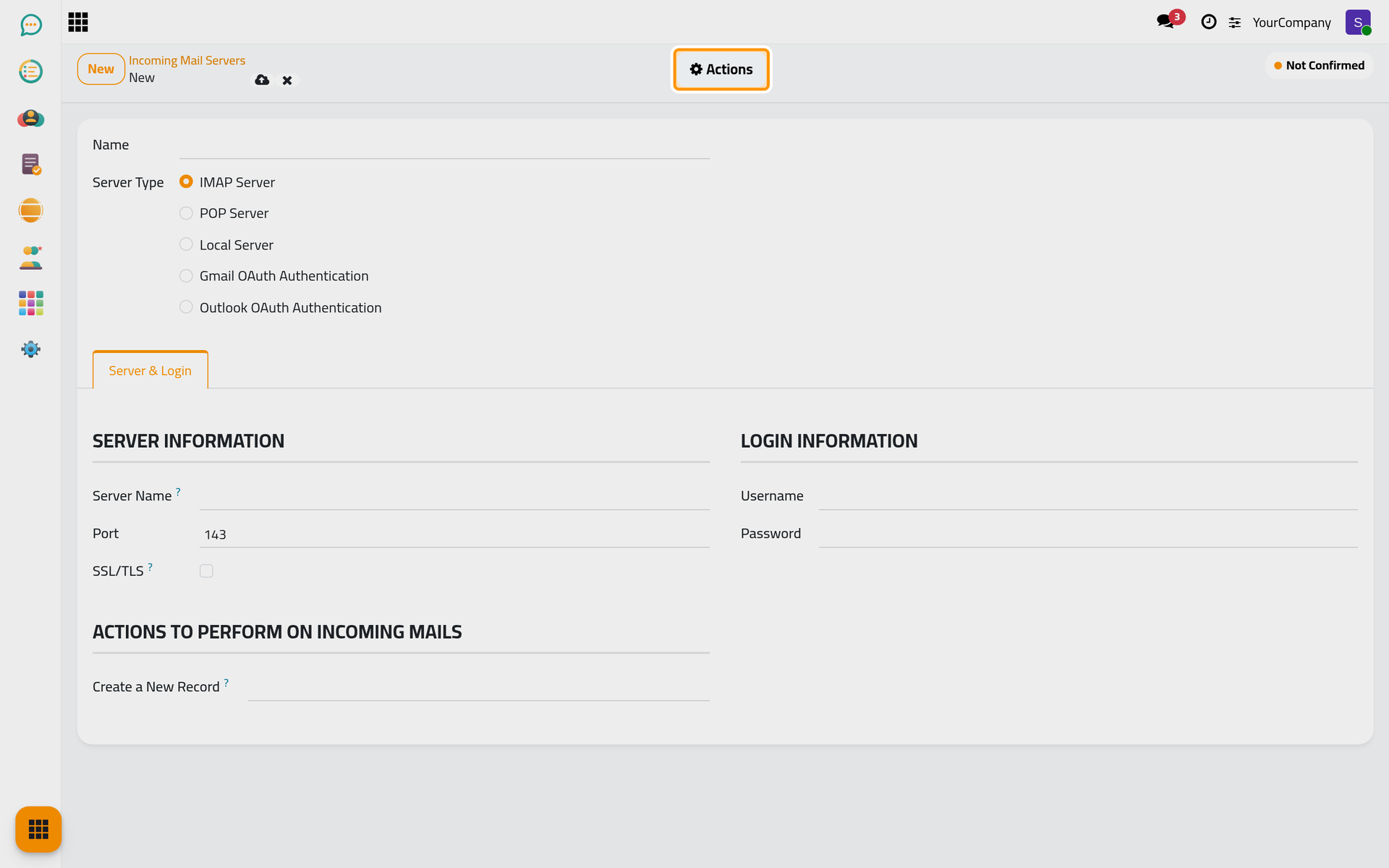
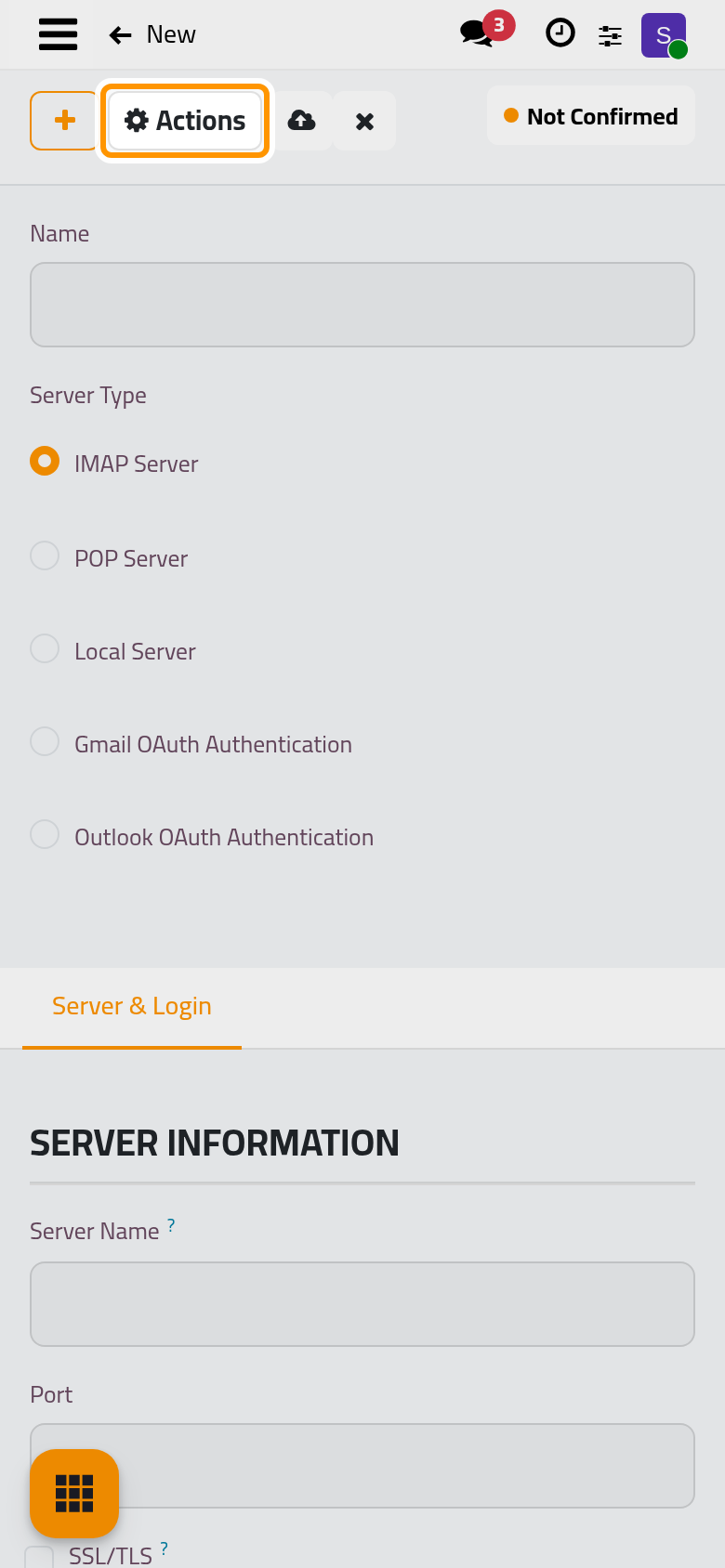
- Choose Actions › Test & Confirm. The status moves from Not Confirmed to Confirmed, and Fetch Now and Reset Confirmation become available. In developer mode an Advanced tab adds Server Priority, Keep Attachments, Keep Original and the last error recorded.
Gmail or Outlook
Ticking Use a Gmail Server or Use an Outlook Server installs an extra module. The page then asks you to Save and come back to set up the feature.
Several outgoing servers
When several servers exist, FROM Filtering decides which one may send for which addresses or domains (a comma-separated list), and Priority decides the rest: the server with the smallest number wins, the default being 10. Set both on purpose, or messages may leave through the wrong server.
Result
Outgoing mail now leaves through your server. The confirmed incoming server is polled every five minutes by the scheduled action Mail: Fetchmail Service, and on demand with Fetch Now; each fetched email either creates a record of the chosen type or is attached to the conversation it answers. Both servers can be archived later: the list filter Archived shows them again.
FAQ
Test Connection fails. What should I check?
Match the port with the encryption: 465 goes with SSL/TLS, 25 or 587 with STARTTLS or no encryption. "Invalid server name!" means the host does not resolve; "No response received. Check server address and port number." points at a wrong port or a firewall; "The server has closed the connection unexpectedly." usually means the encryption does not match the port. A refusal with the server's own reply is a login or policy problem on the provider's side.
Which server is used when I have several?
The server whose FROM Filtering covers the sender address or its domain. When no filter applies, the server with the highest Priority, that is the smallest number. Use FROM Filtering when each company or department sends from its own domain.
What does "Create a New Record" do on an incoming server?
Each incoming email is processed as part of a conversation of that document type: a new email creates a new document, a reply is attached to the existing one. Leave it empty if the server should only feed existing conversations.
Where are the servers in the menus?
In developer mode, under and . Without developer mode, use the two links of the Emails block.
Was this page helpful?
Thank you for your feedback.