Languages and translations
On this page
The interface, the menus and the reports of Jaah exist in every language that is active on your database. Activating a language is an administrator's task: the General Settings page is shown to the Role / Administrator role only. Choosing a language is every user's own decision, made in their preferences. This page covers both, then reloading the translations after an upgrade and disabling a language.
Before you start
- You need the Role / Administrator role for the Languages block. A user with the Role / User role can only change their own language.
- Activating a language loads the translation files of every installed module, so it takes a moment. The counter in the Languages block tells you how many languages are active already.
- Decide who sets the language: the administrator in the user form, or the user in My Preferences. Both write the same Language field of the user.
Steps
- Open and scroll to the Languages block. The number next to Languages is the count of active languages.
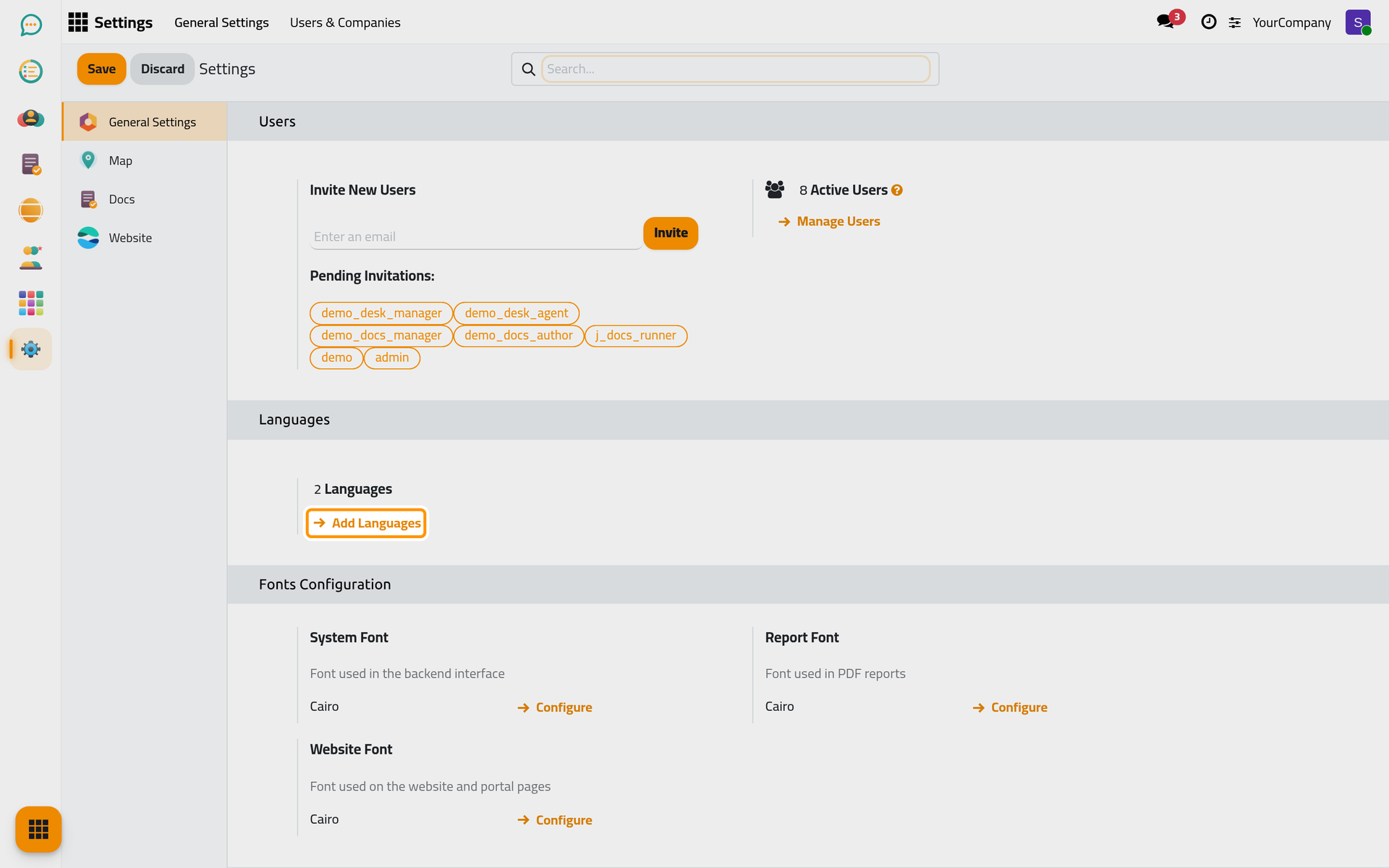
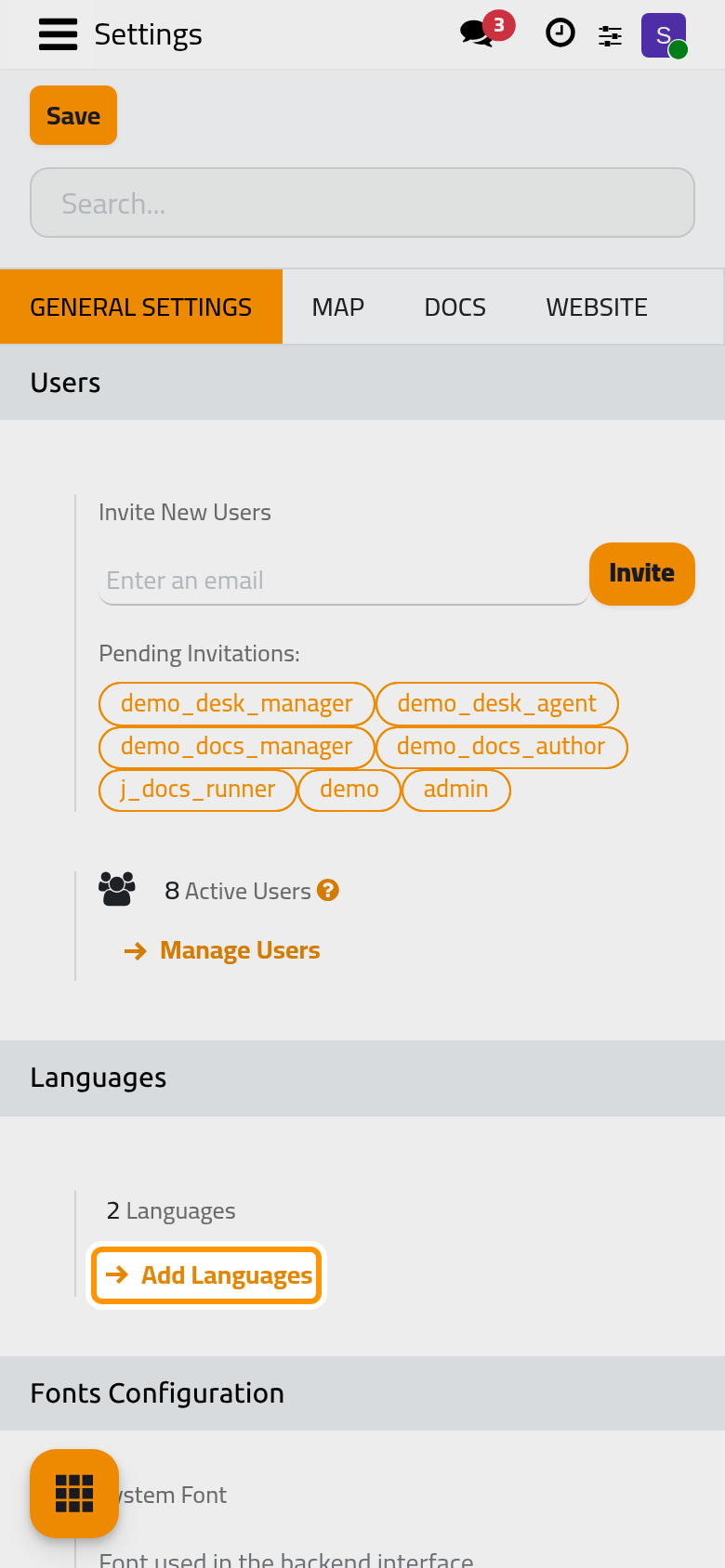
- Click Add Languages. The Add Languages window opens.
- In Languages, pick one or several languages. The list also offers the languages that are not active yet. In developer mode the window shows one more option, Overwrite Existing Terms, ticked by default: the official translations then replace any translation you customised.
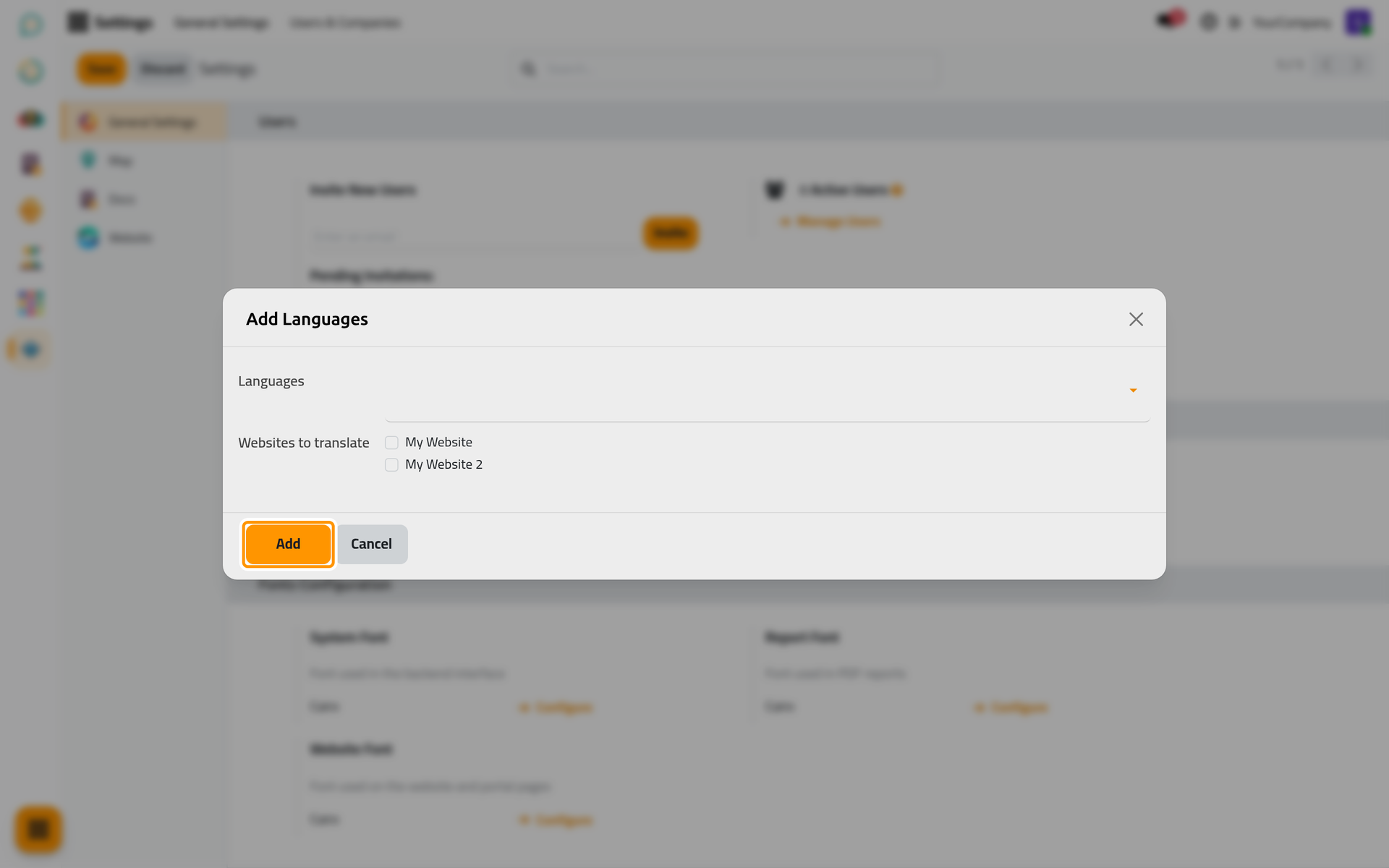
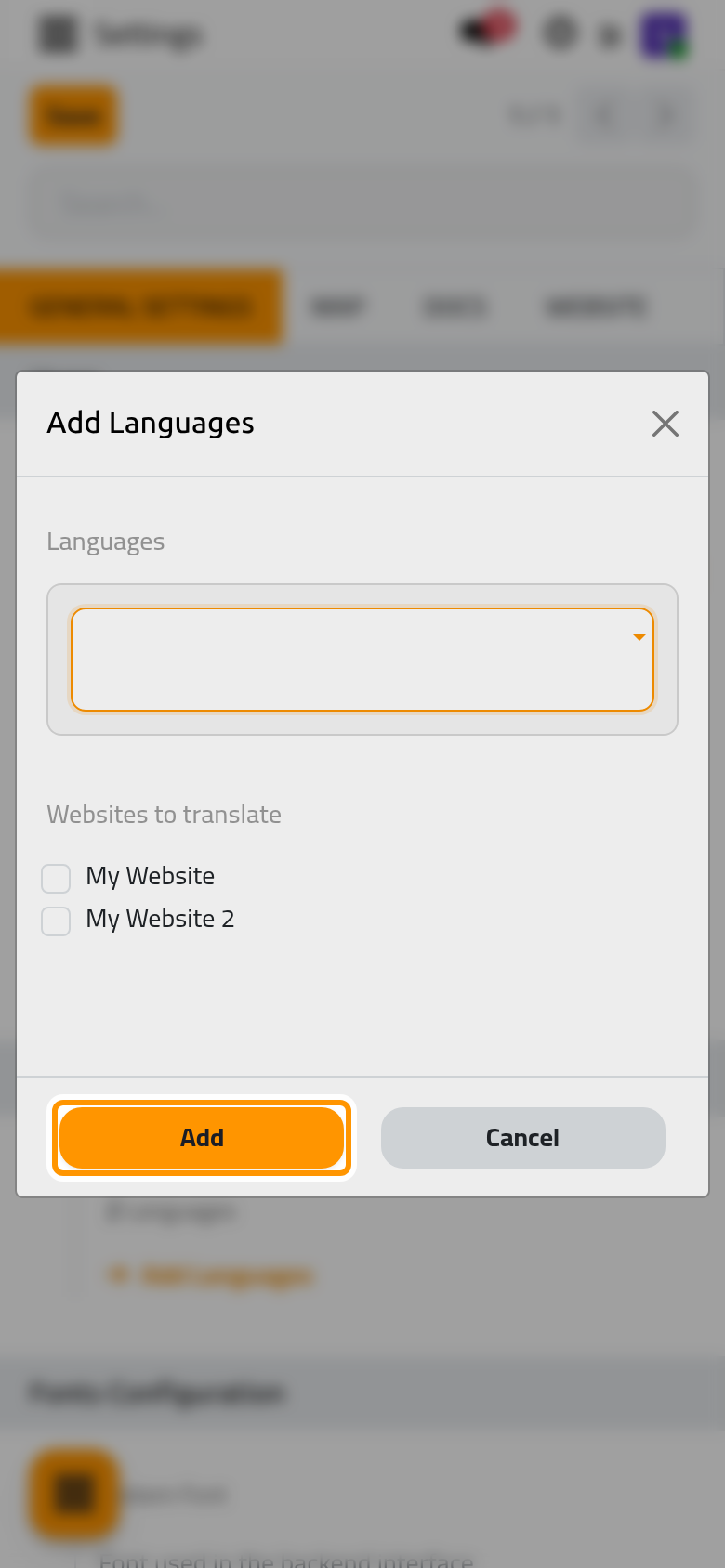
- Click Add. The platform activates the languages and loads the translations of every installed module. After a single language, a confirmation window offers Close and a second button that switches your own interface to the new language and closes the window. After several languages, a notification confirms it: "The languages that you selected have been successfully installed. Users can choose their favorite language in their preferences."
- Assign the language to a user. As administrator, open , open the user, go to the Preferences tab and set Language; only active languages are listed. Save. The globe button next to the field (Add a language) opens the same Add Languages window.
- Let users choose for themselves. From the user menu (the avatar at the top of the screen) they pick My Preferences, open the Preferences tab, set Language and click Update Preferences. Their interface reloads in that language.
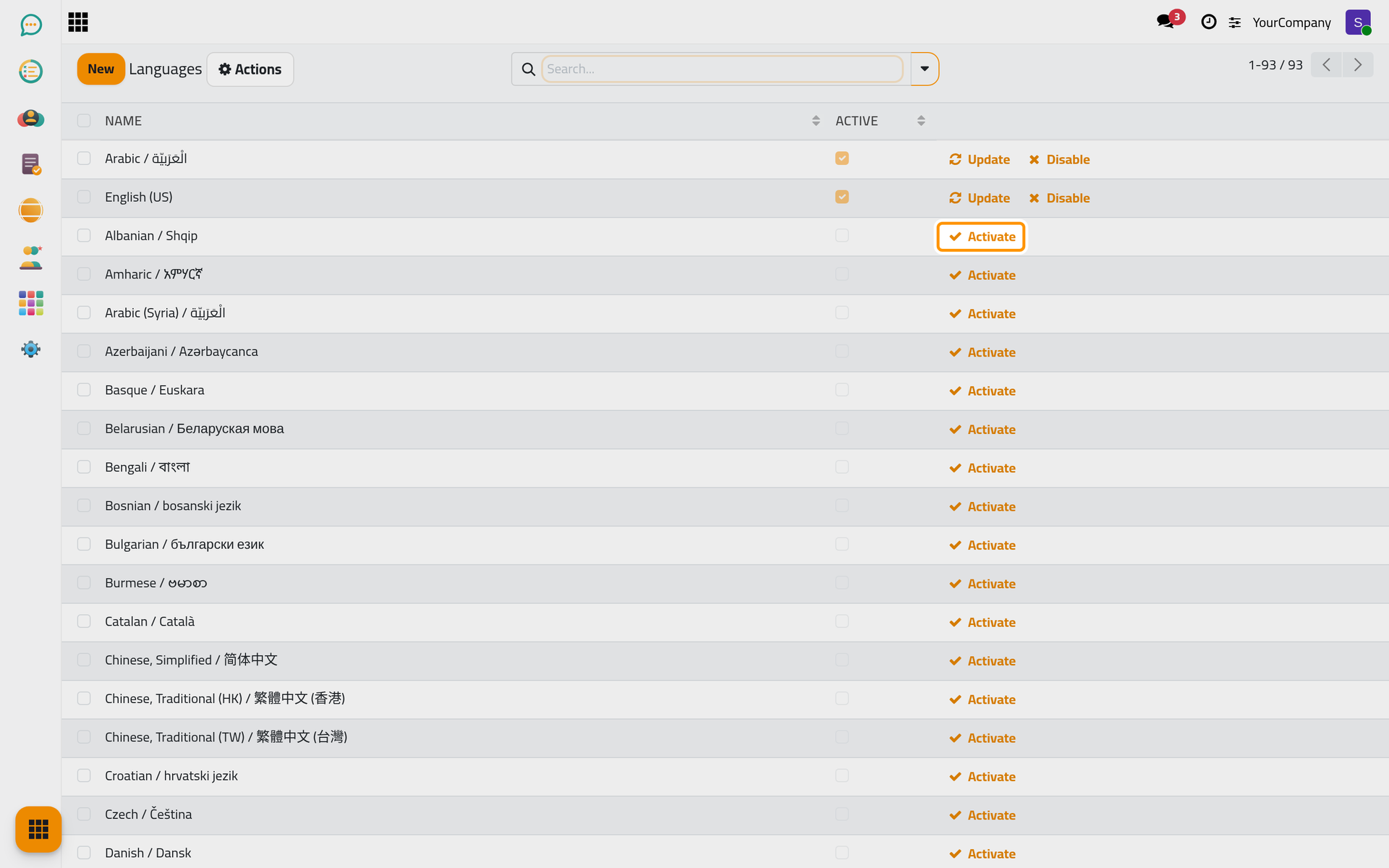
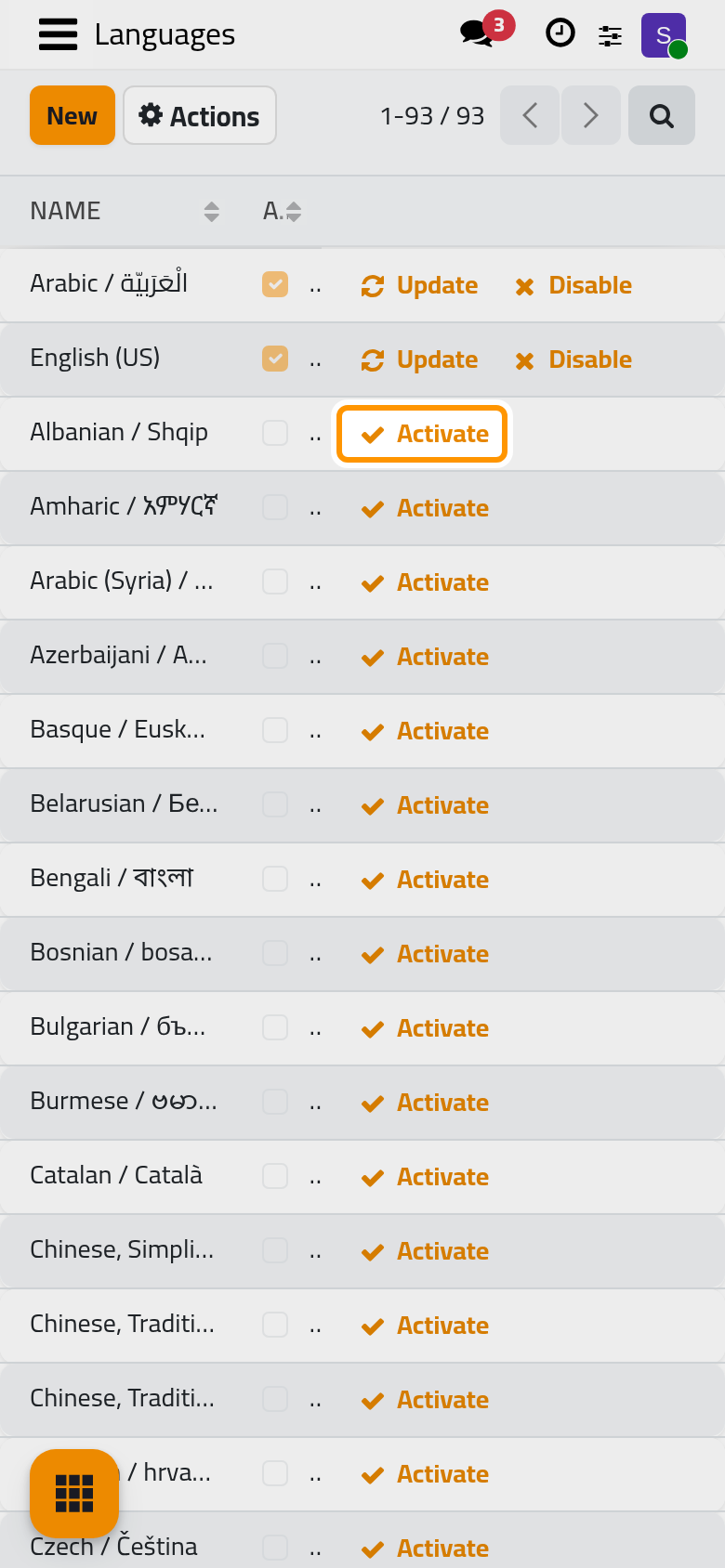
- To manage the whole list, turn on developer mode and open ; the Manage Languages link of the Languages block leads there too. Every row has Activate while the language is inactive, and Update and Disable once it is active. The Activate button in the header activates the selected rows at once.
One language, one click
When you add exactly one language, the confirmation window lets you switch to it immediately. Use it to check the result before you tell your users.
Result
The counter in the Languages block has grown. The new language is offered in the Language field of every user, and the users who chose it see the menus, the forms and the reports in that language. Update on a language row reloads its translations whenever the installed modules change.
FAQ
Why can I not disable a language?
Disable refuses as long as the language is in use. The message tells you who uses it: "Cannot deactivate a language that is currently used by users." or "Cannot deactivate a language that is currently used by contacts." Change the language of those users or contacts first. The language the database was set up in cannot be archived at all, because automated processes use it.
How do I refresh the translations after an upgrade?
Open the Languages list in developer mode and click Update on the language, or open Add Languages again with that language selected and click Add. Both reload the translation files of every installed module. Keep Overwrite Existing Terms ticked if you want the official terms back, untick it to protect the terms you customised.
Can a user choose a language that is not active?
No. The Language field, in the user form as well as in My Preferences, lists active languages only. Activate the language first, then the user can pick it.
Where do I import or export translation files?
In developer mode, the Settings menu shows Translations › Import / Export with Import Translation and Export Translation. These wizards exchange translation files for a language; they are meant for translators, not for day-to-day use.
Was this page helpful?
Thank you for your feedback.