Install, upgrade and uninstall apps
On this page
The Apps page is where an administrator adds features to Jaah, reapplies a module after its code changed, or removes a module that is no longer needed. It is reserved for the Administrator role: the Apps menu and the Activate, Upgrade and Uninstall buttons are hidden from everyone else, and the server refuses the operation to a non-administrator even when it is called directly.
Before you start
- You have the Administrator role (the Role choice in the Access Rights tab of your user).
- Nobody else is installing, upgrading or removing a module: the system accepts one module operation at a time and refuses the next one with an error until the first has finished.
- Every module operation rebuilds the registry and blocks the interface for all users while it runs. On a busy database, plan it outside working hours.
- Uninstalling deletes the module's tables, columns, menus, views and records for good. Keep a backup, or try it on a duplicate or test database first; the wizard reminds you of it.
- On a hosted subscription the list may be limited to the apps of your plan.
Steps
- Open . The page opens in kanban with the Apps filter: one card per app, with Activate on the apps that are not installed, and Module Info with a three-dots menu on the installed ones.
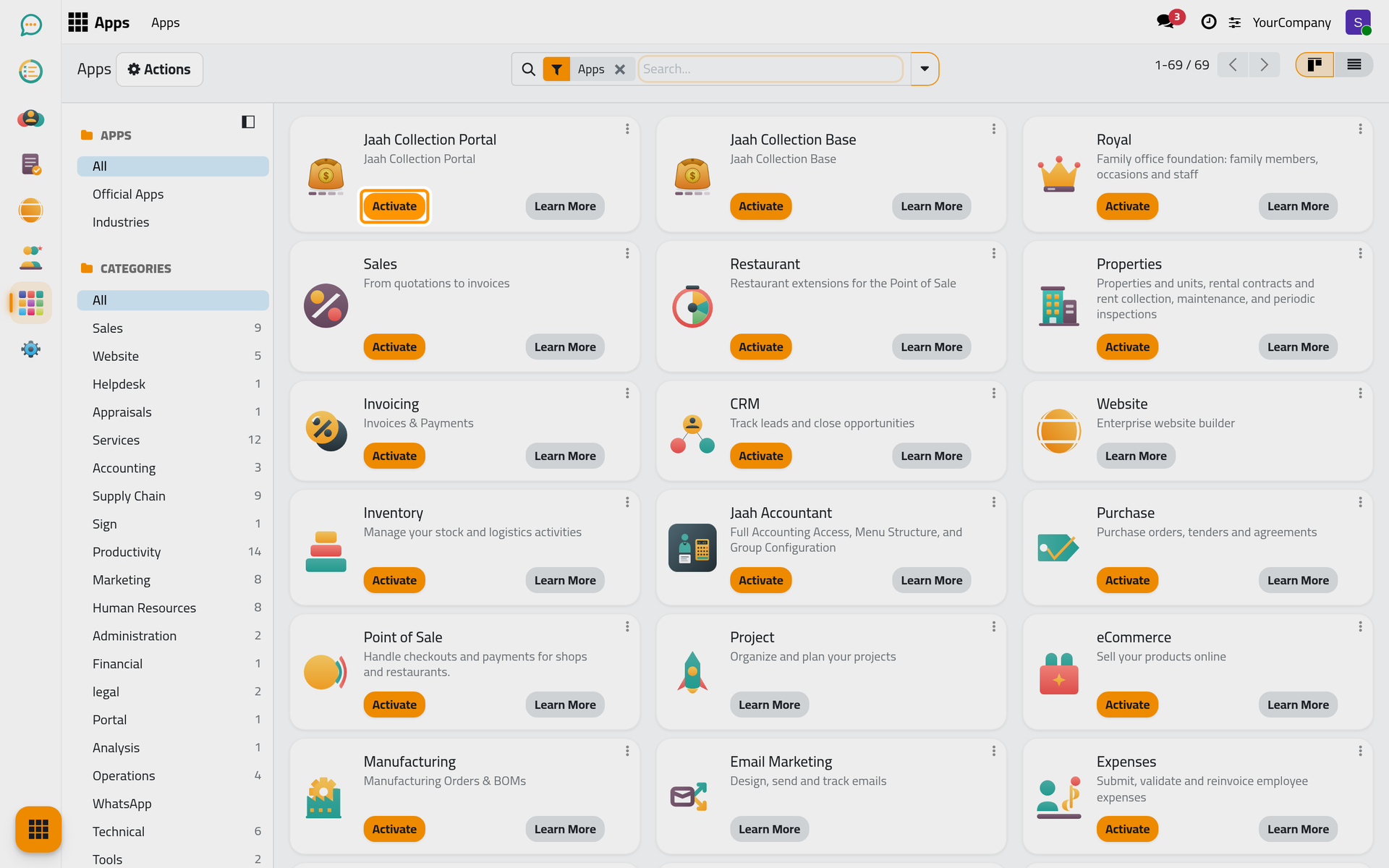
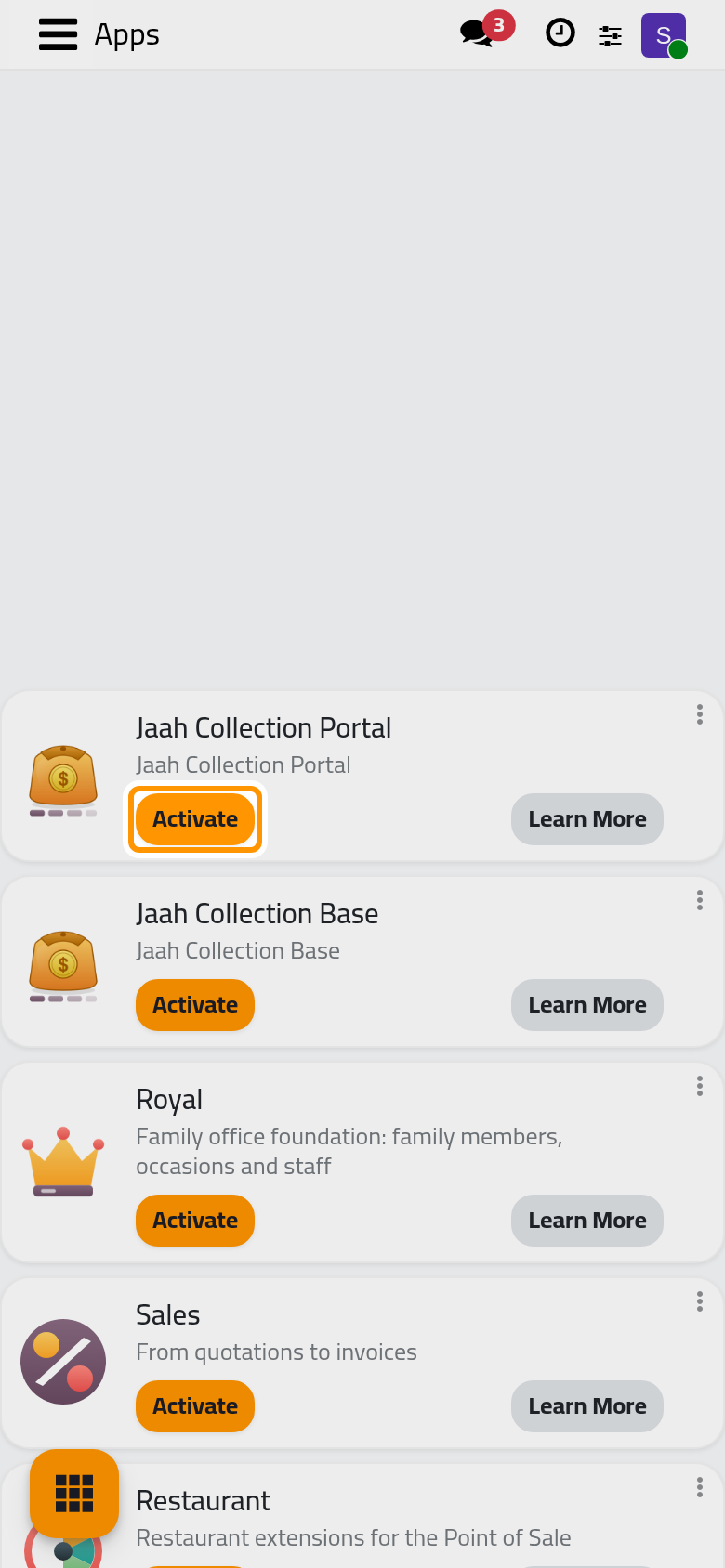
- Type the name of the app in Search... and press Enter. The search matches the name, the summary and the technical name. The Installed and Not Installed filters and the Categories panel narrow the list; Extra adds the technical modules to the list.
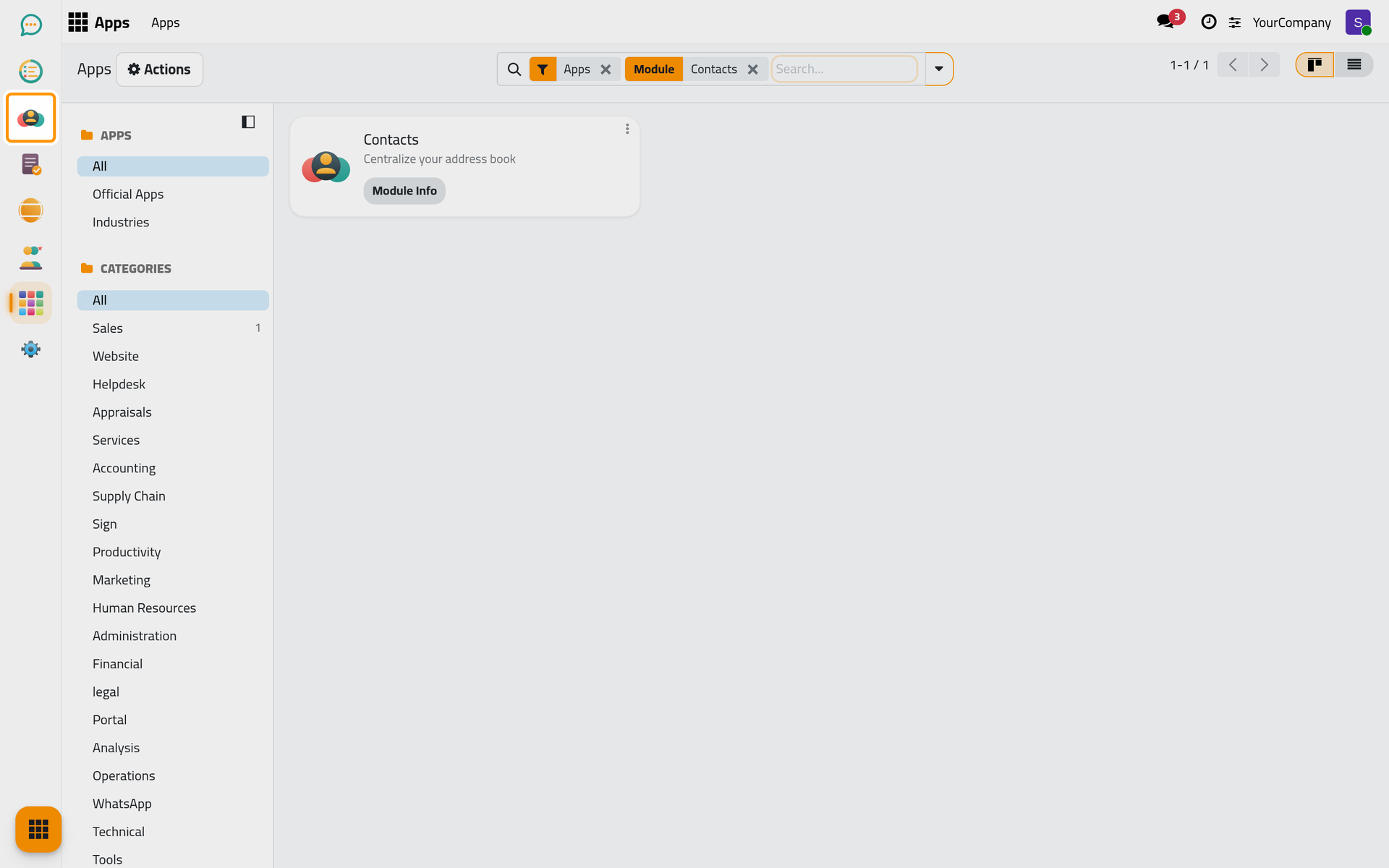
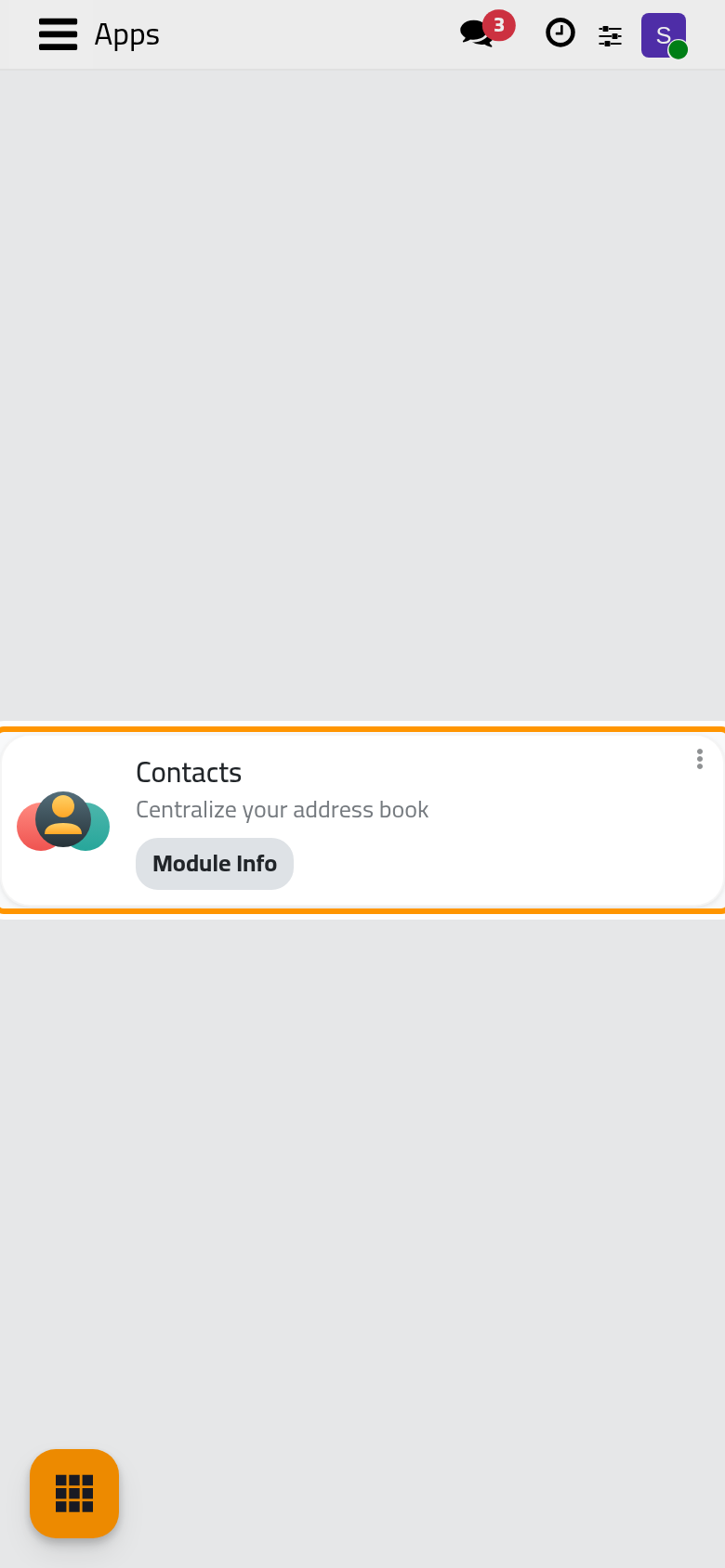
-
To install, click Activate on the card. Its dependencies are installed with it, the interface is blocked while the registry rebuilds, then it reloads, either on the first configuration step of the app or on the first menu.
-
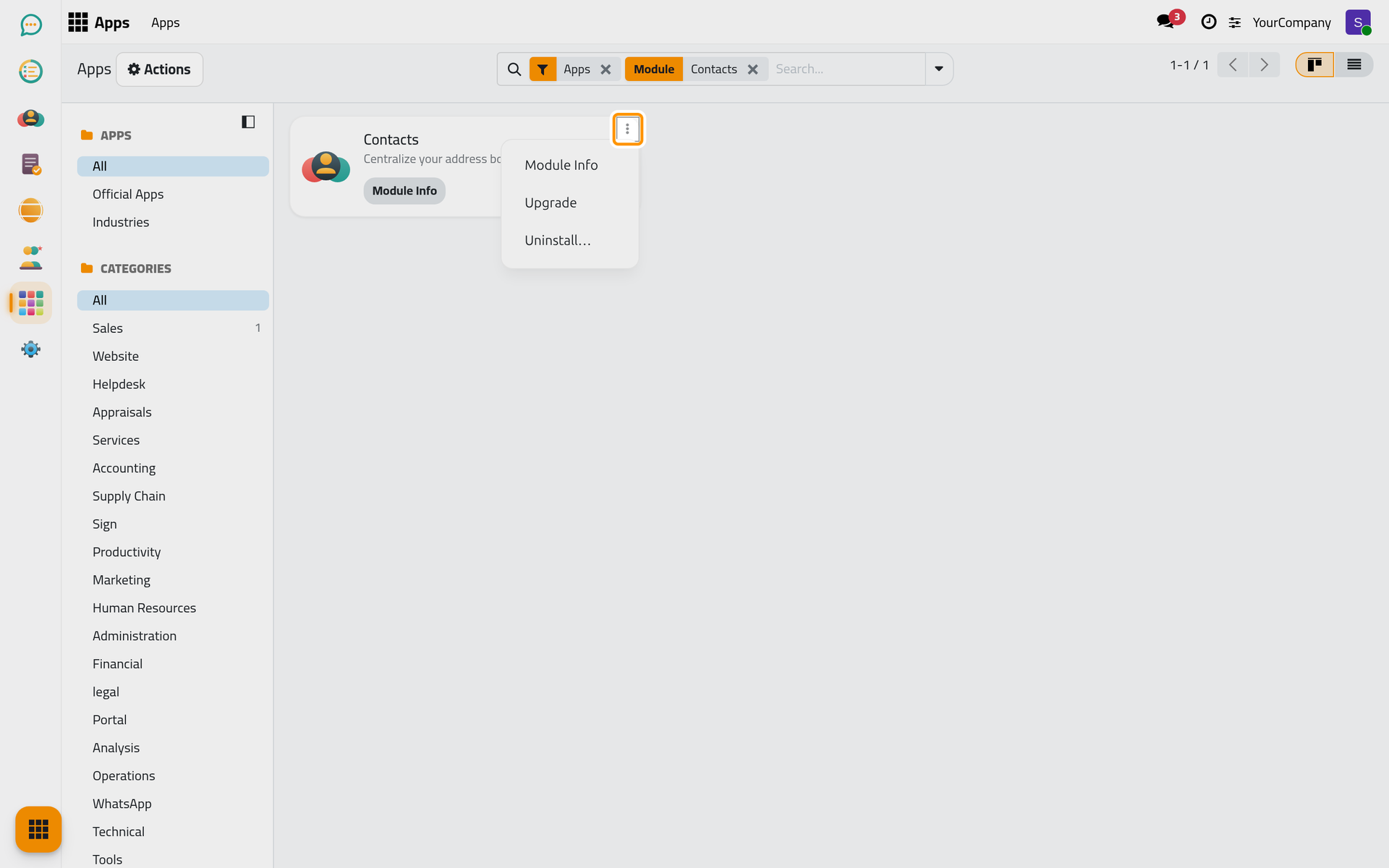
To upgrade or uninstall an installed app, open the card menu (the three dots, Dropdown menu). Module Info opens the module form, with its description and the same buttons. Upgrade reapplies the views, data, access rights and translations of the module from the code on the server, upgrades every installed module that depends on it, and installs a dependency it now requires. Uninstall… opens the uninstall wizard.
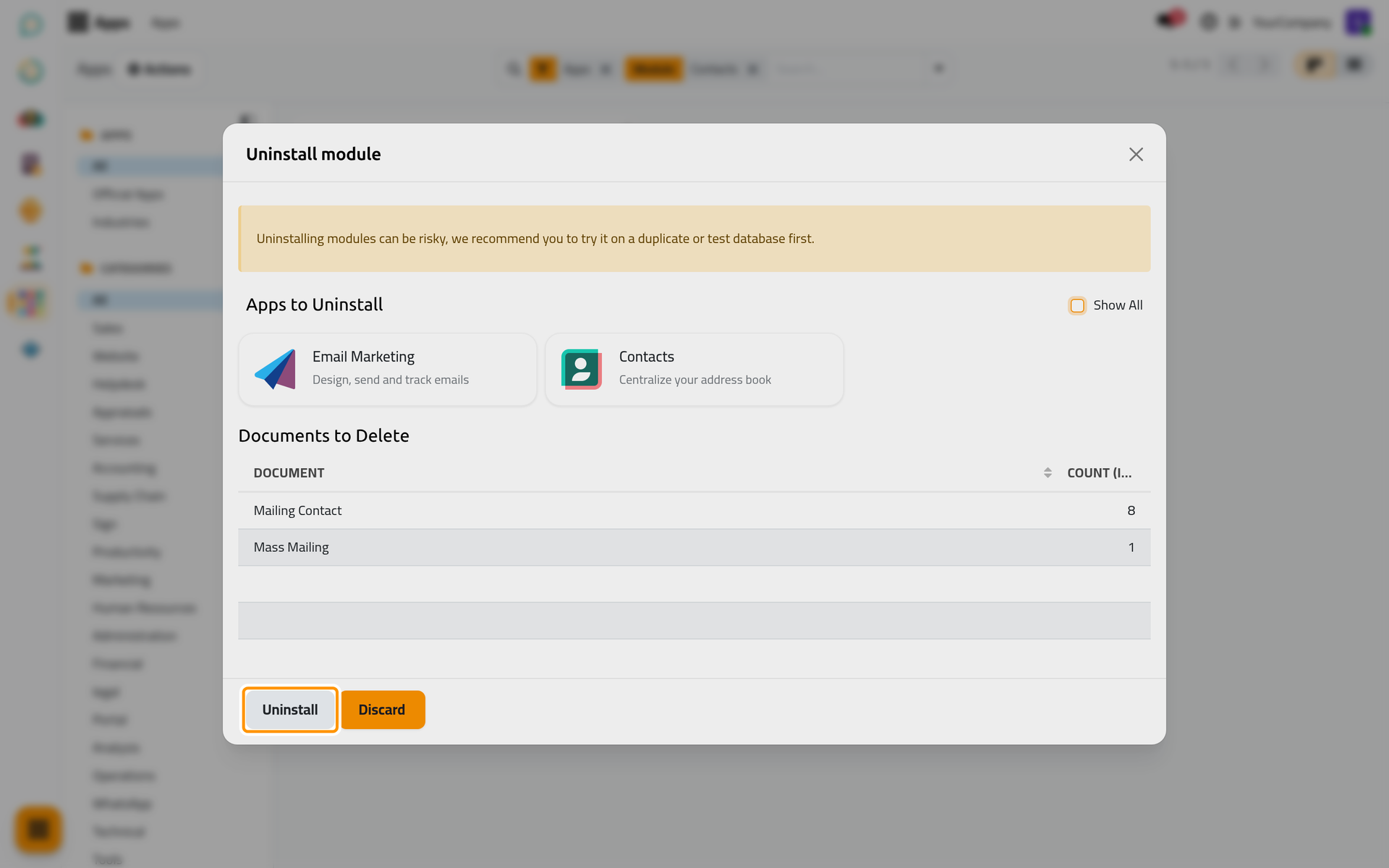
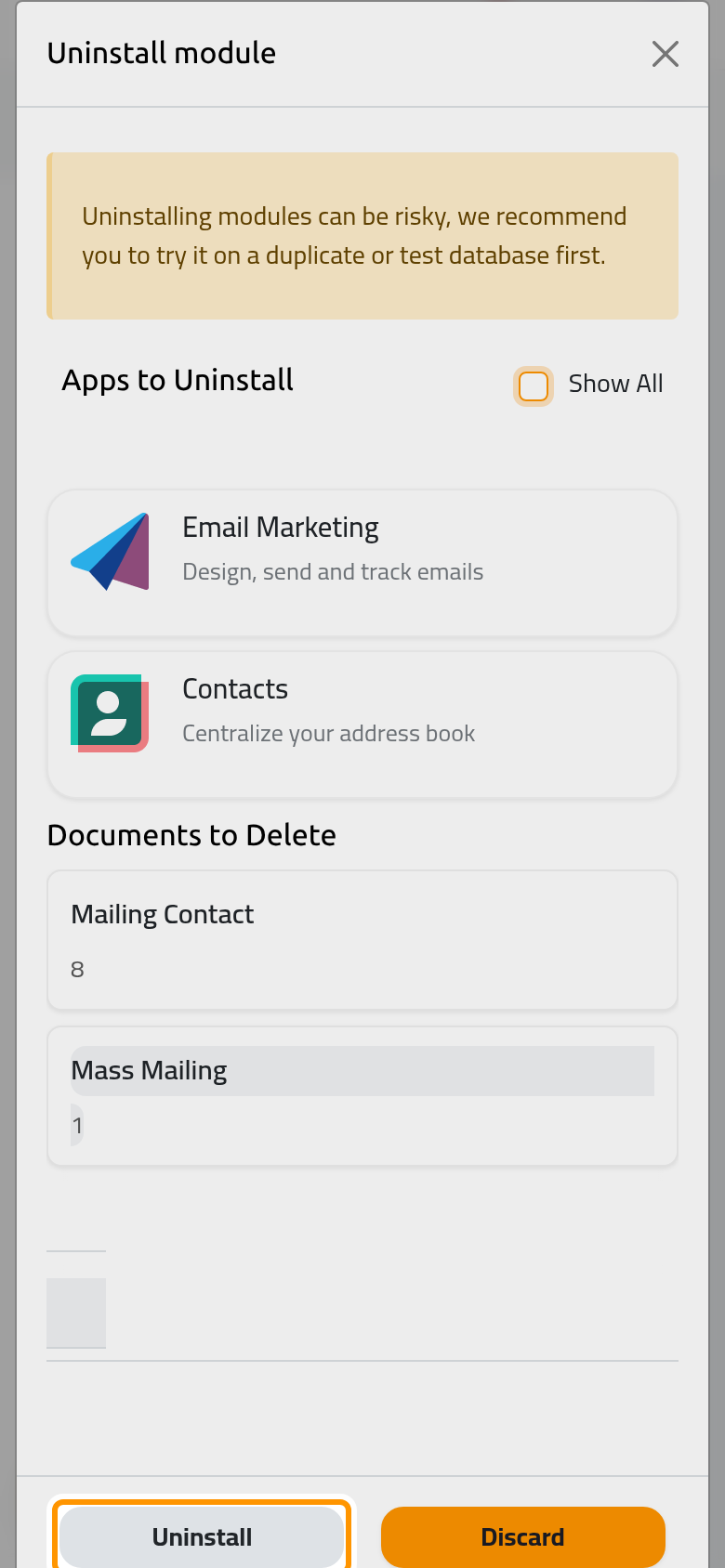
- The Uninstall module wizard lists Apps to Uninstall: the app and every installed module that depends on it; tick Show All to see the technical modules among them. Documents to Delete lists the models whose records disappear with the module, with their counts. Click Uninstall to confirm or Discard to keep everything.
The wizard is the last stop
Once you click Uninstall, the modules are marked for removal and the registry is rebuilt without them. The documents listed in the wizard are deleted in that same run; only a backup brings them back.
Result
An installed app loses the Activate button on its card and shows Module Info with the three-dots menu instead; its menu is added to the home menu and its settings tab to Settings. After an upgrade the module stays installed with its latest definition applied; your records are untouched. After an uninstall the card shows Activate again and everything the module created, including the documents listed by the wizard, is gone.
FAQ
Why do I not see the Apps menu?
Apps is reserved for the Administrator role. The Access Rights group opens the Settings app for users and companies, but neither Apps nor General Settings. Ask an administrator to change your Role in the Access Rights tab of your user.
Why is a module missing from the list?
The Apps filter shows applications only: remove it, or use Extra, to see the technical modules. The platform also hides the modules that depend on external paid services (in-app purchases, SMS, IoT boxes) and the placeholders of apps that are not part of the platform. On a hosted subscription with a plan, only the apps of the plan are listed.
Can I undo an uninstall?
No. The models listed under Documents to Delete are deleted with the module and come back only from a backup. Reinstalling the app creates its structure again, empty. Test on a copy of the database before uninstalling anything that holds data.
Where are Update Apps List and Apply Scheduled Upgrades?
Both are entries of the Apps menu that appear in developer mode only. Update Apps List re-reads the modules present on the server, for example after new code was deployed; Apply Scheduled Upgrades runs the operations left in a scheduled state. See Developer mode and the technical menus.
Was this page helpful?
Thank you for your feedback.