Developer mode and the technical menus
On this page
Developer mode is neither a permission nor a user setting: it is a switch kept in your browser session. While it is on, Jaah shows what it normally hides: the Technical and Translations menus of Settings, Groups and Privileges under Users & Companies, technical fields and columns, extra links in General Settings, and a bug icon in the top bar that opens the debug menu. It stays on until you leave it or log out. Administrators turn it on from General Settings; anyone can append ?debug=1 to an address, but what then appears still depends on their access rights.
Before you start
- You need the Role / Administrator role to use the Developer Tools block of General Settings; without it, use the address bar.
- Developer mode reveals tools that change the system for everyone: views, actions, record rules, parameters. Read first, change only what you understand, and try experiments on a test database.
- Choose the variant. The plain mode is enough for the technical menus. The variant with assets loads the interface files non-minified, for debugging the interface; the variant with tests assets also loads the test files. Both are slower.
Steps
- Open and scroll down to Developer Tools, the block just before About. It offers three links: Activate the developer mode, Activate the developer mode (with assets) and Activate the developer mode (with tests assets).
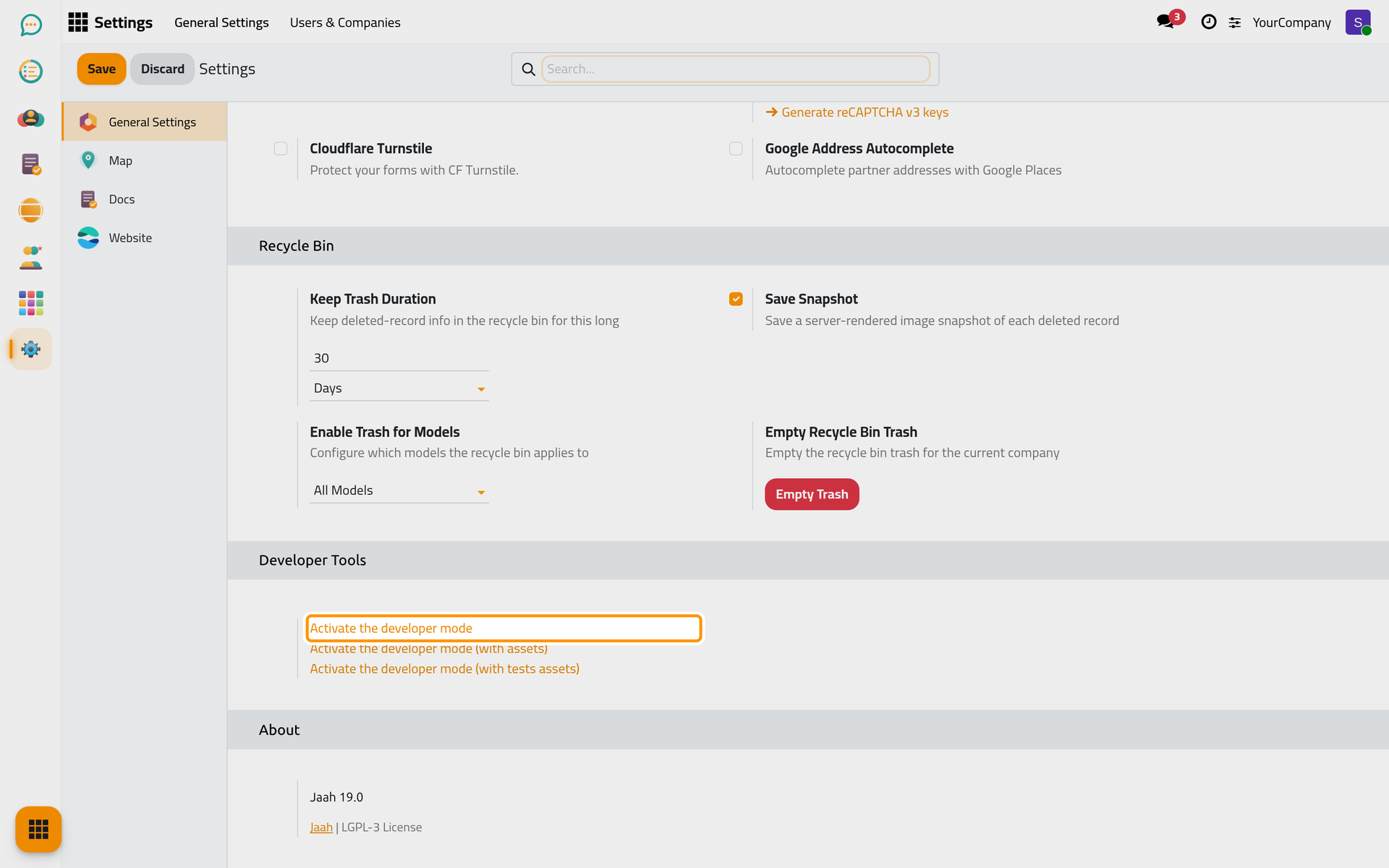
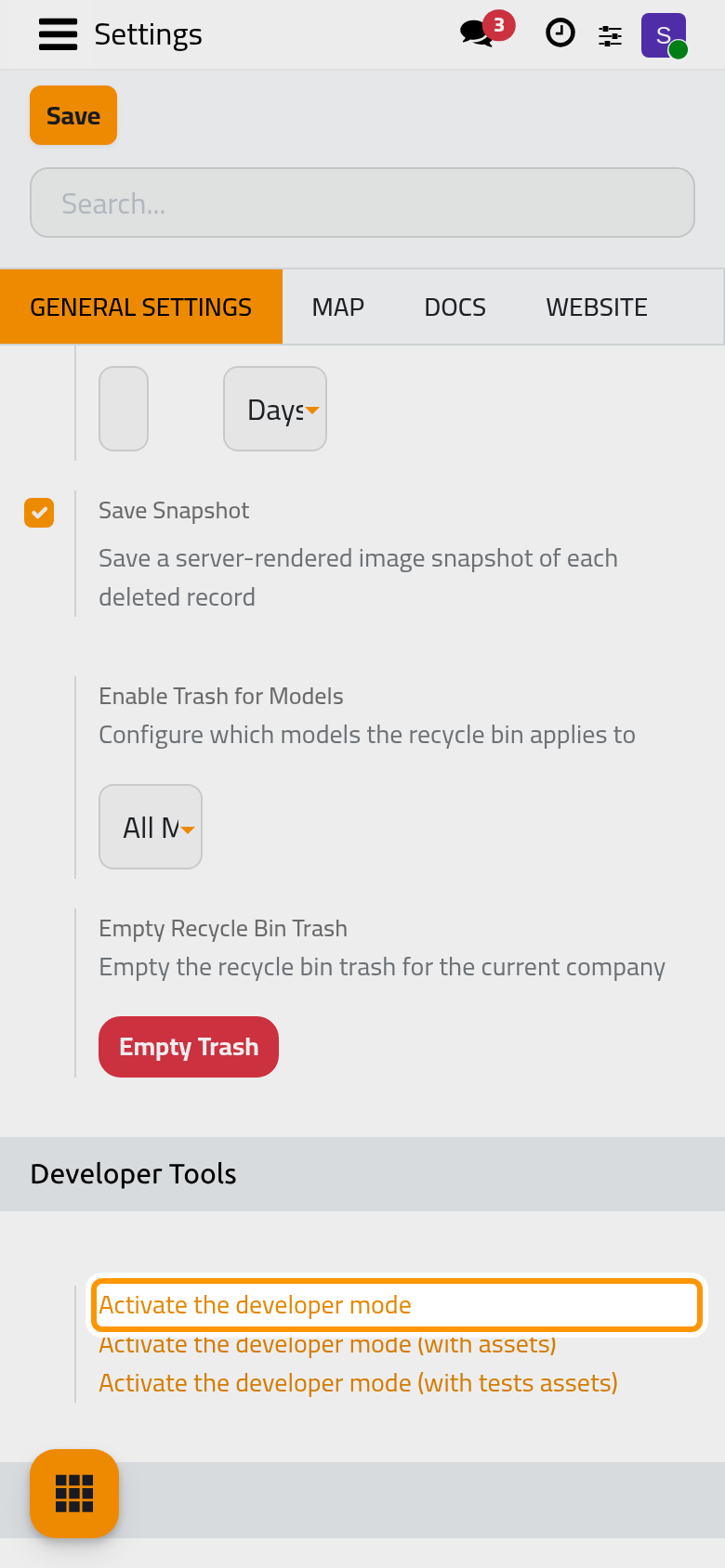
- Click Activate the developer mode. The page reloads and the address now carries
?debug=1. A bug icon appears in the top bar; its tooltip reads Open developer tools.
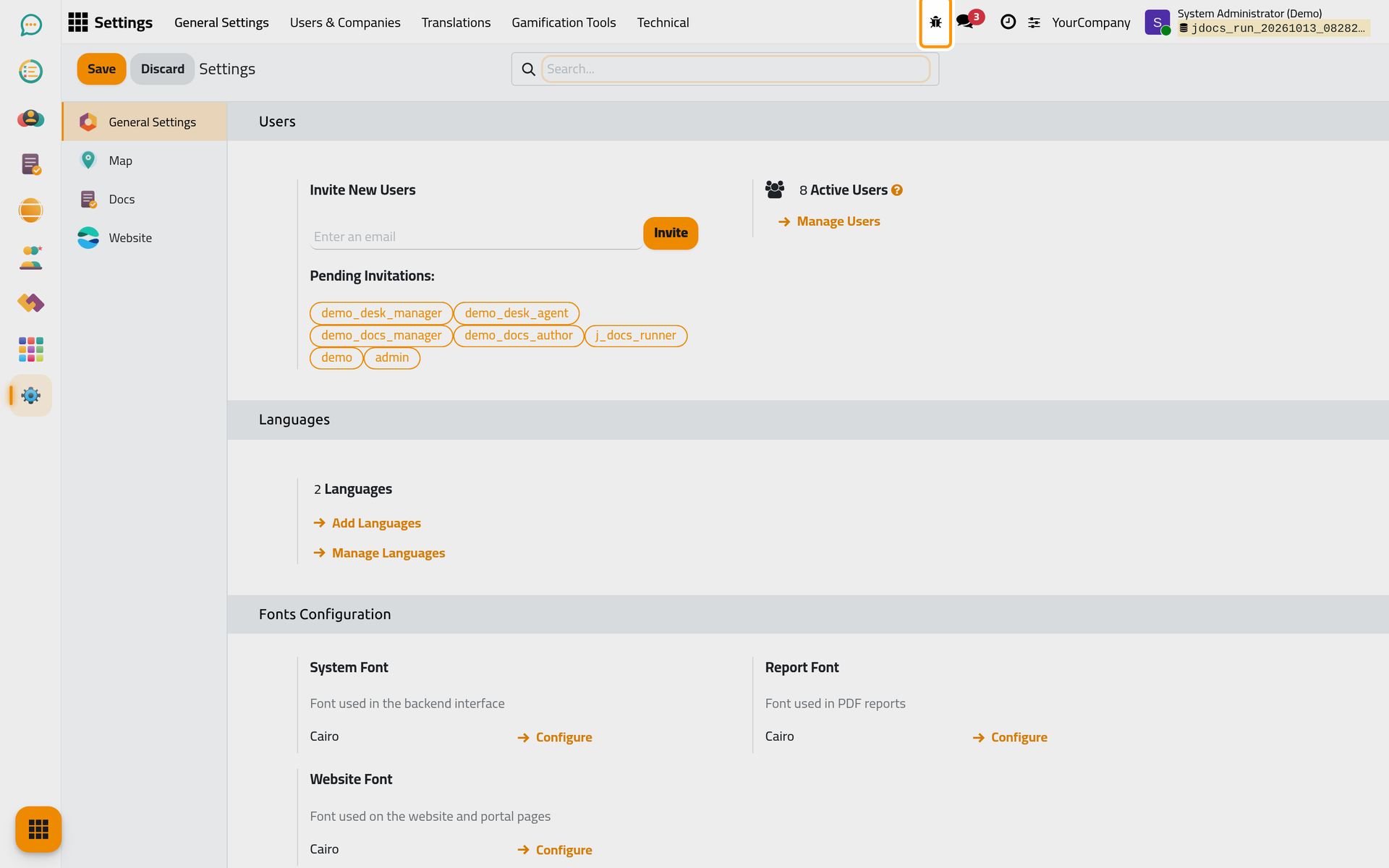
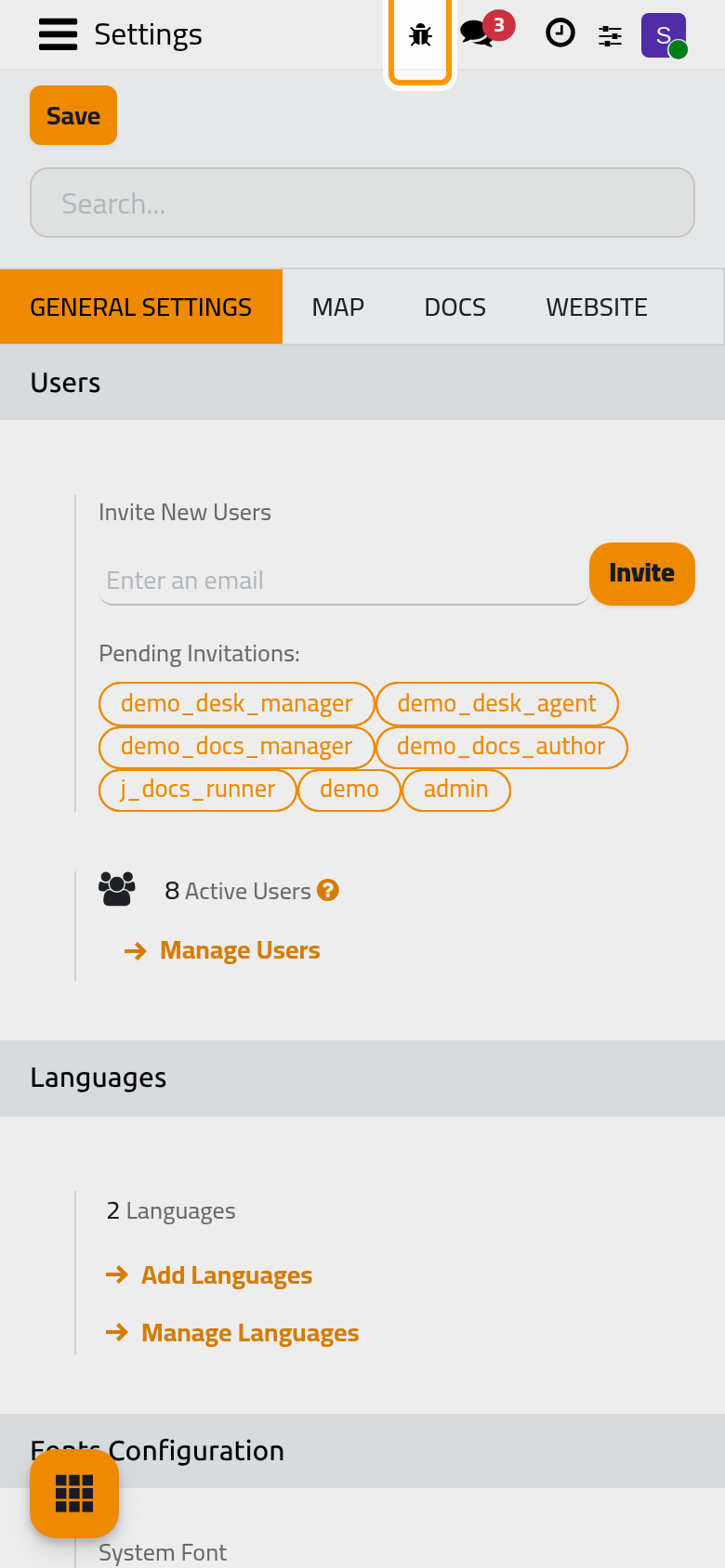
- Look at the Settings menu bar. Technical is there with its folders User Interface, Email, Database Structure, Automation, Security, Parameters, Actions and Sequences & Identifiers; on this platform it also holds Brand Identity. Translations offers Languages, Import / Export and Application Terms. Users & Companies gains Groups and Privileges. In General Settings, the links Manage Languages, Edit Layout and Preview Document, the Import & Export setting and the blocks Progressive Web App and Performance appear; in the Apps app, Update Apps List and Apply Scheduled Upgrades.
- Click the bug icon. The debug menu lists tools for the current screen, for instance Fields, Access Rights and Record Rules of the current model, Set Default Values, and Metadata of an open record, followed by general tools: Regenerate Assets, Become Superuser (administrators only), Activate Test Mode and Leave Debug Mode.
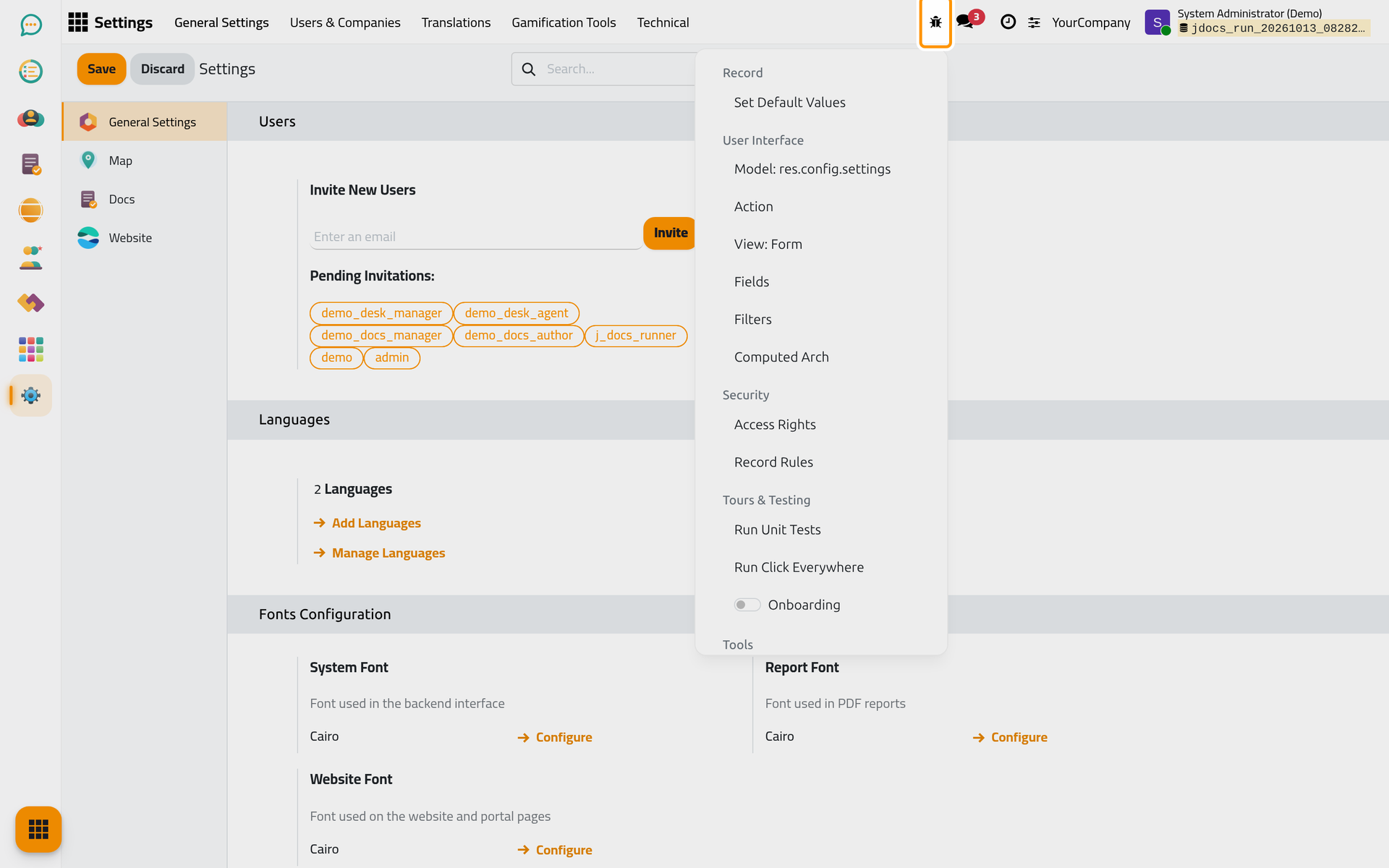
- When you are done, choose Leave Debug Mode in that menu. The page reloads without the flag and the bug icon disappears. The Developer Tools block offers Deactivate the developer mode for the same purpose, and
?debug=0in the address bar works everywhere. Logging out ends it as well.
Become Superuser
Become Superuser runs your session as the superuser account, which the usual access rights do not apply to. Use it only to diagnose a problem, and leave it as soon as you have what you need.
Result
Developer mode is off again: the technical menus, the technical fields and the bug icon are hidden. Looking around changed nothing; only what you confirmed inside a technical form took effect, and it took effect for every user.
FAQ
Is developer mode a permission?
No. It is a flag of your session. The group behind the technical menus, Technical Features, is implied by Role / User, so every internal user has it, but it only counts while the session is in developer mode. What you can then do is still limited by your other groups: without the Settings app you will not see a Technical menu, with or without developer mode.
My colleague does not see the Technical menu
Developer mode is per browser session, so each person turns it on in their own browser. The Settings app itself is shown to the Access Rights and Role / Administrator groups only; a colleague without them has nowhere to find the Technical menu.
What is "Load demo data"?
A link of the Developer Tools block that appears in developer mode when the database has no demonstration data. It loads the demonstration data of the installed apps into the current database. Keep it for test databases: never use it on the database your company works in.
Can I activate it without the Settings app?
Yes. Add ?debug=1 to the address of any page and press Enter; ?debug=assets gives the variant with assets. ?debug=0 turns it off. The menus and fields you then see are still those your groups allow.
Was this page helpful?
Thank you for your feedback.