Your first consultation
On this page
This tutorial walks one consultation through its whole life: a client asks the firm a legal question, the firm records it, accepts it, answers it and closes it. You need the User: Own Documents level or higher on Consulting (in the Legal Rights section of your user), and at least one lawyer and one client in Jaah.
What you will do
- Open the consultations and see all of them.
- Record a consultation with its client, lawyers and deadline.
- Approve it, so the lawyers start drafting.
- Mark it done once the answer is written.
1. Open the consultations
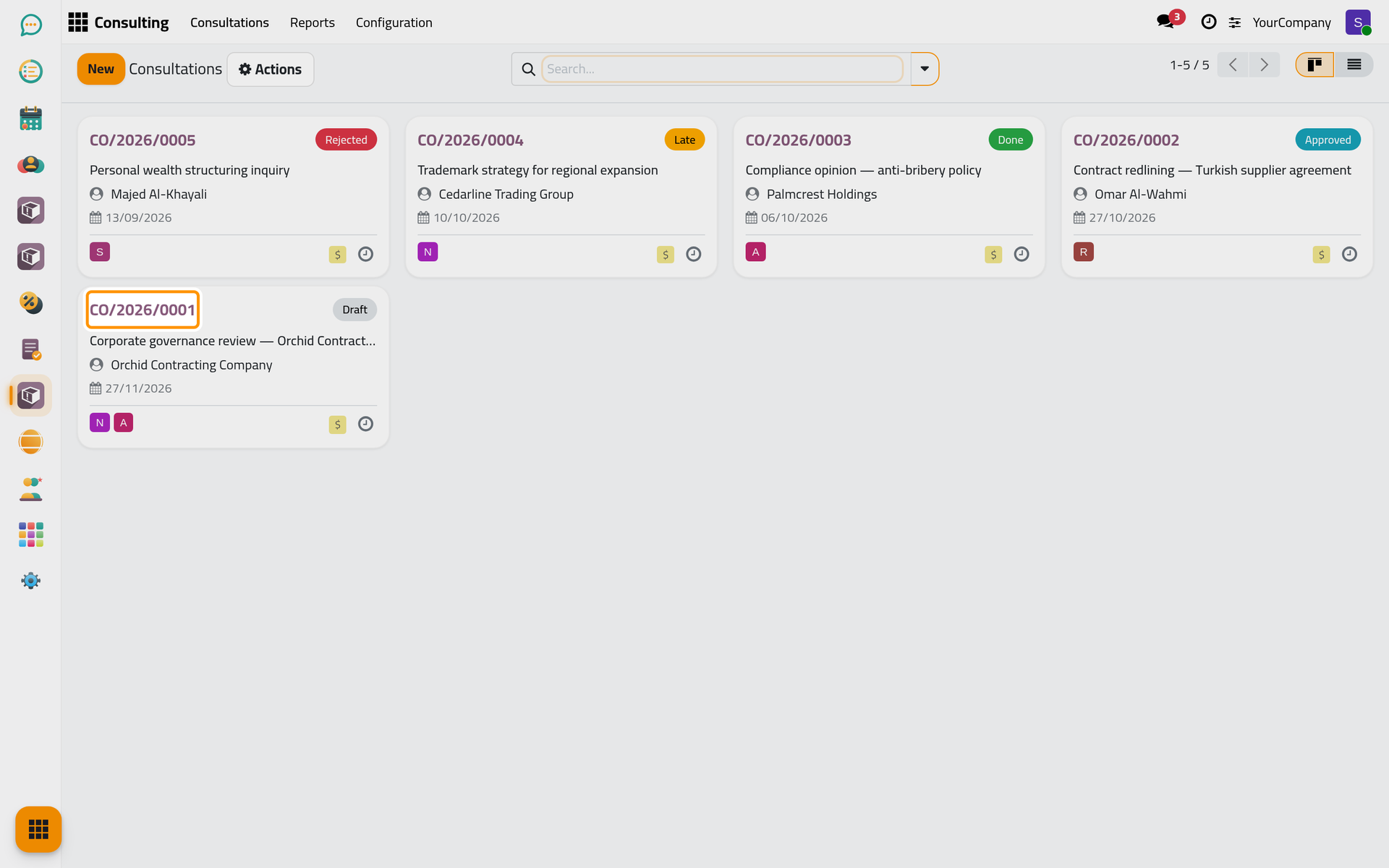
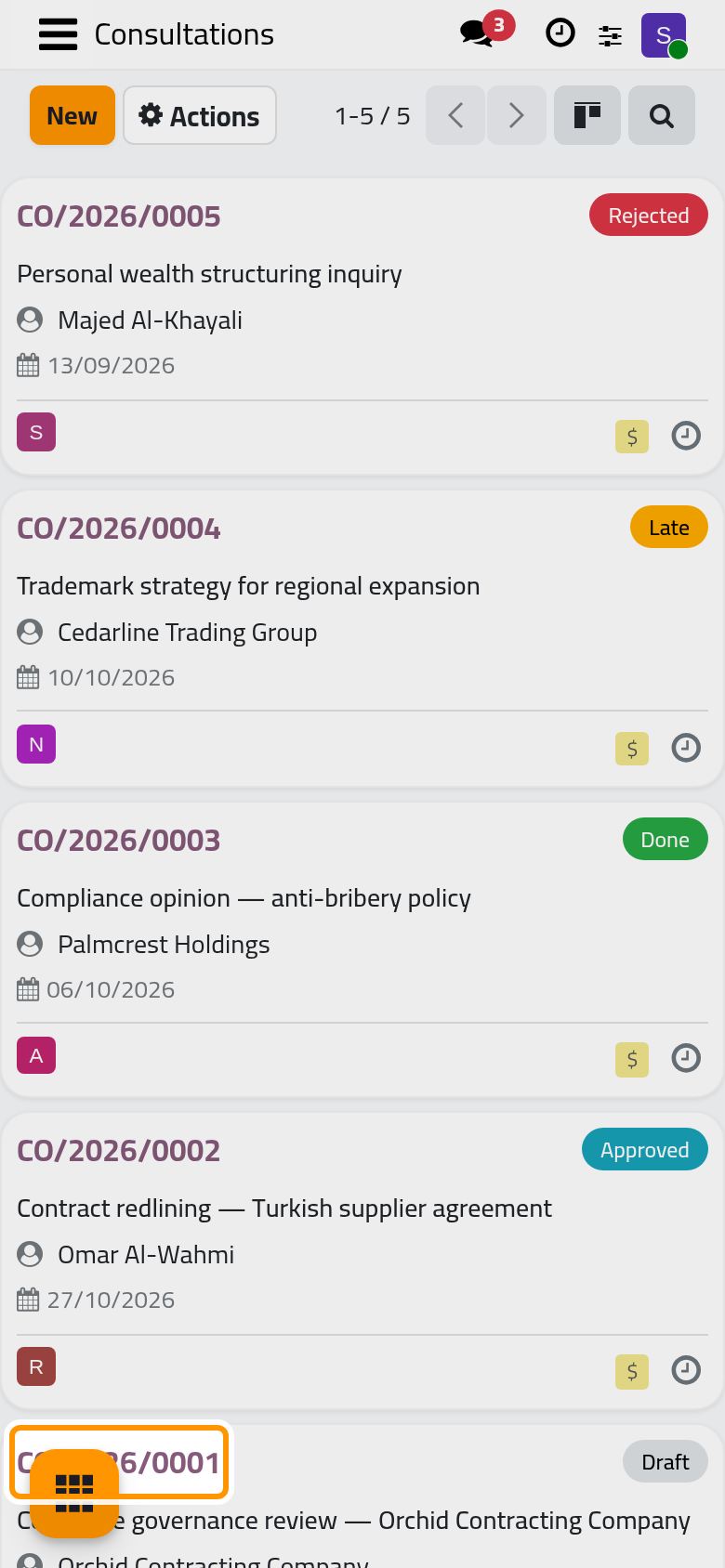
Open . The list opens on the filter My Consultations: the consultations where you are one of the lawyers. Click Remove on the filter to see every consultation of the firm. Each card shows the number, the state, the subject, the client and the deadline.
2. Record a consultation
- Click New.
- Type the Subject, the question in a few words.
- Pick the Client, set the Deadline, the date by which the firm answers, and pick one or more Lawyers.
- Write the client's question in Inquiry. Oppositions and Third Parties list the other parties when there are any.
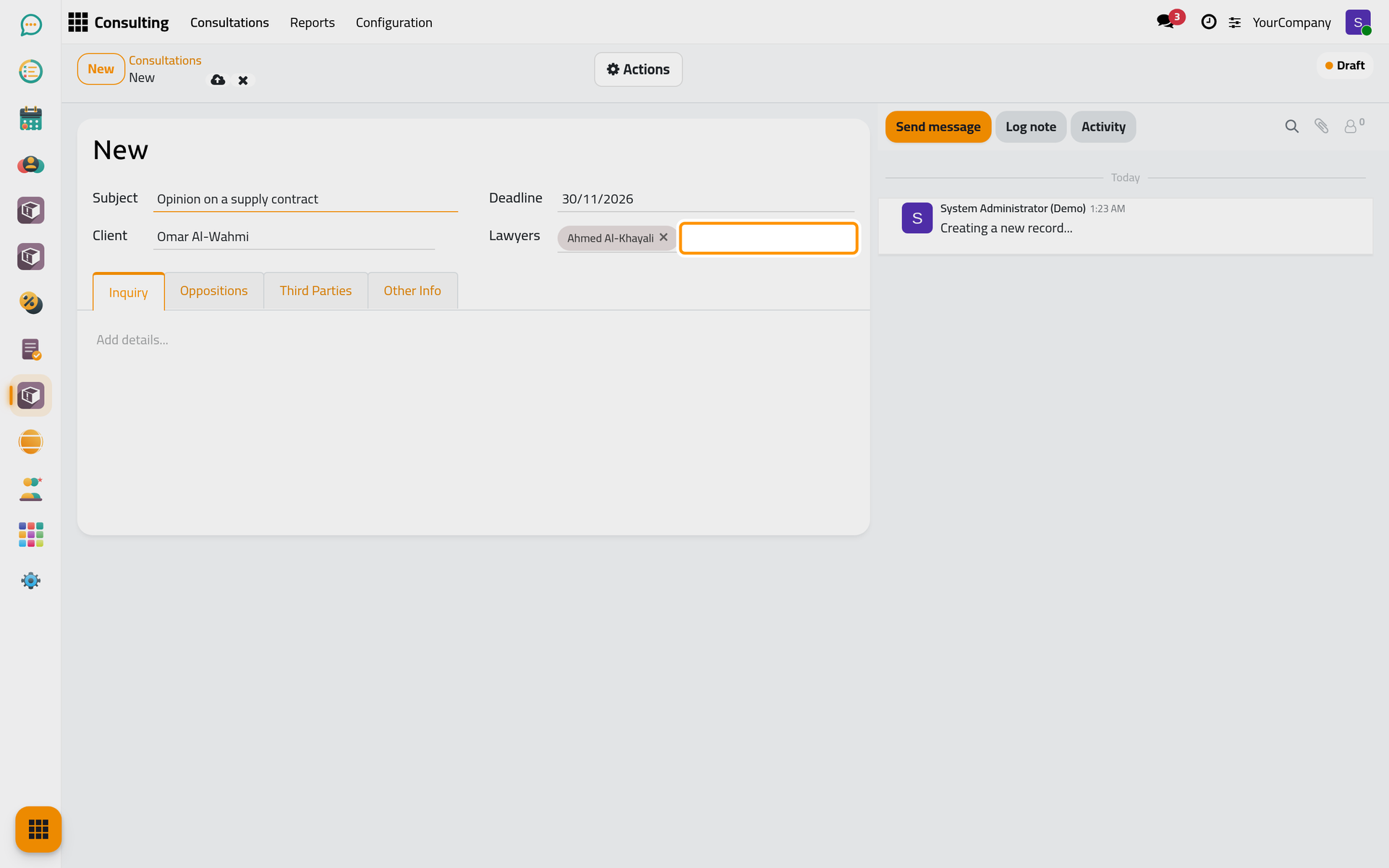
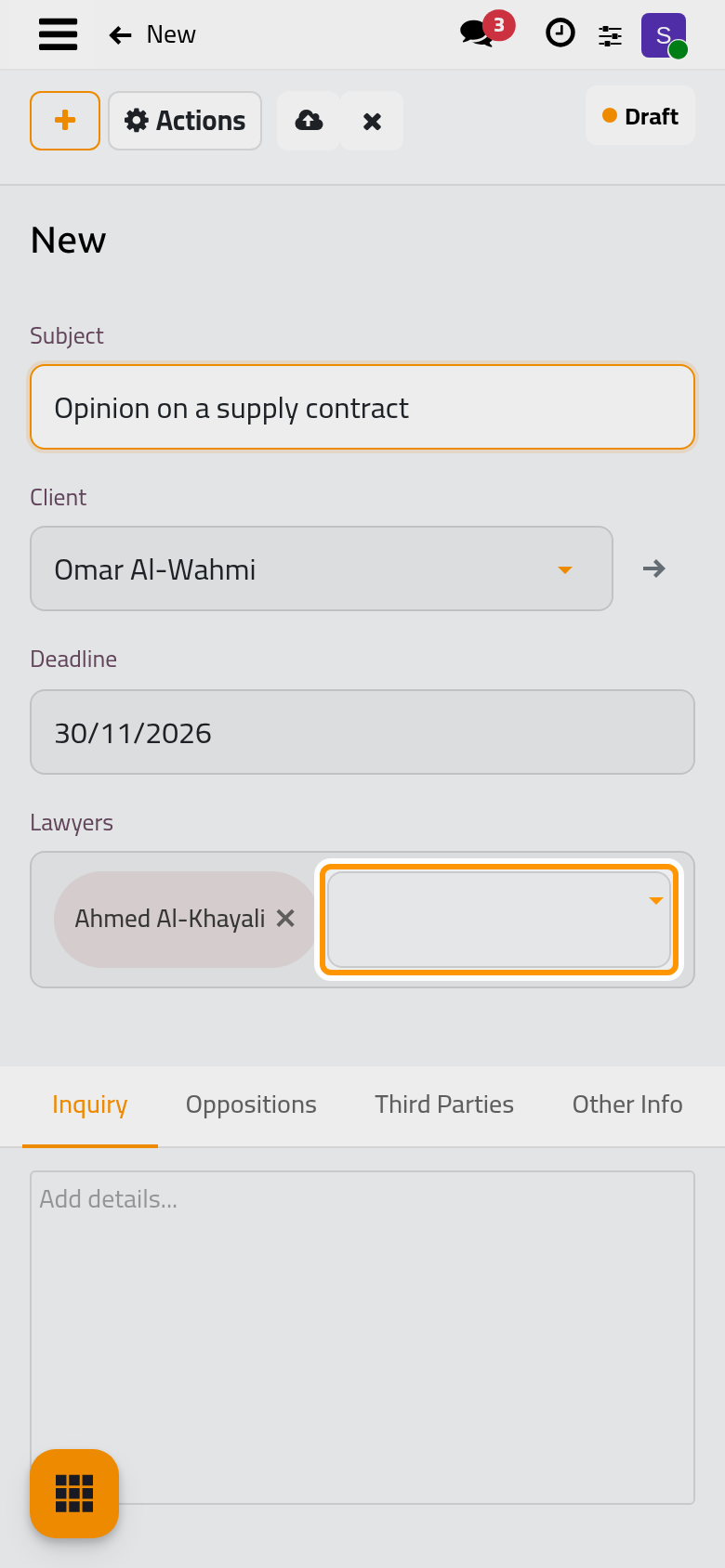
- Click the cloud icon Save manually. The consultation gets its number and stays a Draft.
3. Approve it
Open Actions and choose Approve. The state becomes Approved, and two tabs appear: Response, for the answer, and Advice, for the firm's recommendation.
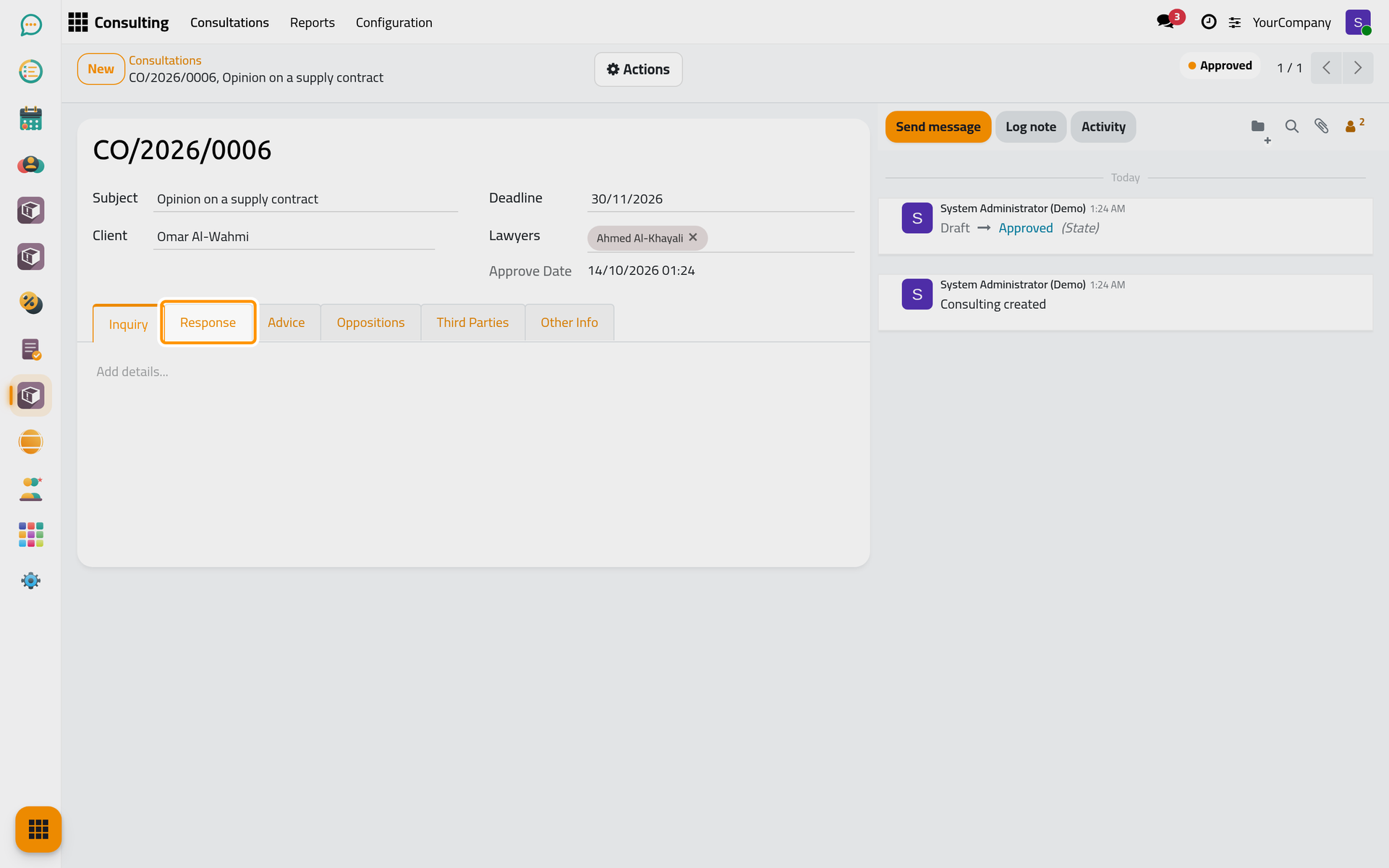
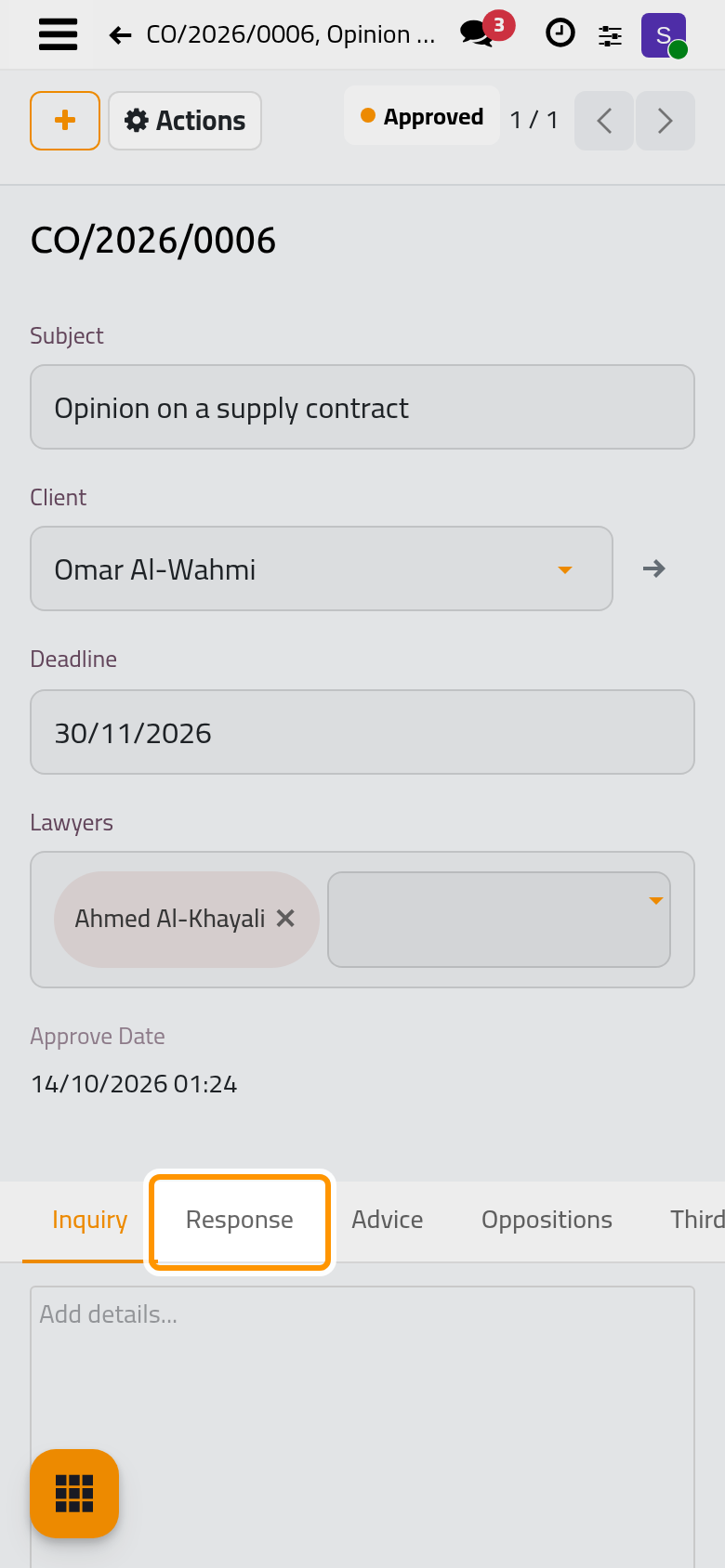
Write the answer in Response and the recommendation in Advice. Actions › Send Report emails the consultation report to the client when it is ready.
4. Mark it done
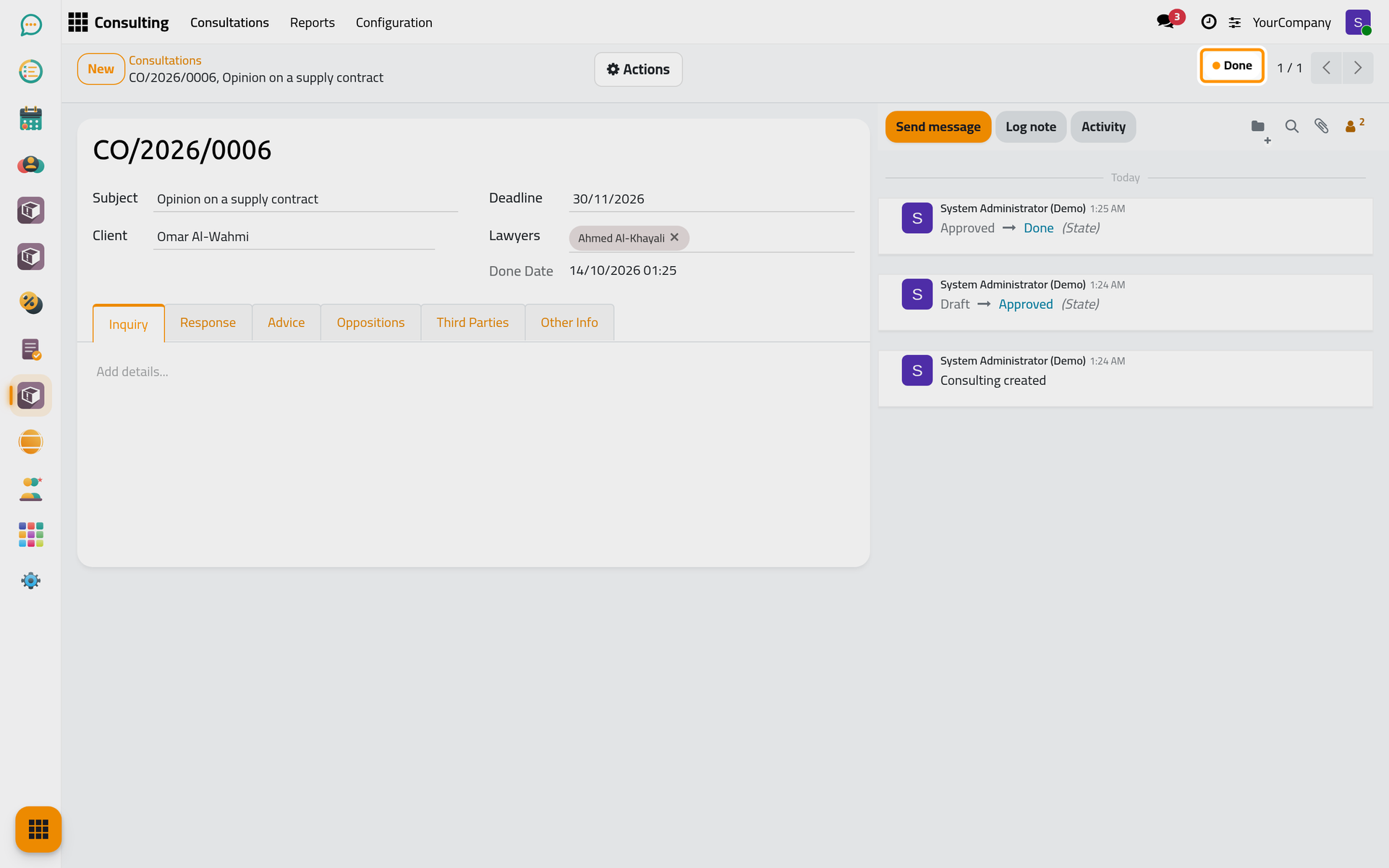
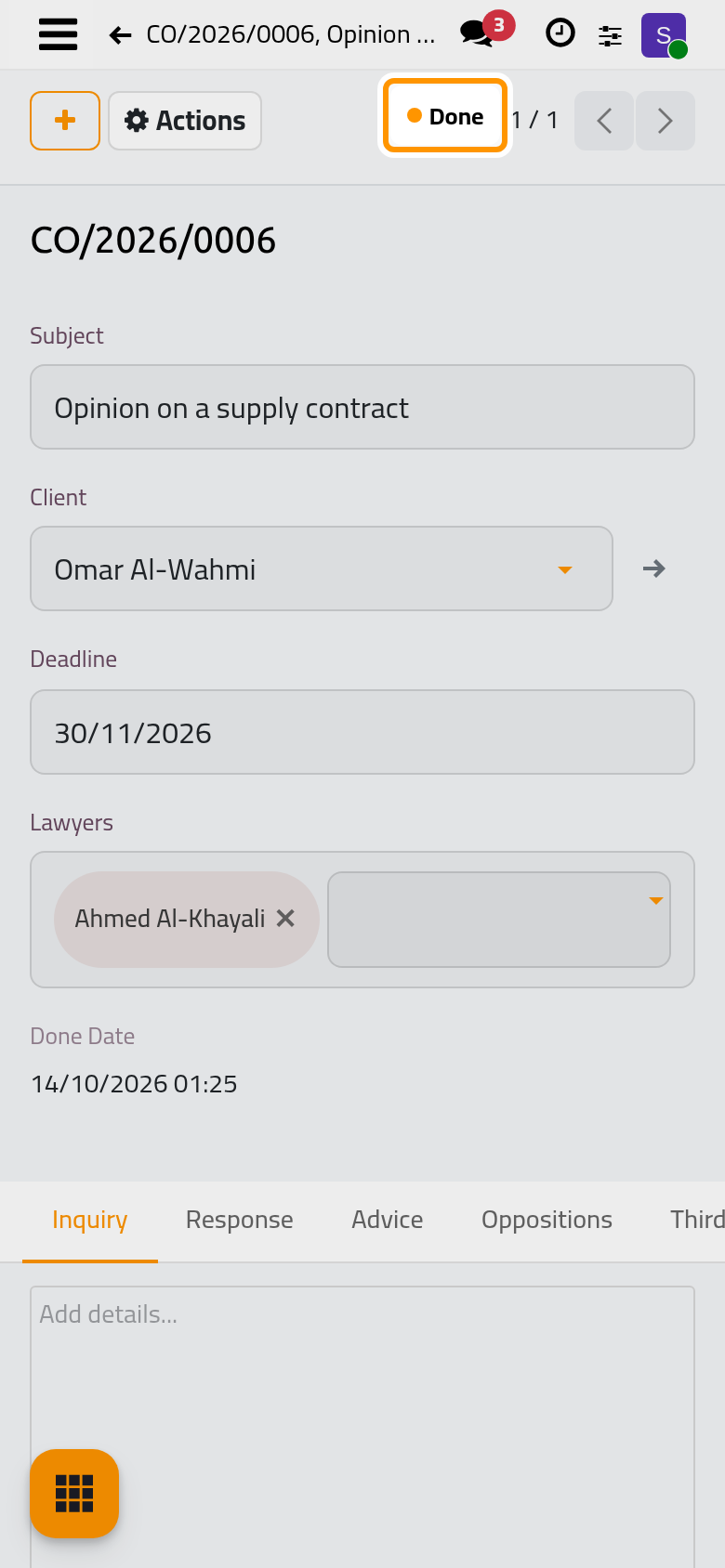
Open Actions and choose Mark Done. A consultation without an invoice asks first: click Mark Done Without Invoice here (billing is covered in Bill a consultation). The state becomes Done, and the consultation leaves the work in progress.
Next steps
- Record a consultation, including one that starts from a client request.
- Approve or reject a consultation.
- Answer a consultation and close it.
- Bill a consultation.
Was this page helpful?
Thank you for your feedback.