Tutorial
Your first contract
This walk-through drafts one contract, an annual retainer, from a template the firm keeps, and takes it to the point where it starts invoicing.
Before you start
- You need the User: Own Documents level or higher on Contracts (in the Legal Rights section of your user).
- The client exists as a contact, and the firm keeps a template in .
Step 1: draft the contract
- Open and click New.
- Choose the Client first, then the Template. The template gives the contract its Amount and writes the Agreement Statement, with the firm's name, the client's name and the value in place.
- Set the Start Date and the End Date.
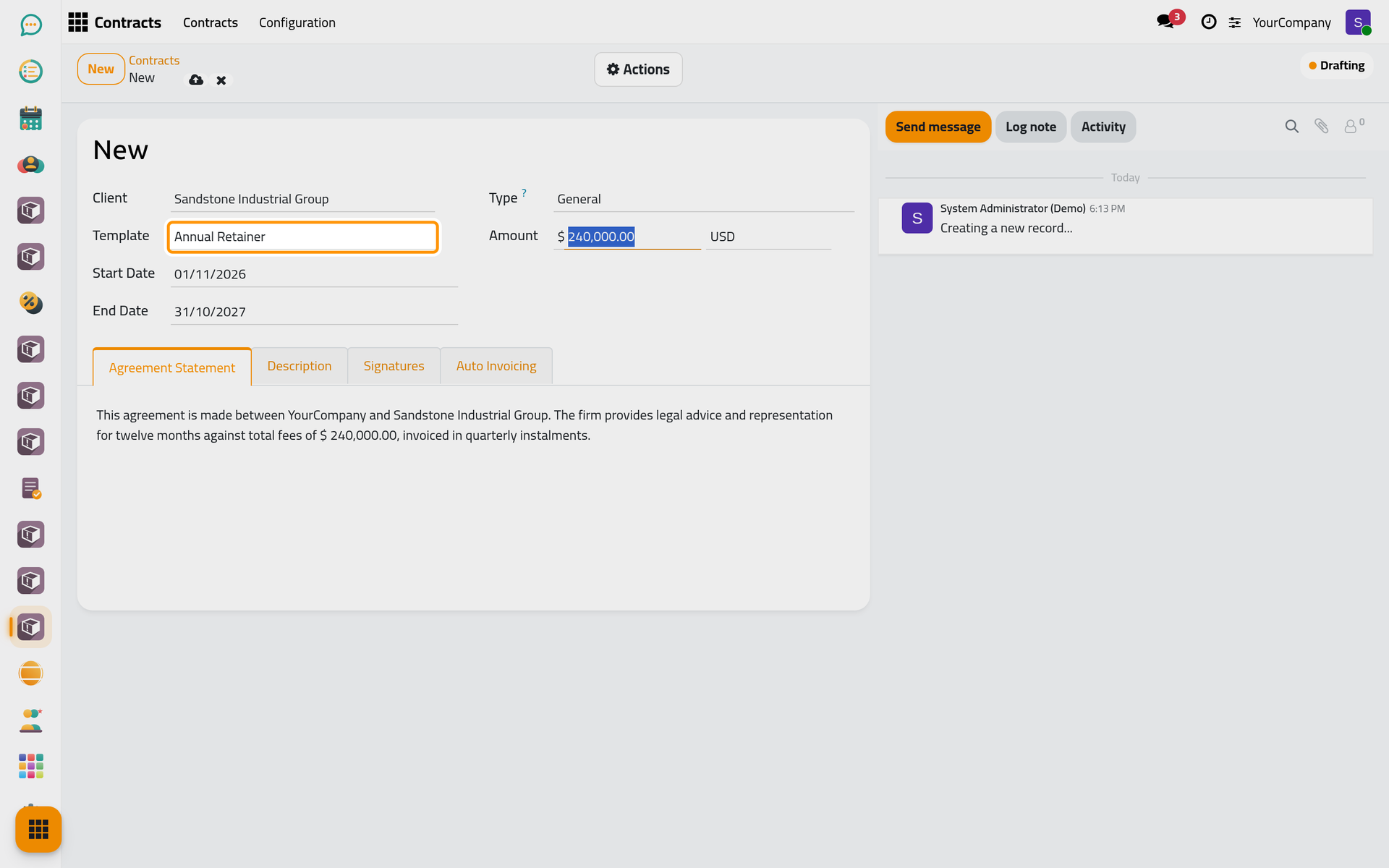
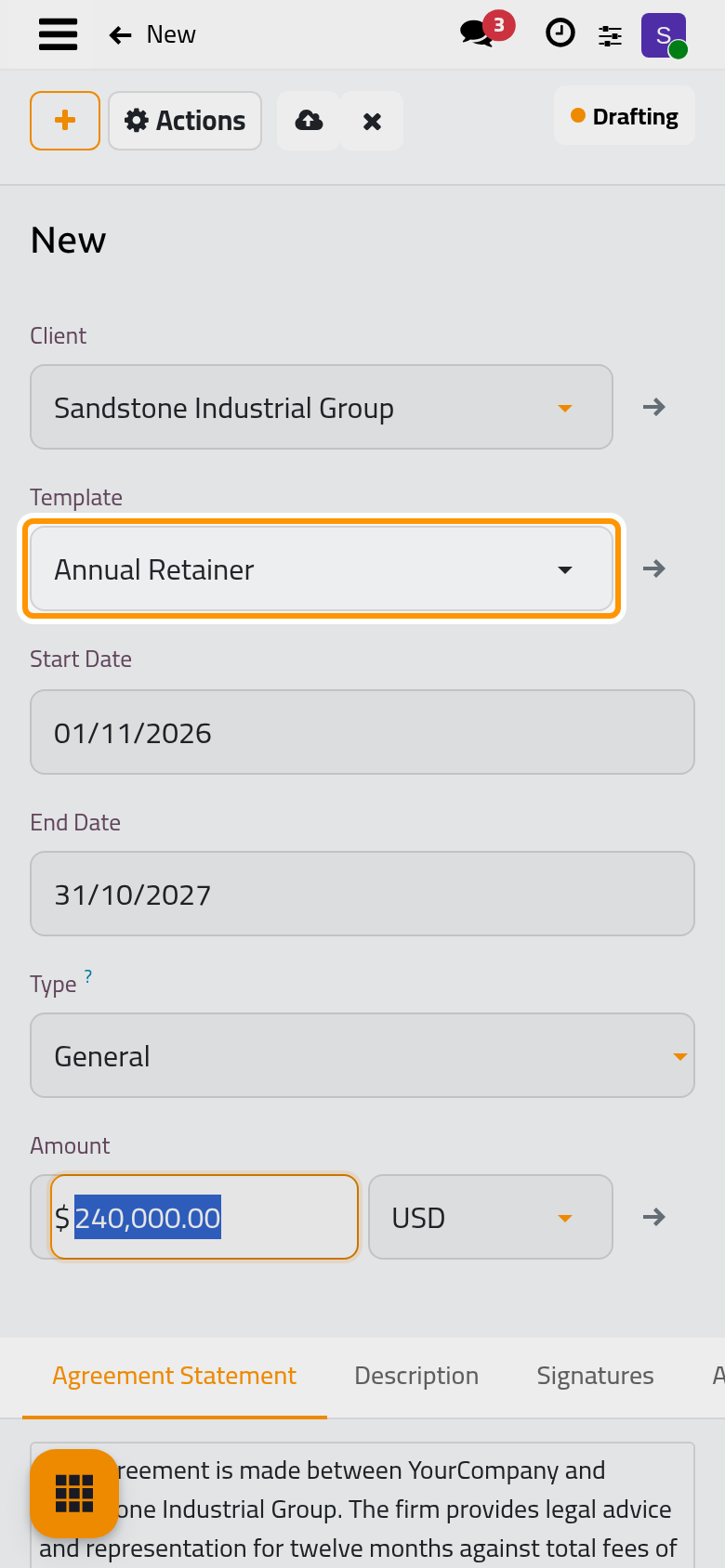
- Click the cloud icon Save manually. The contract takes its sequence and starts in Drafting, a stage only the firm sees.
Step 2: make it Valid
- When the text is ready, open Actions › Mark Drafted. The contract becomes Draft: the client can now read and sign it on the portal.
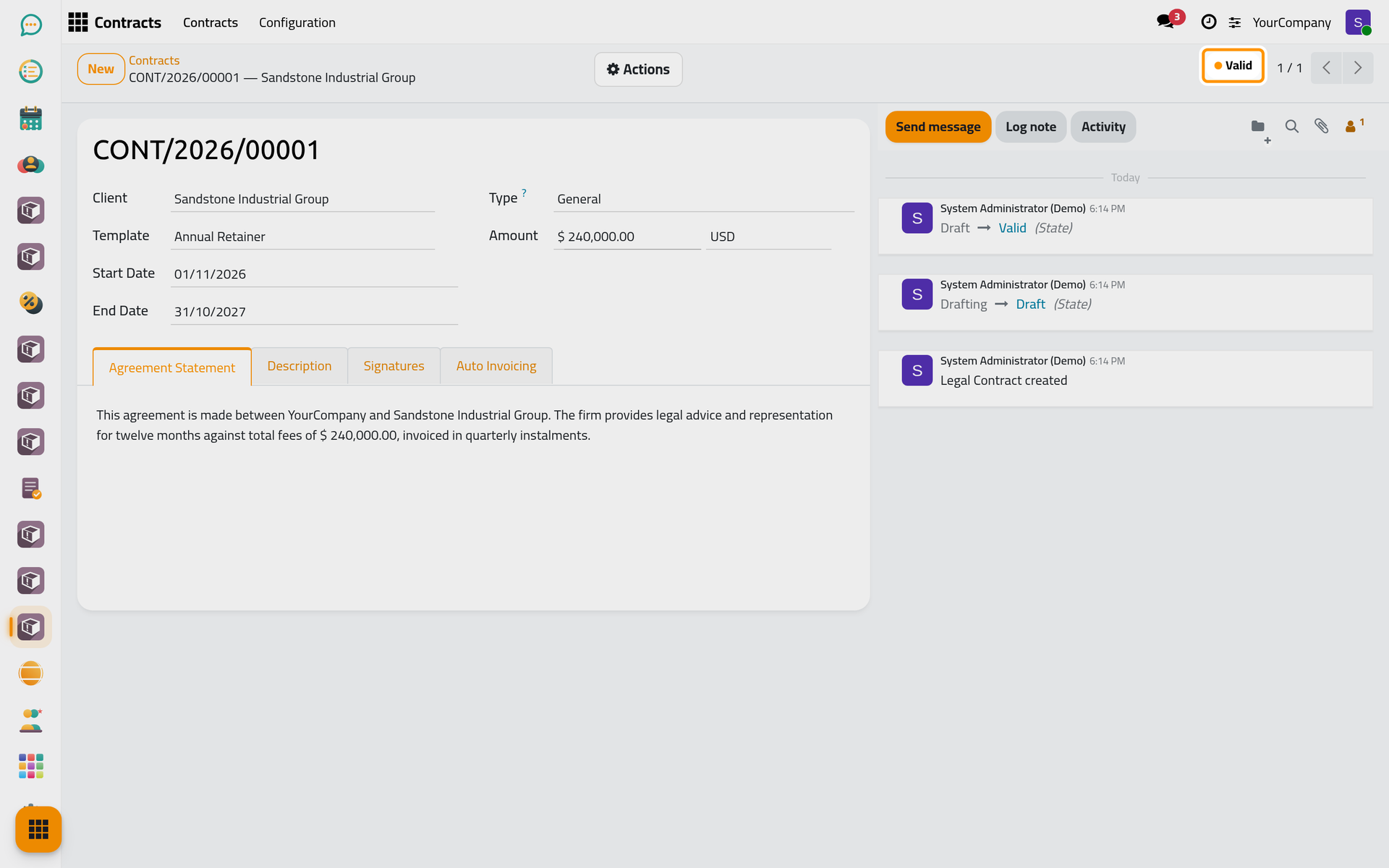
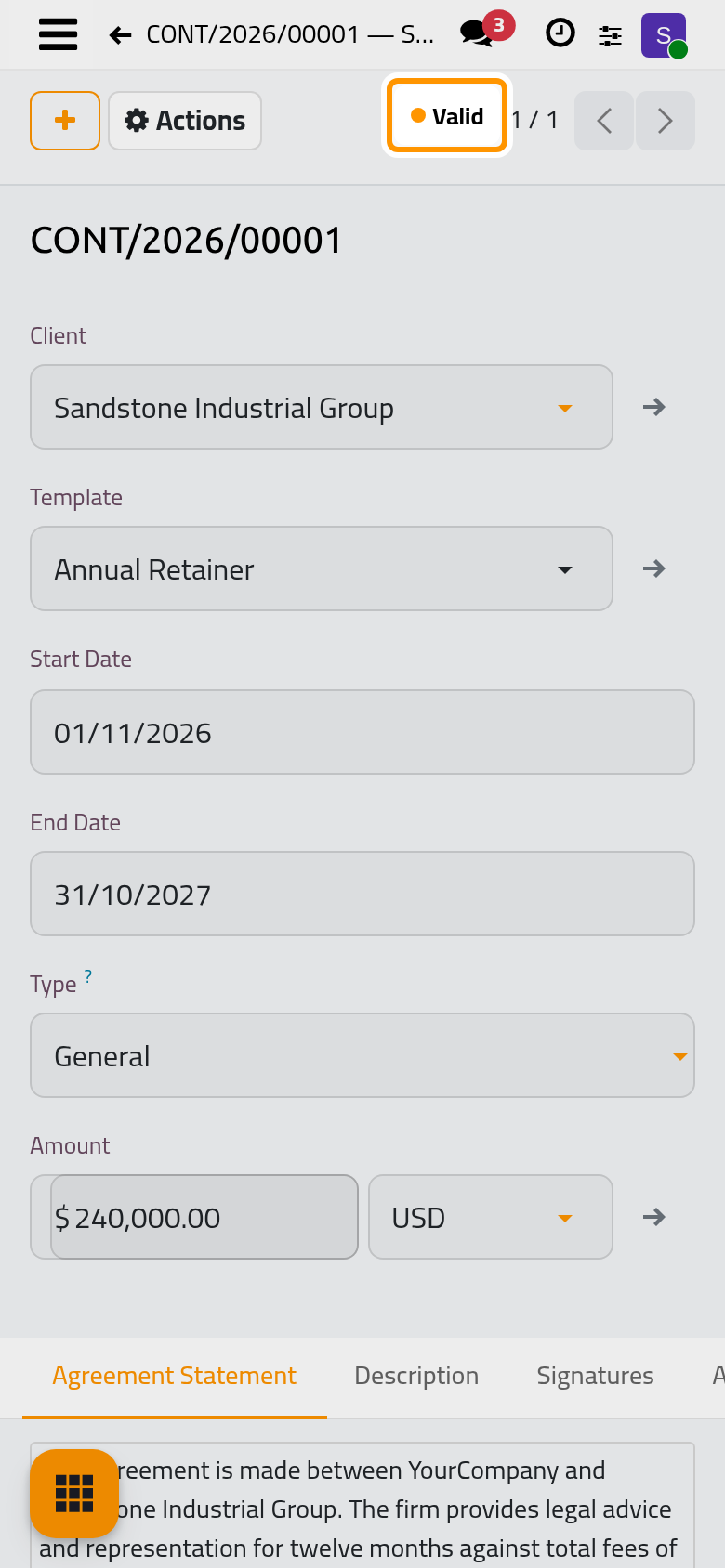
- Once it is agreed, either both sides sign in the Signatures tab, which makes it Valid by itself, or open Actions › Set Valid.
What you have done
The contract exists with its amount, its dates and its agreement, and it is Valid. From here its instalments are invoiced in the Auto Invoicing tab, and the cases, consultations or project it covers can name it.
Was this page helpful?
Thank you for your feedback.