How-to
Print case and hearing reports
On this page
Four printable reports give the firm a view of its work in court: the list of cases and the list of hearings, and for each, the neglected ones.
Before you start
- You need the Read-only level or higher on Cases. A report lists only the records you may see.
The lists
- Open for the cases, or for the hearings.
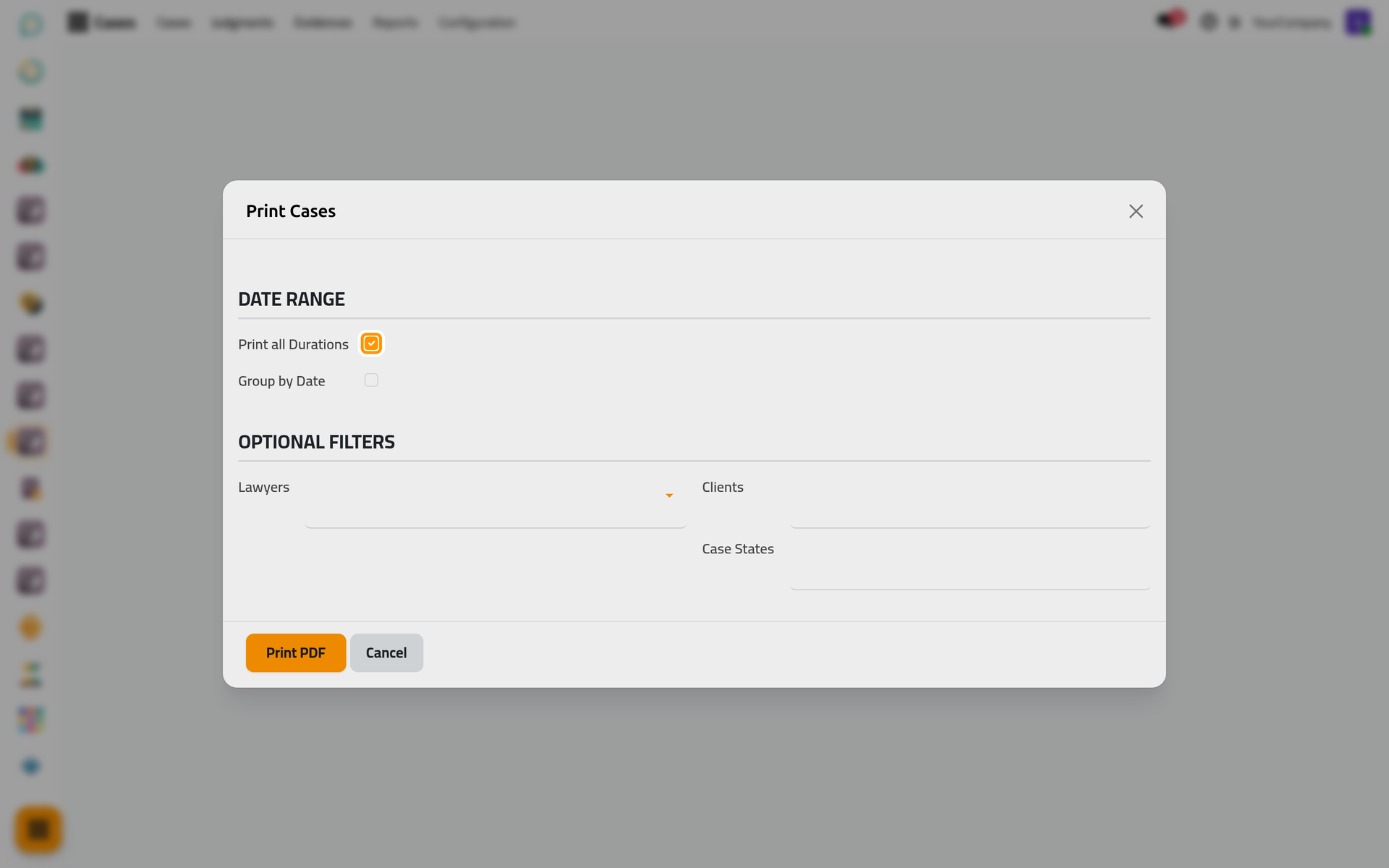
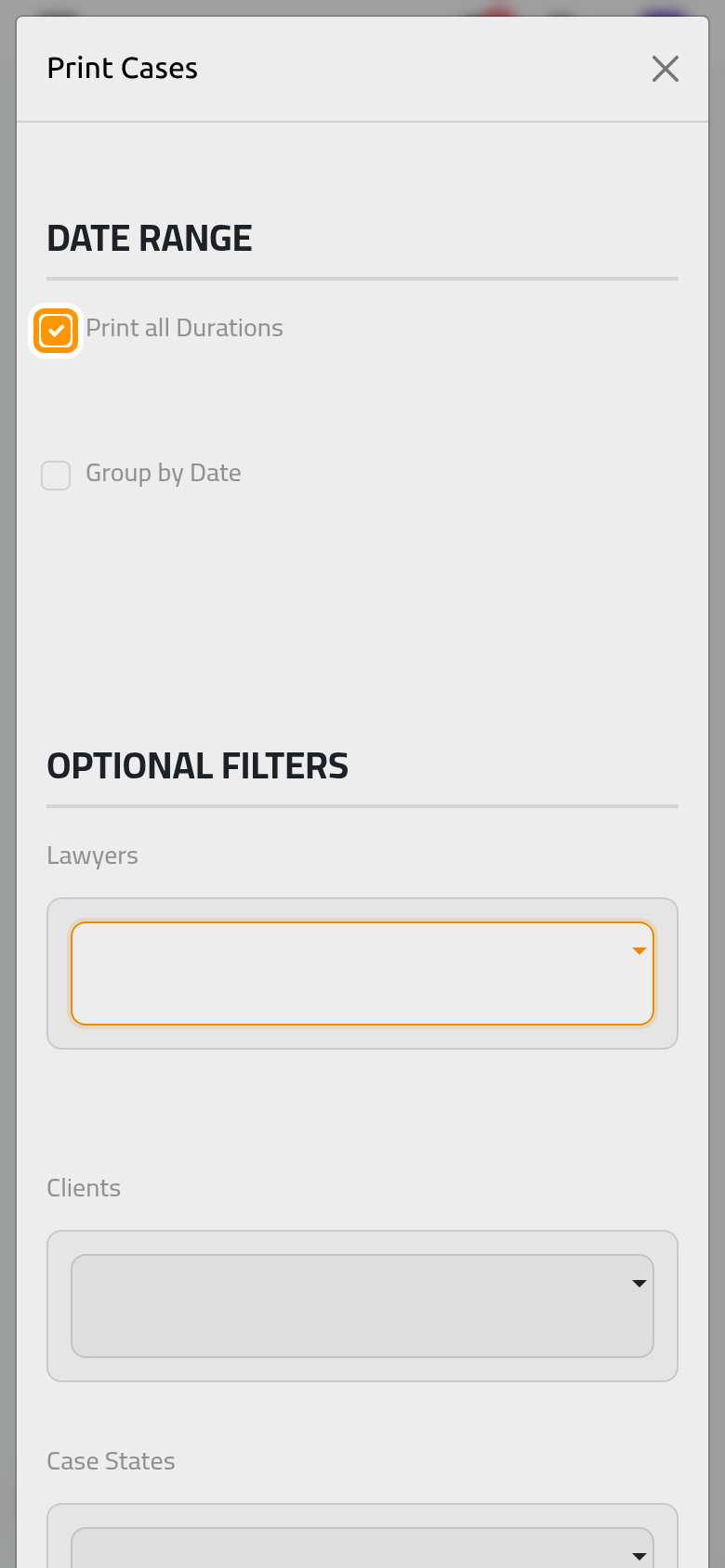
- Keep Print all Durations ticked for every date, or untick it and choose the period; Group by Date groups the lines by date.
- Narrow the list with Lawyers, the states and Clients, or leave them empty for all, then click Print PDF.
The neglected ones
- Open for the cases, or for the hearings.
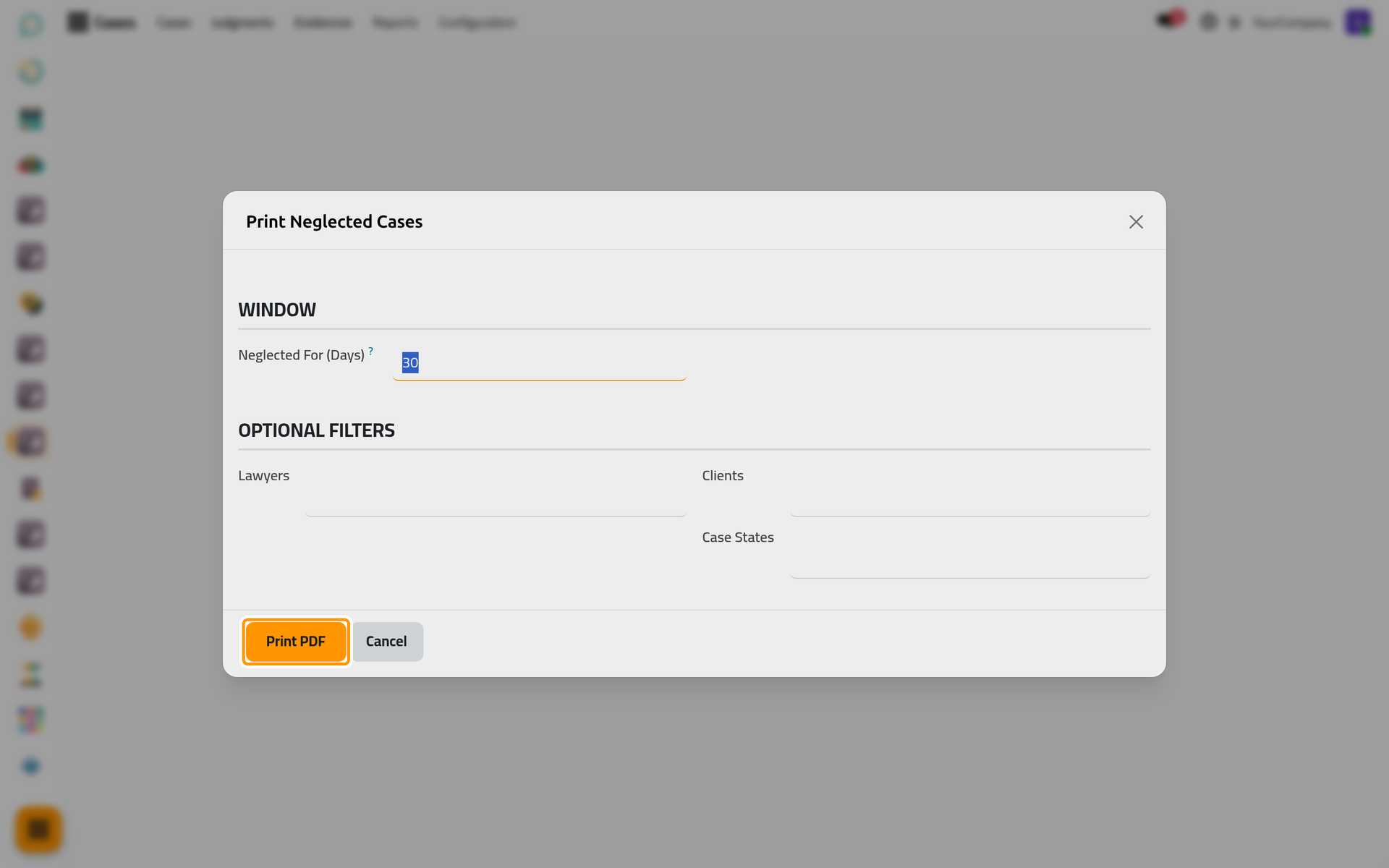
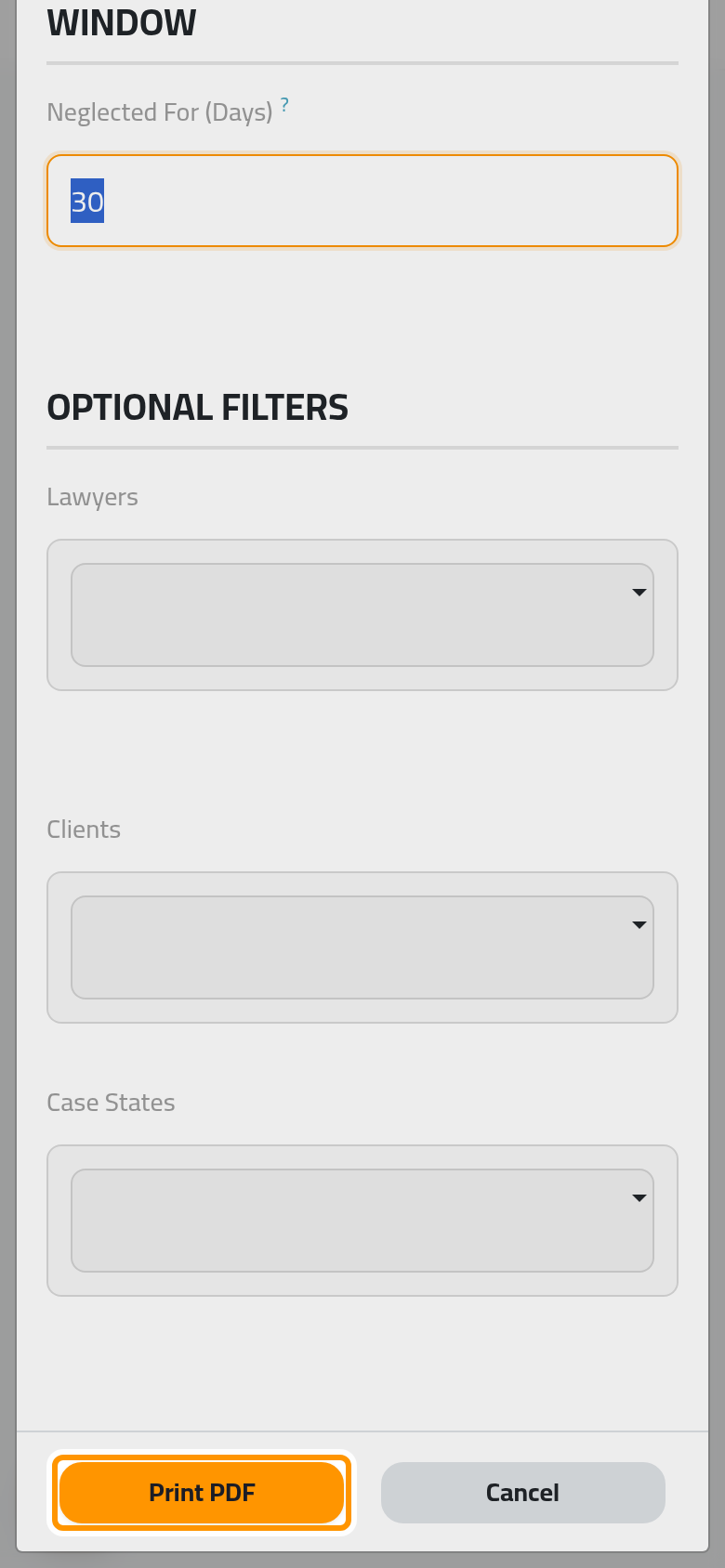
- Type the number of days: a record is neglected when nobody changed it for that long. Narrow it if needed and click Print PDF; the oldest come first.
A neglected case is often one waiting on a hearing date or a judgment that nobody recorded; the list gives the weekly review of the firm a clear starting point.
FAQ
Why is a case missing from the report?
The report applies the same access as the list: with User: Own Documents, you see the cases of your own files only, and with Manager: All Documents every case of the firm.
Was this page helpful?
Thank you for your feedback.