How-to
Schedule a hearing and record its minutes
On this page
A hearing is one session of a case before its court. The firm schedules it, prepares what it needs, attends it and writes its minutes; a case usually has several.
Before you start
- The case is In Progress or in Appeals.
- You need the User: Own Documents level or higher on Cases.
Schedule a hearing
- Open the case from , then Actions › Add Hearing. The hearing opens with the case and its court.
- Type a Subject, pick the Lawyers who attend and set the Date and time. Tick Invite Client to add the client to the hearing's meeting in the calendar.
- In Requirements, list what the hearing needs (documents, witnesses). For an online hearing, its link goes in Hearing URL when the firm uses online hearings.
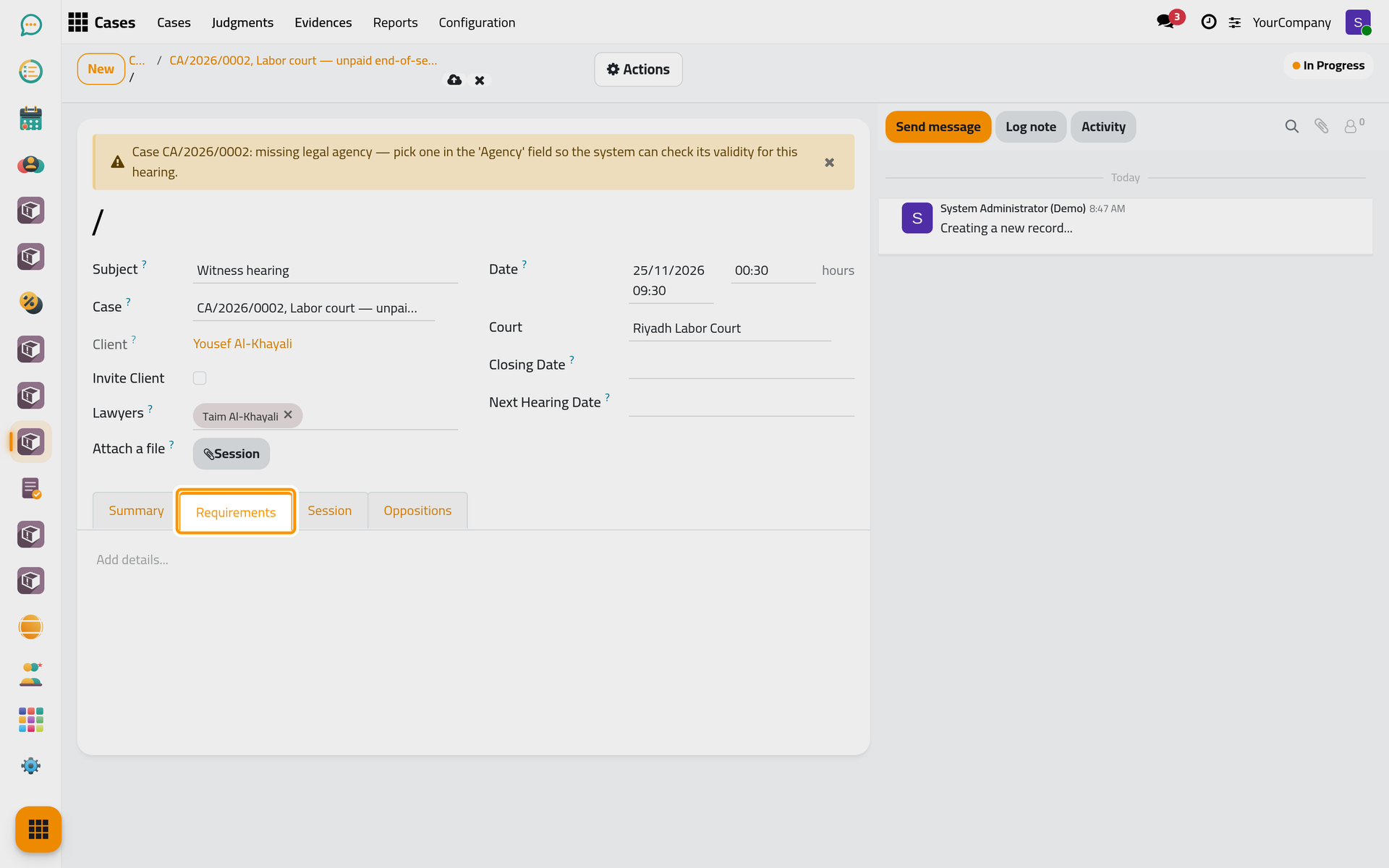
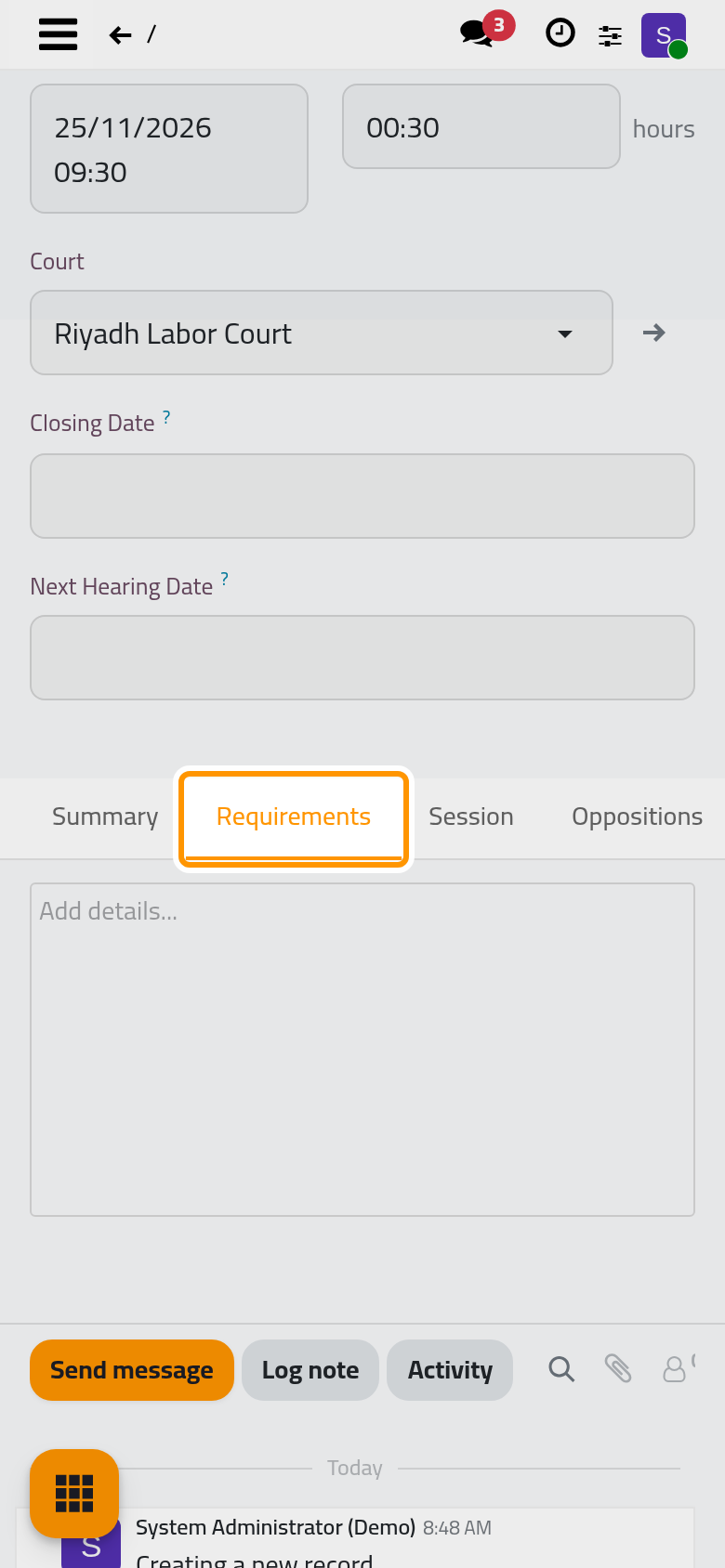
- Click Save manually. The hearing is In Progress until it is closed.
Close it with its minutes
- After the session, open Actions › Close Hearing.
- Write the minutes in the window, attach the session record if there is one, and click Write & Close Hearing.
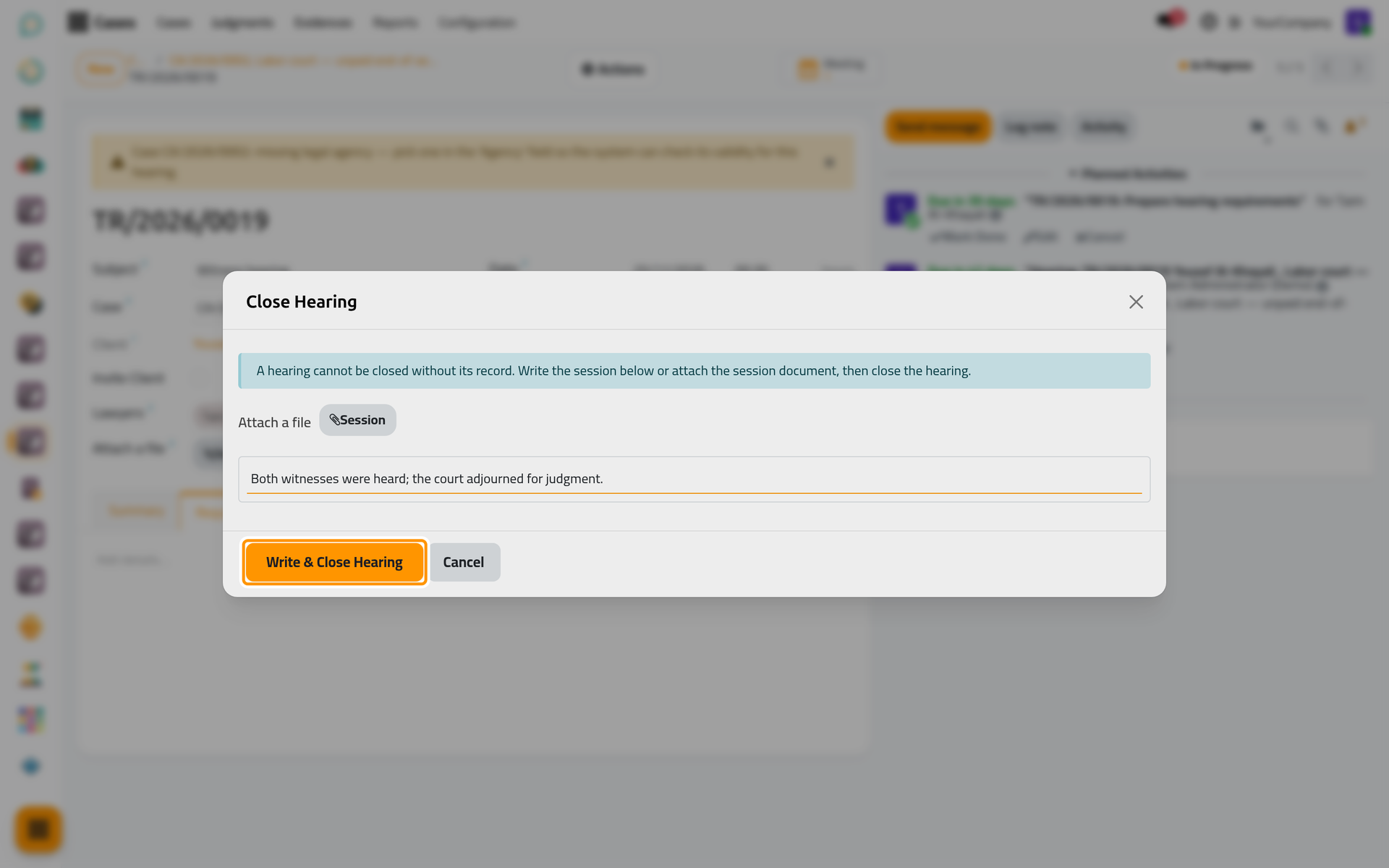
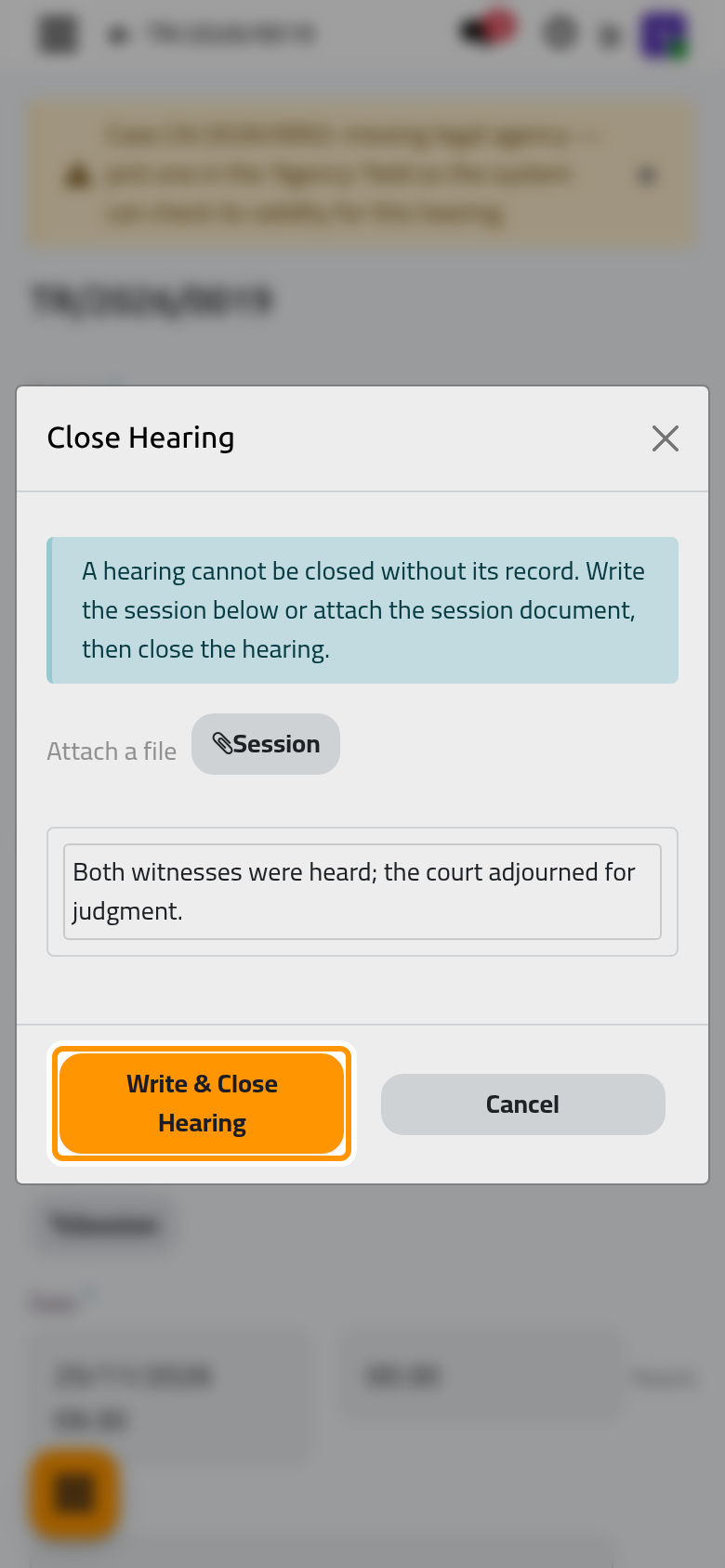
The hearing becomes Closed with its closing date; the minutes stay in its Session tab. If the court adjourned the case, record Next Hearing Date and add the next hearing from the case.
Find every hearing
lists the hearings of all cases. It opens on the hearings where you are a lawyer; remove the filter to see them all.
FAQ
Why can I not record a judgment on the case?
A judgment that wins or loses the case is refused while a hearing of the case is still in progress: close its hearings first.
Was this page helpful?
Thank you for your feedback.