Record decisions, sessions and hearings
On this page
Along a file, the execution judge issues decisions and holds sessions, and the firm may need a hearing in court. The file keeps all three.
Before you start
- You need the User: Own Documents level or higher on Executions.
- The file is In Progress: the three actions appear only then.
Record a decision
- Open the file and click Actions › Add Decision.
- Type the Number and the Subject of the decision; its date is today unless you change it. Write the decision in Description and attach the document in Attachments.
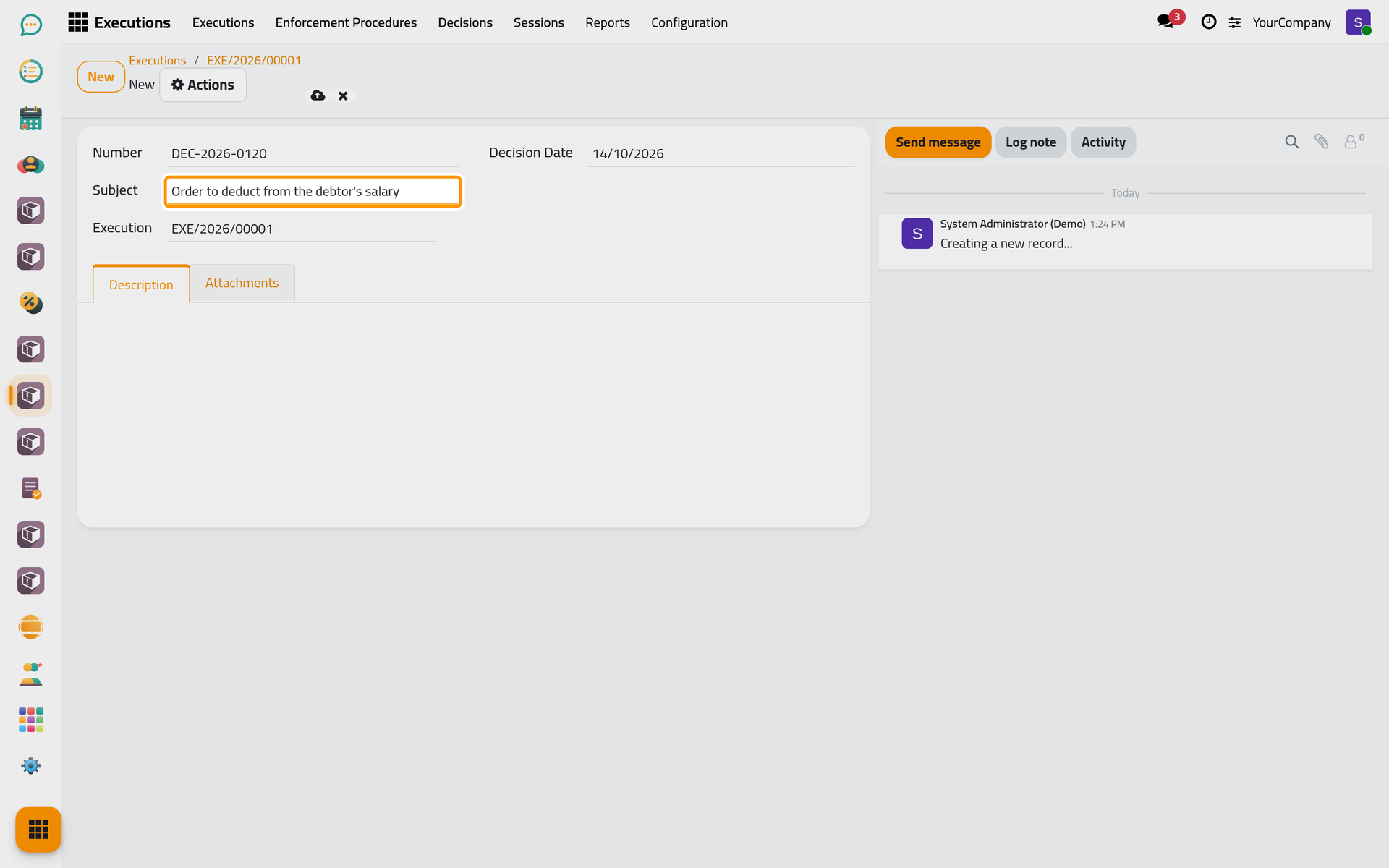
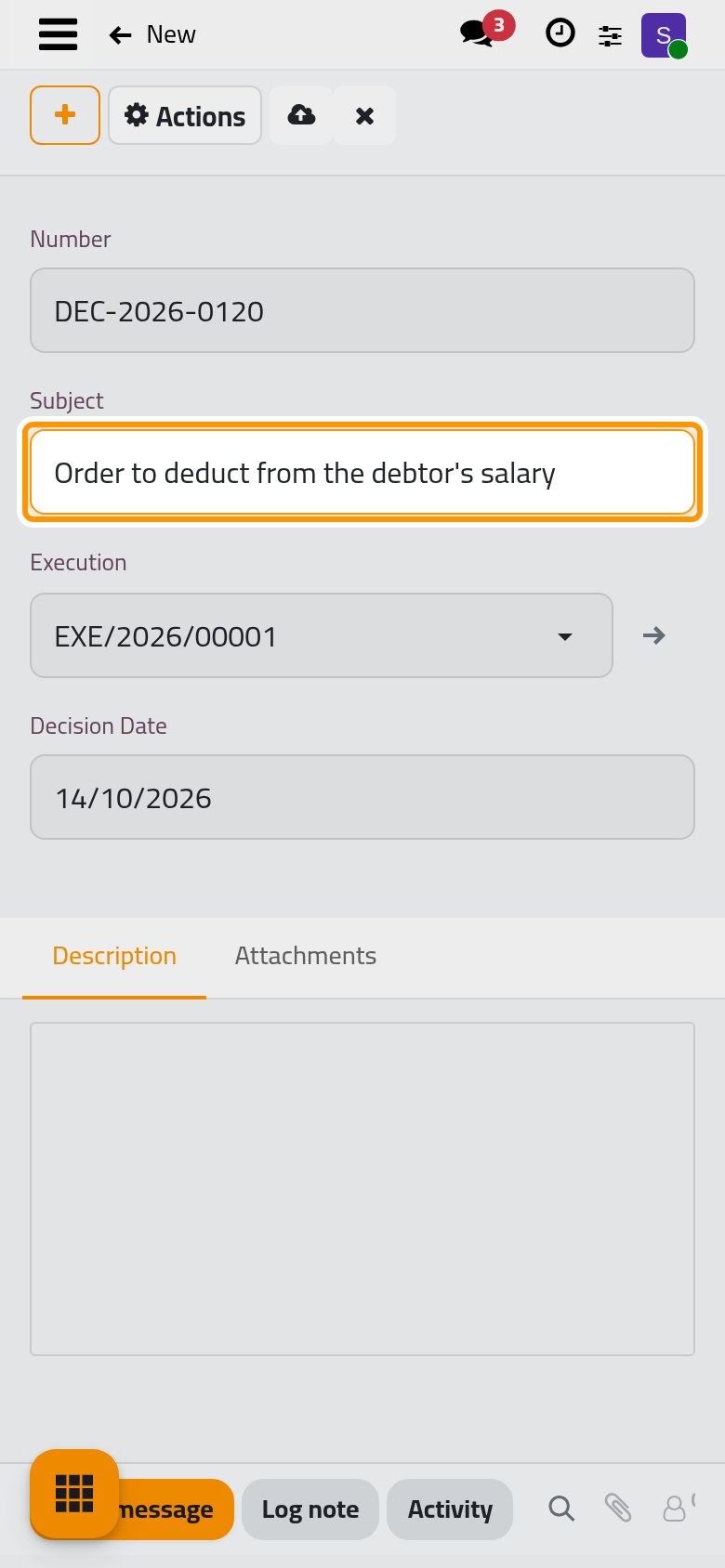
- Click Save manually, then the file's name in the breadcrumb to go back to it.
Record a session
Actions › Add Session opens the same kind of form: a Session Number, a Subject, the date, the minutes in Description and the attachments. Save it and go back to the file.
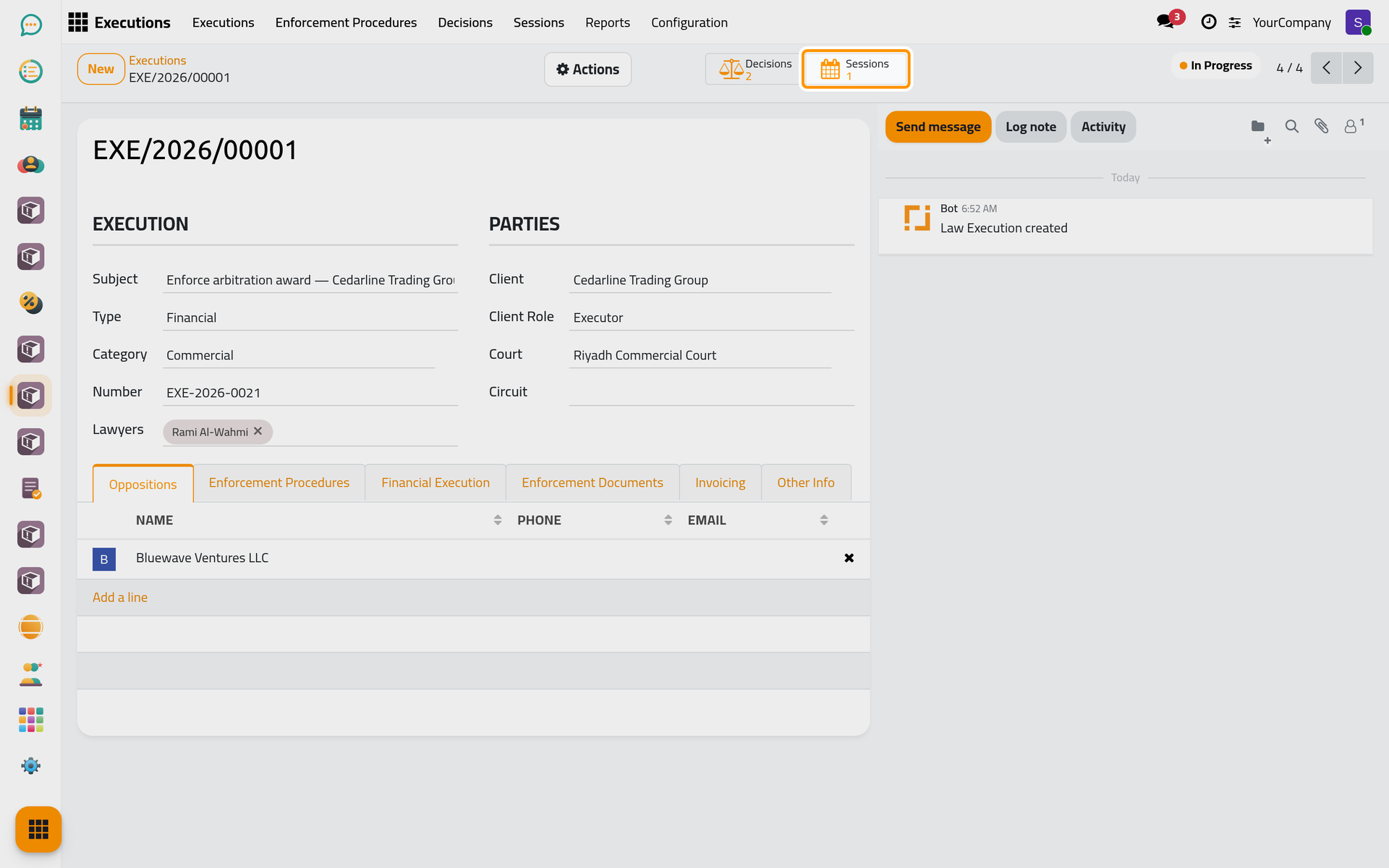
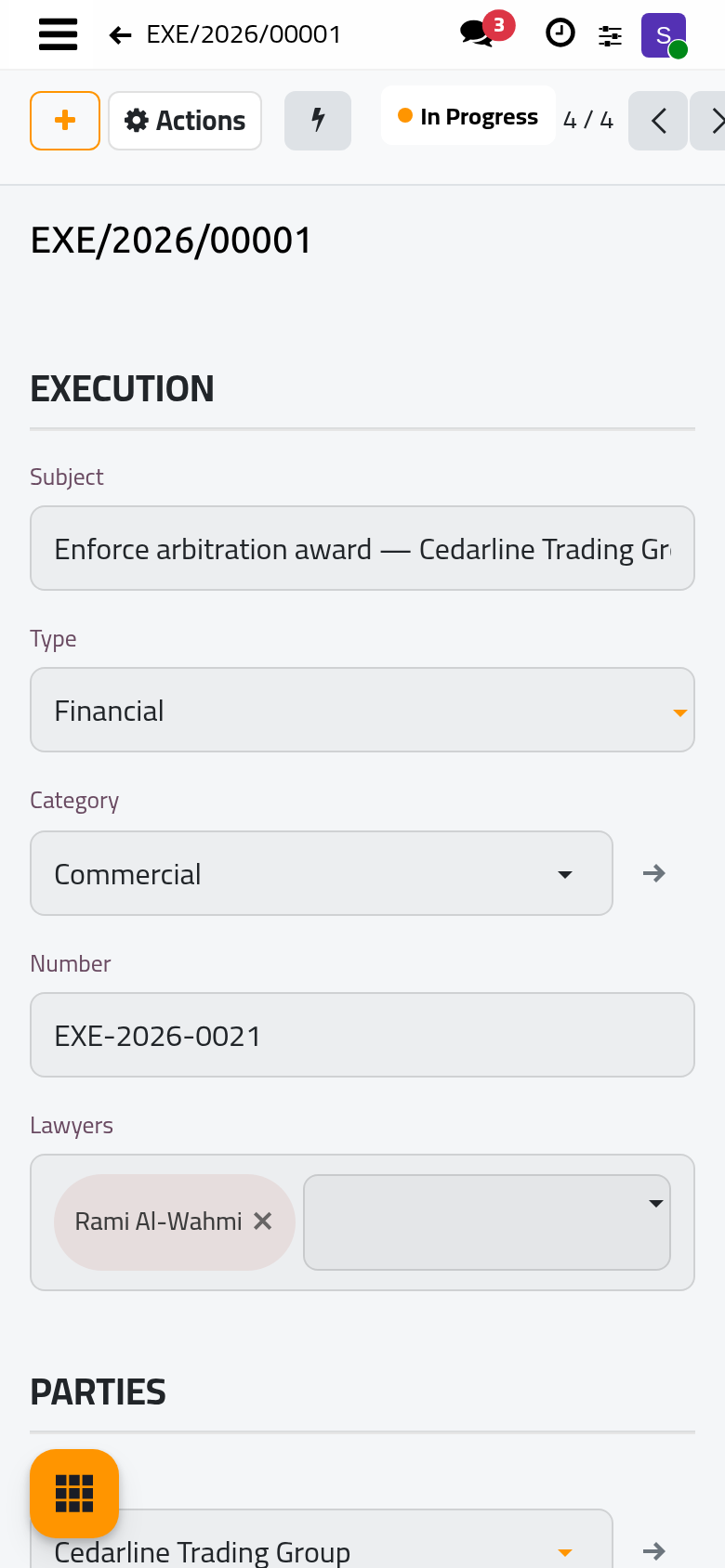
The Decisions and Sessions buttons at the top of the file count them and open them.
Schedule a hearing
Actions › Add Hearing opens a new hearing of the cases module, filled with the file, its case and its lawyers. Its Hearings button then appears on the file.
FAQ
Does the client hear about a new decision?
When Decision Emails is on in the execution settings and a template is chosen for it, the clients of the file who have an e-mail address receive one for each new decision.
Was this page helpful?
Thank you for your feedback.