Set the default taxes
On this page
The package installs the taxes of the country; the settings say which of them a new product receives. Set the defaults once and every product, invoice and bill starts with the right tax.
Before you start
- You need the Administrator access right on Accounting.
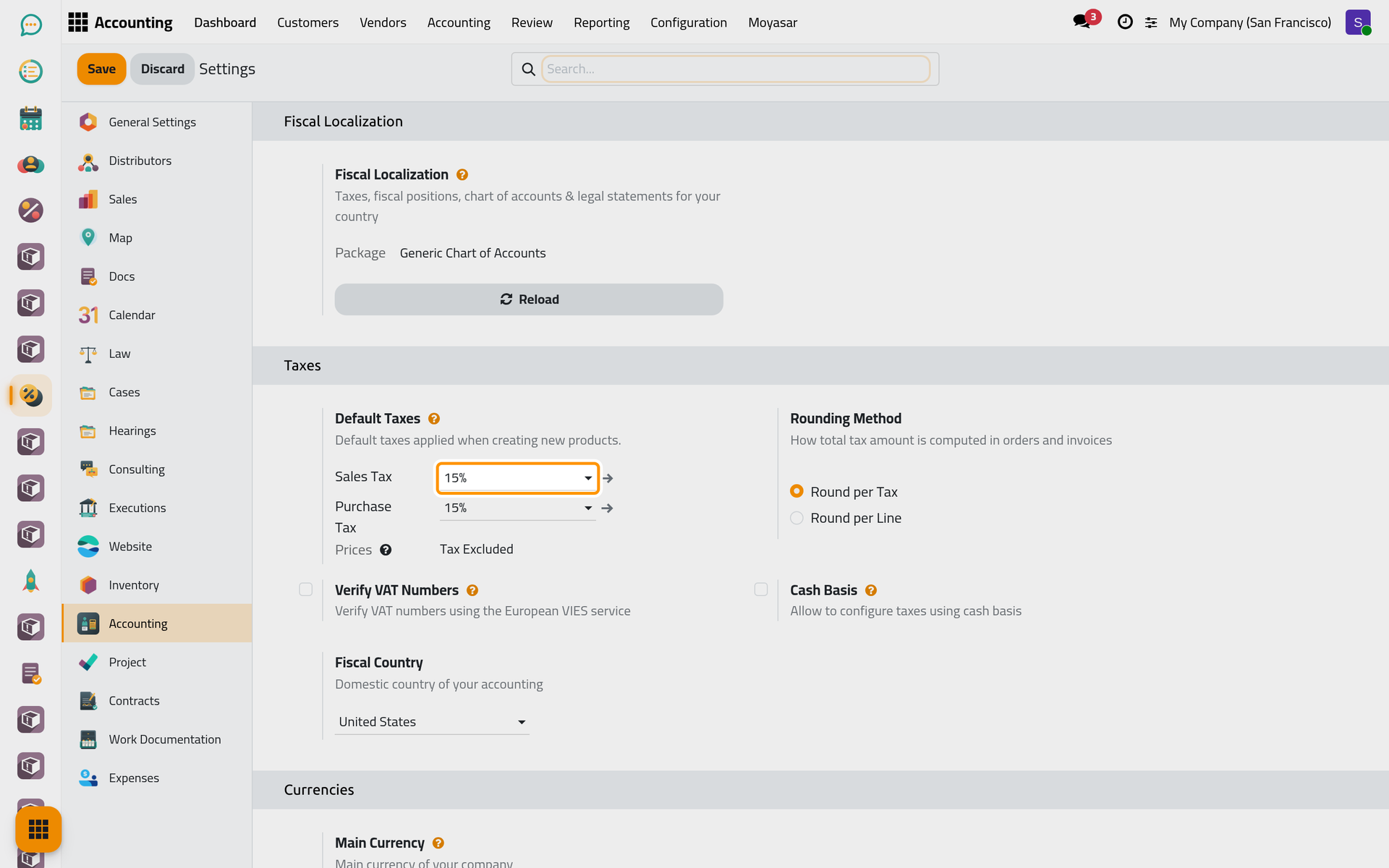
Choose the default taxes
- Open and find Default Taxes.
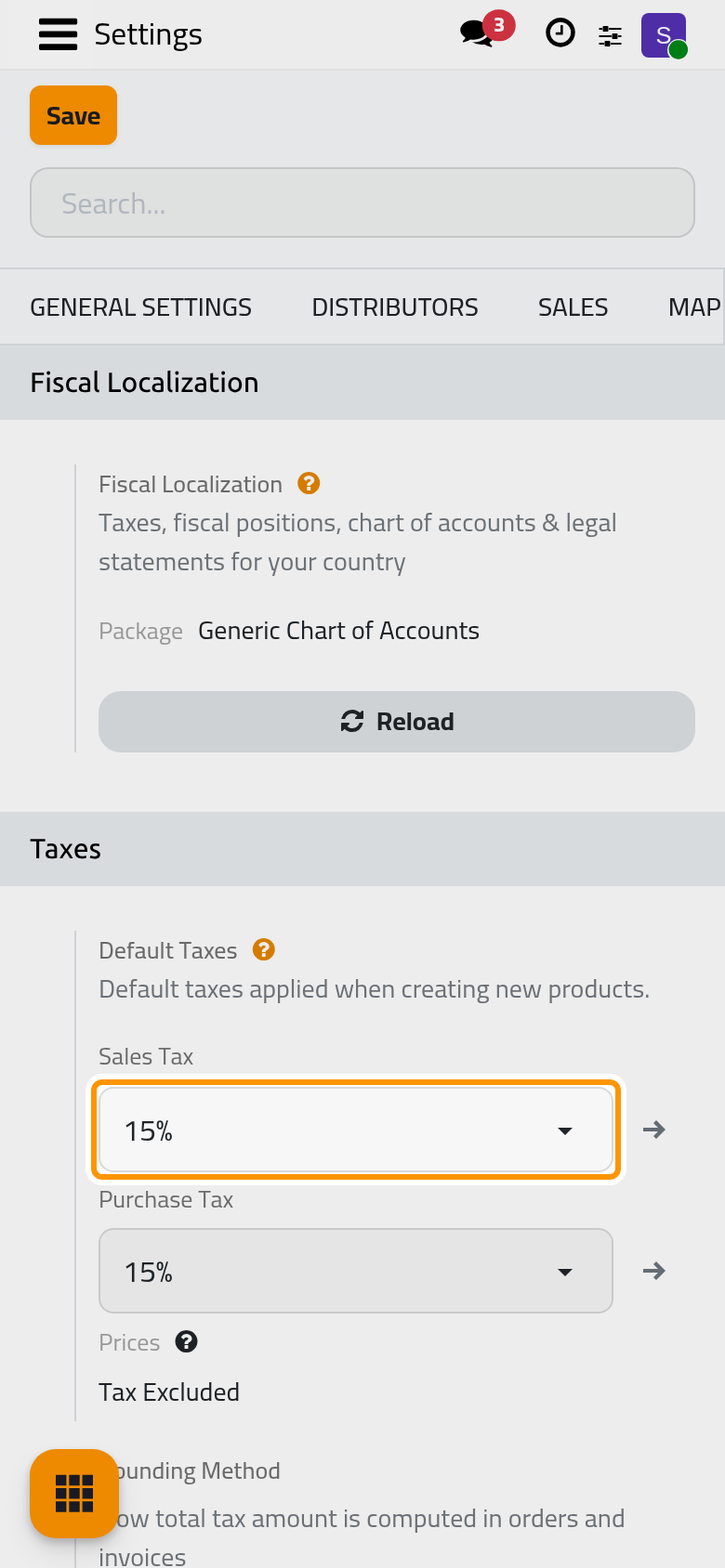
- Choose the Sales Tax put on new products when they are sold, and the Purchase Tax put on them when they are bought. With the Saudi package both are 15%.
- Prices says whether the prices you type are Tax Excluded or Tax Included.
- Click Save.
Read the list of taxes
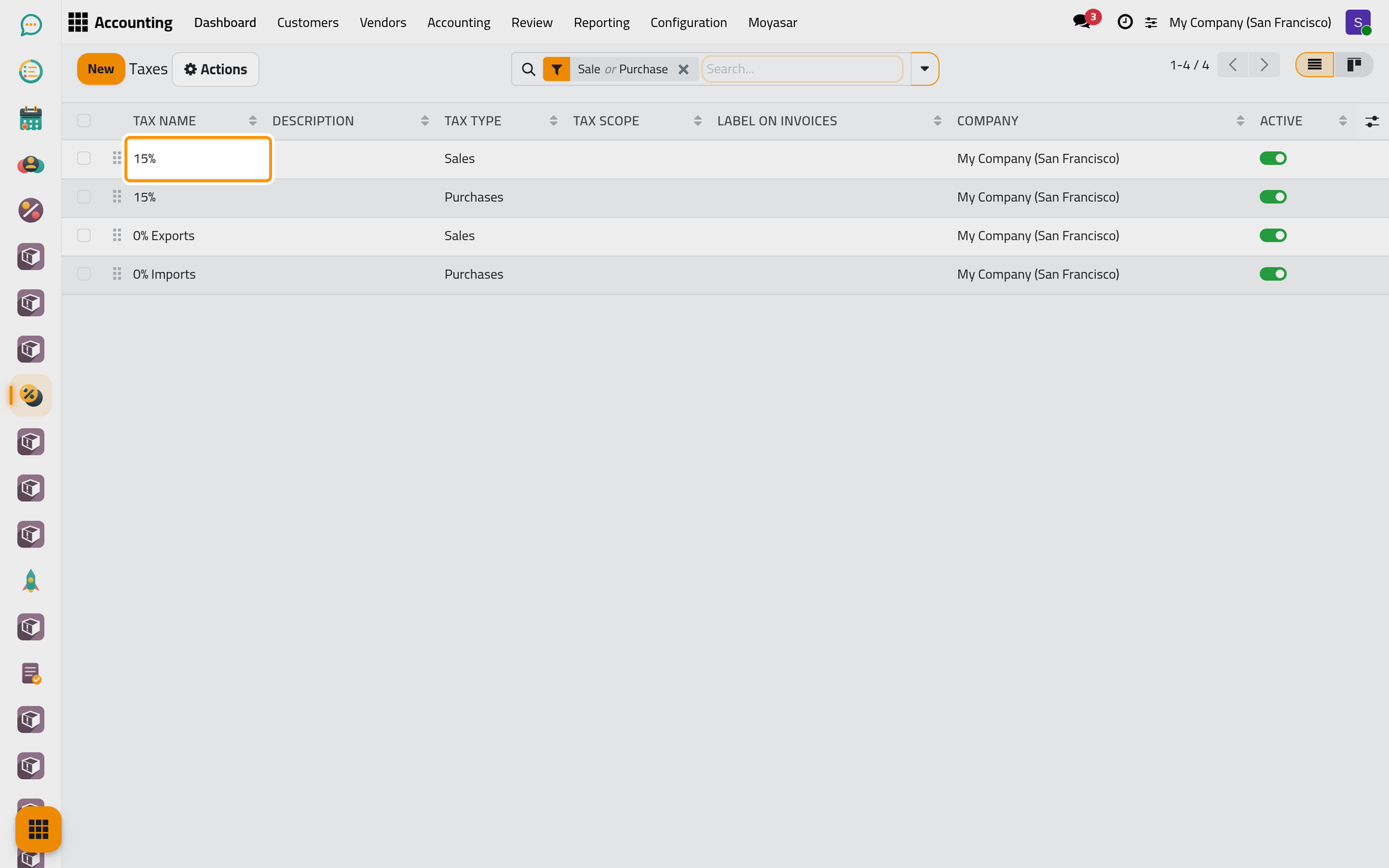
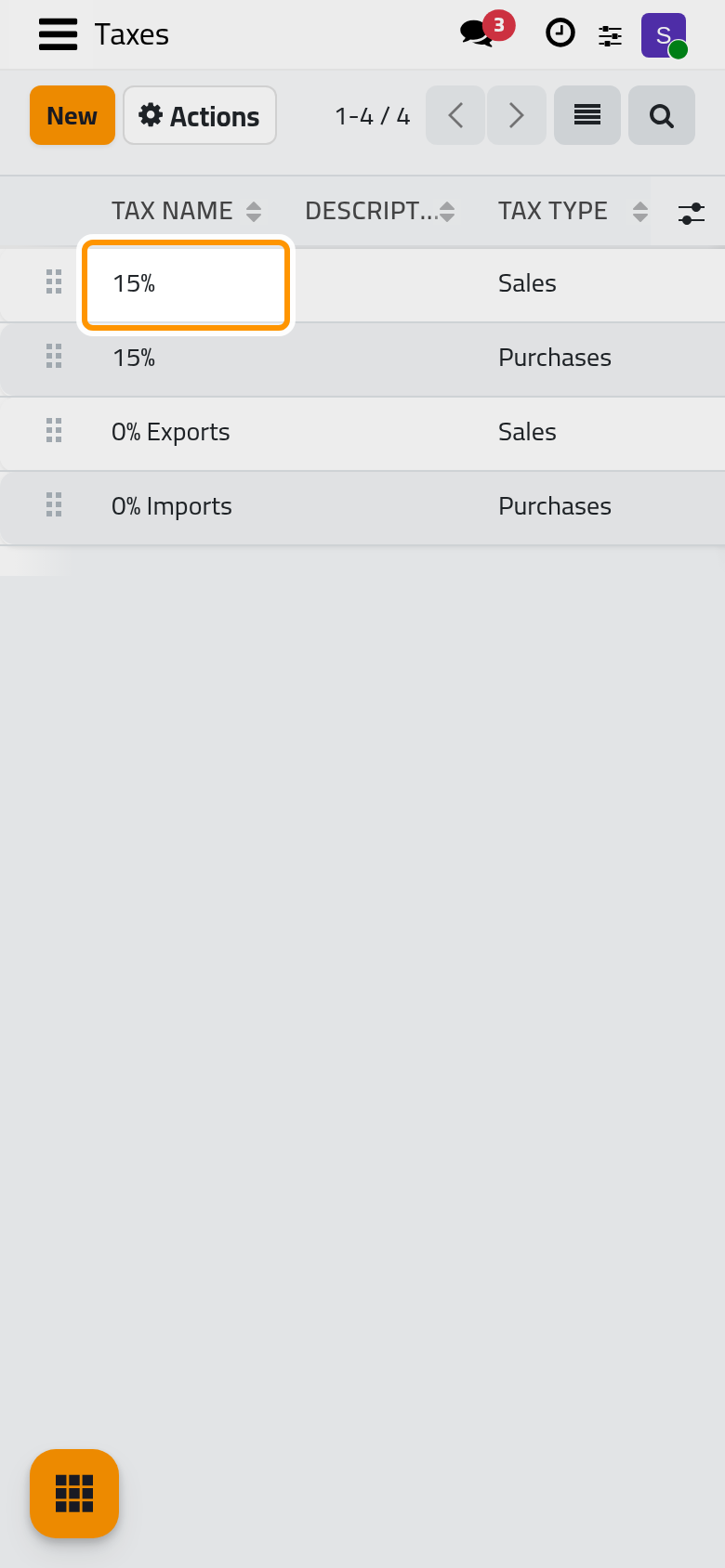
Open . The Tax Name carries the rate, the Tax Type says whether it applies to Sales or to Purchases, the Tax Scope limits it to goods or services, and Label on Invoices is what the customer reads next to the amount. The same rate exists twice, once for each side.
Open a tax
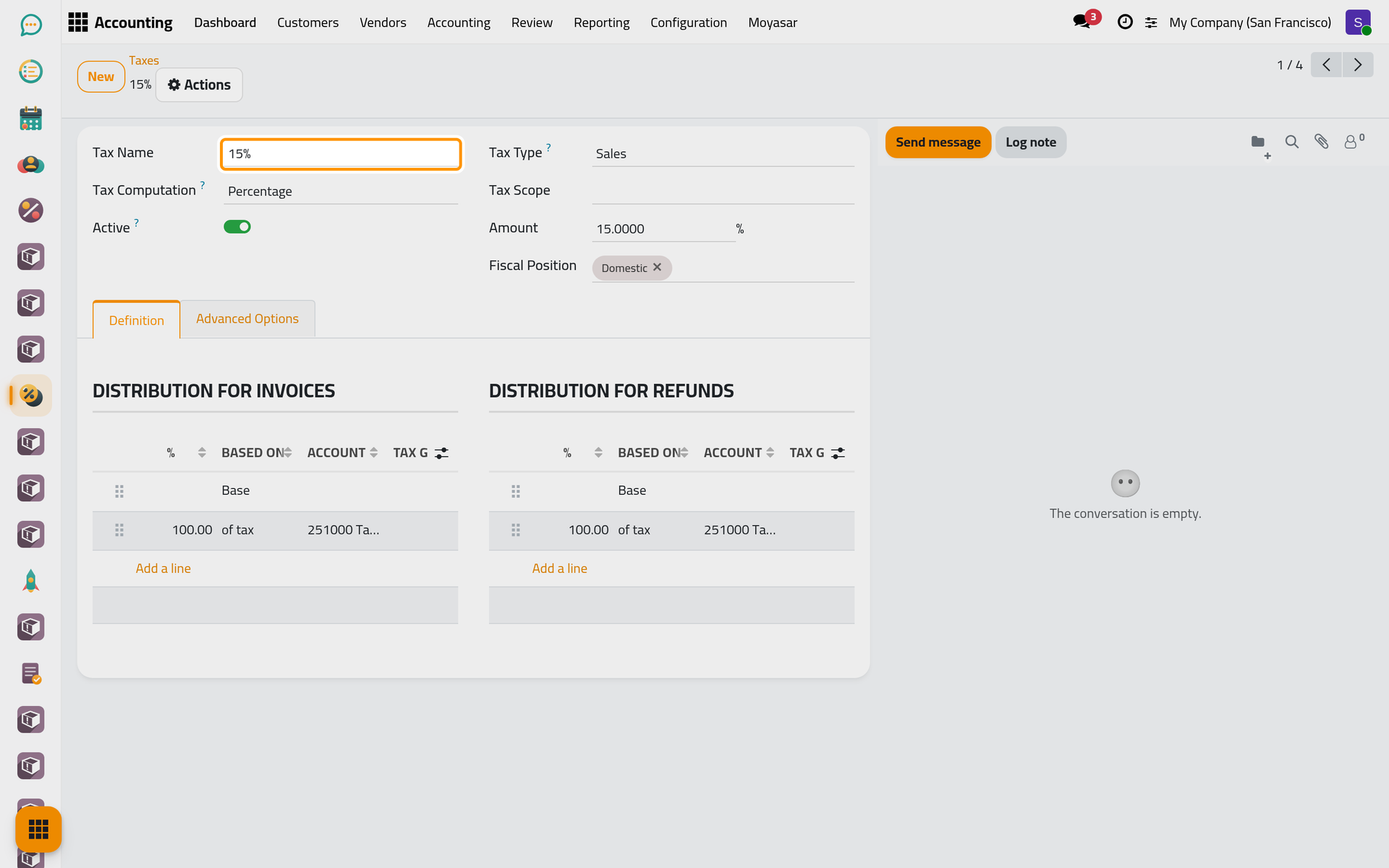
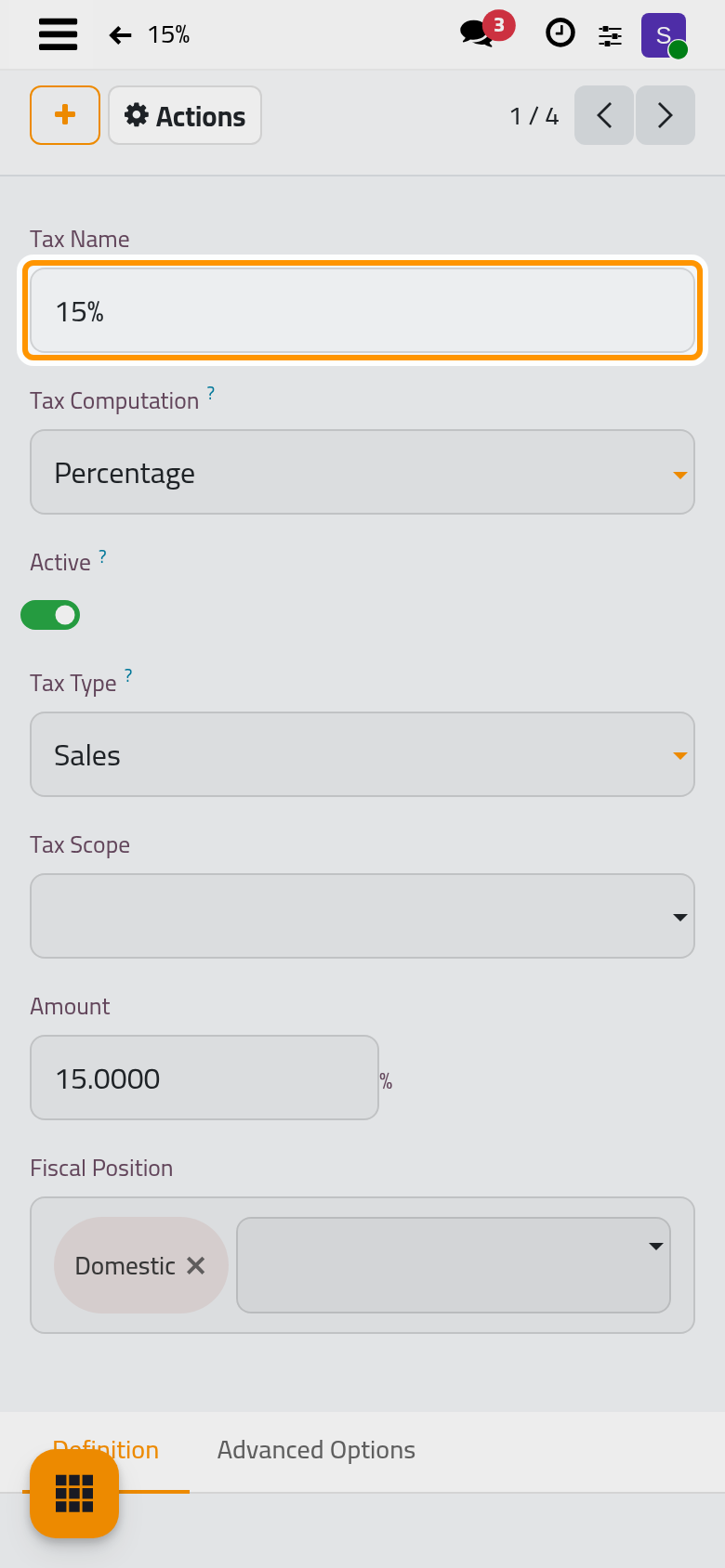
Click a tax. Its form opens on the Tax Name; the Tax Computation says how it is calculated (a percentage of the price for the usual taxes), the Amount is the rate, and the accounts below say where the tax collected or paid is recorded. Change nothing here unless the tax authority changes the rate.
FAQ
Where do the zero-rate taxes come from?
From the package too: exports, imports and the other cases the law exempts each have their own 0% tax, so the tax report shows them on the right line.
A customer abroad should not pay the tax.
That is what a fiscal position does: it swaps the usual tax for the right one when the customer's country asks for it. The package creates the usual positions; they are listed under .
The product I sell has no tax.
The product was created before the defaults were set, or someone removed its taxes. Open the product and choose its customer taxes; the defaults apply to new products only.
Was this page helpful?
Thank you for your feedback.