Accounting settings
On this page
- Before you start
- Fiscal Localization
- Package
- Fiscal Country
- Taxes
- Default Taxes
- Rounding Method
- Currencies
- Fiscal Year
- Last Day
- Invoicing Switch Threshold
- Fiscal Years
- Customer Invoices
- Authorized Signatory on Invoices
- Vendor Bills
- Predict vendor bill product
- Deferred entries
- Deferred expense entries
- Deferred revenue entries
- FAQ
- I do not see the accounting settings.
- Which tasks run by themselves?
The settings page gathers the choices that shape the books. The first group, the package, the taxes and the currency, is set once when the company starts; the others are turned on when a need appears. Open .
Before you start
- Changing the settings needs the Administrator access right on Accounting.
- The settings belong to the current company; switch company before changing them for another one.
Fiscal Localization
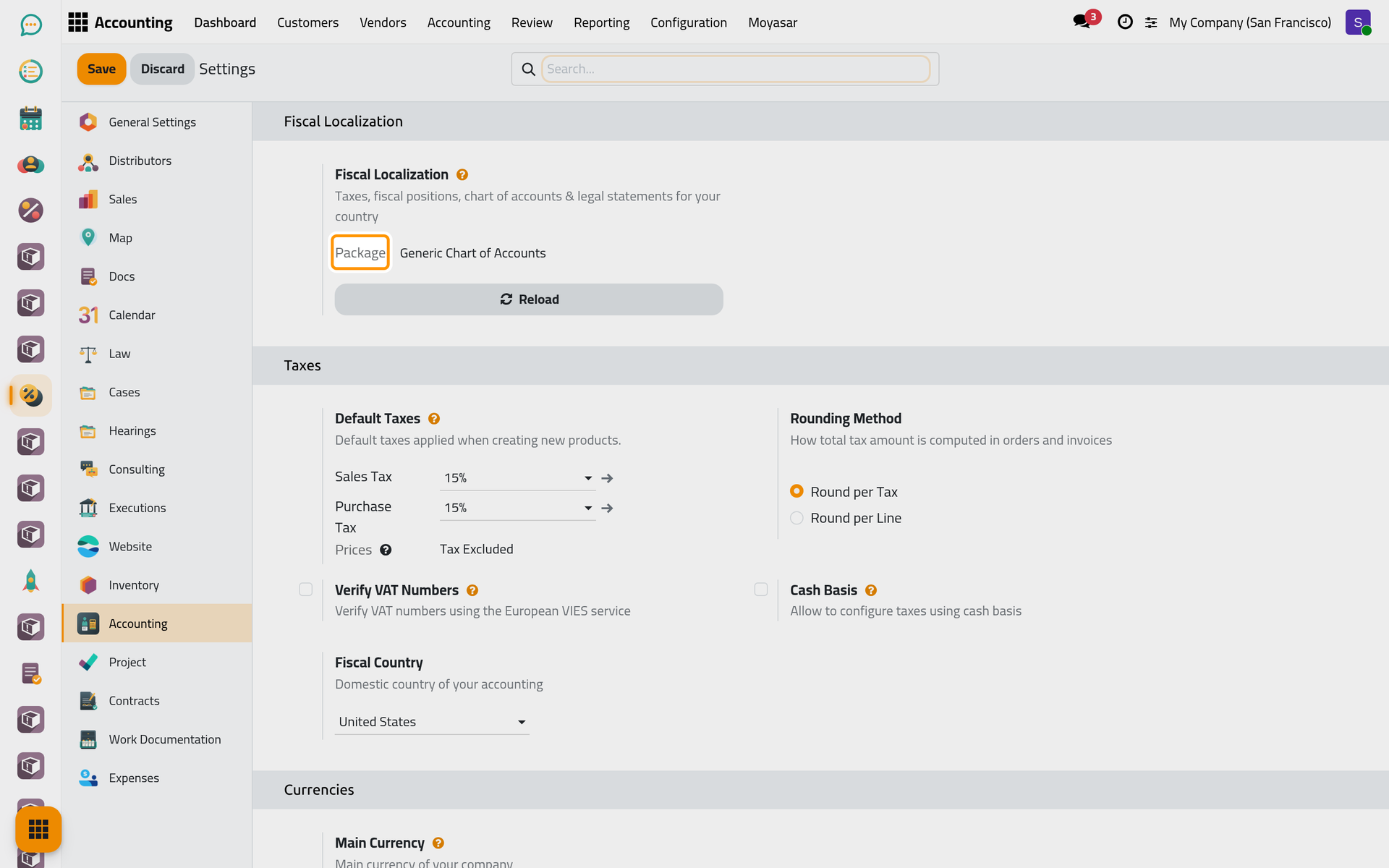
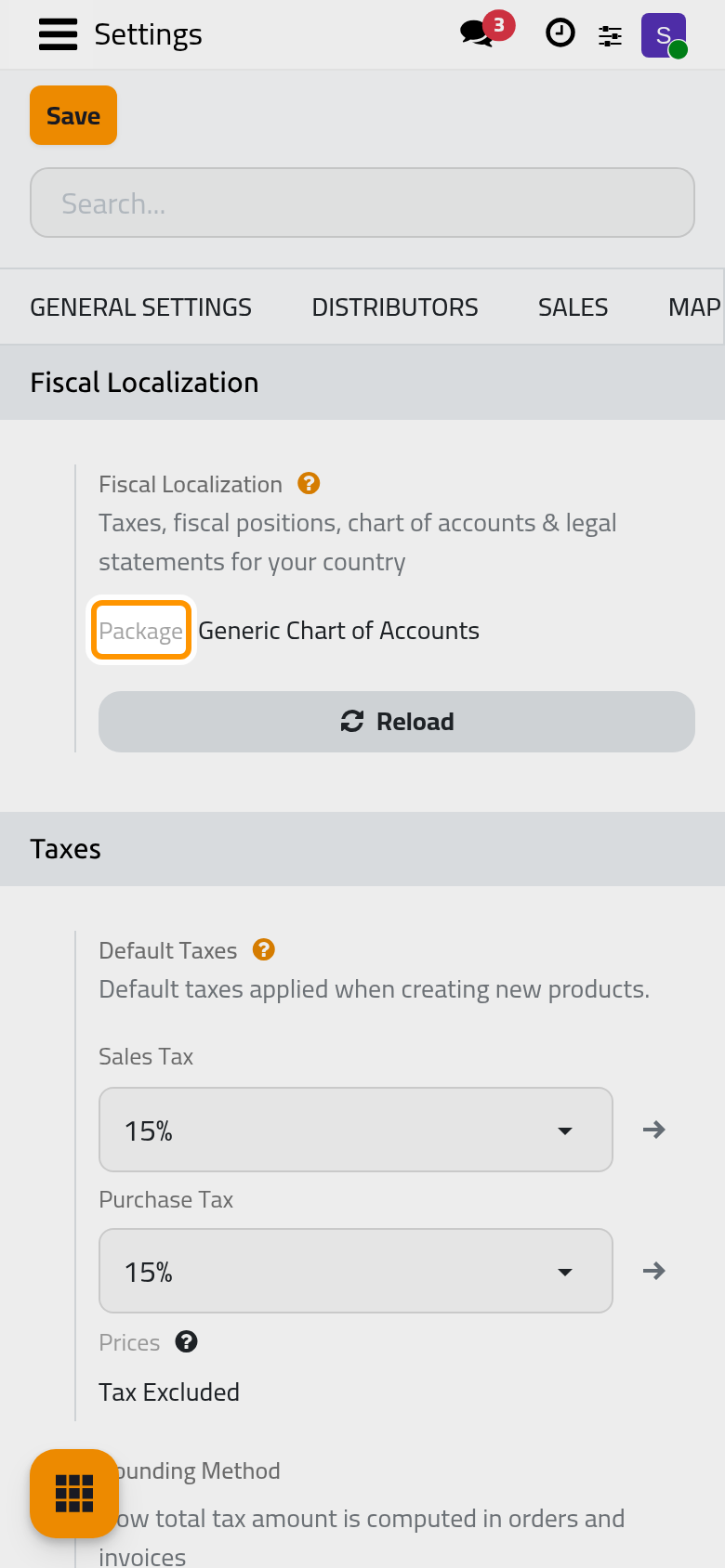
Package
The country's chart of accounts, taxes, fiscal positions and tax reports, installed together. Saudi Arabia brings the Saudi chart with its Arabic names, the 15% and 0% taxes, the withholding taxes, the VAT report and the bilingual invoice layout. The package is chosen when the company is created, from its country, and can change only while no entry is posted; after that the field is read-only.
Fiscal Country
The country whose tax rules apply to the company, normally the company's own.
Taxes
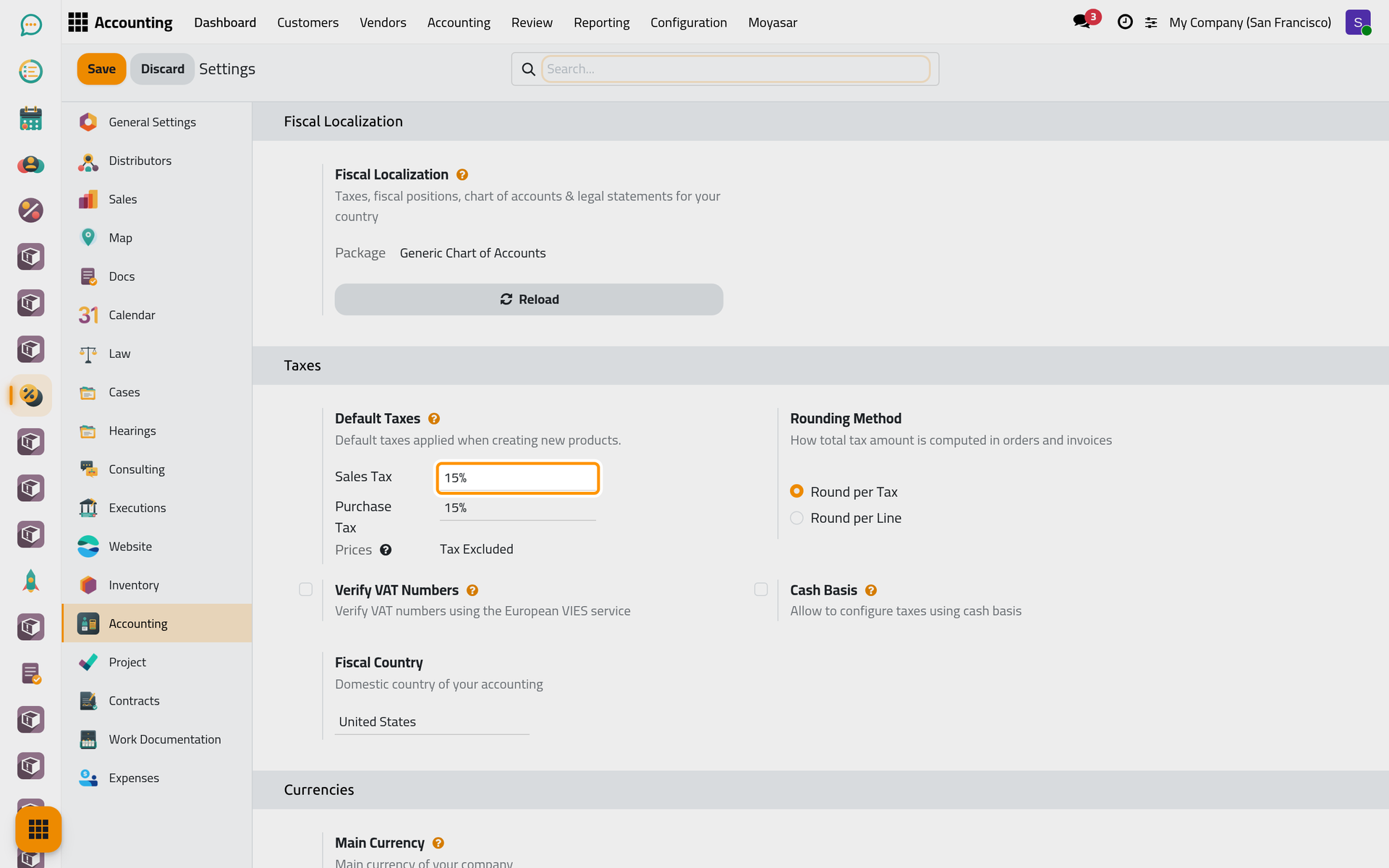
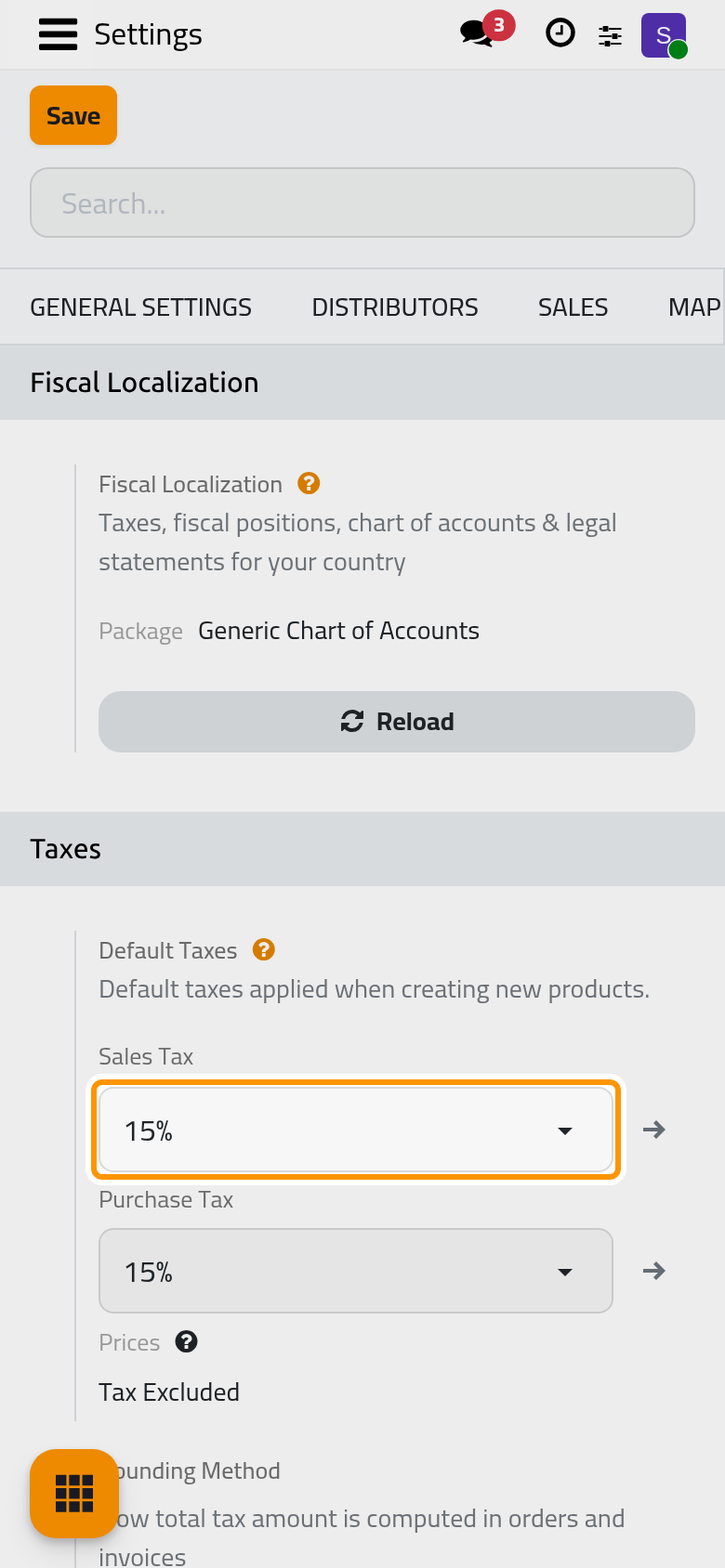
Default Taxes
Sales Tax and Purchase Tax are put on every new product, and from there on invoices and bills. Prices says whether the prices you type are Tax Excluded (the default) or Tax Included. See Set the default taxes.
Rounding Method
Round per Line rounds the tax on each line and adds the results; Round per Tax adds the lines first and rounds once, and is the default. Keep what the package set unless the tax authority asks otherwise.
Currencies
Main Currency is the currency of the books; every report is in it. It comes from the country and should not change once entries exist. The link below it opens , where other currencies are activated for foreign invoices.
Fiscal Year
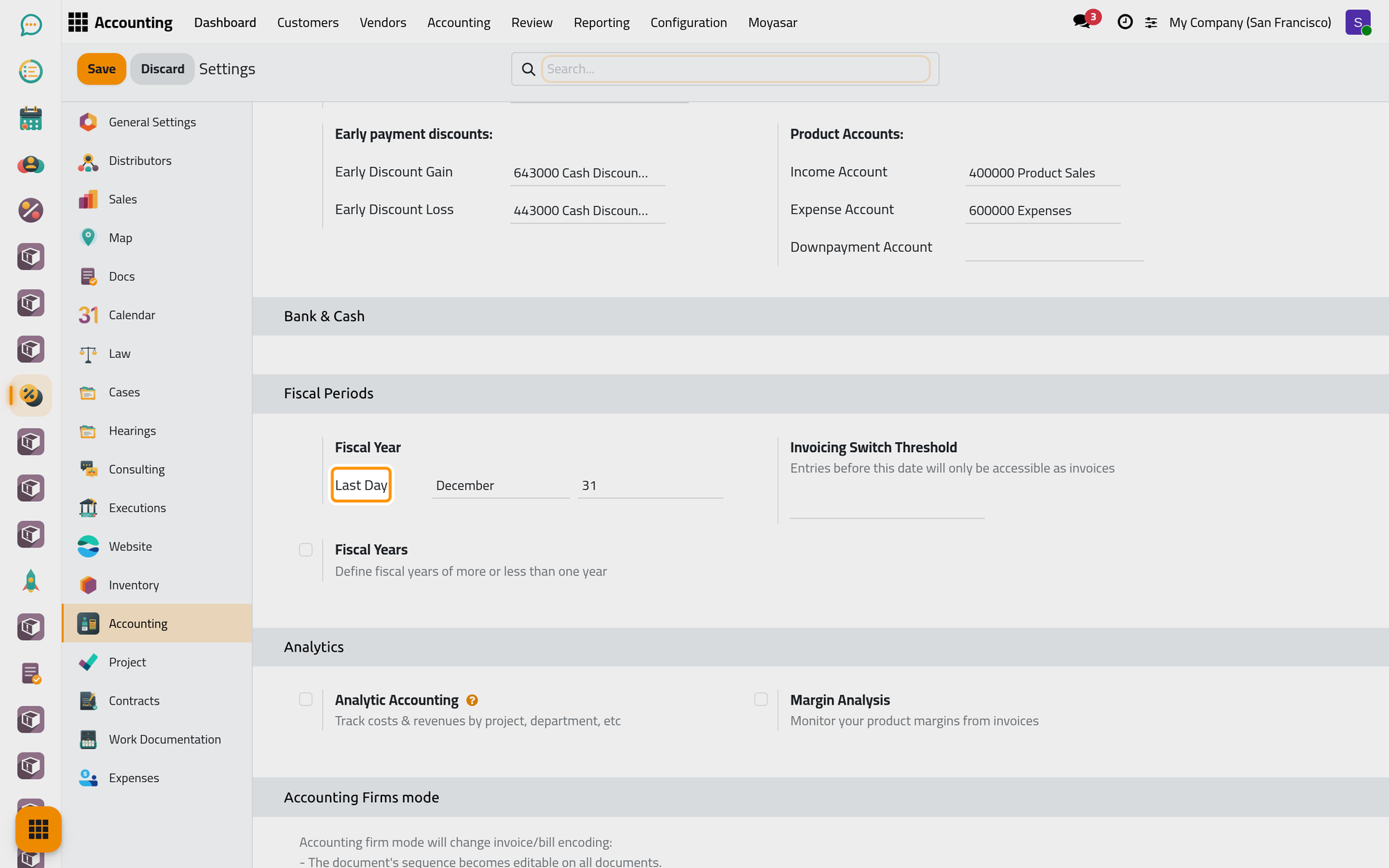
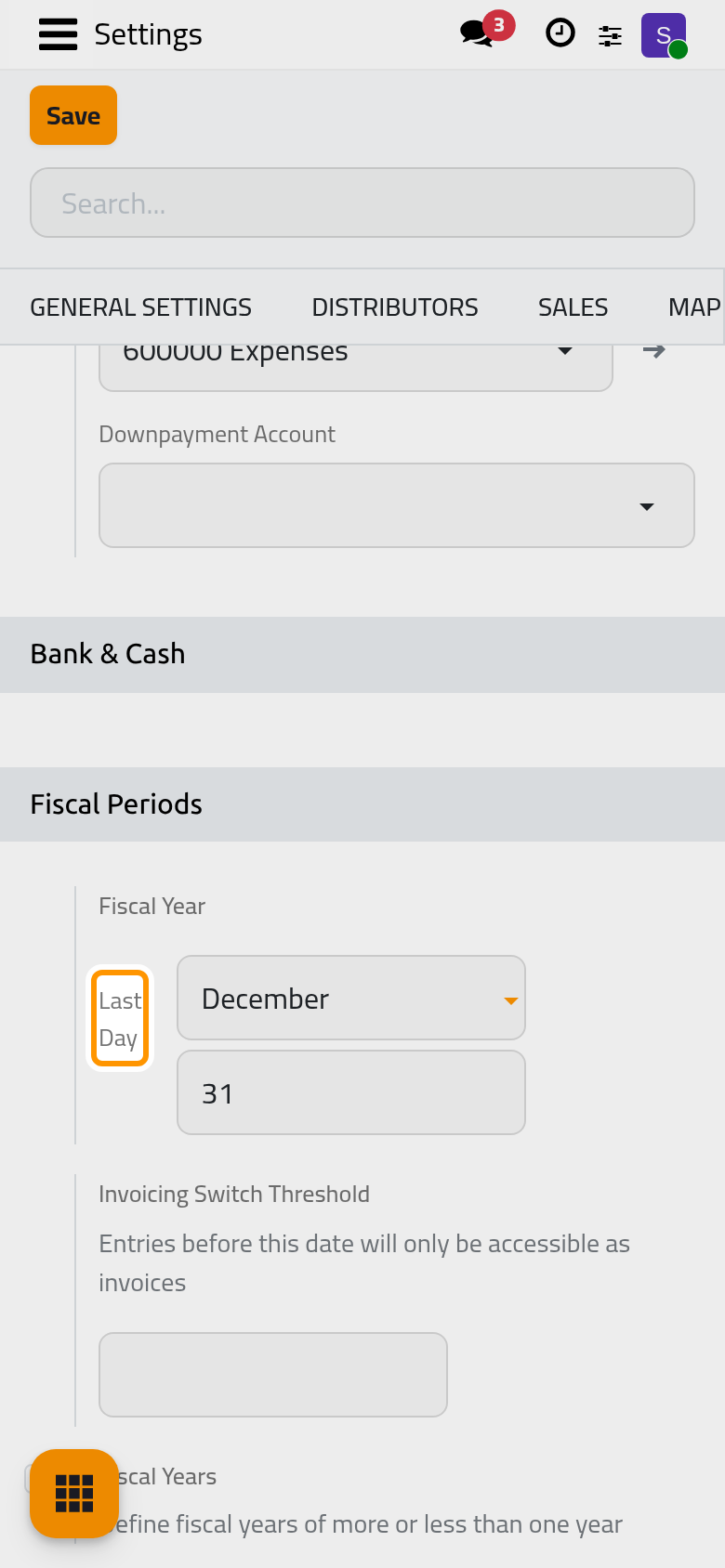
The Fiscal Year setting and the two below it sit in the Fiscal Periods group of the page.
Last Day
The month and the day on which the fiscal year closes: December and 31 for a calendar year. The reports and the closing dates are computed from it. A day that does not exist in the chosen month is refused.
Invoicing Switch Threshold
Shown with the note Entries before this date will only be accessible as invoices. A date for a company that used invoicing first and opens full accounting later. Once it is saved, the entries dated before it are marked as invoicing-only: they stay visible as invoices and payments, and their accounting lines leave the accounting screens and reports; clearing the date brings them back. Empty by default; leave it so unless you make that switch. Only the Administrator access right sees it.
Fiscal Years
Off by default. Turn it on to record fiscal years shorter or longer than twelve months, such as a first year; the Fiscal Years link opens their list. See Define the fiscal year.
Customer Invoices
Authorized Signatory on Invoices
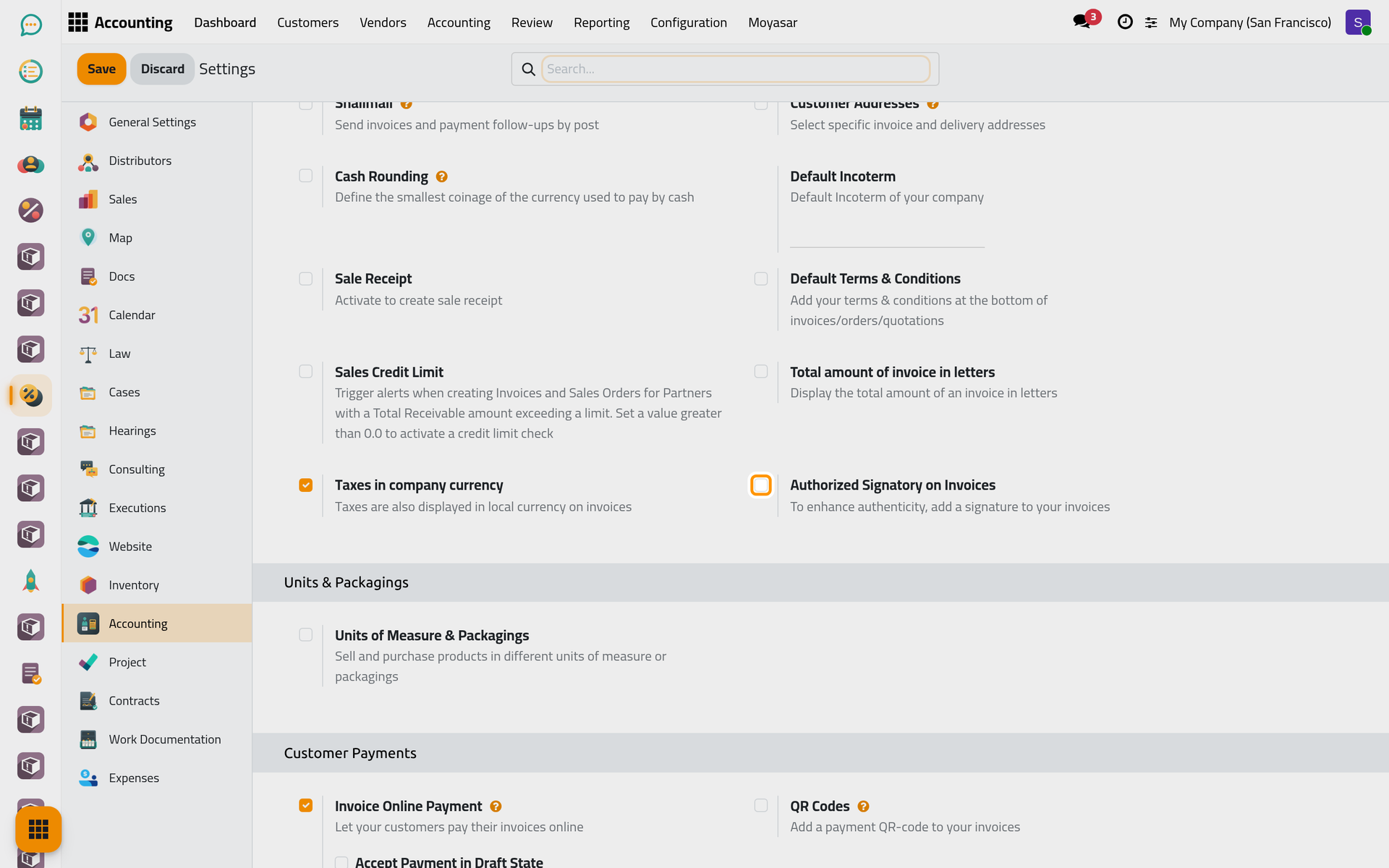
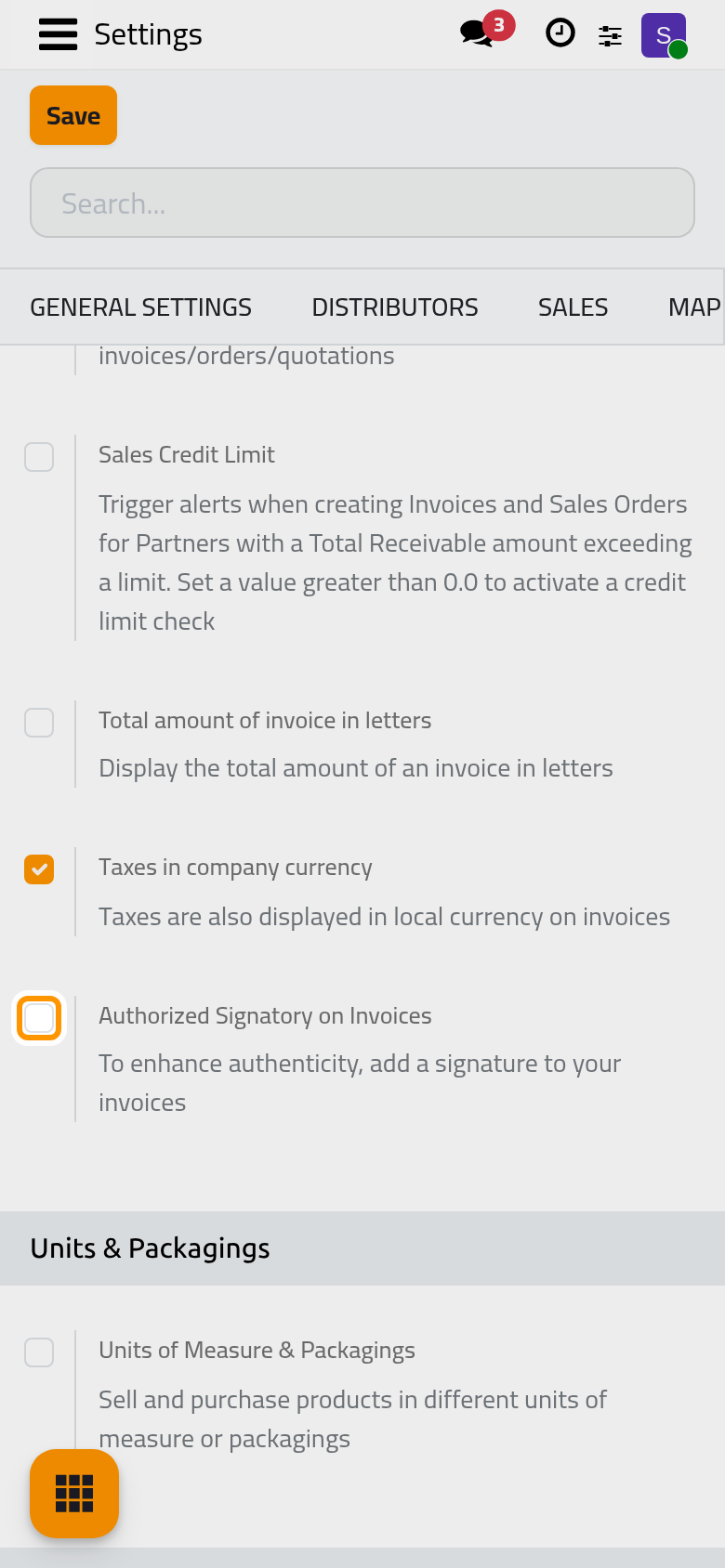
Off by default. On, every posted customer invoice is printed with a signature area above the words Authorized signatory, blank, to be signed by hand. Legal signatory names one user as the signatory of every invoice instead of the salesperson (the finance manager, for example); it fills the area only when the platform stores an electronic signature for that user, which this edition does not, so the area stays blank.
Vendor Bills
Predict vendor bill product
Off by default. On, when the label of a line is typed on a vendor bill that has no product yet, the product used most often on the posted bill lines with the same words, from the same vendor when the bill names one, is filled in, so repeated bills are filled faster. It only proposes; the accountant can change it.
Deferred entries
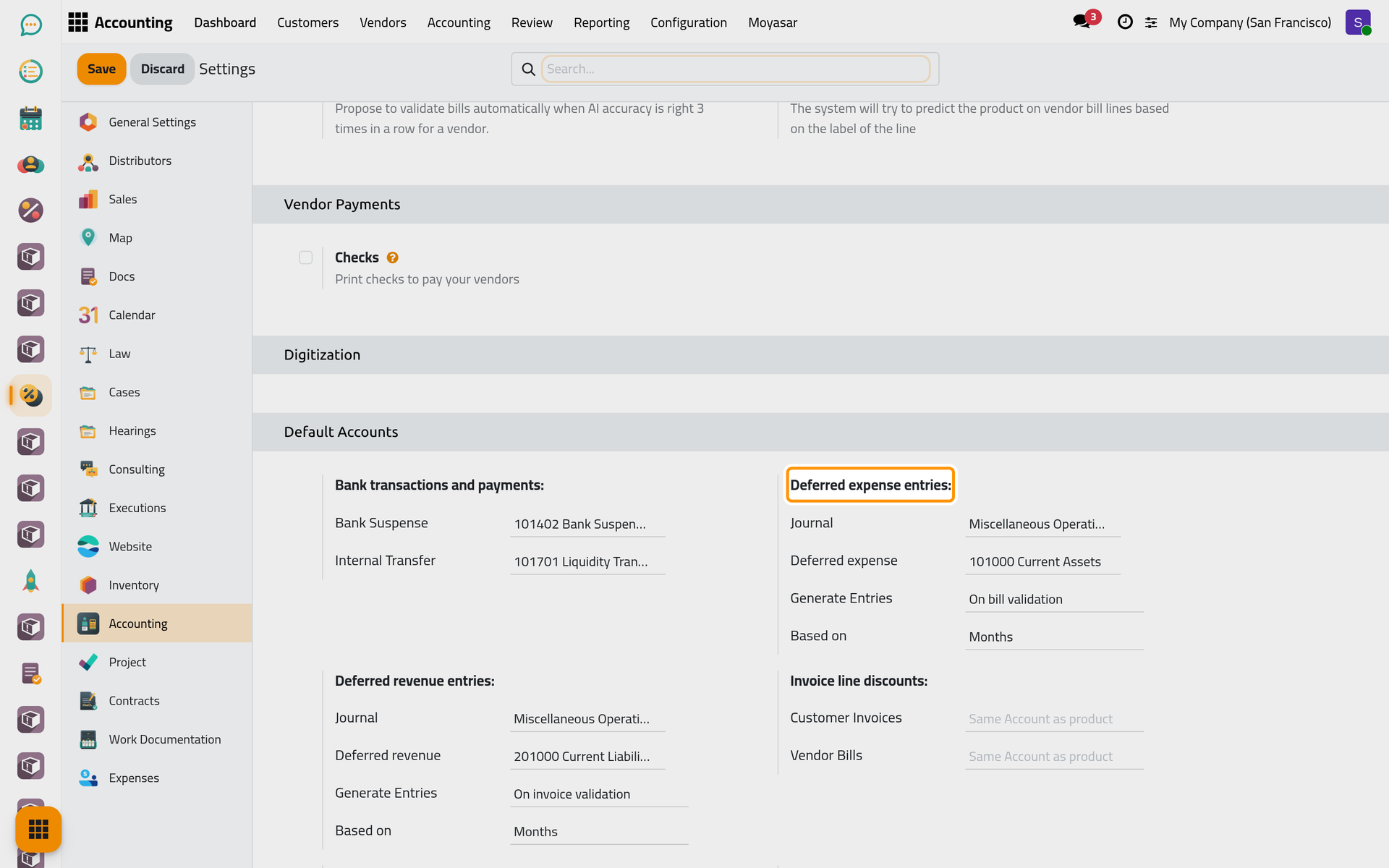
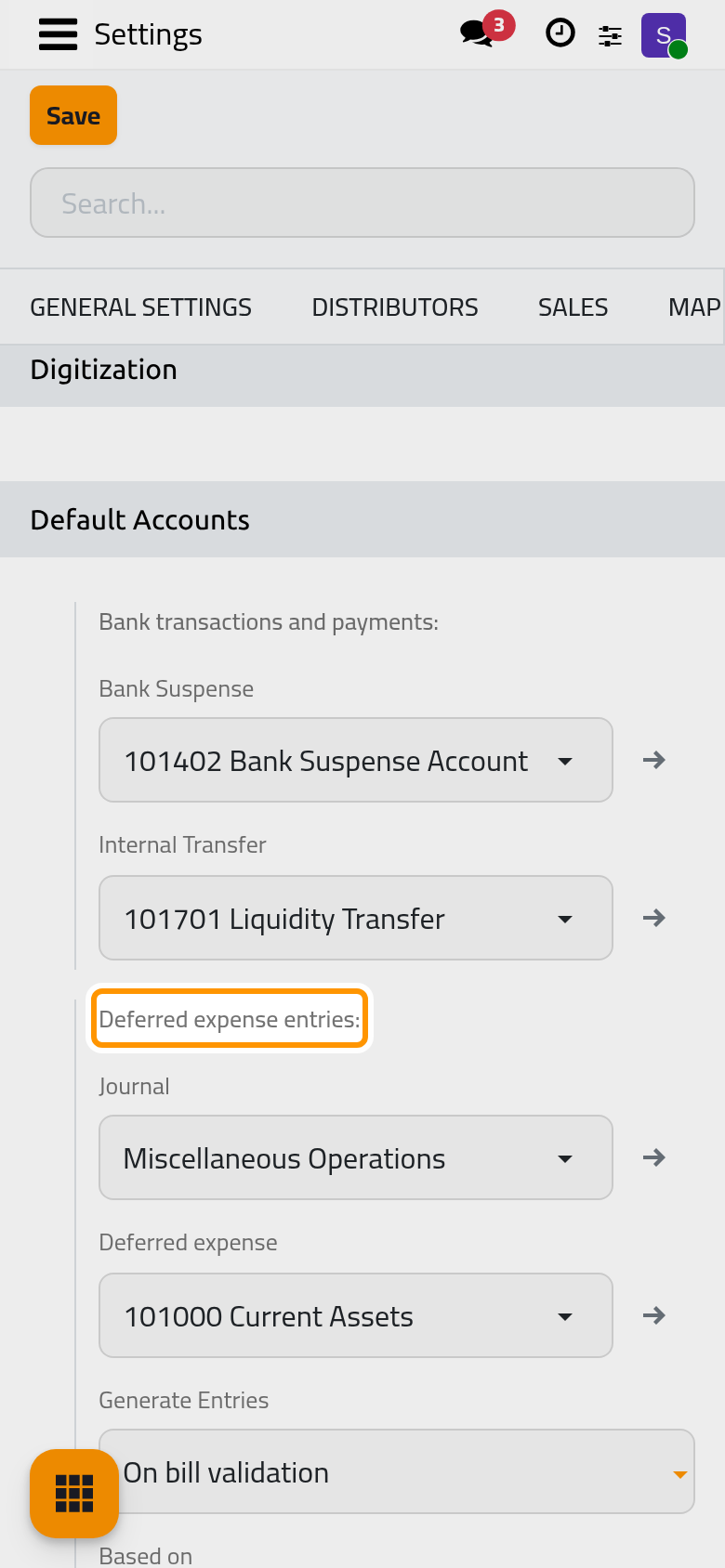
Deferred expense entries
A bill paid for a period, such as a yearly subscription, is spread over its months instead of weighing on one. Journal is the journal the spreading entries are posted in, Deferred expense the account that holds the part not yet spent, and Generate Entries says when they are created: On bill validation (the default) writes the whole schedule when the bill is confirmed, Manually & Grouped leaves it to a run that groups them by period. Based on decides how an amount is split across a period that starts in the middle of a month: Days, Months (the default) or Full Months.
Deferred revenue entries
The same four choices for an invoice issued for a period, such as a maintenance contract: the Deferred revenue account holds what is not yet earned, and the entries recognise it month by month, On invoice validation or Manually & Grouped.
Both groups are filled when the package is installed, with a general journal and the matching accounts of the chart.
Click Save to apply your changes.
FAQ
I do not see the accounting settings.
Only the Administrator access right on Accounting shows them. The general settings of the platform are a different page.
Which tasks run by themselves?
The page Accounting automations lists the daily job and what is set at installation.
Was this page helpful?
Thank you for your feedback.