How-to
General settings: users and security
On this page
These options decide who can sign in, how strong passwords must be, and what users may do on their own.
Before you start
- Changing settings needs the Administrator role (Role on the user's Access Rights tab).
Users
Open . The Users box comes first.
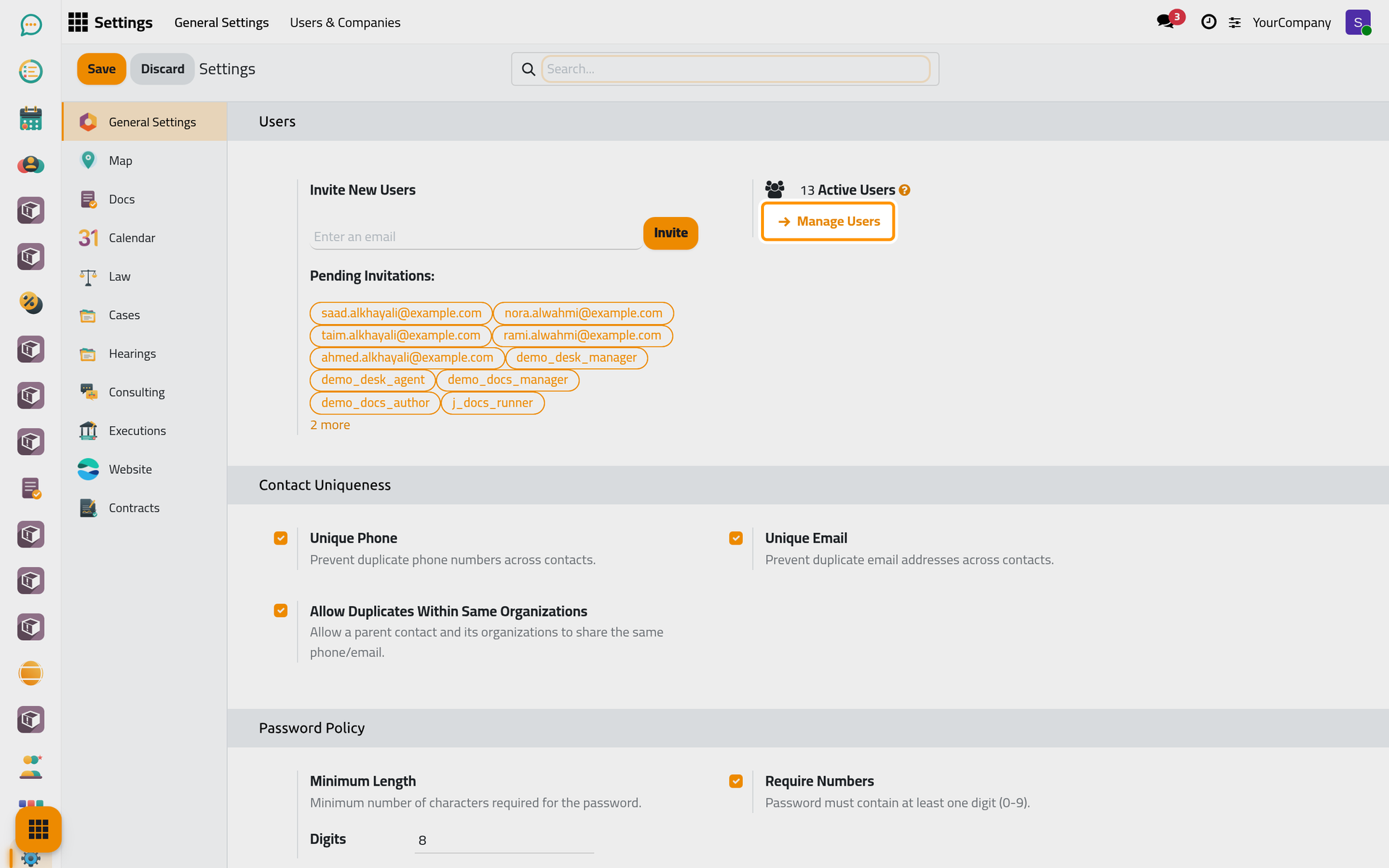
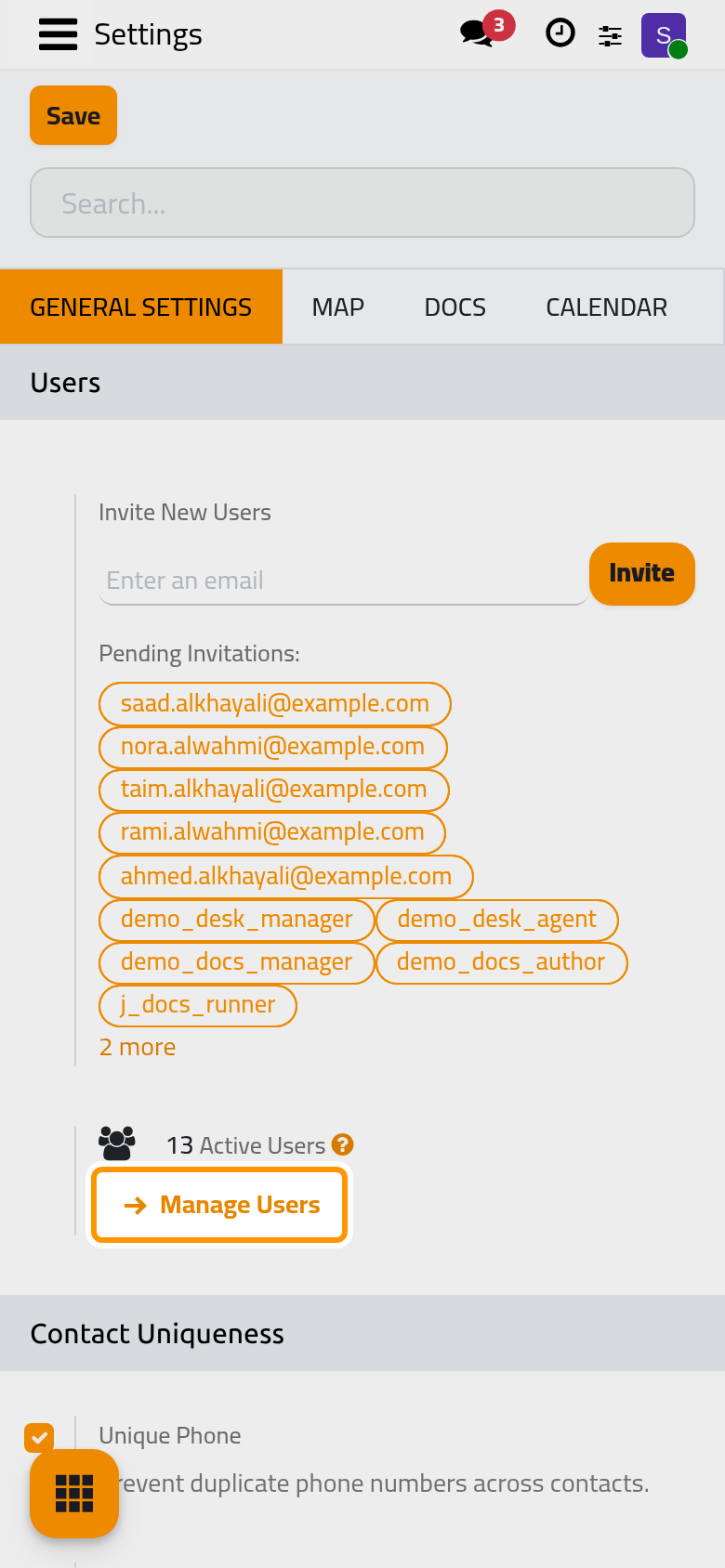
- Invite New Users: type an e-mail address and click Invite: the person receives an invitation to choose a password. The Pending Invitations are listed below until they are accepted.
- Manage Users: opens the list of users, with their roles and access rights. See Create a user and set access rights.
Password Policy
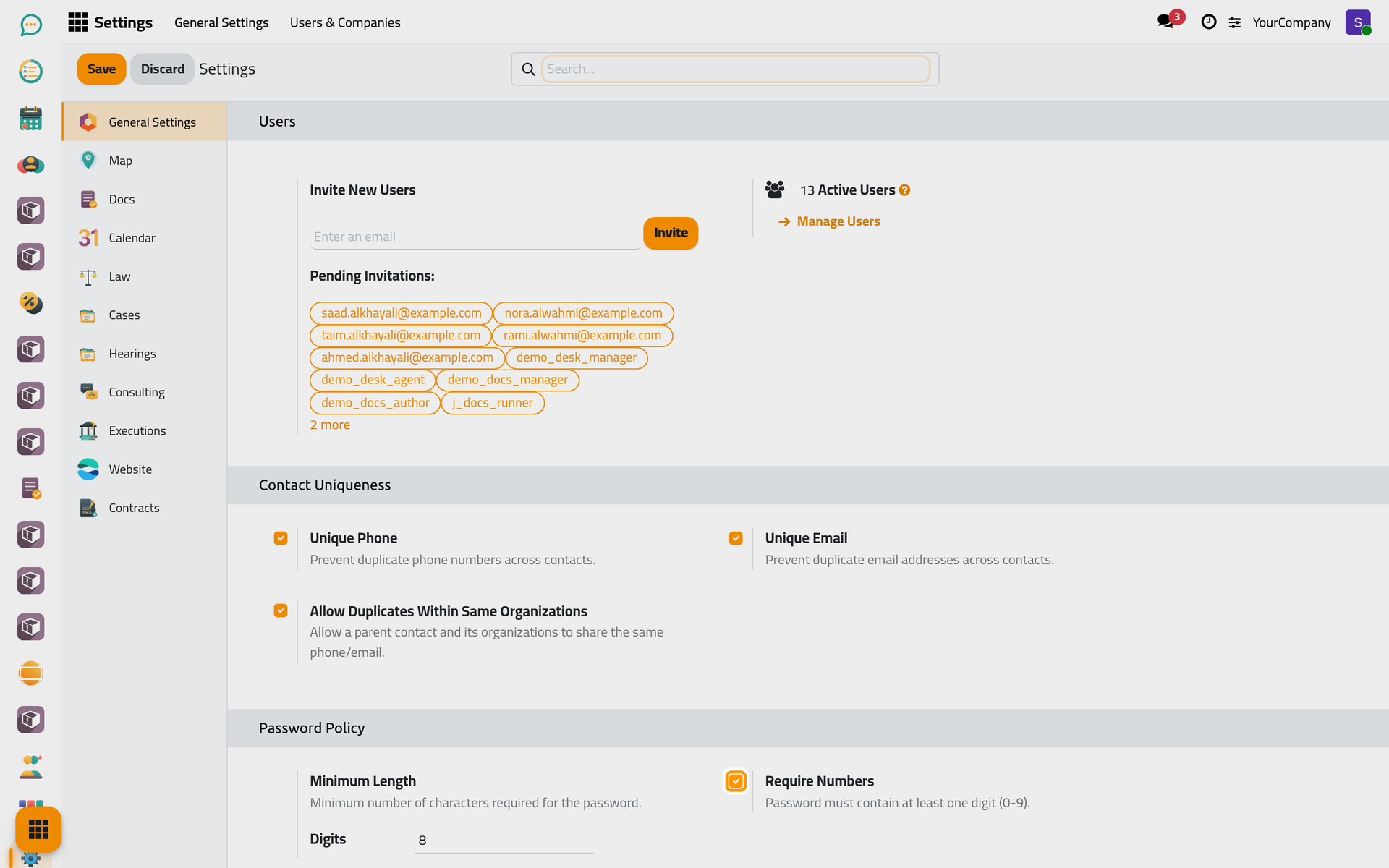
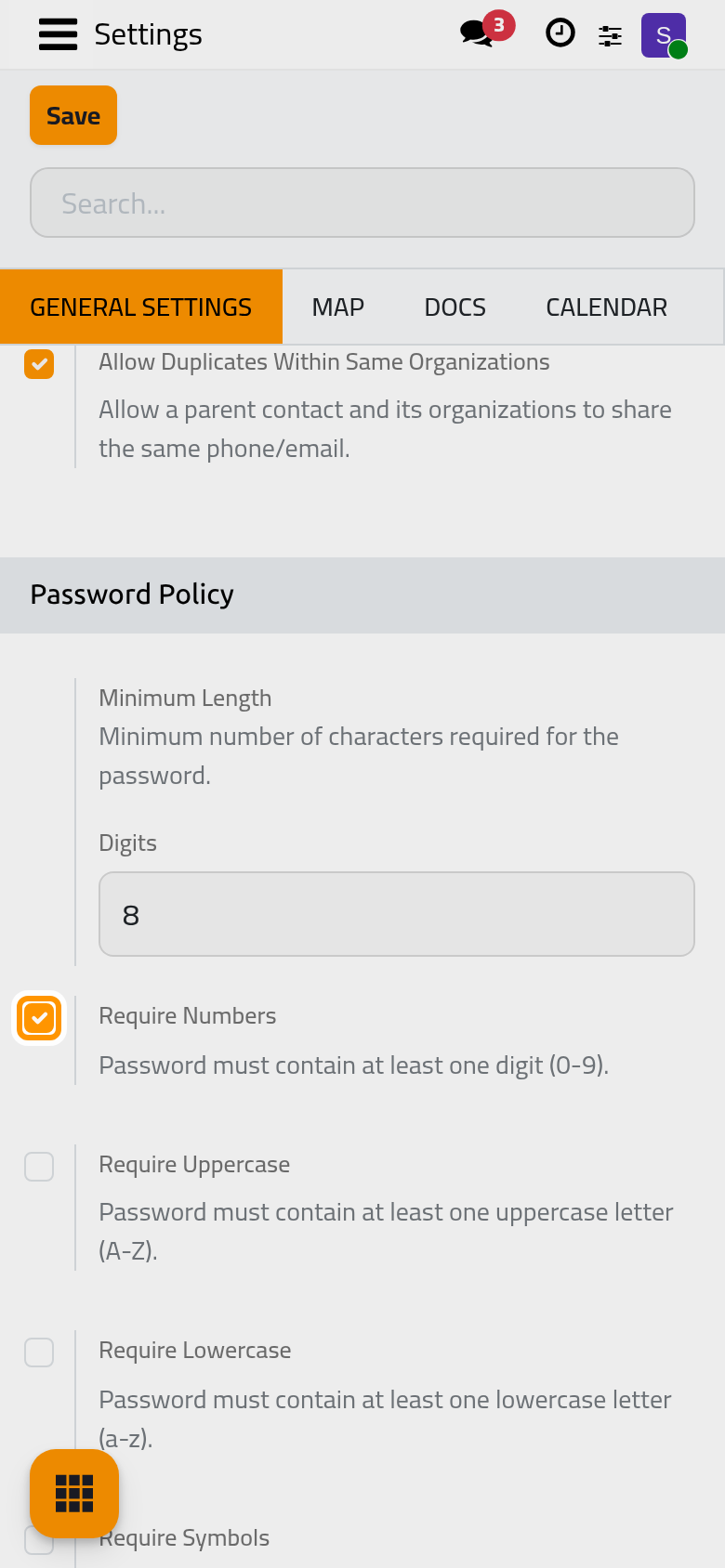
The rules every new password must follow, checked when a user chooses or changes a password:
- Minimum Length: the fewest characters a password may have, 8 by default.
- Require Numbers: at least one digit. On by default.
- Require Uppercase: at least one capital letter. Off by default.
- Require Lowercase: at least one small letter. Off by default.
- Require Symbols: at least one symbol such as ! or @. Off by default.
Permissions
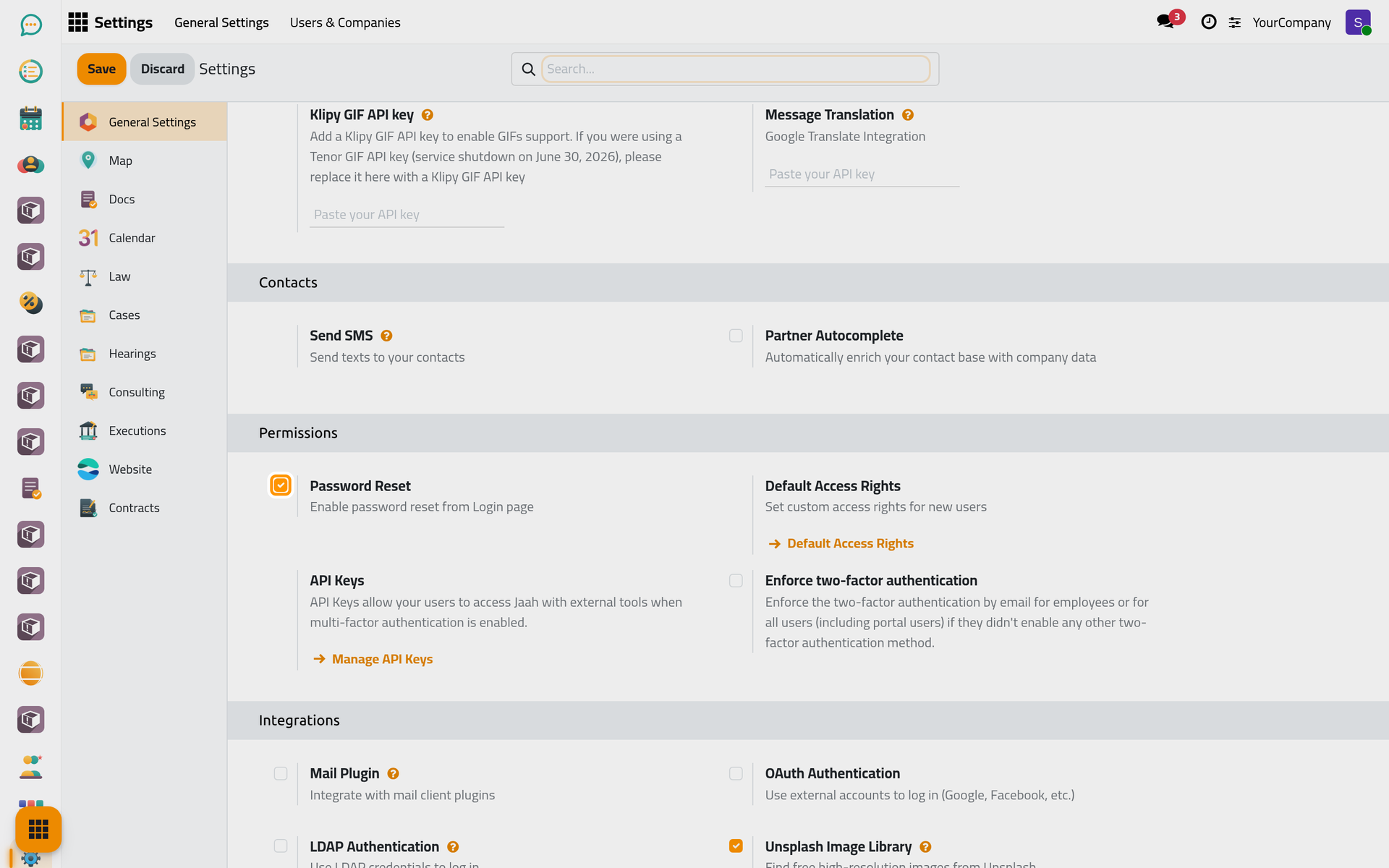
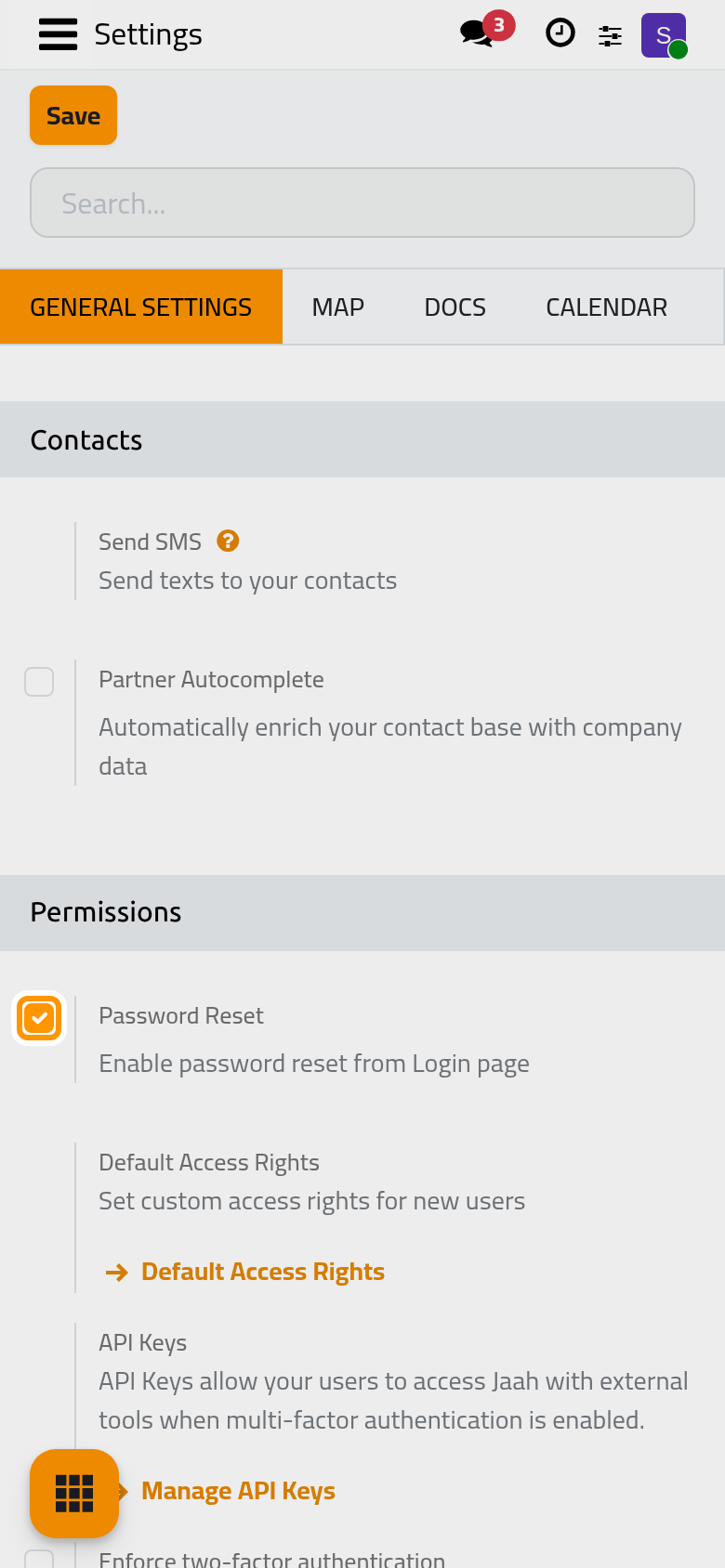
- Password Reset: on by default; the sign-in page offers a "reset password" link that e-mails the user. Turn it off to have only administrators reset passwords.
- Default Access Rights: the access rights a new user receives, before anyone changes them. Set them once to the rights most of your staff need.
- API Keys: lets users create keys so external tools can connect to their account even when two-factor authentication is on.
- Enforce two-factor authentication: asks users for a code sent by e-mail at sign-in, for Employees only or for All users, portal users included, unless they set up an authenticator app.
- Import & Export: lets users bring data in from spreadsheet files (CSV, XLS, XLSX, ODS). See the Essentials page on export and import.
- Show Effect: shows a short animation when a user finishes something notable. Turn it off for a quieter screen.
Signing in with another account
In the Integrations box, two options let users sign in with an account they already have:
- OAuth Authentication: sign in with an external account such as Google.
- LDAP Authentication: sign in with the user name and password of the company directory.
Click Save to apply your changes.
FAQ
Does a stricter password policy affect current passwords?
No. The rules apply when a password is chosen or changed; existing passwords keep working until their owner changes them.
Was this page helpful?
Thank you for your feedback.