Your first work document
On this page
Every piece of work worth keeping, a memorandum drafted for a court, an internal note, a weekly report, can be written up as a work document: a subject, a type, a body and its files. The document is then sent for approval, and the approvers named on its type decide. This walk-through writes one document and takes it to Approved.
Before you start
- You need the User: Own Documents access right on Work Documentation (in the Work Documentation section of your user). Approving needs Manager: All Documents.
- At least one Document Type exists. Eight memoranda come with the app; the demo data adds an Internal Memo type that needs approval.
Step 1: write the document
- Open and click New.
- Type the Subject, a short title that tells the work apart.
- Optionally choose a Template: its text fills the Content tab, and you complete it there.
- Choose the Type. The type decides whether the document waits for approval and who approves it.
- Add the files of the work in Attachments.
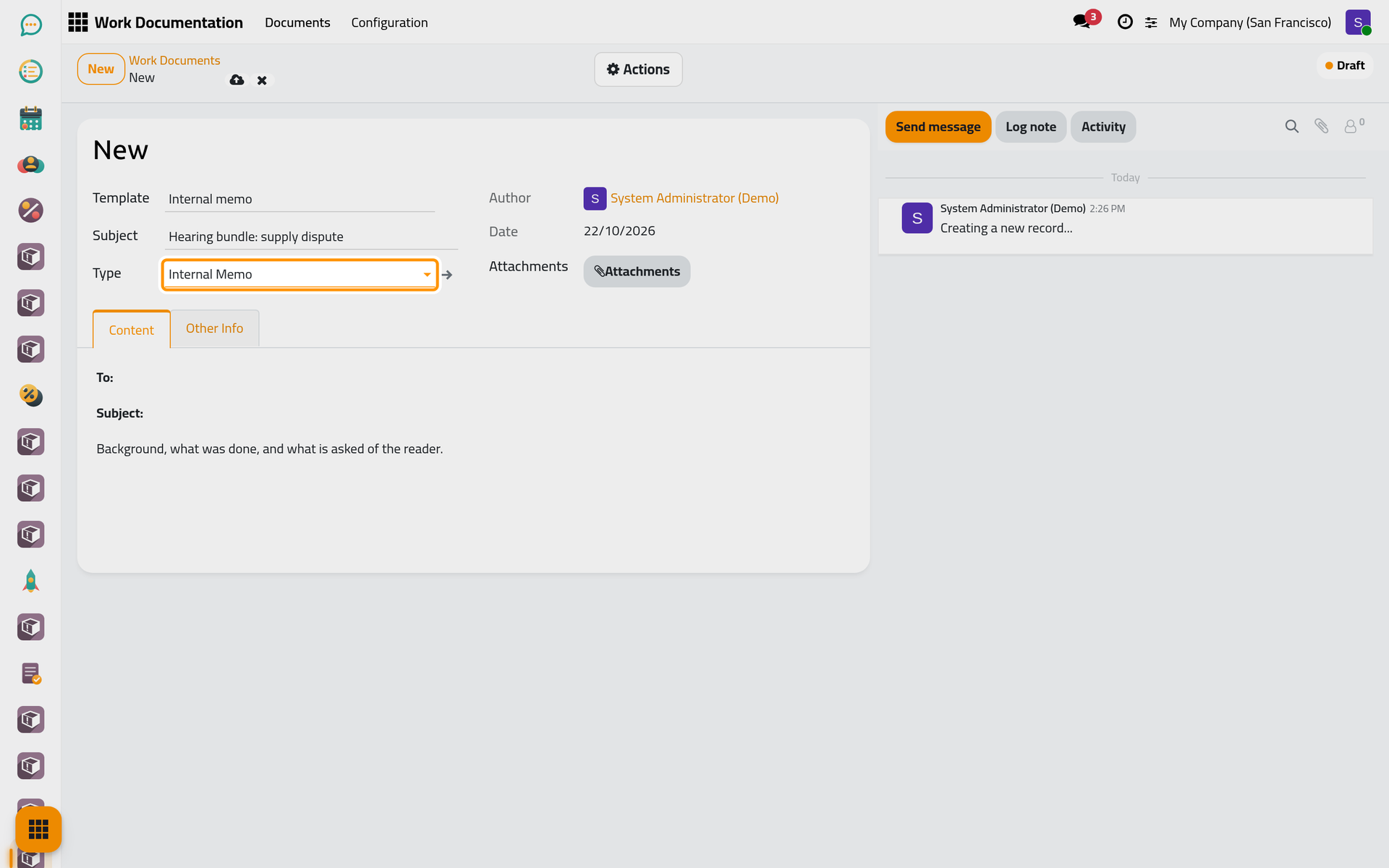
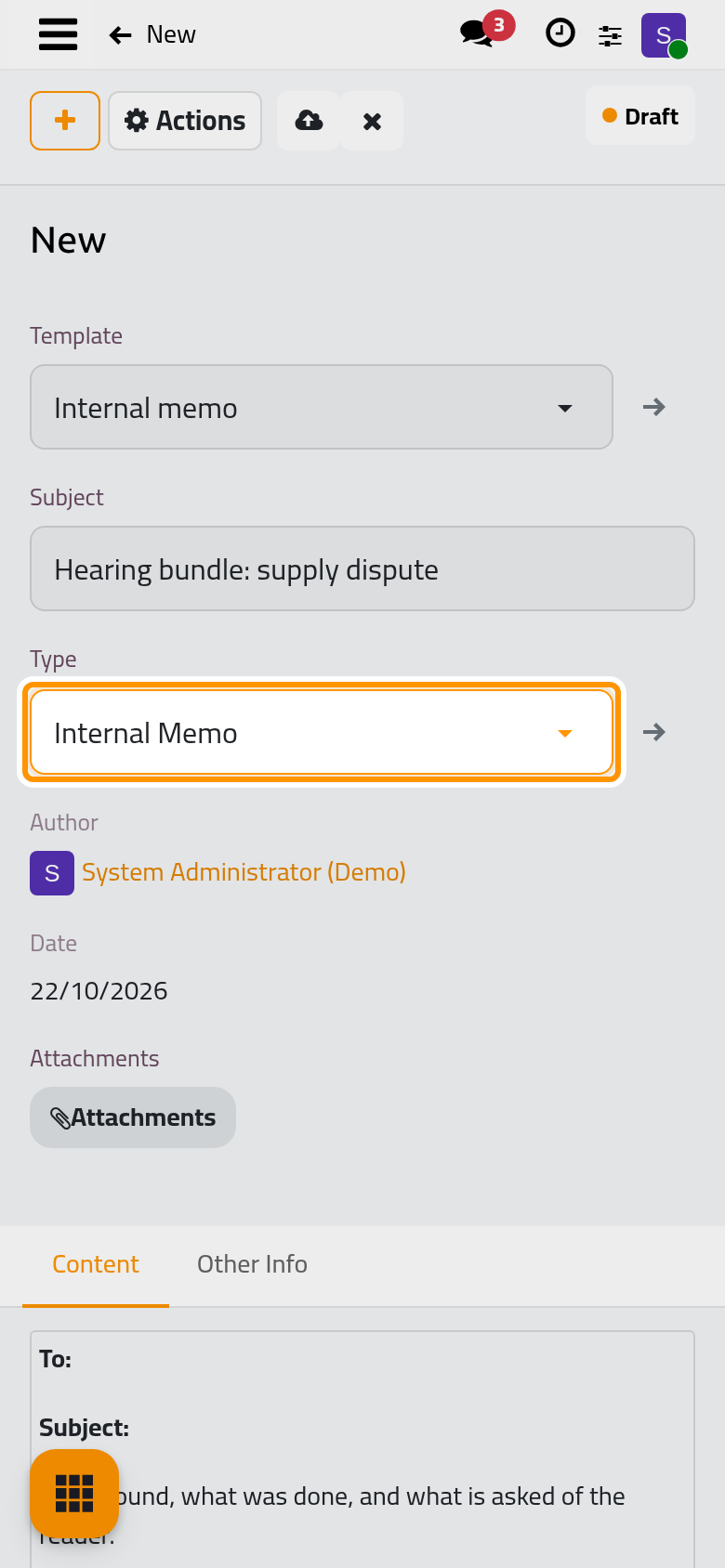
- Click the cloud icon Save manually. The document receives its number, for example
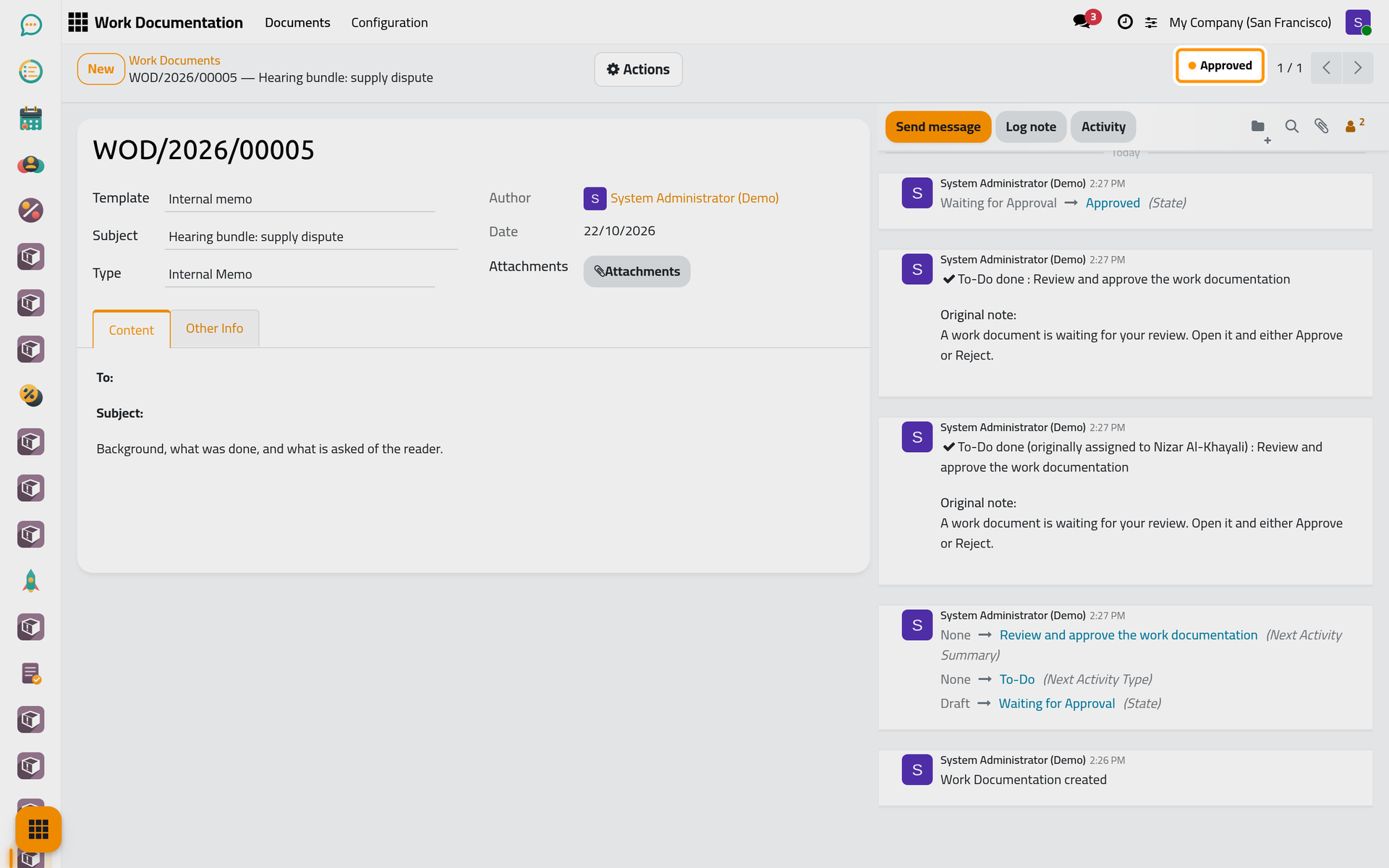
WOD/2026/00005:WOD, the year it was saved in, then its order number. The Author and the Date are filled for you.
Step 2: send it for approval
- Open the Actions menu and choose Send for Approval.
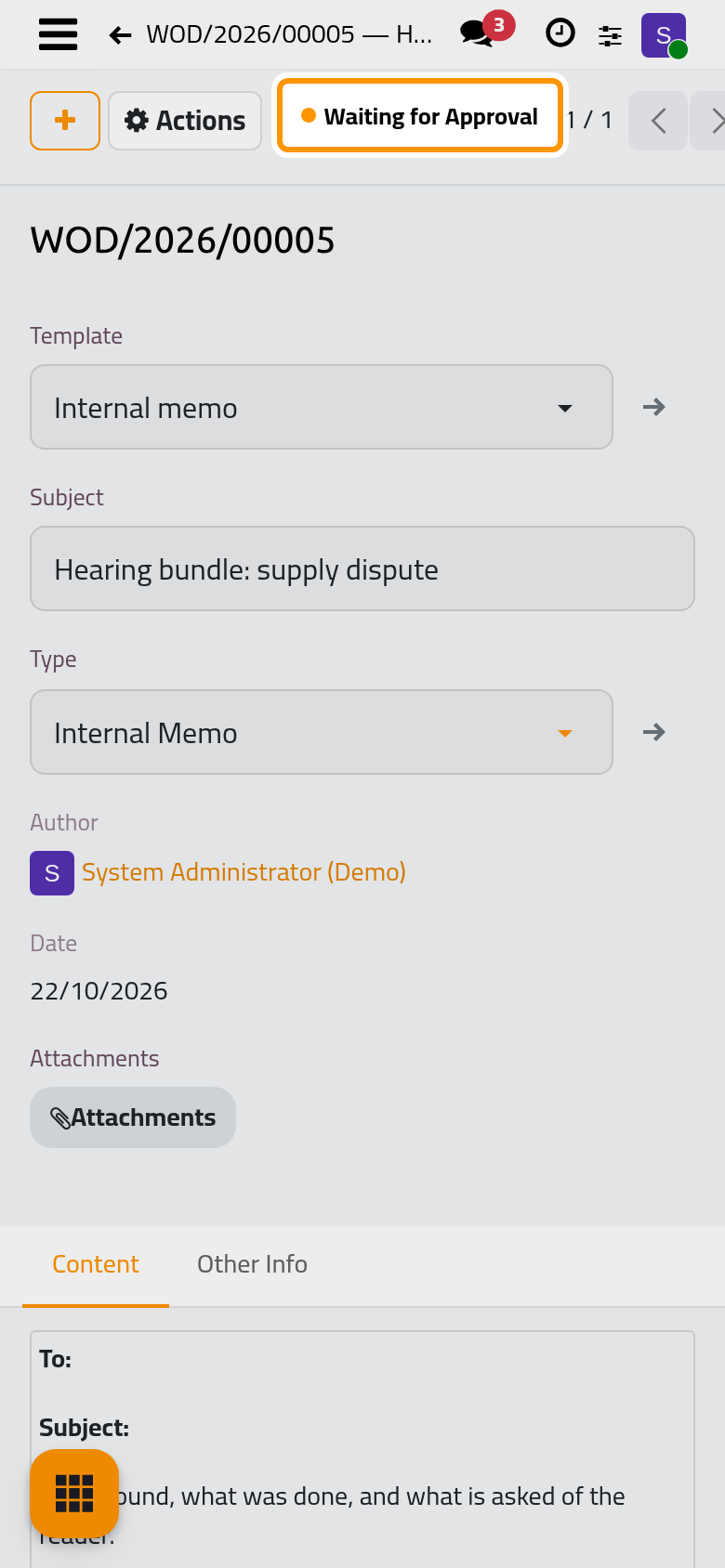
- The status moves from Draft to Waiting for Approval. Each approver of the type receives a to-do "Review and approve the work documentation", due in two days unless the settings say otherwise; it shows in the chatter of the document and in the approver's activities.
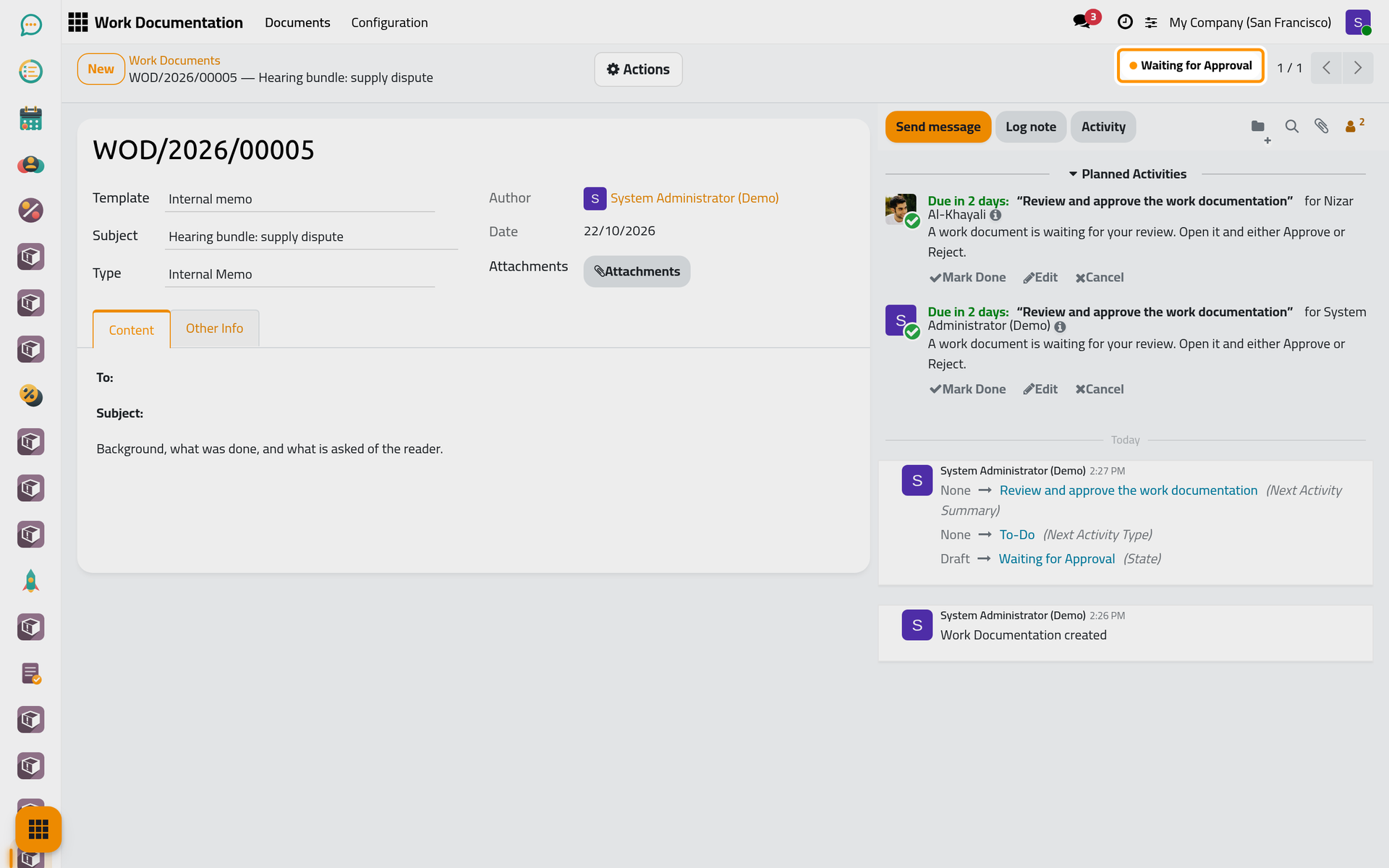
A type that does not need approval skips this step: the document is Approved the moment it is sent.
Step 3: approve it
As an approver with the Manager: All Documents access right, open the document, then open the Actions menu and choose Approve. The status becomes Approved and the to-do is closed.
What you have done
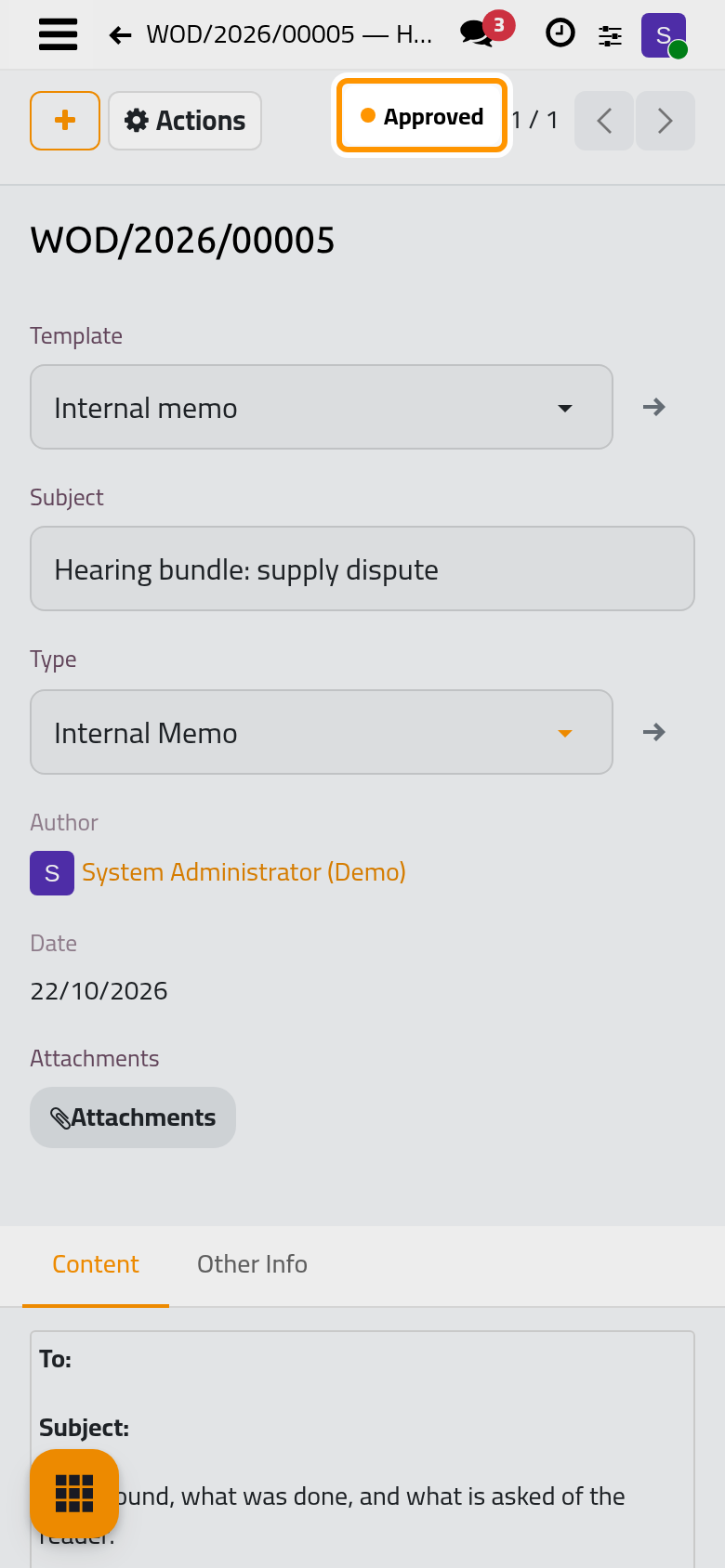
The work now has a number, an author, a date, a body and a status that says it was approved, with the approver's name in the chatter. The document sits in the list with the others; from now on it can be printed, and found again by its subject, type, author or status.
Was this page helpful?
Thank you for your feedback.