How-to
Set up document types and approvers
On this page
A Document Type sorts the documents and carries the approval rule: whether documents of that type wait for approval, and who approves them. Eight types come with the app, one for each memorandum a court may ask for; the office adds its own for its work.
Before you start
- You need the Manager: All Documents access right on Work Documentation: the Configuration menu is shown to managers only.
Create a type
- Open and click New.
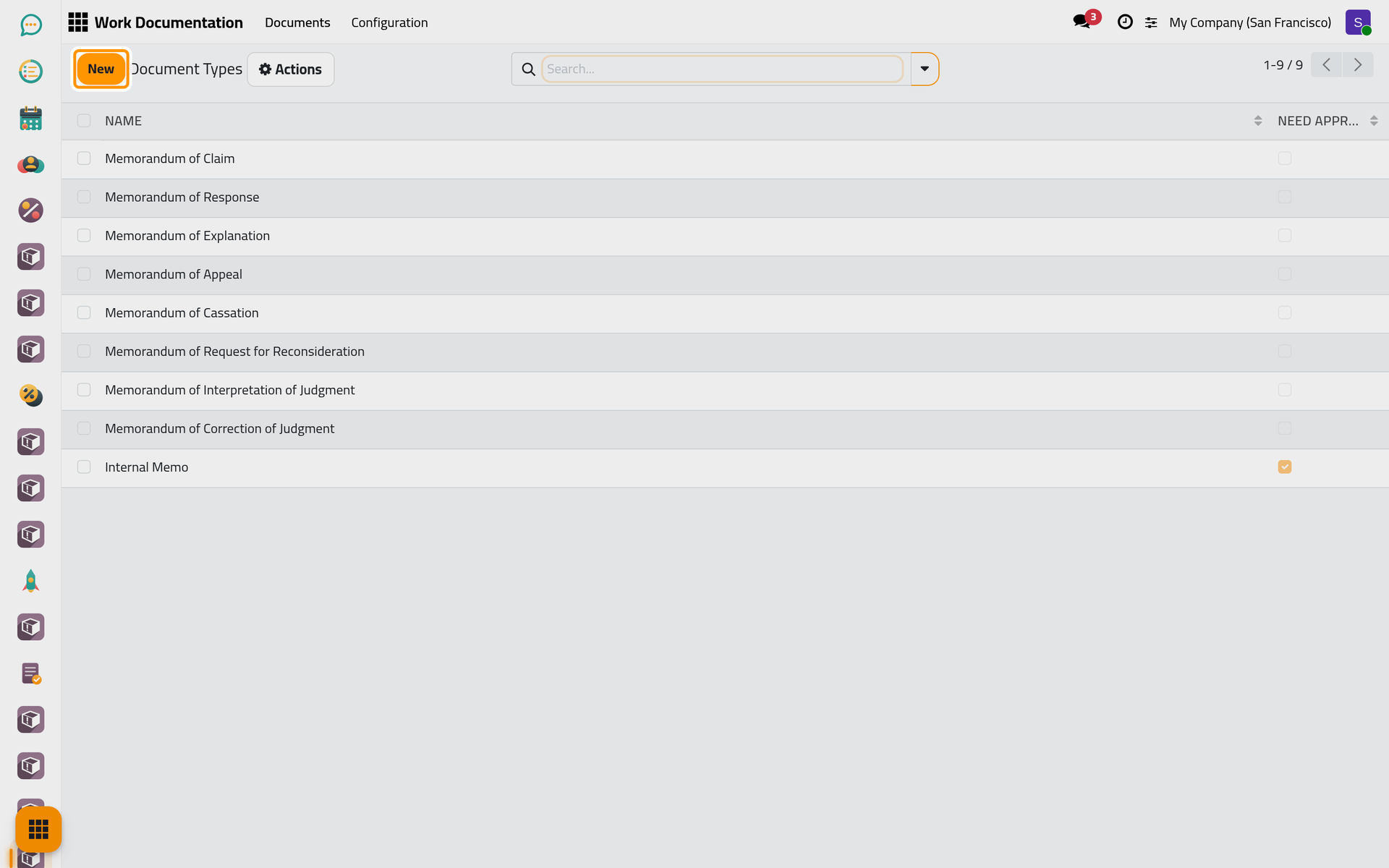
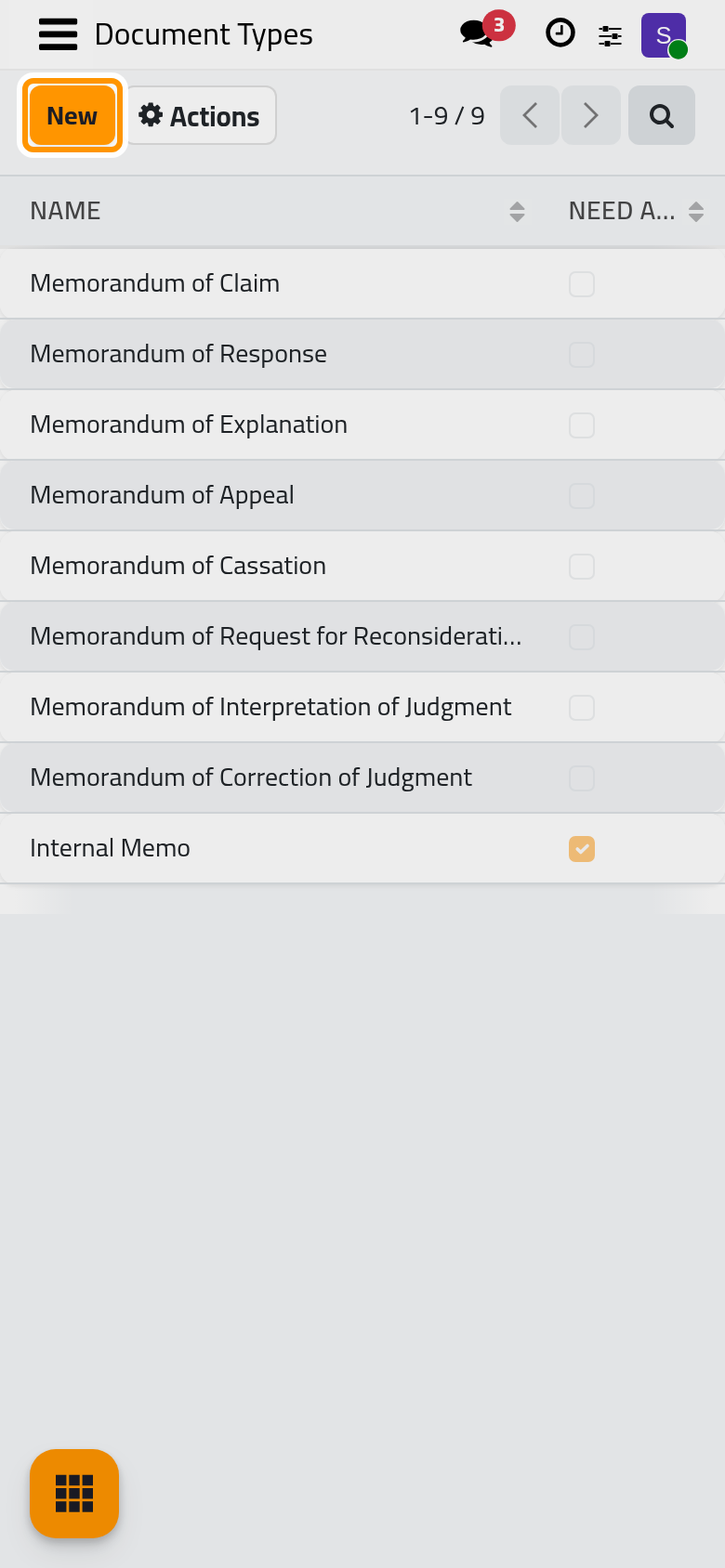
- Type the Name of the type, for example "Weekly Status".
- Tick Need Approve when documents of this type must be approved before they count. The Approvers field appears and is required: pick the users who approve them. Each of them receives a to-do when a document of the type is sent.
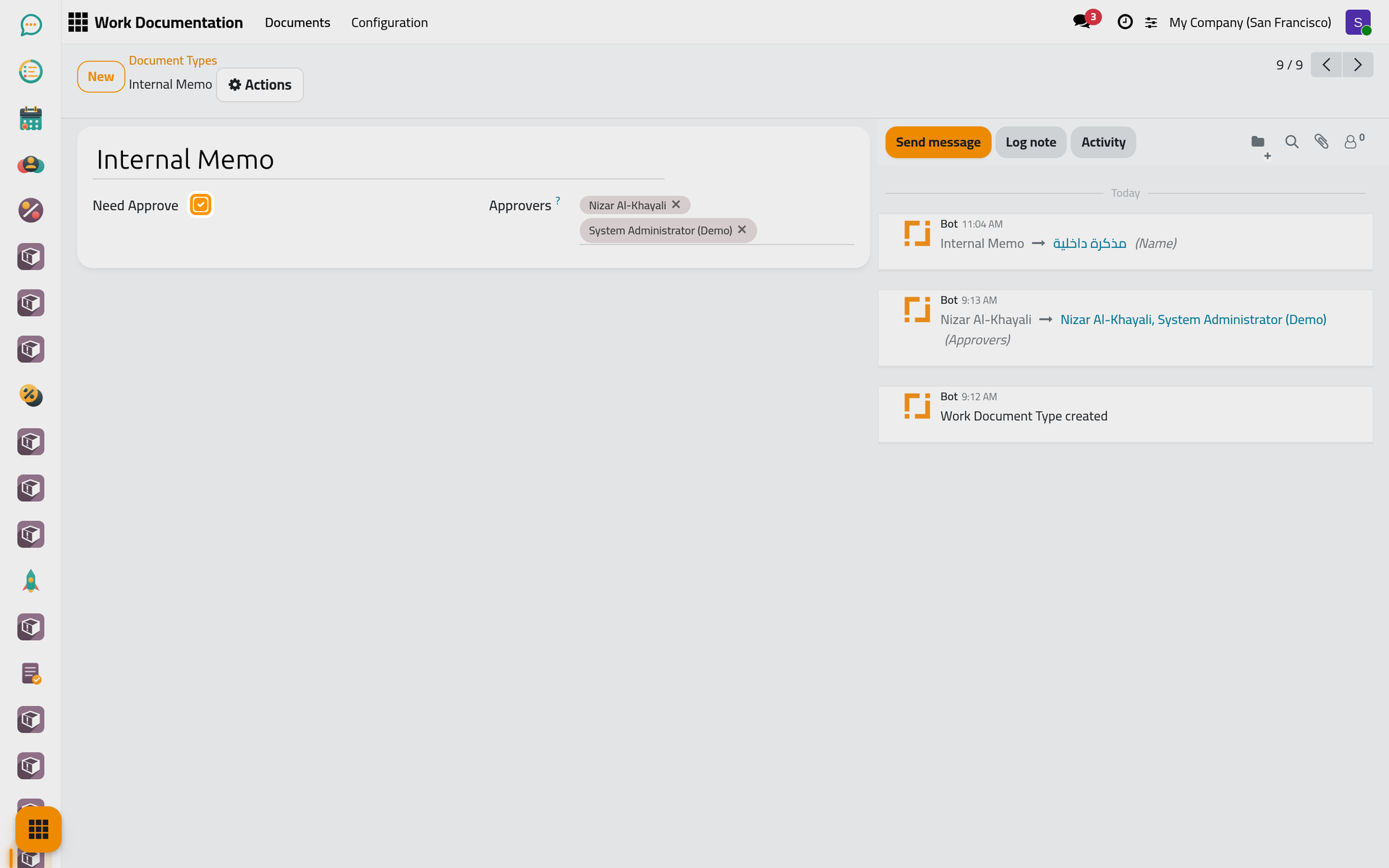
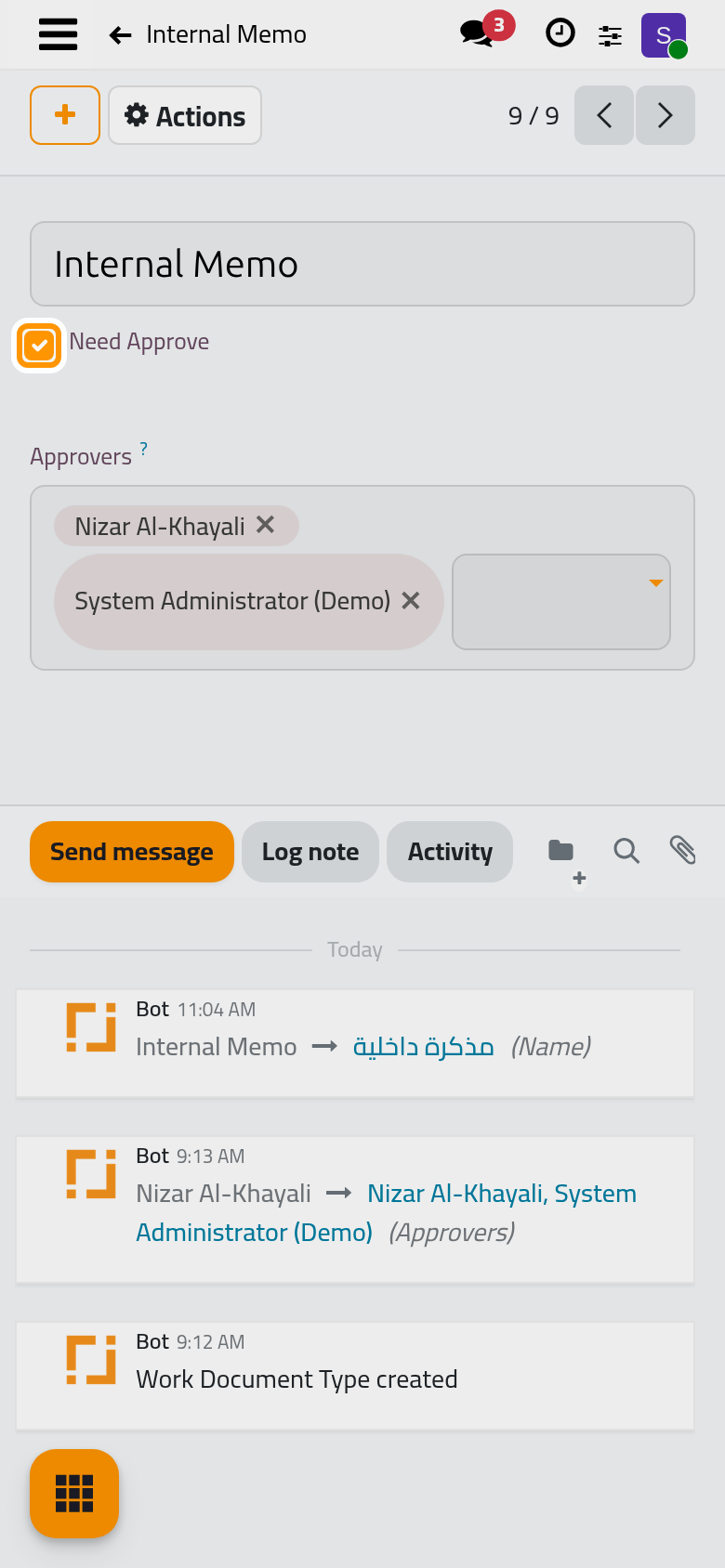
- Click Save manually.
How the type is used
- A type without Need Approve approves its documents the moment they are sent: no to-do, no waiting.
- A type with Need Approve must name at least one approver: the form does not save without one.
- An approver sees the documents waiting for them, but only a user with Manager: All Documents can approve or reject. Give your approvers that access right.
FAQ
Can I change the approvers of a type later?
Yes. The change applies to the documents sent after it; a document already waiting keeps the to-dos it created.
Can I delete a type?
Only while no document uses it. A type that documents refer to stays; rename it or stop using it.
Was this page helpful?
Thank you for your feedback.