How-to
Document a case or a hearing
On this page
When Cases is installed, a Work Documentation tab appears on every case and every hearing. A document written there is linked to it, and the standalone app shows the link too. Consultations and executions get the same tab when their apps are installed.
Before you start
- You need the User: Own Documents access right on Work Documentation, which shows the tab, and access to the case.
Write a document from a case
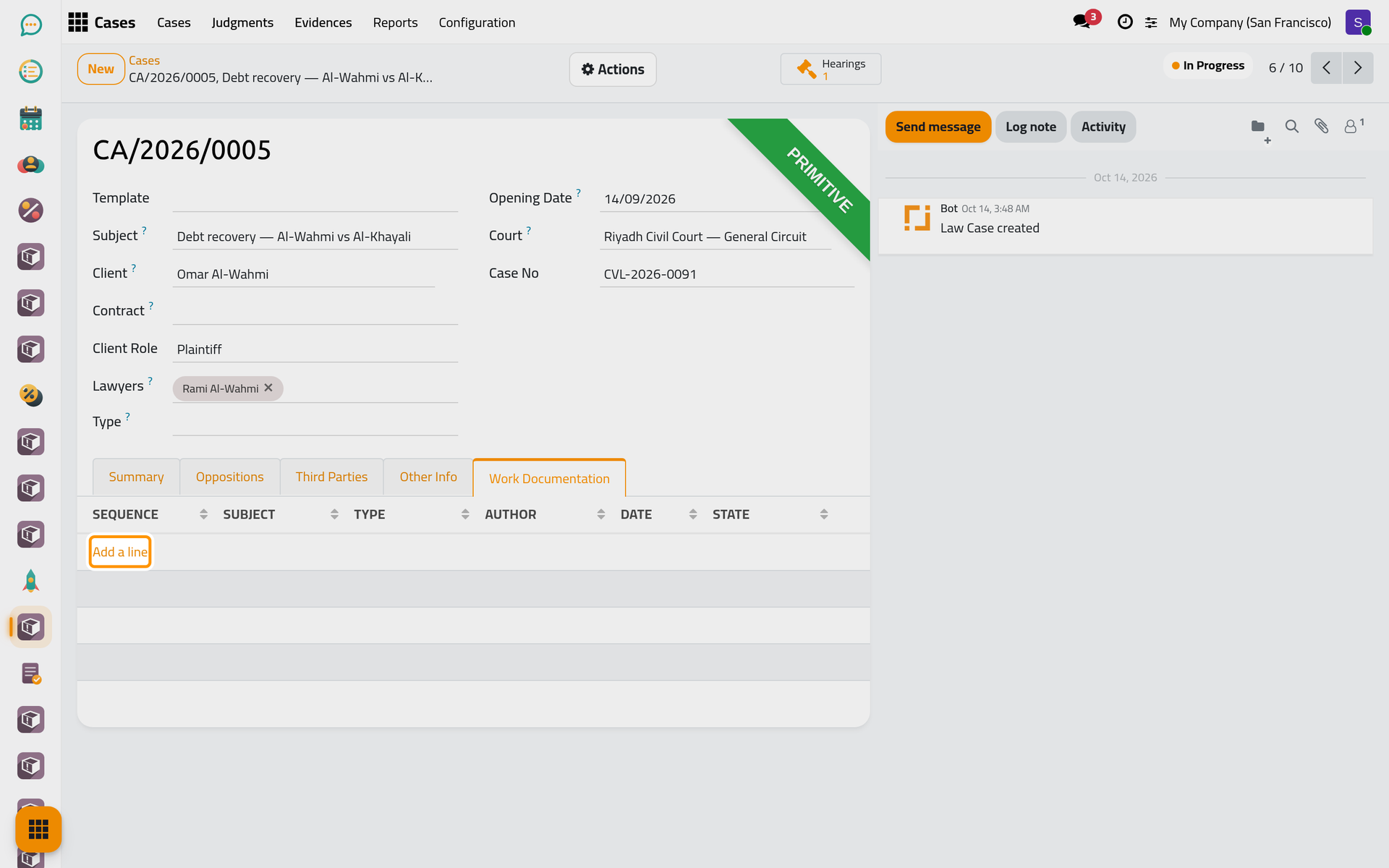
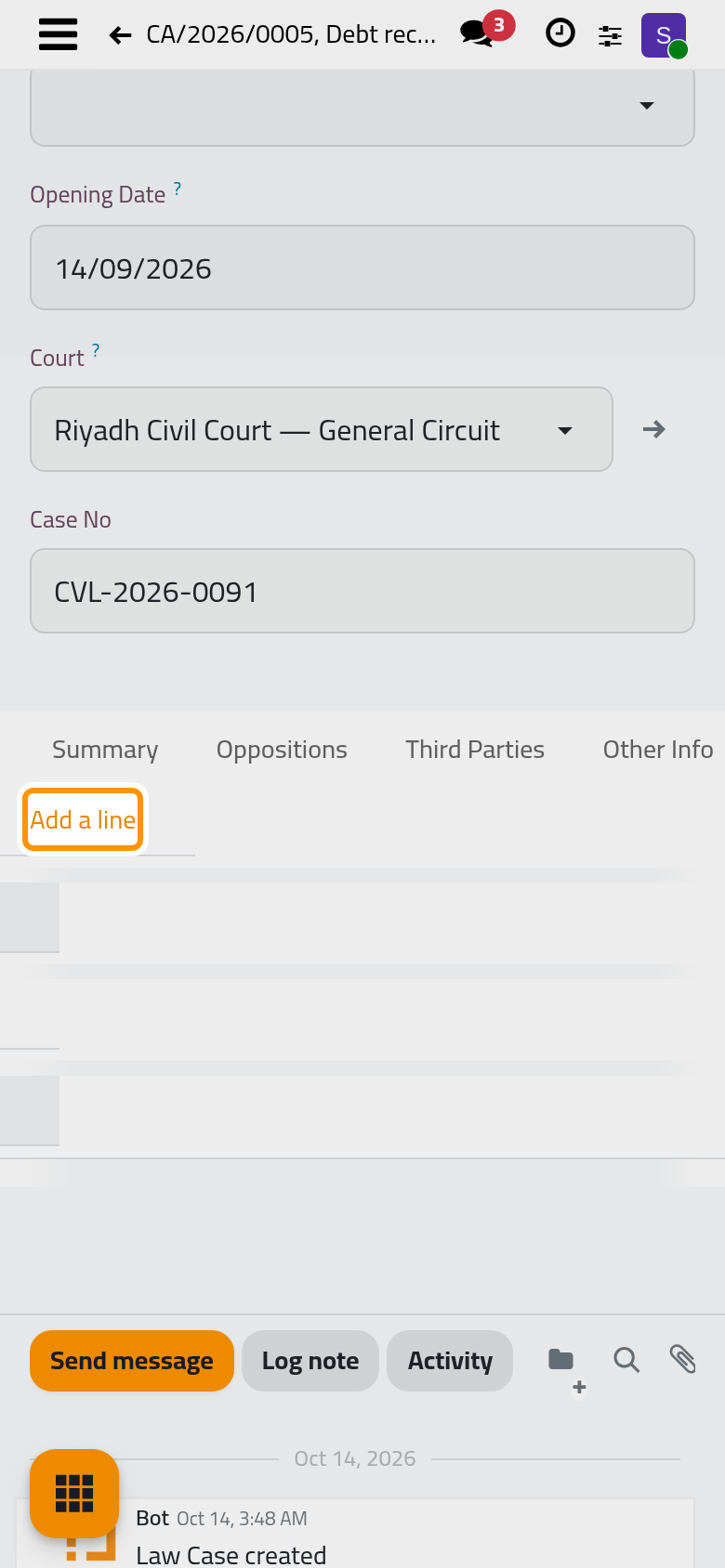
- Open the case from and open the Work Documentation tab. It lists the documents of the case with their number, subject, type, author, date and status.
- Click Add a line. The document opens in a window, Create Documents.
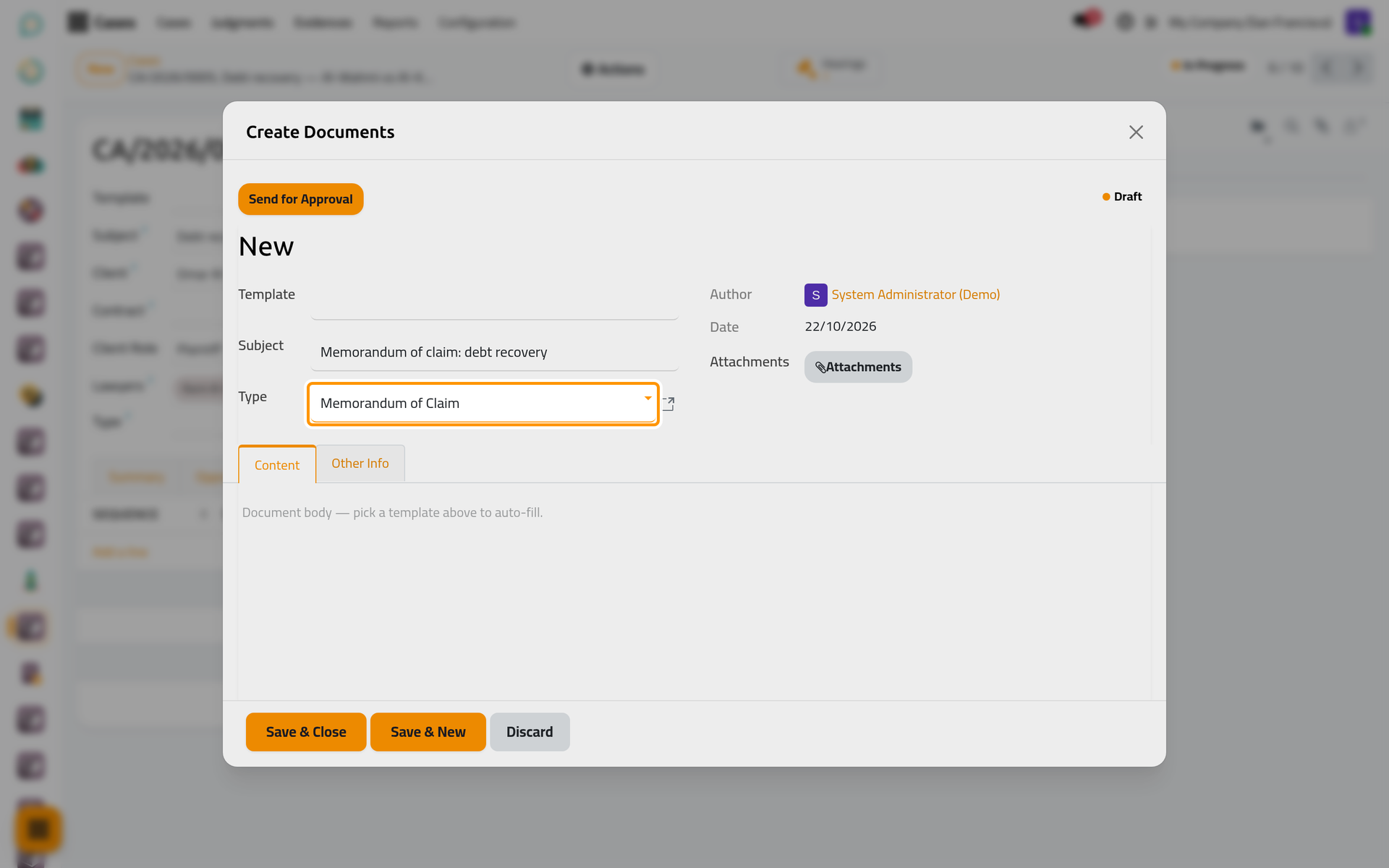
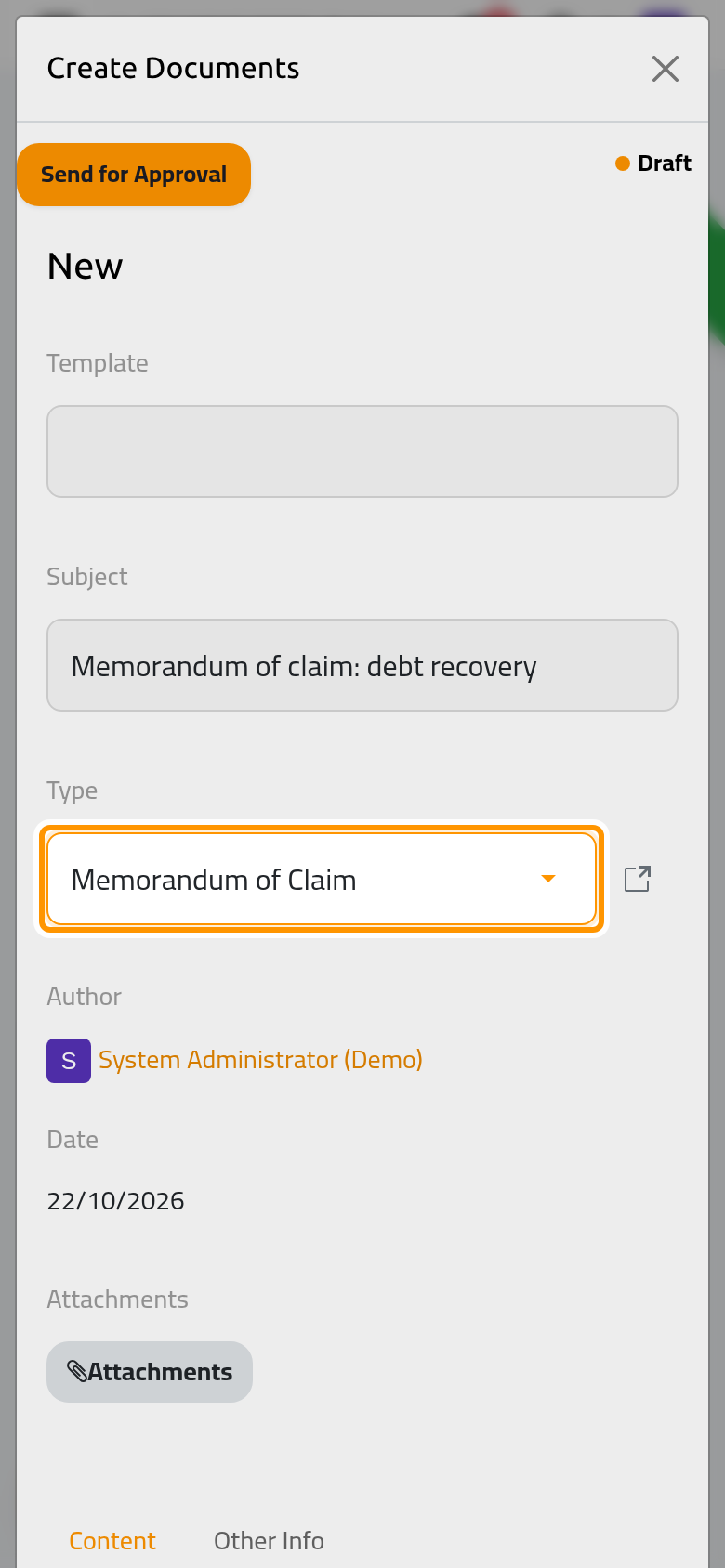
- Fill the Subject and the Type, write the Content, then click Save & Close.
- The document appears in the tab. Save the case.
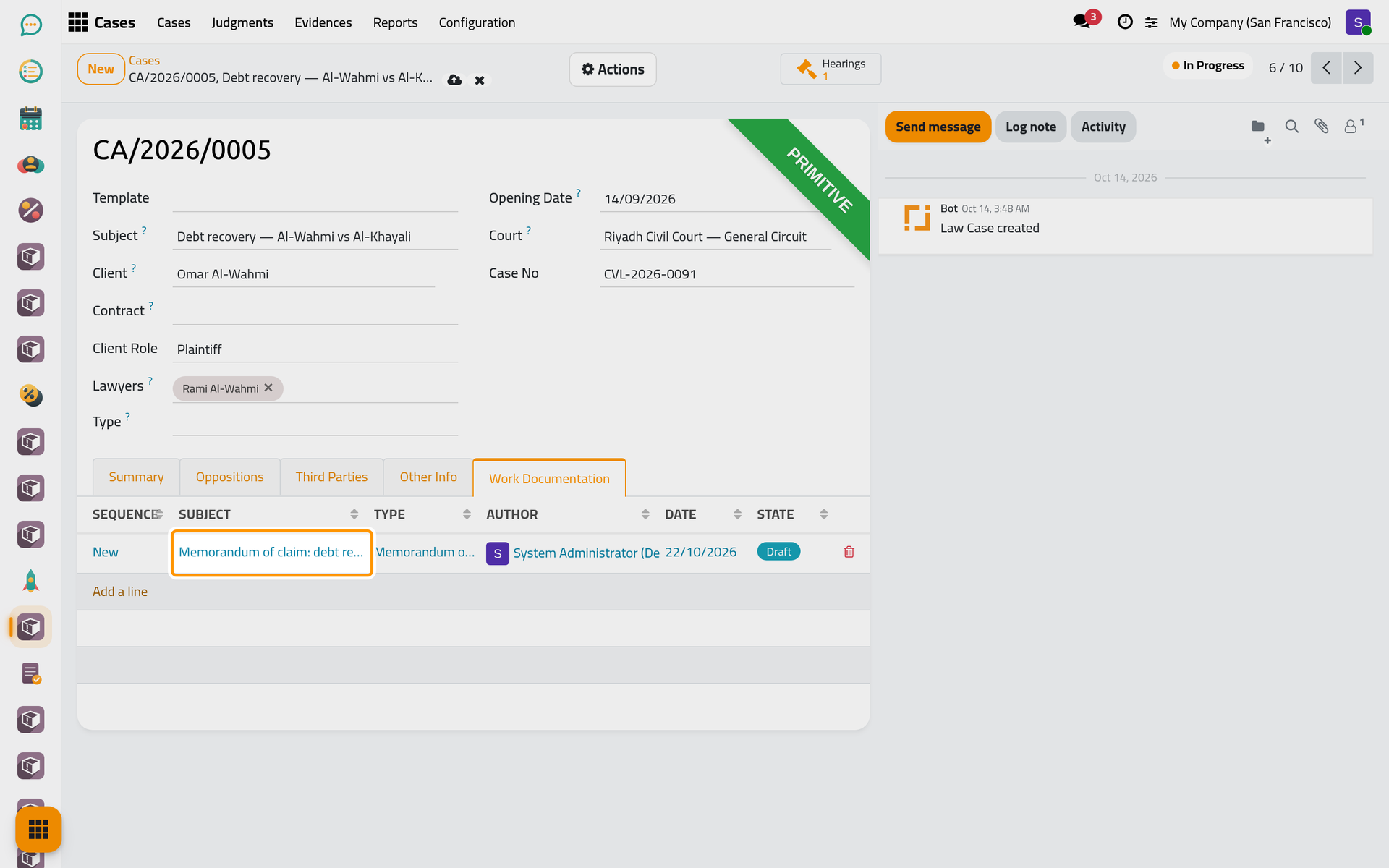
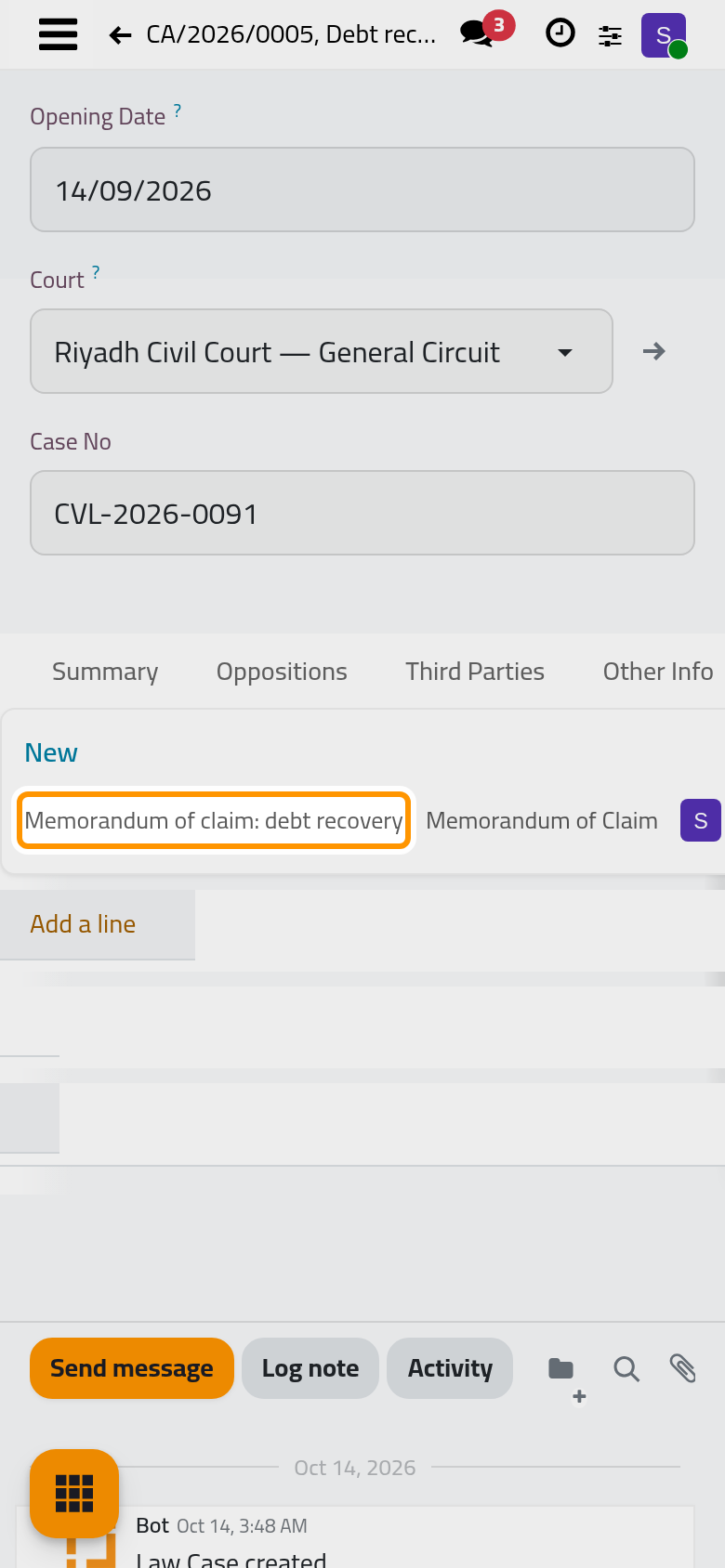
The same tab exists on a hearing: a document written there is linked to the hearing.
What the link does
- The Other Info tab of the document shows the Case or the Hearing, and its Source holds their number,
CA/2026/0005orTR/2026/0001. You can change the link there from the standalone app. - Sending, approving and printing work the same way as for any document; the to-dos go to the approvers of the type.
- The document also appears in , found by its subject or its type.
FAQ
I do not see the Work Documentation tab.
The tab is shown to users of Work Documentation only. Ask your administrator for the User: Own Documents access right.
Does the client see the documents?
No. Work documents are internal; nothing of them reaches the client portal.
Was this page helpful?
Thank you for your feedback.