Cases and hearings settings
On this page
- Before you start
- The Cases tab
- Case Templates
- Review and Audit Case Activity
- Objection Activity
- Revoke Activity
- The Hearings tab
- Overlapping Hearings
- Online Hearings
- Tomorrow Digest
- Prepare Hearing Requirements Activity
- Write Session / Close Hearing Activity
- Report Configuration
- FAQ
- Where do I set the fees products?
- Which tasks run by themselves?
Cases has two tabs in the settings, Cases and Hearings, and shares the Report Configuration box of the legal settings. Most options give the lawyers a to-do at the right moment, so a deadline is never missed.
Before you start
- Changing settings needs the Administrator role (Role on the user's Access Rights tab).
- The to-dos go to lawyers who have a user in the system.
The Cases tab
Open .
Case Templates
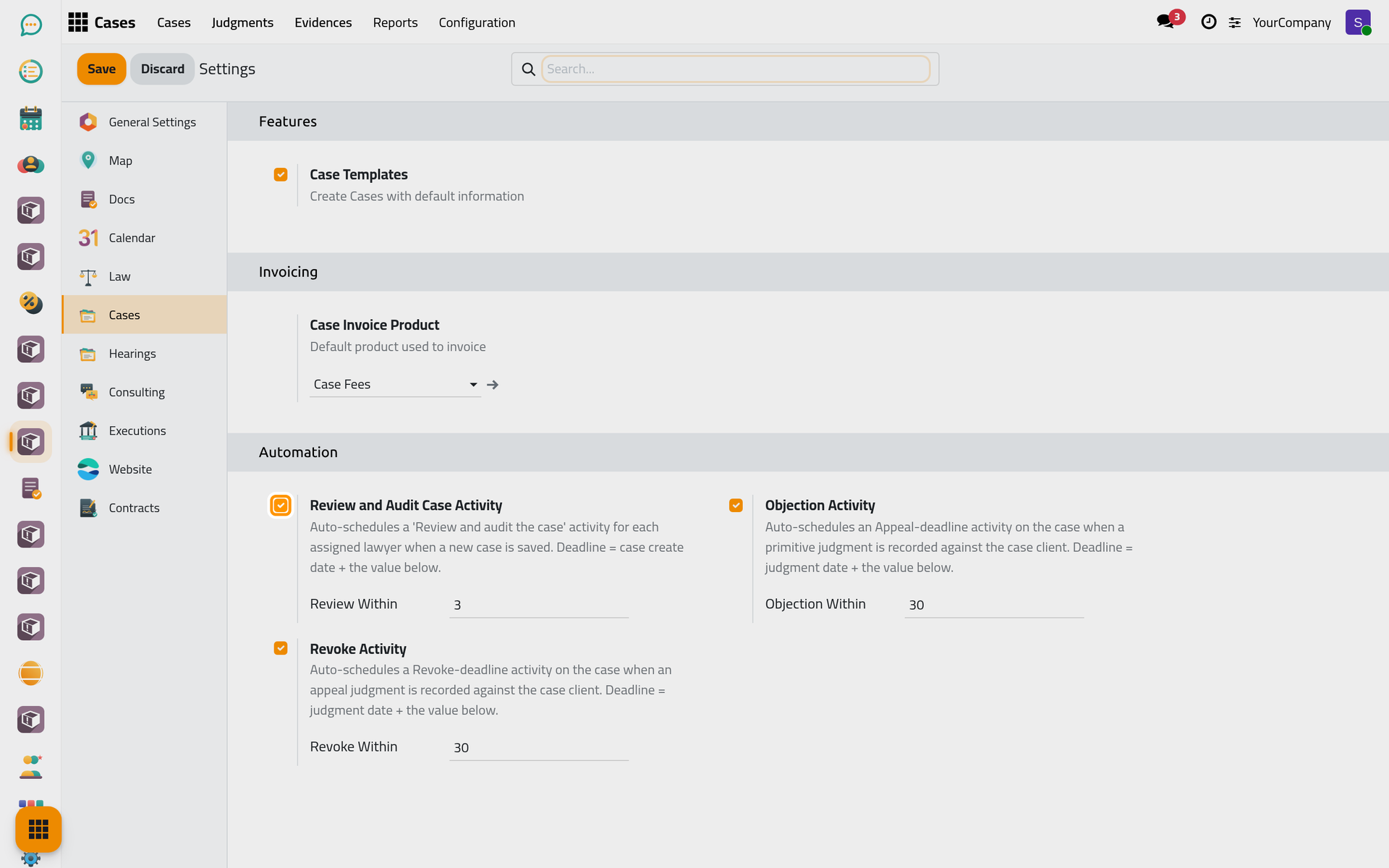
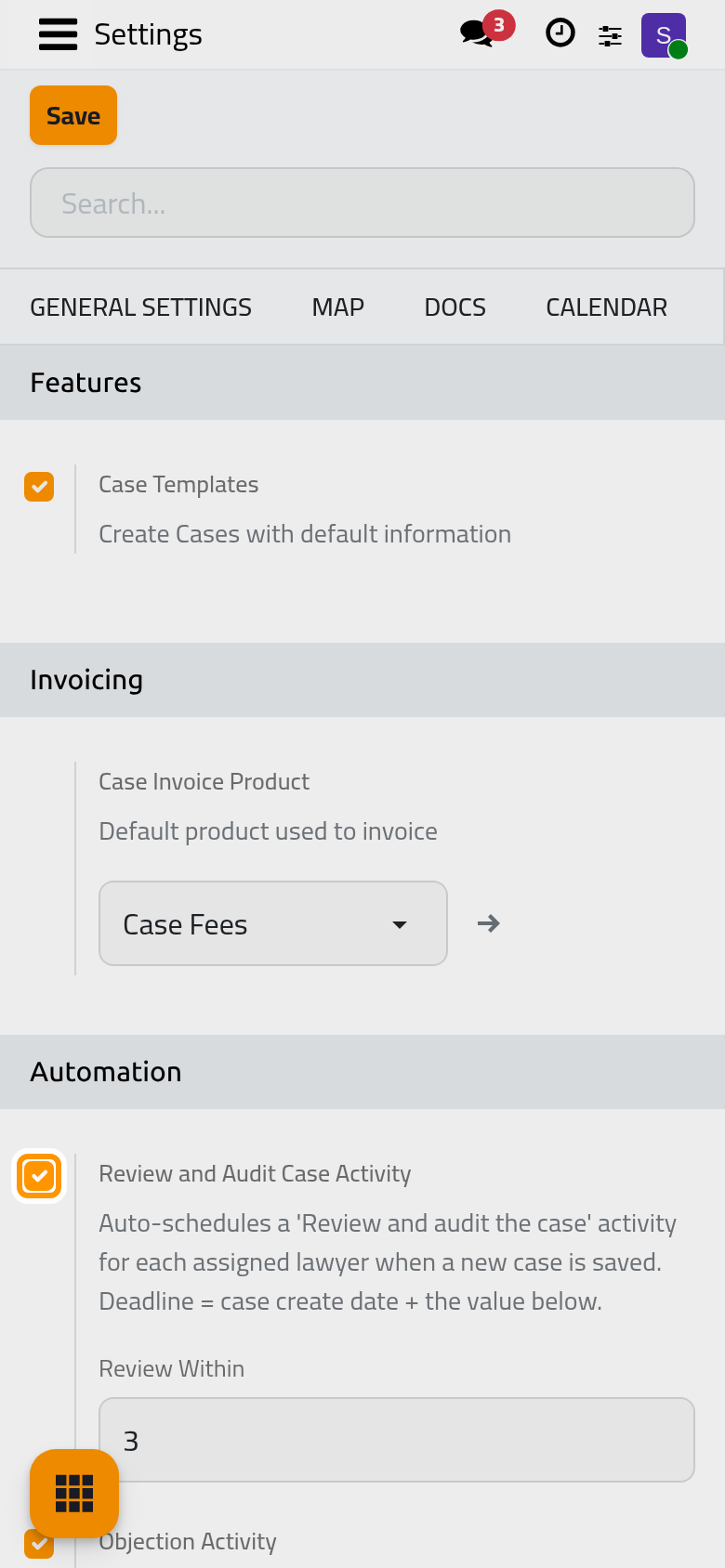
On by default. A case can then start from a template that fills in its usual information; the Template field shows on the case. Turn it off if the firm does not use templates.
Review and Audit Case Activity
On by default. Each new case gives its lawyers a to-do "Review and audit the case", due Review Within days after the case is created (3 by default).
Objection Activity
On by default. When a first-instance judgment is lost, the case gets a to-do for the appeal deadline, due Objection Within days after the judgment date (30 by default). Set the number to the appeal period of your courts.
Revoke Activity
On by default. When an appeal judgment is lost, the case gets a to-do for the deadline to challenge it, due Revoke Within days after the judgment date (30 by default).
The Hearings tab
Open .
Overlapping Hearings
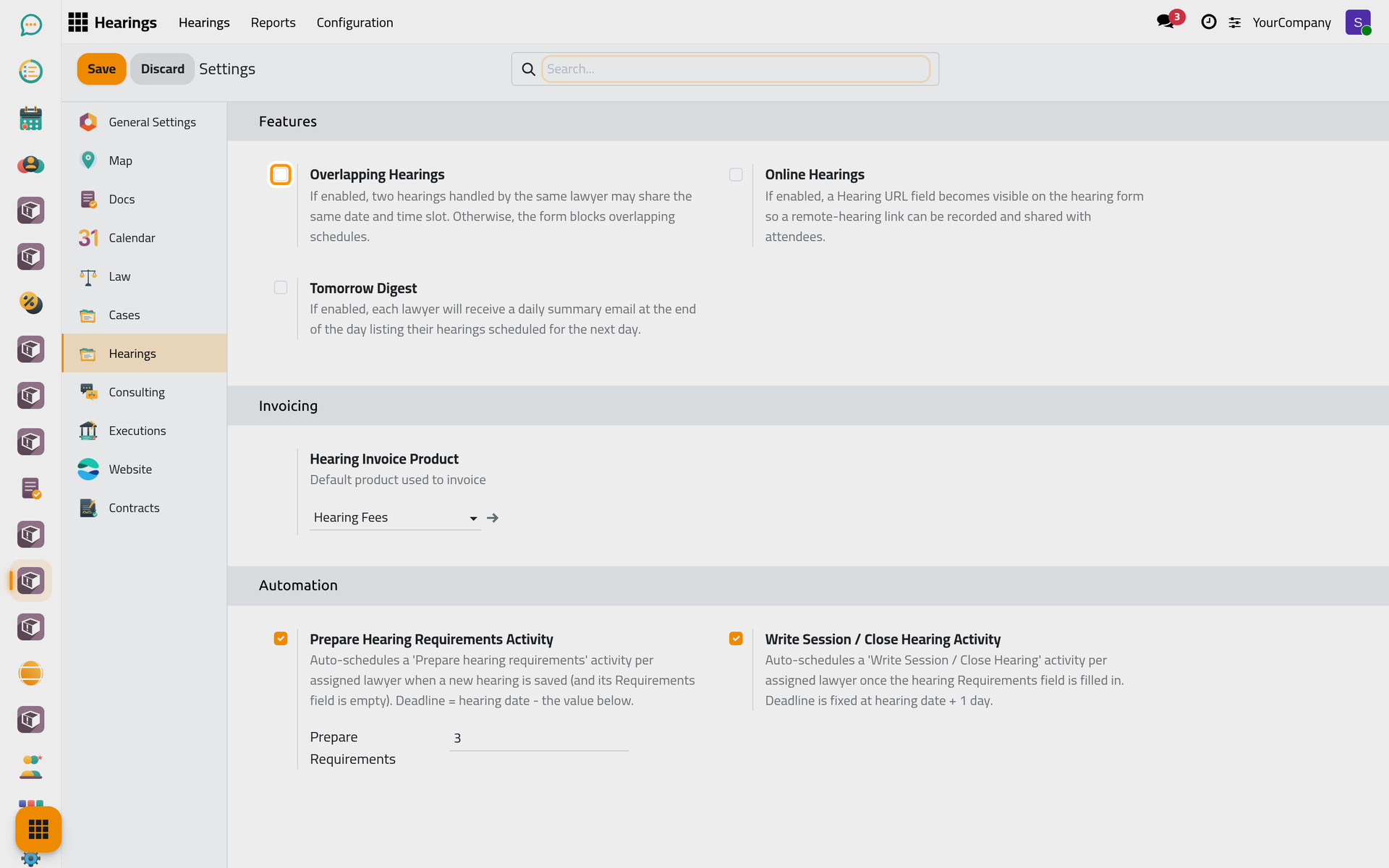
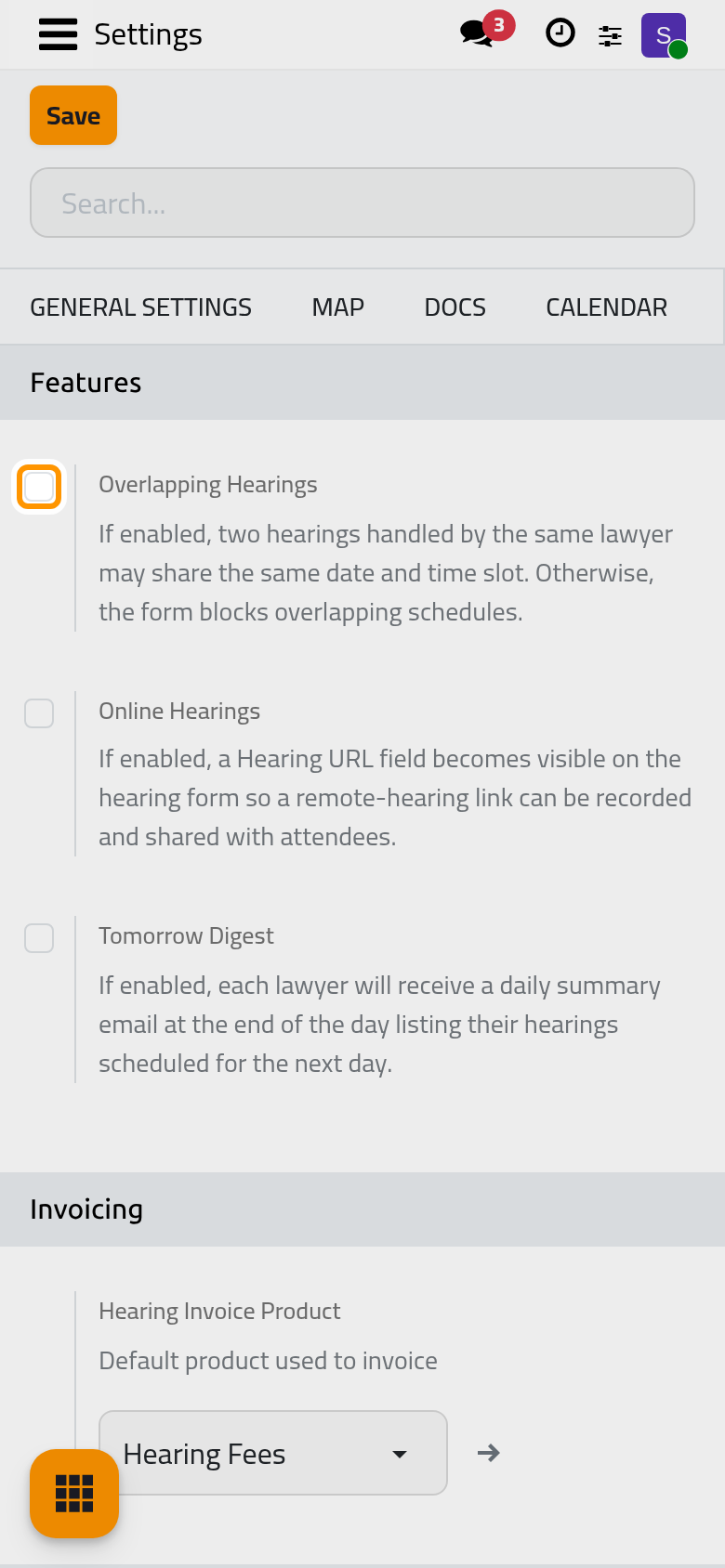
Off by default: a lawyer cannot be booked on two hearings at the same date and time, and the hearing form refuses the second one. Turn it on if your lawyers do attend overlapping hearings.
Online Hearings
Off by default. Turn it on to record the link of a remote hearing: the Hearing URL field shows on the hearing.
Tomorrow Digest
Off by default. Turn it on and each lawyer receives, once a day, an e-mail listing their hearings of the next day.
Prepare Hearing Requirements Activity
On by default. A new hearing saved without its Requirements gives its lawyers a to-do "Prepare hearing requirements", Prepare Requirements days before the hearing (3 by default).
Write Session / Close Hearing Activity
On by default. Once the requirements of a hearing are written, its lawyers get a to-do to write the session minutes and close the hearing, due on the hearing date.
Report Configuration
The Report Configuration box of the legal settings has a link for each report: Case Report, Case List Report, Hearing Report, Hearing List Report, Hearing Summary Report and Judgment Report. Each opens the list of fields the report prints, to choose which ones appear. See Print case and hearing reports.
Click Save to apply your changes.
FAQ
Where do I set the fees products?
In the Invoicing box of the Cases tab, explained in Bill a case.
Which tasks run by themselves?
The page Cases automations lists every to-do, e-mail and daily job of Cases.
Was this page helpful?
Thank you for your feedback.