Your first budget
On this page
A budget sets an amount aside for a period and for a part of the firm, a department or a project, and then shows what is really spent against it. You type the plan; the actual figures come from the entries already posted in the books. This walk-through builds a budget for the Legal department for 2026 and reads it.
Before you start
- You need the Administrator access right on Accounting to create a budget and put it in service. The Read-only access right shows the budgets and their figures and changes nothing.
- The parts of the firm a budget watches are analytic accounts, grouped in analytic plans: the demo company has a Departments plan with Legal, Administrative, Finance and other departments. An expense counts against a department when its bill or entry line carries that department in its analytic distribution. The plans and accounts are under and .
- The demo books already hold two posted Legal expenses in 2026: a legal research subscription of 24,000.00 in April and court fees of 22,000.00 in June.
Step 1: the budgets list
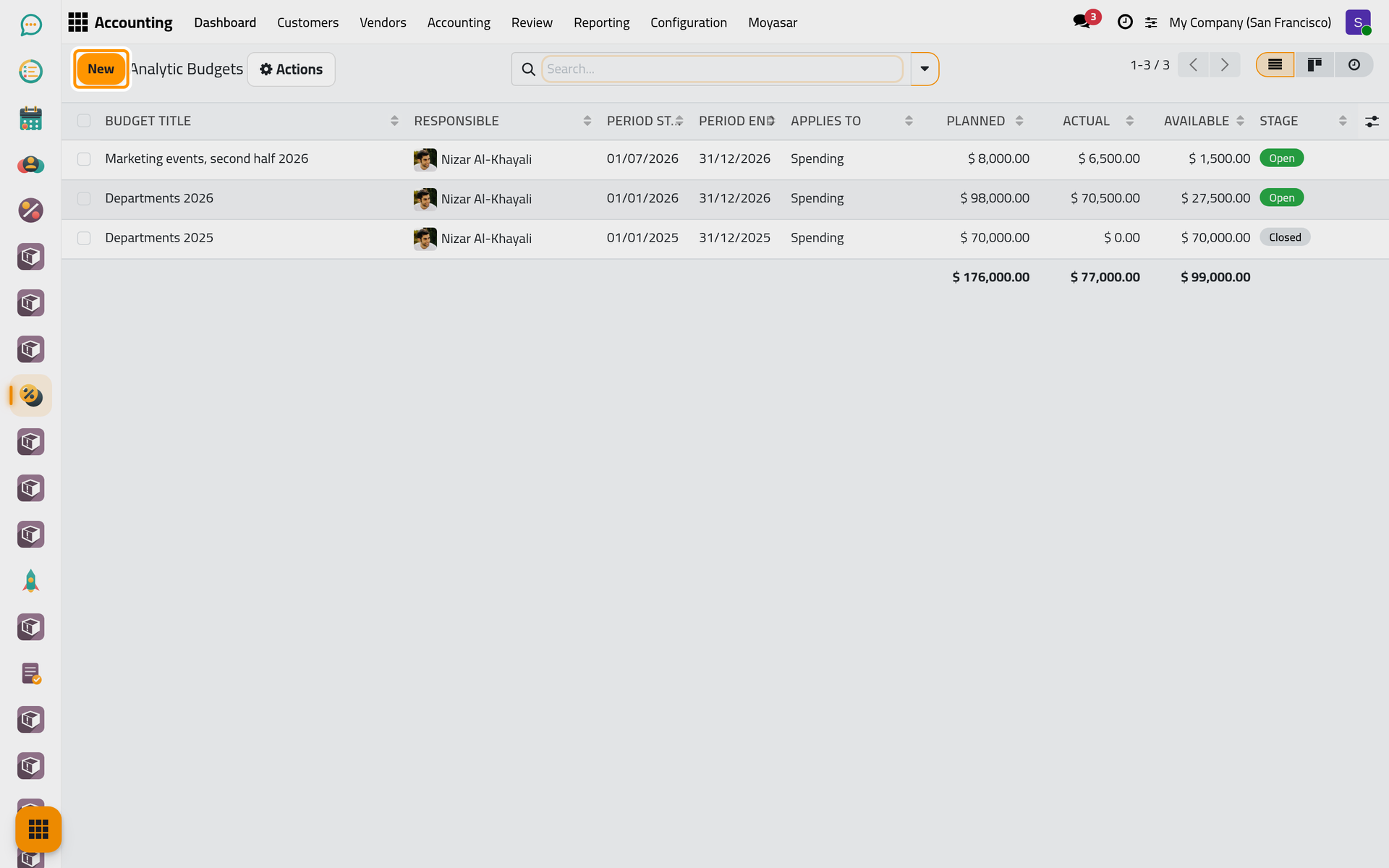
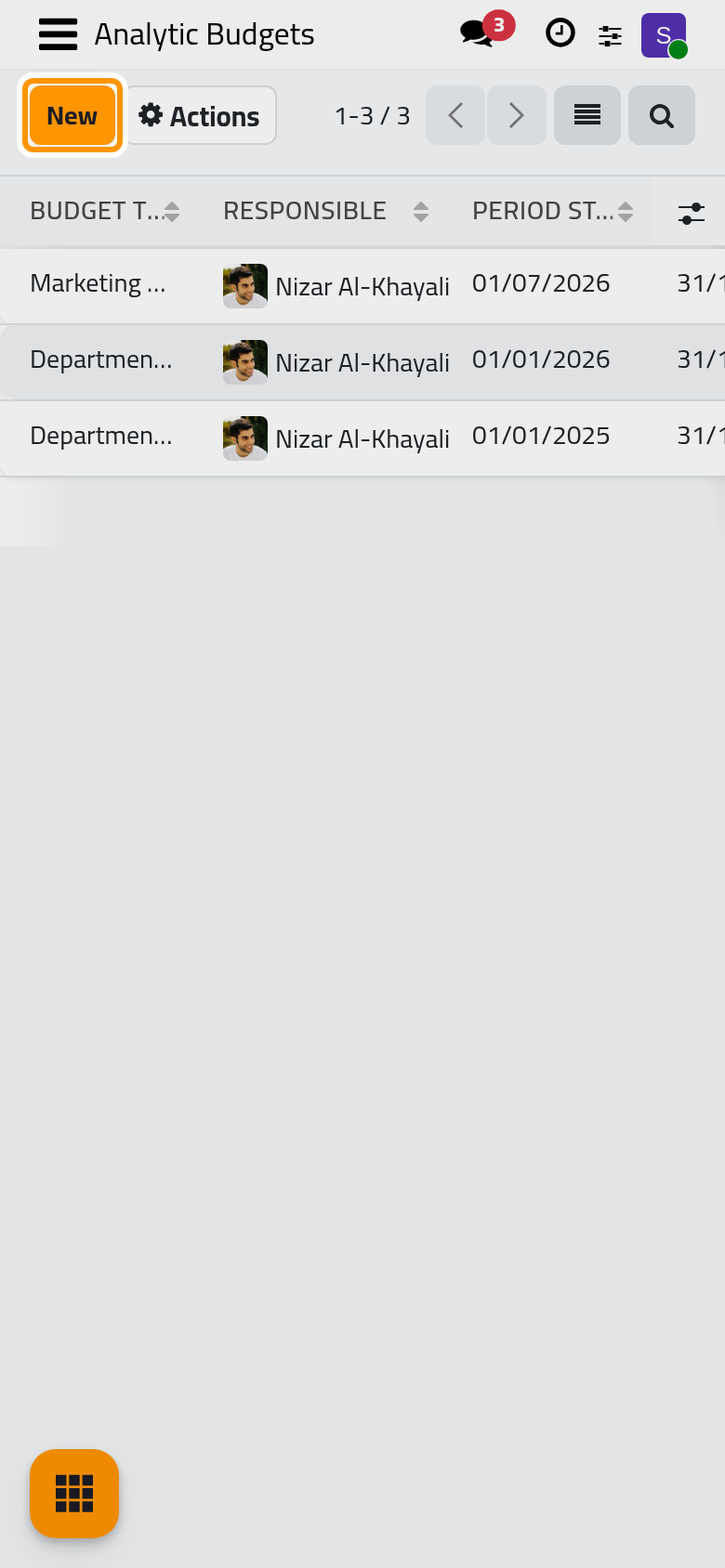
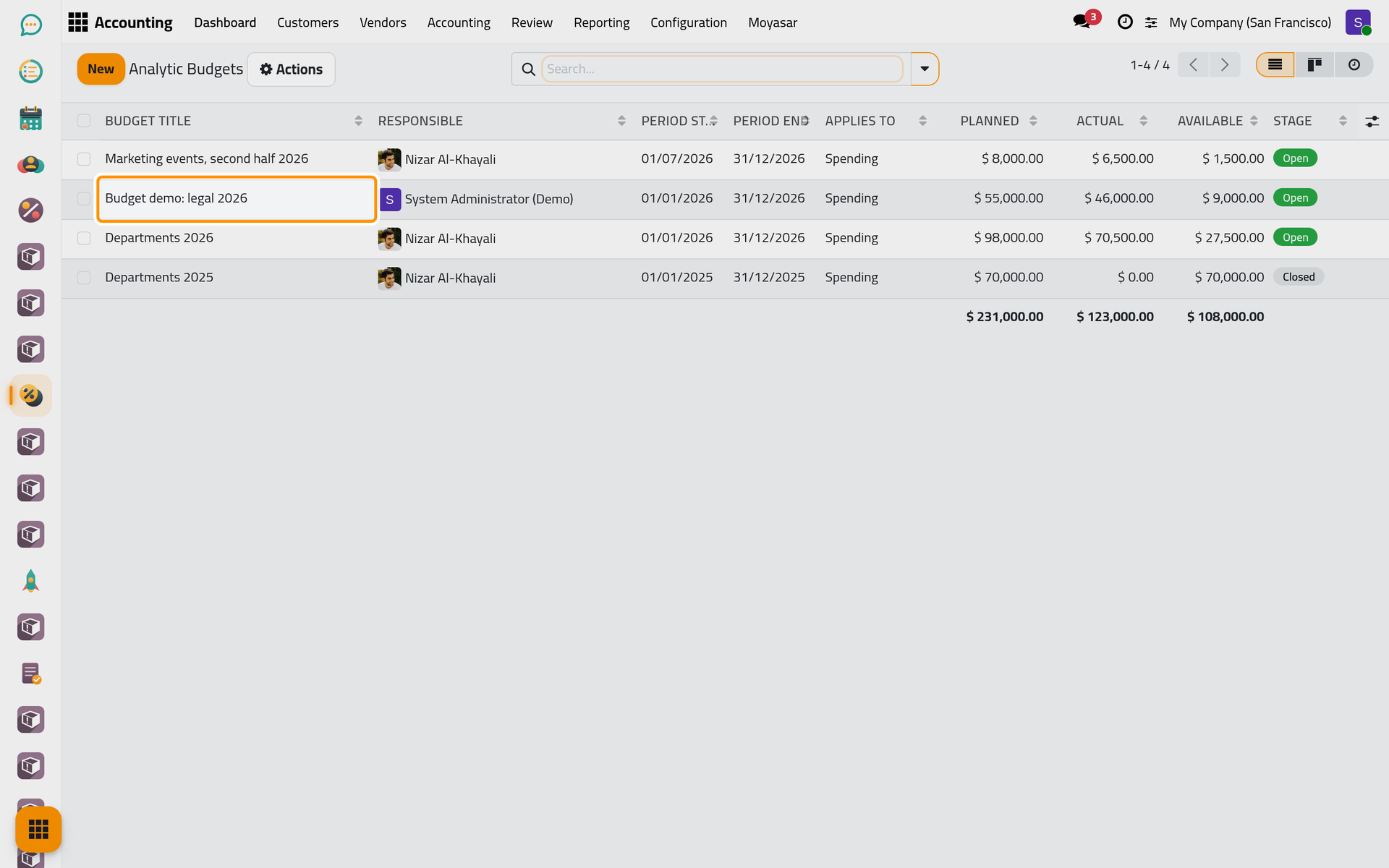
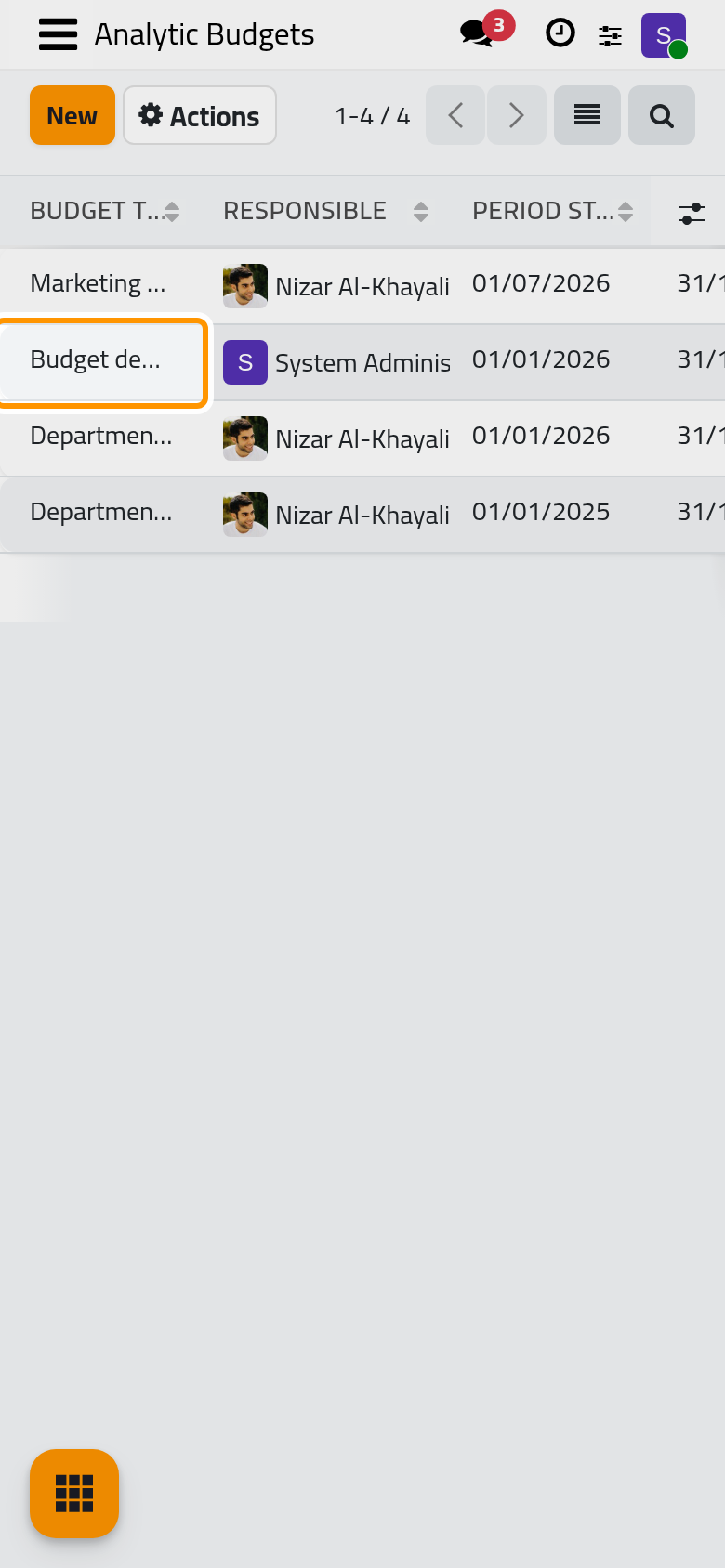
Open . Each line is a budget with its Period Start, Period End, what it Applies To, and three totals: Planned, Actual and Available. The Stage badge says where it stands. A line turns red when its actual amount passes its planned amount. The card view groups the budgets by stage, with a bar of actual against planned.
Click New.
Step 2: name the budget and its period
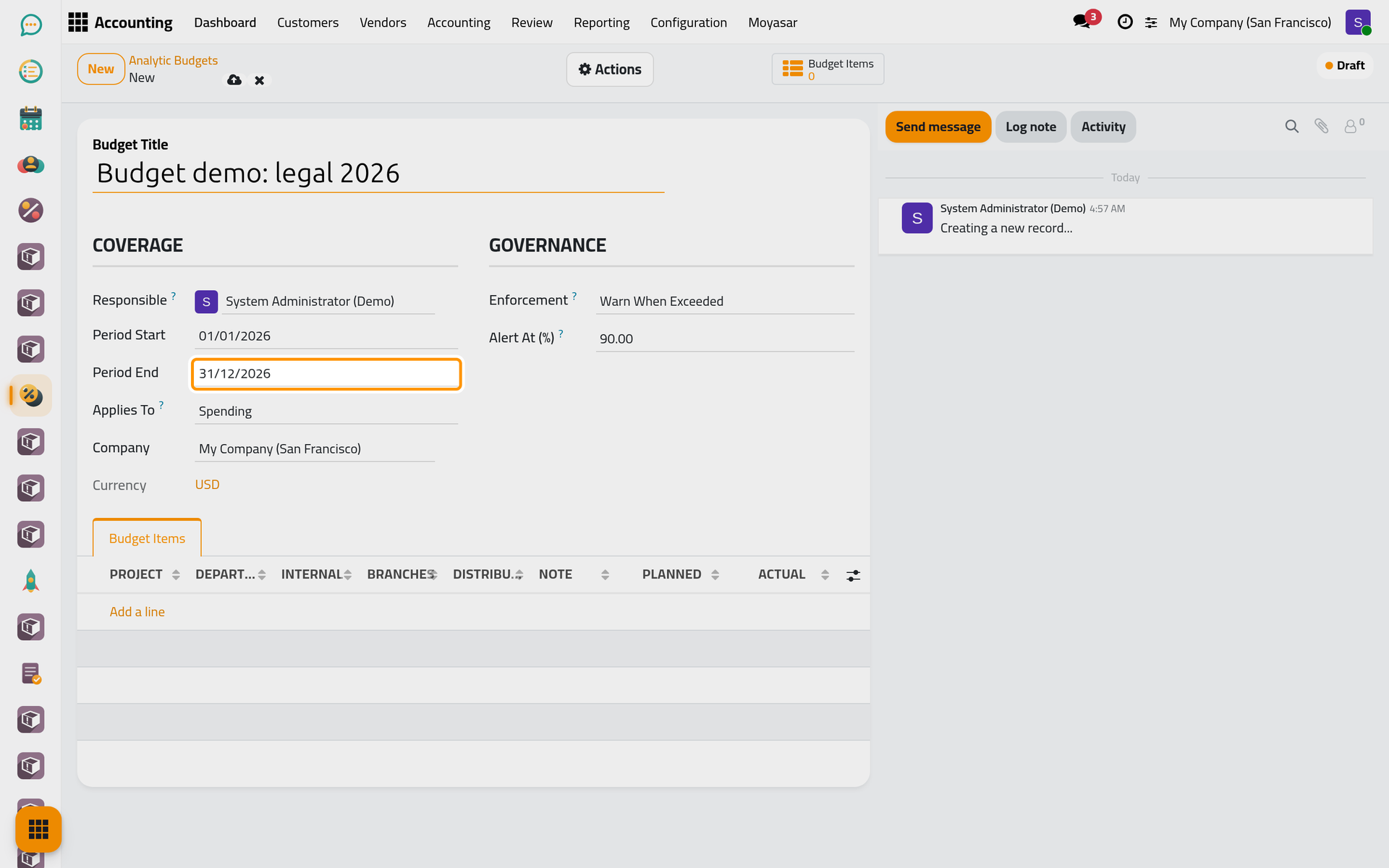
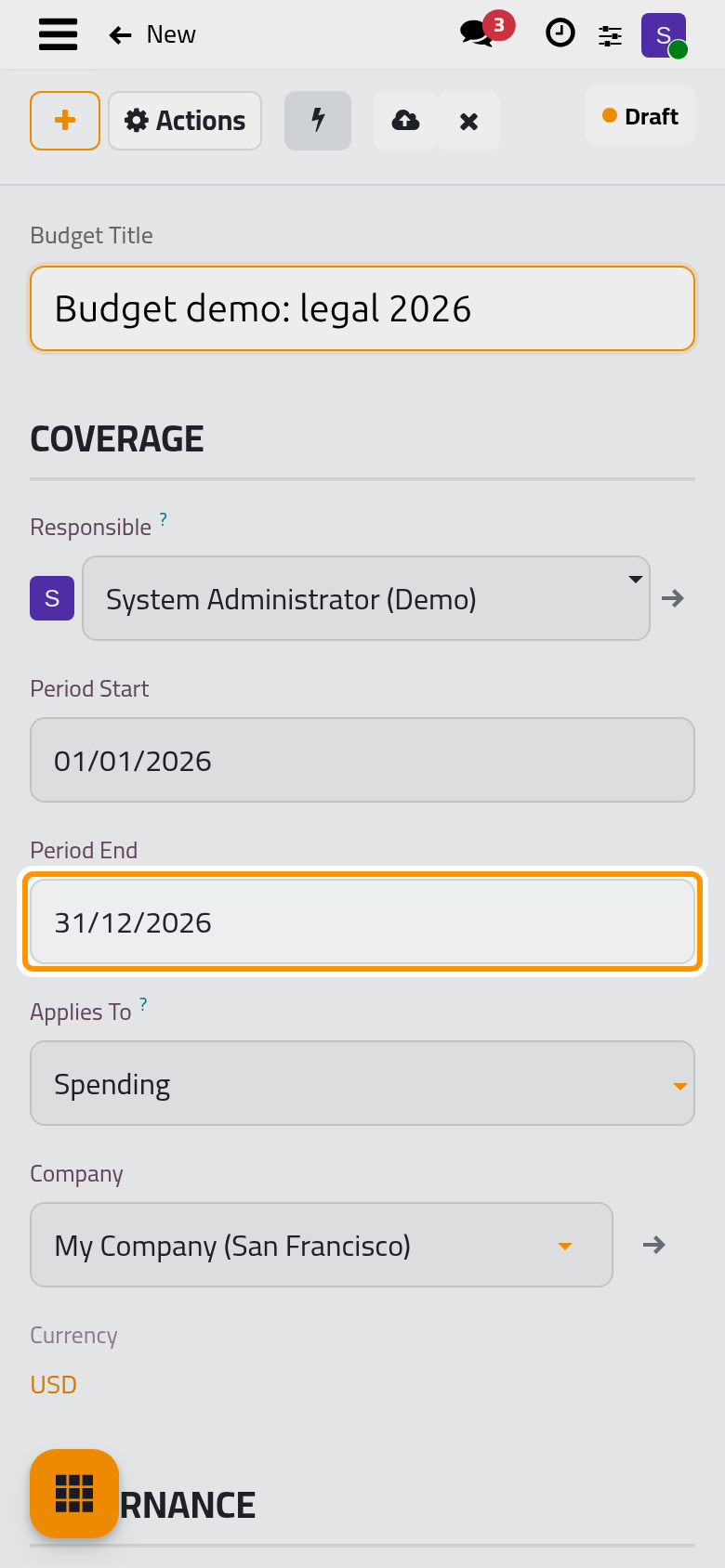
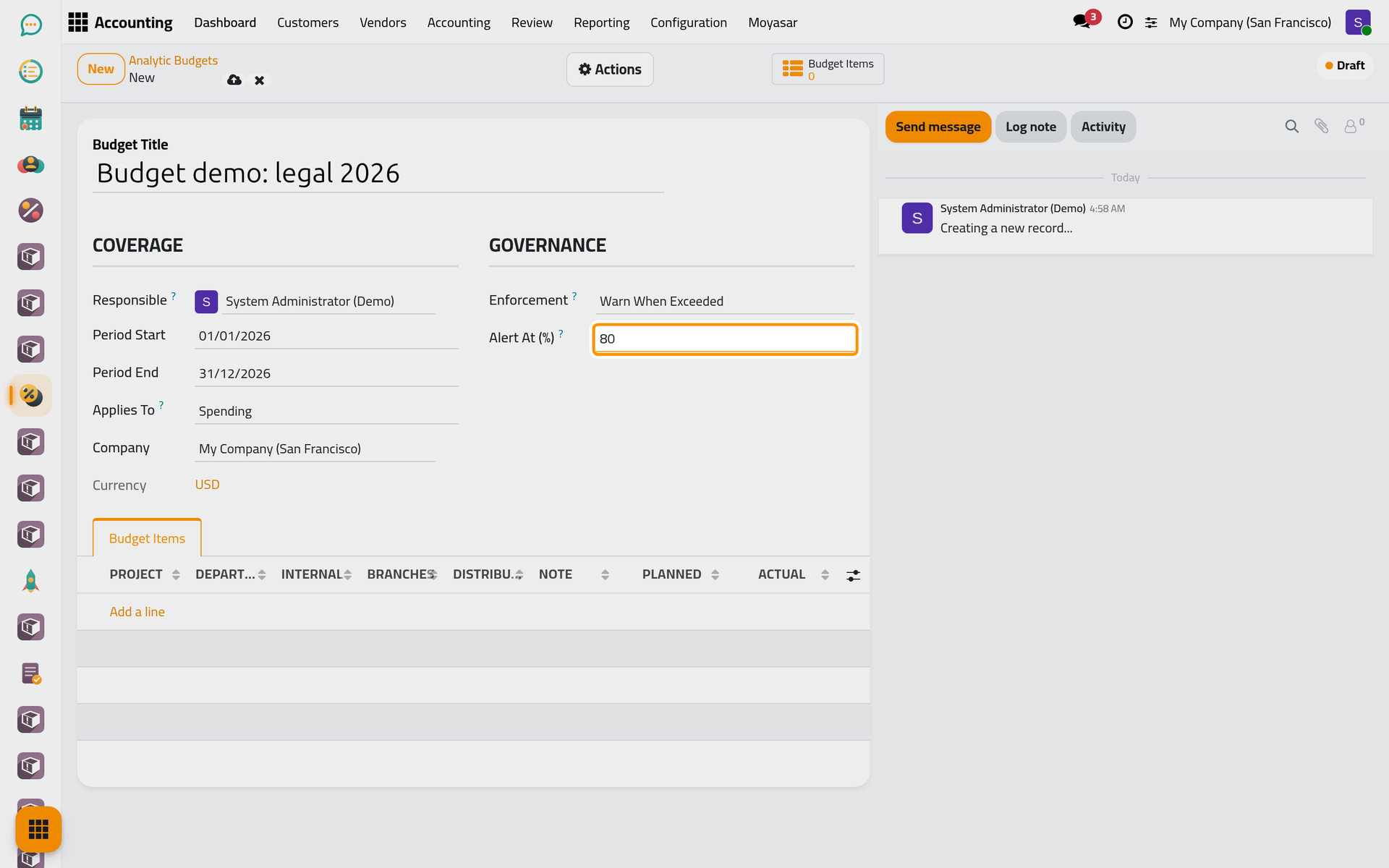
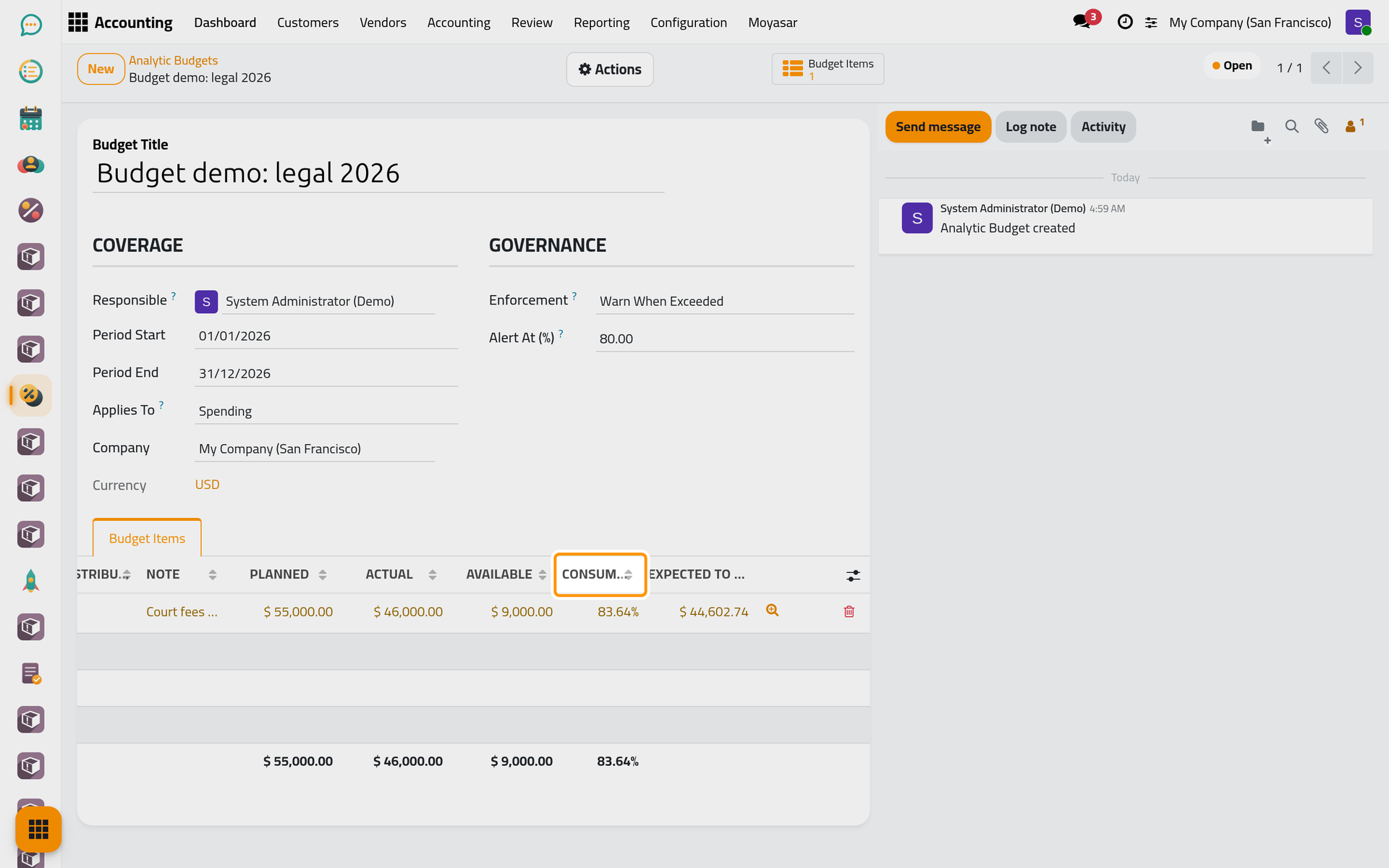
Type a Budget Title people recognise, such as Budget demo: legal 2026, then the Period Start and the Period End: here 01/01/2026 and 31/12/2026. Only the entries dated inside the period count.
Responsible is filled with your name: the person who answers for keeping the budget within its amount. Change it if someone else owns the budget.
Step 3: say what it watches and when to warn
Applies To chooses the side of the profit and loss the budget reads: Spending (the default) for the expense accounts, Income for the income accounts, Both Sides for the two together. Keep Spending for a department's costs.
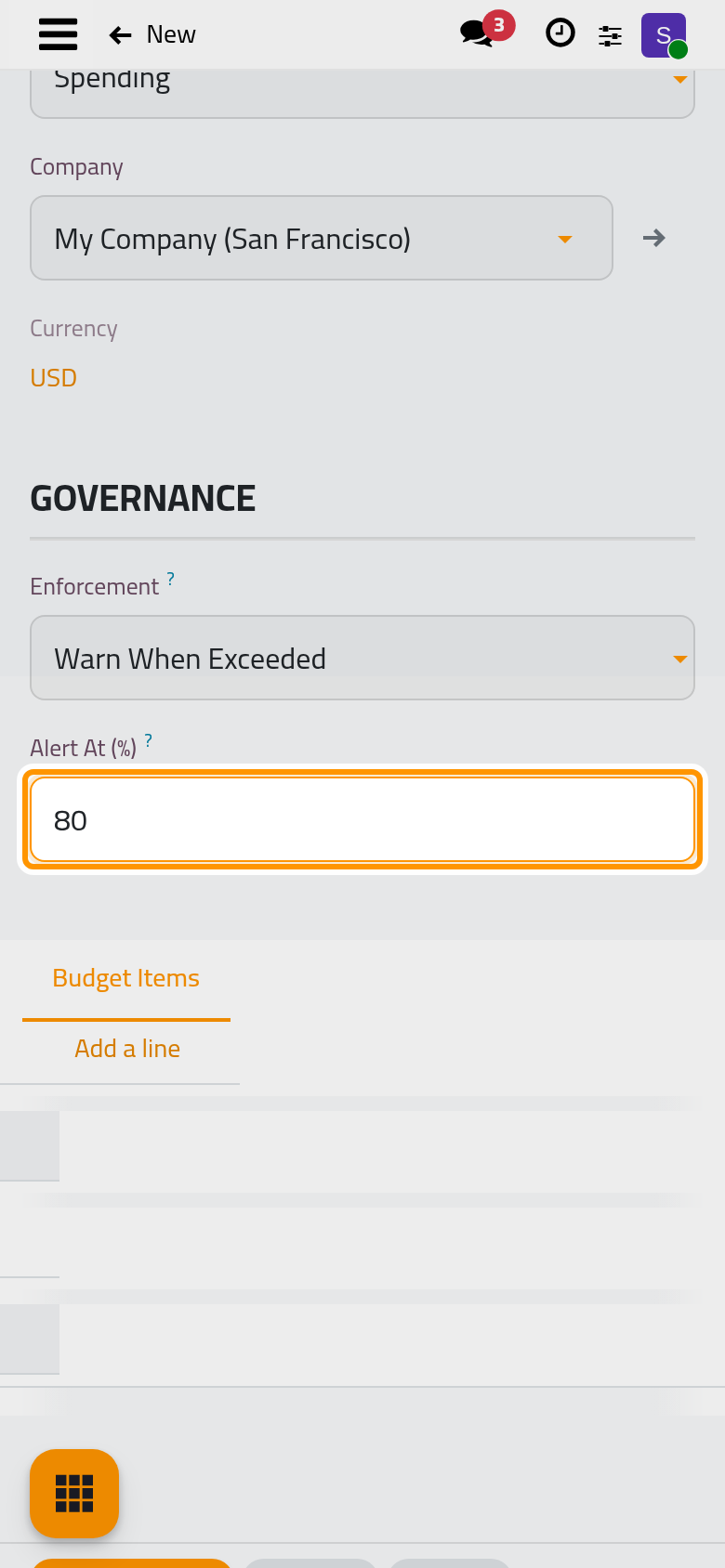
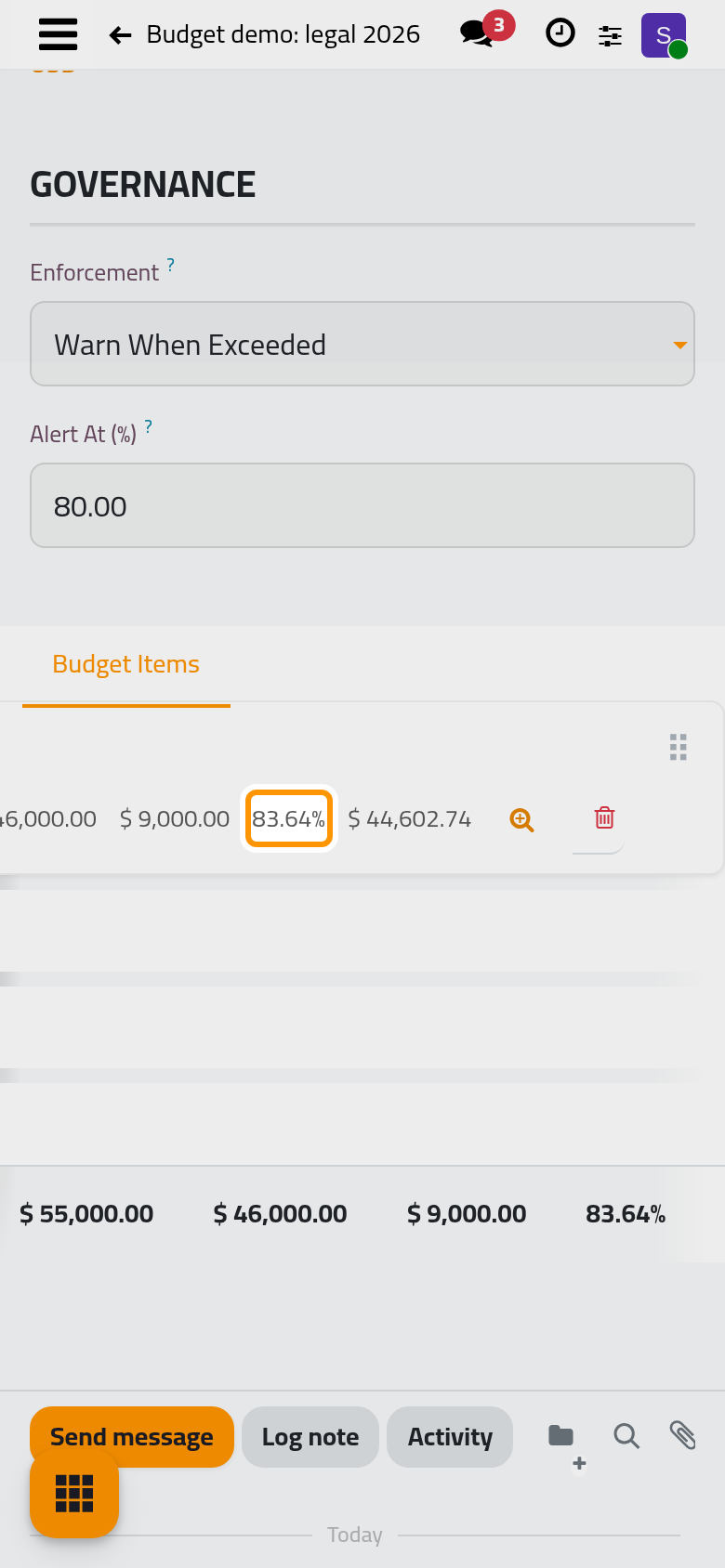
In Governance, Enforcement records how strictly the ceiling is meant: Warn When Exceeded (the default), Informative Only or Refuse When Exceeded. It is a statement of intent: the field's own help says the module observes only, and nothing is warned about or refused when an entry is posted.
Alert At (%) is the share of the plan from which a line is shown as near its ceiling, 90 by default. Type 80 here, so that the warning comes earlier.
Step 4: add a budget line
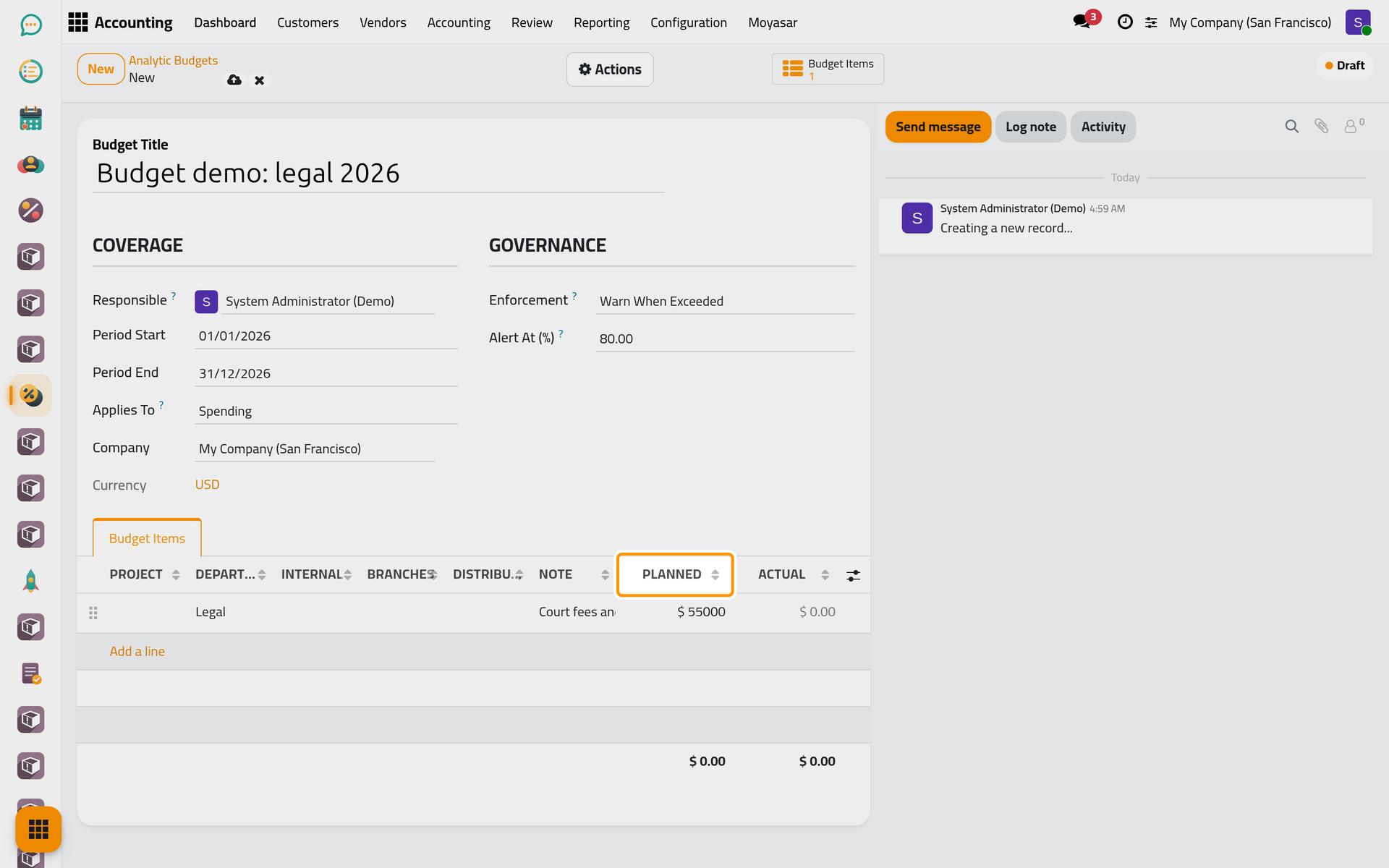
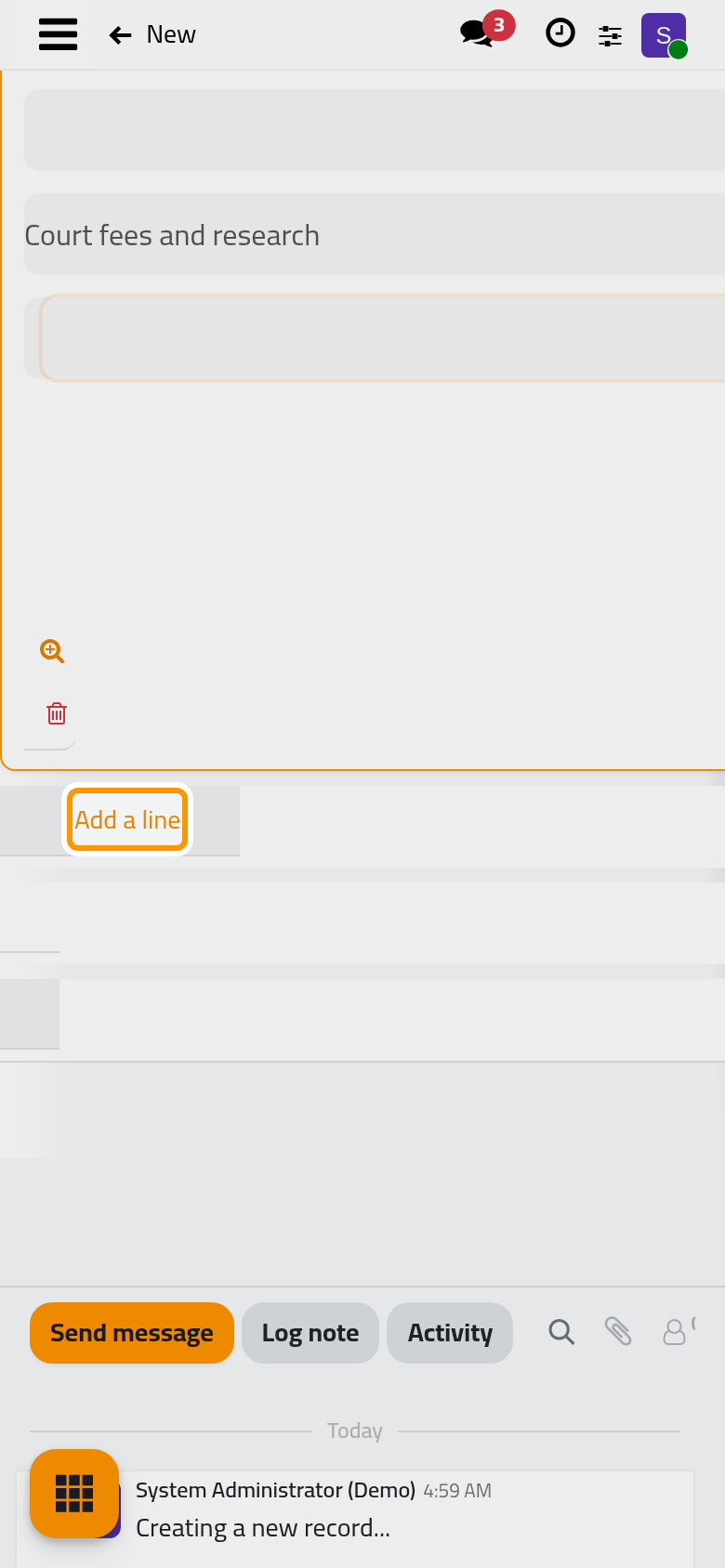
In the Budget Items tab, click Add a line. The line has one column per analytic plan of the database, such as Project and Departments. Choose Legal in the Departments column and leave the other dimension columns empty. Write what the line covers in Note (Court fees and research) and the amount in Planned: 55000.
A line must name at least one analytic account, and one budget cannot hold the same combination twice: a second Legal line in this budget is refused, because each would claim the whole Legal spending. Raise the amount of the existing line instead.
Step 5: put the budget in service
Open Actions and choose Put in Service. The budget is saved and its stage moves from Draft to Open. From now on the line reads its figures from the posted entries:
- Actual: 46,000.00, the two Legal expenses of 2026.
- Available: 9,000.00, what is left of the plan.
- Consumption: 83.64%, the actual amount over the planned one. It passed the 80% you chose, so the line is drawn in orange; it would turn red above 100%.
- Expected to Date: what should have been spent by today if the money went out evenly over the year. Compare it with Actual to see whether spending runs ahead of the calendar.
Each new expense posted with the Legal department alone and dated in 2026 changes these figures as soon as it is posted; nobody types them.
Step 6: back to the list
Open again. The new budget is there, Open, with its planned, actual and available totals. shows the lines of every budget side by side.
What you have seen
A budget is a period, a side of the profit and loss, and lines pinned to analytic accounts with a planned amount. Once it is in service, the books fill in the rest. The user guide goes further: Generate budgets in one step creates a whole year at once, Follow spending against a budget finds the lines near or over their ceiling and the entries behind them, and Revise, close or cancel a budget changes a budget without losing what was first promised. How budget figures are counted explains which entries a line counts.
Was this page helpful?
Thank you for your feedback.