Follow spending against a budget
On this page
- Before you start
- Read all the lines at once
- Find the lines that need attention
- Open a line
- See the entries behind the actual amount
- Compare budgets
- From the analytic account
- FAQ
- A posted bill does not appear in the actual amount. Why?
- Does an over-budget line stop anyone from posting?
- How do I see the lines of one budget only?
A budget in service keeps its figures up to date on its own. Following it means finding the lines that need attention and understanding where their money went. Everything below reads; nothing changes a budget.
Before you start
- Any access right that shows the budgets is enough: Administrator or Read-only on Accounting.
Read all the lines at once
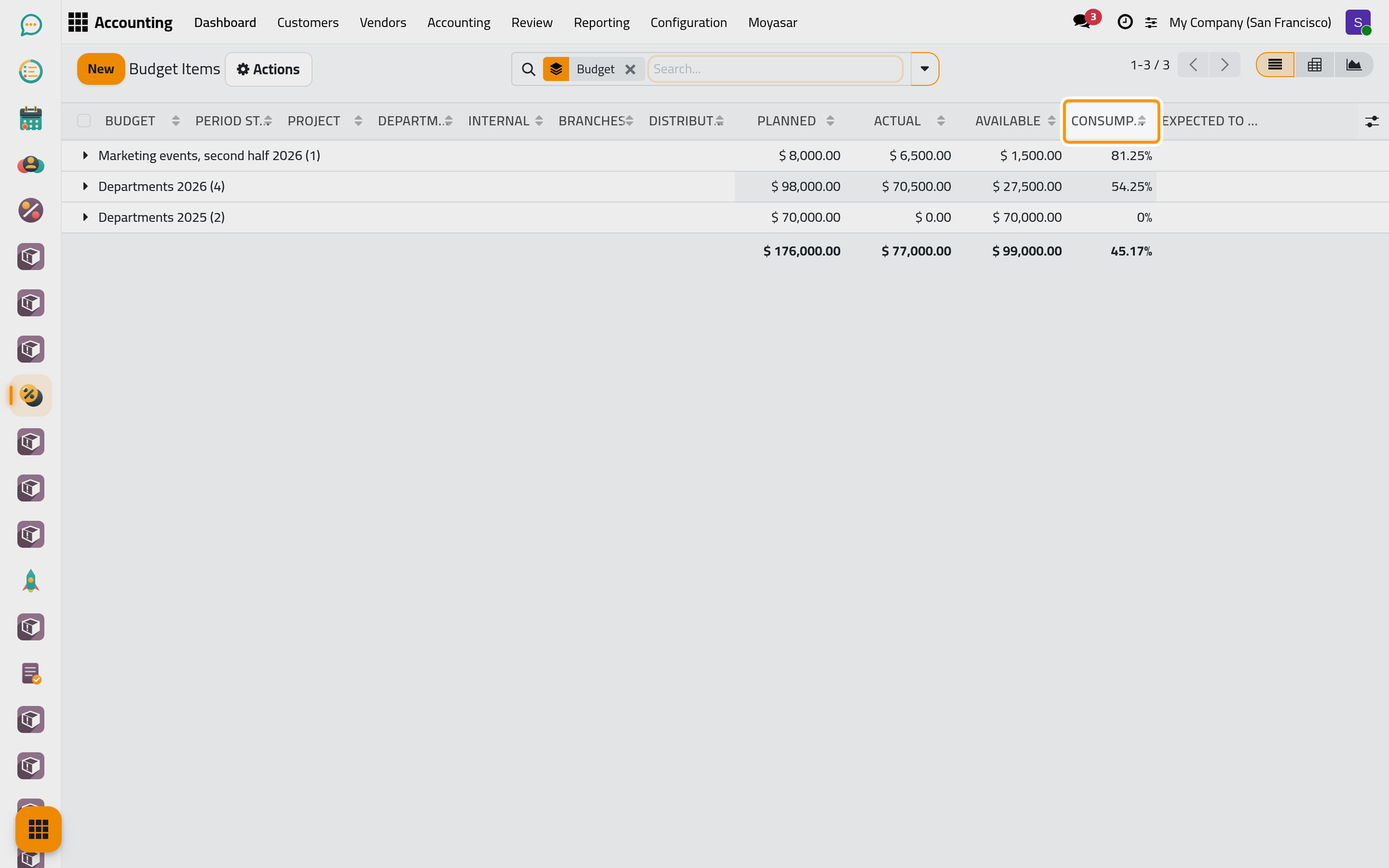
Open . Every line of every budget is there, grouped by budget, with its Planned, Actual and Available amounts, its Consumption and its Expected to Date. A line is drawn in orange when its consumption reaches the budget's Alert At (%), and in red when its actual amount passes the planned one.
Find the lines that need attention
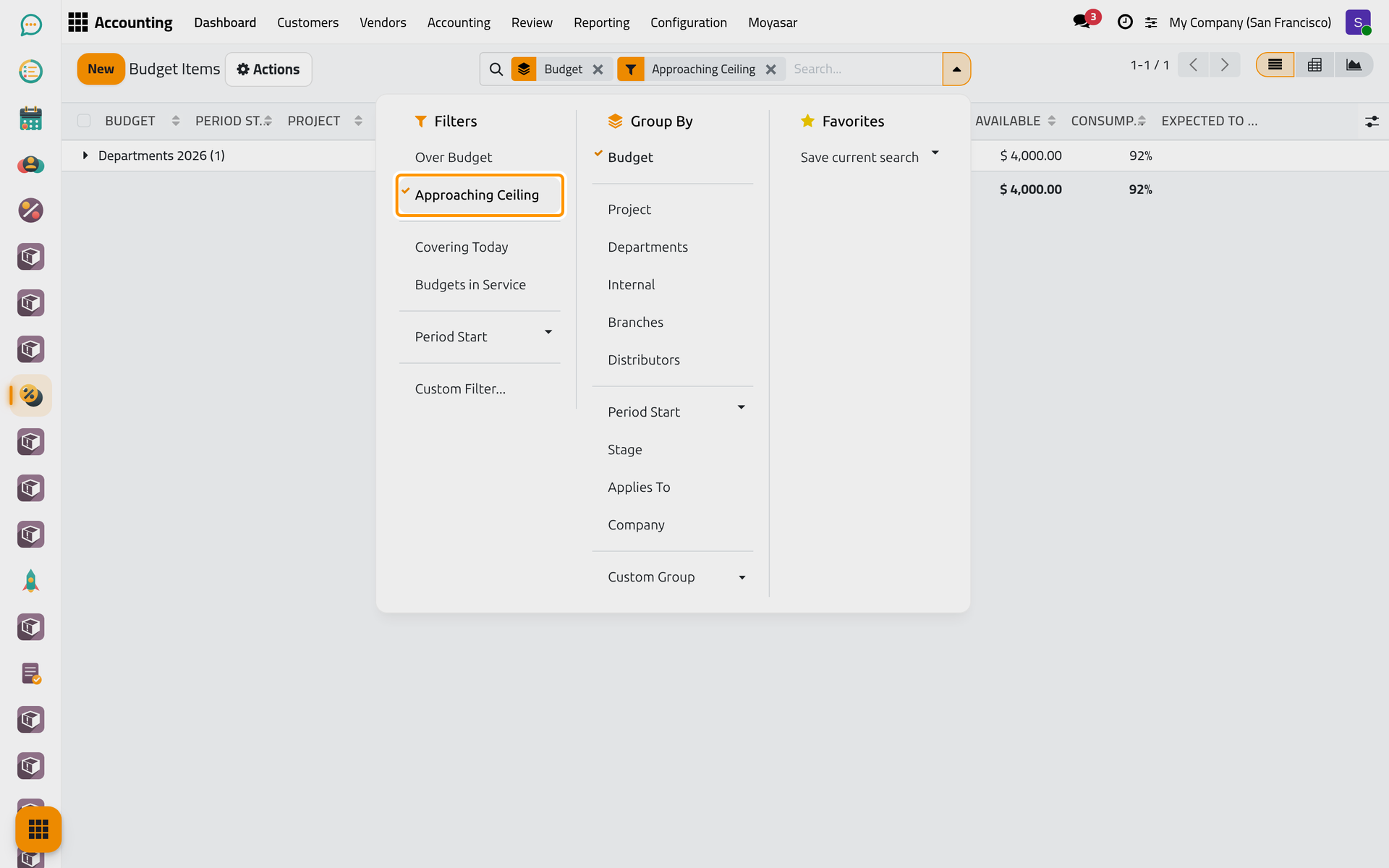
- Open the search panel with the arrow at the end of the search bar.
- Choose Approaching Ceiling for the lines past their alert threshold, or Over Budget for the lines whose actual amount passed the planned one.
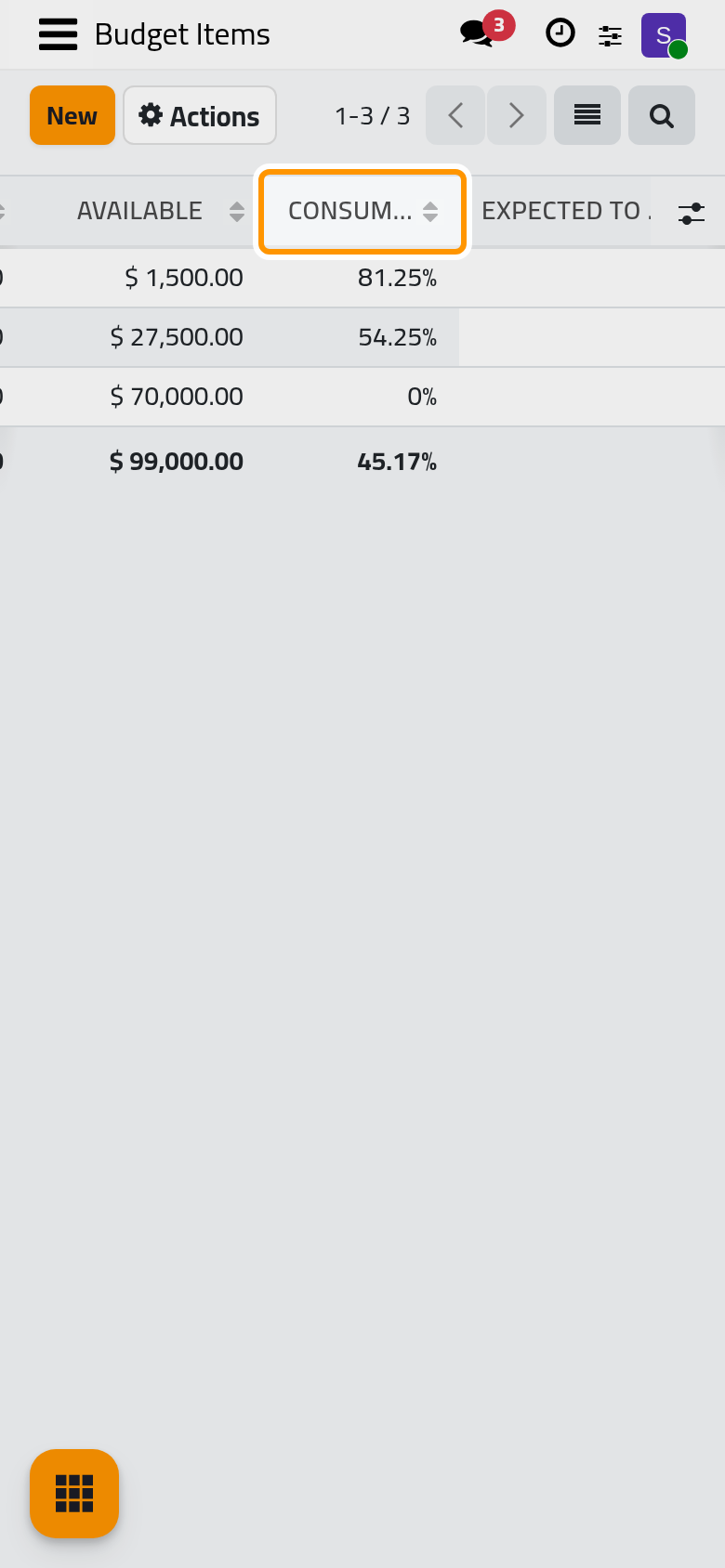
On a phone, the search bar and its filters open from the magnifier at the top of the list.
Covering Today and Budgets in Service narrow the list further, and Group By offers one entry per analytic plan, such as Departments.
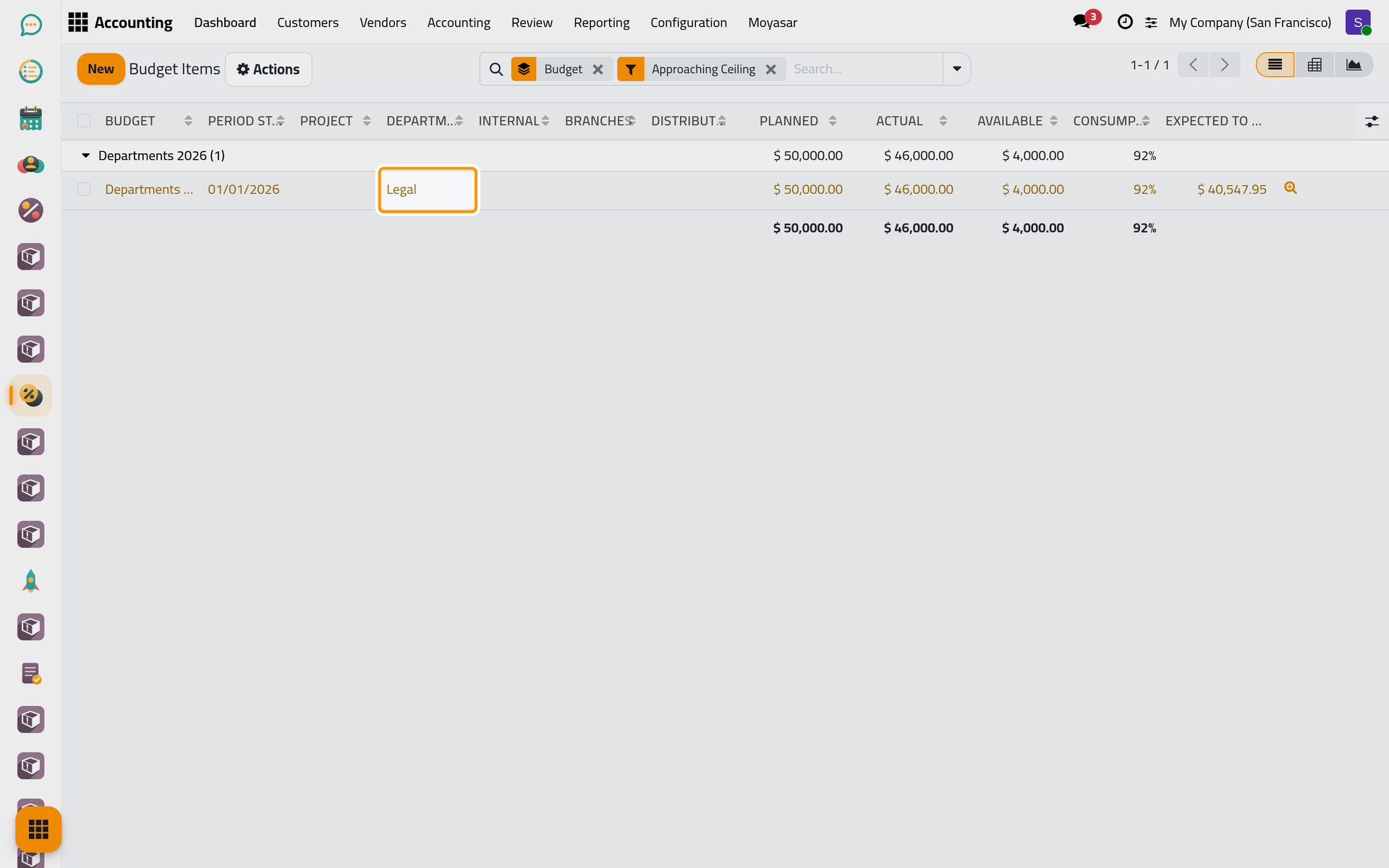
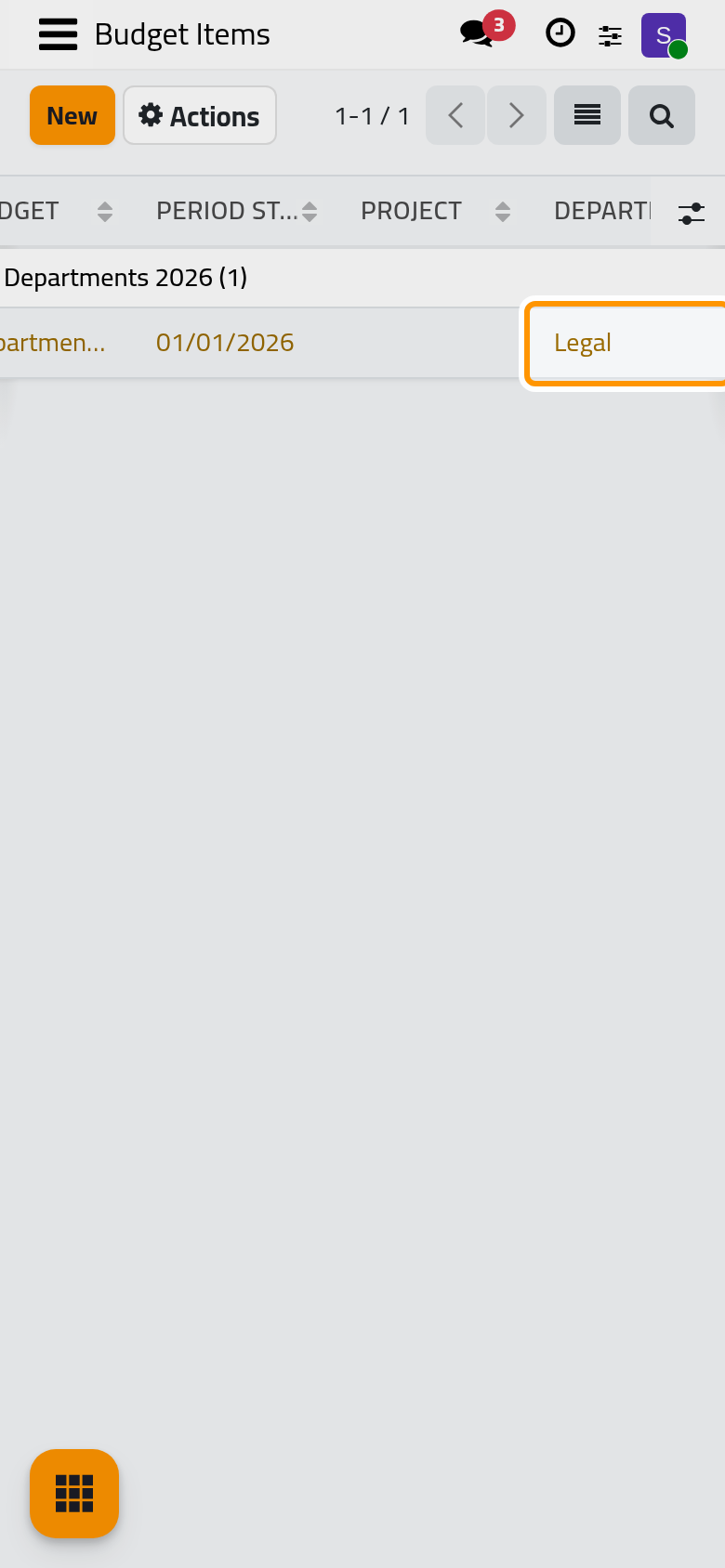
- Open the group of the budget. On the demo data, the Legal line of Departments 2026 has spent 46,000.00 of its 50,000.00: 92%, past the 90% alert.
Open a line
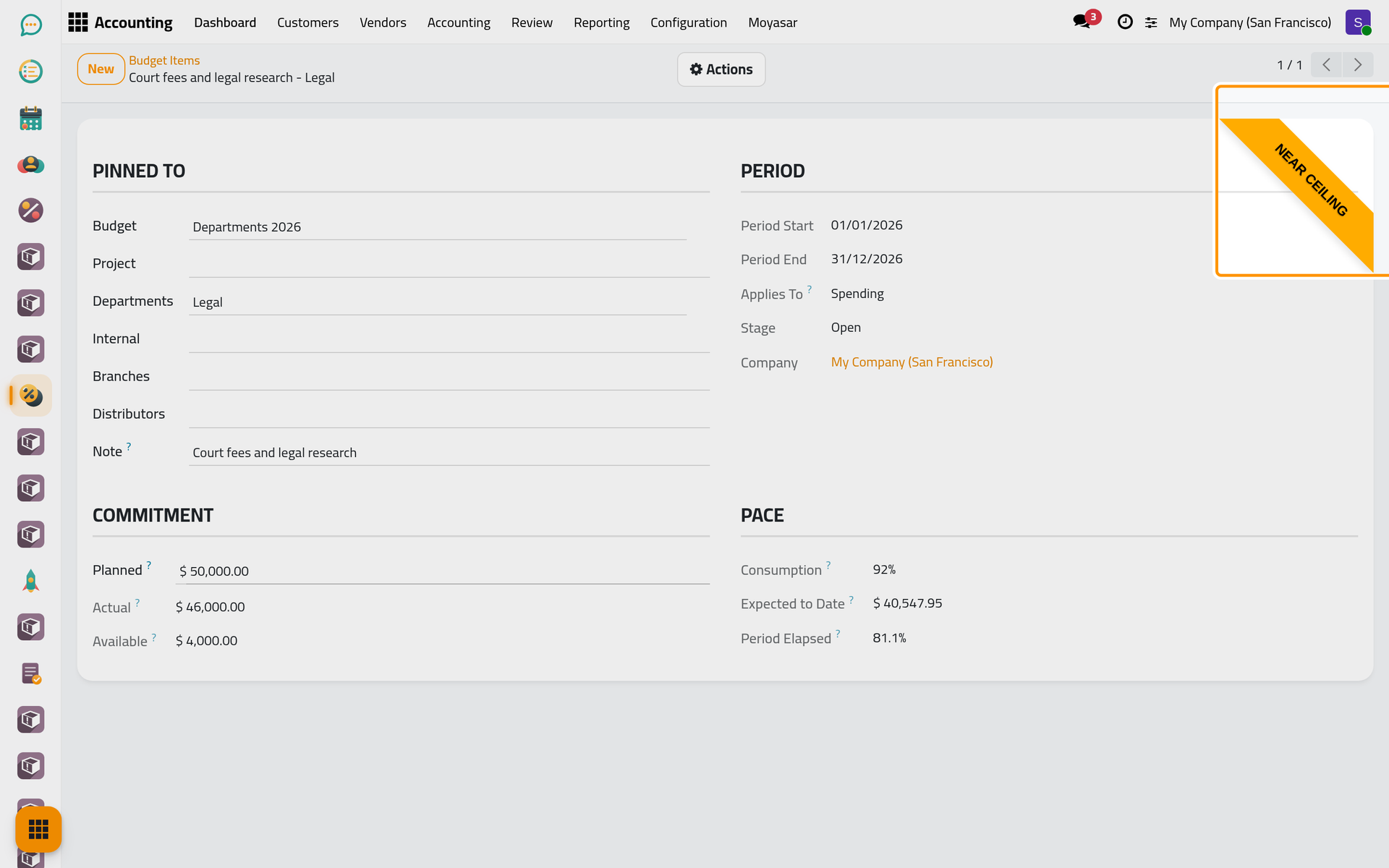
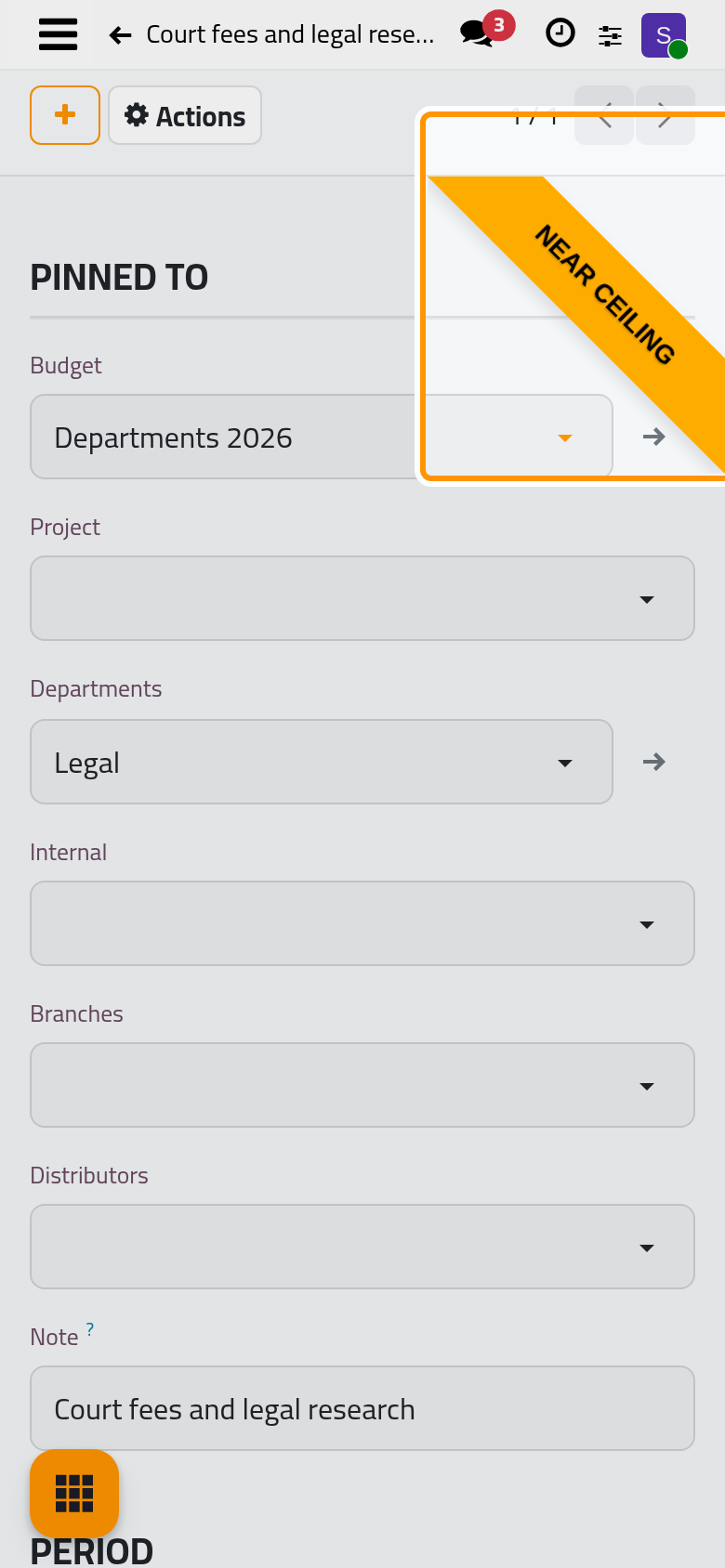
Click the line. Its form shows:
- A ribbon in the corner: Near Ceiling in orange, or Over Budget in red.
- Pinned To: the budget, the analytic account in each dimension and the note.
- Period: the dates, what it Applies To and the stage of its budget.
- Commitment: Planned, Actual and Available.
- Pace: Consumption, Expected to Date and Period Elapsed. A consumption well above the period elapsed means the money goes out faster than the calendar.
See the entries behind the actual amount
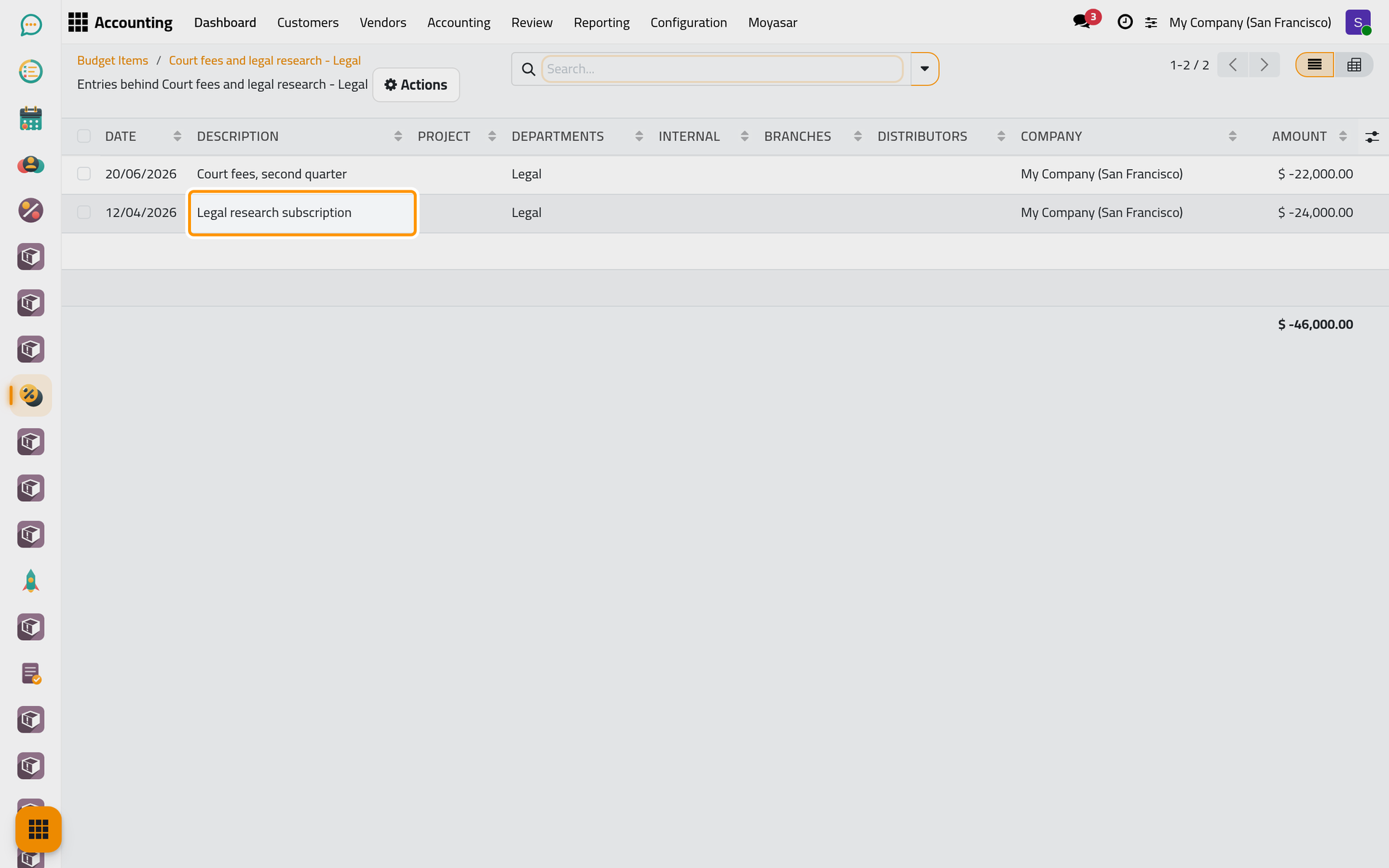
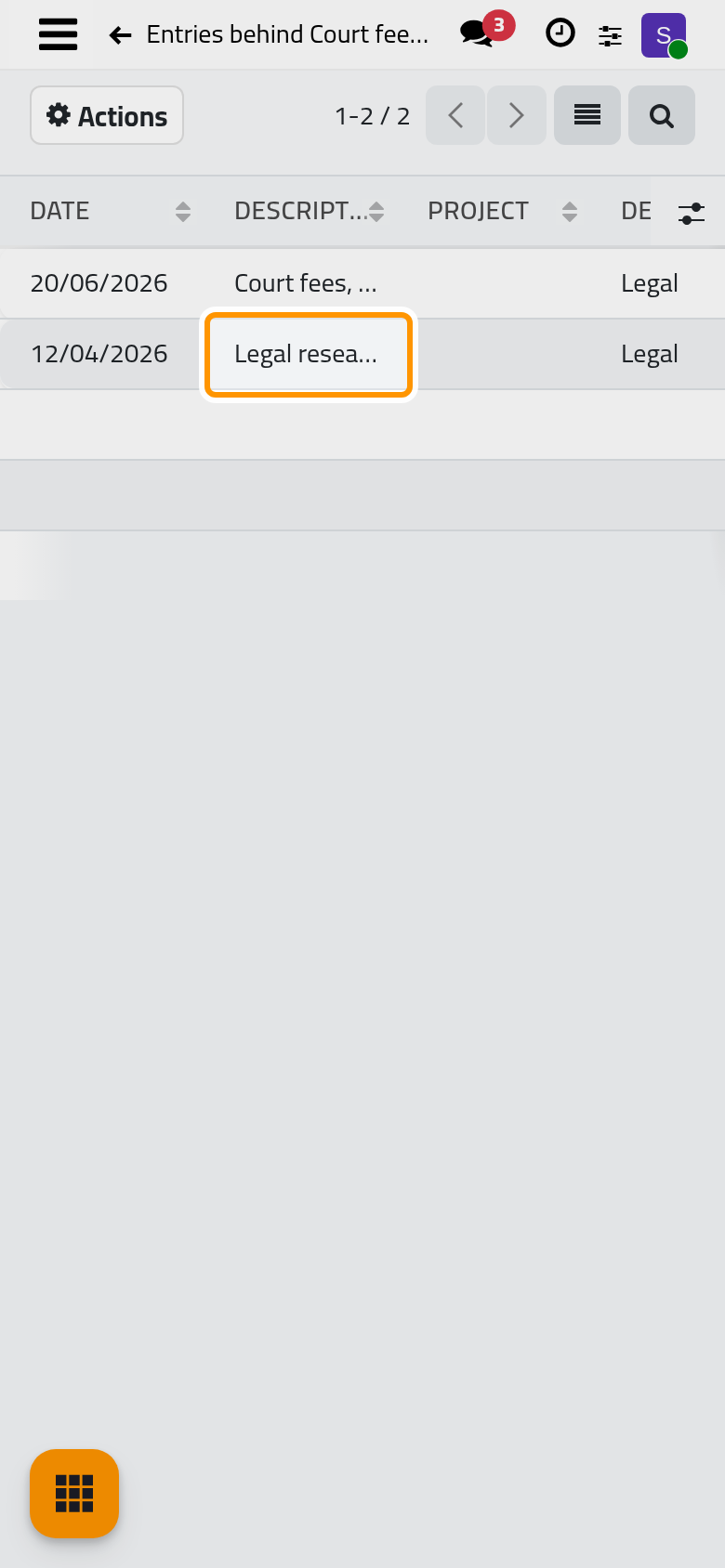
Open Actions and choose Entries Behind This Line. The analytic entries the line counts are listed: here the legal research subscription and the court fees. Spending entries carry a negative amount; the budget shows them as a positive actual amount. The magnifier at the end of a line in the lists opens the same entries.
Re-read Consumption, in the same menu, reads the actual amount again. The figures already follow every posted or removed entry; the button, and a nightly job, catch an entry changed outside the usual screens (see Budget automations).
Compare budgets
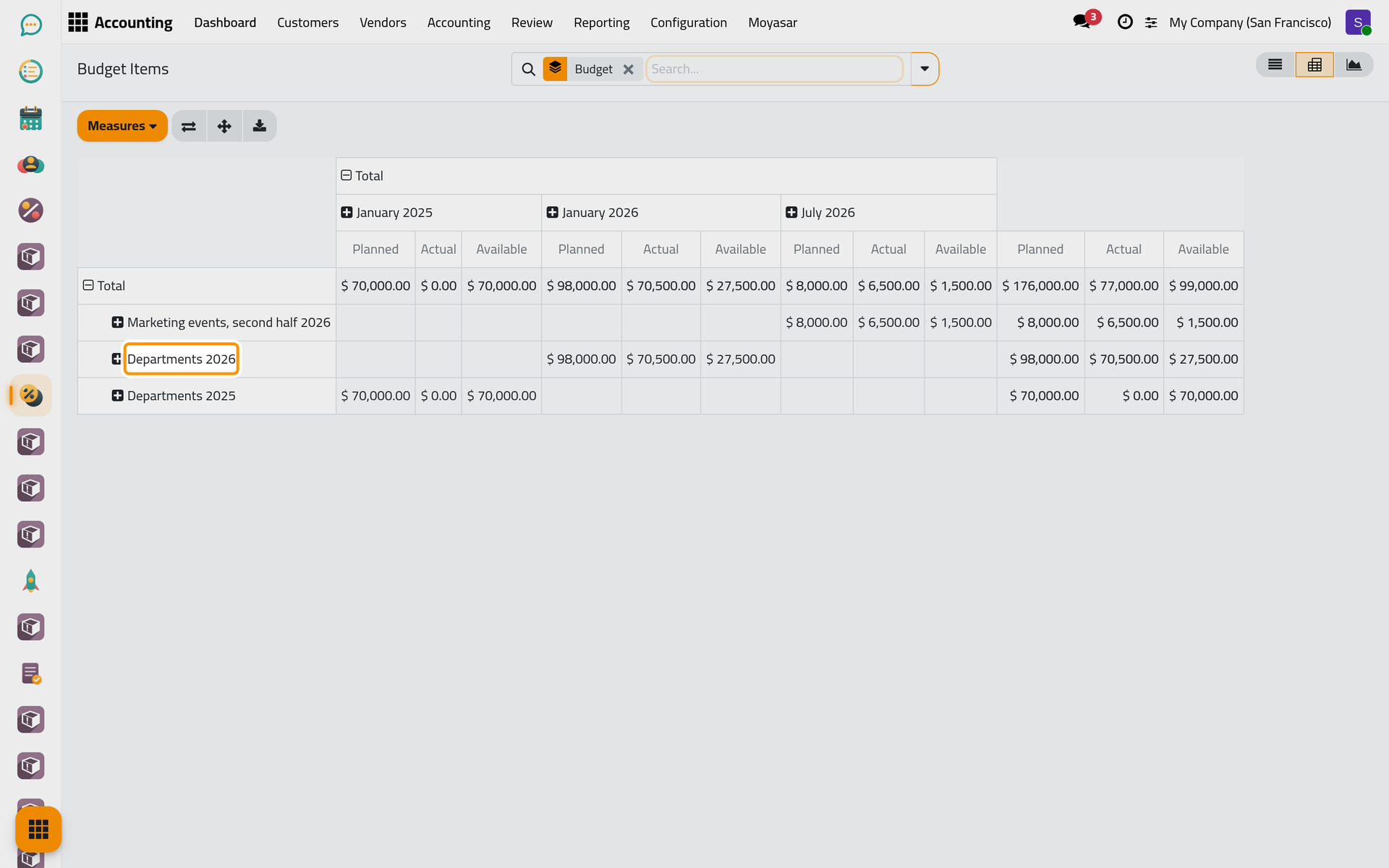
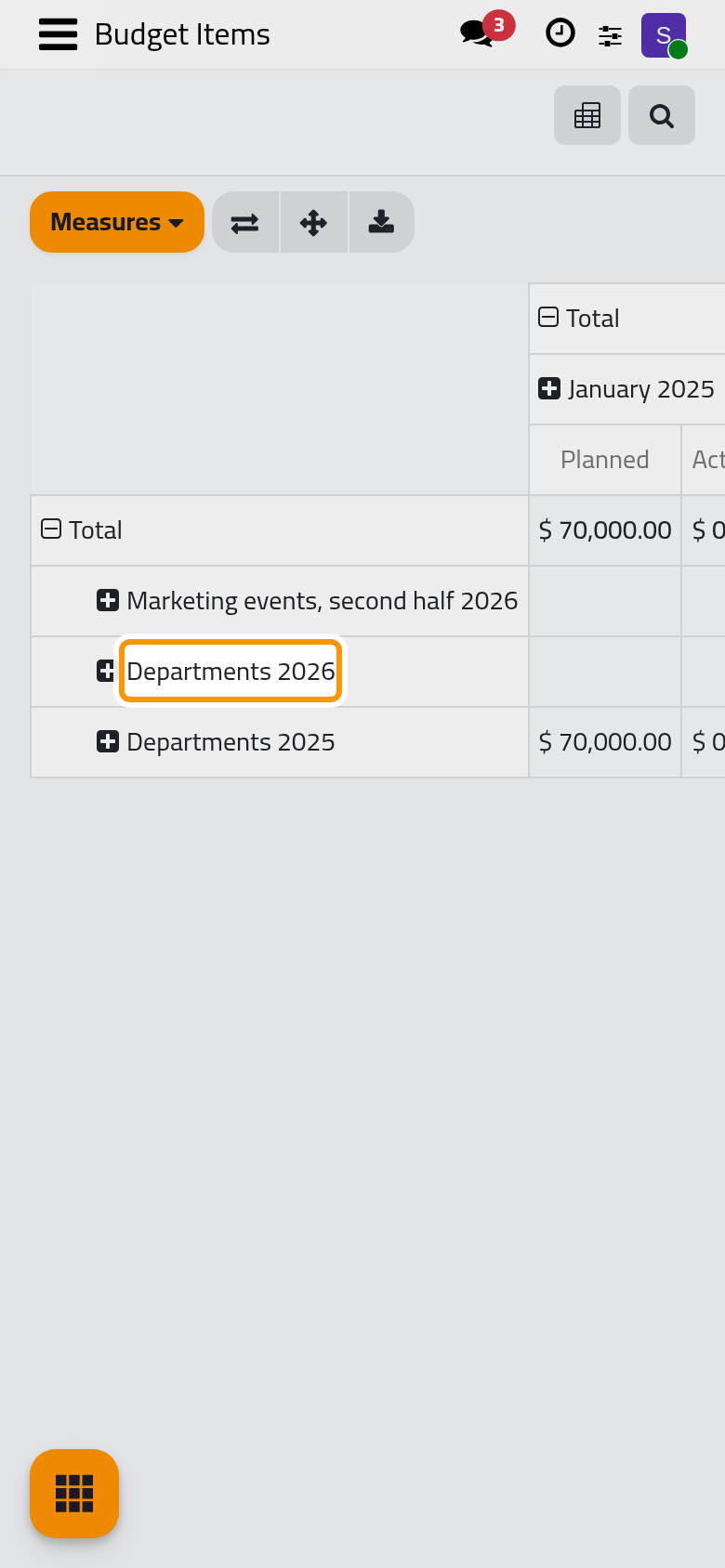
Switch the Budget Items list to the pivot view. Budget Analysis puts one row per budget and one column per month in which the budgets start, with Planned, Actual and Available in each cell. The graph view draws one bar per budget for Planned; choose Actual under Measures to draw what was spent.
From the analytic account
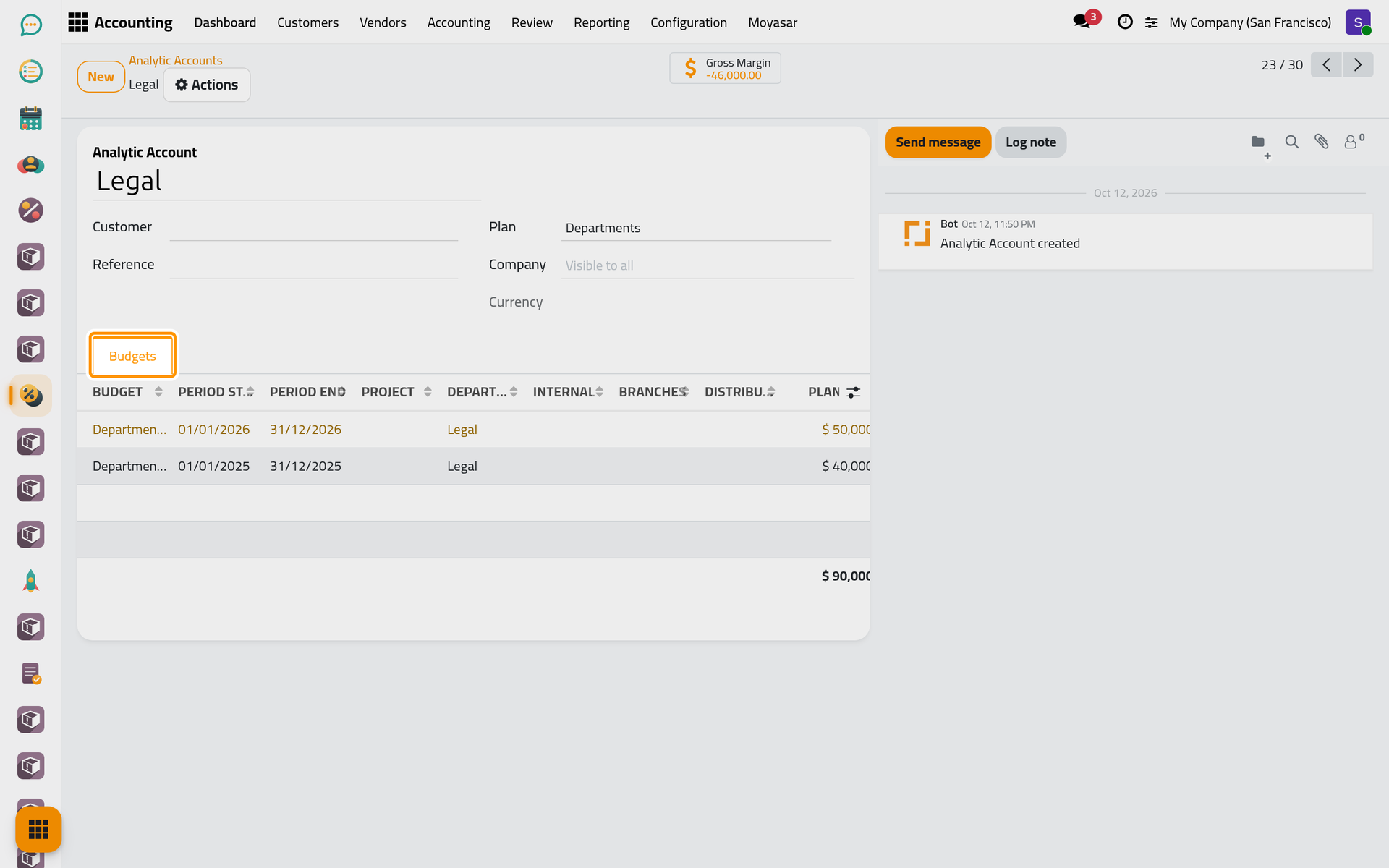
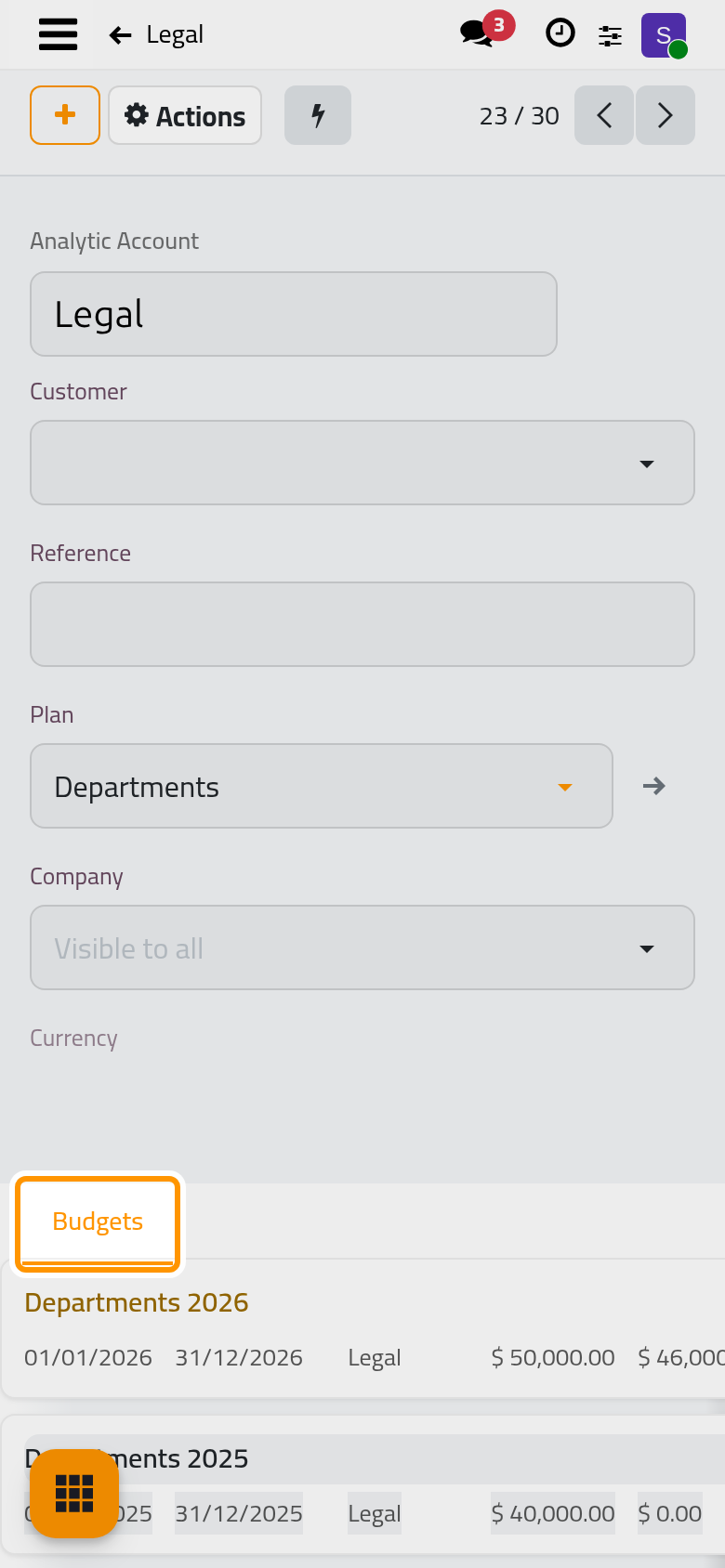
Open , open an account such as Legal, and open its Budgets tab. It lists every budget line pinned to the account, with its figures and its stage.
FAQ
A posted bill does not appear in the actual amount. Why?
A line counts an expense only when the entry is posted, dated inside the period, on an expense account (for a spending budget), and its analytic distribution matches the line exactly. A line pinned to Legal alone ignores an expense tagged with Legal and a project. How budget figures are counted gives the full rule.
Does an over-budget line stop anyone from posting?
No. Whatever the budget's Enforcement, posting goes on; the line turns red and shows in the Over Budget filter.
How do I see the lines of one budget only?
Open the budget and click its Budget Items button, or open its group in the Budget Items list. The lines of a cancelled or superseded budget stay in the list; the Budgets in Service filter keeps the open budgets only.
Was this page helpful?
Thank you for your feedback.