Check the books with the ledgers
On this page
- Before you start
- Check the trial balance
- Follow an account in the general ledger
- Choose the columns
- Look at each journal
- Keep one journal
- FAQ
- The total debit and credit of the trial balance differ.
- I hid a column, but it is in my Excel file.
- The Date and Communication columns of the general ledger stay empty.
Before closing a month or handing the books to an auditor, the accountant checks them account by account. The Trial Balance and the General Ledger sit under Ledgers; the Journal Audit sits under Review.
Before you start
- You need the Read-only or the Administrator access right on Accounting.
- Choose the period as Read your first report shows.
Check the trial balance
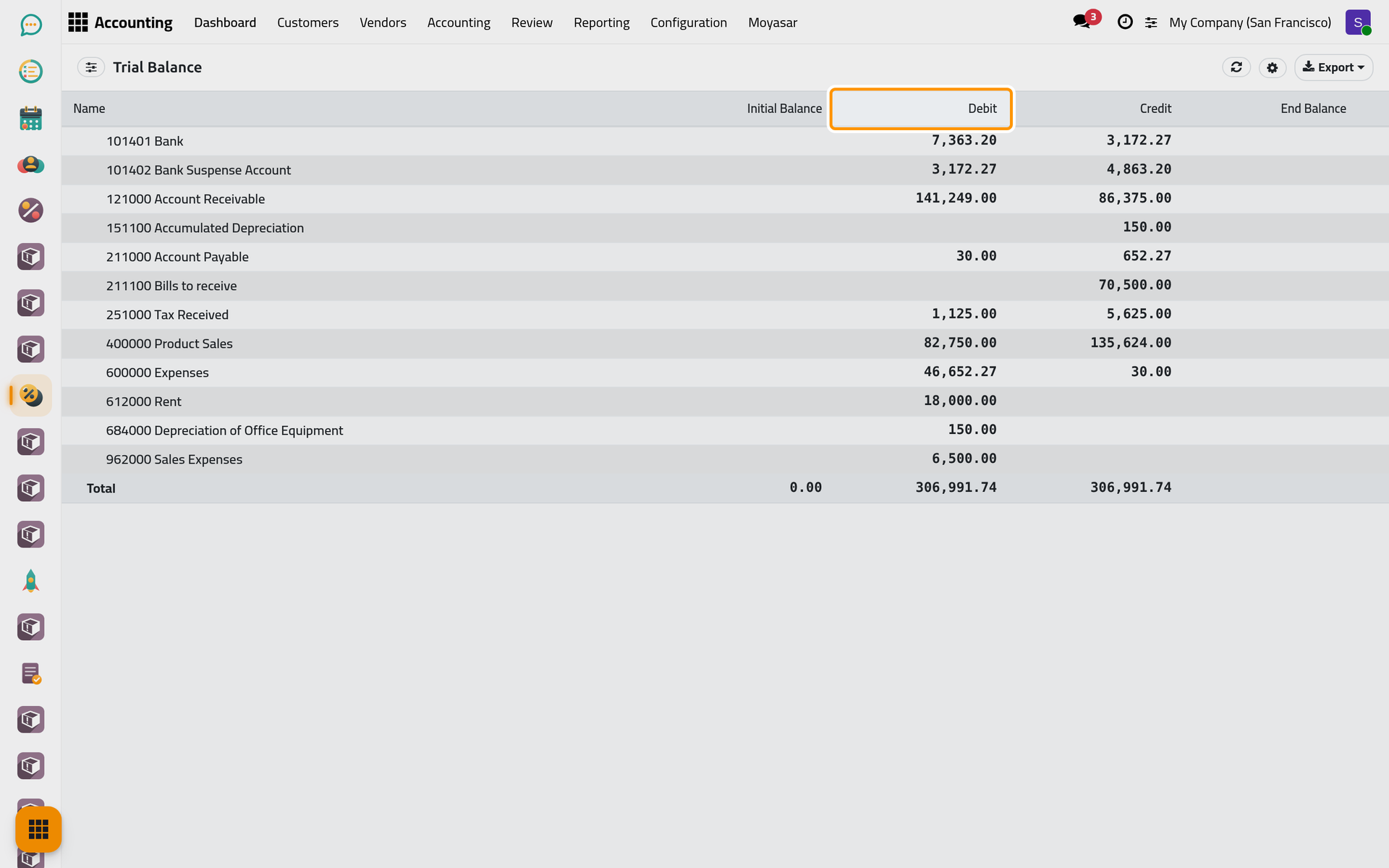
- Open and choose the period, here the year 2026.
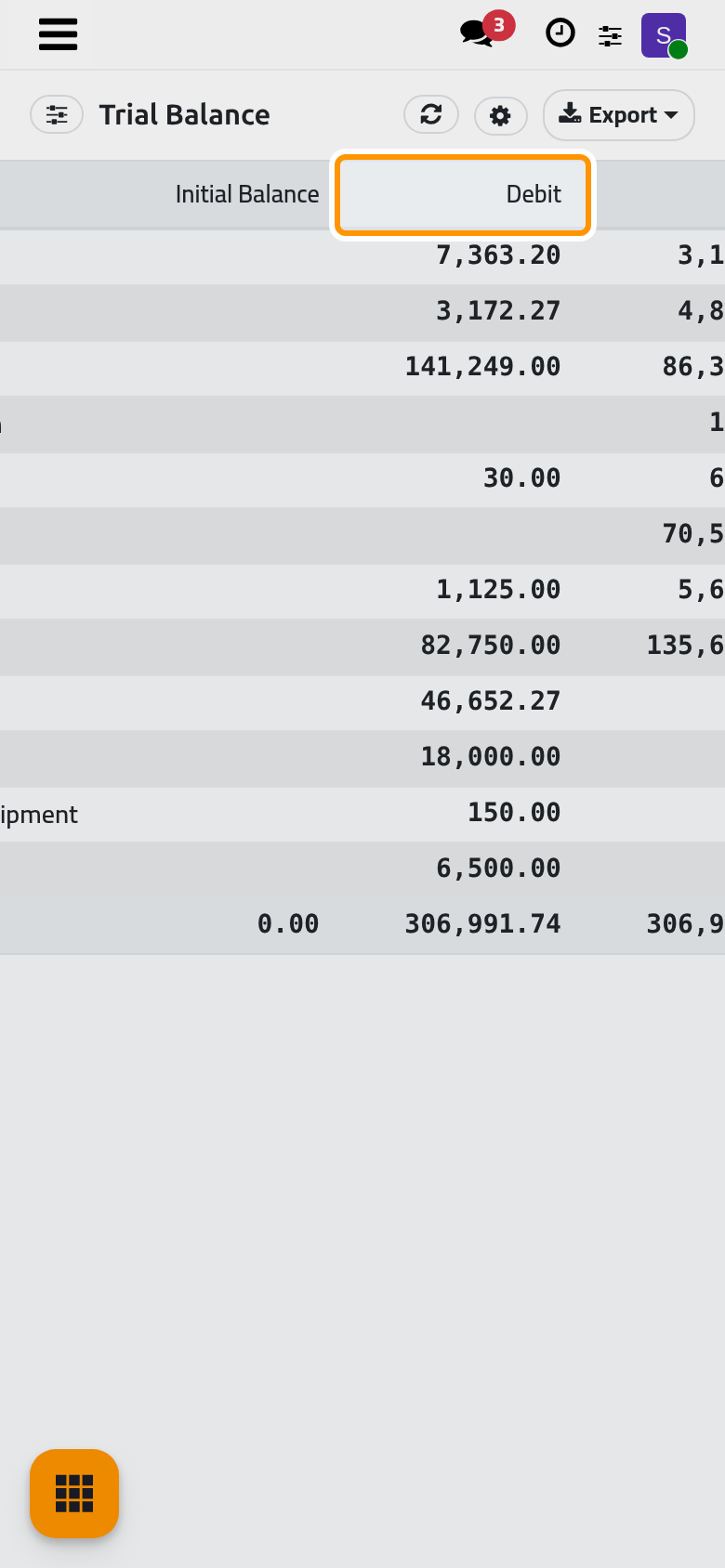
- Read one line per account, with the Debit and the Credit of the period.
- Look at the last line, Total: its debit and its credit are equal when every entry of the period balances.
Today the Initial Balance and End Balance cells of the accounts stay empty; read the balance of an account in the general ledger.
Follow an account in the general ledger
- Open and choose the period.
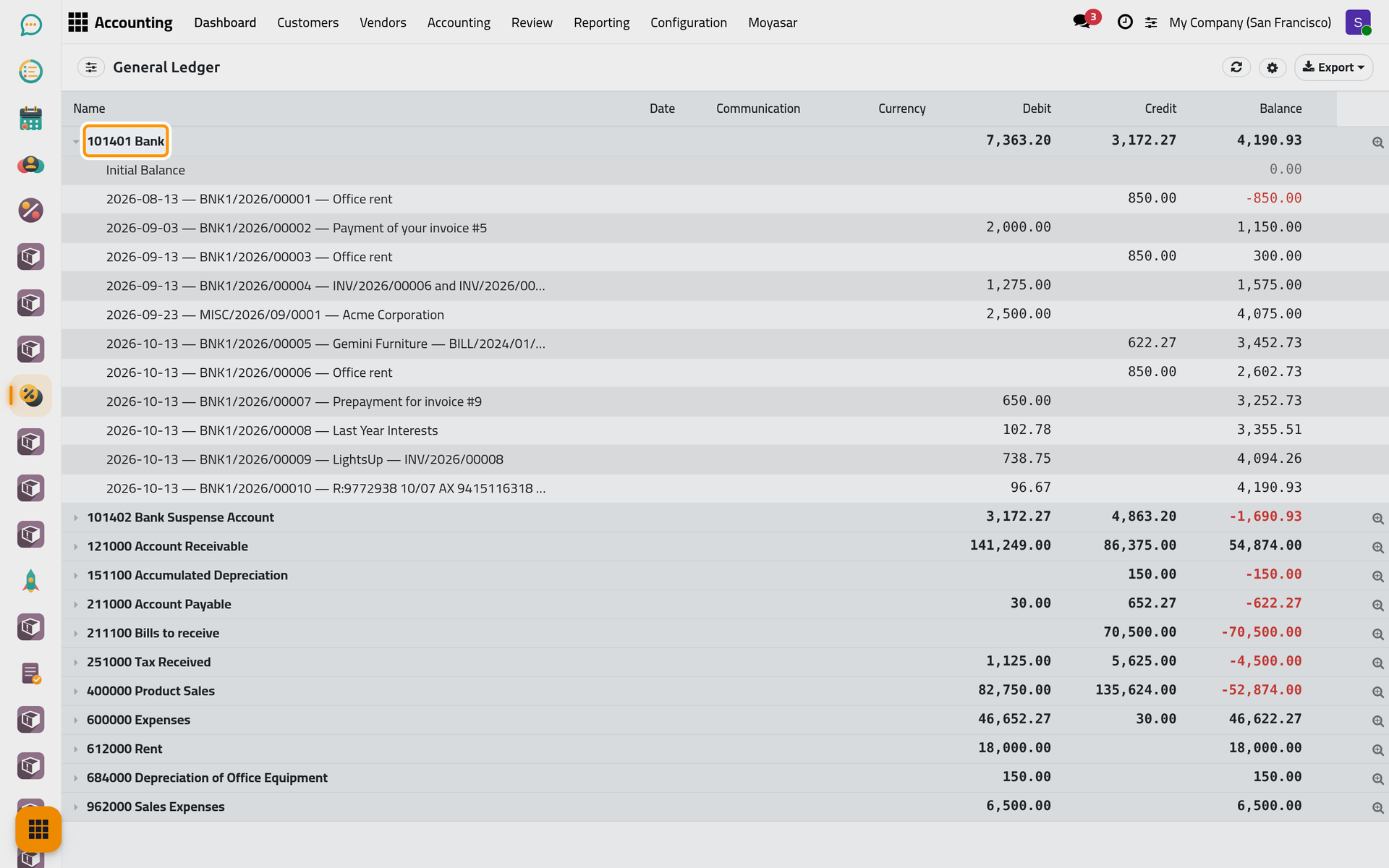
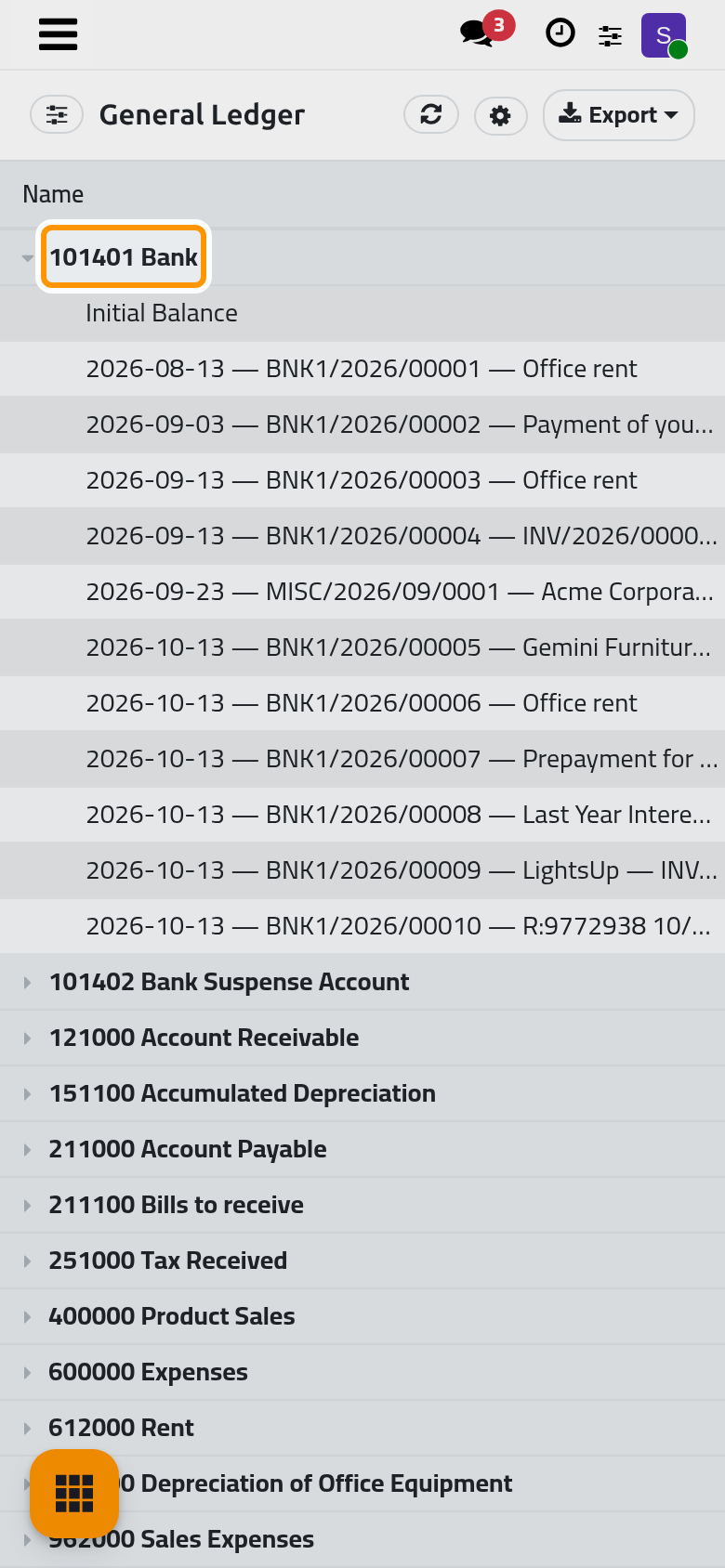
- Each account shows its total Debit, Credit and Balance. Click an account, here 101401 Bank, to unfold it.
- The first line under the account is its Initial Balance; each next line is a journal item, with its date, its entry number and its label in the first column, its debit or credit, and the balance after it.
An account with many items shows them in pages: Load more… at the bottom of the account brings the next ones.
Choose the columns
The cog next to Export (tooltip Column settings) lists the columns of the report, each with a box. Untick a box and the column leaves the screen at once; the menu closes. The choice lasts until the report is reloaded, and the exported files keep every column.
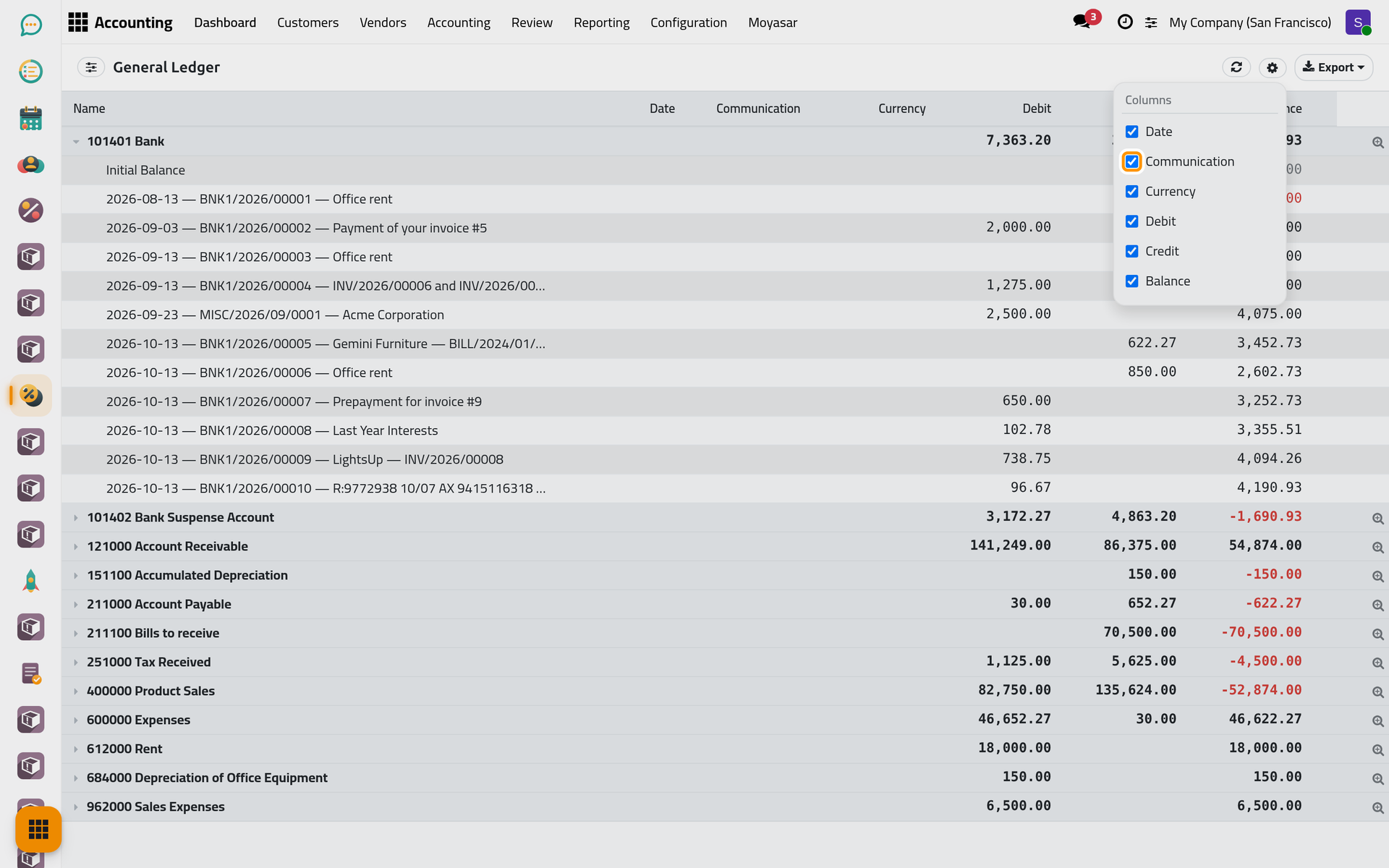
On a phone the cog sits in the header of the report, next to Export.
Look at each journal
gives the movements of every journal over the period. It opens on one line, Journal; click it to list the journals with their Debit, Credit and Balance. Today the Journal Code, Documents and To Review columns read 0 and each journal is listed twice: rely on the debit and credit figures.
Keep one journal
Every ledger has a Journals section in the panel: All Journals, None, or one journal at a time, such as Bank. The figures then come from that journal only.
FAQ
The total debit and credit of the trial balance differ.
A posted entry always balances, so the posted figures meet. A difference comes from a draft entry not yet balanced, counted because Include Draft Entries is ticked. Untick the box and the totals meet again; to find the draft, tick the same box in the general ledger, where it shows among the items of its accounts.
I hid a column, but it is in my Excel file.
The column settings act on the screen only. Delete the column in the spreadsheet.
The Date and Communication columns of the general ledger stay empty.
The date, the entry number and the label of each item are written together in the first column, so the columns of their own stay empty. Untick them in the column settings to give the figures more room.
Was this page helpful?
Thank you for your feedback.