Read your first report
On this page
The accounting reports read the entries already recorded in the books and lay them out as statements: what the company earned and spent, what it owns and owes, what each client still has to pay. Every report works the same way, so learning one teaches all of them. This walk-through takes the Profit and Loss, picks a period, follows a figure down to the journal items behind it and exports the result. It changes nothing in the books.
Before you start
- You need the Read-only or the Administrator access right on Accounting. A user who holds only an Invoicing access right does not see the Reporting menu at all.
- The reports show what the books hold. Invoices, bills and payments are recorded in their own apps: Customer invoices and Vendor bills and expenses.
Step 1: open the report
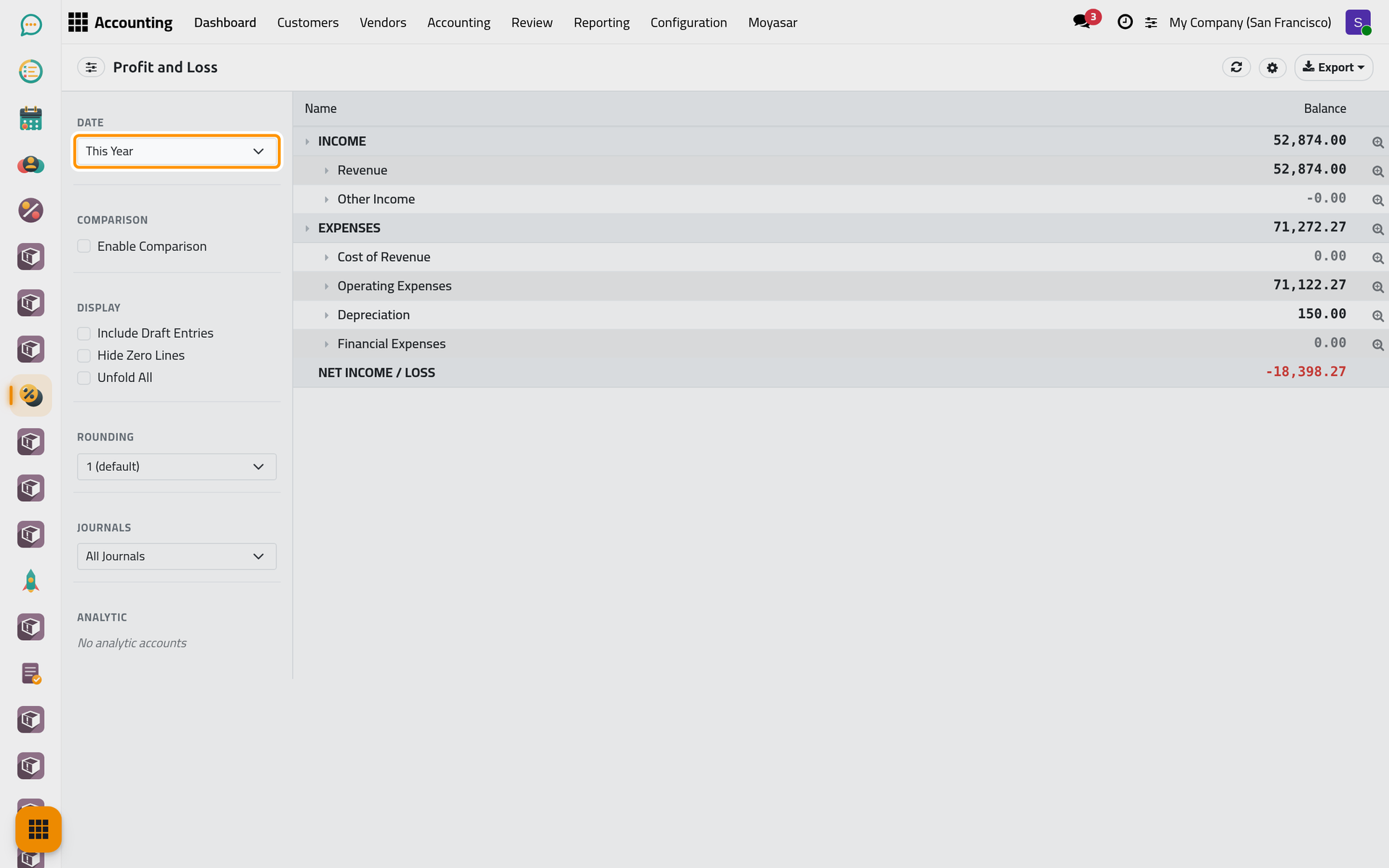
Open . The screen has two parts. On the side, the filter panel groups the options in sections: Date, Comparison, Display, Rounding, Journals and Analytic. Next to it, the report lists its lines with their figures. The header holds, from left to right, a button that hides or shows the panel, the name of the report, then Refresh, the cog of the column settings and Export.
Every report opens on This Year, whatever the report.
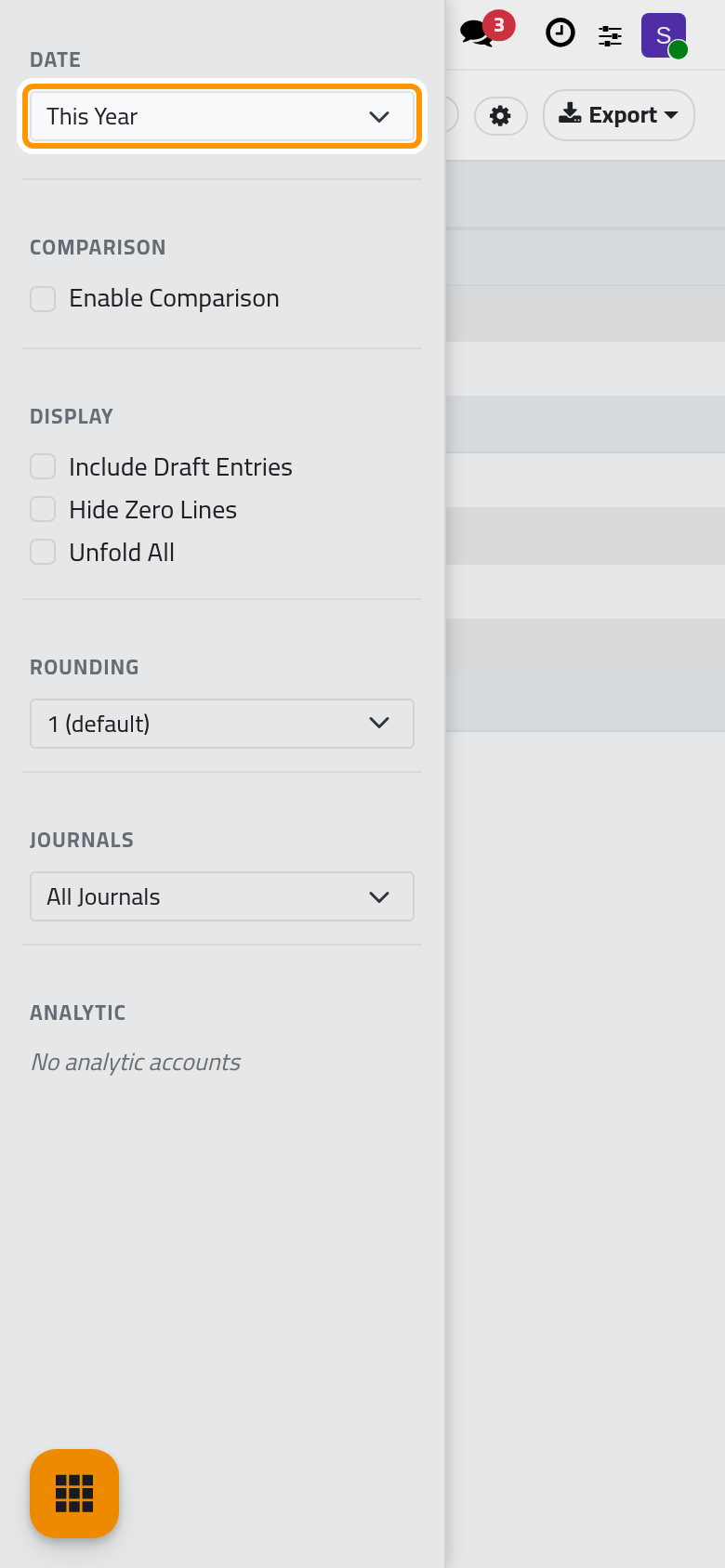
On a phone, the filter panel opens over the report and covers the button that would hide it, so only the right side of the report shows next to it; today the whole report reads best on a wider screen.
Step 2: choose the period
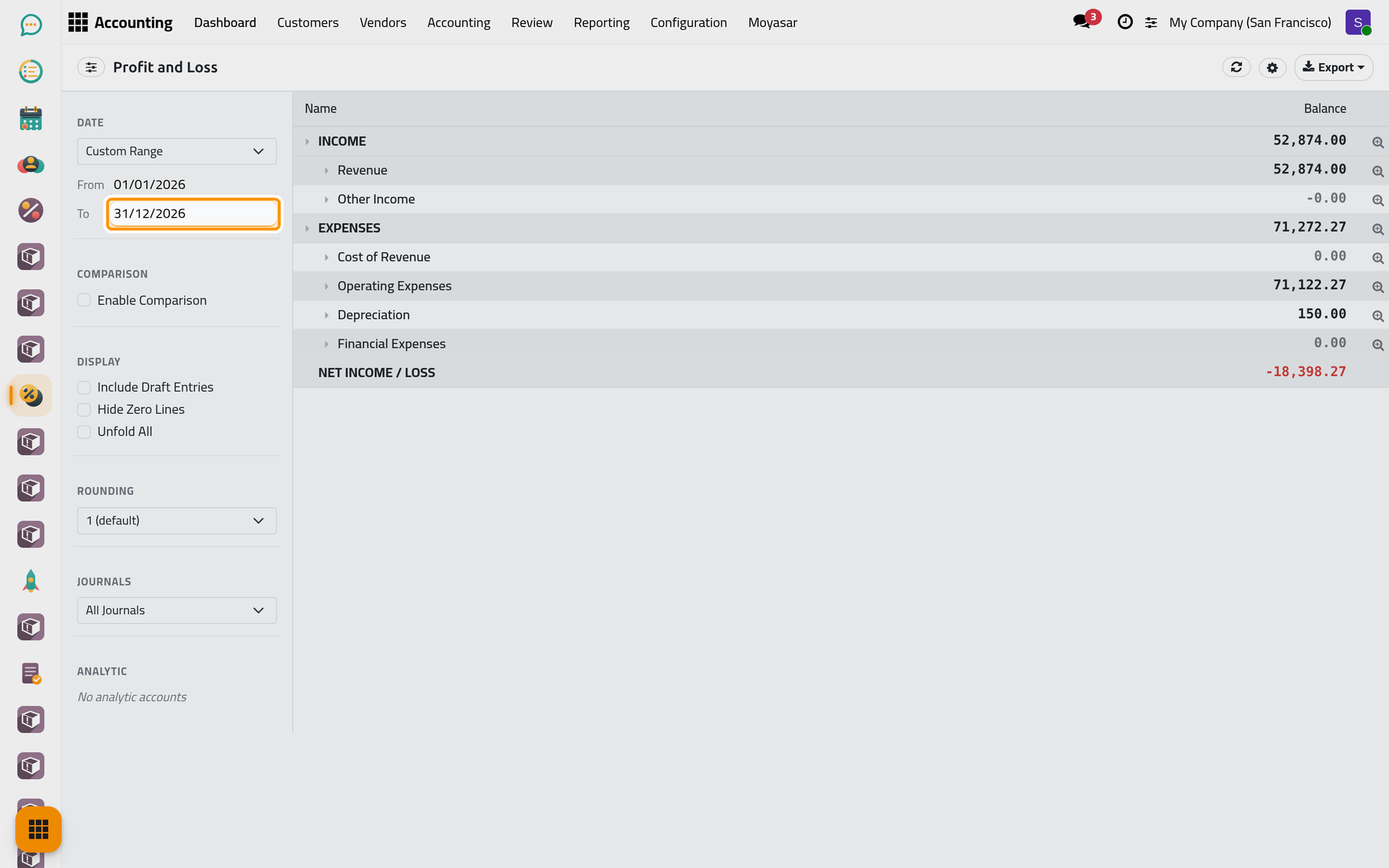
- In Date, choose Custom Range. Two boxes appear, From and To.
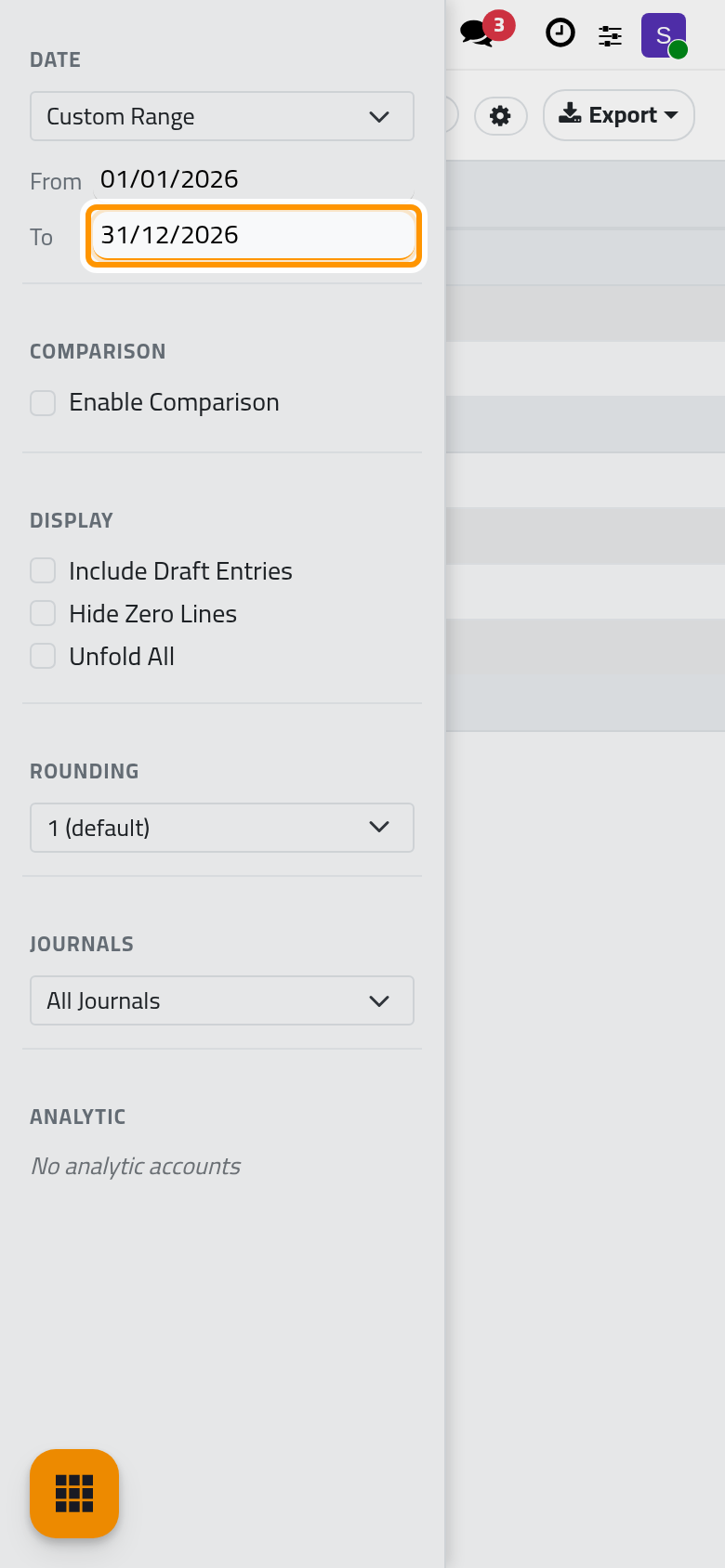
- Type the first day of the period in From and press Enter, then the last day in To and press Enter. Here, 01/01/2026 and 31/12/2026.
The report reloads with the new period. The other choices of the list (Today, This Month, Previous Quarter, Previous Year and the rest) are counted from today's date, so the same choice gives other figures next month; a custom range stays where you put it.
The Profit and Loss adds up the movements between the two dates. A report that gives a balance on one day, such as the Balance Sheet or the Aged Receivable, shows a single box, As of, instead of the two.
Step 3: unfold a line
Click the sliders button to hide the panel and give the lines the whole width; its tooltip reads Hide filters, then Show filters to bring the panel back.
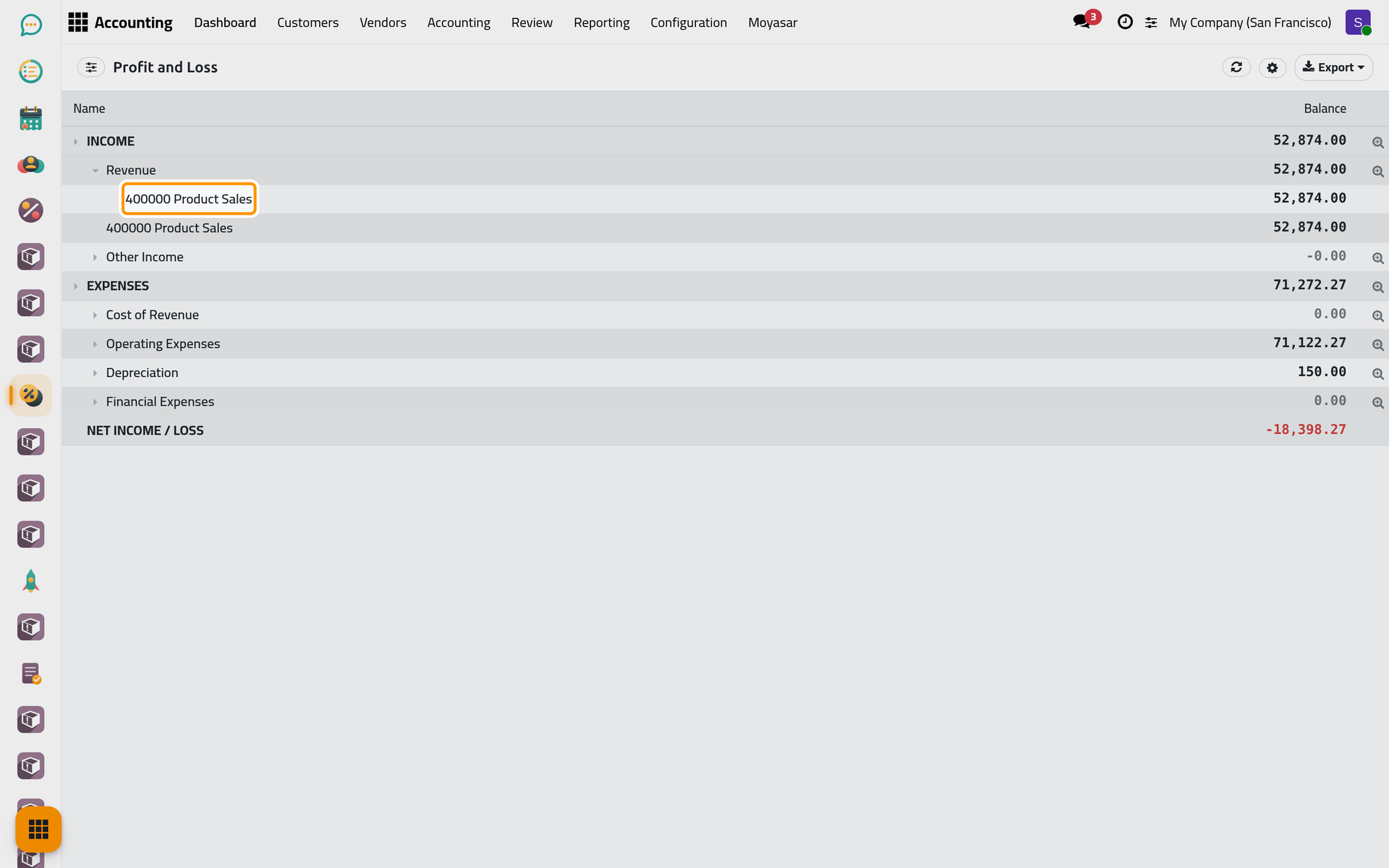
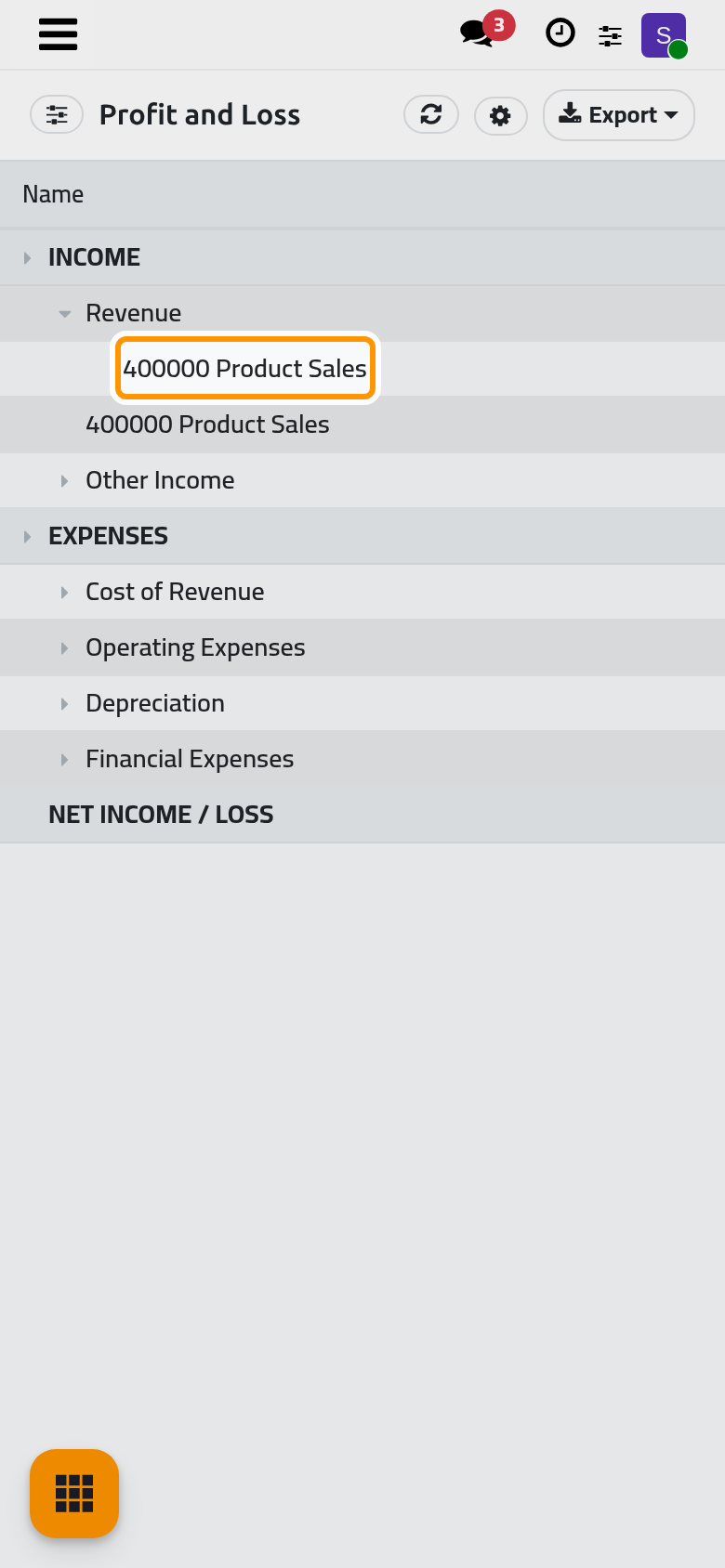
Click Revenue. The line unfolds to the accounts it adds up, here 400000 Product Sales; click it again to fold it. A line with a small arrow before its name unfolds this way, and Unfold All in the Display section opens every line at once.
Today the unfolded account is listed twice, once under the line and once just below at the level of the line, with the same amount: it is one account, not two.
Step 4: see the journal items behind a figure
At the end of every line that unfolds, a magnifier (tooltip View journal items) opens the Journal Items of that line: one row per journal item it counts, with the Date, the Entry, the Journal, the Account, the Partner, the Label, the Debit and the Credit. An item whose entry is still in draft shows a Draft badge. The count of items sits at the bottom left; Close brings you back to the report.
This is how an accountant answers the question "where does this figure come from?" without leaving the report.
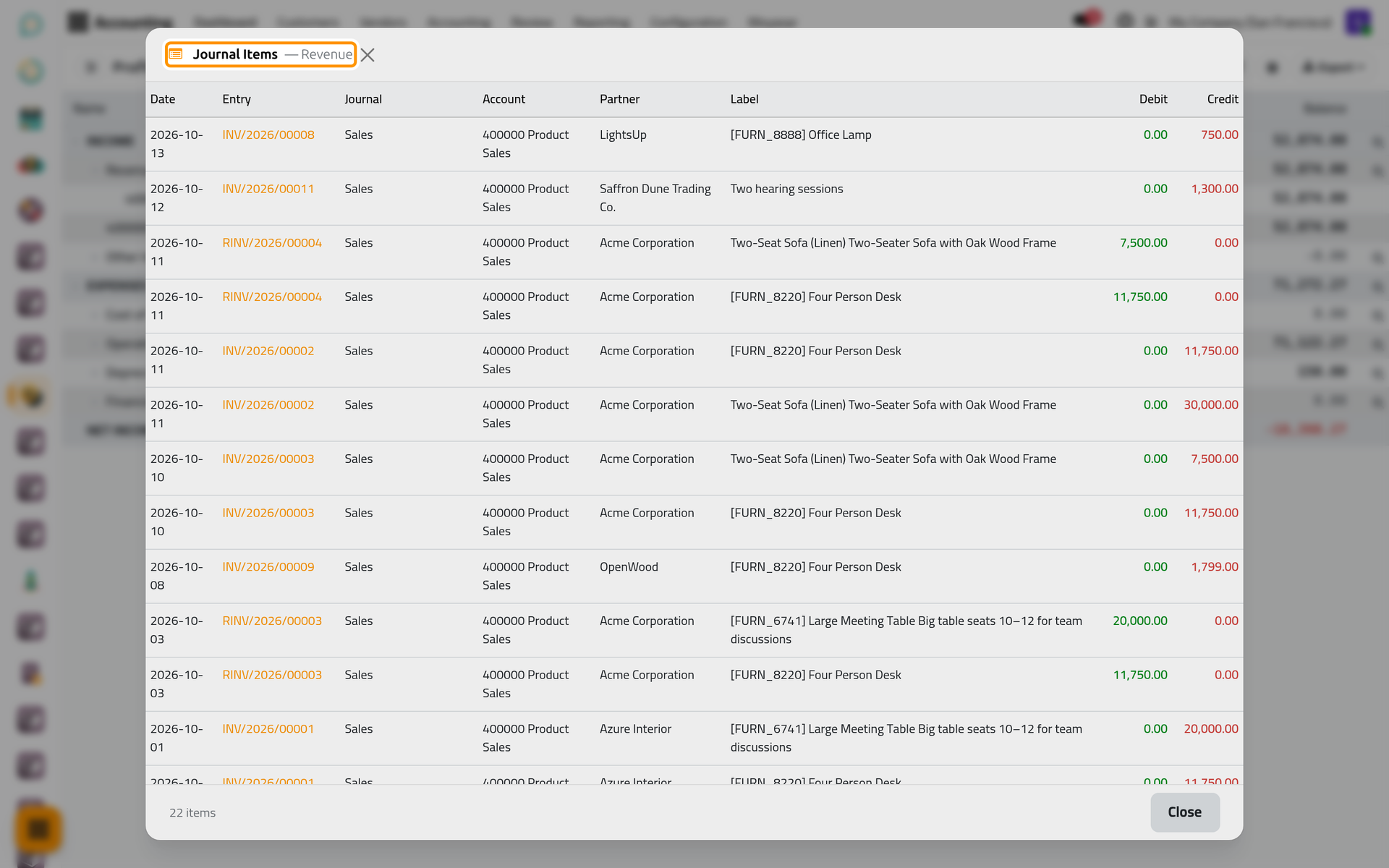
The window above was taken on a computer. On a phone the magnifier sits at the right end of each line; slide the report sideways to reach it.
Step 5: export the report
Click Export. The menu offers Excel (XLSX), PDF, CSV, Plain Text (TXT), Audit File (XAF) and All Formats (ZIP). The file carries the report with the period and the options chosen on the screen, and your browser downloads it. PDF gives a page ready to print or to send; Excel (XLSX) gives a sheet to work on. Click Export again to close the menu without exporting.
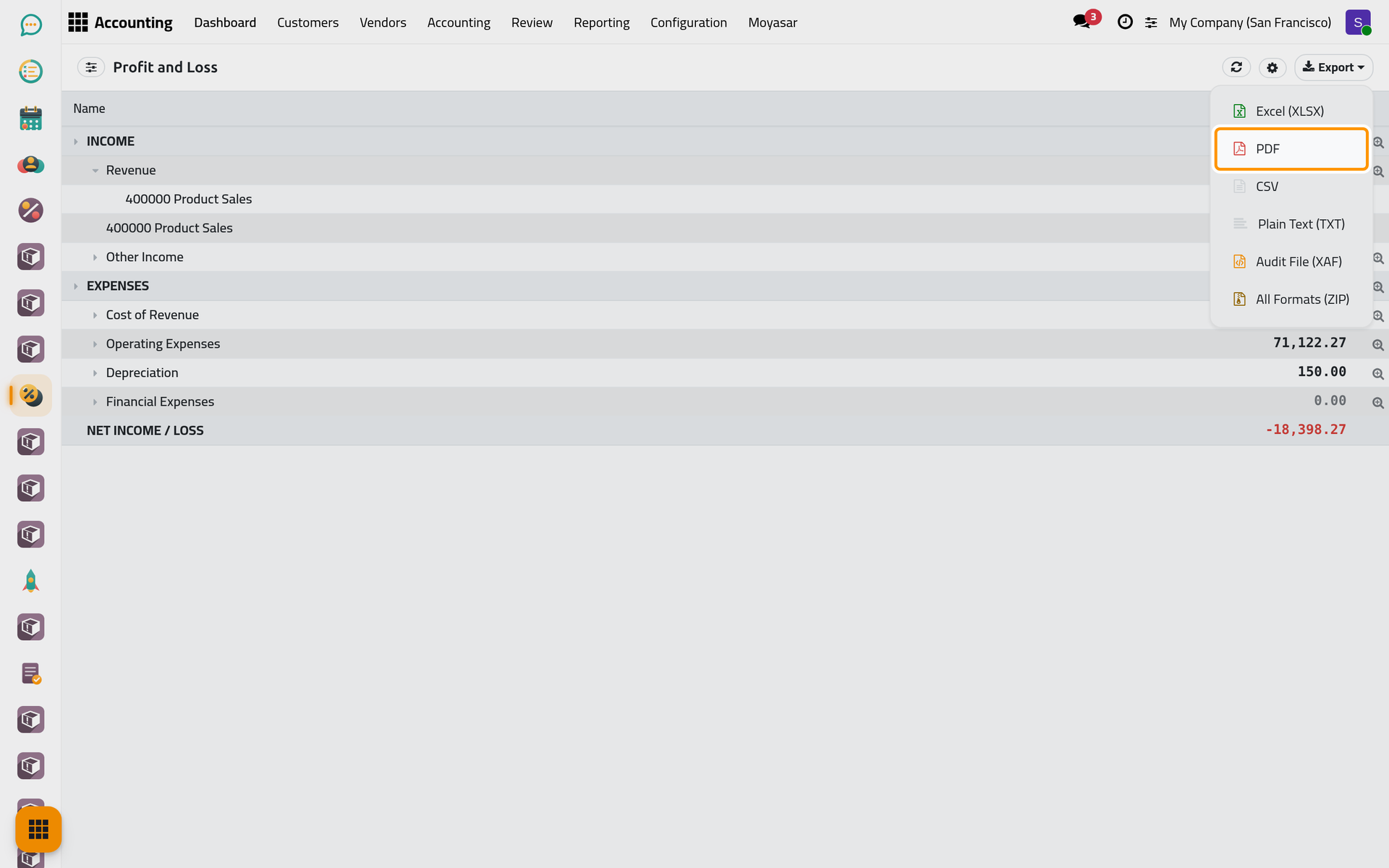
On a phone, Export stays at the top right of the report.
What you have seen
Every report works like this one: a period, options in the panel, lines that unfold, the journal items behind each figure and six export formats. The user guide takes the reports by family: Read the financial statements, Check the books with the ledgers, Follow client and vendor balances and Prepare the tax and period-end figures. How the reports are built explains the periods, the draft entries and who sees which report.
Was this page helpful?
Thank you for your feedback.