Group transactions into a statement
On this page
- Before you start
- Select the transactions
- Create the statement
- Check and print it
- FAQ
- Why is there no New button in the statements list?
- The statement shows in red. What is wrong?
- Can I take a transaction out of a statement?
- Why did the Balance of the Bank card change?
- Can I print several statements at once?
A bank statement groups the transactions of a period between the balance the bank printed at its start and the one at its end. When the lines you typed add up to the bank's ending balance, nothing was missed or mistyped; when they do not, the statement shows it at once.
Before you start
- You need the invoicing access right on all documents of Accounting, or Administrator.
- The transactions of the period are recorded: see Record bank transactions.
- Have the bank's statement at hand, with its starting and ending balances.
Select the transactions
- Open , click the three dots of the Bank card and choose Transactions.
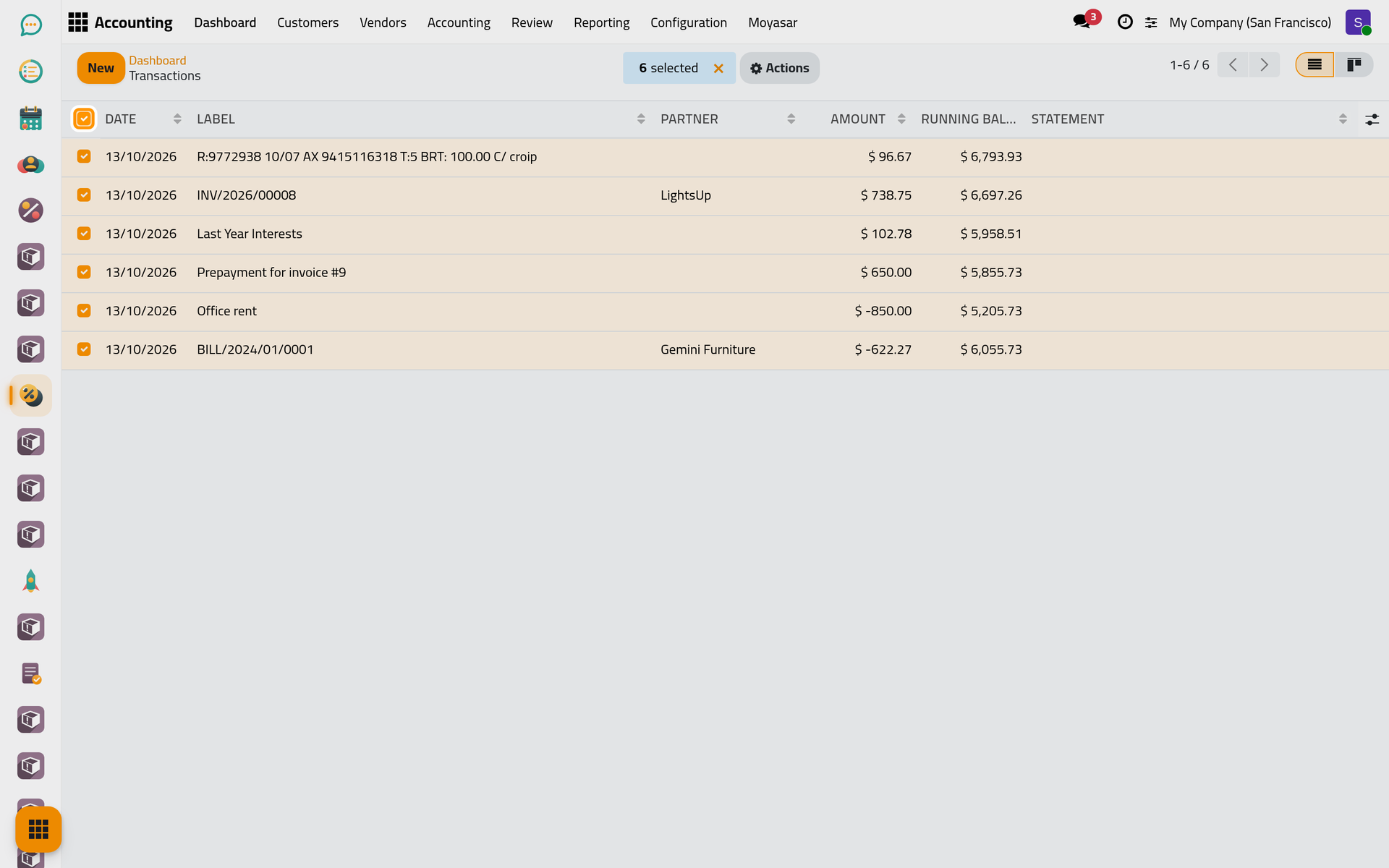
- Click the search panel's toggle at the right of the search bar and choose No Statement: only the lines that are in no statement stay.
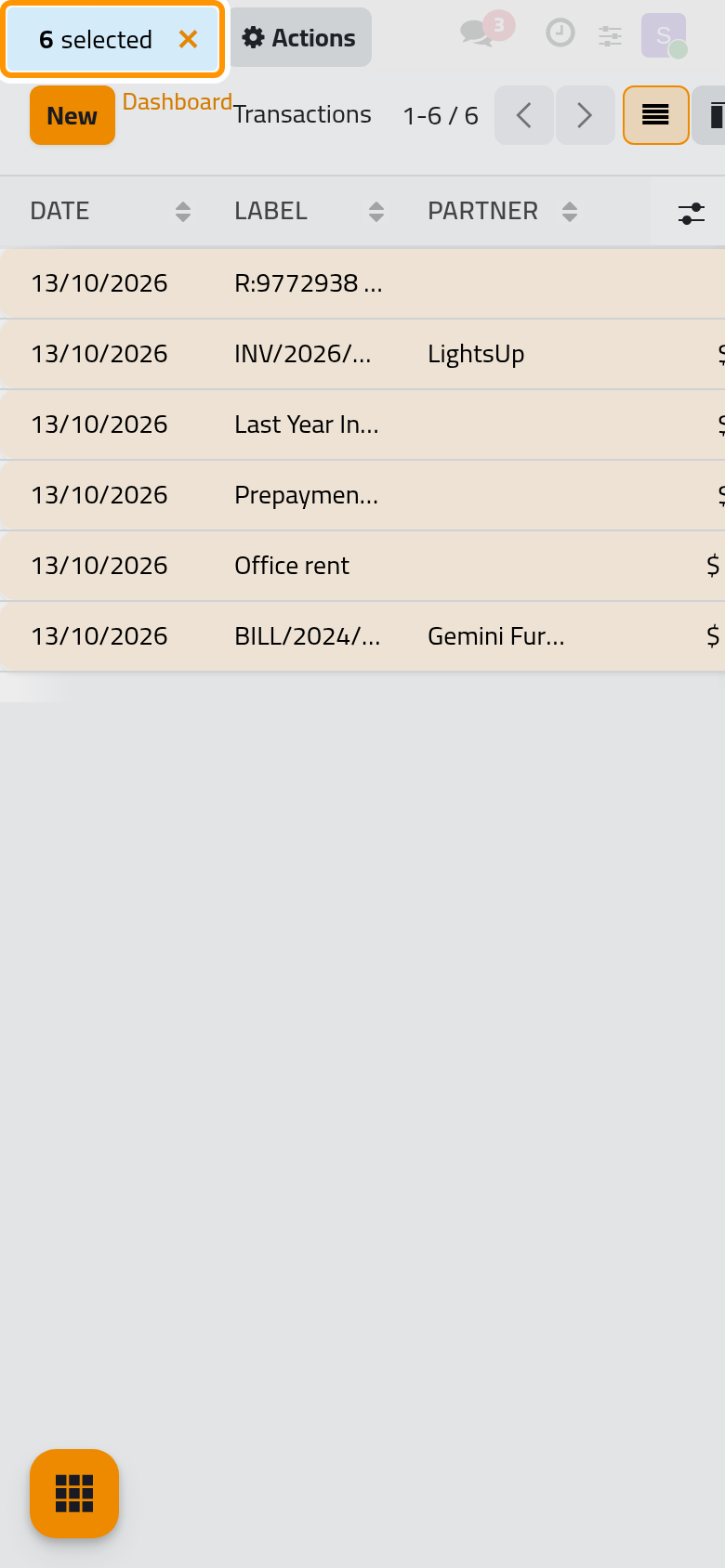
- Tick the box in the header of the list to select them all, or tick the lines of the period one by one. On a phone, the number of selected lines shows at the top of the screen.
Create the statement
- Click the Statement cell of one of the ticked lines, type the reference of the statement, for example the bank's statement number or the month, and choose Create and edit....
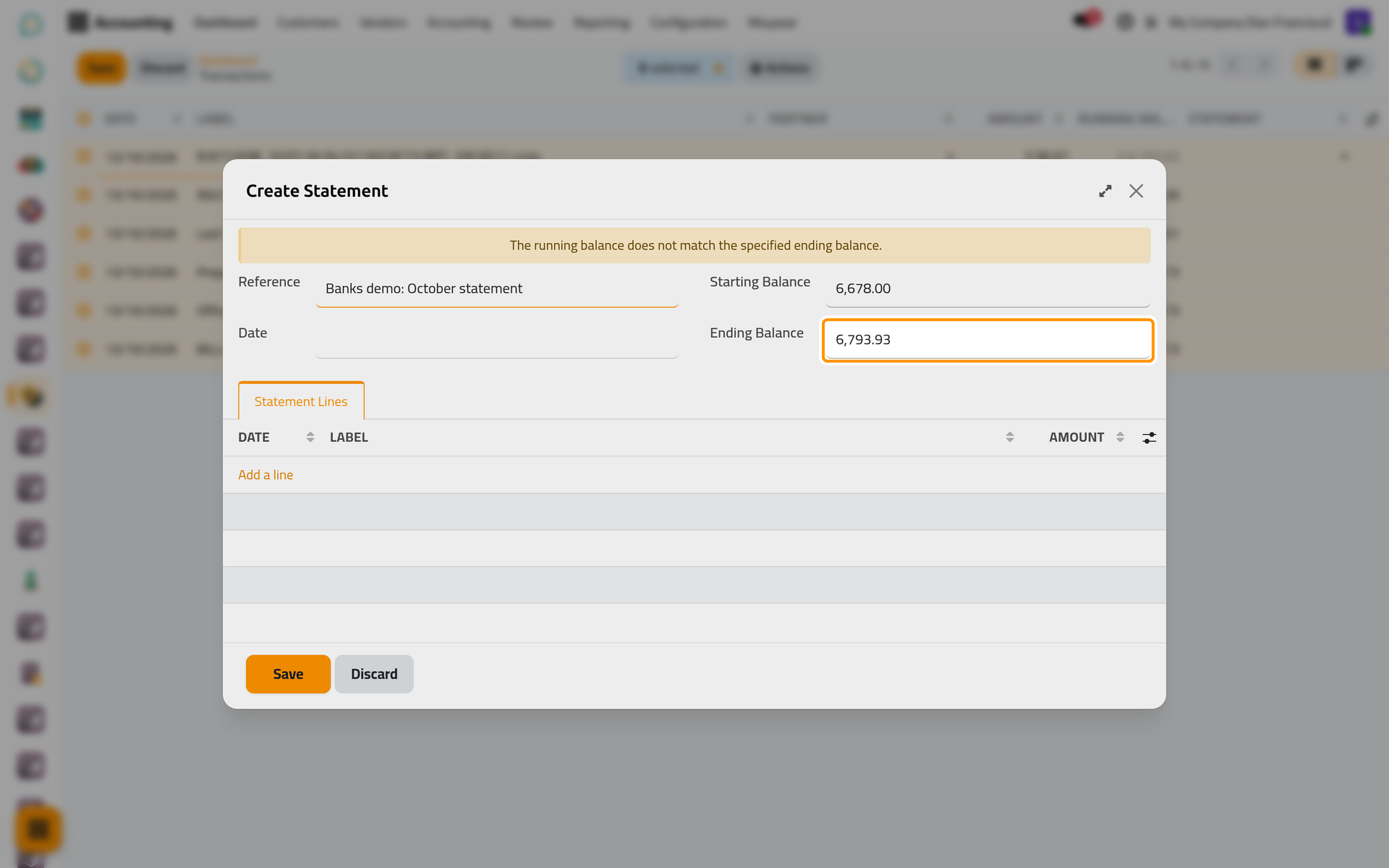
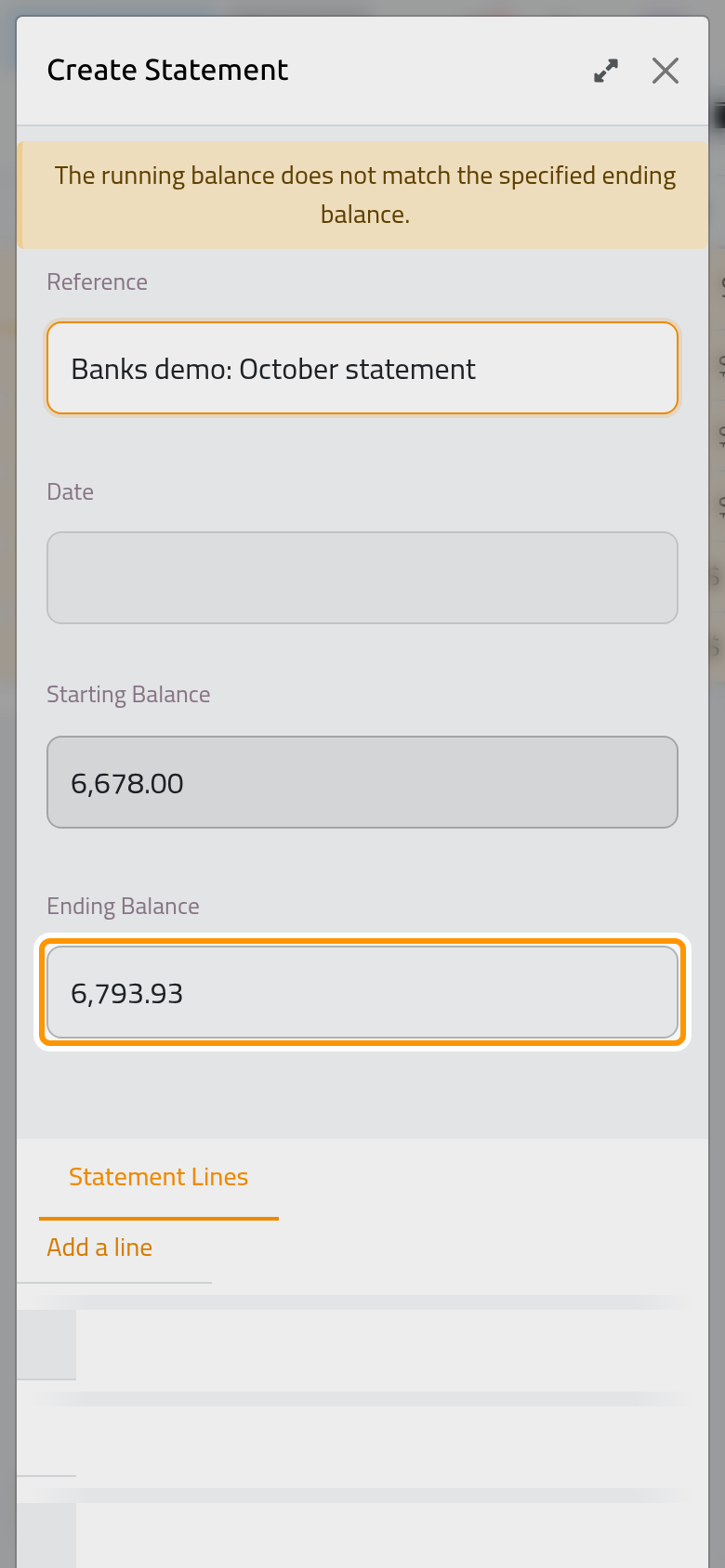
- In the window that opens, check the Reference, then type the Starting Balance and the Ending Balance printed on the bank's statement. Leave the Date empty: it takes the date of the latest transaction of the statement. The warning The running balance does not match the specified ending balance. is expected at this point, since the window holds no line yet.
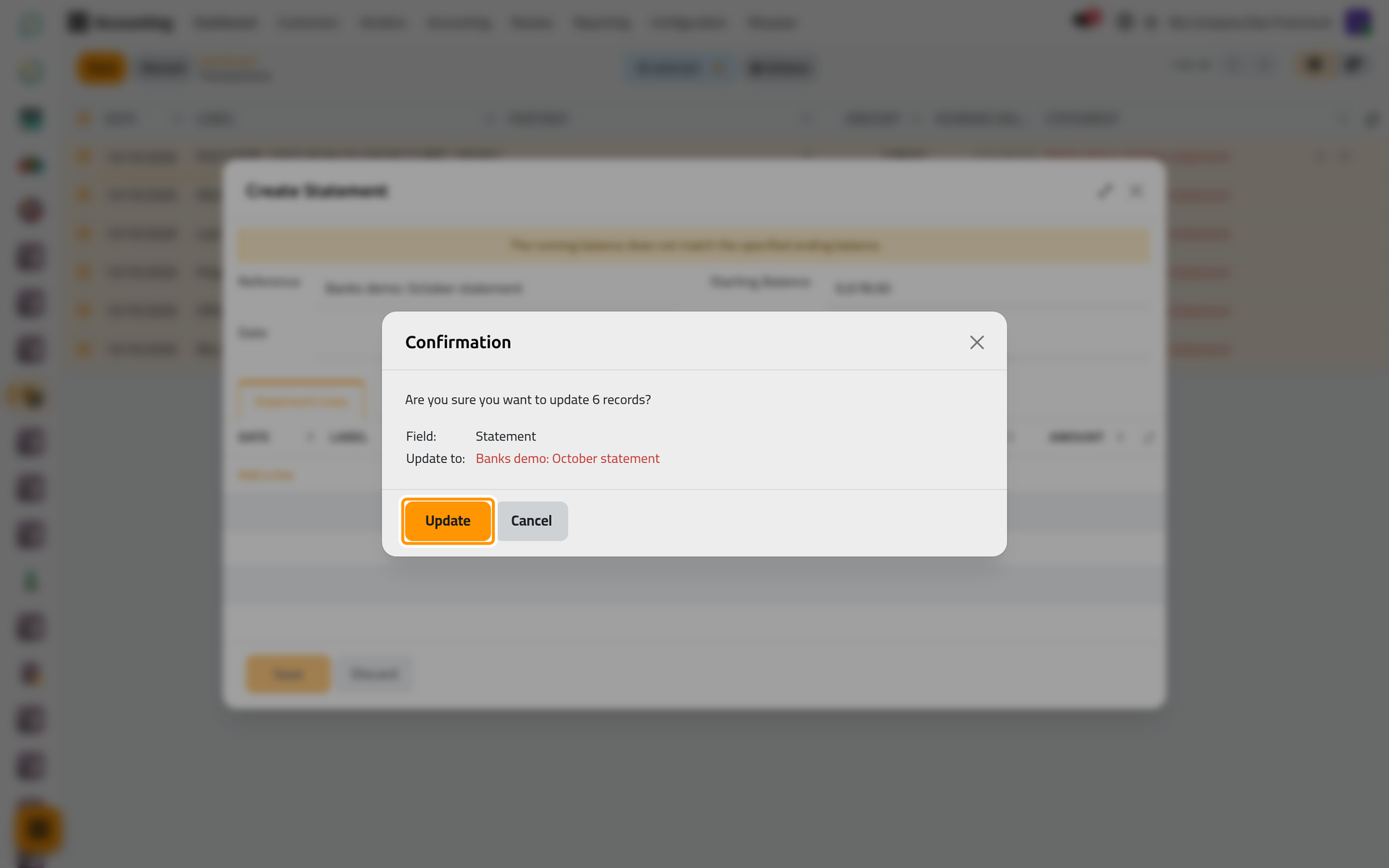
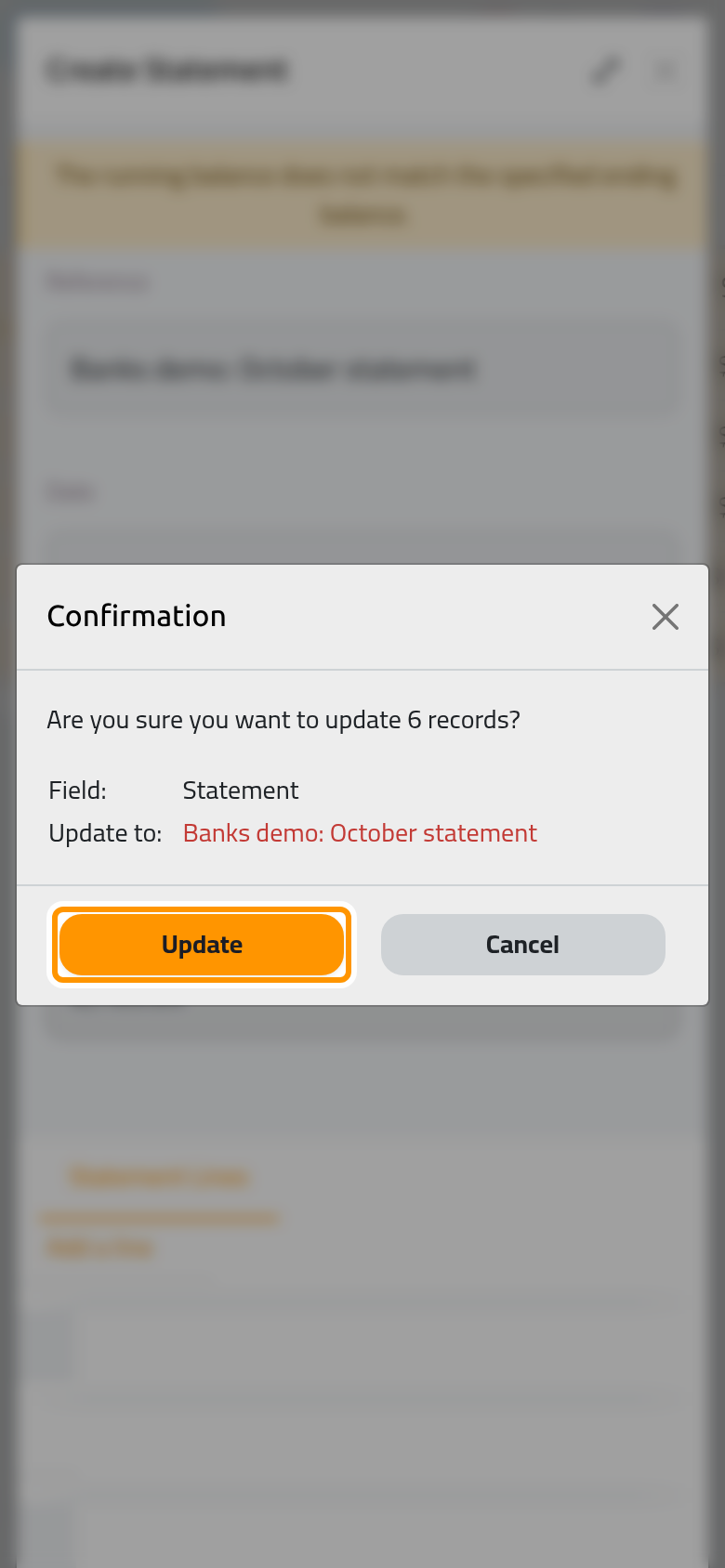
- Click Save. The list asks whether to update all the selected records with the new statement: click Update.
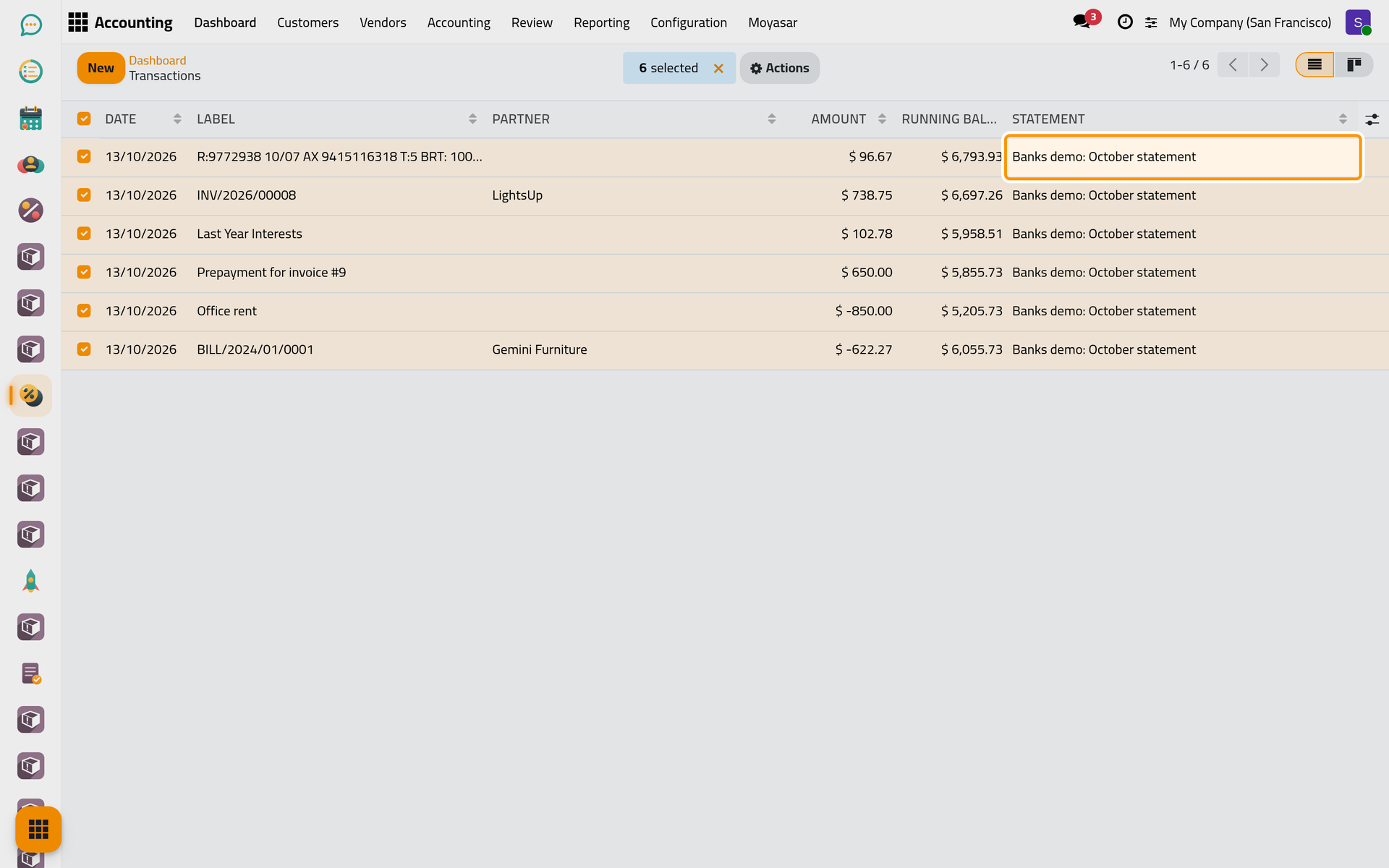
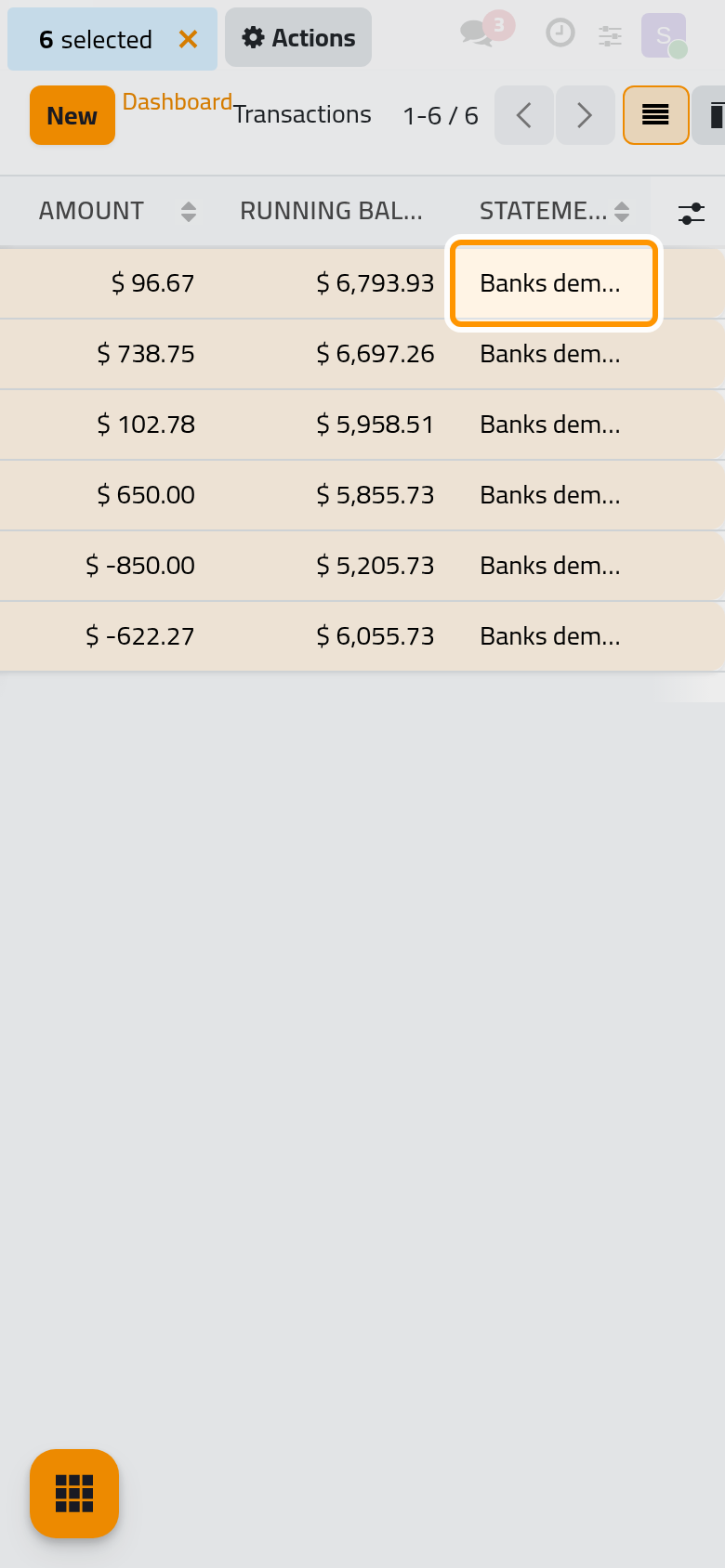
Each ticked line now shows the statement in its Statement column. The name shows in red when the statement does not add up: its lines do not reach the ending balance, or its starting balance differs from the ending balance of the previous statement.
Check and print it
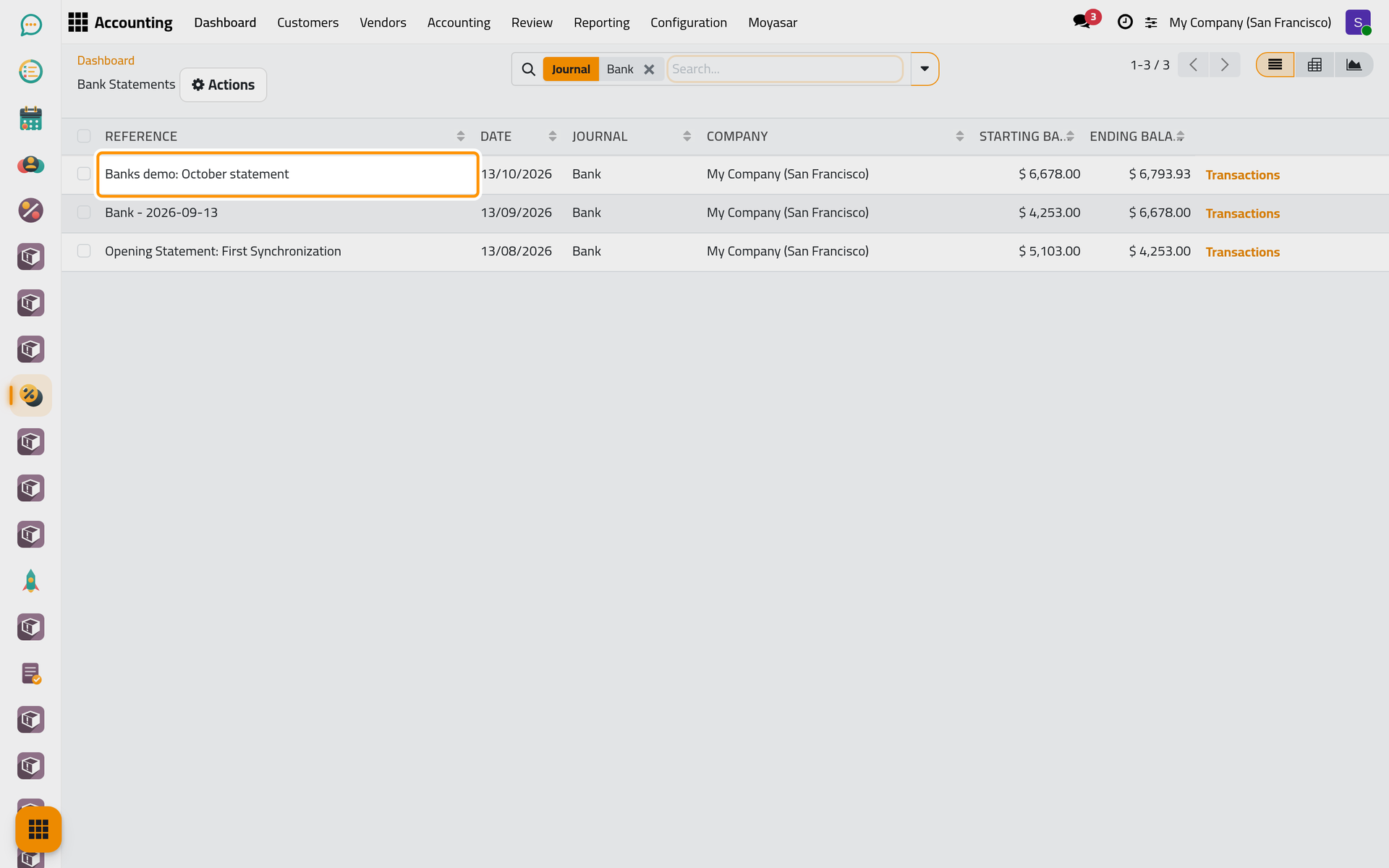
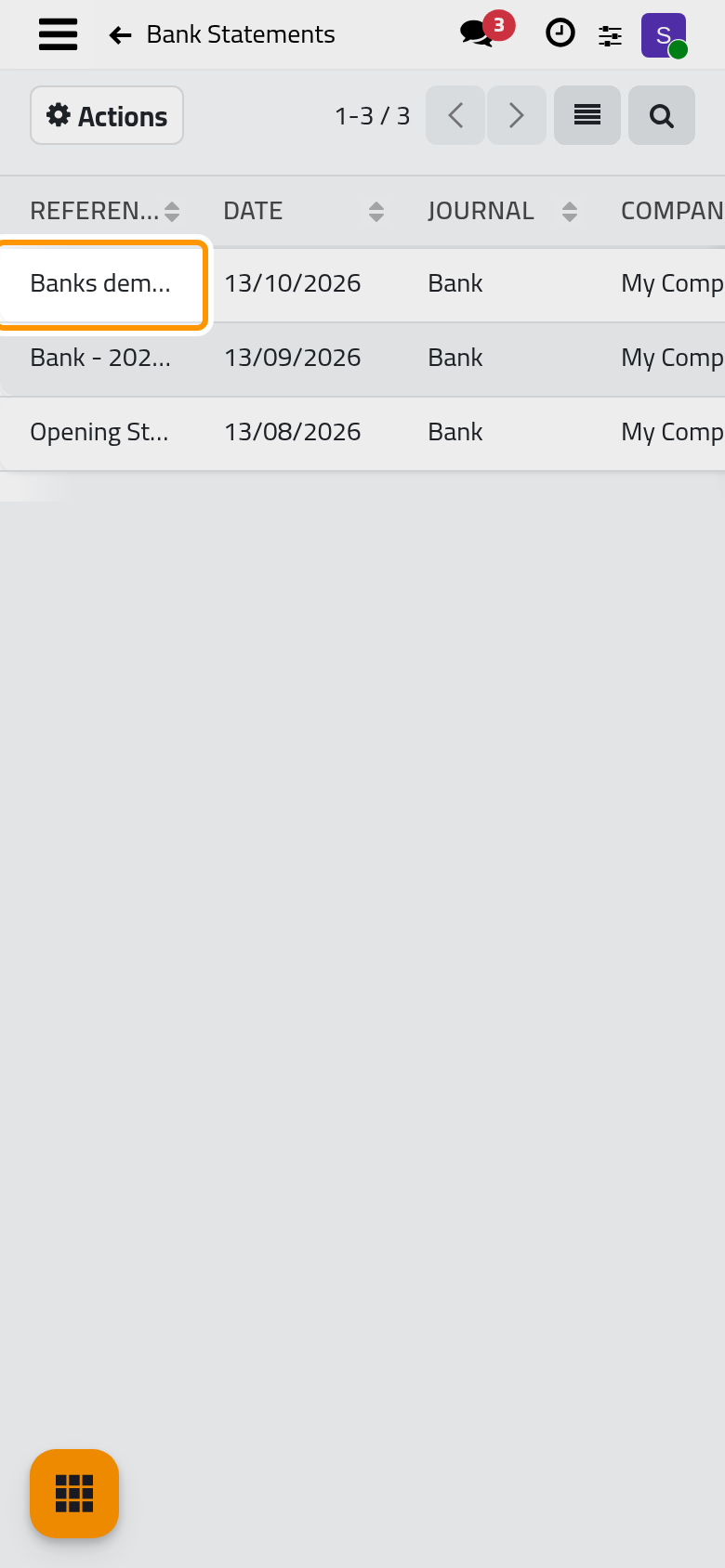
Click the three dots of the Bank card and choose Statements. The list gives each statement's Reference, Date, Starting Balance and Ending Balance. Click a statement to open it: its lines are in the Statement Lines tab, and a warning at the top says what is wrong when it does not add up.
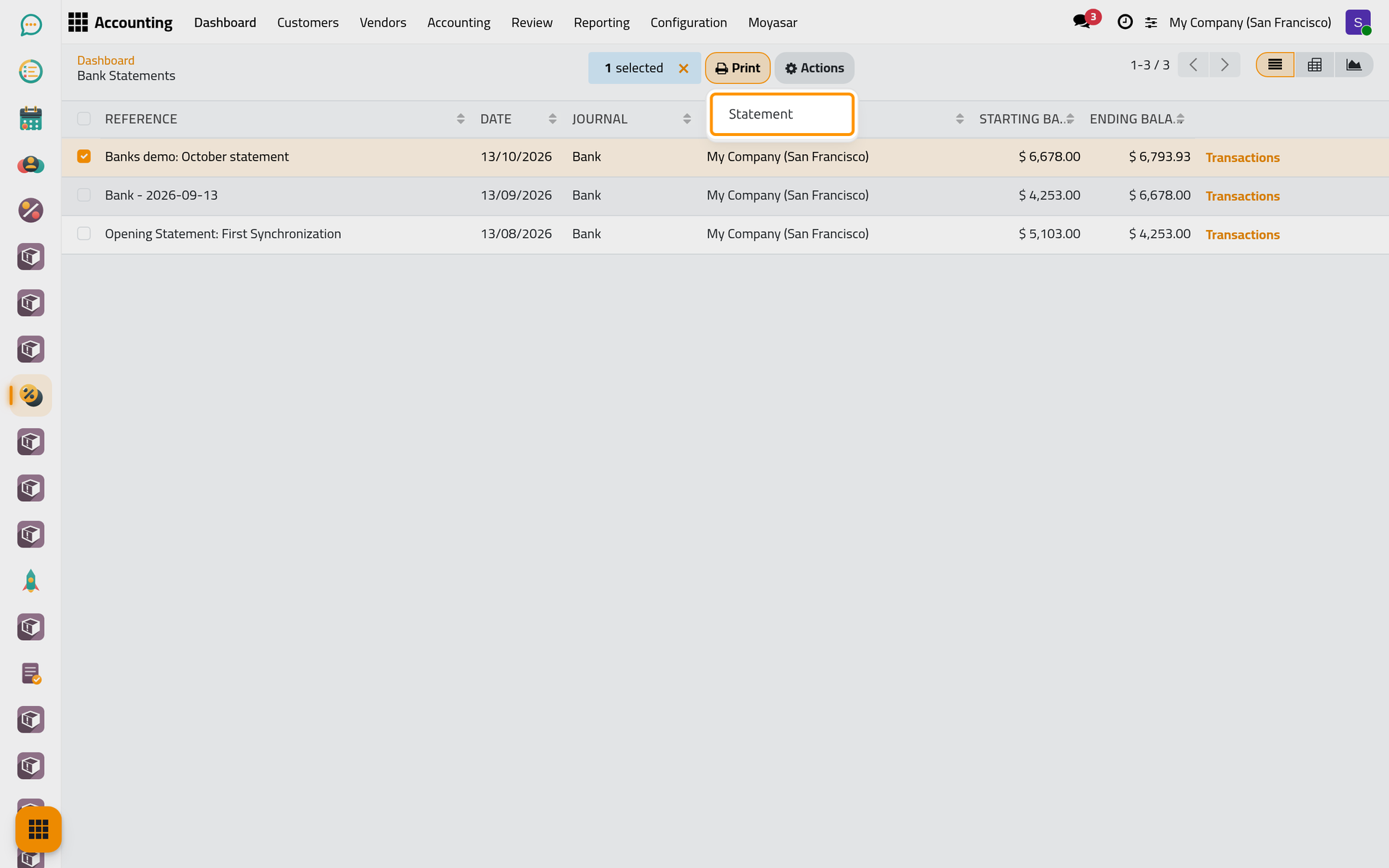
To print a statement, tick it in the list, click Print and choose Statement. The PDF is downloaded and also attached to the statement. On a phone, Print sits in the bar at the top of the screen once a statement is ticked.
FAQ
Why is there no New button in the statements list?
Statements are created from the transactions, as above, so that each one starts with its lines.
The statement shows in red. What is wrong?
Either the lines do not add up to the Ending Balance (a line is missing or mistyped), or the Starting Balance differs from the ending balance of the previous statement (a statement is missing in between). Open the statement: the warning at the top says which.
Can I take a transaction out of a statement?
Yes: in the transactions list, clear its Statement cell and click Save. A transaction of a statement that adds up cannot be deleted; take it out of the statement first.
Why did the Balance of the Bank card change?
The Balance starts from the ending balance of the latest statement and adds the transactions recorded after it. A transaction left out of every statement before the latest one no longer counts in it, so put every transaction of a period in its statement.
Can I print several statements at once?
No. Tick one statement at a time before Print: with several ticked, the printing stops on an error.
Was this page helpful?
Thank you for your feedback.