Record bank transactions
On this page
A transaction is one line of the bank's record: money in or money out, on a given day. This edition has no bank feed and no file import, so the lines are typed from the bank's statement or from the cash box's book. Each one is recorded in the journal of the account it belongs to.
Before you start
- You need the invoicing access right on all documents of Accounting, or Administrator.
- Have the bank's statement at hand: the date, the wording and the amount of each movement.
Open the transactions
- Open .
- Point at the Bank card, click the three dots at its top right and choose Transactions. For the cash box, use the same menu on the Petty Cash card.
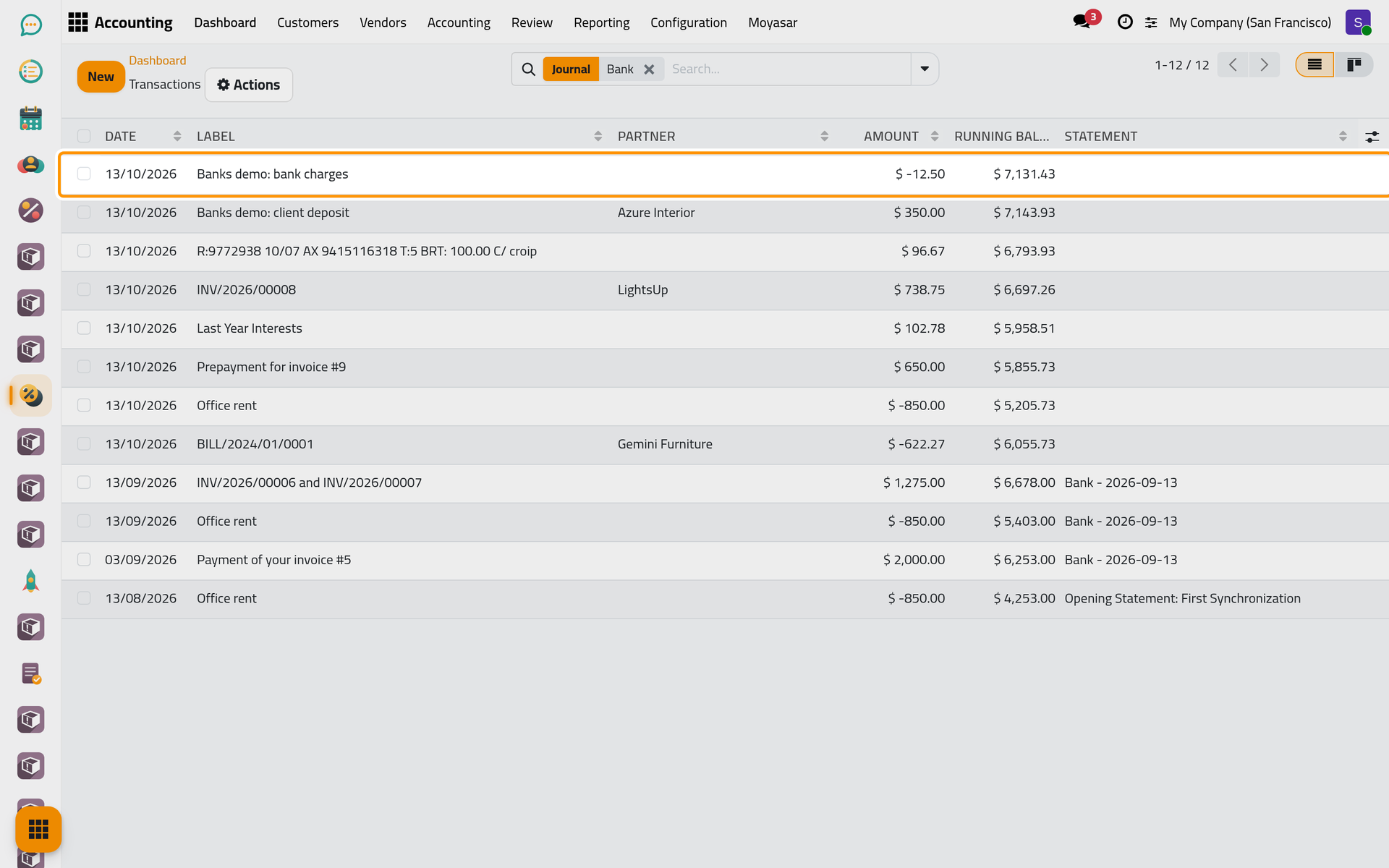
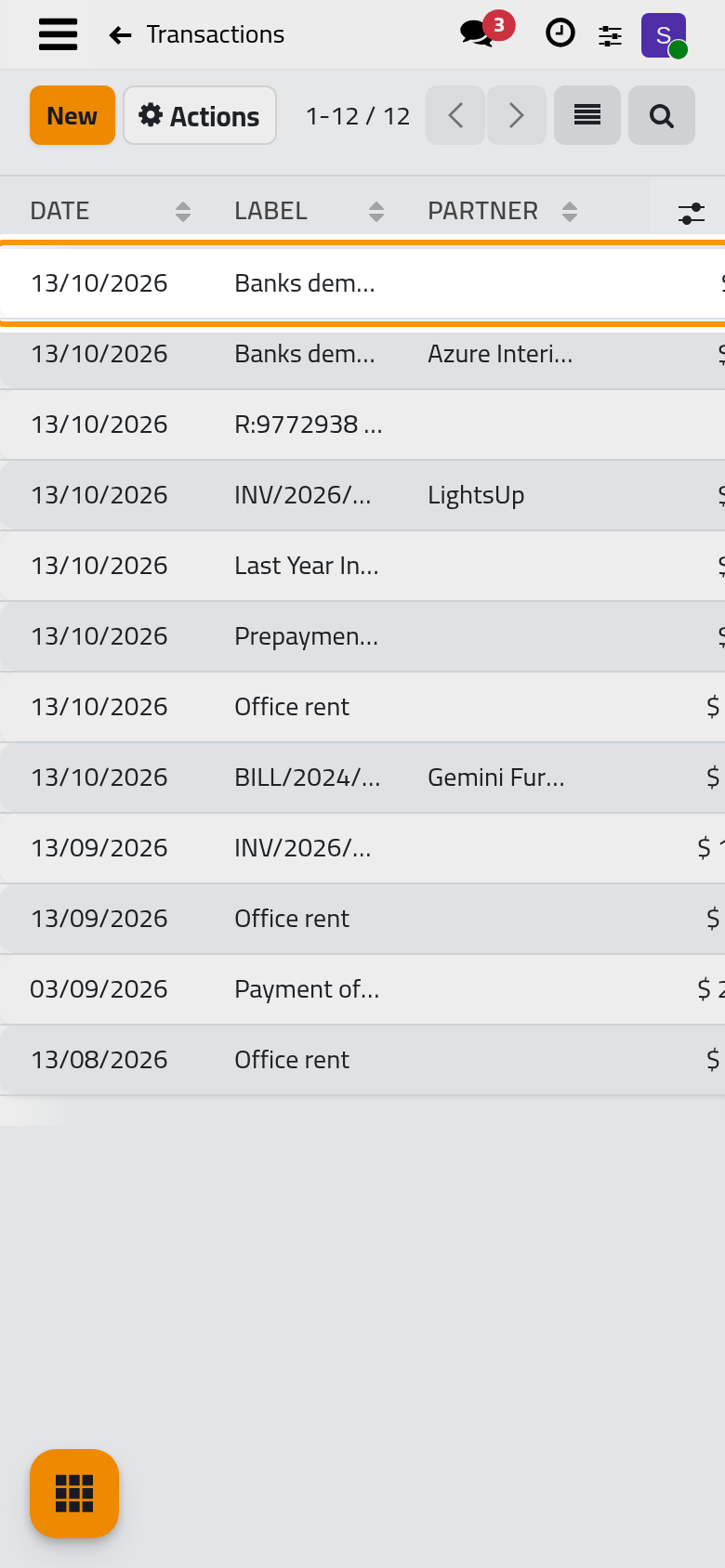
The list shows the transactions of that journal only, the newest at the top.
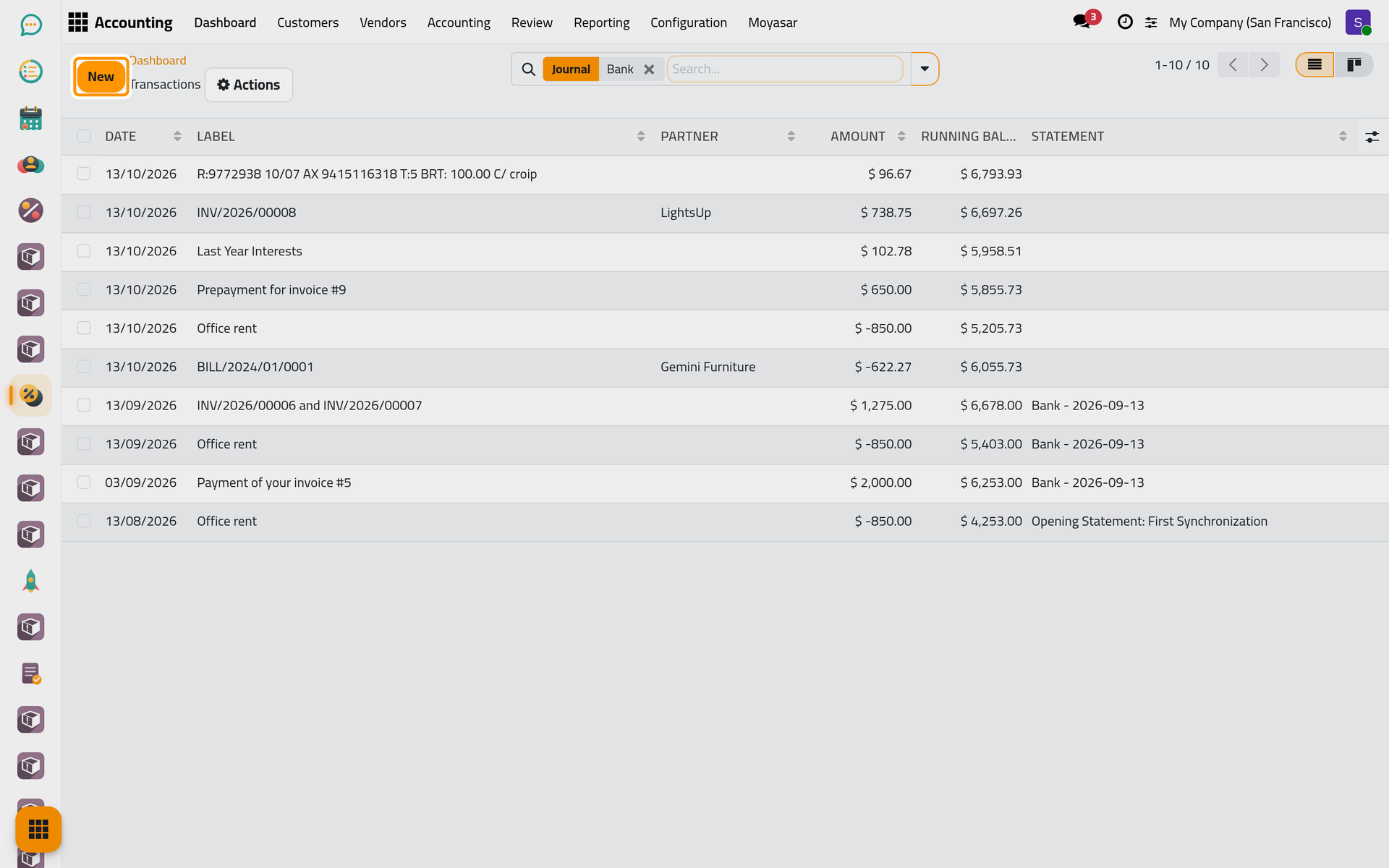
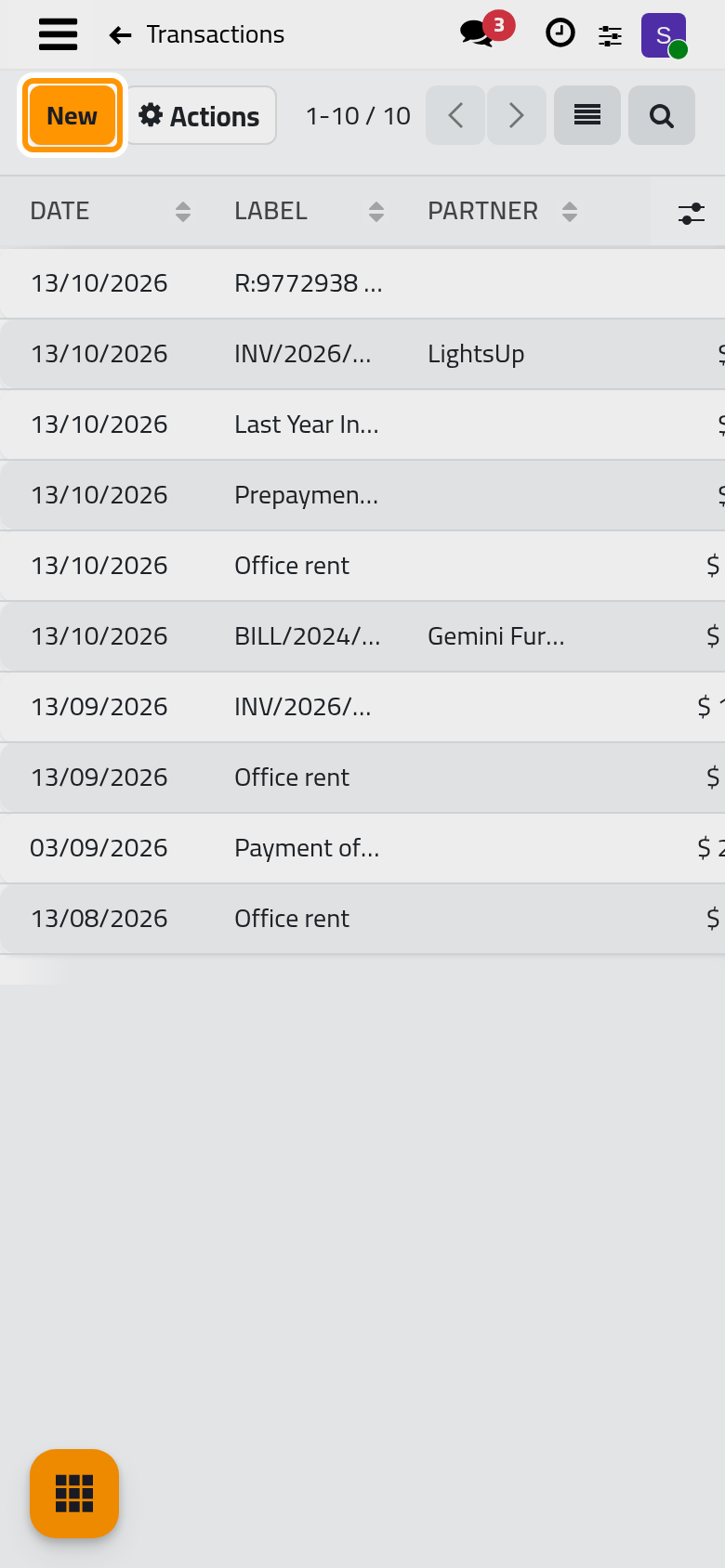
Add a line
- Click New. An empty line opens at the top of the list.
- Date: it is copied from the latest transaction of the journal; change it to the day of the movement.
- Label: the wording of the bank, or your own description, such as the client's name and the invoice it pays. The label is required.
- Partner: the client, vendor or other party, when you know it. It helps the matching later.
- Amount: positive for money received, negative for money paid out, such as bank charges.
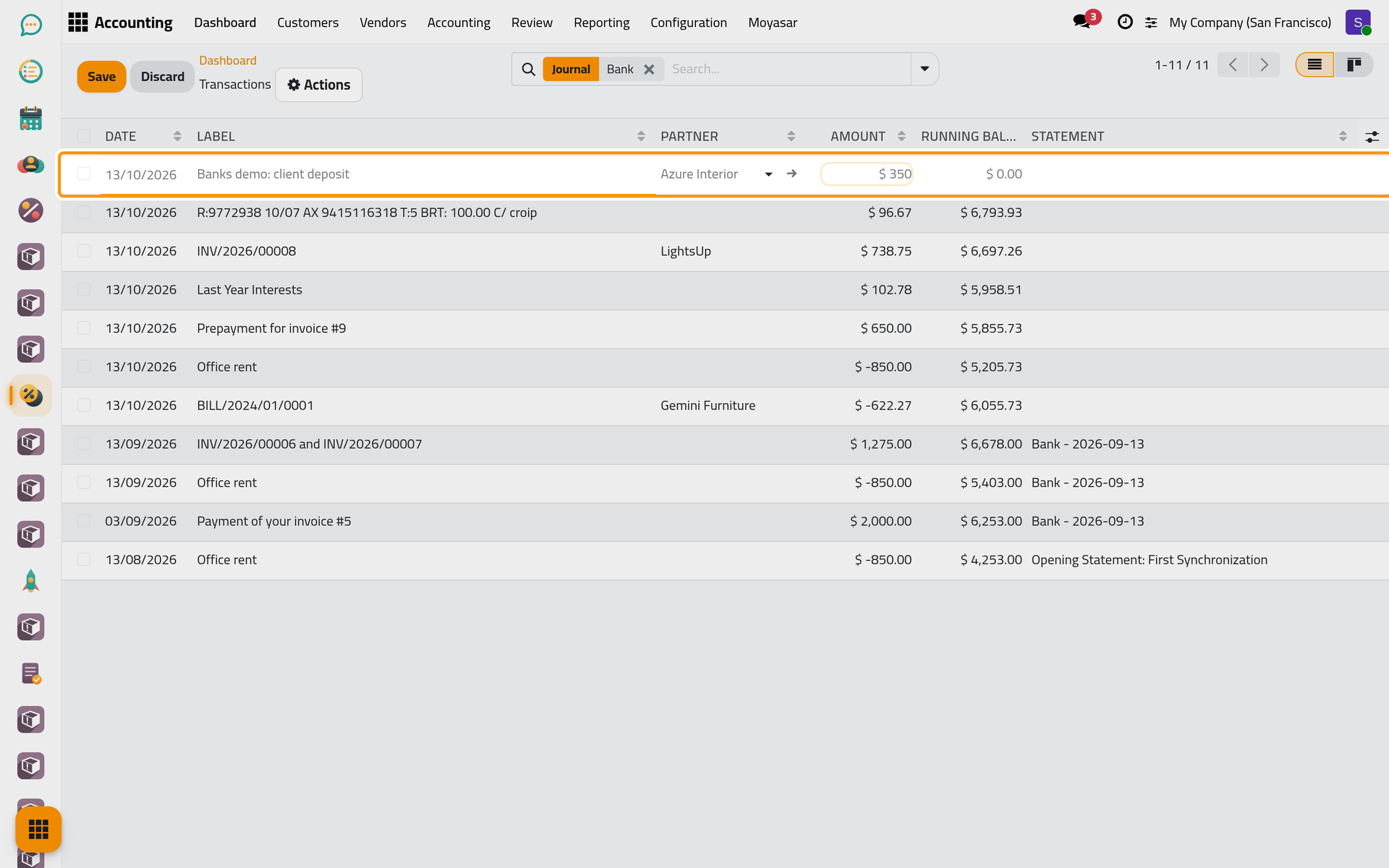
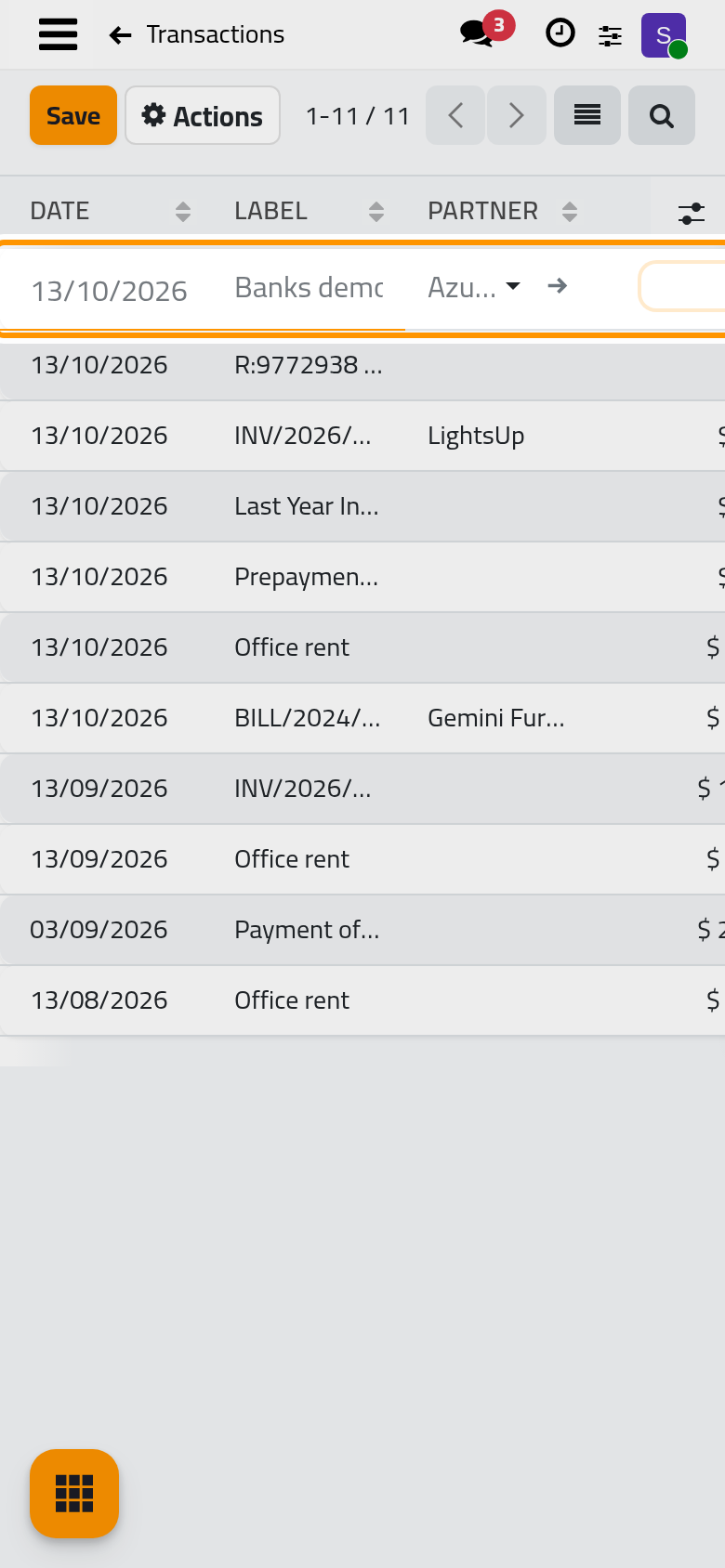
- Click Save. The Running Balance of the line is filled in.
Repeat for each movement. A charge of the bank is typed the same way, with a minus sign.
Find the lines to match
Each new transaction sits on the bank's suspense account until it is matched with what it pays or collects. Click the search panel's toggle at the right of the search bar and choose Not Matched to keep only those lines. No Statement keeps the lines that are not in a statement yet, and Deposits and Payments split money in from money out.
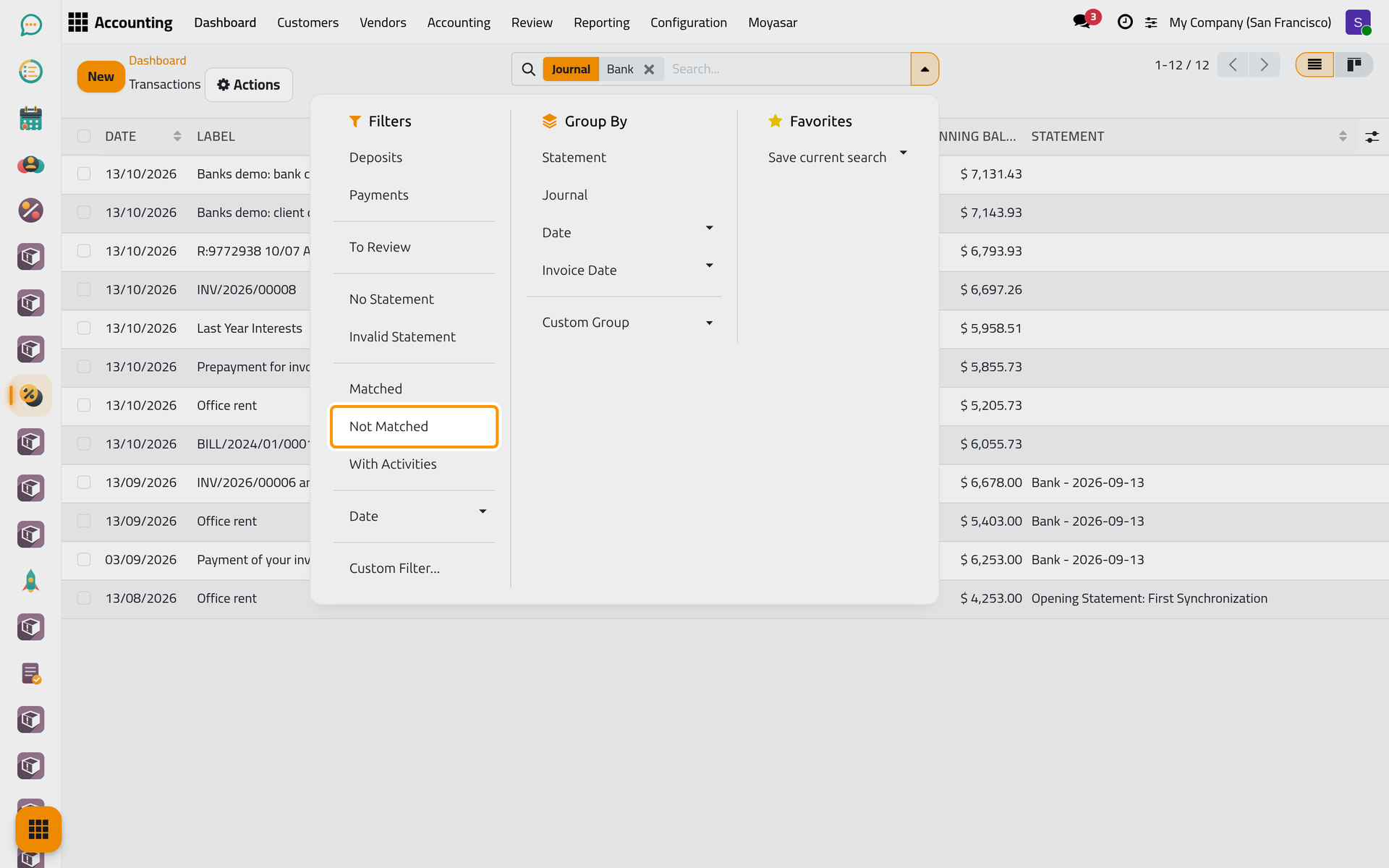
On a phone, the same toggle sits at the end of the search bar, at the top of the list.
On a phone, the same toggle sits at the end of the search bar, at the top of the list.
Next: Group transactions into a statement, then Match payments and invoices.
FAQ
Can I import the bank's file instead of typing?
No. This edition has neither a bank connection nor an import of statement files: transactions are typed in the list.
How do I correct a line?
Click it in the list, change the date, label, partner or amount, and click Save. Once a line is matched, these fields become read-only.
Where do the cash box's transactions go?
In the journal of the cash box, through the same menu on its card (Petty Cash in the demo). A cash box has Cash Registers where a bank has Statements.
Why does the line show in grey?
A grey line is a draft. The lines you type are posted when you save them; a line put back to draft with Reset to Draft in the Actions menu shows in grey until it is posted again.
Was this page helpful?
Thank you for your feedback.