Match payments and invoices
On this page
Matching links a payment to the invoice or bill it settles. Once they are matched, the invoice is paid and both amounts leave the list of open items. A payment registered from an invoice with Register Payment is matched with it at once (see Customer invoices and Vendor bills and expenses); matching by hand is for a payment recorded on its own, in for example, or for one payment that settles several invoices.
Before you start
- You need the Administrator access right on Accounting.
- The payment is confirmed. A draft payment is not offered for matching.
From the invoice
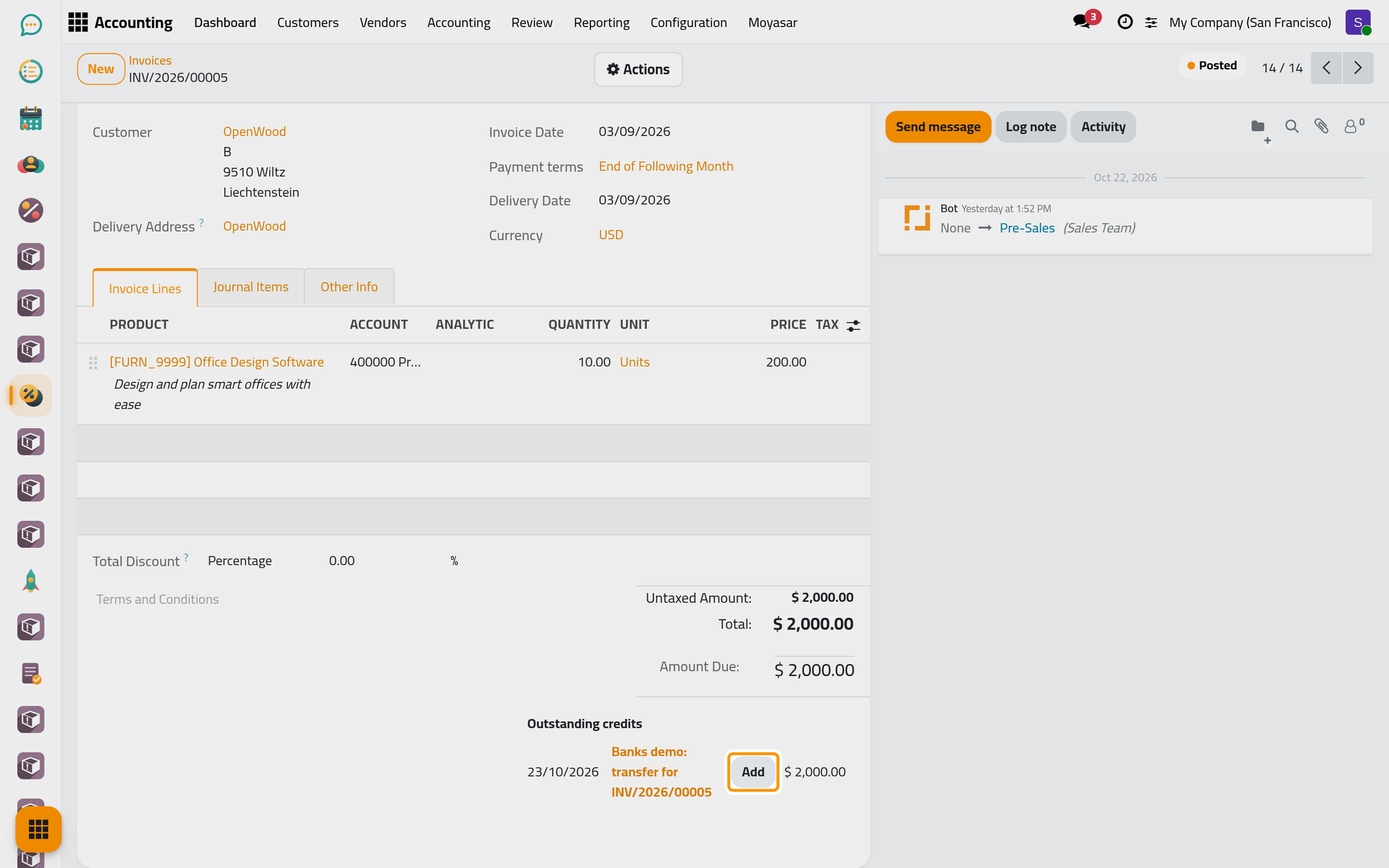
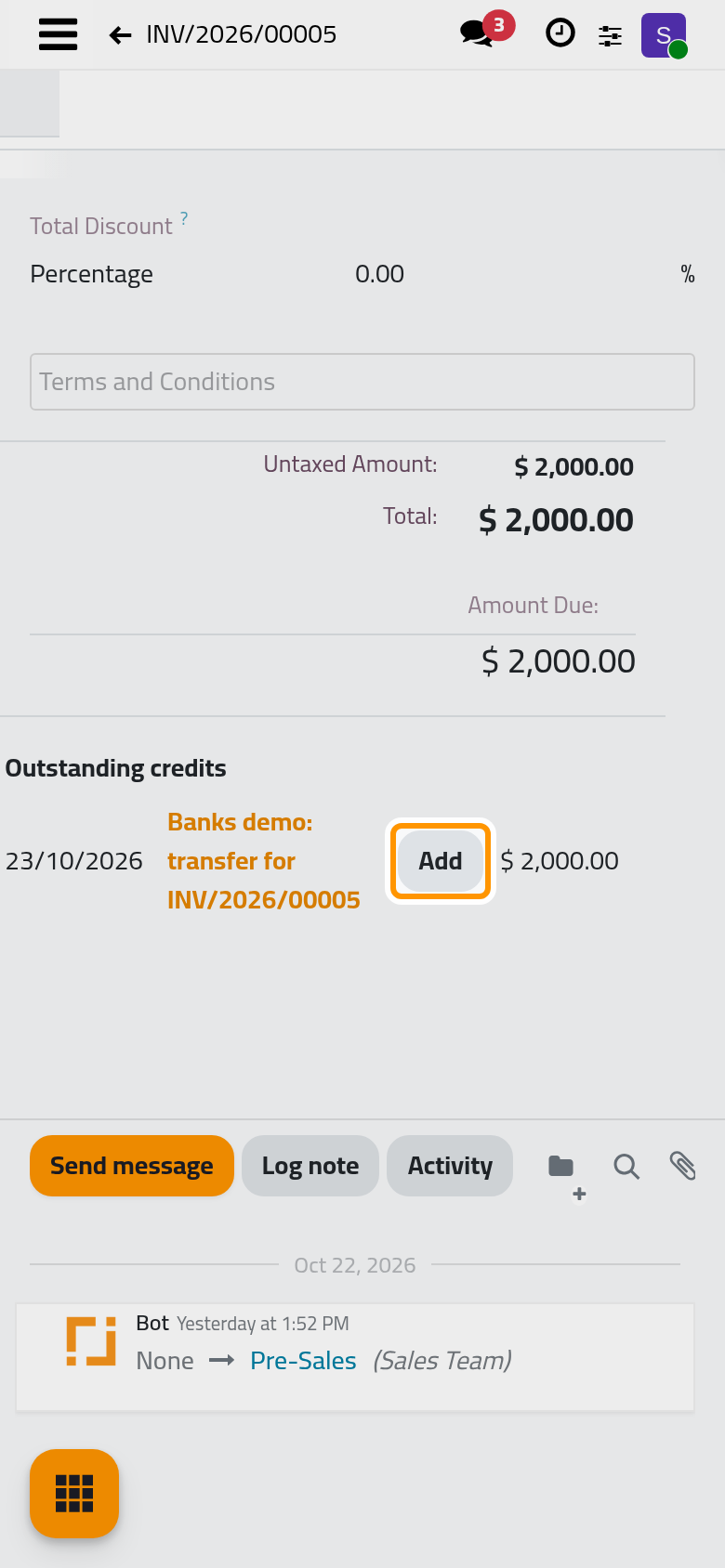
- Open the invoice. When the customer has a payment that is not matched yet, a blue banner at the top says so, and the payment is listed under Outstanding credits, below the total.
- Click Add next to the payment.
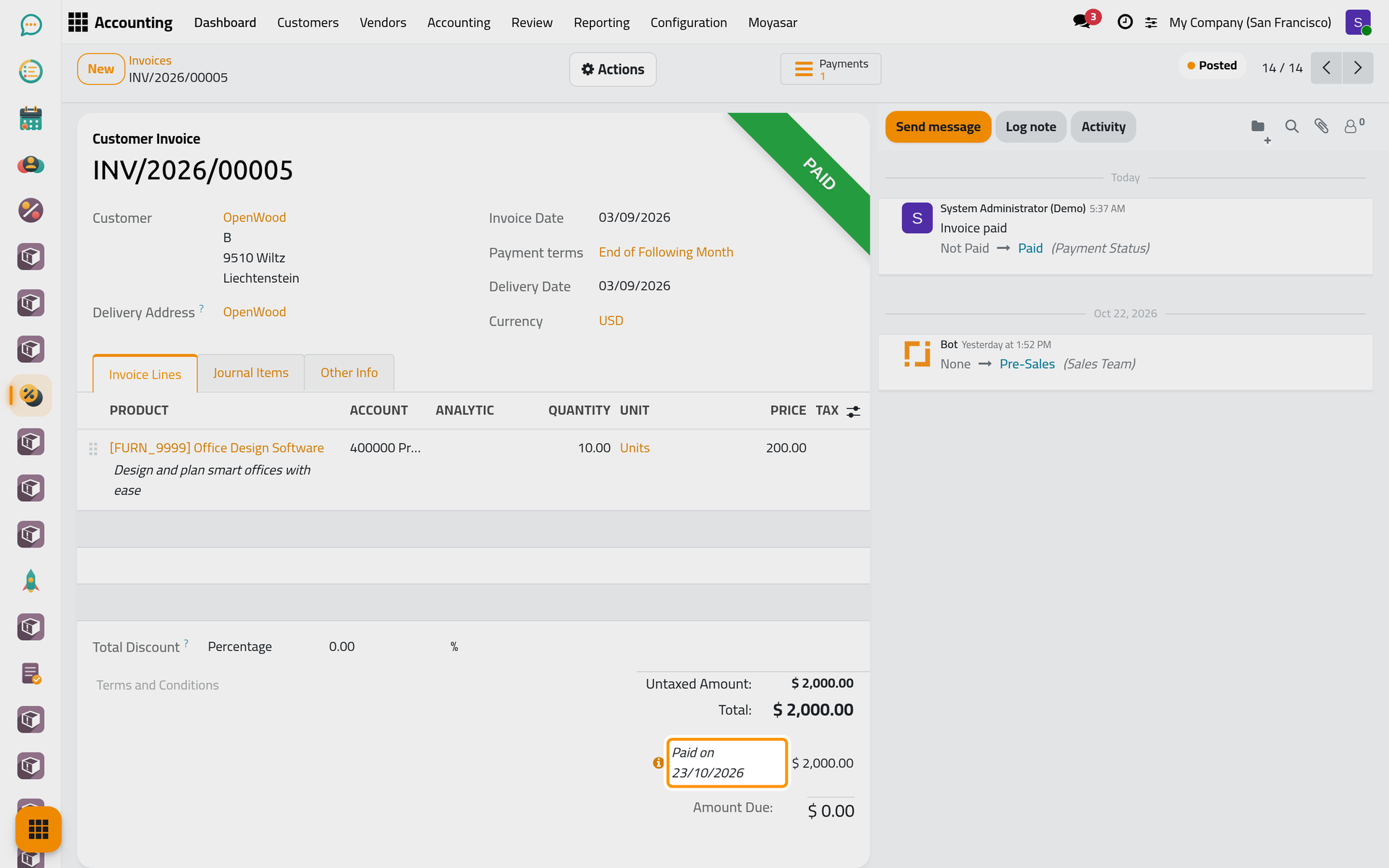
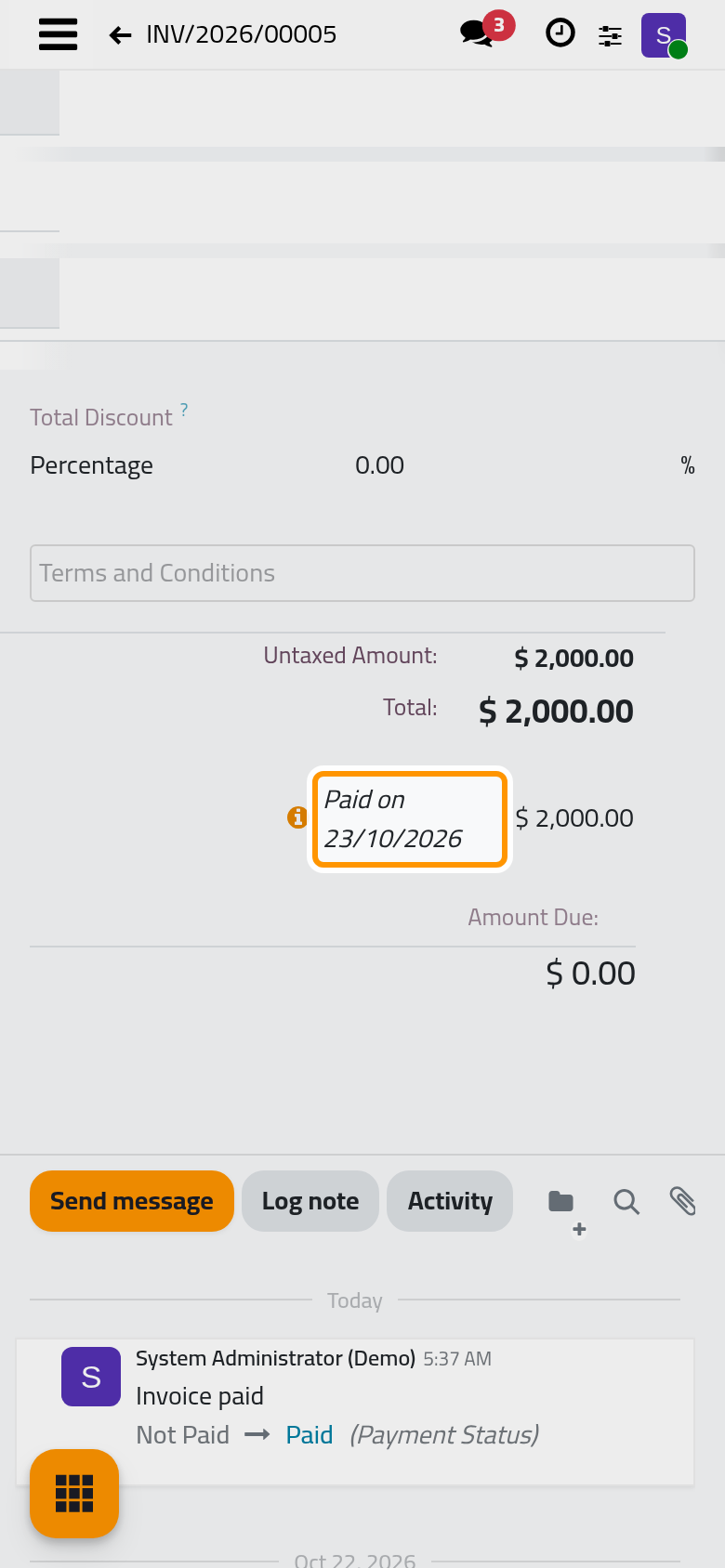
The payment moves under the total with Paid on and its date, and the Amount Due falls by its amount. When nothing is left, the invoice shows Paid. On a vendor bill, the list reads Outstanding debits and works the same way.
Several lines at once
Use this path when one payment settles several invoices, or to match lines of any account.
- Open . The open items are grouped by account, then by partner.
- Open the account (Account Receivable for customers, Account Payable for vendors), then the partner.
- Tick the payment and the invoices it settles. A Reconcile button appears at the top of the list.
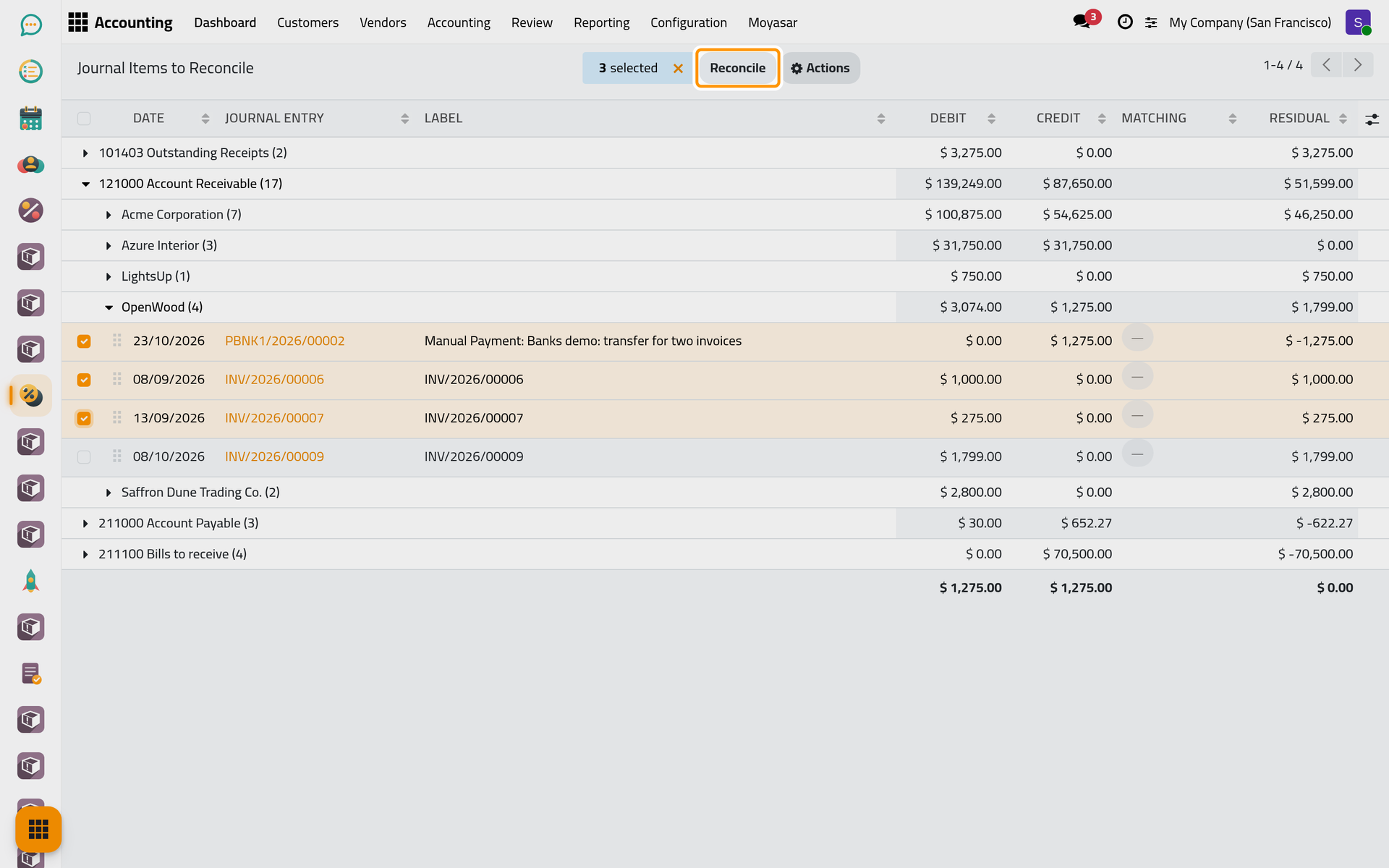
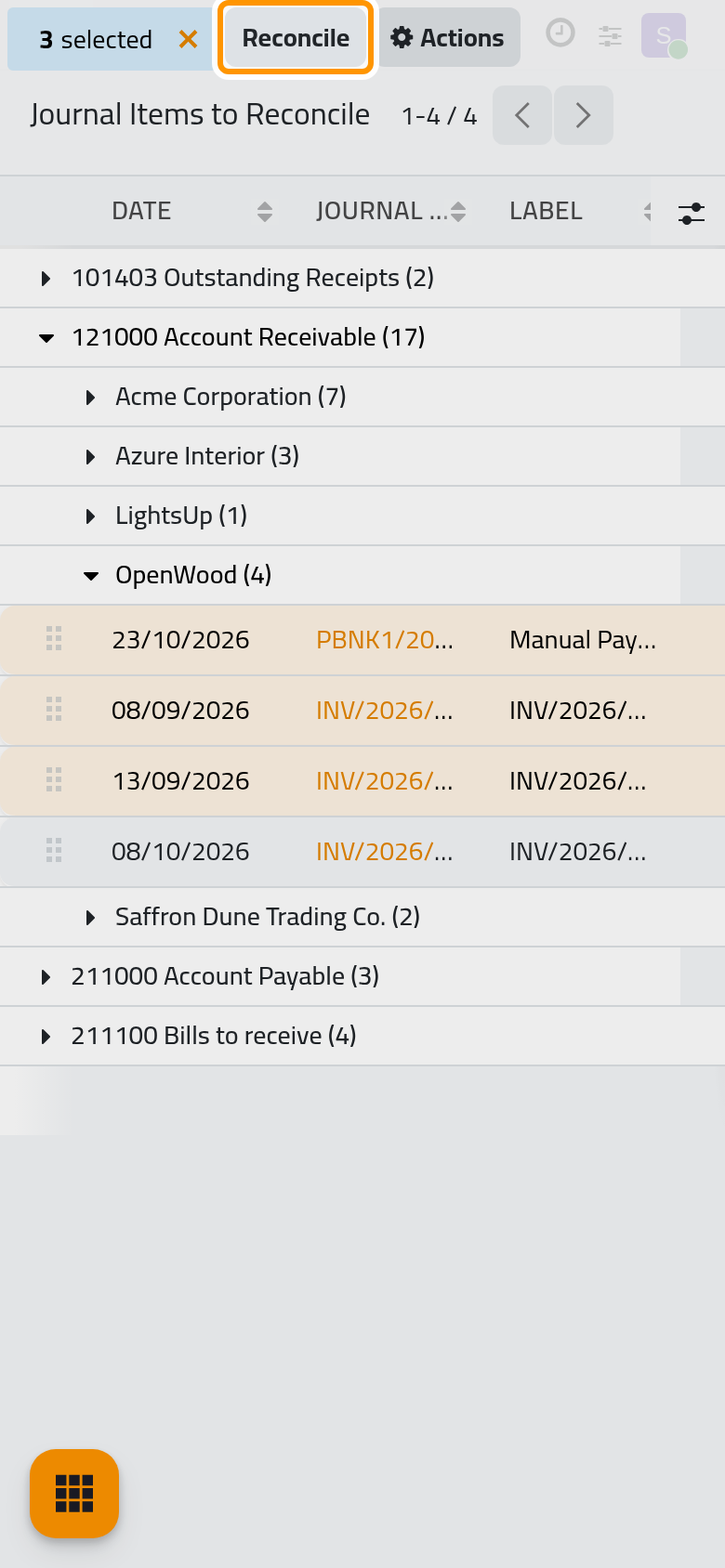
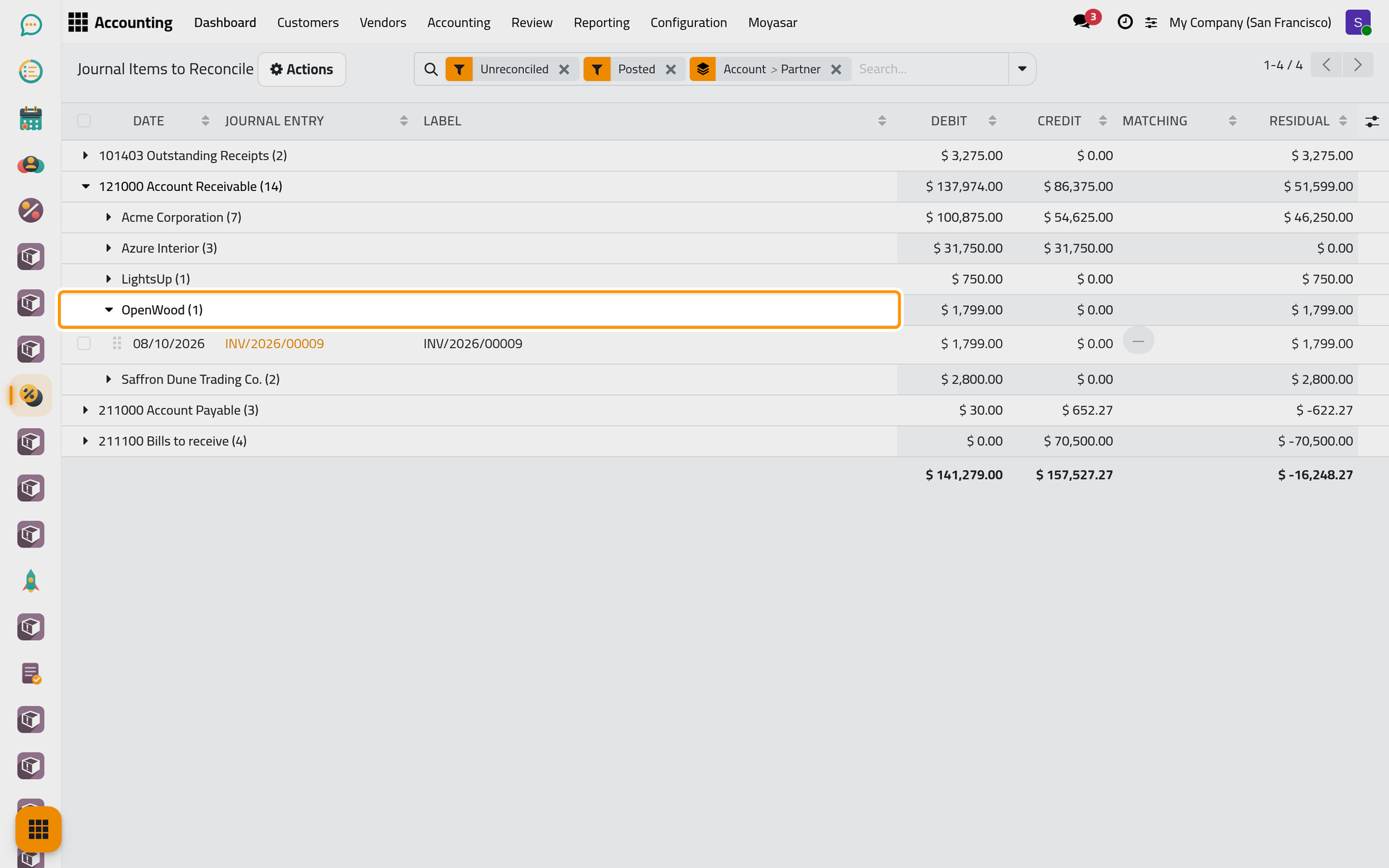
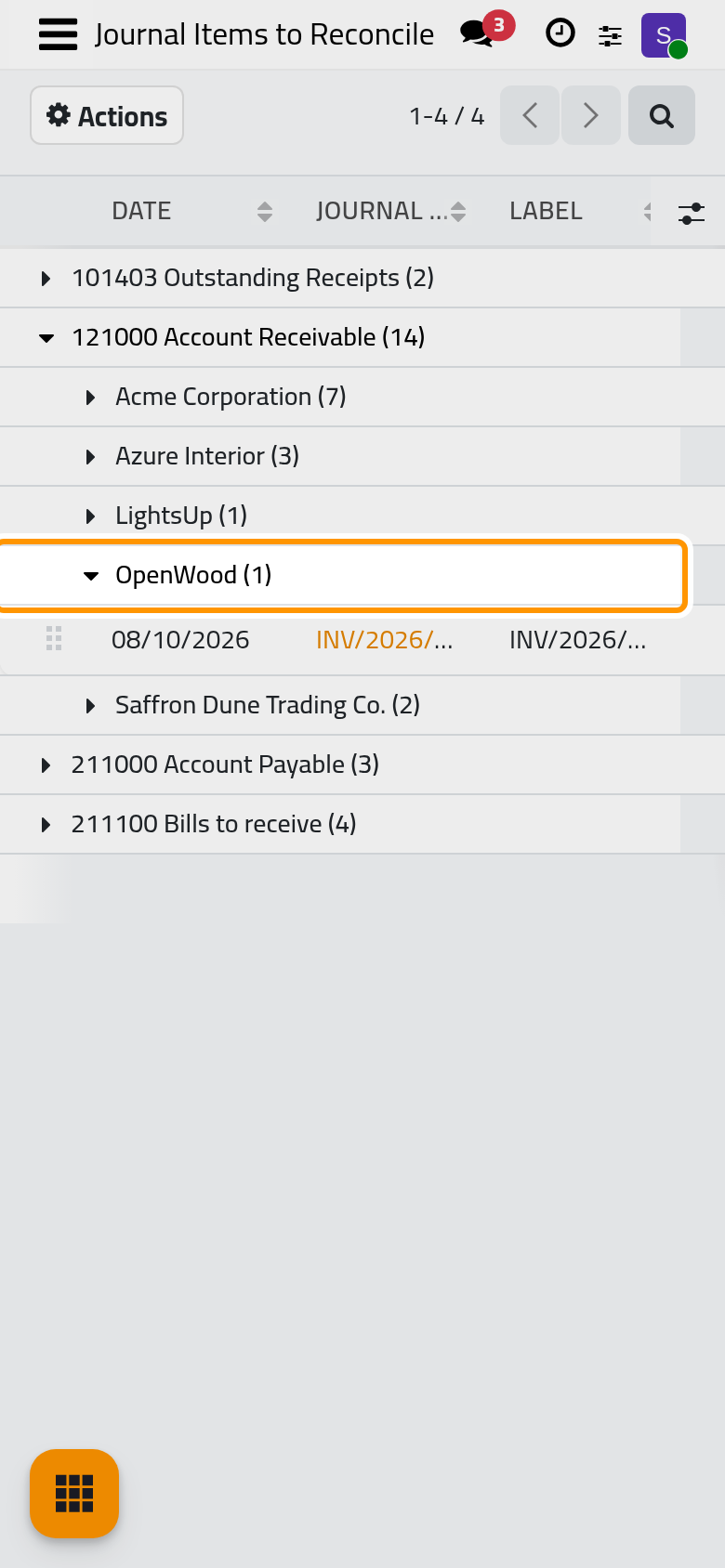
- Click Reconcile. When the amounts balance, the lines are matched at once and leave the list.
When they do not balance, the Write-Off Entry window opens with the lines and the Write-Off Amount. Either tick Allow Partials to match what can be matched and leave the rest open, or choose the Account that takes the difference, with its Label and Date; a Reconciliation Model fills the account and the label for you. Then click Reconcile.
Reconciliation models
The reconciliation models are ready-made write-offs: click the three dots of the Bank card and choose Models. The package installs Internal Transfers and Bank Fees, both applied by hand; the demo database also has Line with Bank Fees and Owner's Current Account. The Counterpart Items tab of a model says which Account takes the difference and with which Label: Bank Fees sends it to the bank fees account of the chart. Open a model to change them, or click New to add one.
Bank transactions
A bank transaction is matched in the bank reconciliation screen, which the Transactions and N to reconcile buttons of the Bank card open. In this version that screen stops on an error message as it opens, so bank transactions are not matched from it: they stay on the bank suspense account, they keep counting in N to reconcile, and the payments keep showing under Payments on the card. The daily automatic matching described in Accounting automations matches nothing today either. Matching payments with invoices, above, does not depend on that screen.
FAQ
How do I undo a matching?
On the invoice, click the small information icon next to the payment, under the total, and choose Unreconcile. The payment goes back under Outstanding credits.
The payment is not under Outstanding credits. Why?
It is still a draft, or it was recorded for another customer, or it was recorded as a payment sent instead of received. Open it from and check the customer and the type.
Where is the Reconcile button?
It shows only once lines are ticked in . Tick the payment and at least one invoice.
I clicked Transactions on the Bank card and got an error.
That button opens the bank reconciliation screen, which does not open in this version (see Bank transactions). The lists of the card are in its three-dots menu.
Was this page helpful?
Thank you for your feedback.