Add products and stock a branch
On this page
- Before you start
- Add a distribution product
- Record the stock in the branch
- Give a customer his own price
- FAQ
- A product is missing from the lines of an opening or a distribution.
- Can a customer have two prices for one product?
- Does a new price change the distributions already recorded?
- Where do the returned goods go?
A distributor can carry and sell only the products marked as distribution products, and an opening can only hand out what the Main warehouse of the branch holds. This page adds a product, records its stock in a branch and gives a customer his own price for it.
Before you start
- You need the Distributor Manager access right on Distributors. The Distribution Pricing tab of a contact is shown only with it.
Add a distribution product
- Open and click New. Distribution Product is already ticked, and the product is saved as goods whose stock is tracked.
- Type the Product name and its Sales Price: the price a distribution uses when the customer has no price of his own. The taxes of the product are used in the same way.
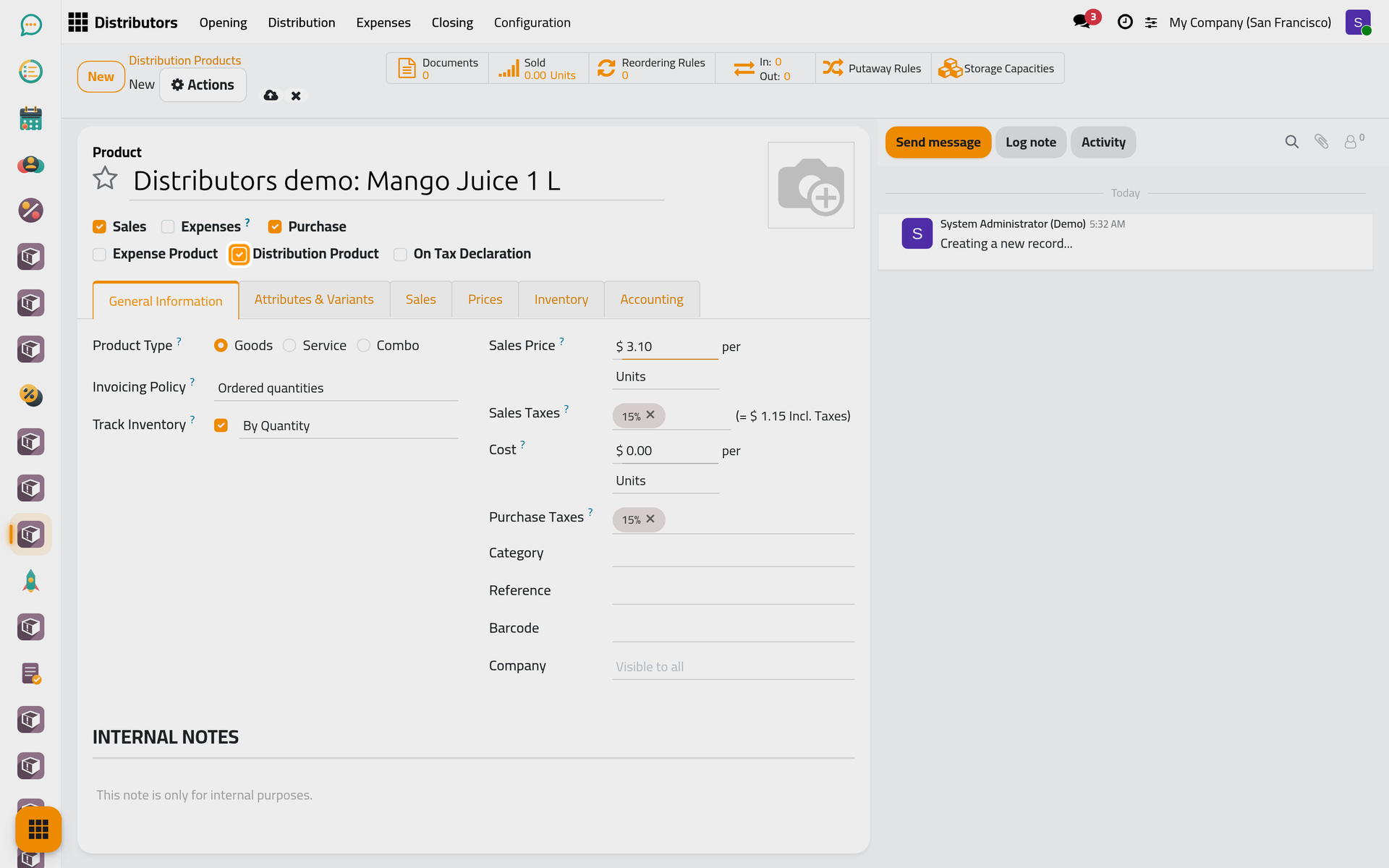
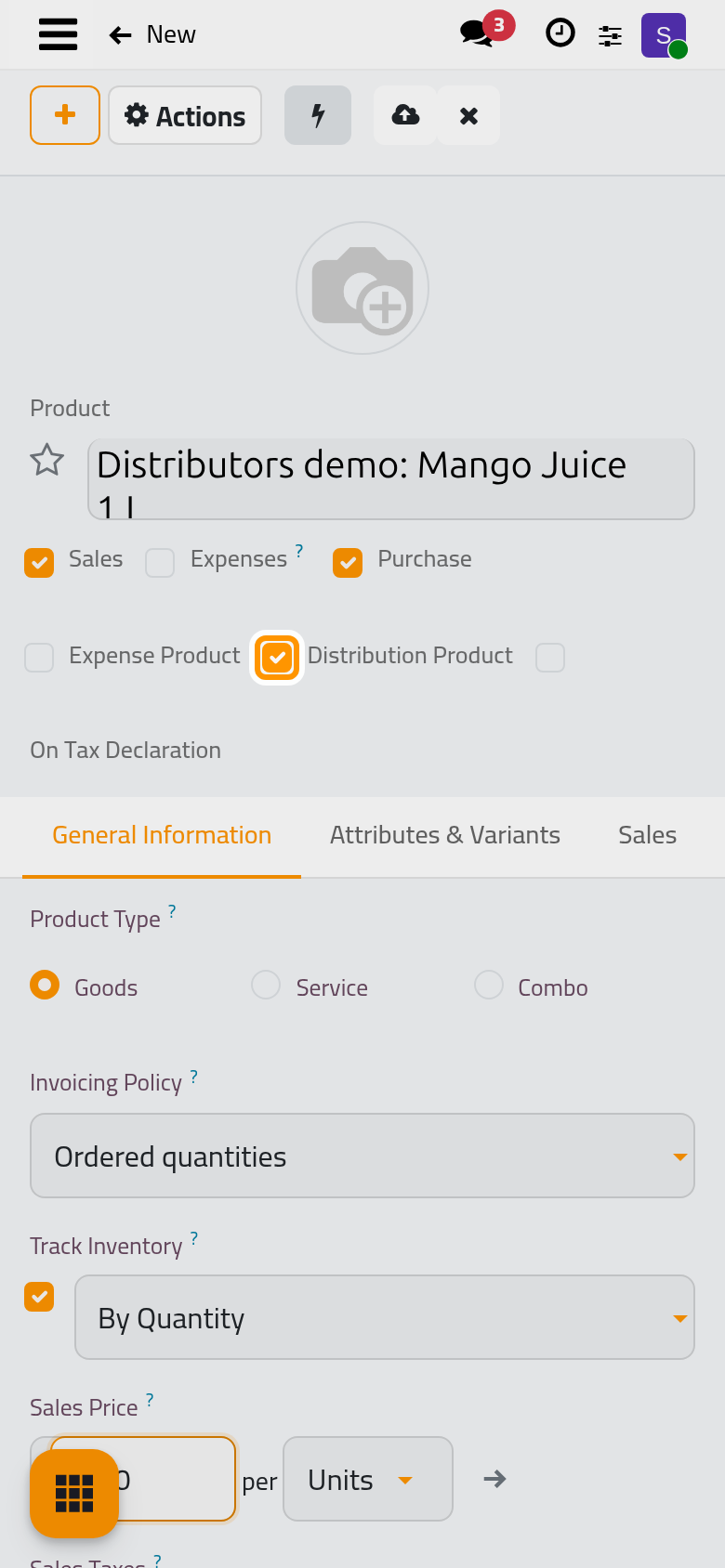
- Click Save manually.
The same row of options carries Expense Product, for the costs a distributor declares (see Submit and approve an expense), and On Tax Declaration when Purchase is ticked. lists the expense products.
Record the stock in the branch
Stock enters a branch through a receipt from production into its Main warehouse.
- Open and open the branch, Cedar Branch in the example.
- Choose Record Production in the Actions menu. A receipt opens with the Main warehouse of the branch as its destination.
- Click Add a Product, choose the product and type the Demand, here 60.
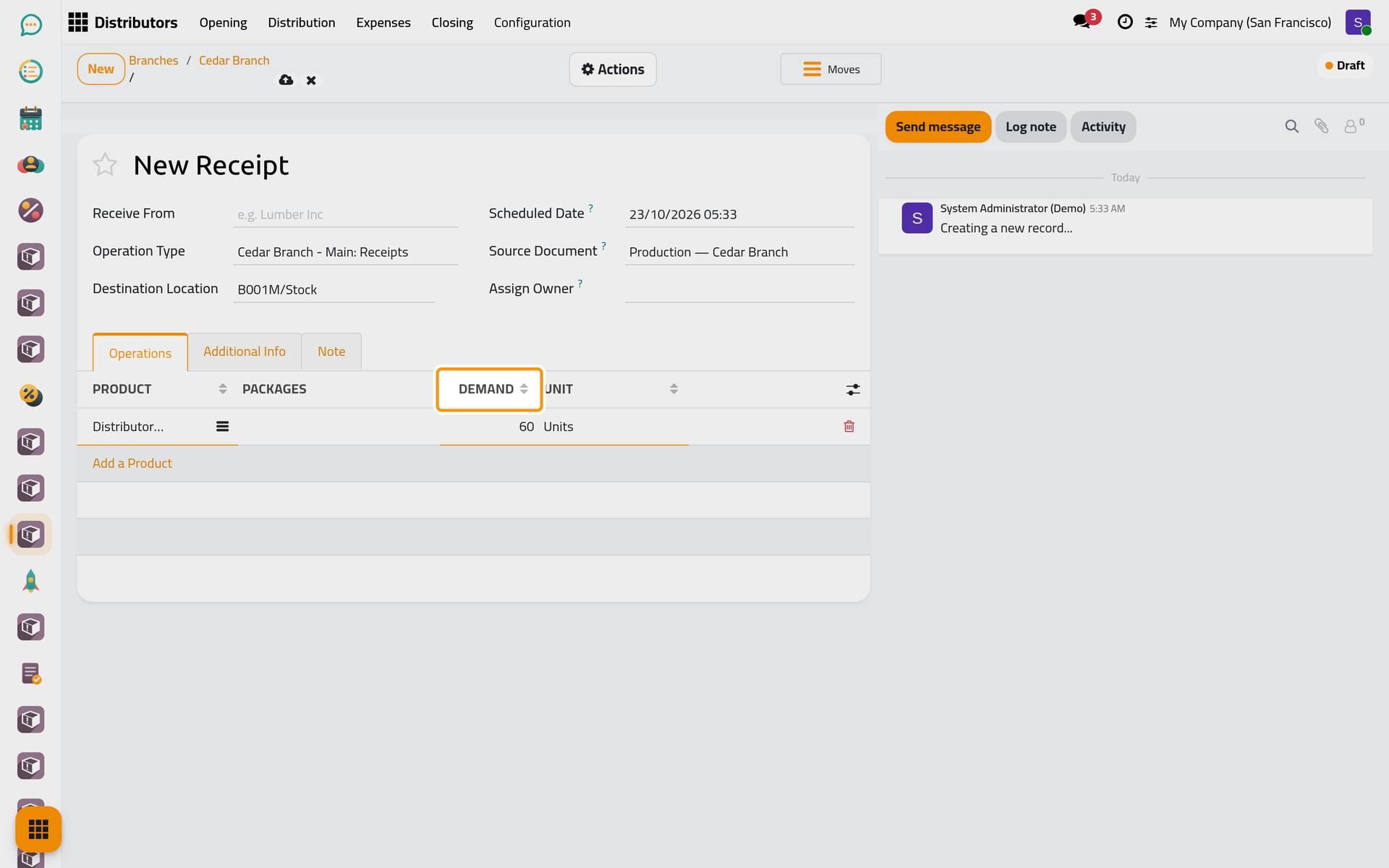
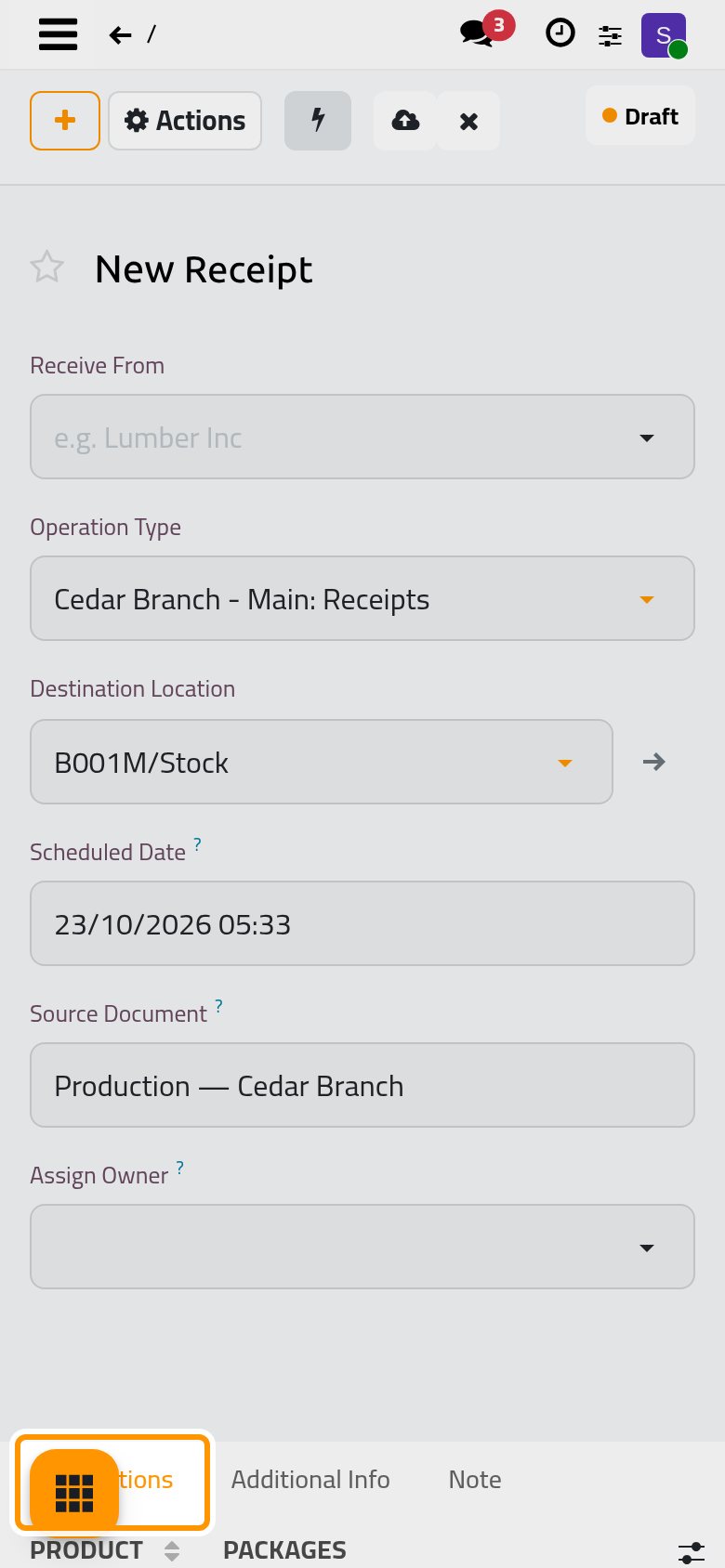
- Click Save manually, then choose Validate in the Actions menu. The receipt is Done.
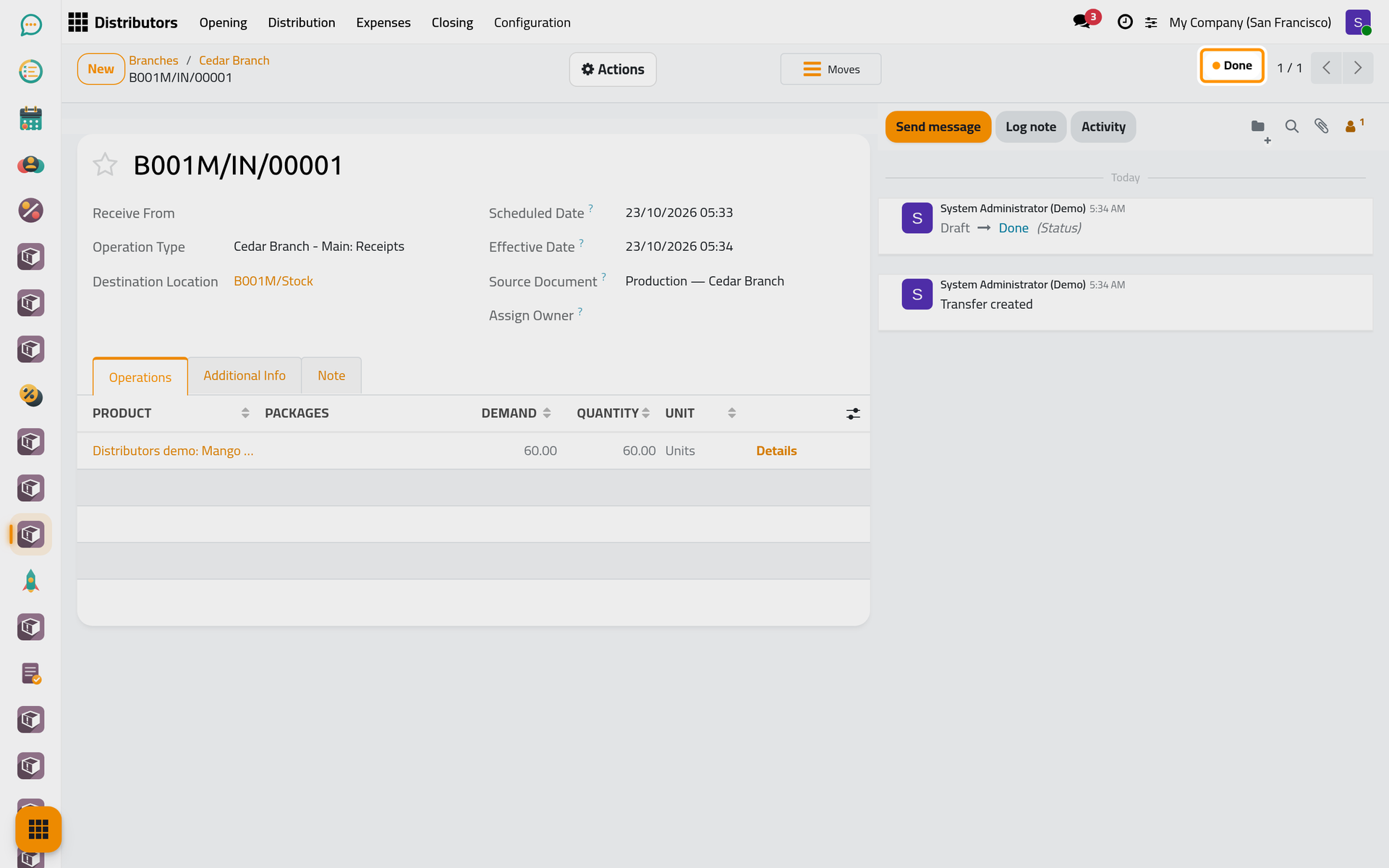
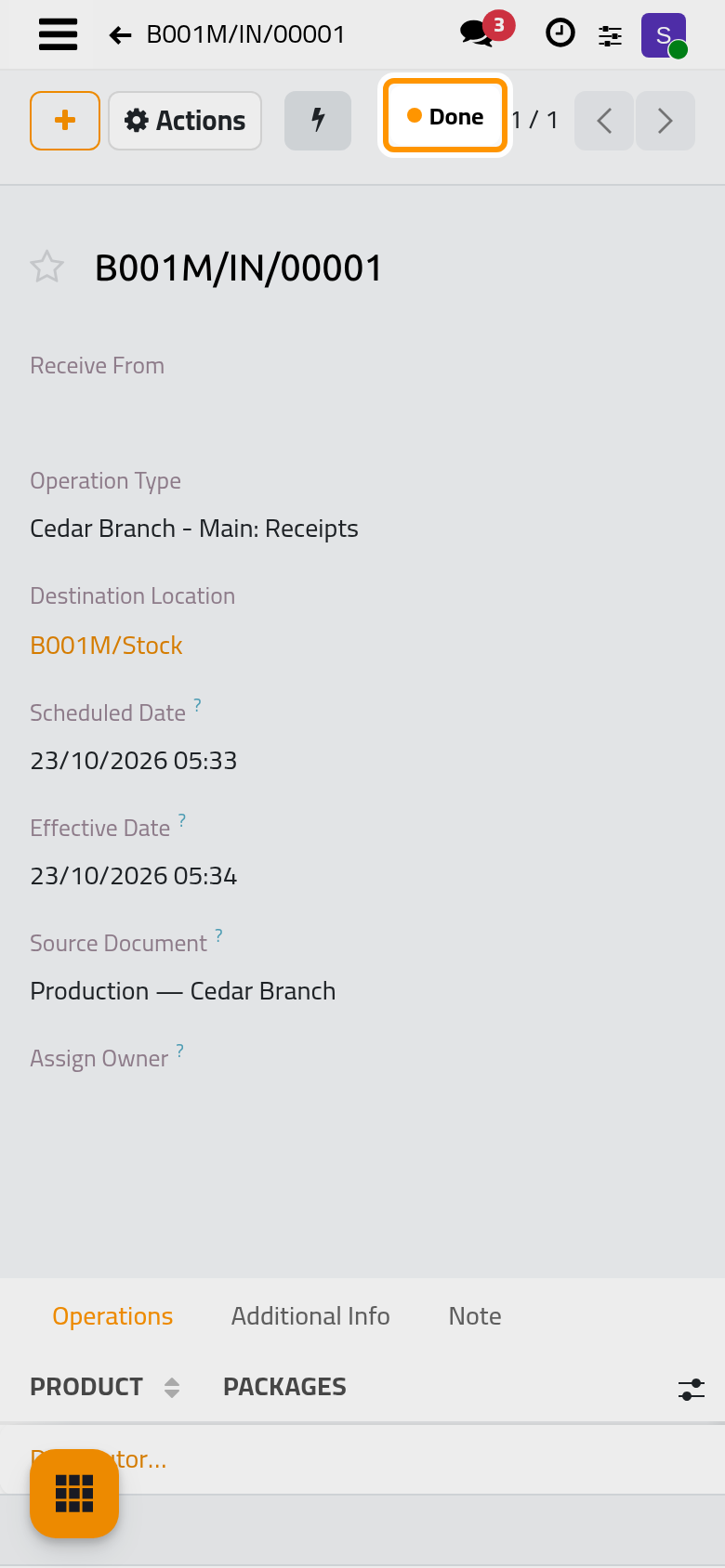
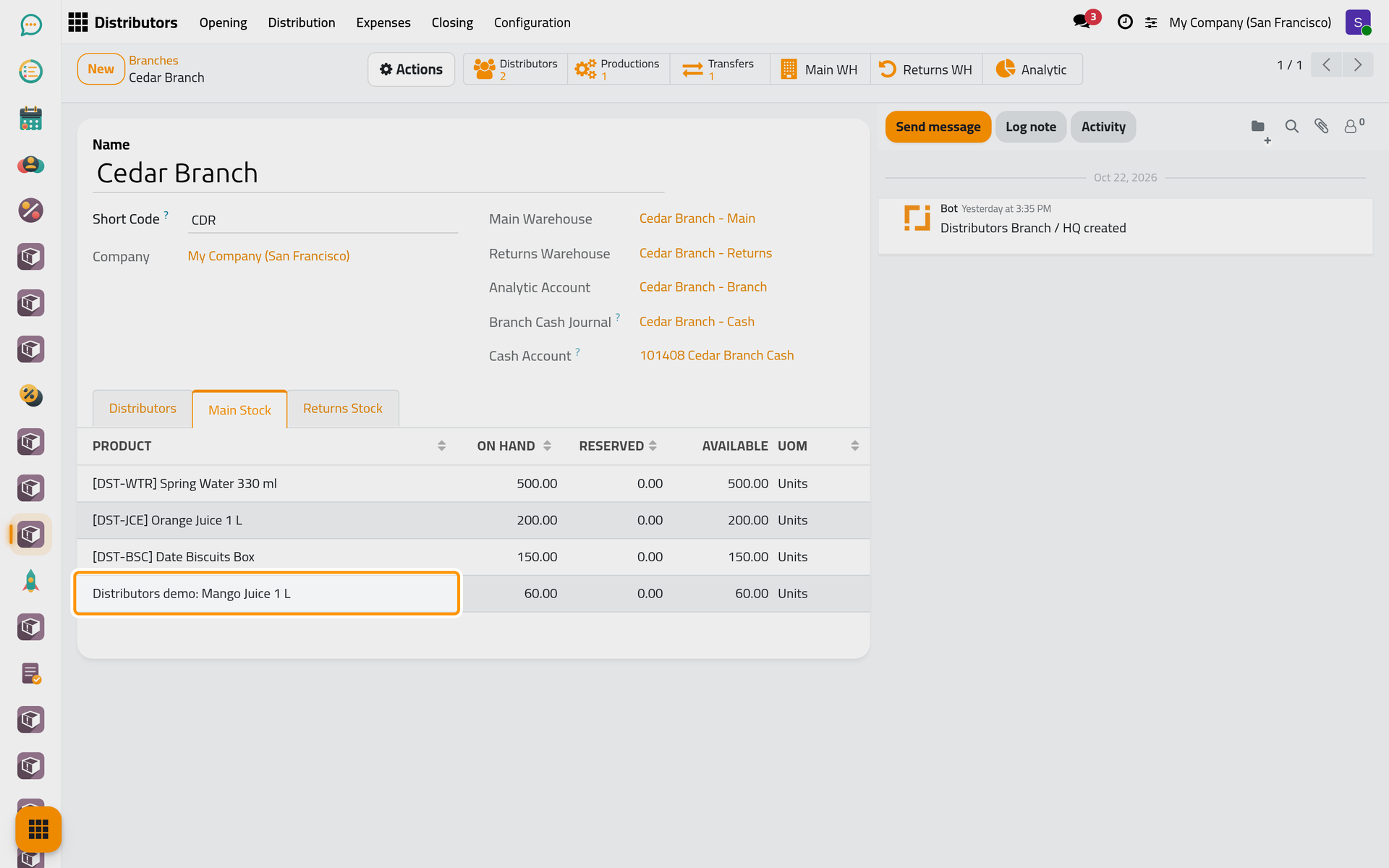
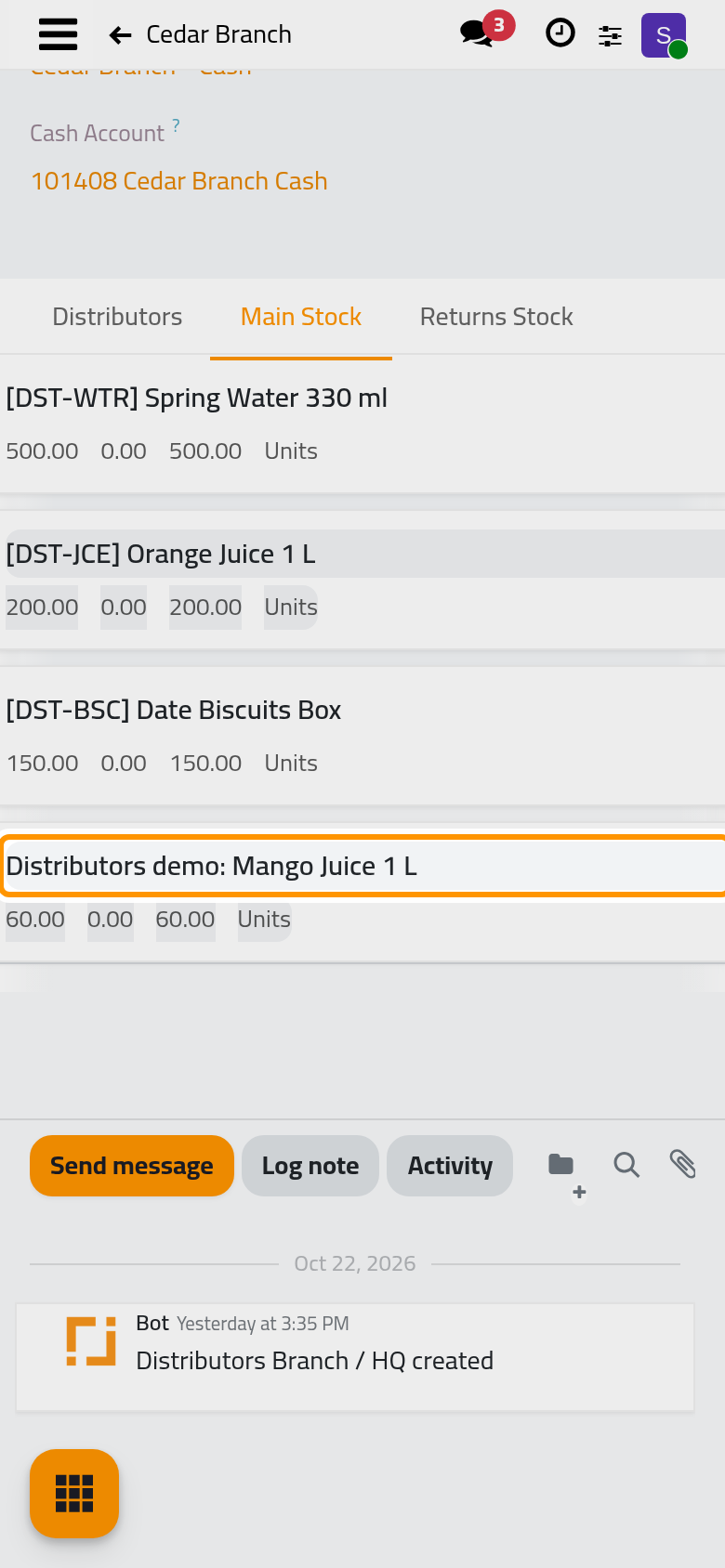
- Go back to the branch through the breadcrumb and open the Main Stock tab. It shows On Hand, Reserved and Available for each product. The Productions counter lists the receipts recorded this way.
Give a customer his own price
- Open , search for the shop and open it.
- In the Distribution Pricing tab, click Add a line, choose the product and type its Price. The taxes of the product are proposed; change them for this customer if needed.
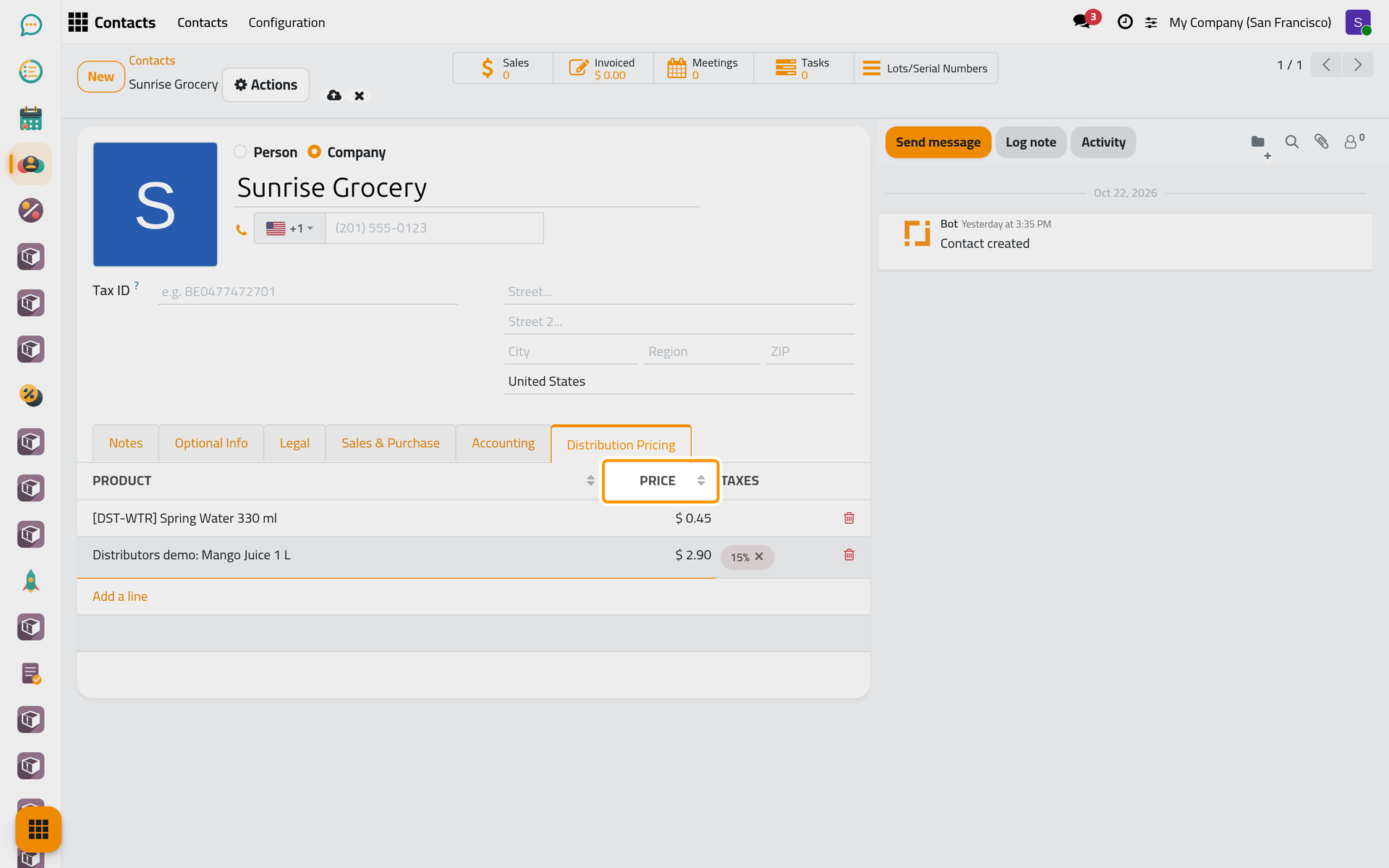
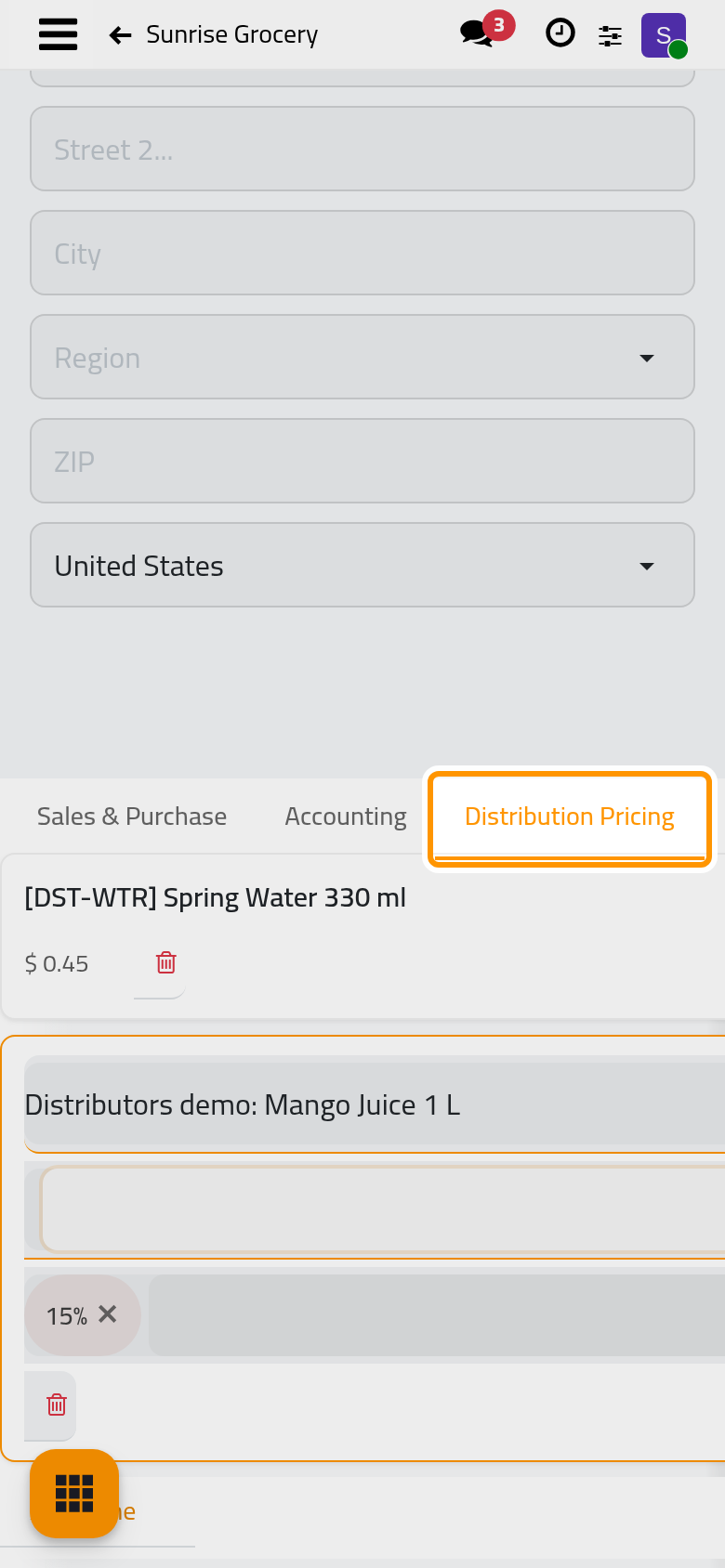
- Click Save manually. From now on, a distribution to this customer takes this price and these taxes when the product is chosen on a line.
FAQ
A product is missing from the lines of an opening or a distribution.
Only the products with Distribution Product ticked can be chosen there. Open the product and tick it.
Can a customer have two prices for one product?
No: one price per product and customer. Change the existing line instead.
Does a new price change the distributions already recorded?
No. The price is taken when the product is chosen on a line; lines already written keep theirs.
Where do the returned goods go?
A shop's returns go into the distributor's Returns warehouse, then at closing into the Returns warehouse of the branch, with the leftovers. Record Scrap on the branch writes off stock from that Returns warehouse.
Was this page helpful?
Thank you for your feedback.