Record a sale and collect payment
On this page
A distribution is one visit to one customer: the goods sold, the goods returned, and how the shop pays. A distributor records his own from the Distribution menu; a manager can record one for any distributor.
Before you start
- The Distributor access right is enough for a distributor's own distributions. A Distributor Manager chooses the distributor and may change the prices and the taxes of the lines.
- The distributor needs a confirmed opening. A distribution is linked to his open opening when it is saved, and the closing counts only the distributions linked to it.
Record the distribution
- Open and click New.
- Choose the Customer and the Payment Type: Direct when the shop pays on delivery, Deferred when it pays later. Choose the Distributor; a distributor's own name is already there.
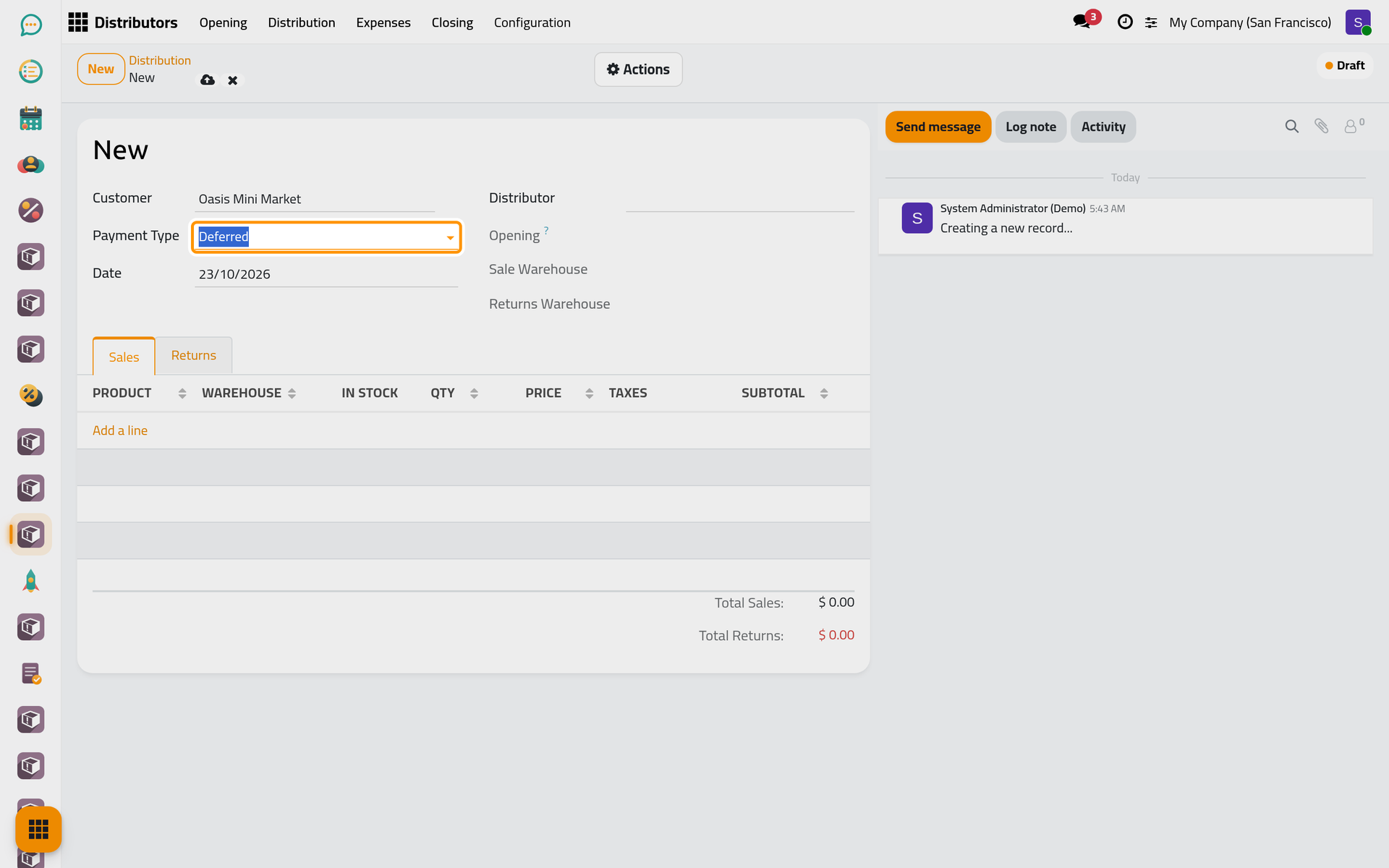
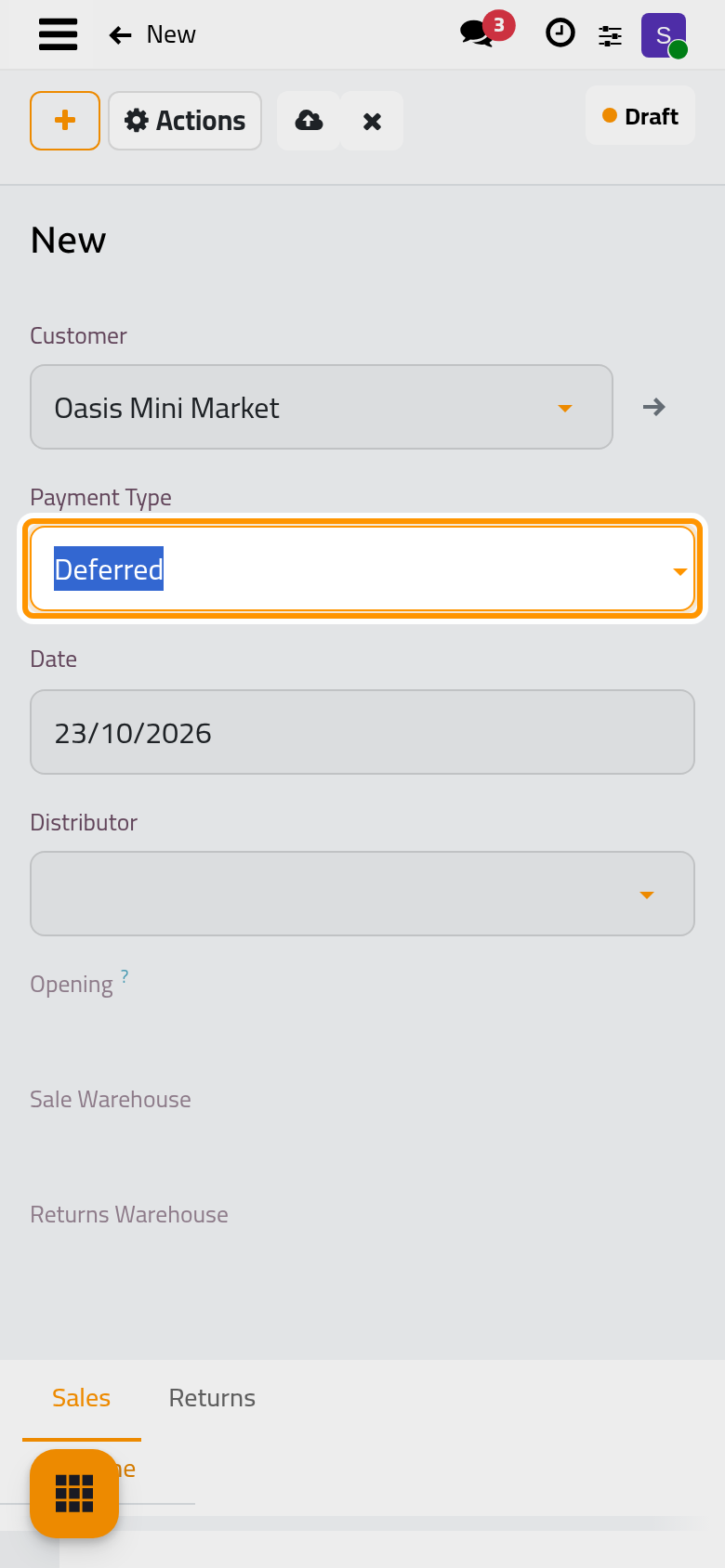
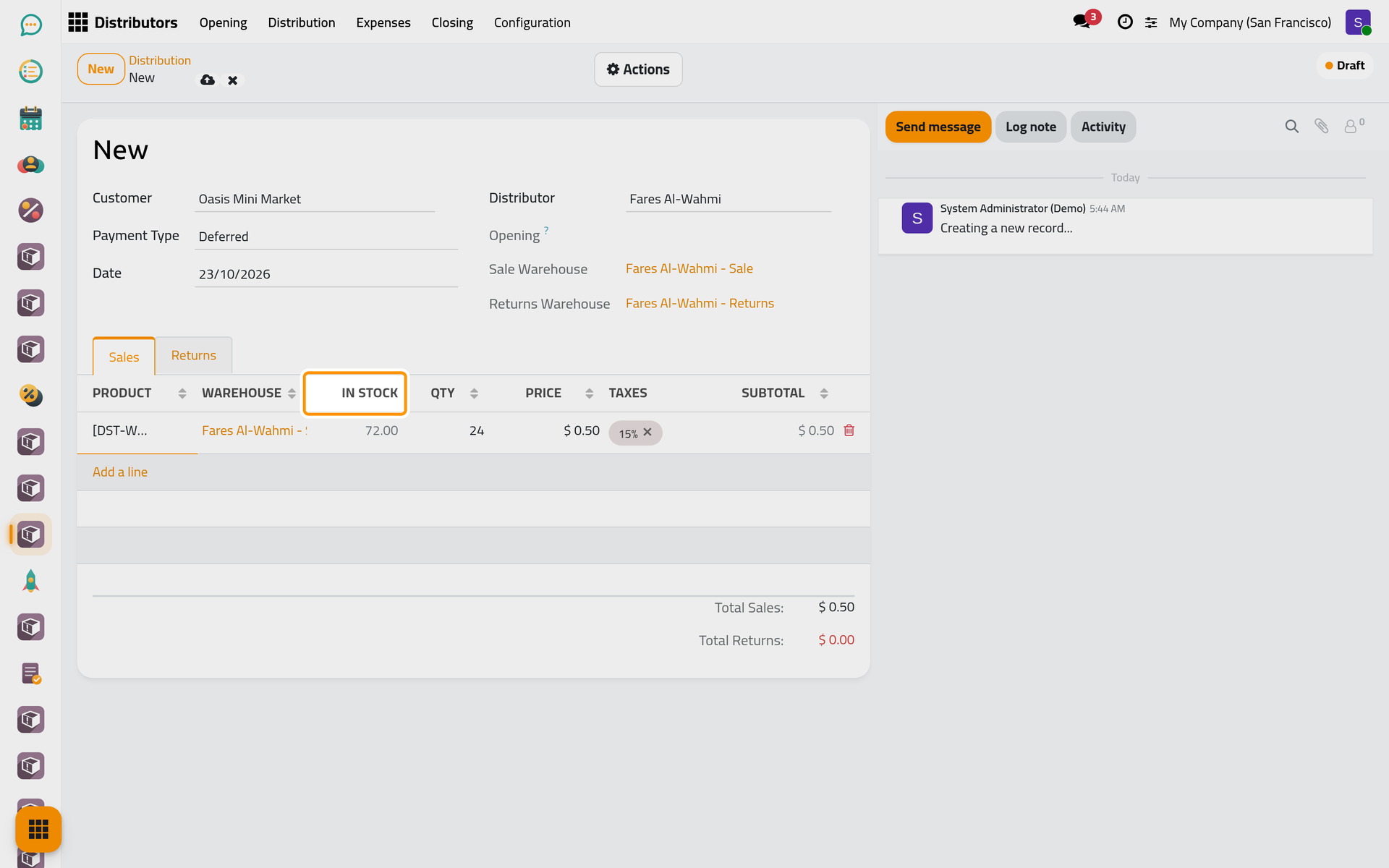
- In the Sales tab, add each product sold with its Qty. In Stock shows what is left in the distributor's Sale warehouse. The Price and the Taxes come from the customer's distribution price, else from the product.
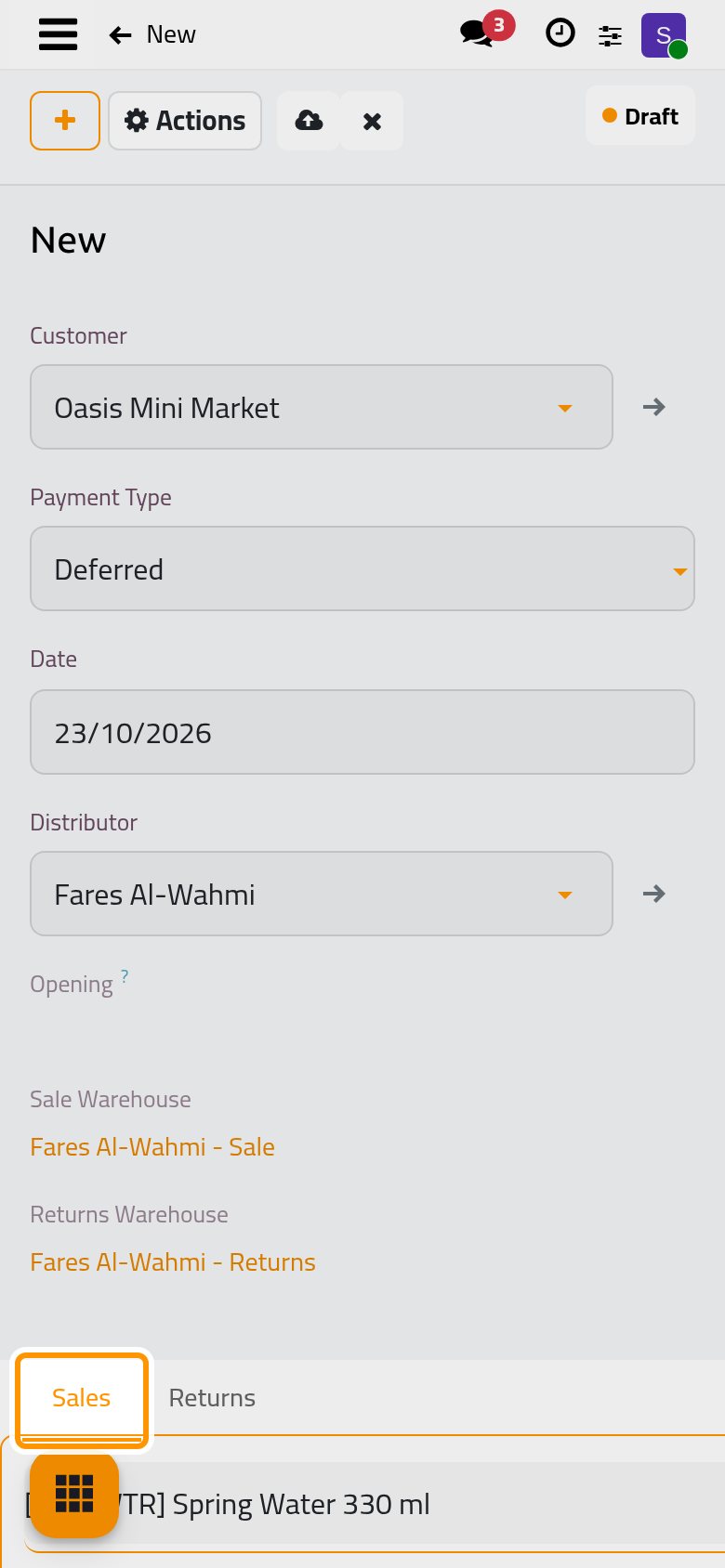
- In the Returns tab, add what the shop hands back. These goods go to the distributor's Returns warehouse, never back among the goods he sells.
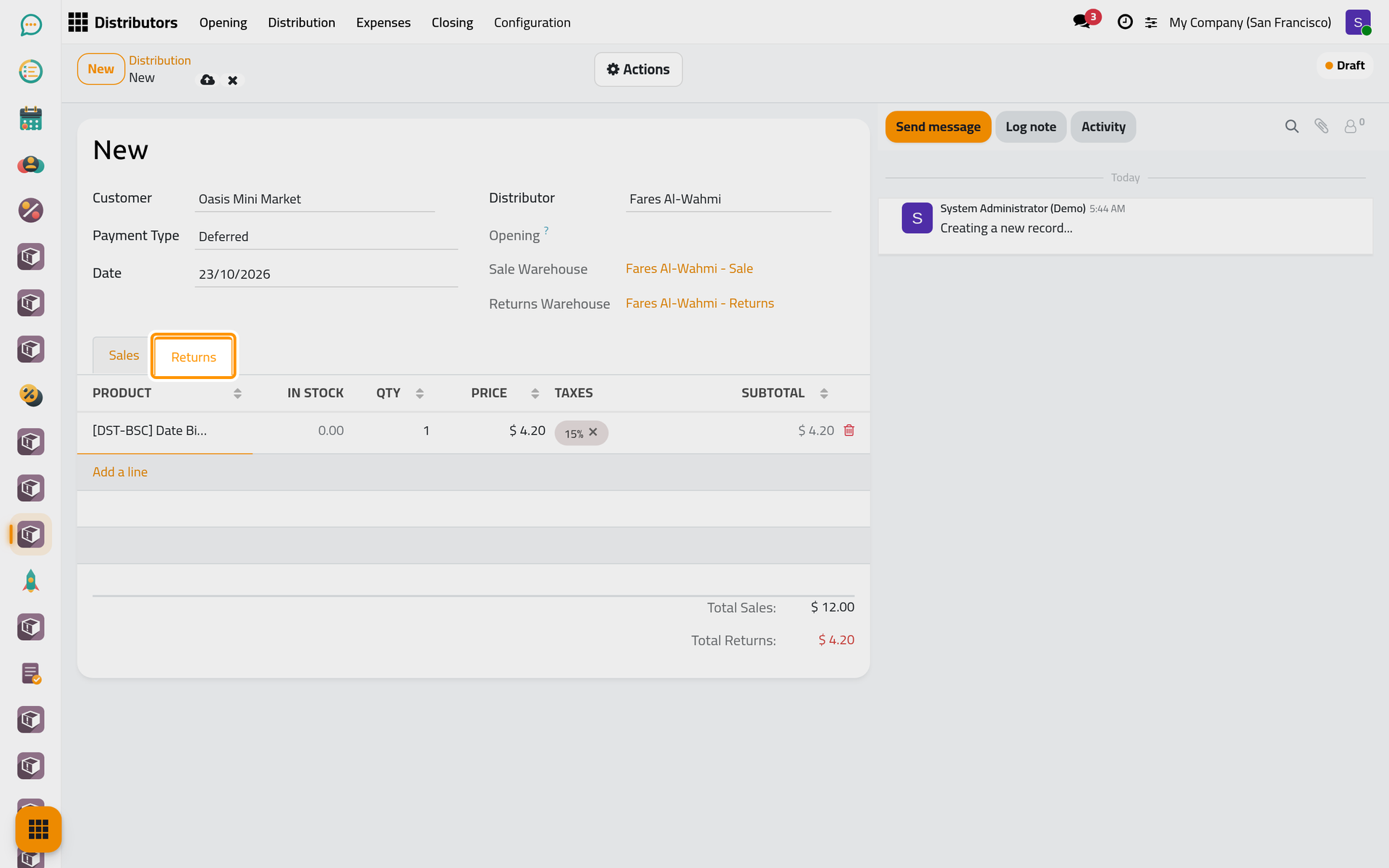
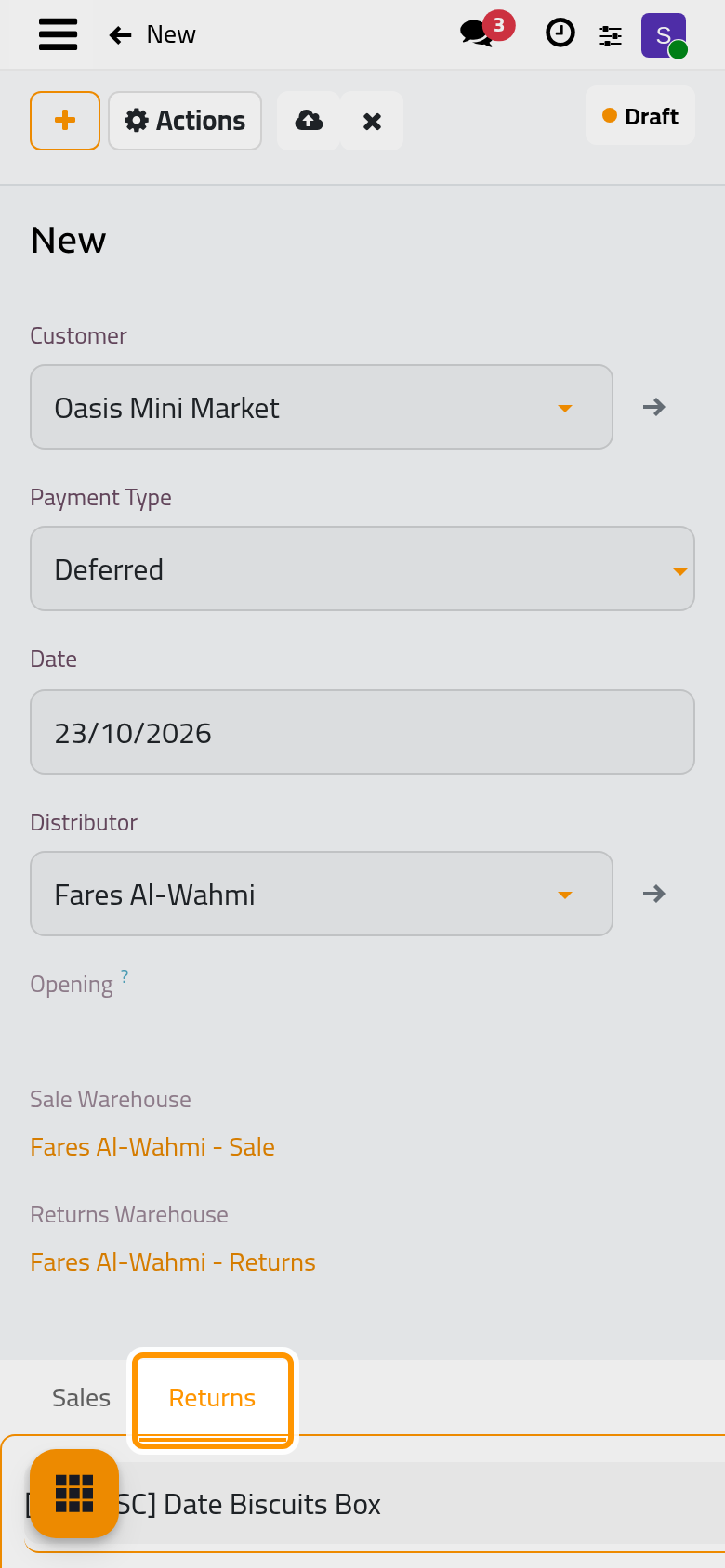
- Click Save manually, then choose Confirm in the Actions menu. Confirm is refused when the Sale warehouse lacks a product, unless Inverse Selling is on in Distributors settings. Once confirmed, the delivery and the return are done, and a draft invoice and a draft credit note wait for the payment.
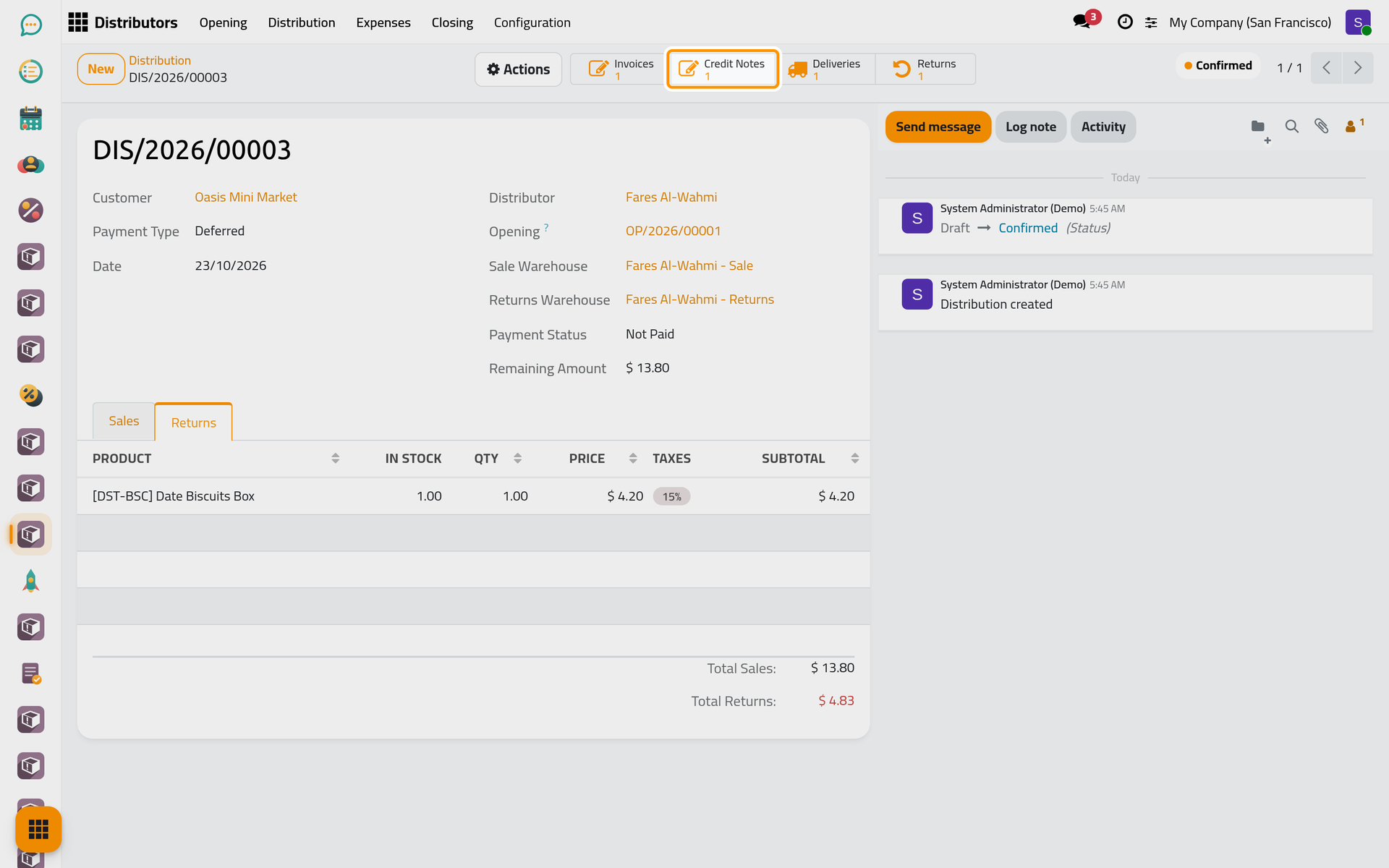
Before confirmation, Total Sales and Total Returns add up the lines without taxes; afterwards they show the totals of the invoice and the credit note, taxes included. On a phone, the counters sit behind the lightning button of the form.
Collect the payment
- Choose Register Payment in the Actions menu. The Amount proposed is what is due, the sales minus the returns; type less for a partial payment. The Cash Journal is the distributor's own.
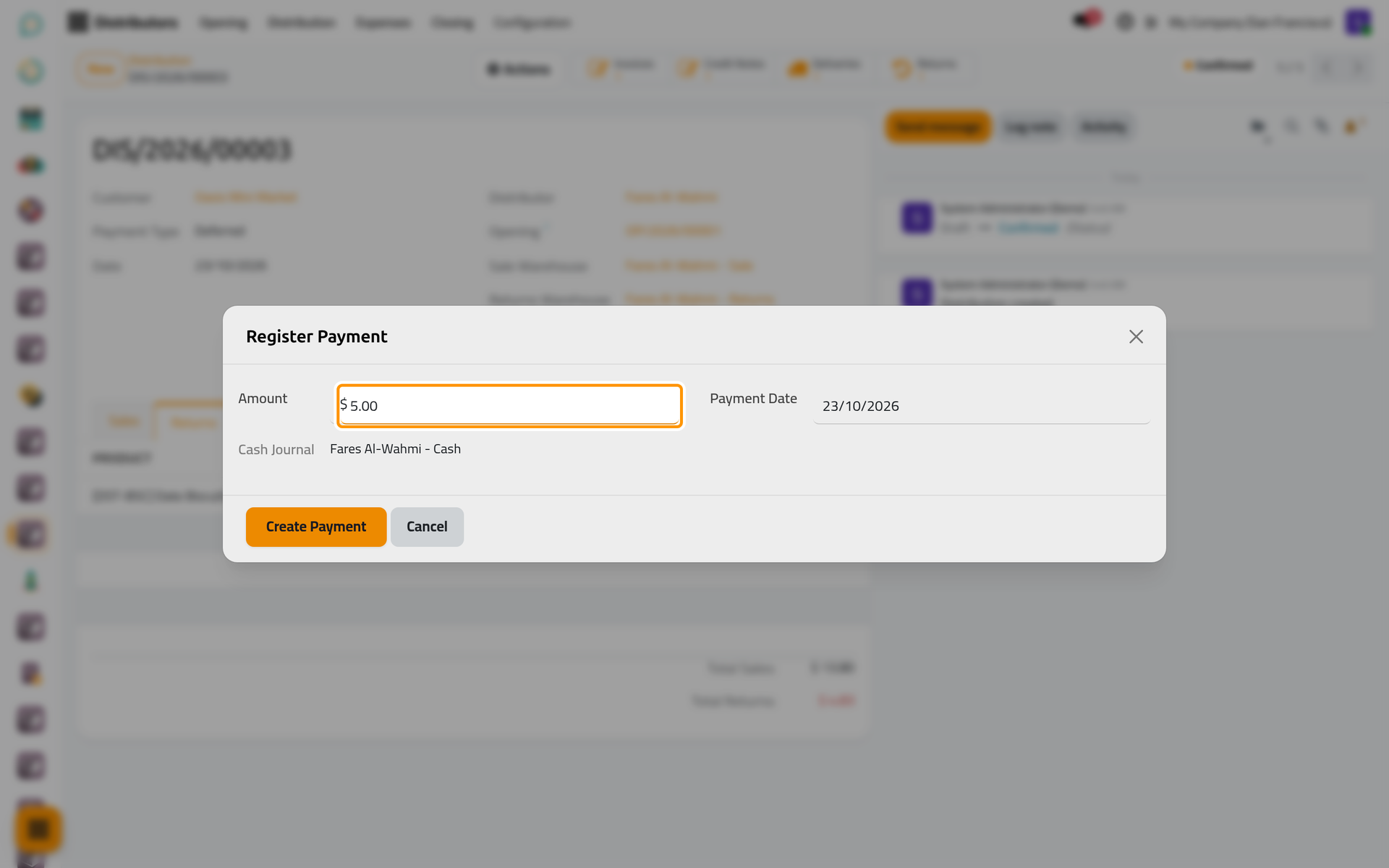
On a phone, the dialog opens full screen with the same fields and buttons.
- Click Create Payment. The credit note and the invoice are posted and matched, and the payment goes into the distributor's cash journal. Payment Status shows Paid, or Partial with the Remaining Amount still due.
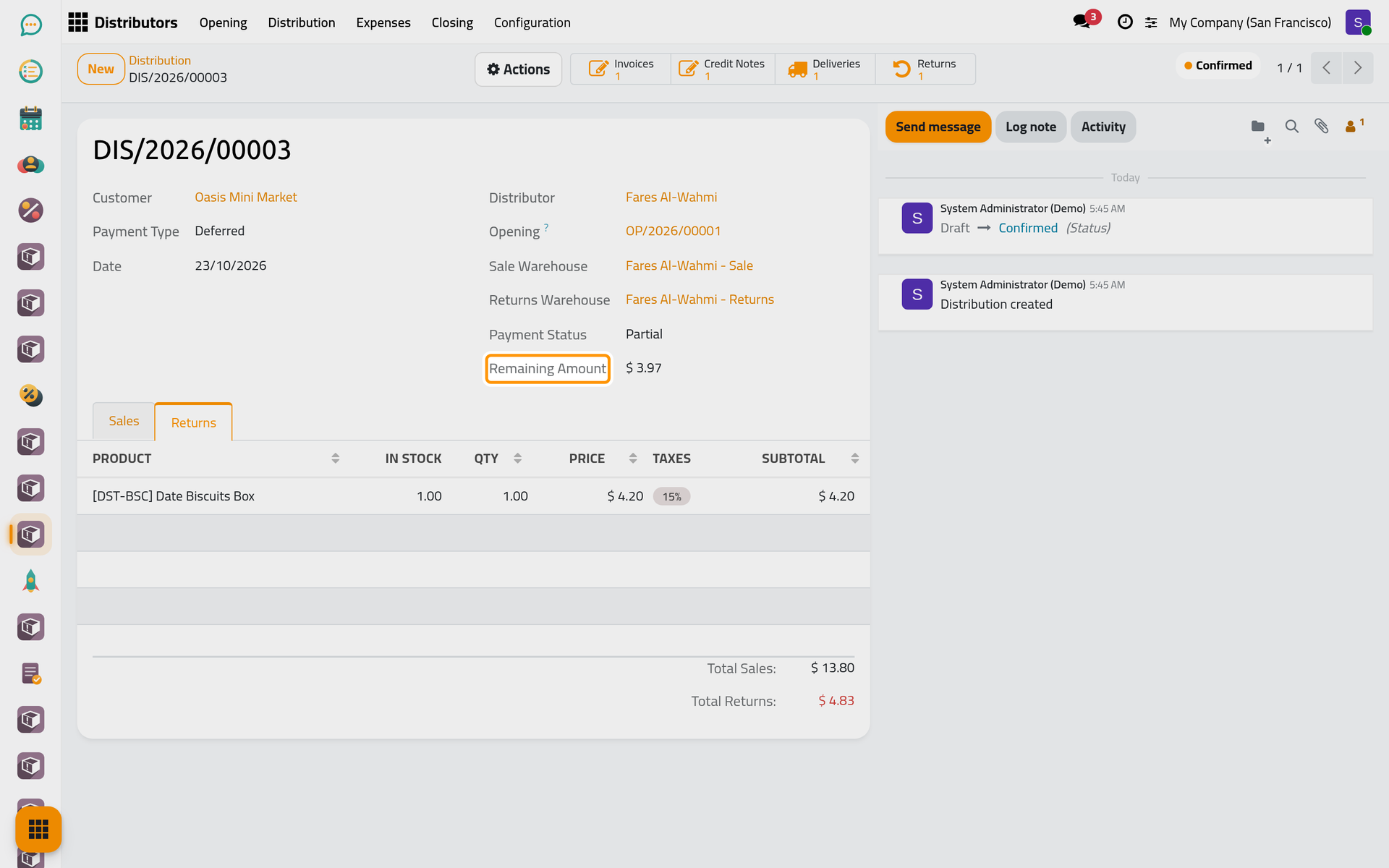
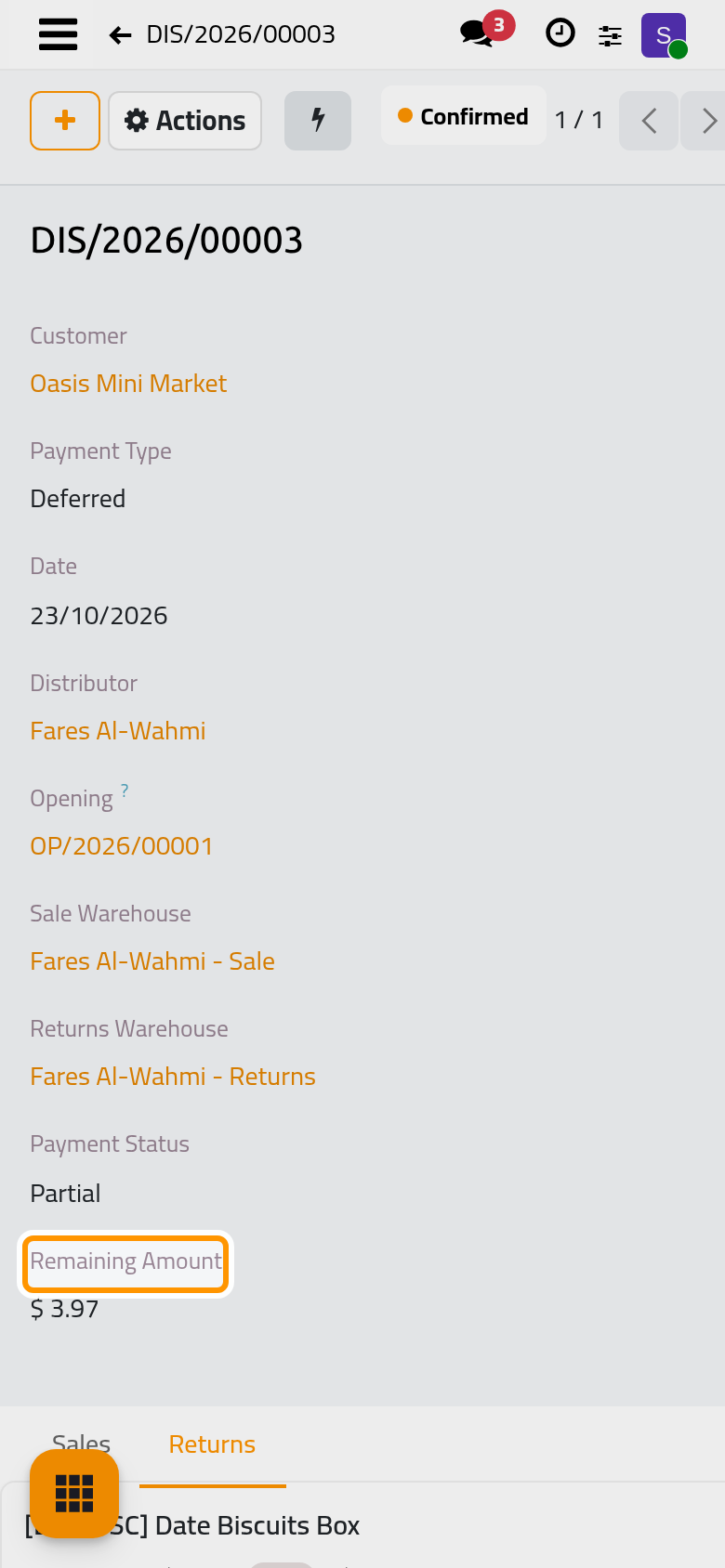
Register Payment stays in the menu until nothing remains due. The invoice and the credit note are ordinary customer documents: see Customer invoices.
Print the documents
Print Roll opens the invoice and the credit note on one narrow page for a receipt printer, with its own Print button and a Back button. Print A4 downloads both documents as one PDF file.
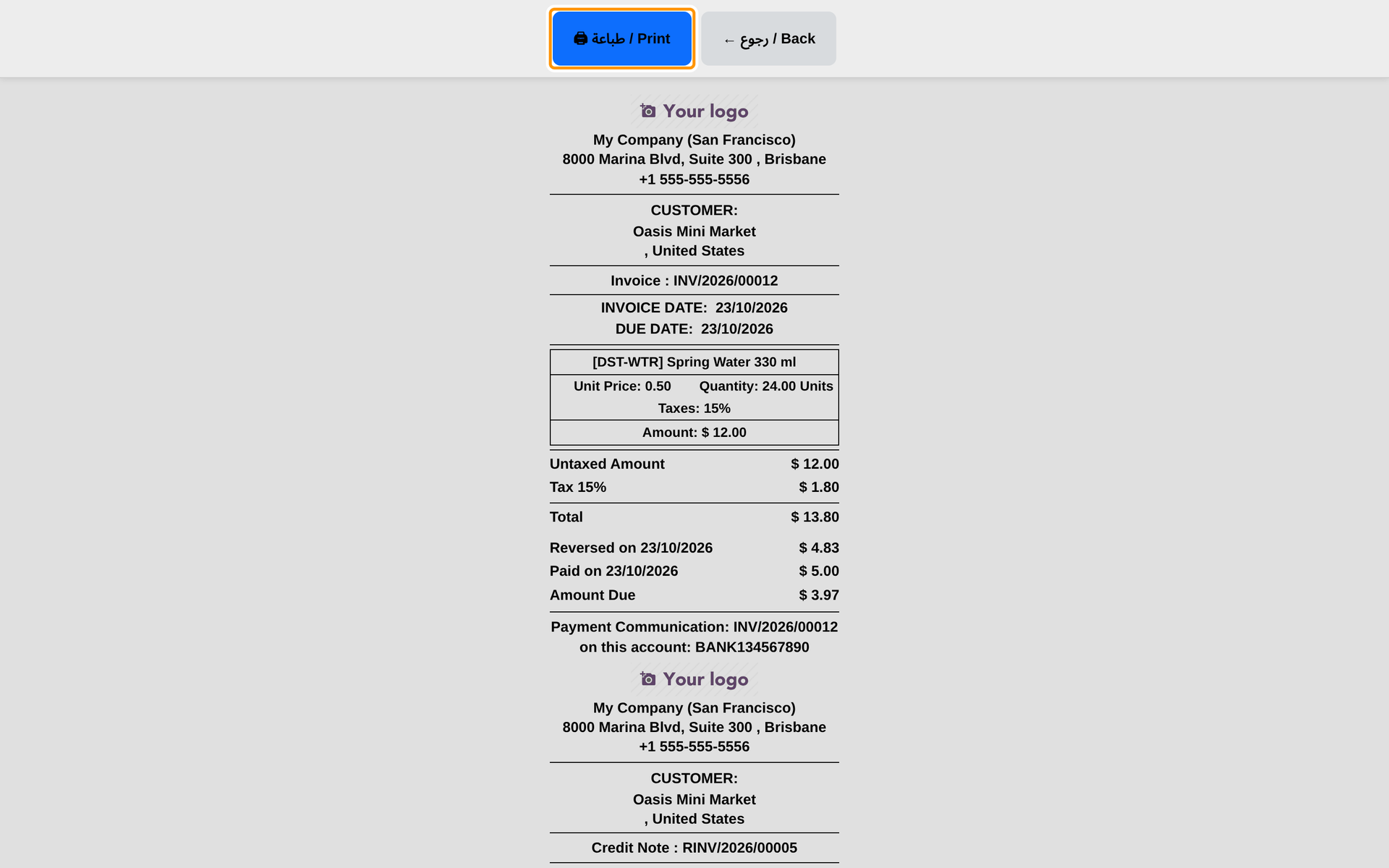
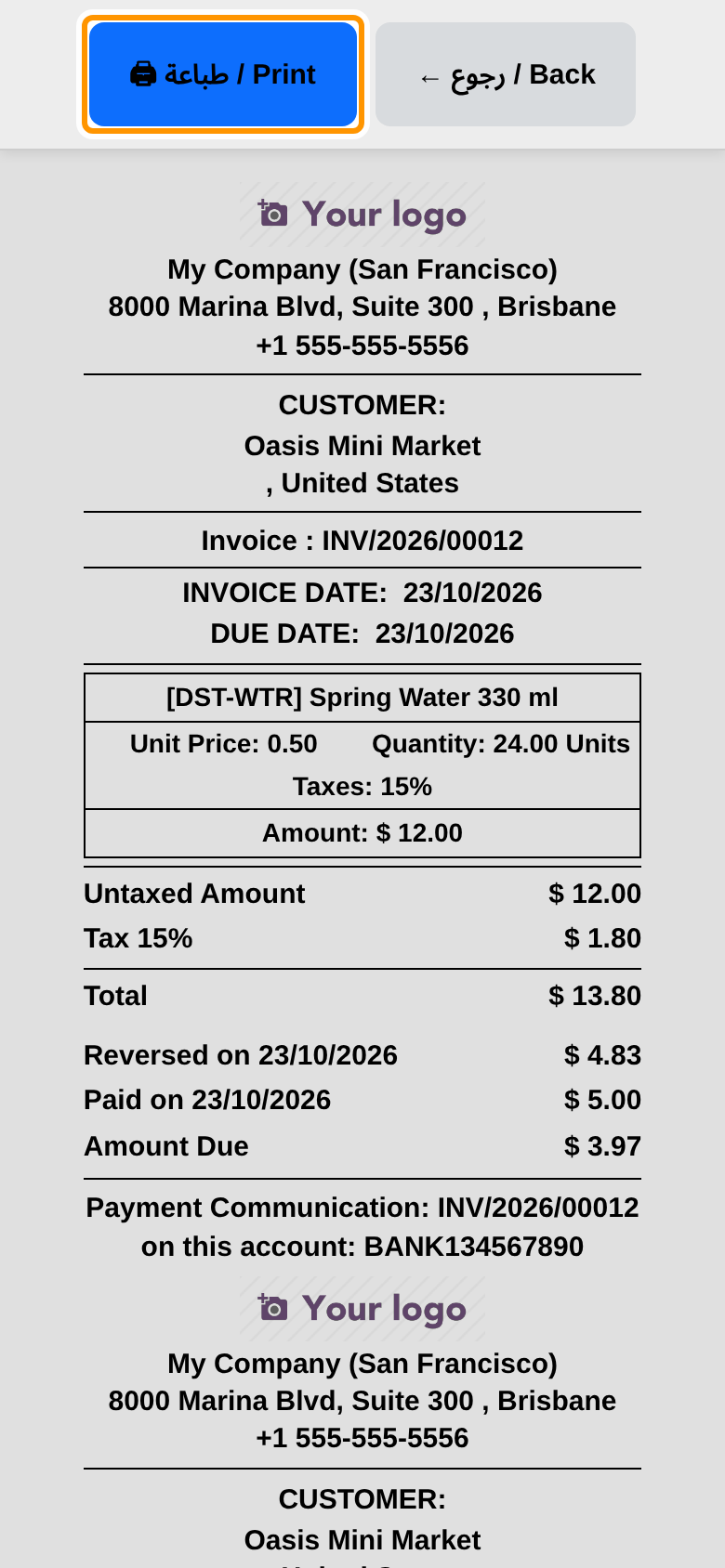
Send by Email, also in the Actions menu of a confirmed distribution, opens a message to the customer with the distribution details; it leaves when you click Send.
FAQ
Confirm says the stock is insufficient.
The distributor's Sale warehouse holds less than the lines ask for. Hand him the goods with an opening, or turn Inverse Selling on to allow selling beyond the stock.
Can I change a confirmed distribution?
No. A Distributor Manager can choose Cancel & Reverse: the delivery and the return are reversed, the invoice and the credit note are cancelled or reversed, and the distribution becomes Canceled. Reset to Draft then brings it back to a draft.
What happens to a Direct distribution nobody paid?
The closing pays it: Compute posts its invoice and records the payment from the distributor's cash journal on the closing date. A Deferred distribution stays open until its payment is registered.
Where does the cash go?
Into the distributor's cash journal, whose balance is the cash he holds. At closing, the cash he hands in moves to the cash journal of the branch.
Was this page helpful?
Thank you for your feedback.