Pause or change an asset
On this page
Plans change: a laptop lasts longer than expected, a screen will be resold for more than planned, a room is closed for works. Once an asset or a deferral is confirmed, change its parameters through Adjust, which keeps the posted entries and rebuilds the rest; the fields of the form stay editable, but a value saved there does not rebuild the schedule. The example uses the demo asset Reception furniture, 4,200.00 over 84 months.
Before you start
- You need the Administrator access right on Accounting.
- Adjust is offered on a Running or Paused record. A draft record is still changed on its form before Confirm.
Change the duration, interval or salvage value
- Open the asset from , open the Actions menu and choose Adjust.
- The dialog Adjust Asset opens with Action Type set to Modify Parameters. Effective Date is today; it is written in the note the change leaves in the chatter.
- In New Depreciation Parameters, change what has changed:
- New Duration: the number of entries over the whole life, those already posted included. To keep the reception furniture one year longer than planned, go from 84 to 96.
- New Interval: Monthly, Quarterly or Yearly.
- New Salvage Value: what you now expect to get back at the end.
- New Declining Rate: shown only for the two declining methods.
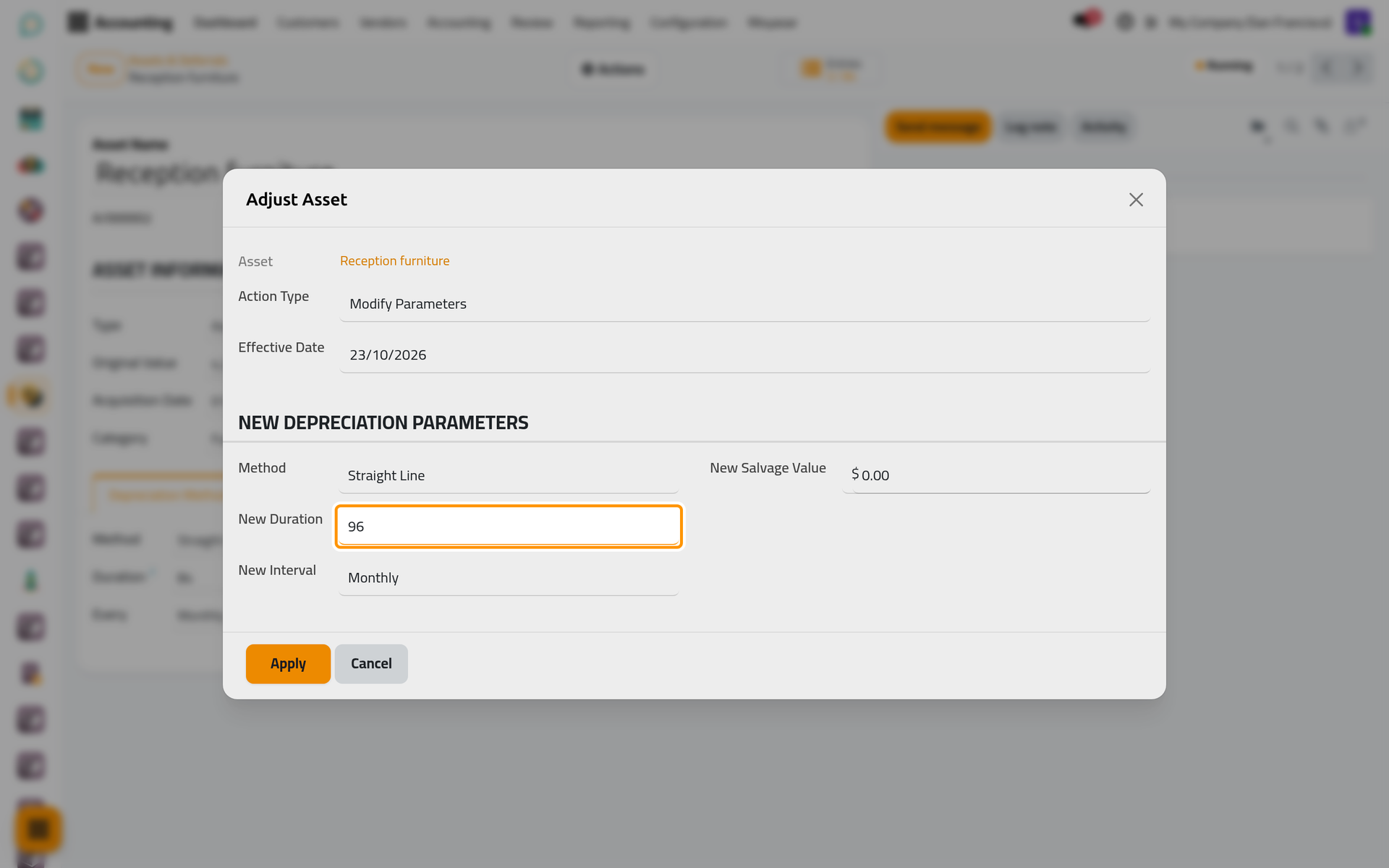
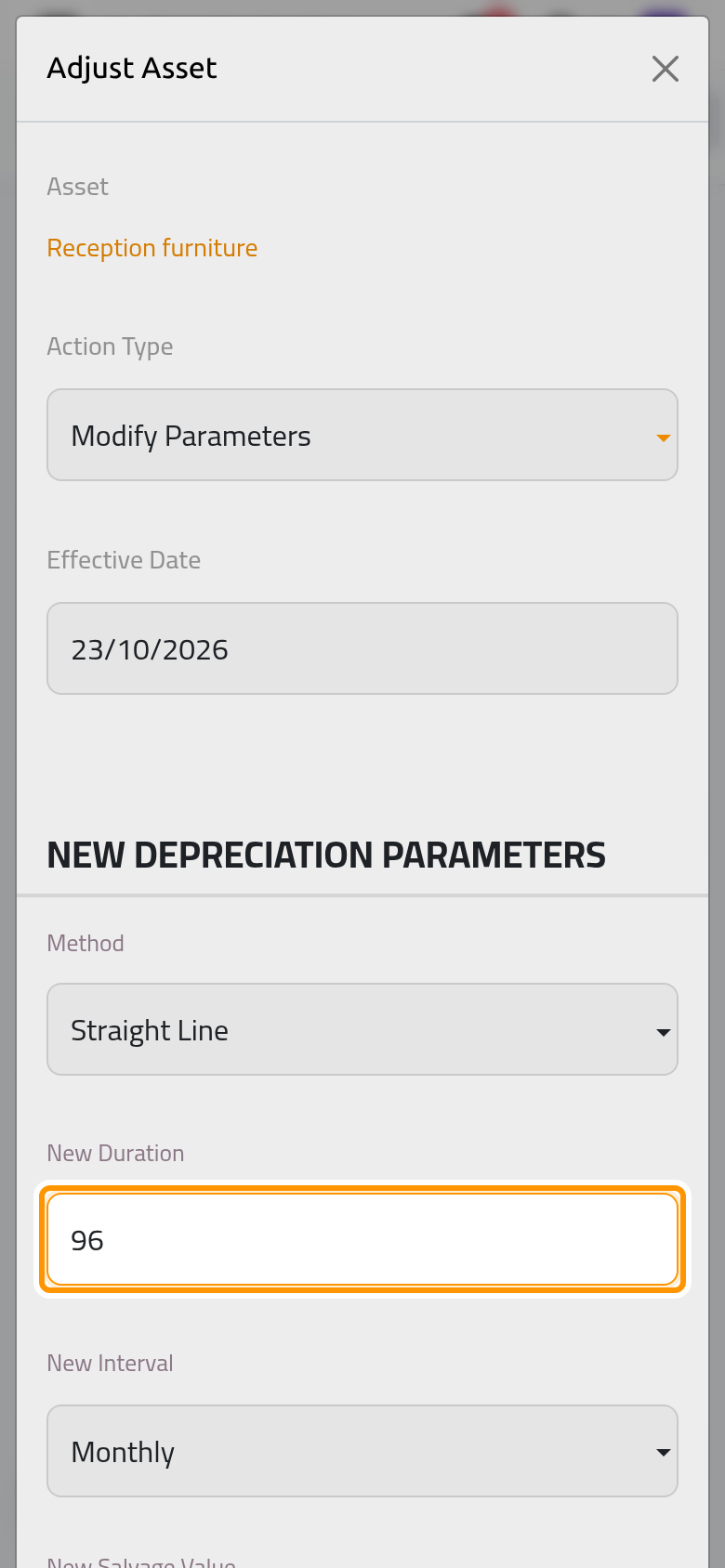
- Click Apply. The record takes the new values, every entry not yet posted is deleted, and a new schedule starts the period after the last posted entry. The posted entries do not move. A note in the chatter lists what changed.
Rebuilding a long schedule can take a minute or more: wait until the dialog closes.
Pause and resume
- Choose Adjust again in the Actions menu and set Action Type to Pause.
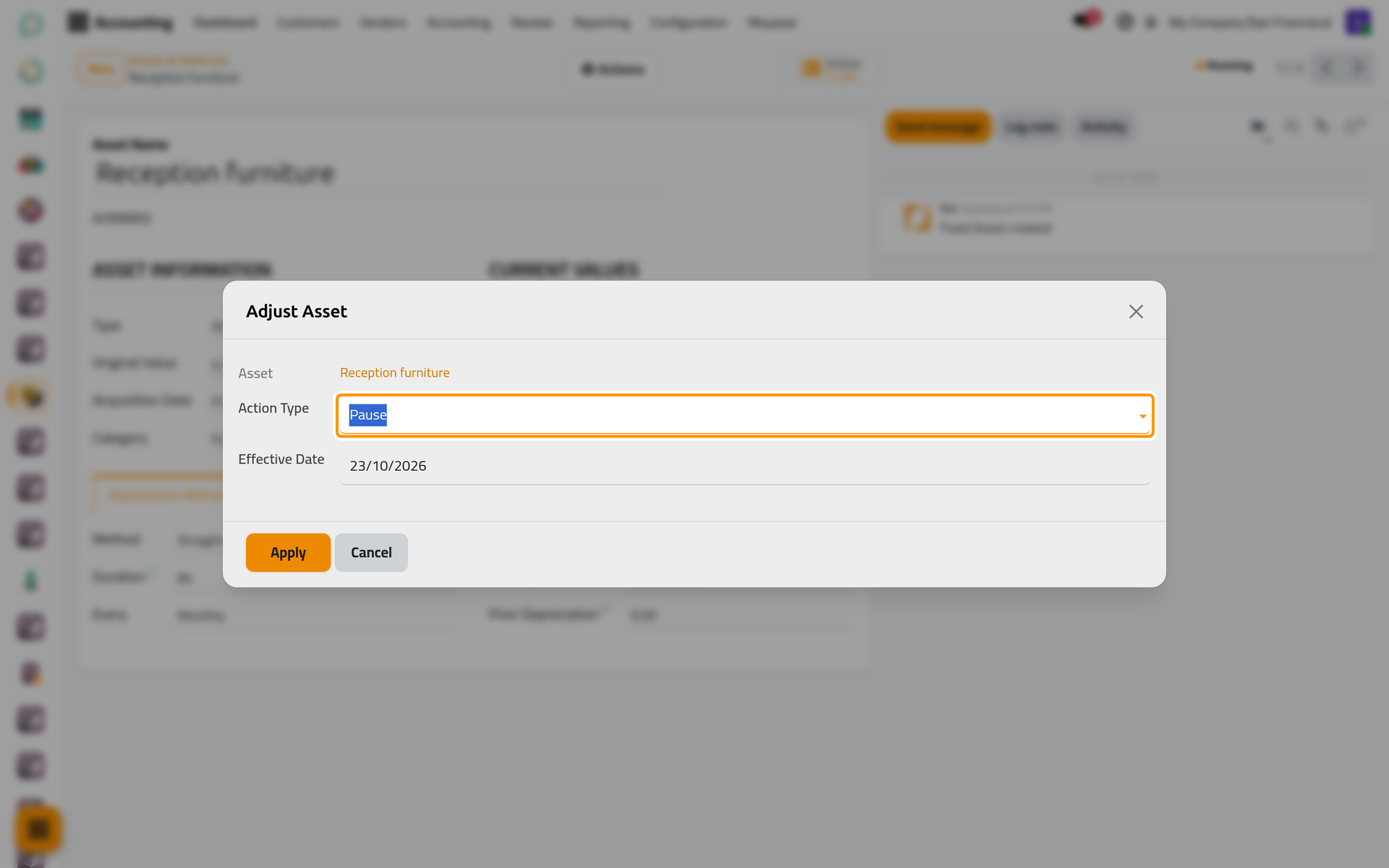
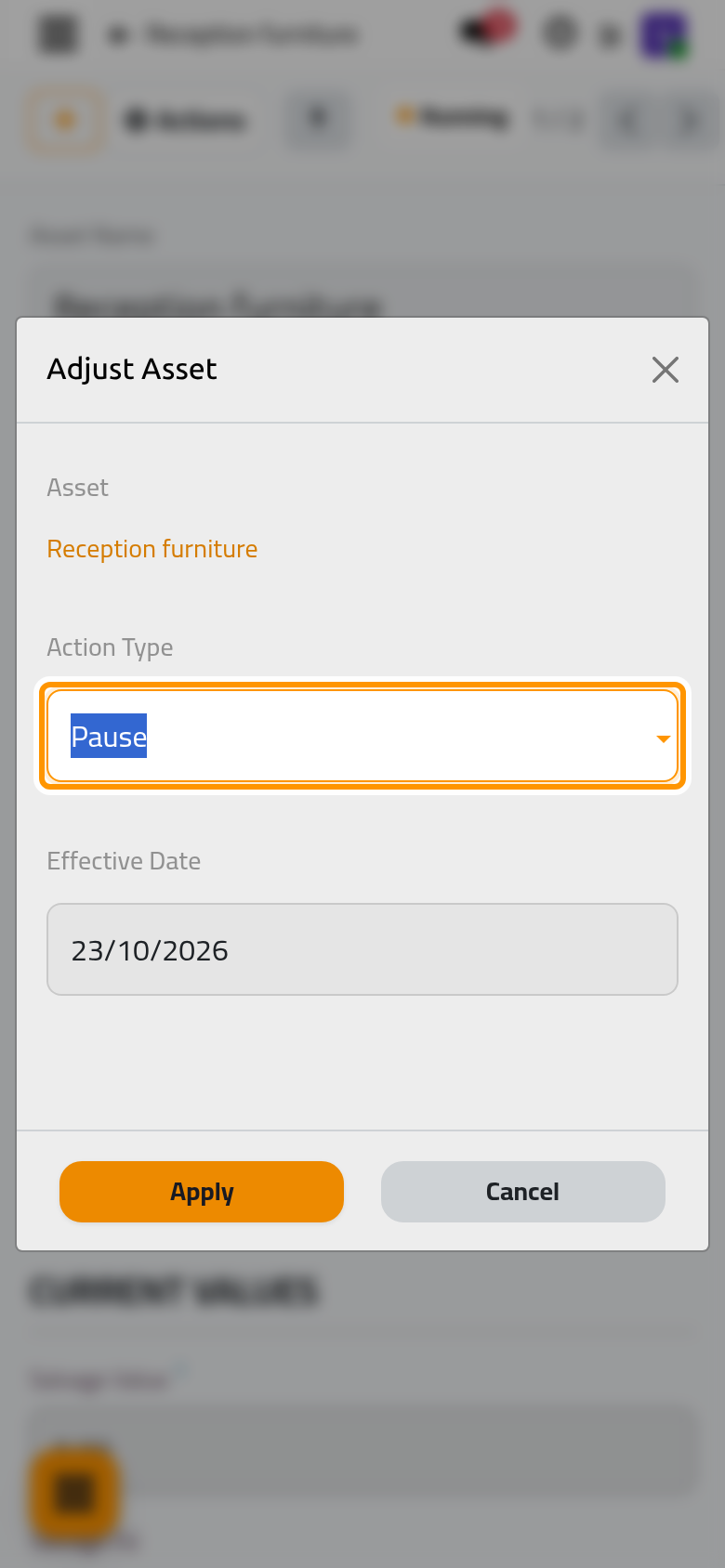
- Click Apply. The record is Paused and the chatter notes Schedule paused on with the effective date.
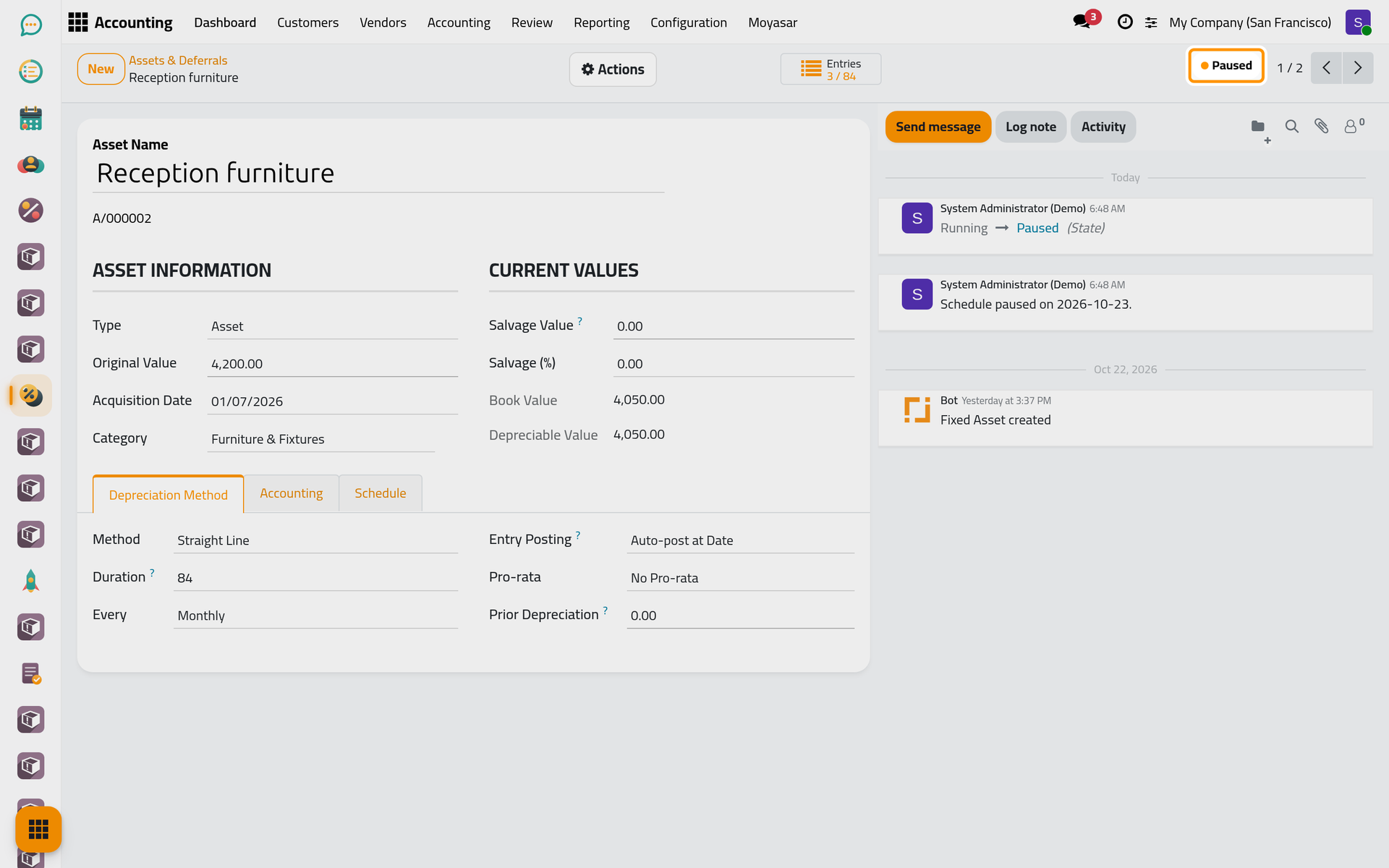
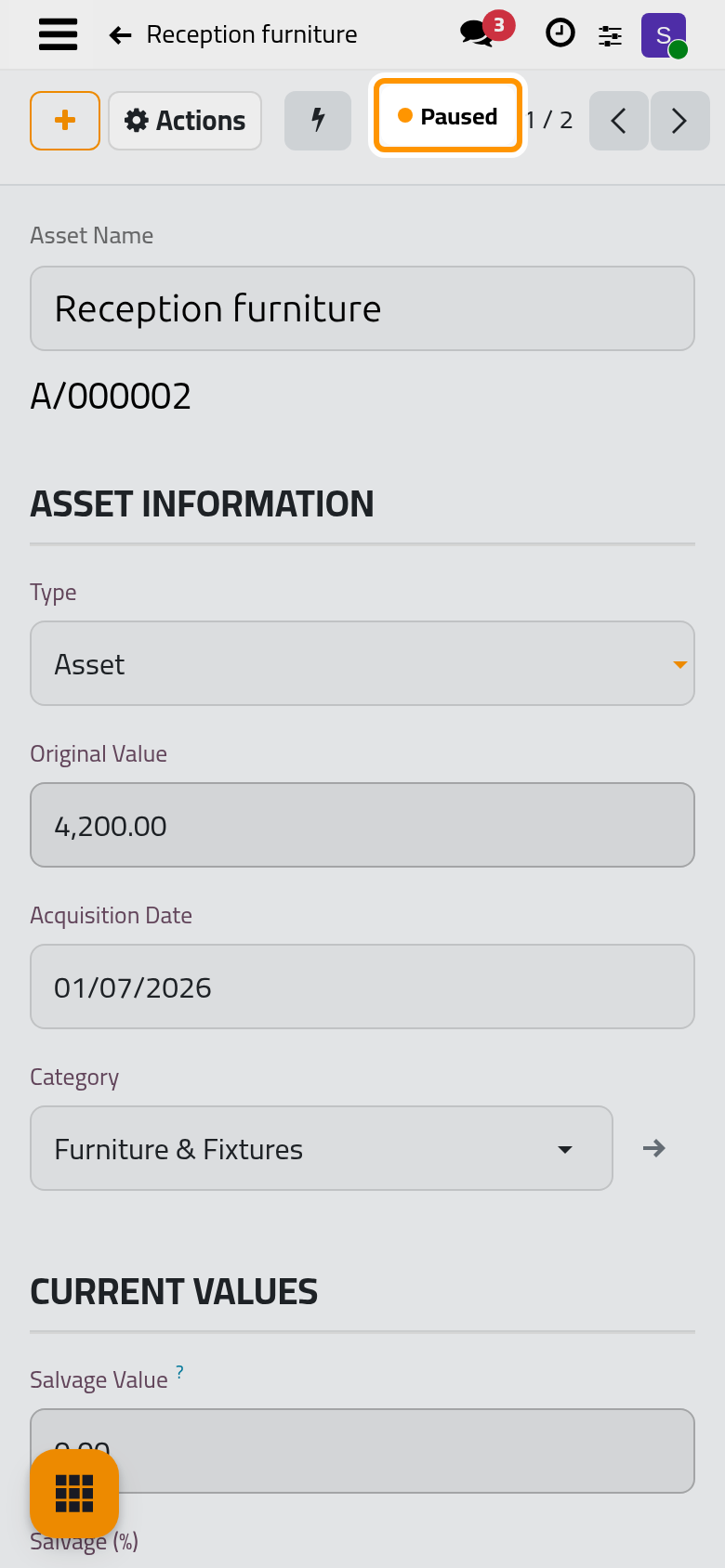
Pausing changes the state of the record and nothing else: the entries already in its schedule stay as they are, and those set to Auto-post at Date are still posted on their dates by the daily job (see Fixed asset automations). A paused record keeps Adjust in its Actions menu, but no longer offers Cancel or Set to Draft.
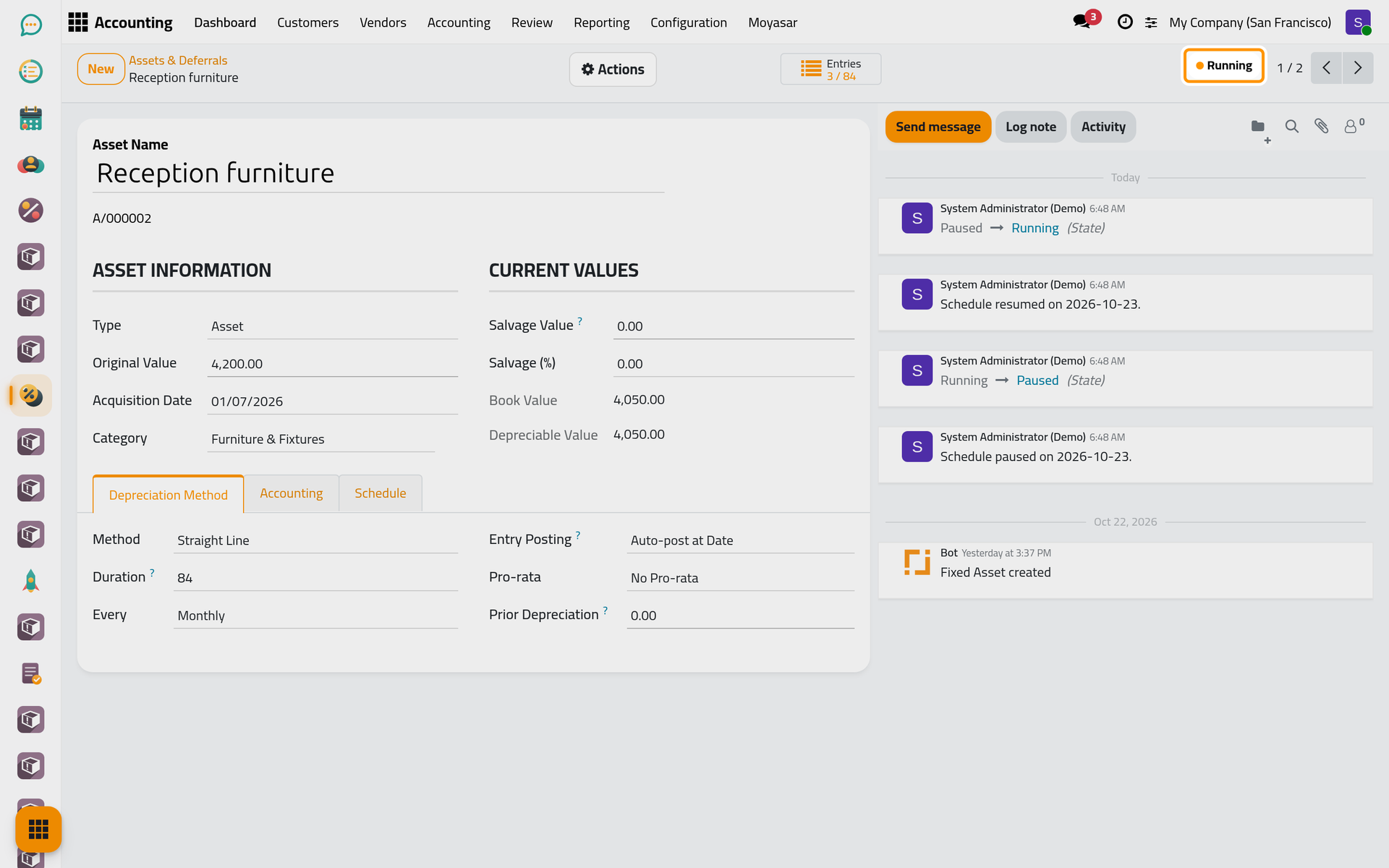
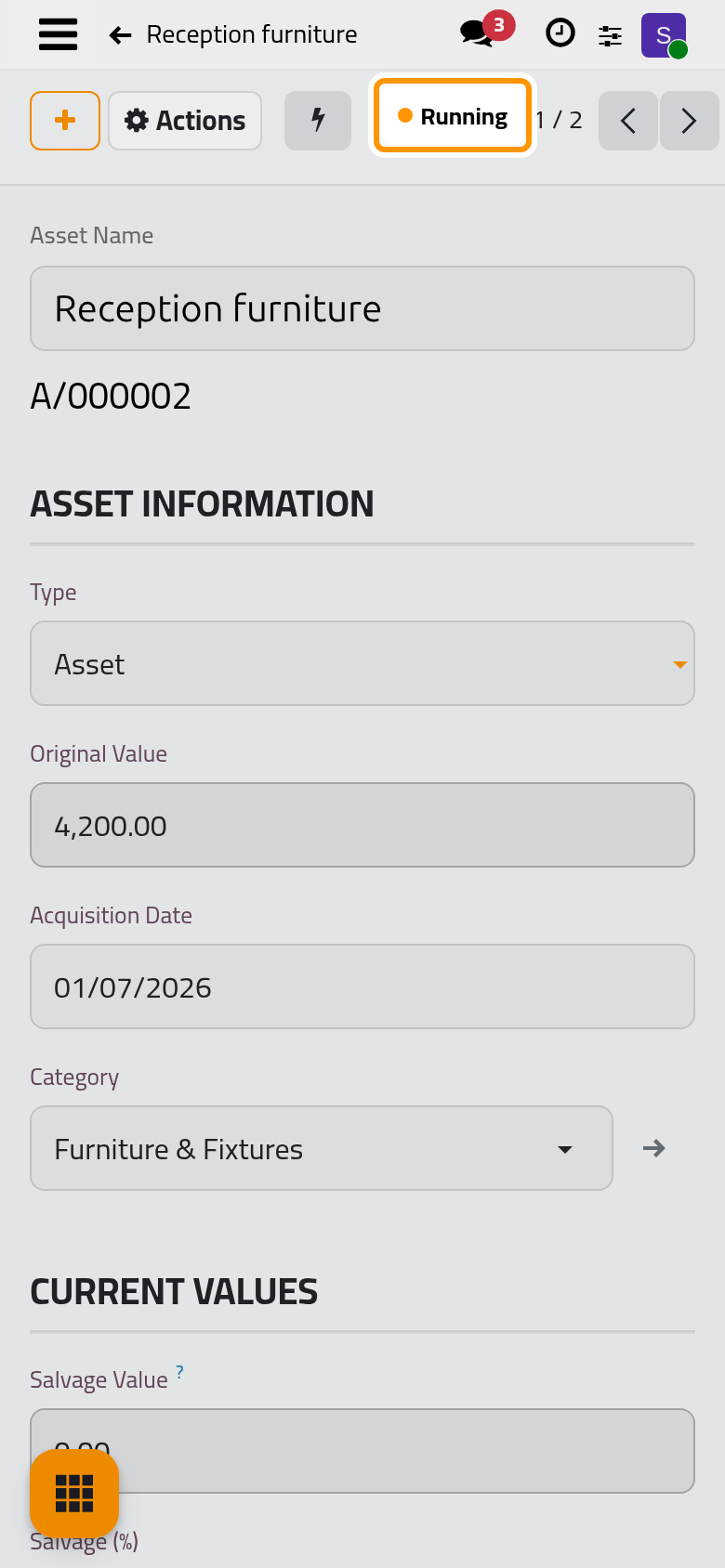
- To resume, choose Adjust, set Action Type to Resume and click Apply. The record is Running again and the chatter notes the date.
FAQ
I do not see Adjust in the Actions menu.
The record is still a Draft (confirm it first), or it is Closed or Cancelled. A user with a read-only access right sees no actions at all.
Can I change only the method?
The dialog shows the Method of the record. On this version, a change of the method alone is written on the record but leaves the entries already scheduled as they were; change it together with the duration, the interval or the salvage value so that the schedule is rebuilt.
Can I go back to Draft and start again?
Only while no entry is posted: Set to Draft in the Actions menu deletes the draft entries and lets you change the form before confirming again. Once one entry is posted, it is refused; use Adjust instead.
Can I sell the asset from the same dialog?
Yes, with Sell / Dispose / Write-off. See Sell or dispose of an asset.
Was this page helpful?
Thank you for your feedback.