Sell or dispose of an asset
On this page
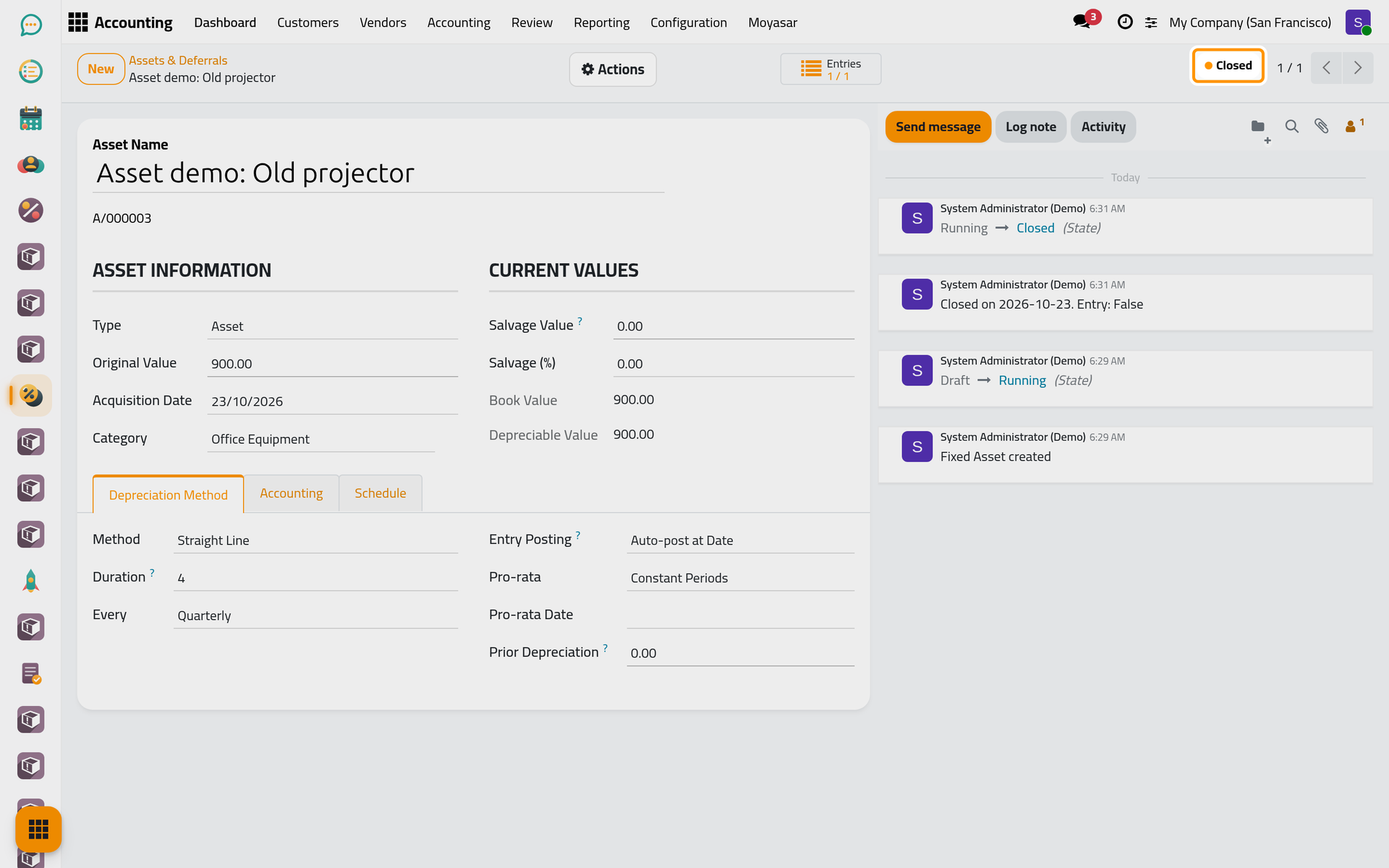
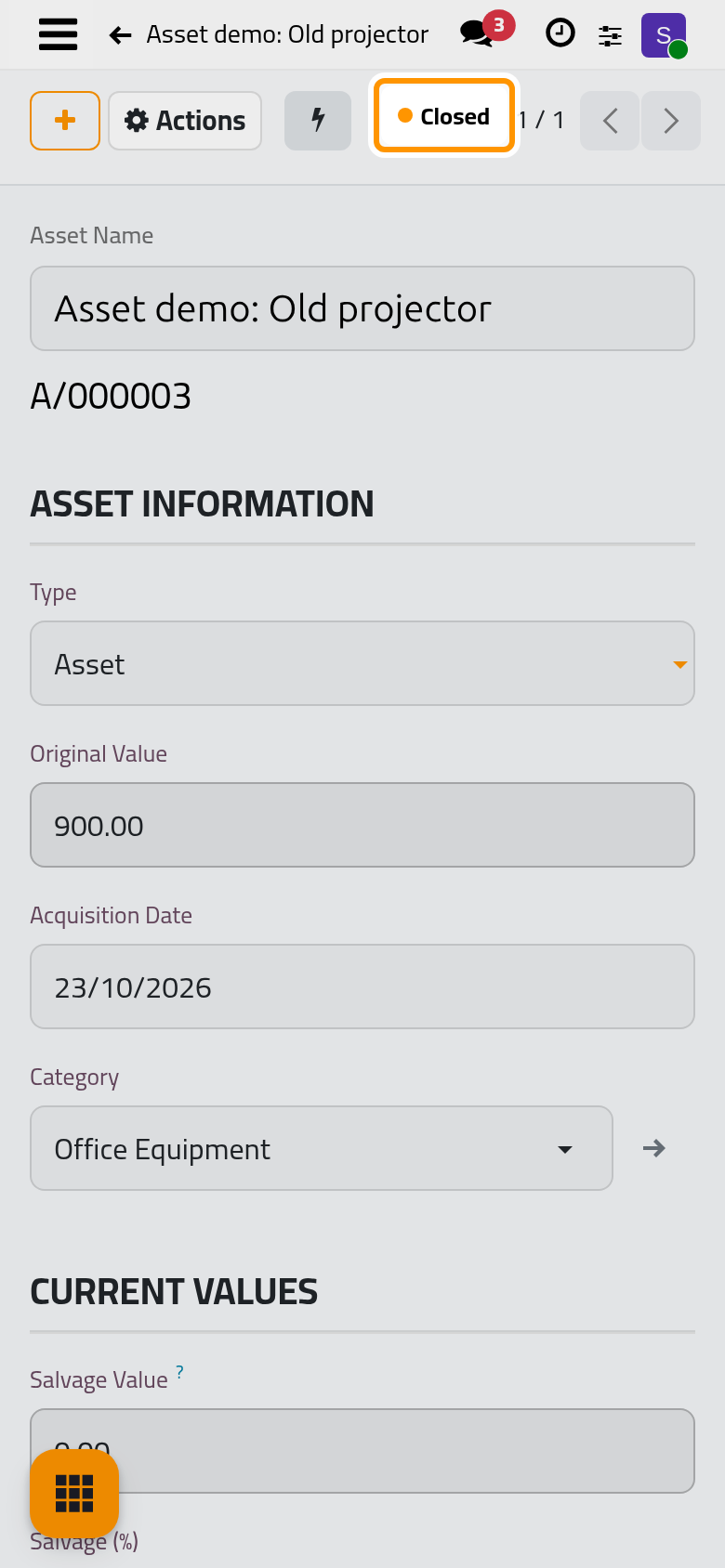
An asset leaves the books when it is sold, given away, broken or stolen. One closing entry then takes its original value off the asset account, cancels the depreciation built up so far and puts the difference on a gain or loss account. The pictures follow a projector recorded for the example, Asset demo: Old projector, 900.00 over four quarters, closed as soon as it is confirmed; the figures in the text are those of the demo Reception furniture, 4,200.00 with three monthly entries posted.
Before you start
- You need the Administrator access right on Accounting.
- The asset is Running or Paused.
- When the asset is sold through an invoice, create and post that customer invoice first (Customer invoices): the dialog only lists posted ones.
Fill the disposal
- Open the asset from , open the Actions menu and choose Adjust.
- Set Action Type to Sell / Dispose / Write-off. Effective Date is the date of the closing entry: today unless you change it.
- The group Disposal Details appears:
- Sale Invoice: the customer invoice of the sale, if there is one.
- Invoice Line: the line of that invoice that carries the price of the asset.
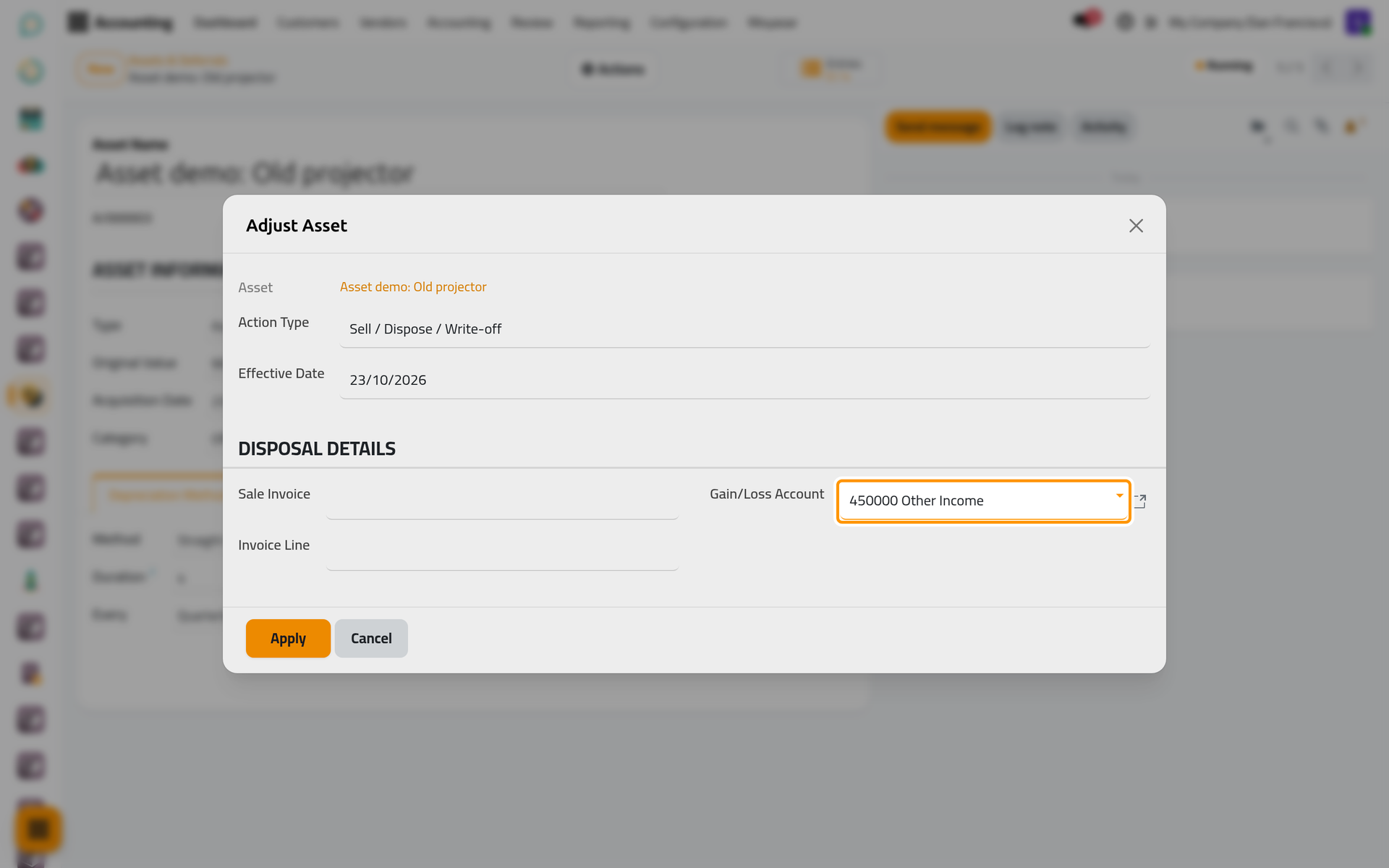
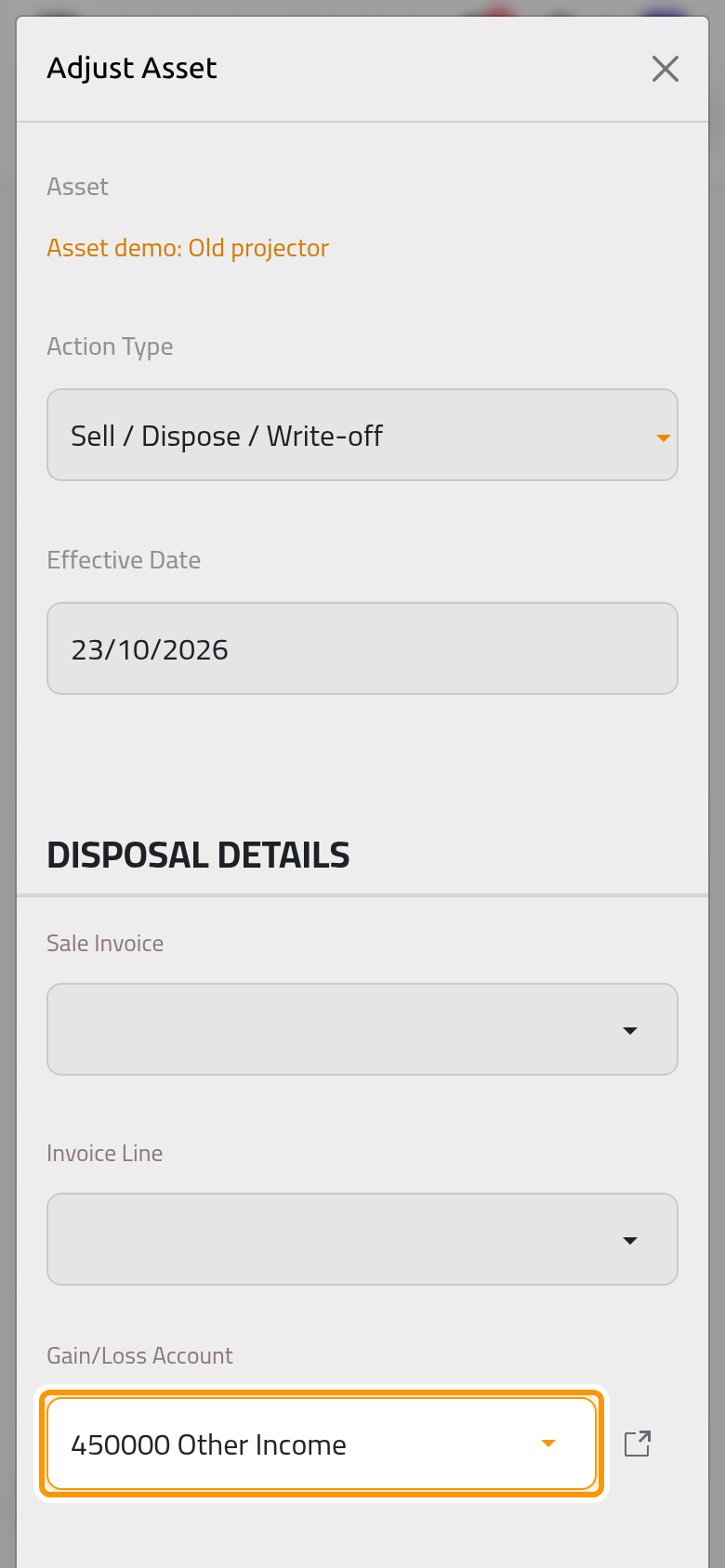
- Gain/Loss Account: the account that takes the difference between the price and the book value. It is required for an asset.
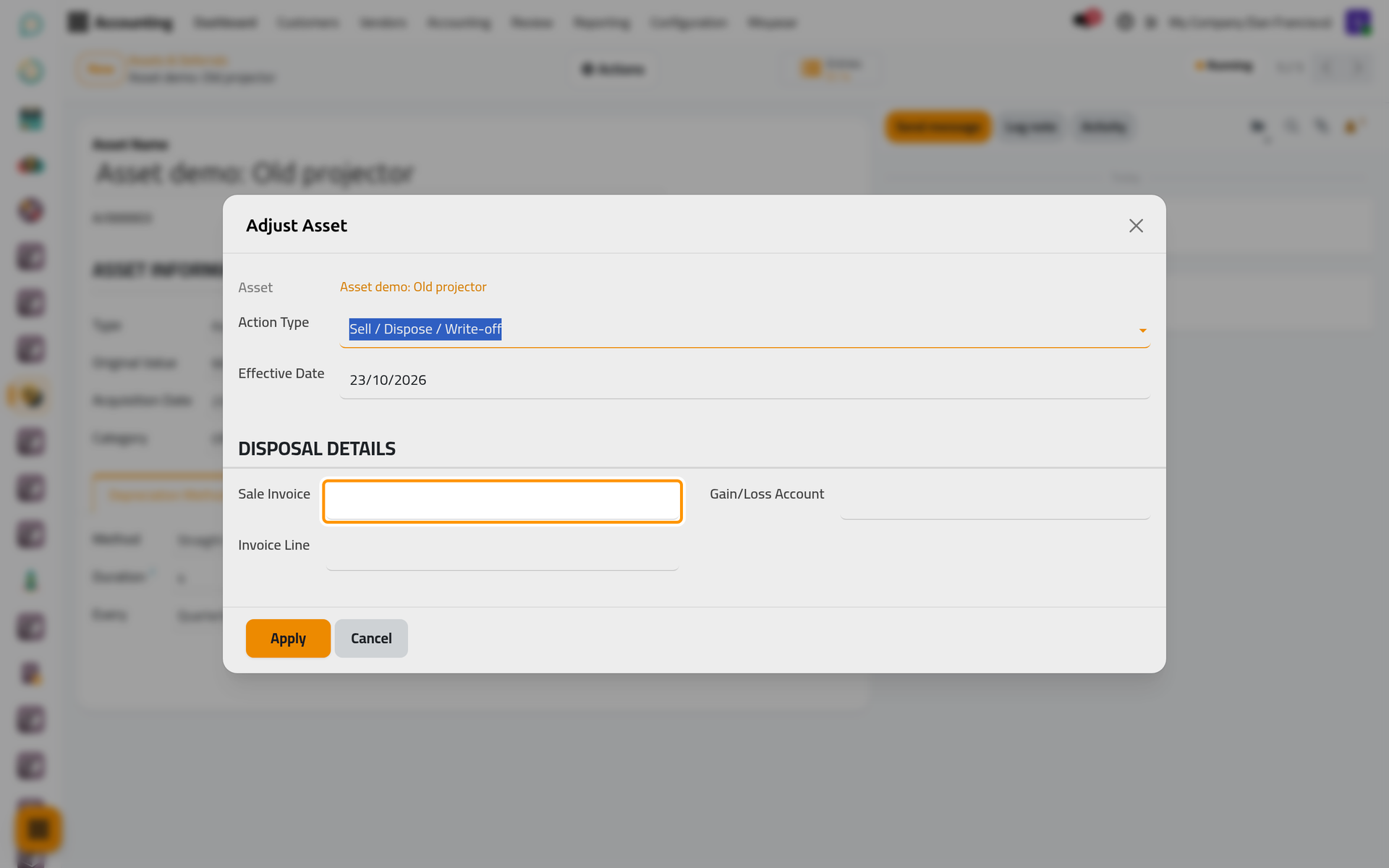
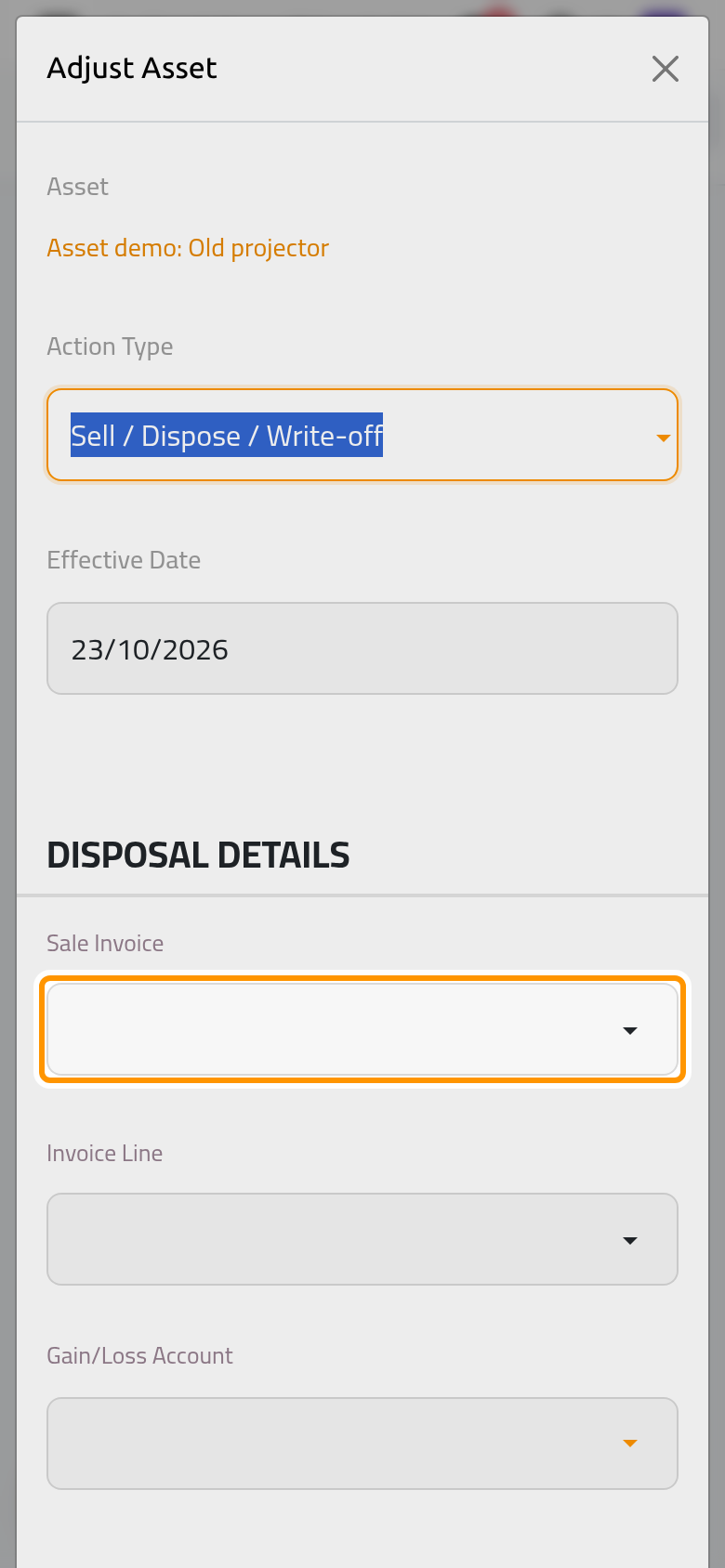
- Choose the Gain/Loss Account, 450000 Other Income in the example, where the item is thrown away without a sale.
Apply and post the closing entry
-
Click Apply. Every entry not yet posted is deleted and the closing entry opens, still a draft, with the reference Disposal: followed by the asset's name, in the asset's journal. For the reception furniture, its lines are:
- the Depreciation account debited by what was depreciated so far, 150.00;
- the Asset account credited by the original value, 4,200.00;
- the Gain/Loss Account for the difference: a loss of 4,050.00, the book value of furniture that brings nothing back. With a sale invoice line, the sale price also appears on that account, next to the gain or the loss.
The projector had no posted entry yet, so its closing entry has no Depreciation line: its whole value goes to the loss. With a long schedule, deleting the draft entries can take a minute or more: wait until the dialog closes.
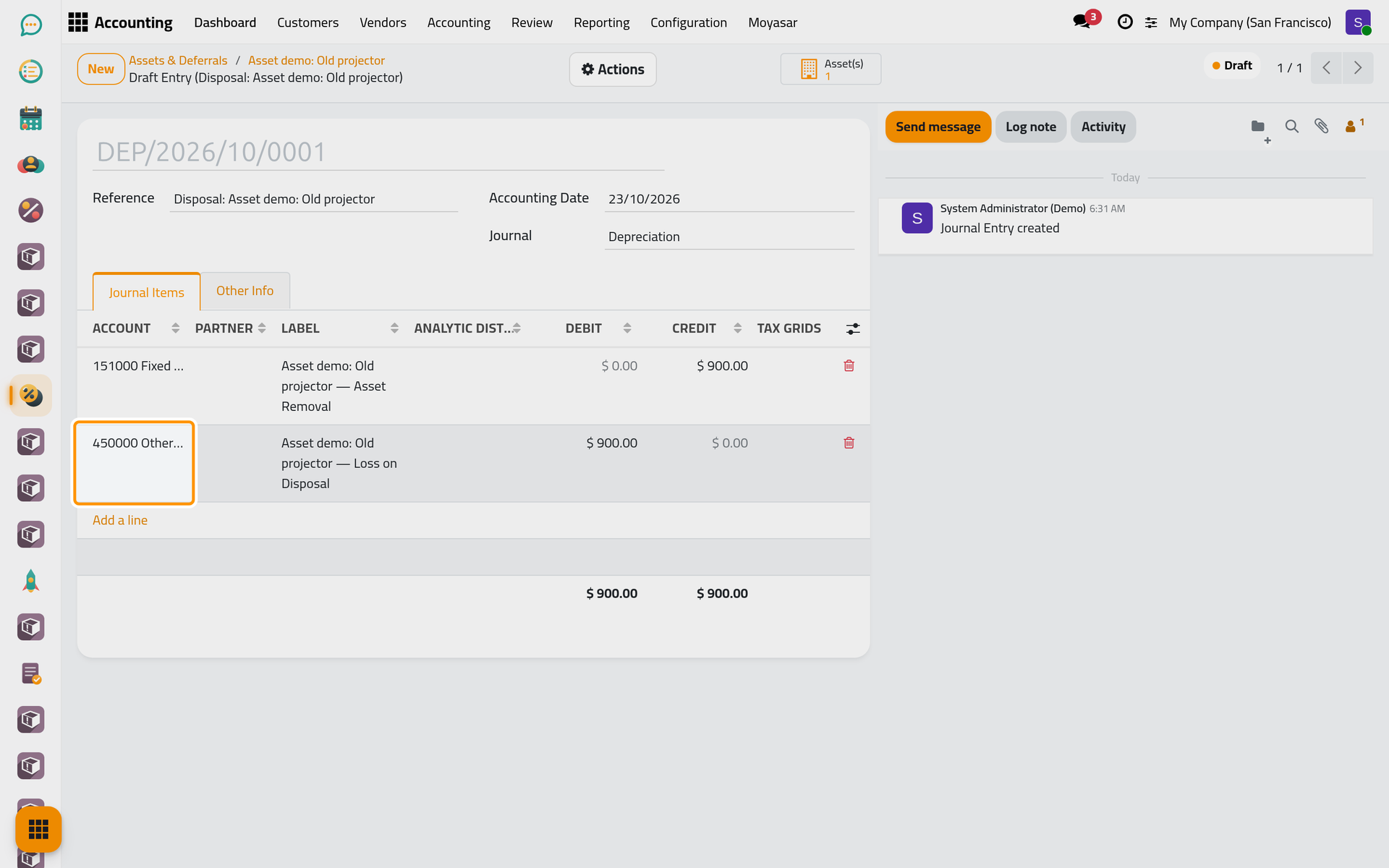
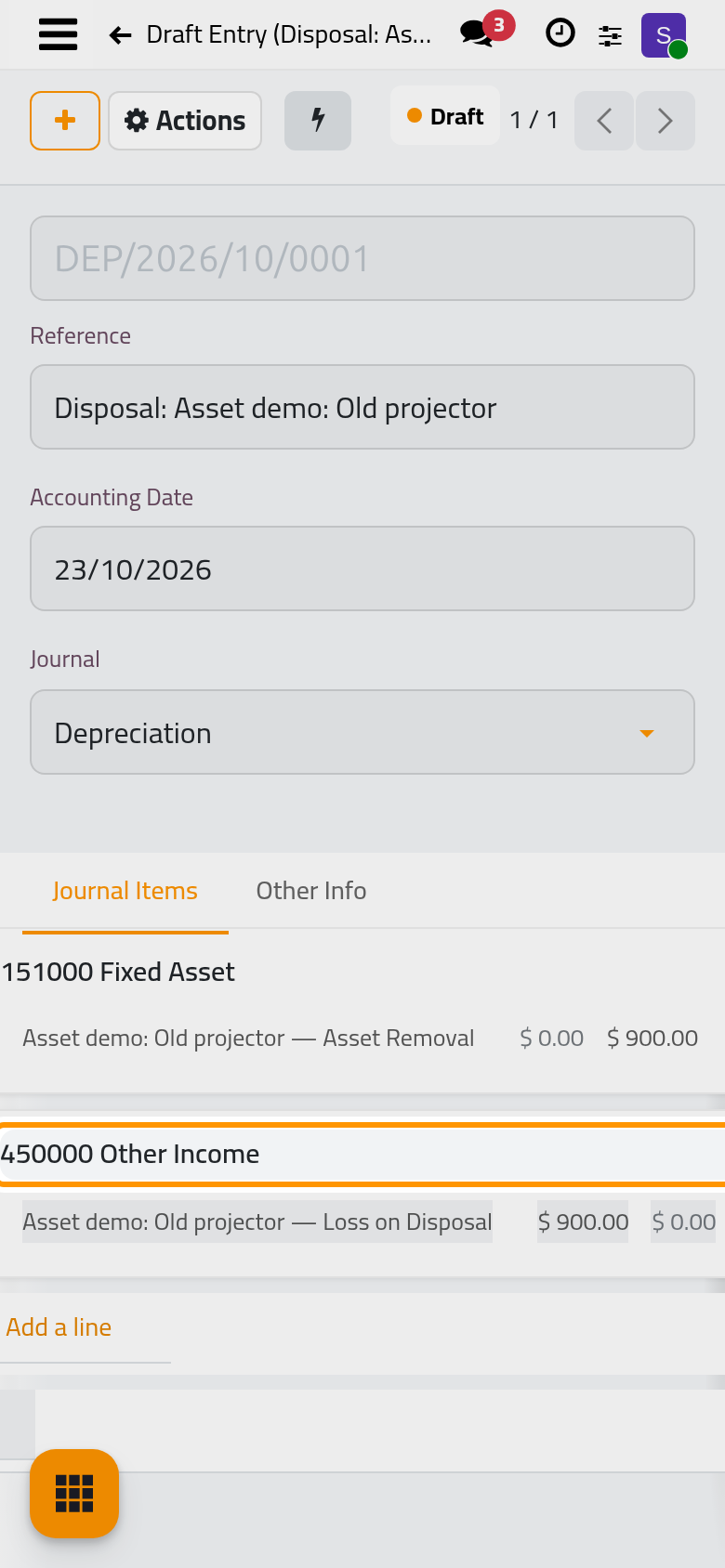
- Check the entry, then open the Actions menu and choose Post.
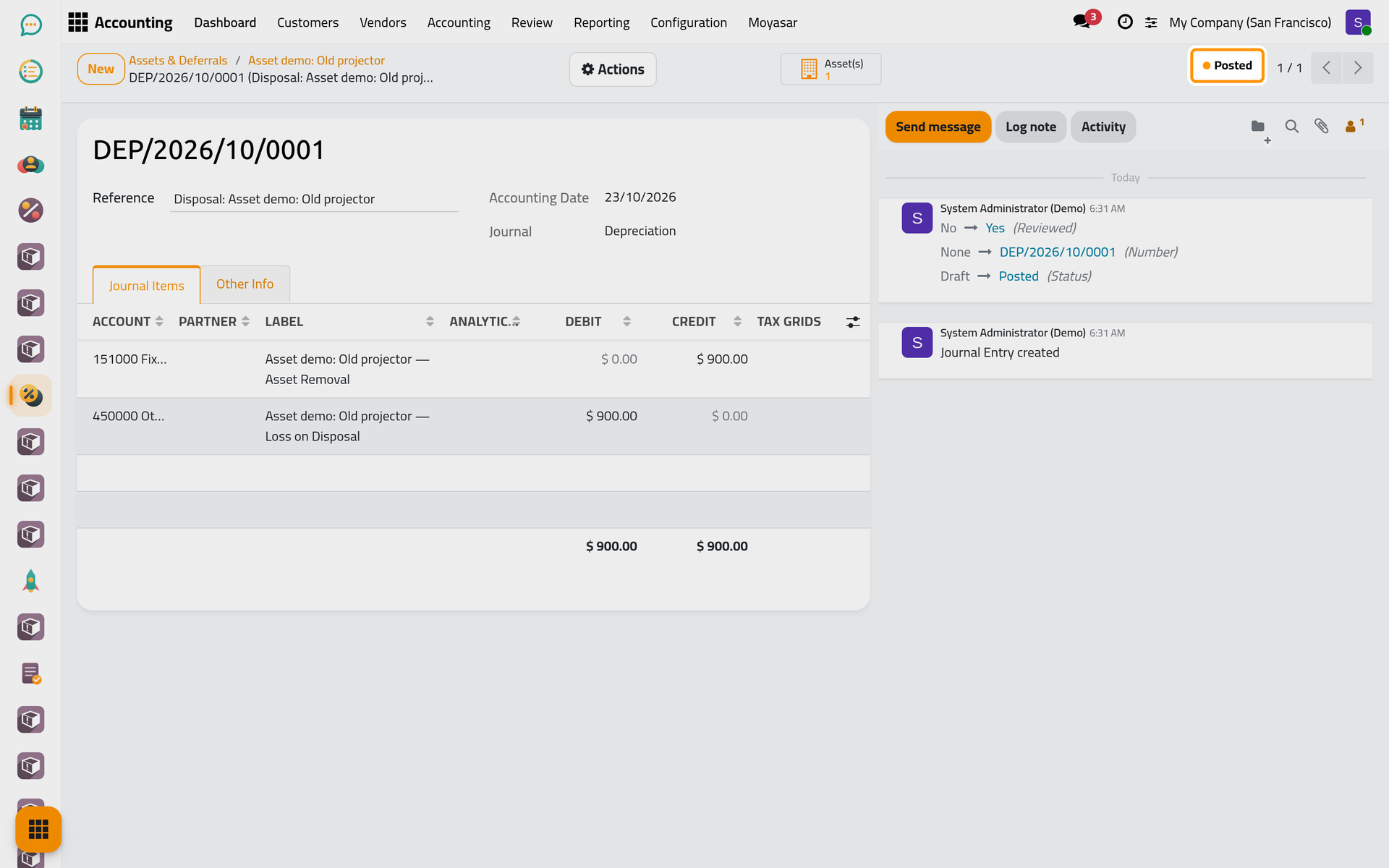
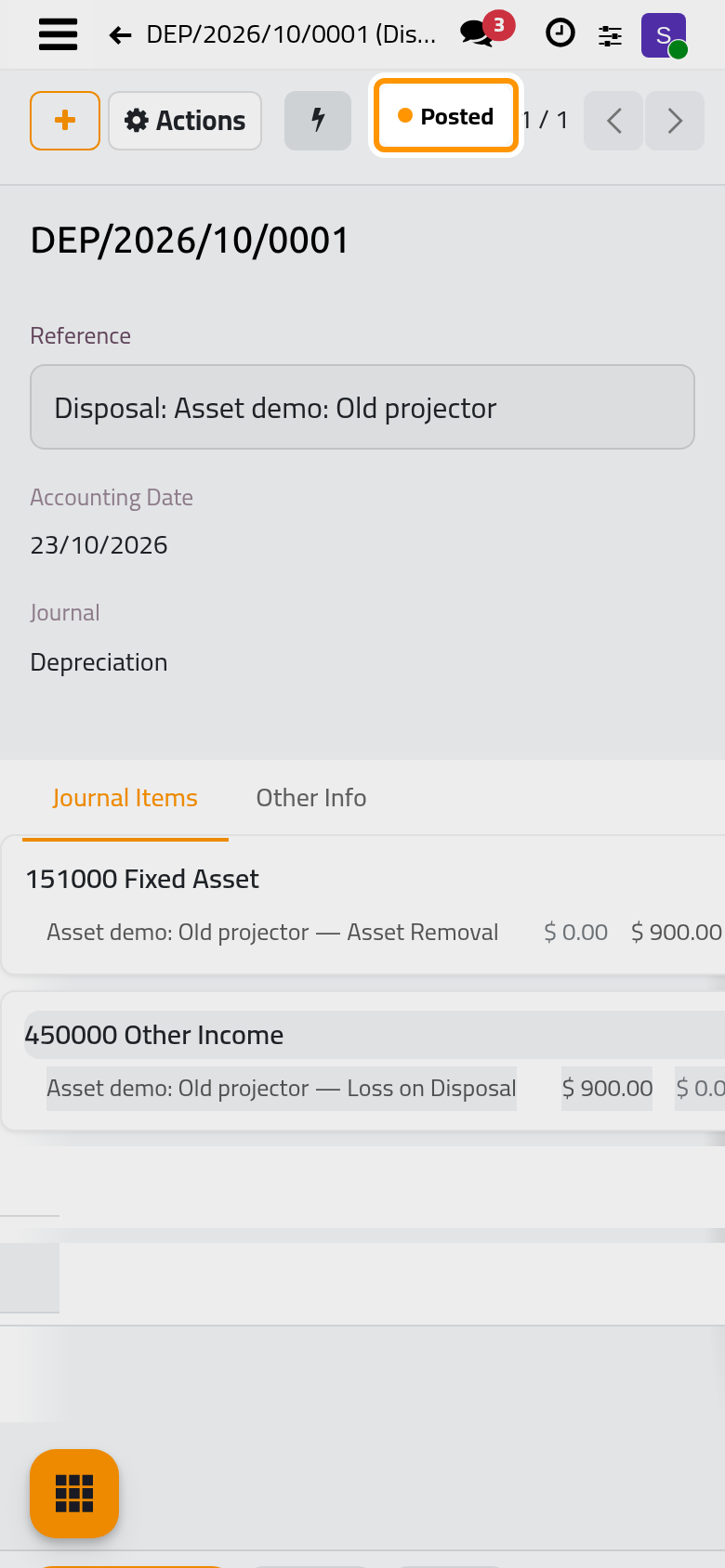
- Go back to the asset through the path at the top of the screen. It is Closed, its schedule has no draft entry left and the chatter records the closing date.
Close a deferral early
For a deferred expense or a deferred revenue, the same choice shows Write-off Remaining Balance instead of the disposal details: the remaining balance is recognised at once in one entry with the reference Early Recognition. Use it when a contract paid or billed in advance ends sooner than planned.
FAQ
Why does the closed asset still show a book value?
The Book Value adds up the amounts of the posted depreciation entries. The closing entry is linked to the asset and listed in its Schedule, but it carries no amount there, so a closed asset keeps, on its form and in the list, the book value it had on its closing day. The accounts themselves are cleared by the closing entry.
Can I use Cancel instead?
Cancel is for a record created by mistake: it is refused as soon as one entry is posted, with a message that points to the disposal.
Can I reopen a closed asset?
No action does it on the form. Record a new asset if the item comes back into use.
Was this page helpful?
Thank you for your feedback.