Your first online payment
On this page
An online payment lets a client pay an invoice by card from a link, without anyone in the firm typing the payment in. This walk-through follows one payment from the provider to the invoice. On the demo database the Moyasar provider is already in test mode and one invoice already holds a card payment waiting for a decision; on your own database you fill the same fields with the keys of your Moyasar account.
Before you start
- You need the Administrator access right on Accounting, and the Administrator role on your user: payment providers belong to the platform's settings, and only that role opens them.
- You need a Moyasar merchant account for its keys. In test mode no card is really charged.
Step 1: the payment providers
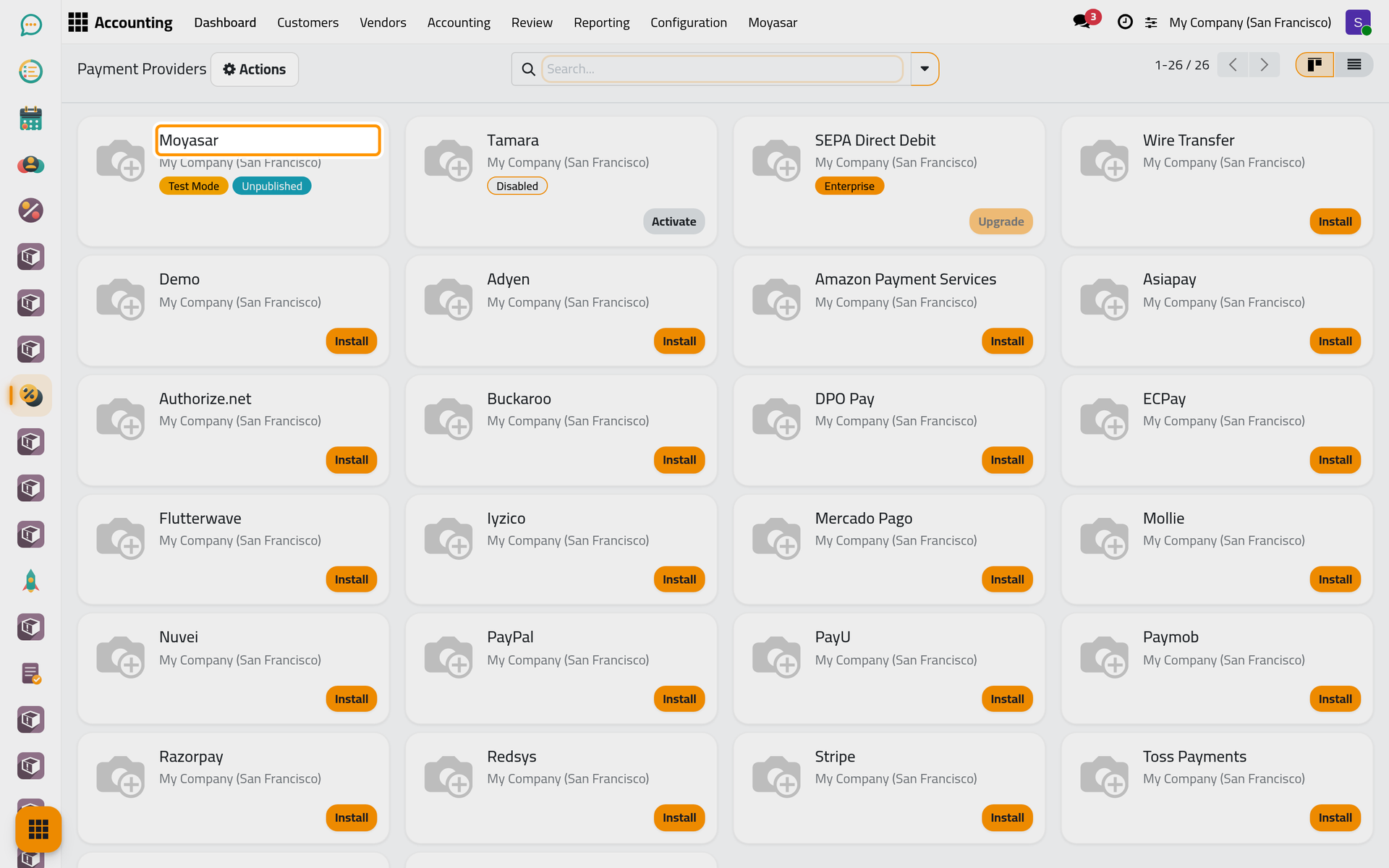
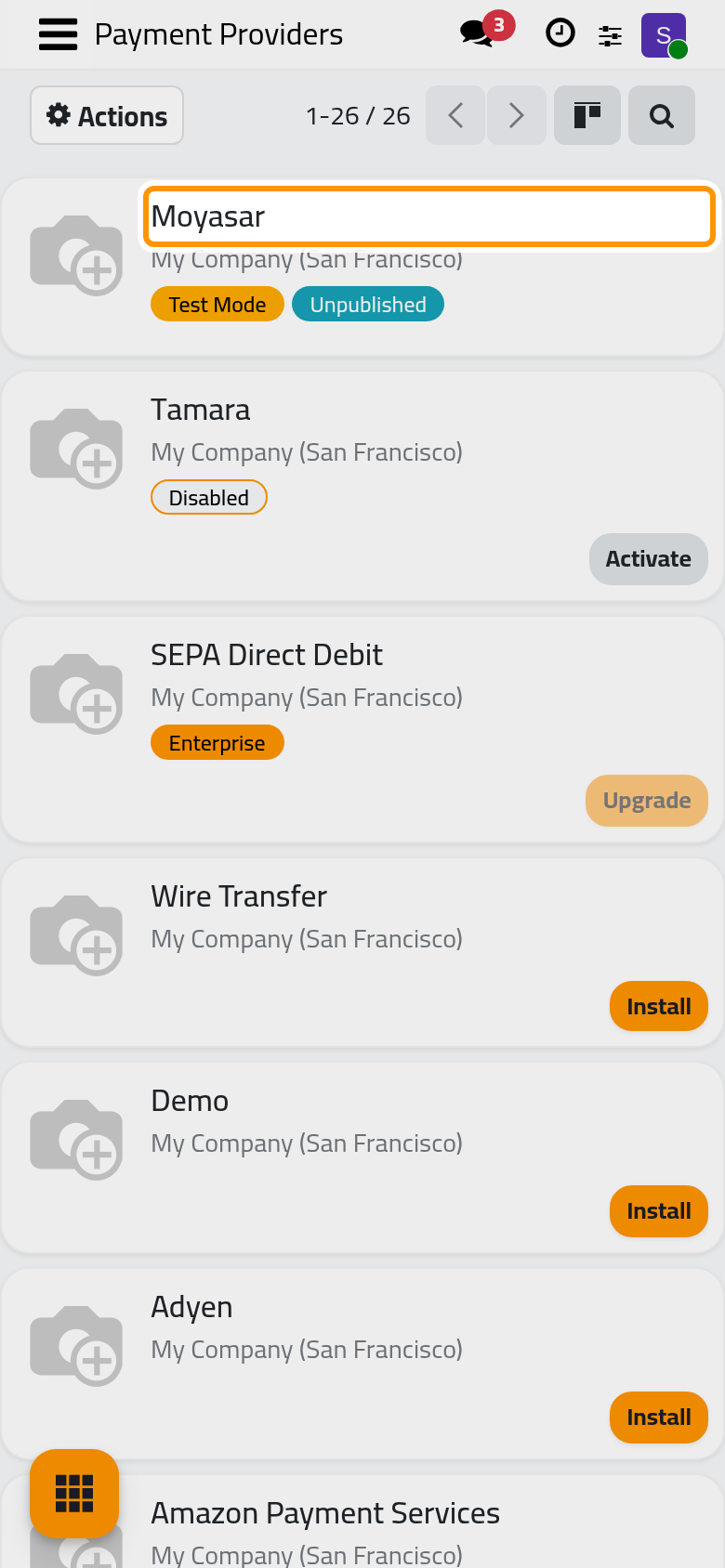
Open . Each card is a provider. Moyasar carries two labels: Test Mode, and Unpublished, which means that only the firm's own users see it on a payment page. Tamara, the instalment provider, is described in Set up Tamara; the cards with an Install button are gateways that are not installed.
Step 2: the state
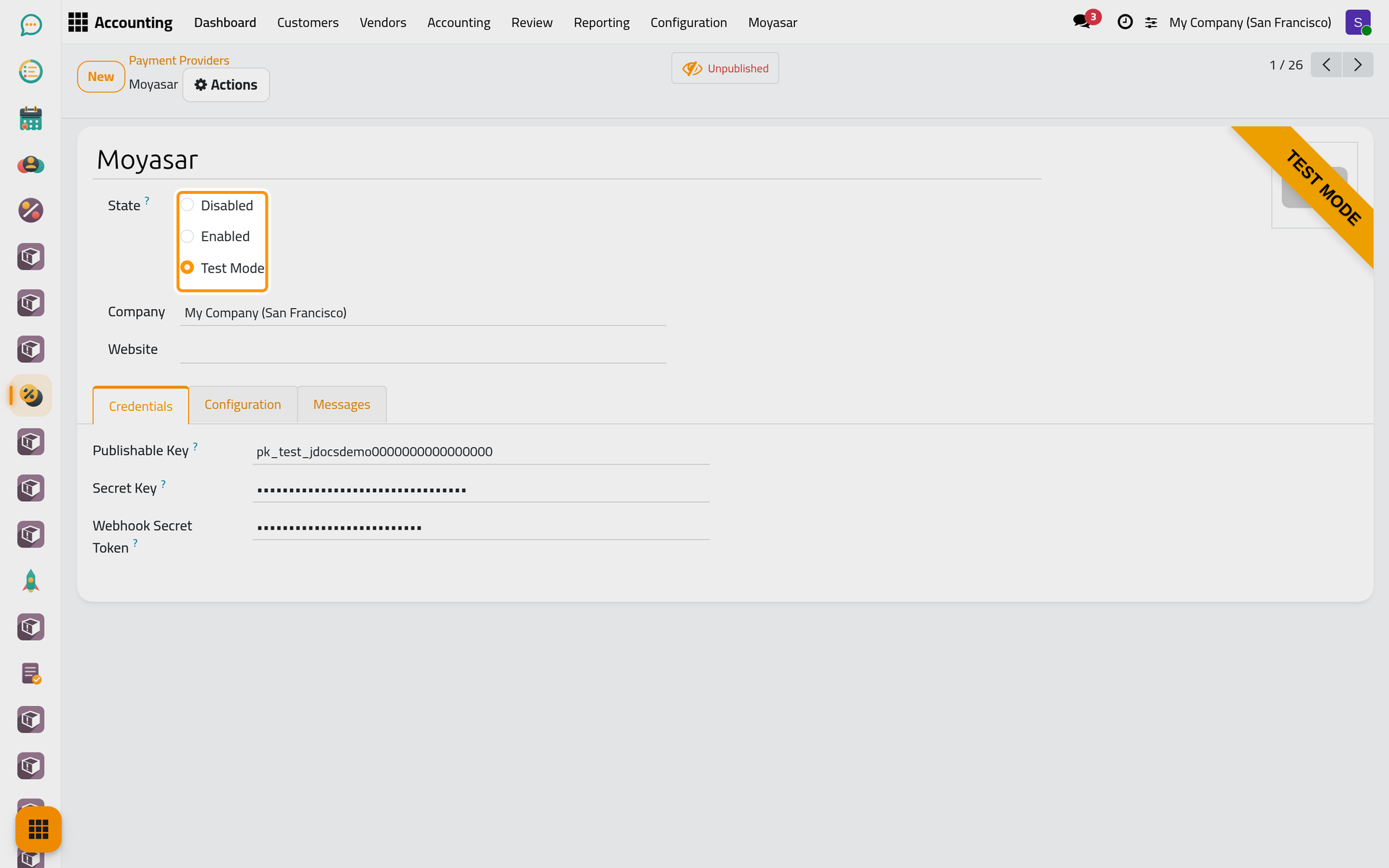
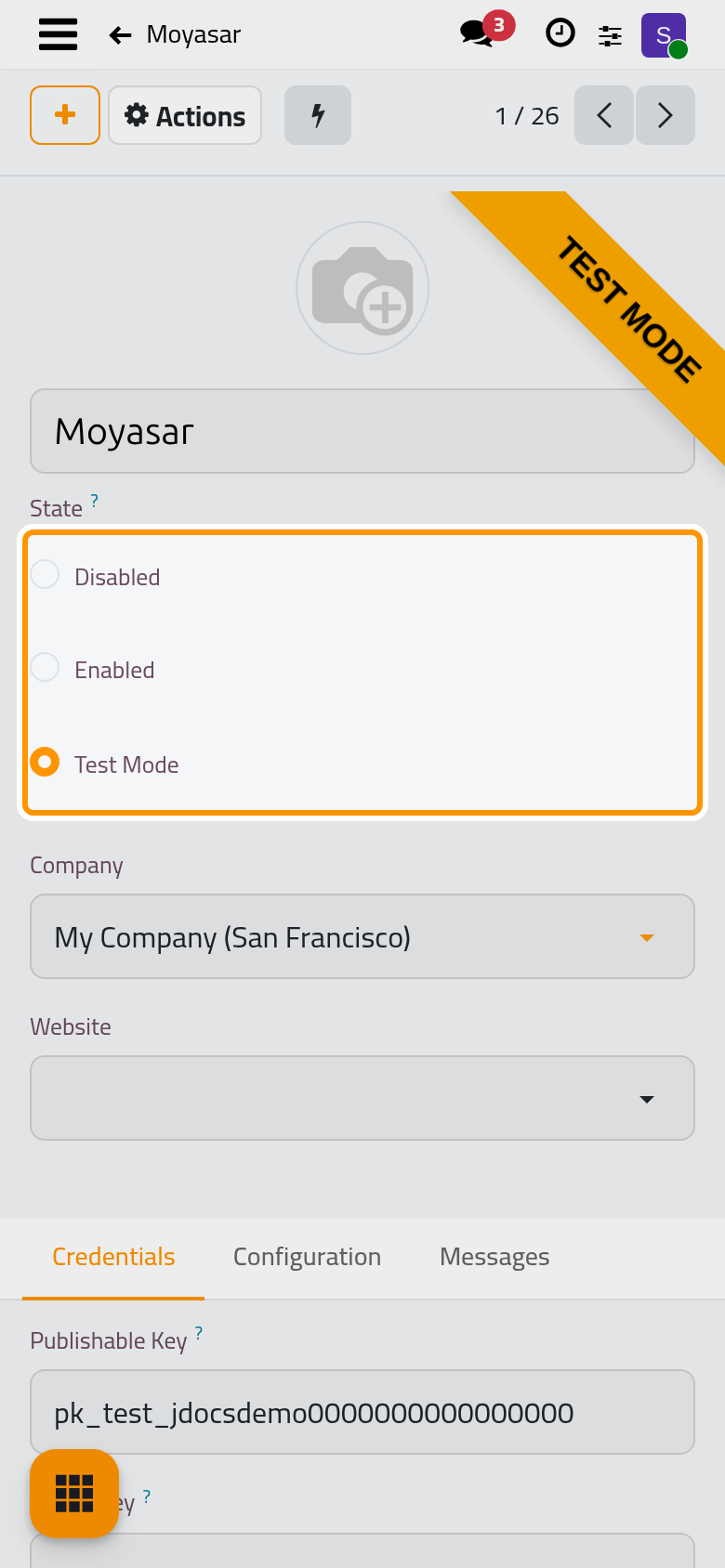
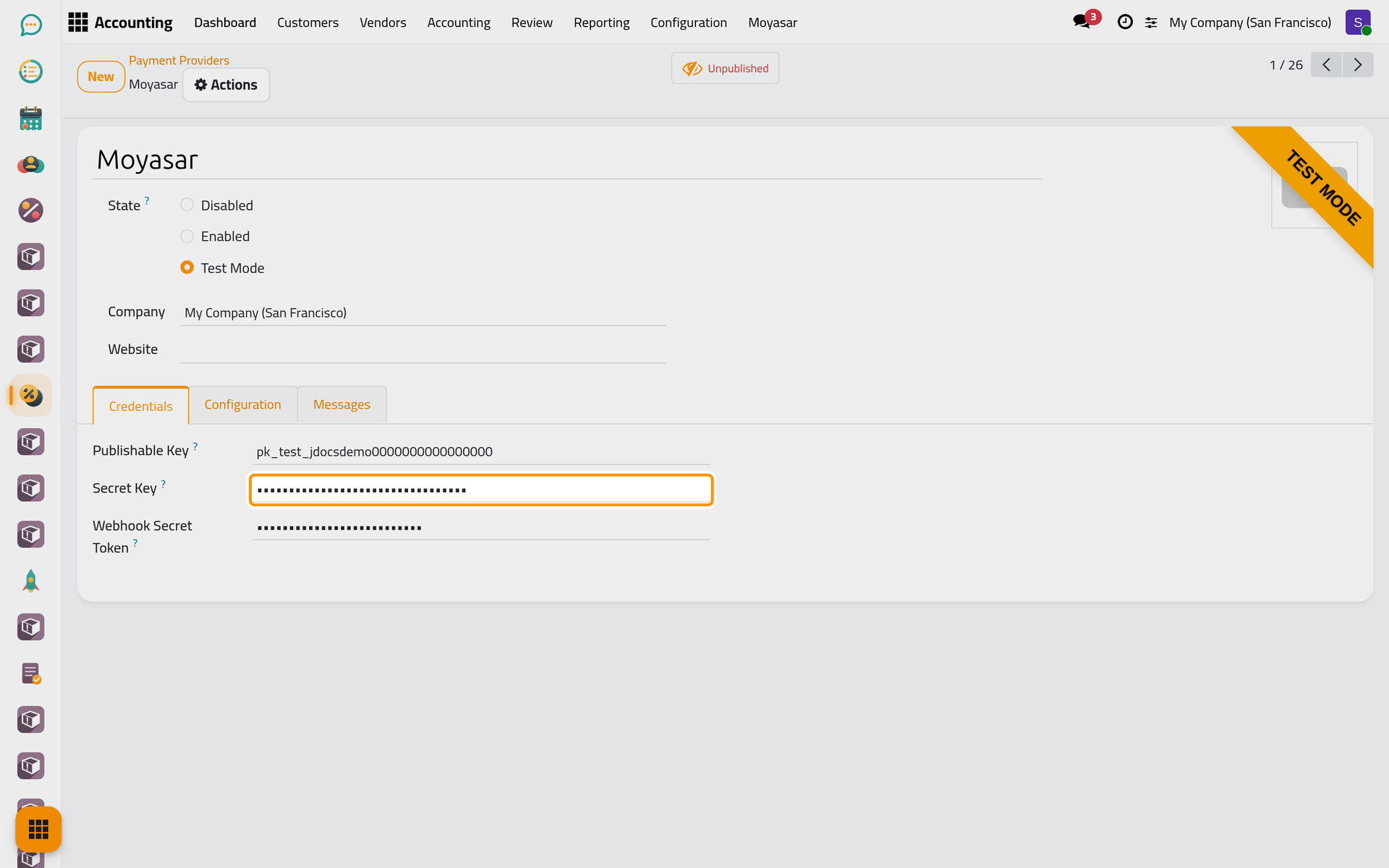
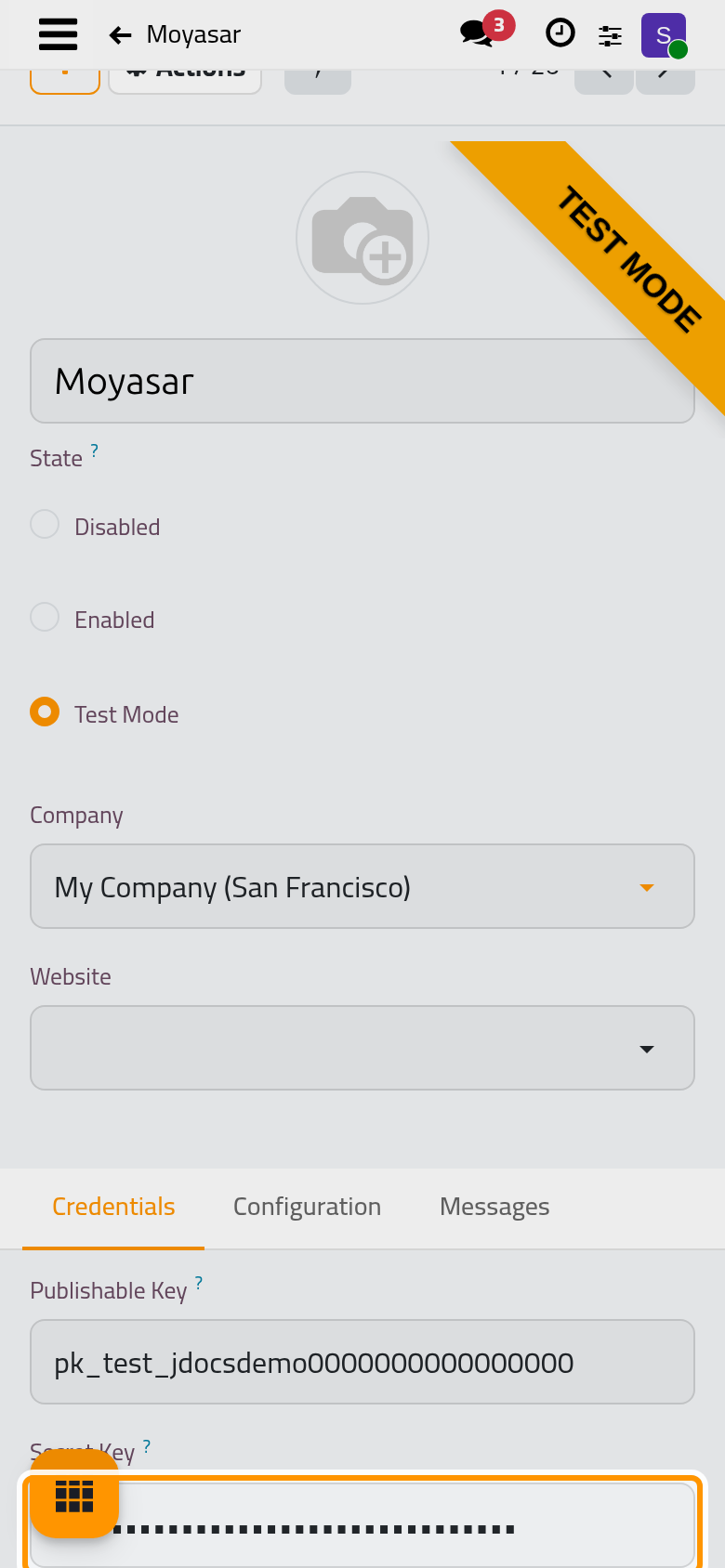
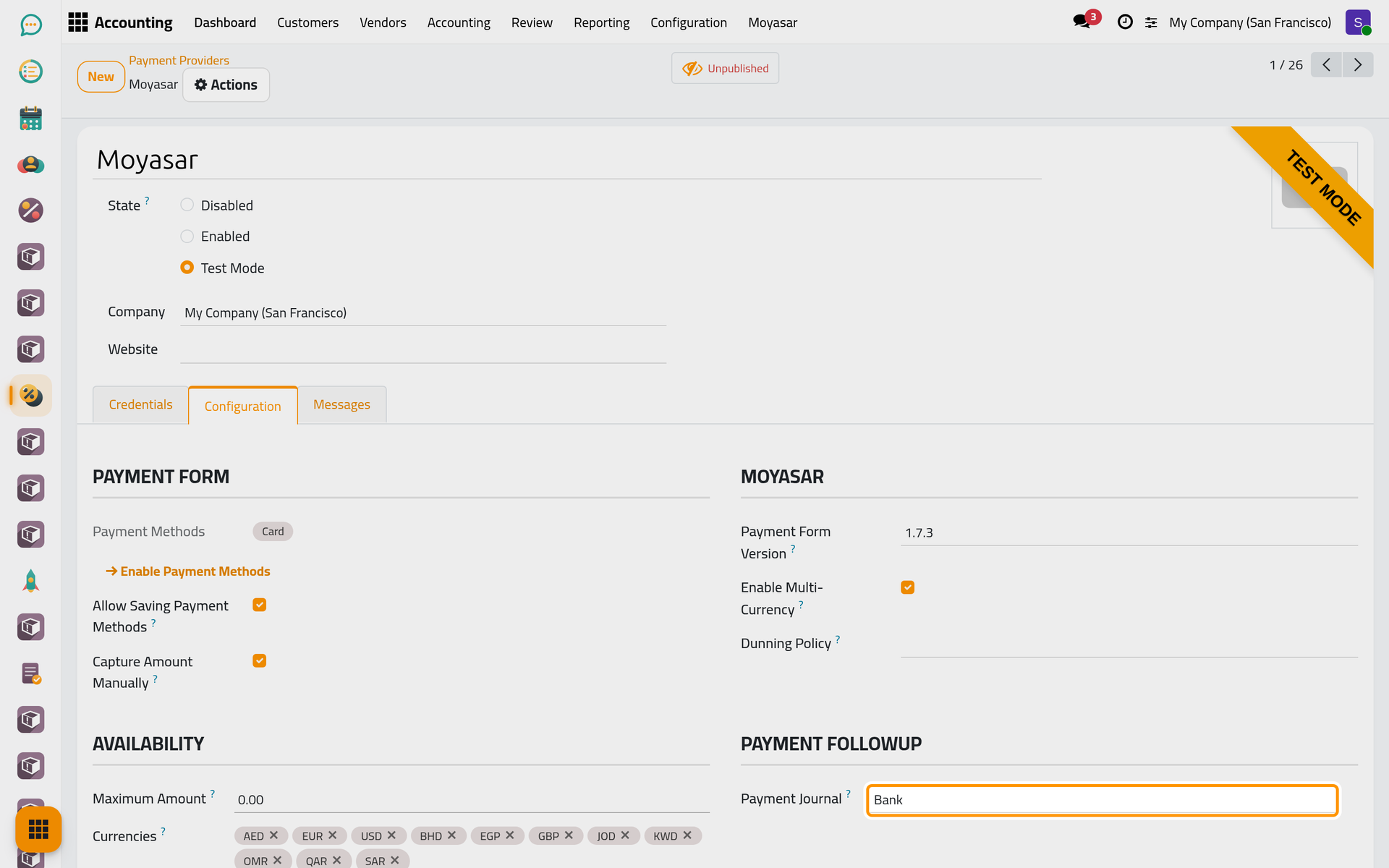
Click the Moyasar card. The State has three values: Disabled (offered nowhere), Test Mode (payments go through Moyasar's test environment, with test keys and test cards) and Enabled (real payments, with live keys). Keep Test Mode while you try; the ribbon in the corner of the form says so too.
Step 3: the keys
The Credentials tab holds what you copy from the Moyasar dashboard: the Publishable Key, which starts with pk_ and is sent to the client's browser to draw the card form, the Secret Key, which starts with sk_ and never leaves the server, and the Webhook Secret Token, which proves that a notification really comes from Moyasar. A test key is refused on an enabled provider and a live key on a provider in test mode, so the keys and the state always agree.
Step 4: currency and journal
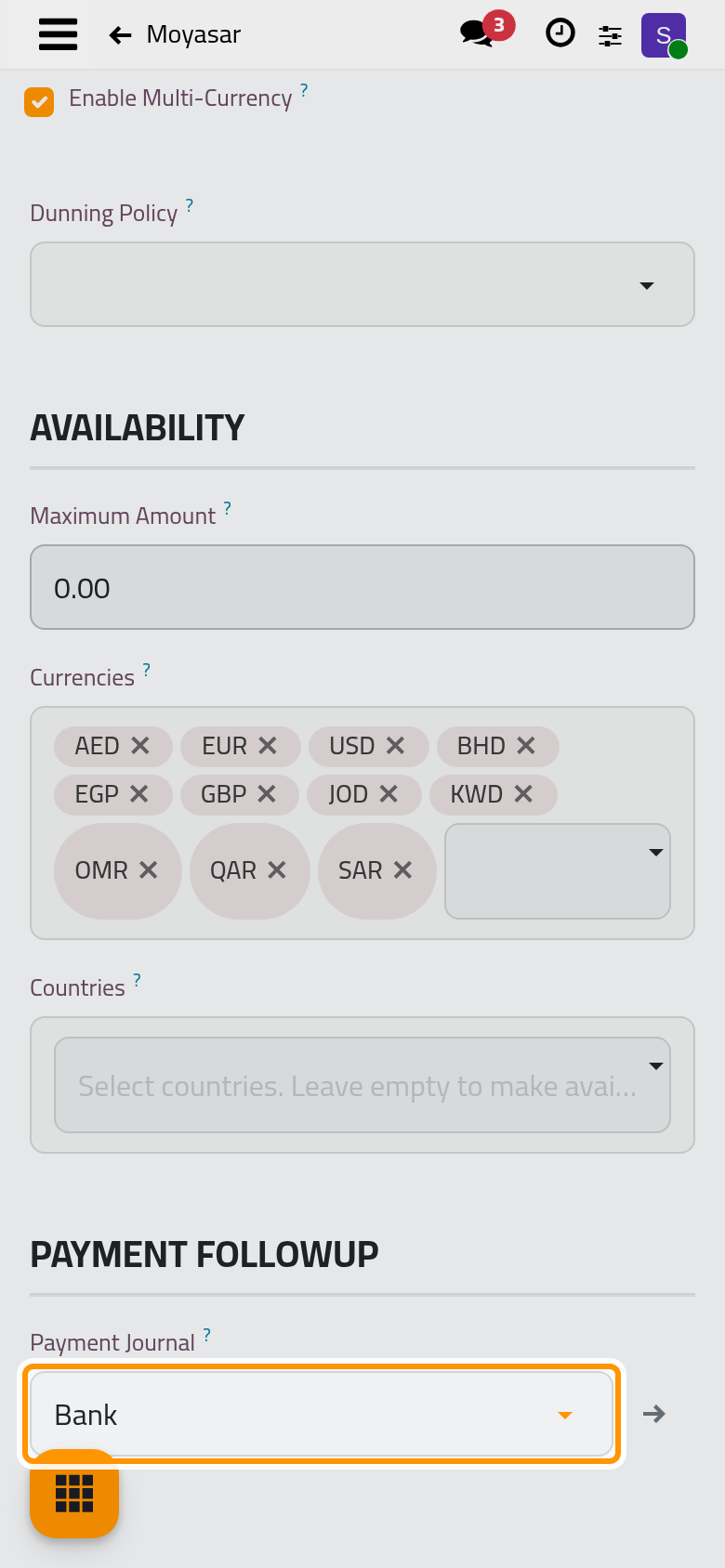
Open the Configuration tab. Moyasar settles in Saudi riyals; Enable Multi-Currency adds the US dollar, the euro, the pound sterling, the UAE dirham, the Kuwaiti, Bahraini and Jordanian dinars, the Omani and Qatari riyals and the Egyptian pound. It is ticked here because the demo invoices are in dollars. Tick it on your database only when multi-currency is also active on your Moyasar account, or the client's payment is refused after the card is typed.
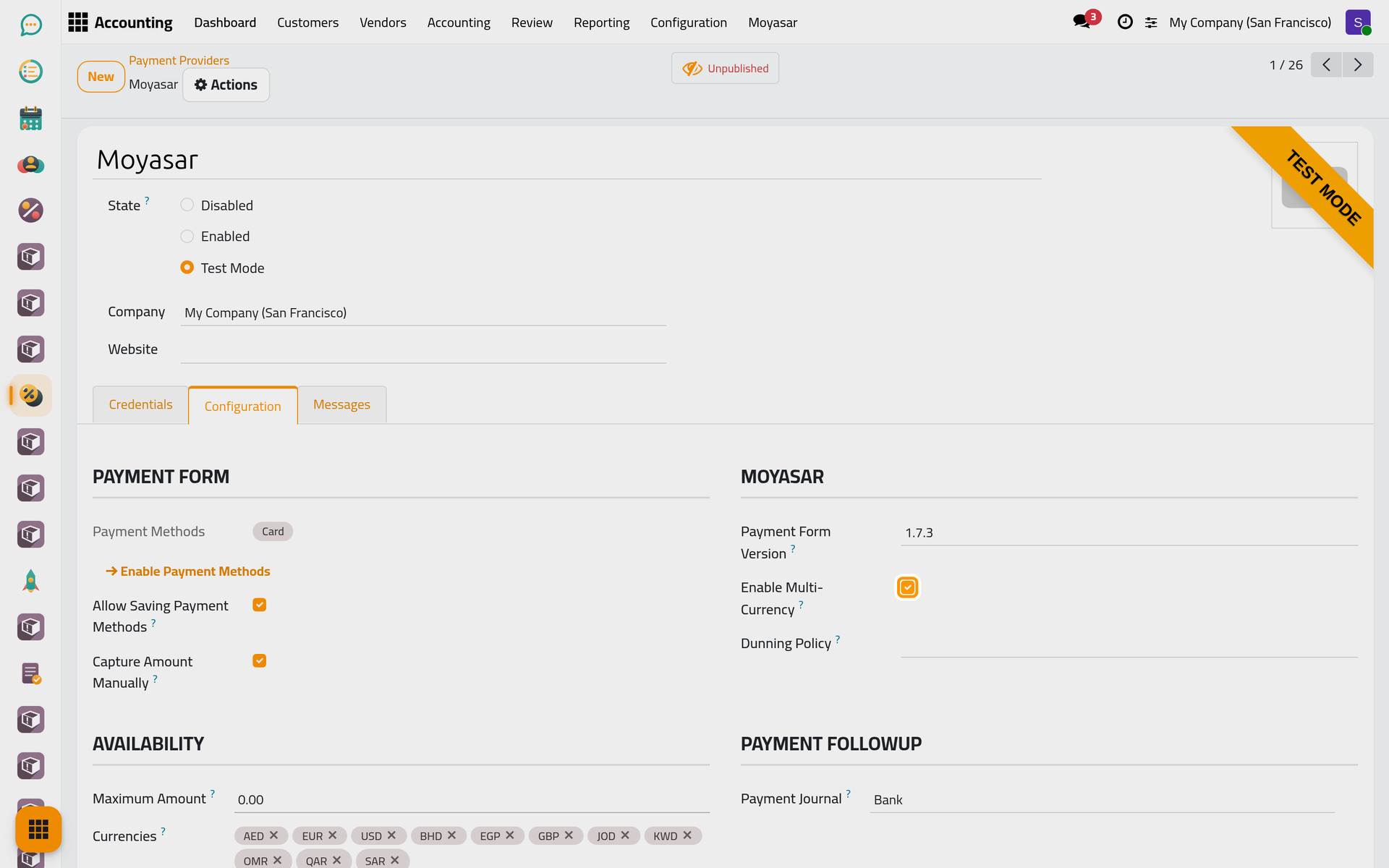
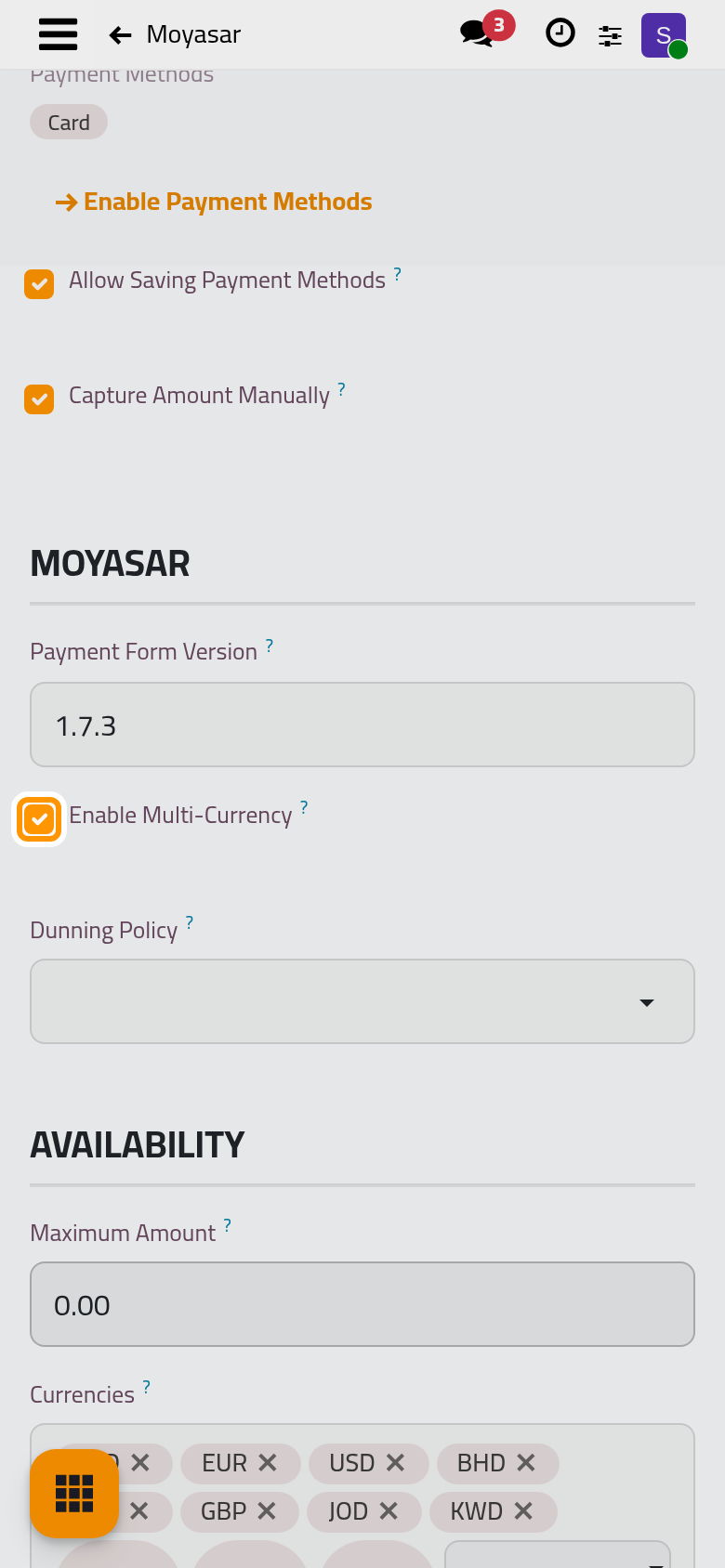
Lower down, the Payment Journal is the bank journal in which every successful payment is recorded, Bank here. If you changed anything, click the cloud icon Save manually.
Step 5: send the payment link
Open and open INV/2026/00008, posted and not paid. In the Actions menu, choose Generate a Payment Link. The window proposes the amount due, and Generate and Copy Payment Link copies the link, ready to paste into an e-mail or a message to the client. The link opens the invoice on the customer portal; while Moyasar is in Test Mode it stays unpublished, so only the firm's own users see it there. Send a payment link shows how to ask for part of the amount.
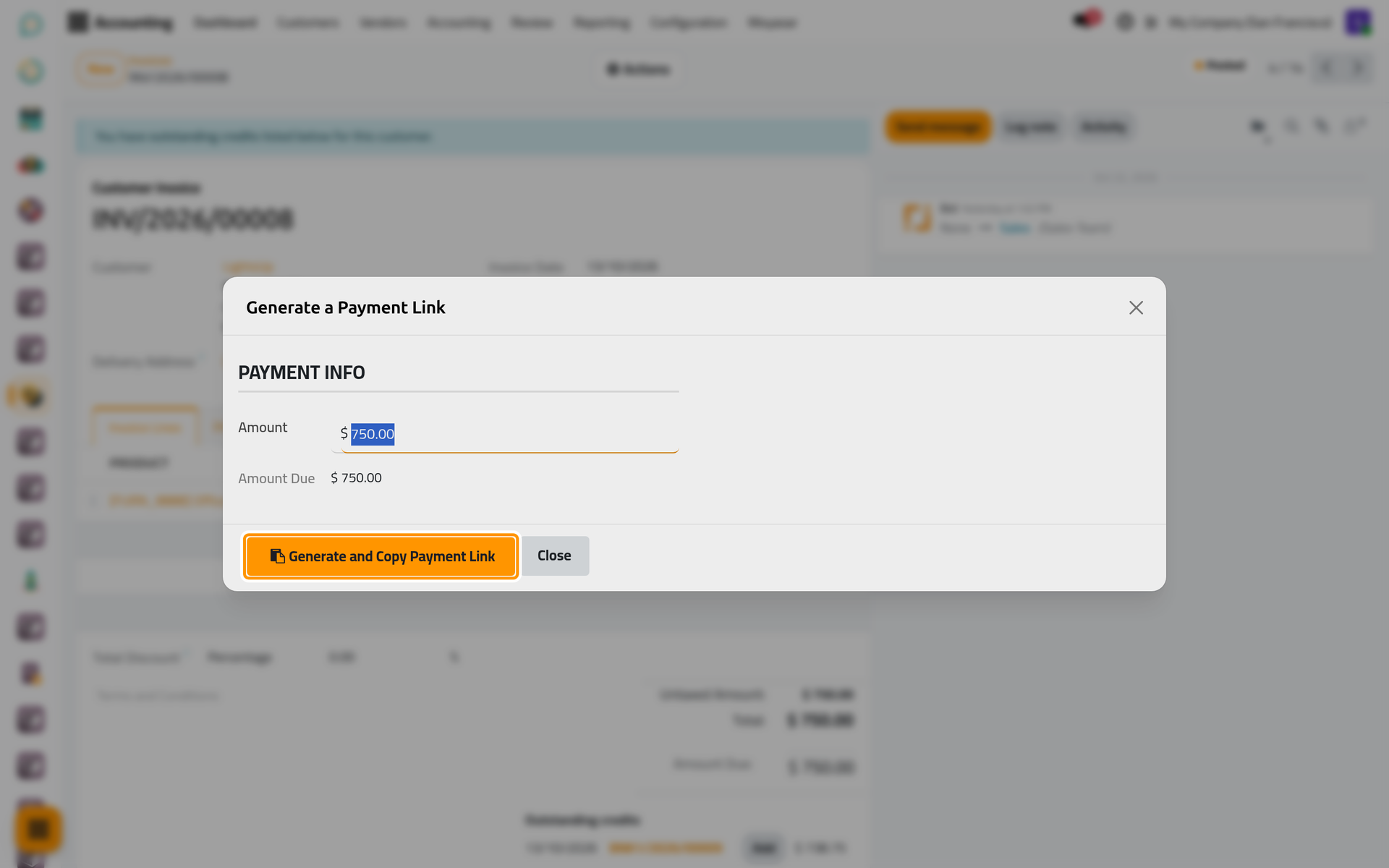
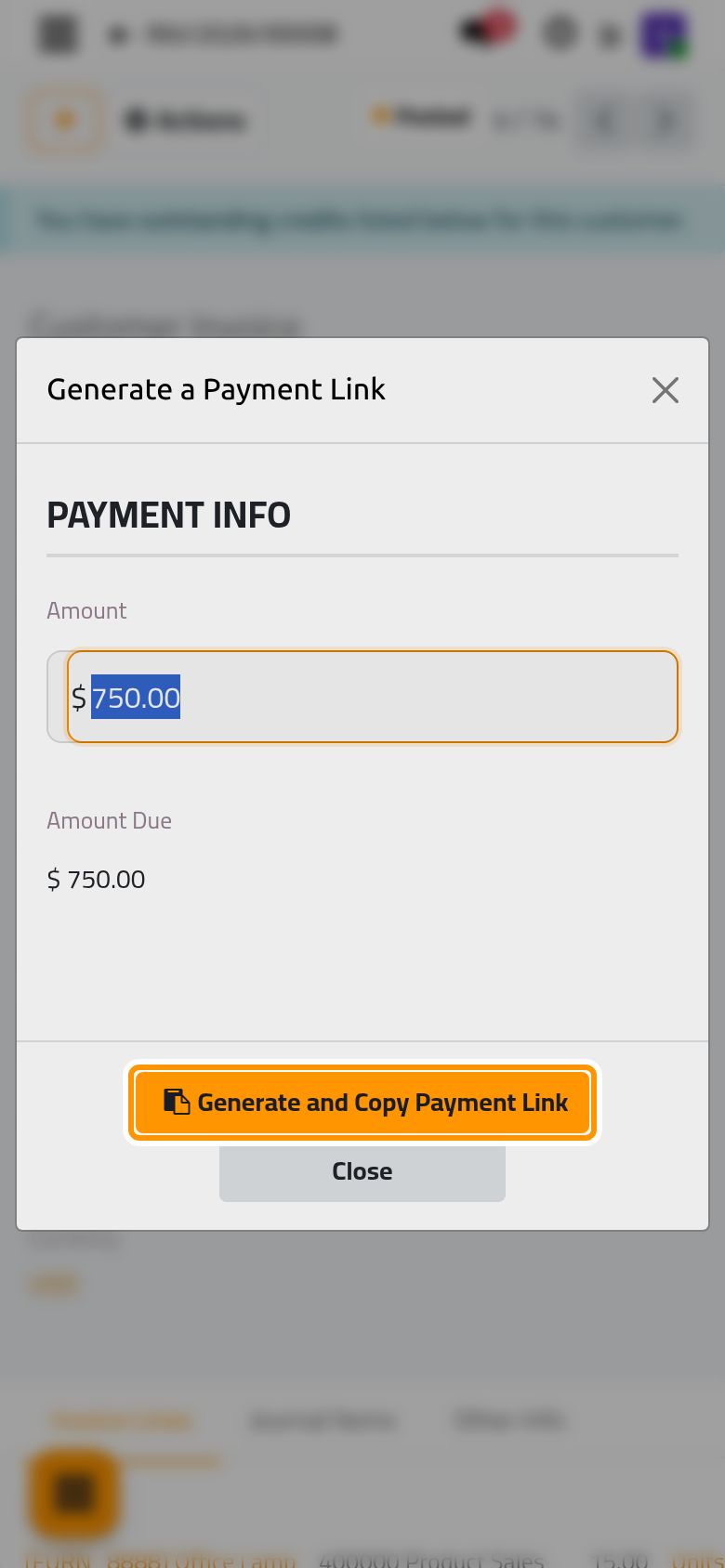
Click Close to leave the window.
Step 6: a payment comes back
Go back to the invoices and open INV/2026/00009: OpenWood paid it by card, and the chatter says that the transaction PAYDEMO-0001 of 1,799.00 has been authorized. Because Capture Amount Manually is ticked on Moyasar, the money is only held on the client's card: nothing is recorded in the books yet, and the invoice is still not paid.
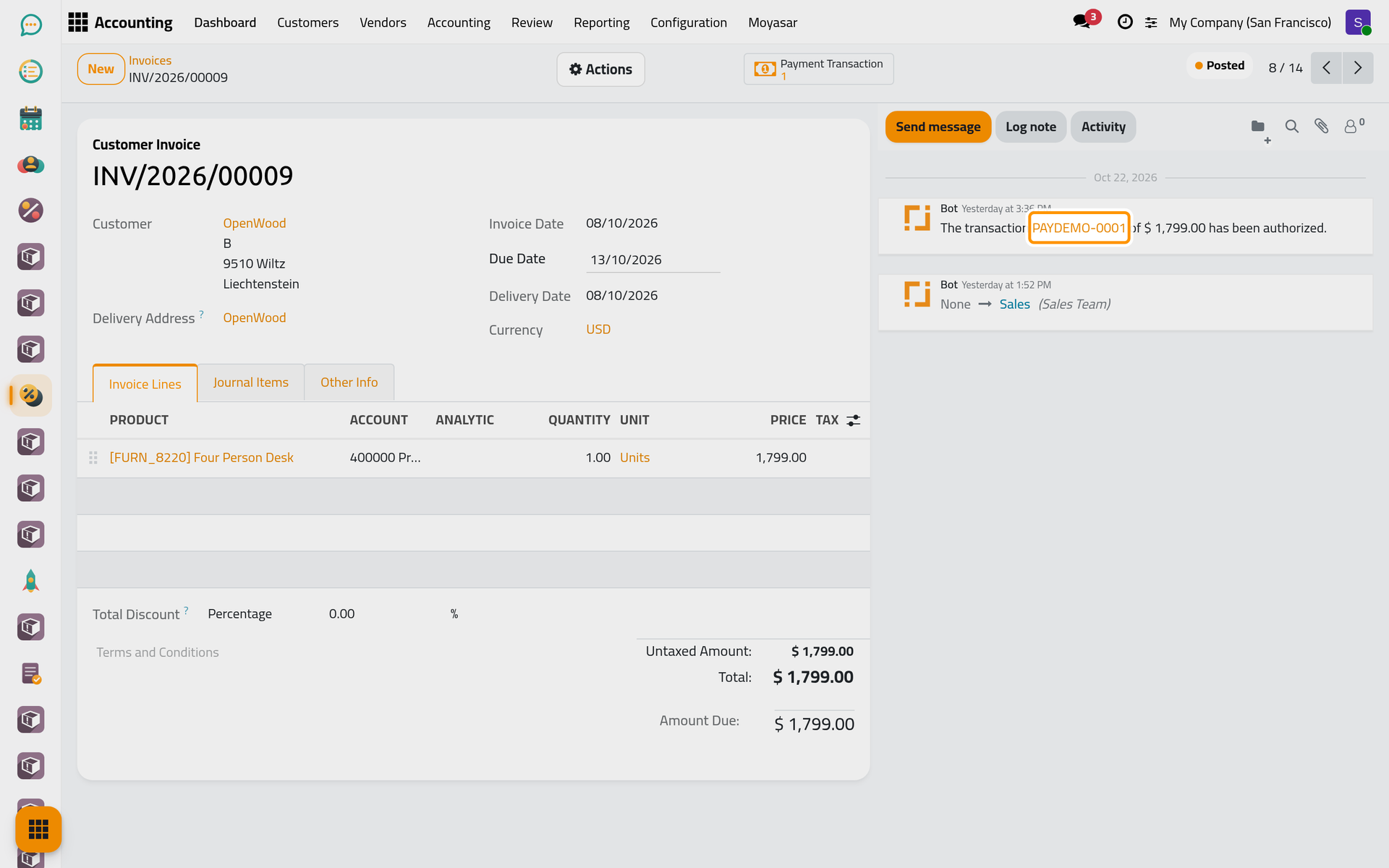
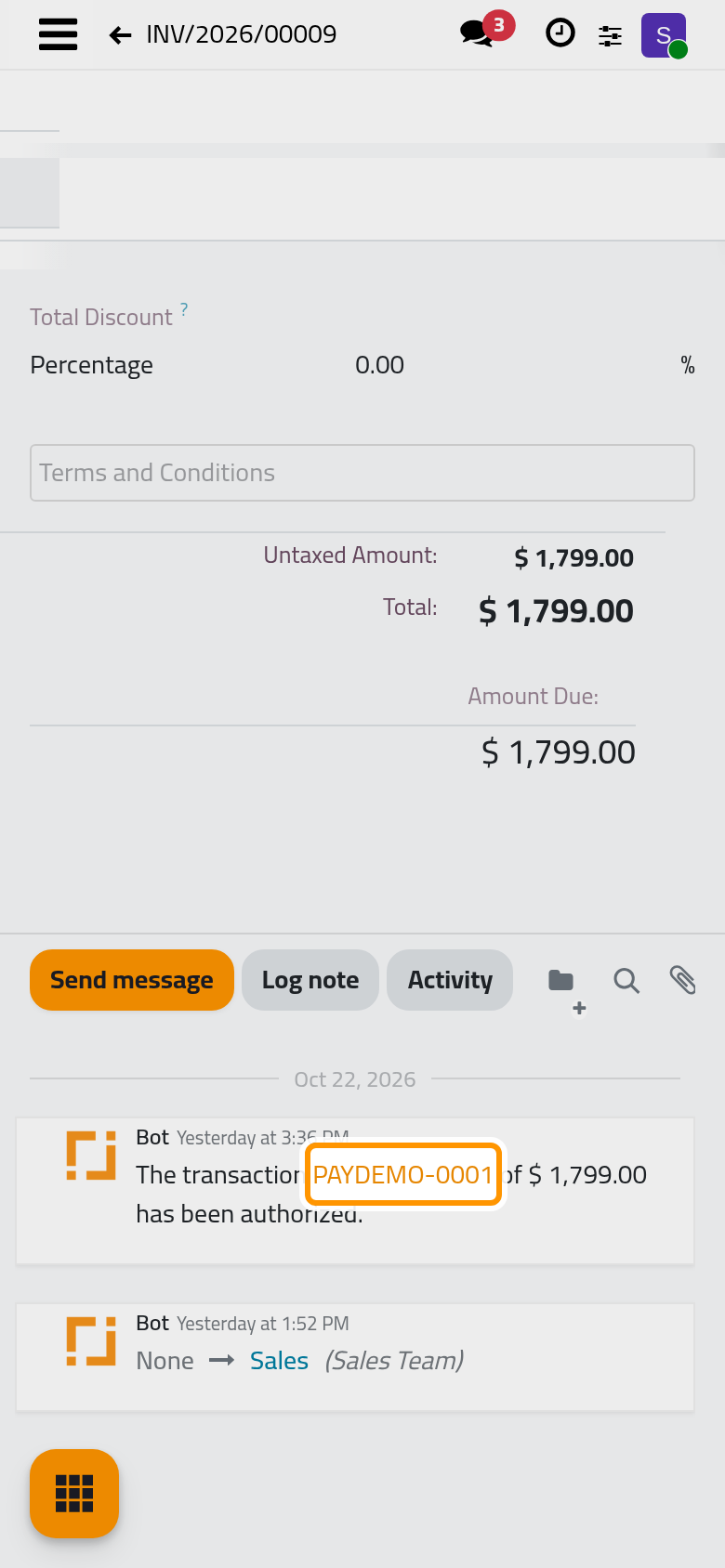
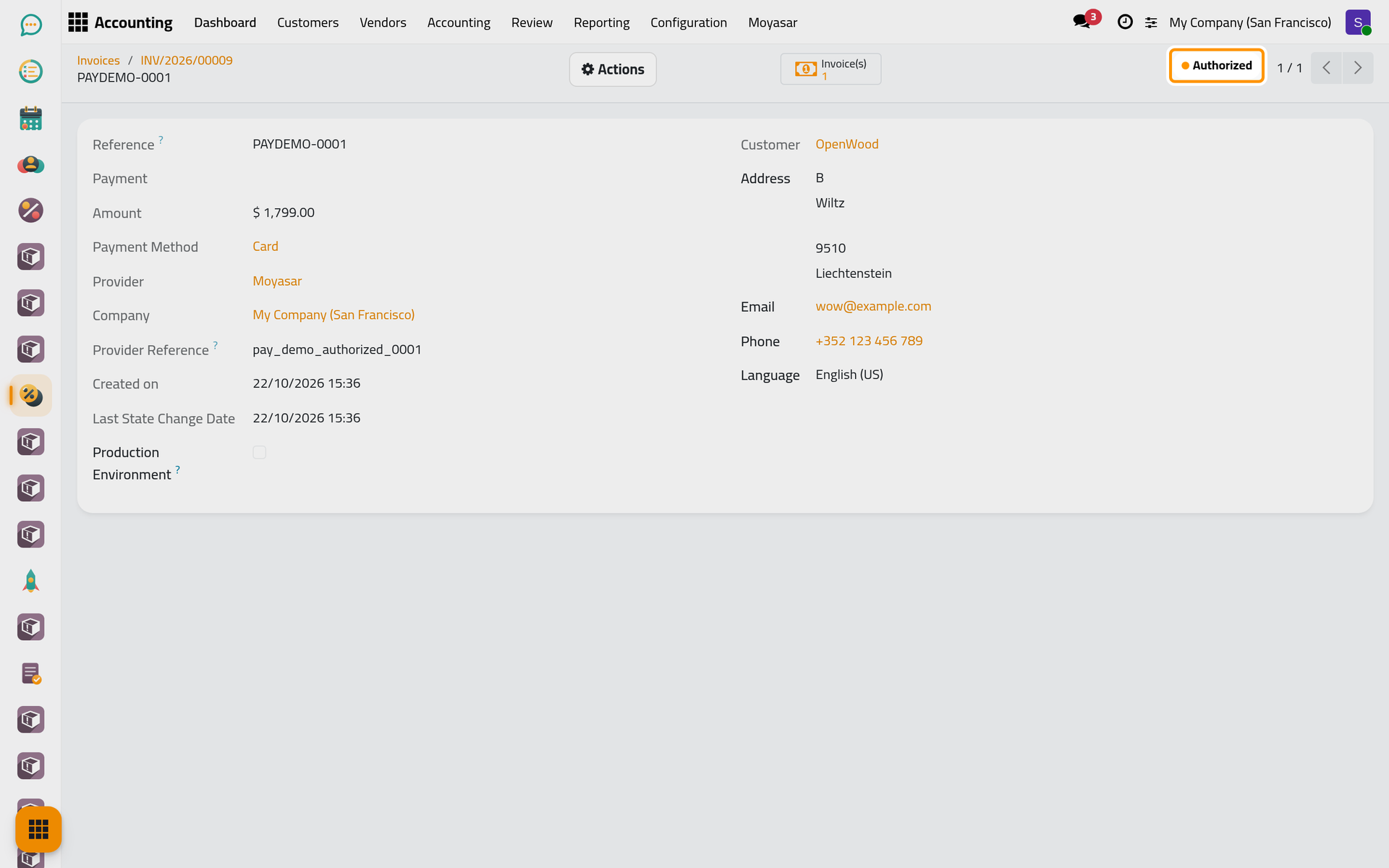
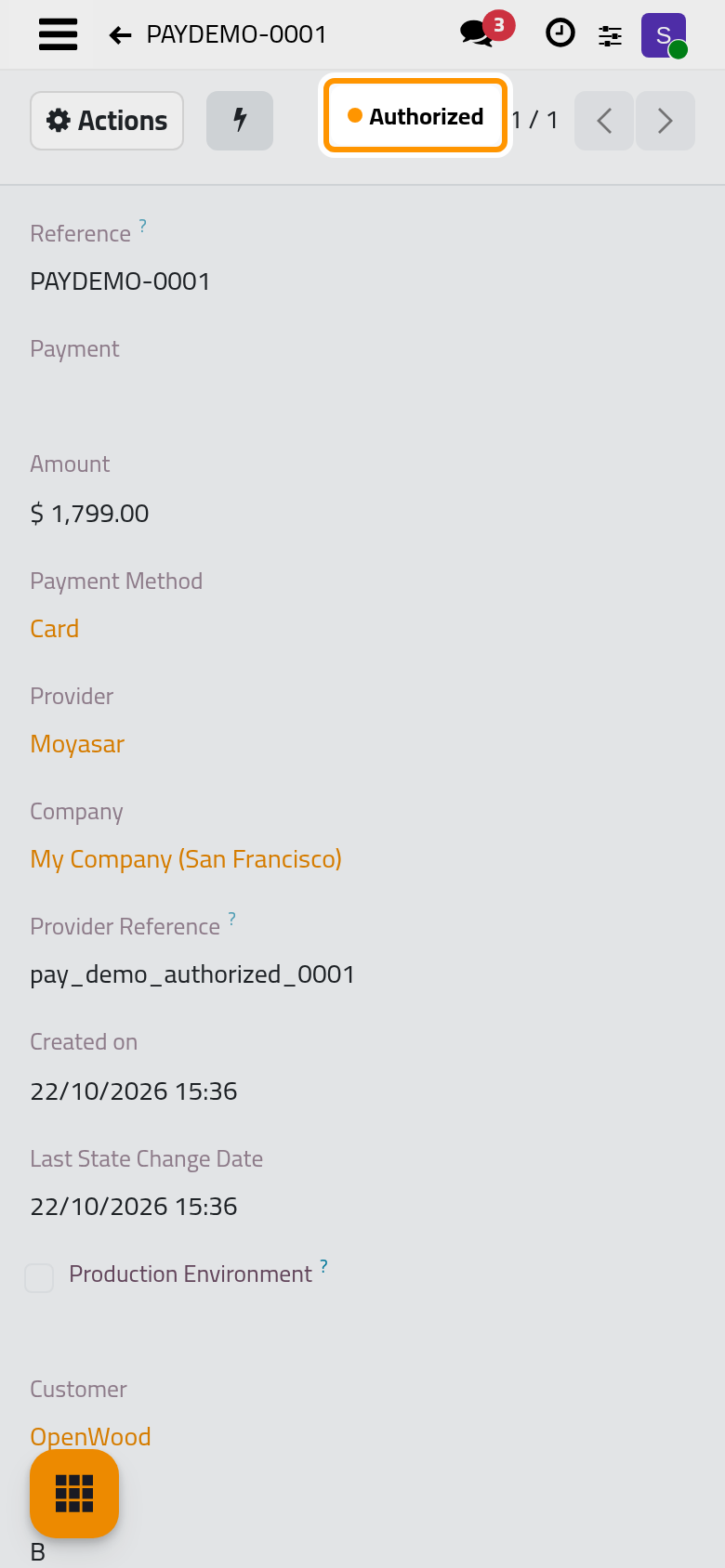
Click the Payment Transaction button at the top of the invoice; on a phone it sits behind the lightning icon. The transaction shows its state, Authorized, the amount, the payment method Card, the provider and the Provider Reference, the number Moyasar gave the payment.
What happens next
From the invoice, Capture Transaction takes the money and Void Transaction releases it: see Capture, void or refund an online payment. Once the money is taken, the payment is posted in the Payment Journal and matched with the invoice by itself, and the invoice shows Paid. Matching the provider's deposit with the bank statement is explained in Banks, cash and currencies.
How an online payment reaches the books explains each stage, Set up Moyasar every field of the provider, and Online payment settings the switch that opens invoices to online payment.
Was this page helpful?
Thank you for your feedback.