Send a payment link
On this page
A payment link takes the client straight to the payment page of one invoice. Send it when the invoice e-mail is not enough: a reminder in a message, or a request for part of the amount. Sending the invoice itself is explained in Customer invoices.
Before you start
- You need the Invoicing access right on Accounting for all documents, or Administrator.
- The invoice is posted and not fully paid, Invoice Online Payment is on in Online payment settings, and a provider such as Moyasar is set up (Set up Moyasar).
Make the link
- Open and open the invoice, INV/2026/00008 in the example.
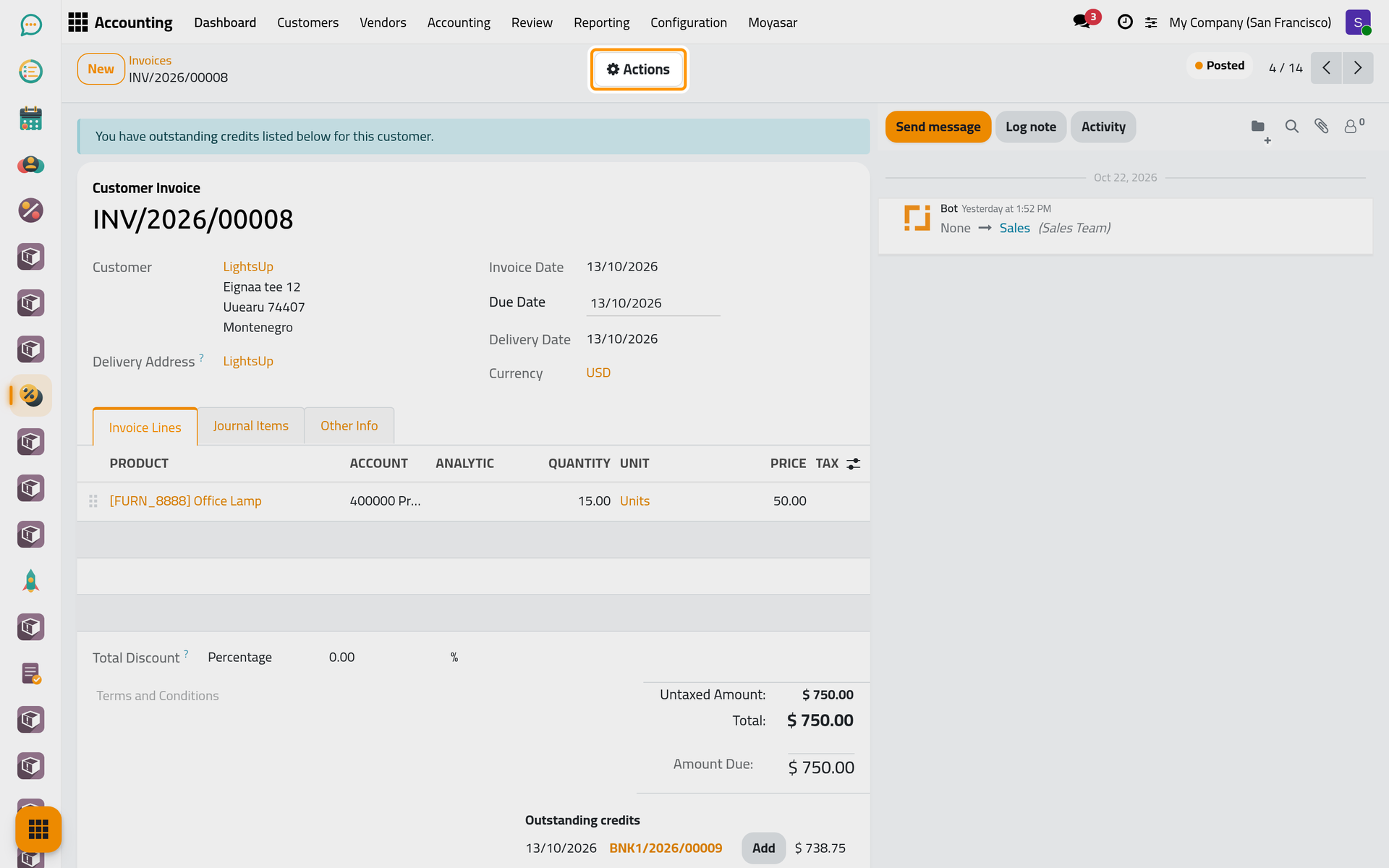
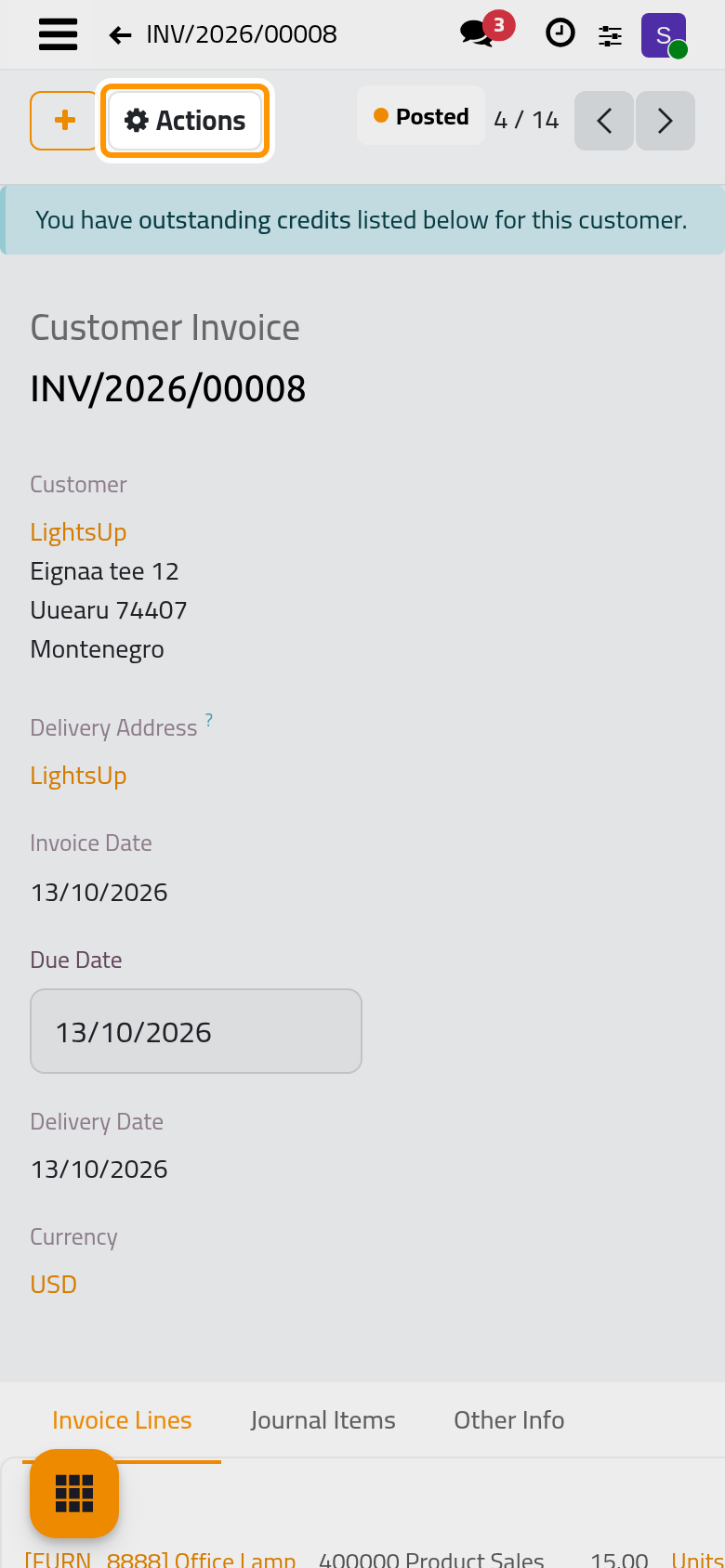
- In the Actions menu, choose Generate a Payment Link. The window proposes in Amount the whole Amount Due.
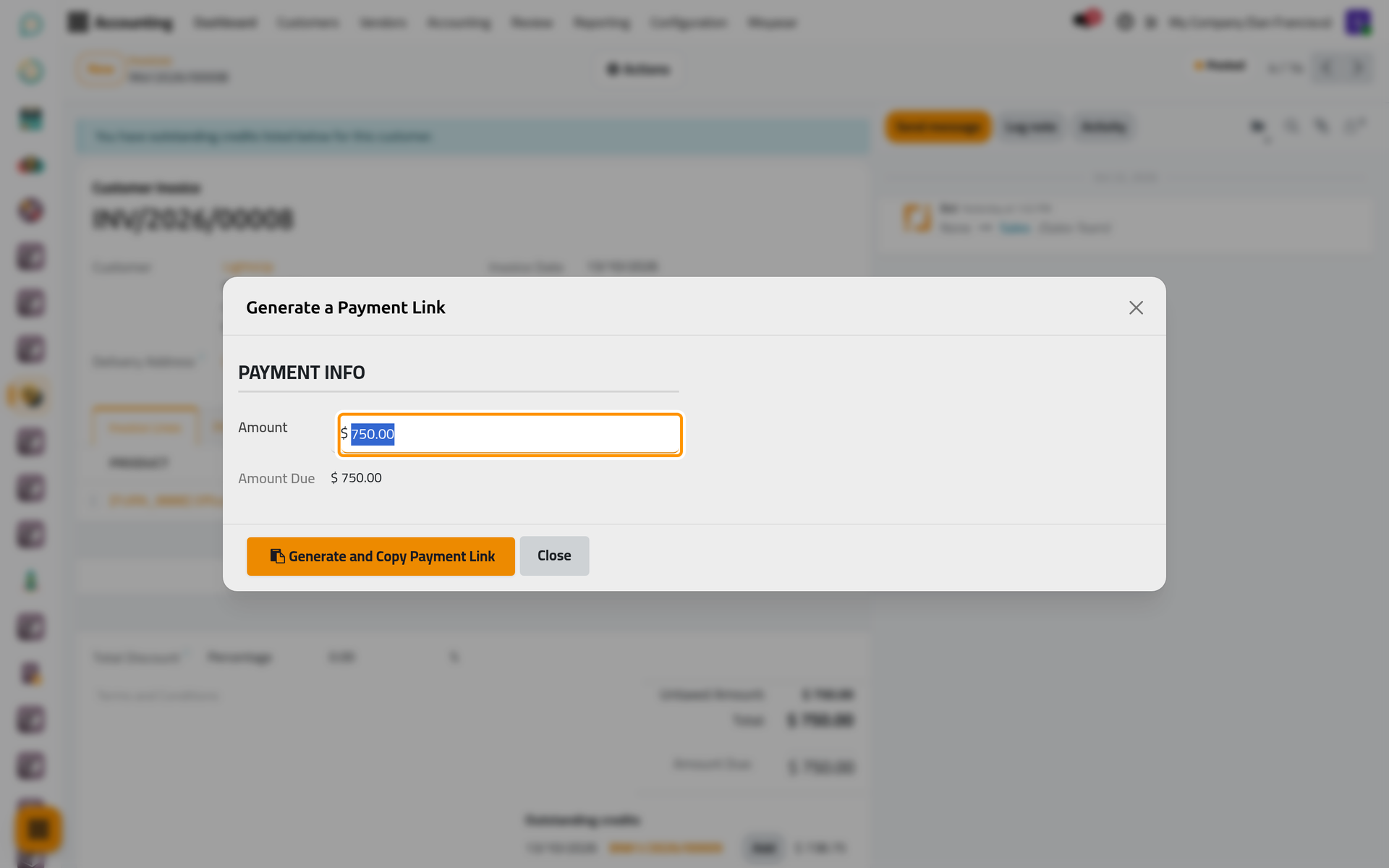
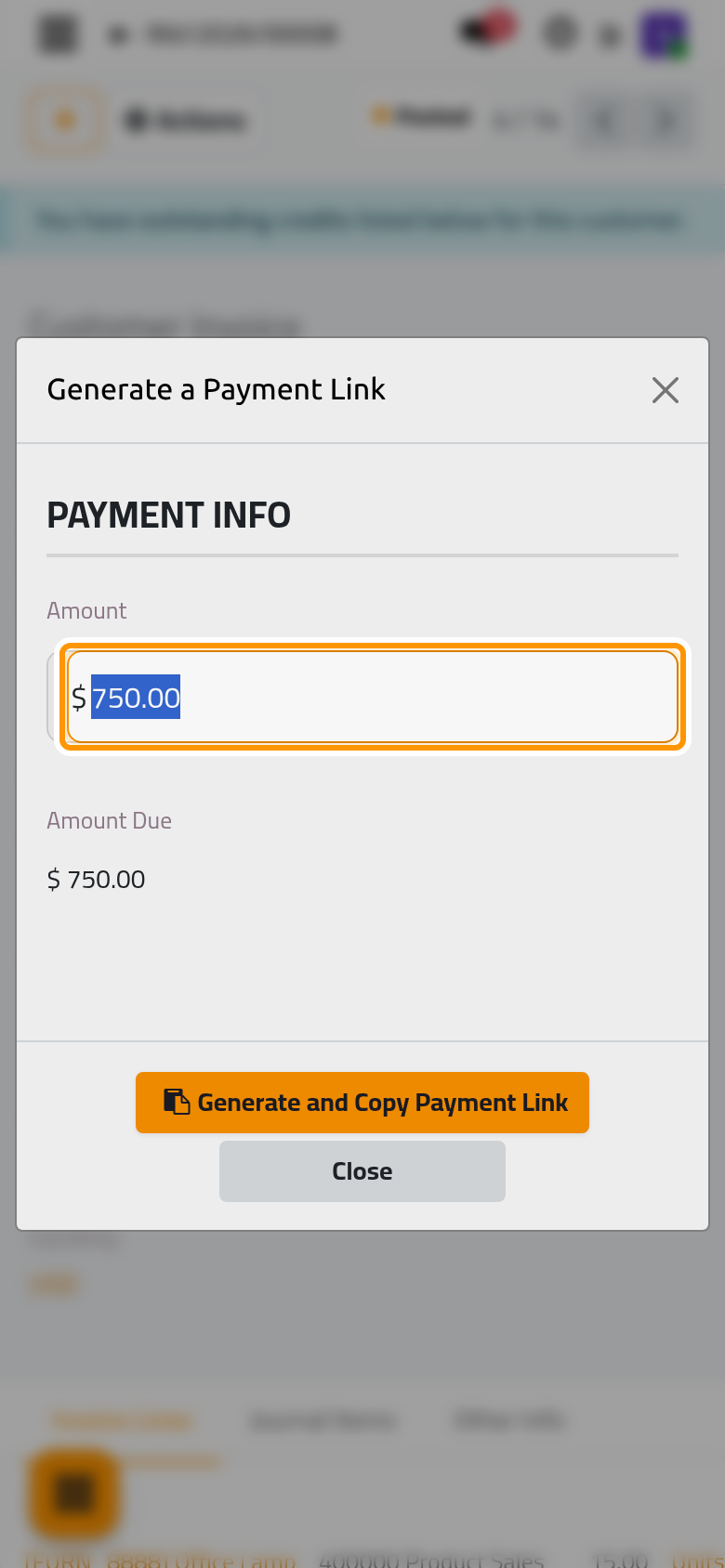
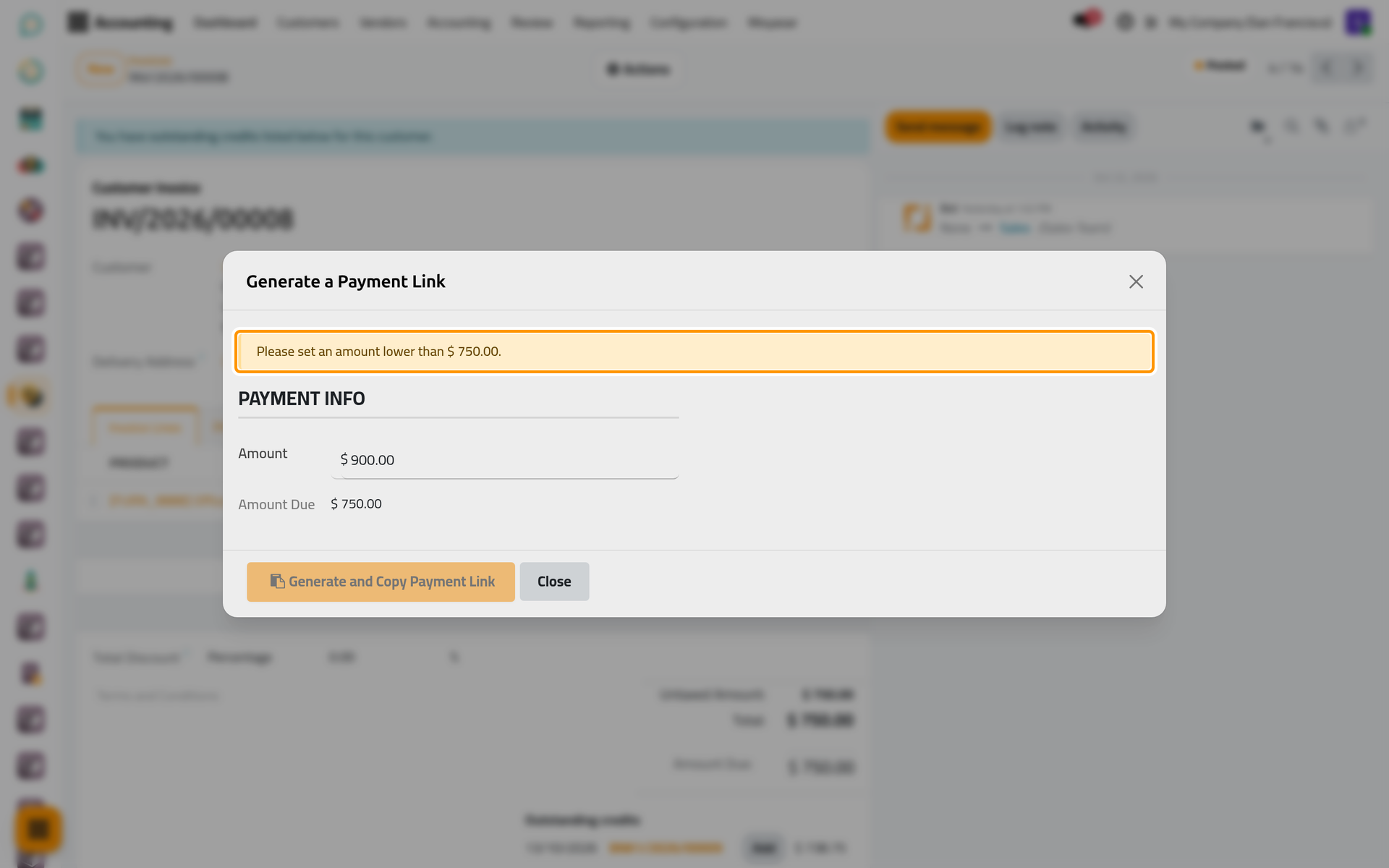
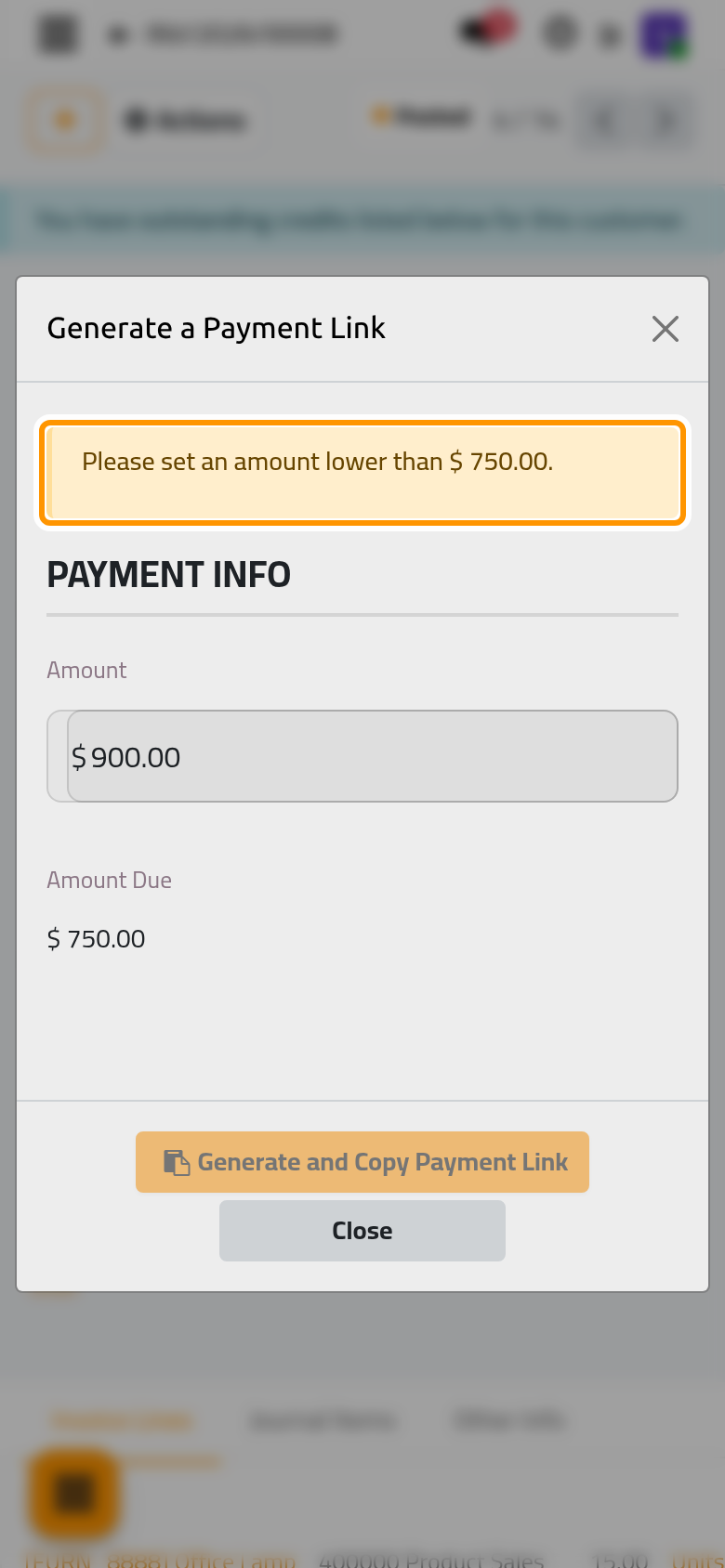
- To ask for part of the invoice, type a lower Amount. An amount above what is due is refused with a message that gives the highest amount allowed, and the copy button stays greyed out.
With 300.00 of 750.00, the link asks the client for 300.00; the rest stays due, and a second link can ask for it later.
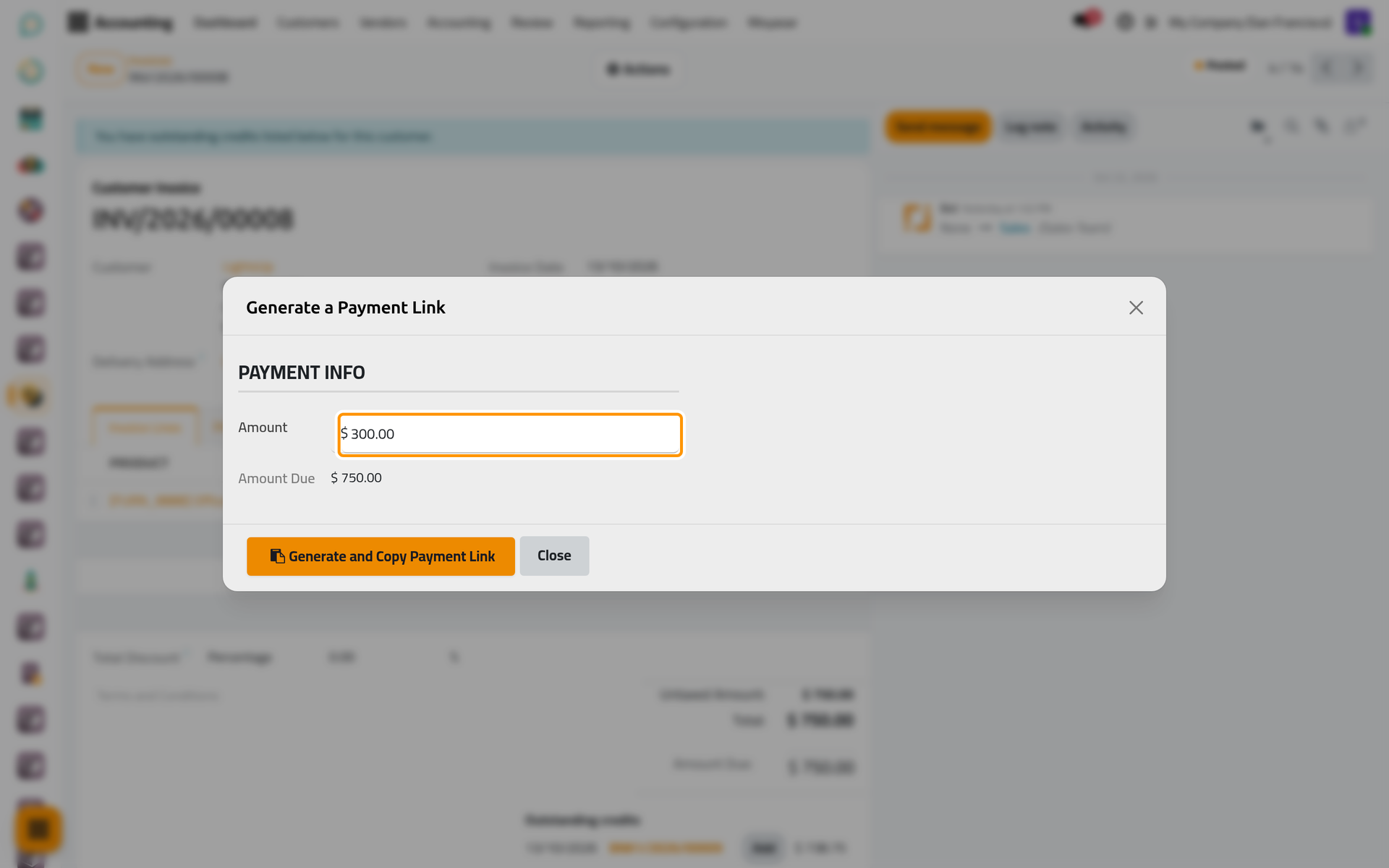
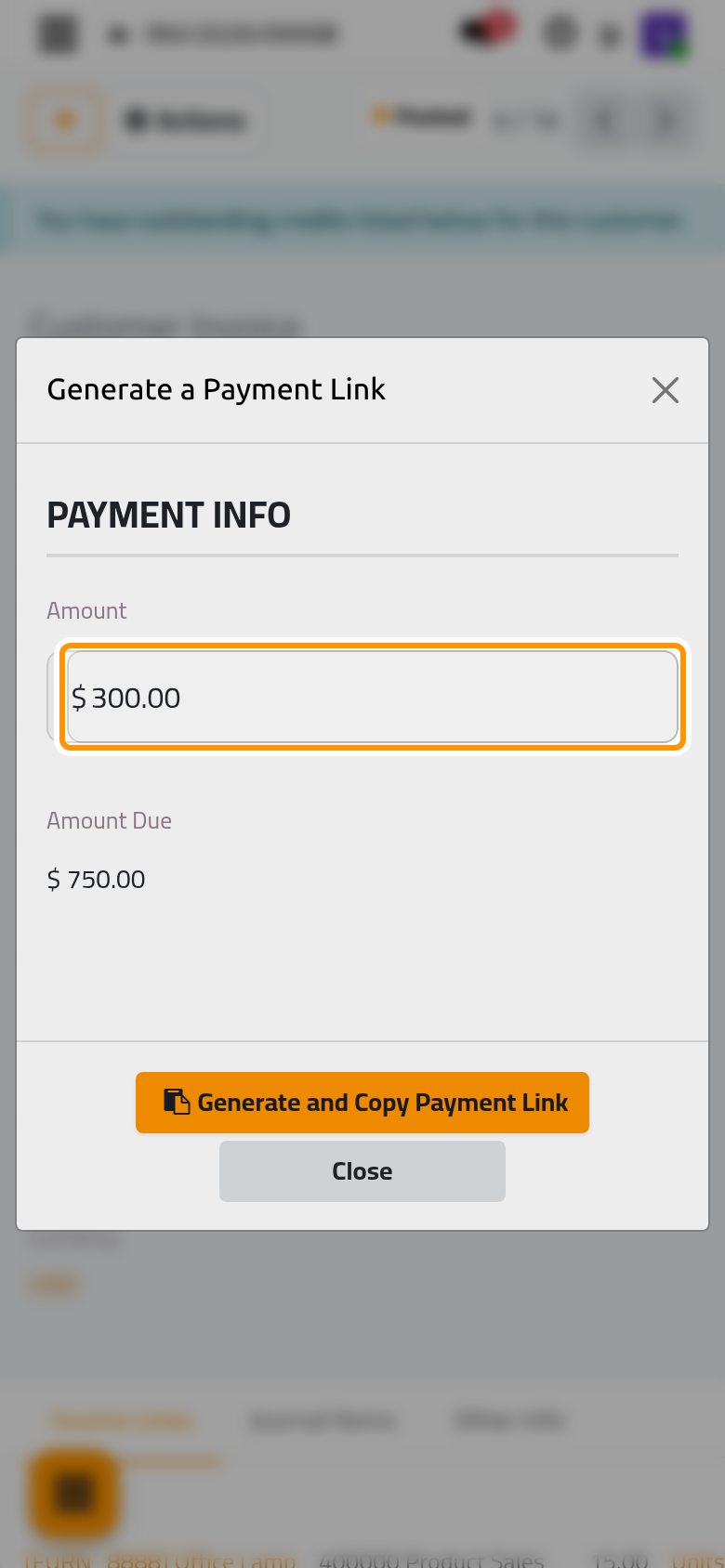
- Click Generate and Copy Payment Link. The link is copied: paste it into an e-mail or a message to the client.
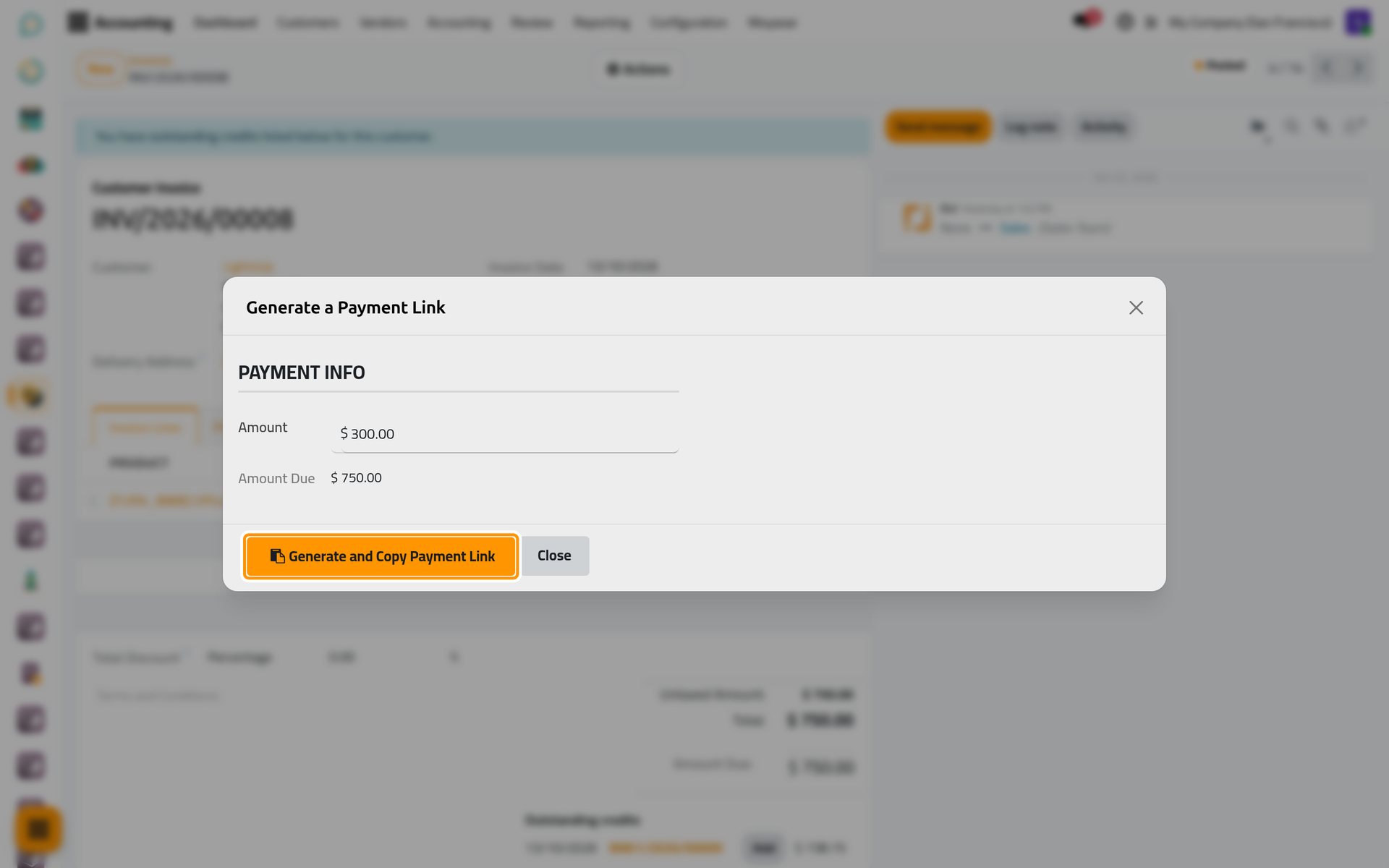
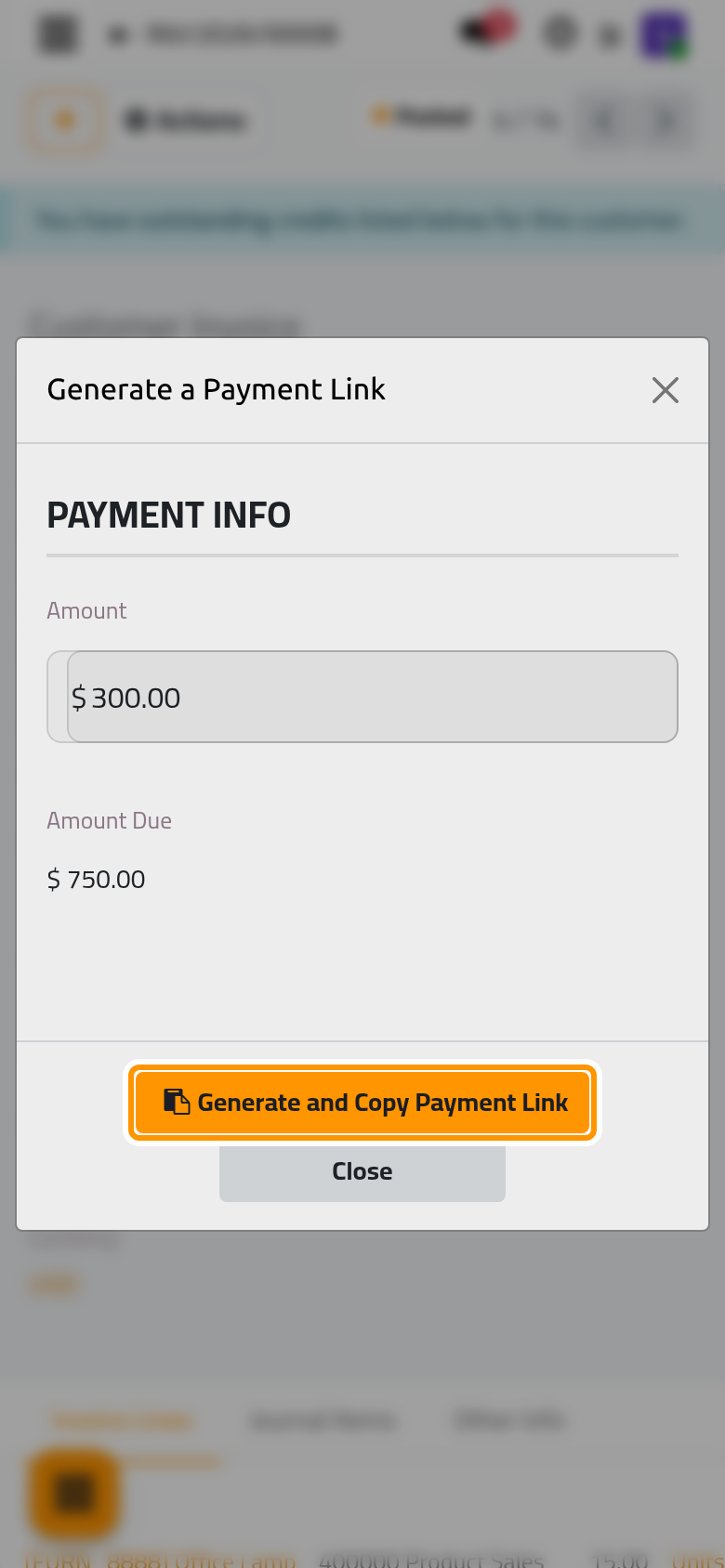
- Click Close.
When the payment terms grant a discount for early payment, a line at the top of the window gives the date until which the discount applies. When they split the invoice into several instalments, the Next Installments group lists them.
What the client gets
The link opens the invoice on the customer portal, for the amount asked. It carries a key to that invoice: anyone who has the link can open it, so send it to the client only. Your first online payment shows a card payment that came back to its invoice.
To print the link on the invoice itself as a QR code, turn on Add QR-code link on PDF in Online payment settings.
FAQ
The window warns that the client has no e-mail.
Some providers need the client's e-mail to take the payment. Add it on the client's contact, then make the link again.
The copy button is greyed out.
The window says why at the top: the amount is above what is due or not positive, there is nothing left to pay, or Invoice Online Payment is off in the settings.
Can one link pay several invoices of a client?
Not this one, which belongs to a single invoice. A link for several unpaid invoices of the same client is explained in Customer invoices.
The link has two slashes after the site's address.
That is how the link is built, and it works as it is. You can remove one of the two slashes before sending it.
Was this page helpful?
Thank you for your feedback.