Online payment settings
On this page
Online payment is switched on for invoices in the Customer Payments group of the accounting settings. The providers themselves have no option on this page: each one is set up on its own form, as Set up Moyasar and Set up Tamara show. The other accounting options are explained in Accounting: start here. Open .
Before you start
- The settings need the Administrator role on your user.
- Invoice Online Payment and Accept Payment in Draft State apply to every company of the database; Add QR-code link on PDF belongs to the current company.
Customer Payments
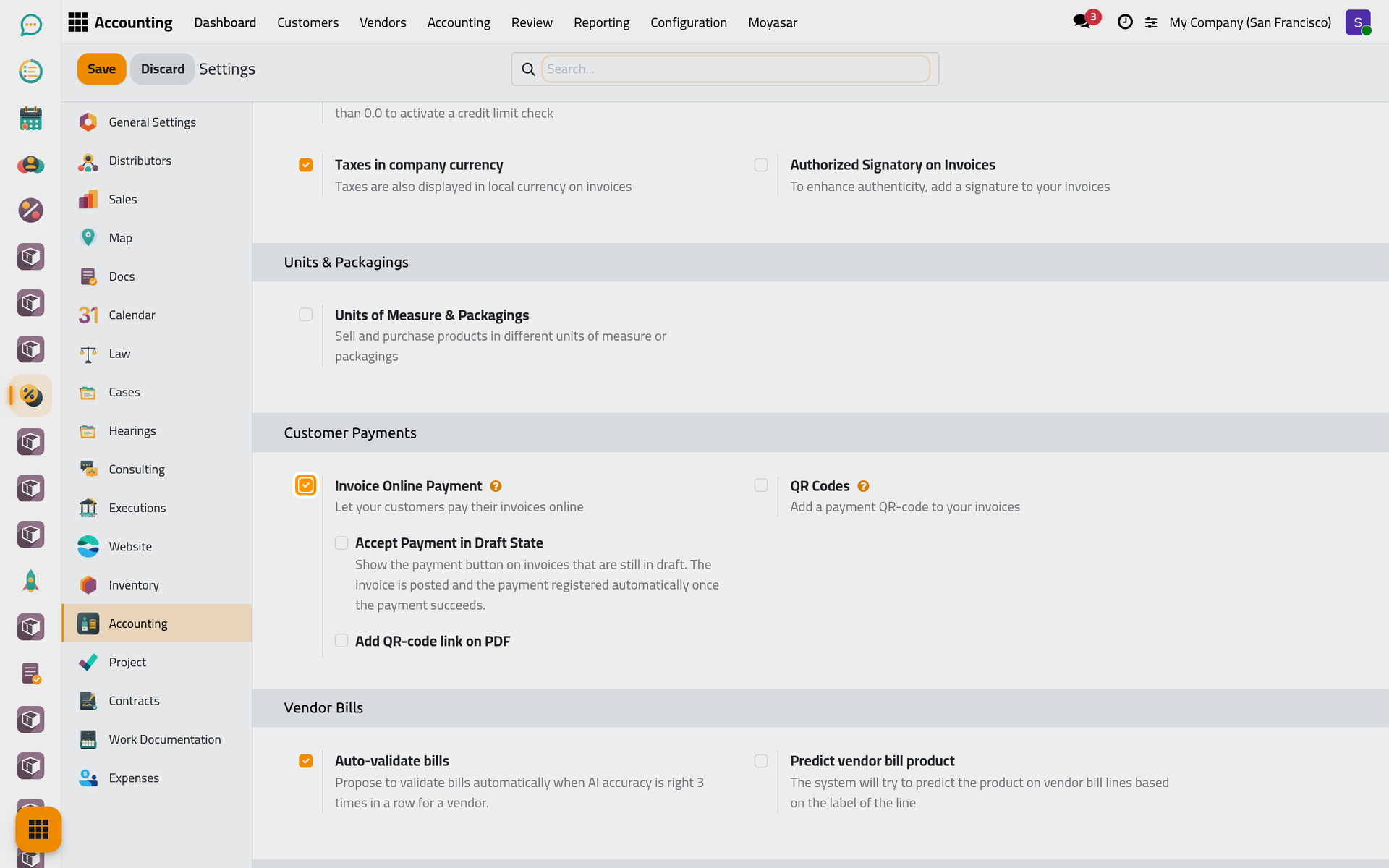
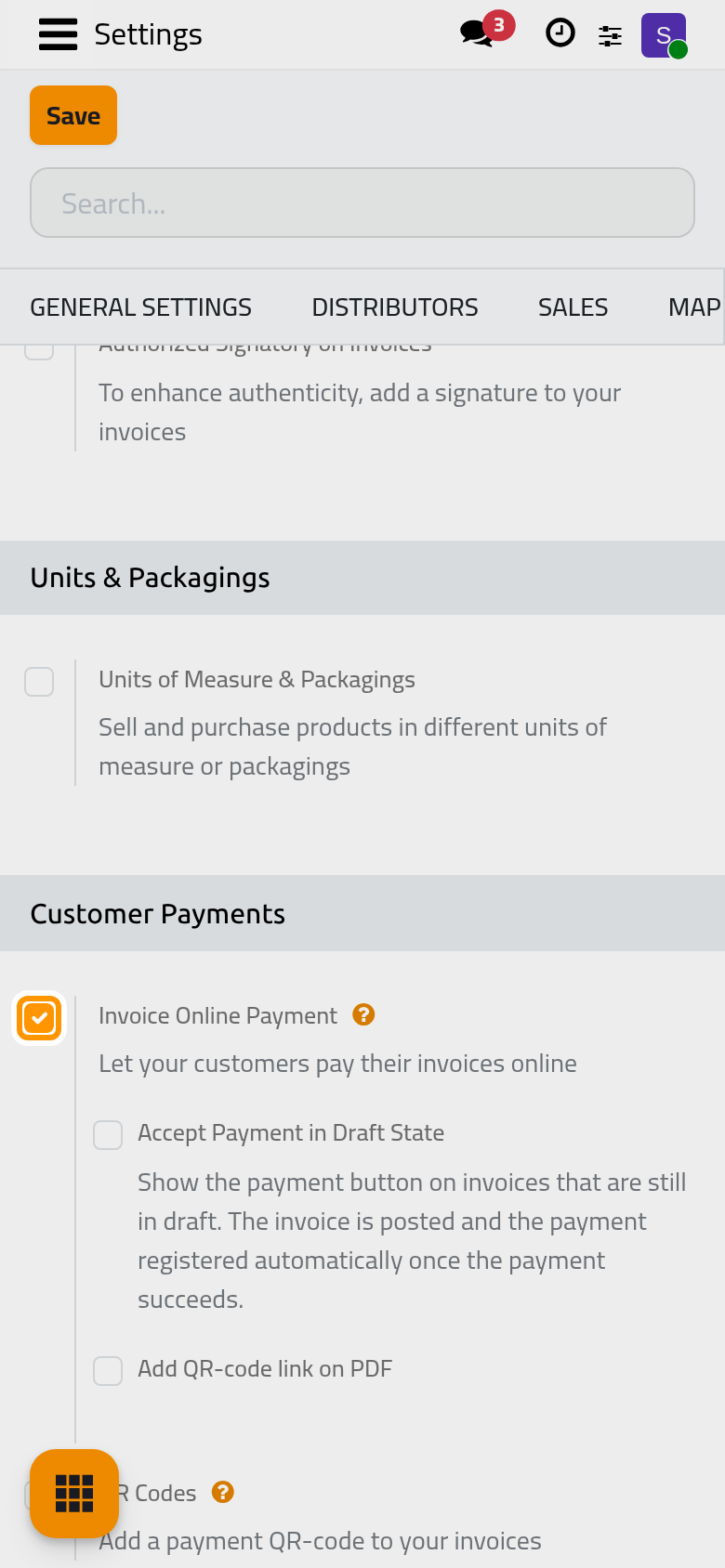
Invoice Online Payment
On by default, with the help line Let your customers pay their invoices online. On, a posted invoice with an amount due shows a Pay Now button on the customer portal whenever a provider is available for it, and a payment link can be made from it (Send a payment link). Off, the portal shows no Pay Now, and the payment link window says Online payment option is not enabled in Configuration. and keeps its copy button greyed out. The draft option below it appears only while it is on.
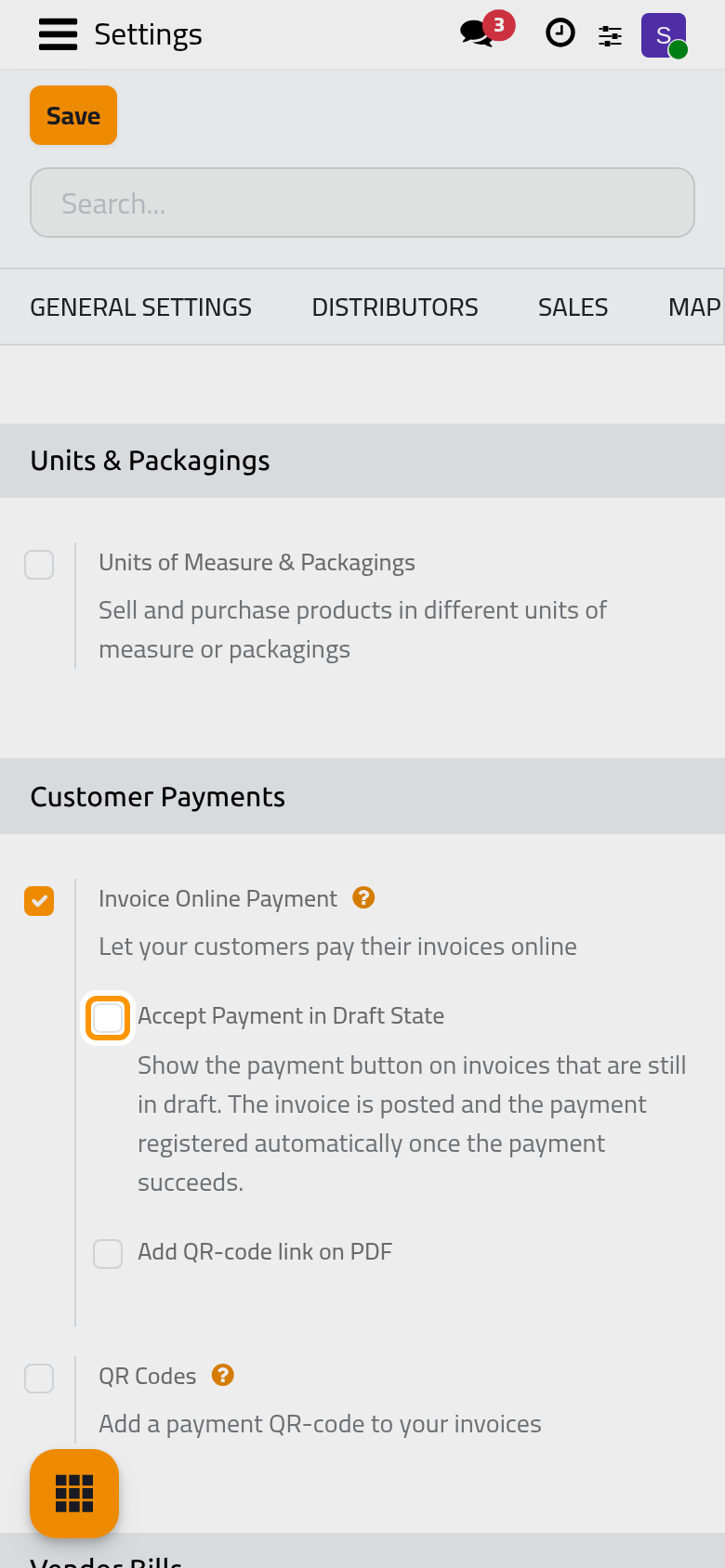
Accept Payment in Draft State
Off by default. On, the payment button is also shown on an invoice still in draft; as soon as the payment succeeds, the invoice is posted and the payment recorded, without anyone opening it. A draft that could not be posted, for example one without lines or on an archived journal, is not offered for payment. While a payment is under way, the draft can no longer be deleted and its amount can no longer be changed.
If posting still fails after the client has paid, the invoice shows a red banner: the client has paid but the invoice could not be posted, and accounting is retried by itself for four days. Open the payment transaction to read why, fix the cause, and the invoice settles on its own.
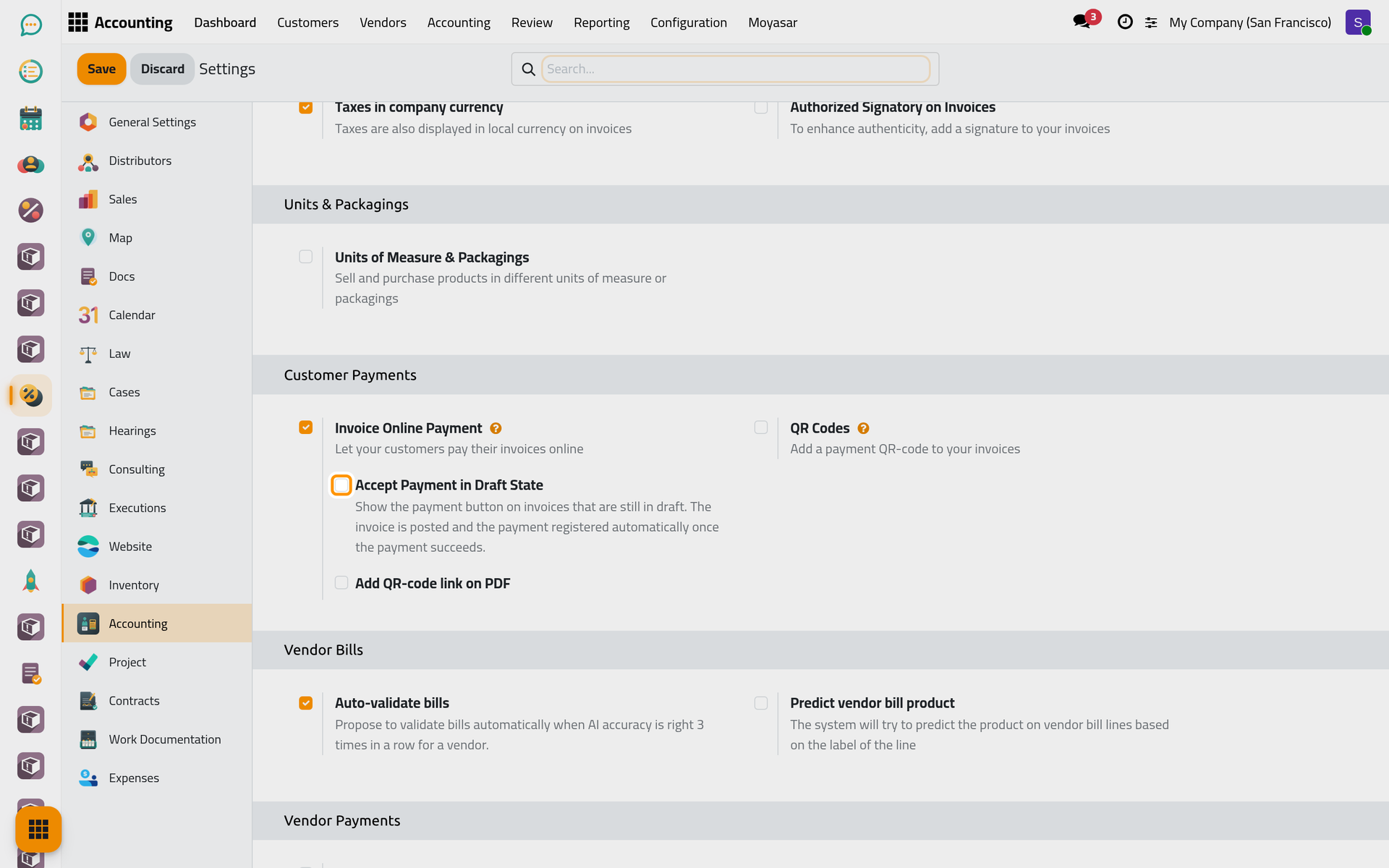
When the Demo provider is enabled, a warning appears under the option: that provider lets anyone confirm a payment without paying, which would post the invoice. Disable it before using the option.
Add QR-code link on PDF
Off by default. On, every invoice printed with an amount due carries a QR code that opens its payment page; the client scans it with a phone instead of typing the link.
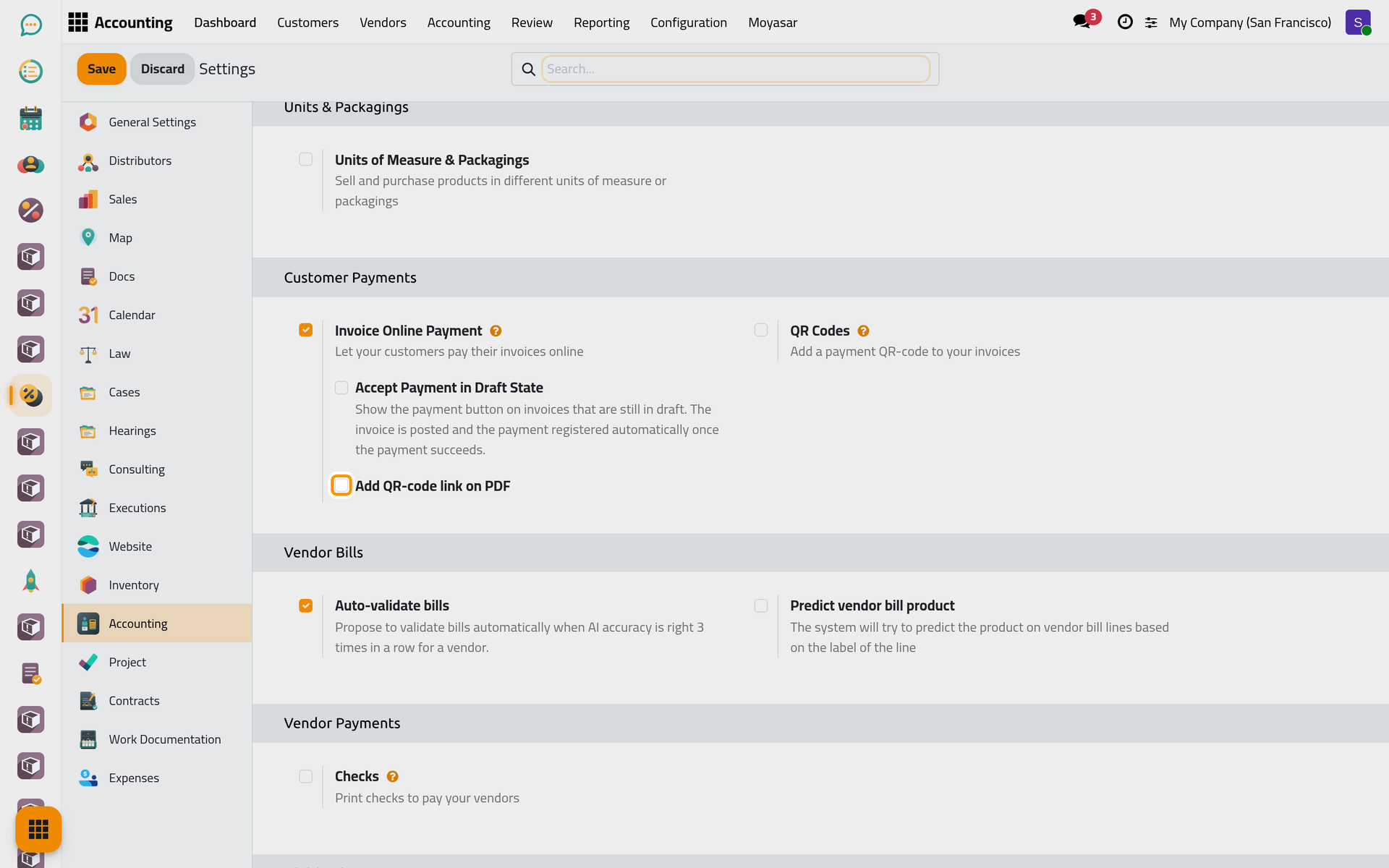
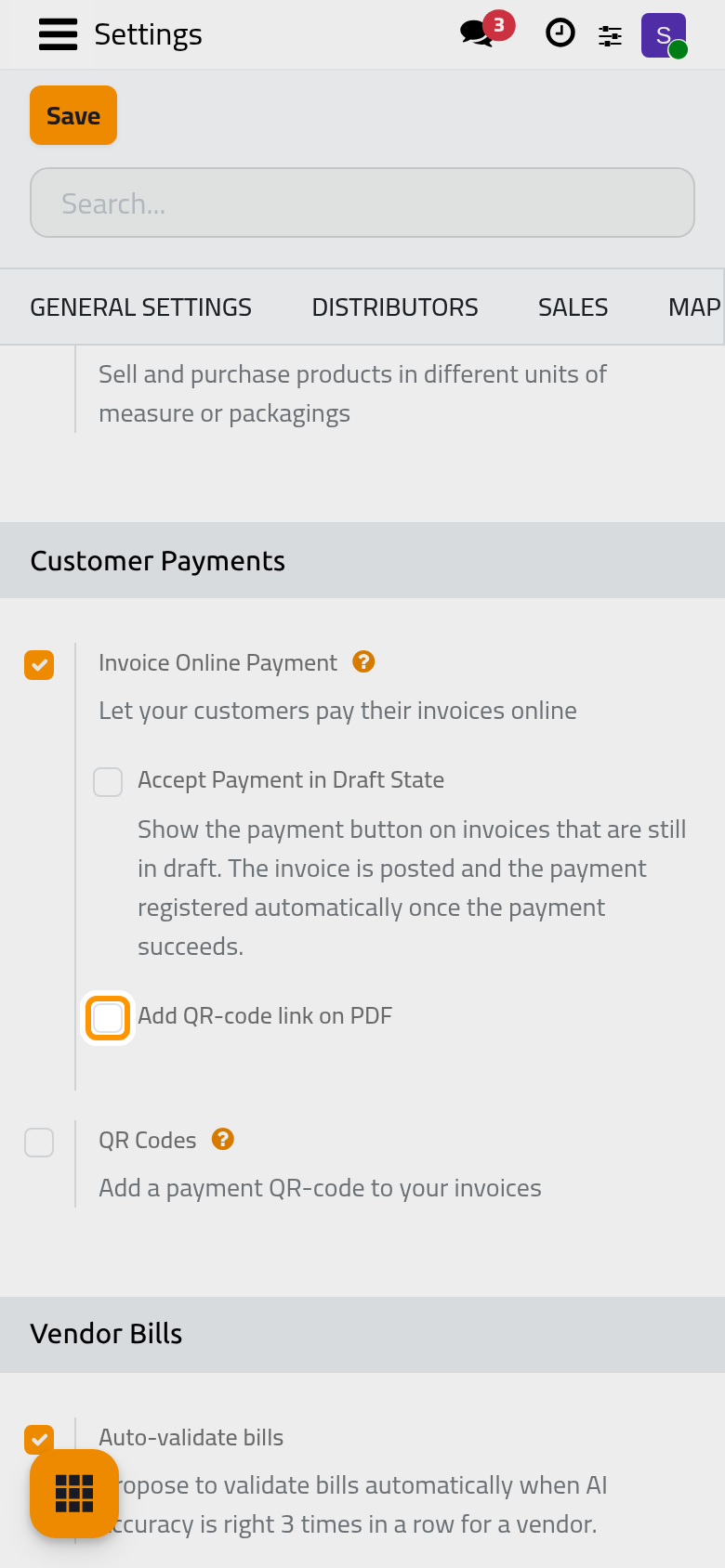
QR Codes
The QR Codes option beside them prints a bank-transfer QR code, not an online payment; it belongs to the invoice, see Customer invoices.
Click Save to apply your changes.
FAQ
A client does not see Pay Now on an invoice.
Check that Invoice Online Payment is on, that a provider is available for that client and currency (Set up Moyasar), that the invoice is posted (or that drafts are accepted), and that no payment is already waiting on it: while a payment is pending or authorized, the portal offers no second one.
Can I keep the QR code without online payment?
The option stays visible and can stay ticked when Invoice Online Payment is off, but the QR code then leads to an invoice page with no Pay Now. Keep the two together.
Which tasks run by themselves?
The page Online payment automations lists the scheduled jobs and the e-mails of online payments.
Was this page helpful?
Thank you for your feedback.