Set up Moyasar
On this page
Moyasar takes card payments, mada, Visa, Mastercard, American Express and UnionPay in a single card form, and STC Pay. This page goes through the provider's form from top to bottom; Your first online payment shows the same provider at work.
Before you start
- You need the Administrator access right on Accounting and the Administrator role on your user.
- Keep the Moyasar dashboard open: the keys and the webhook are made there.
State and keys
- Open and click the Moyasar card.
- Choose the State: Test Mode while you try, Enabled for real payments, Disabled to stop offering it.
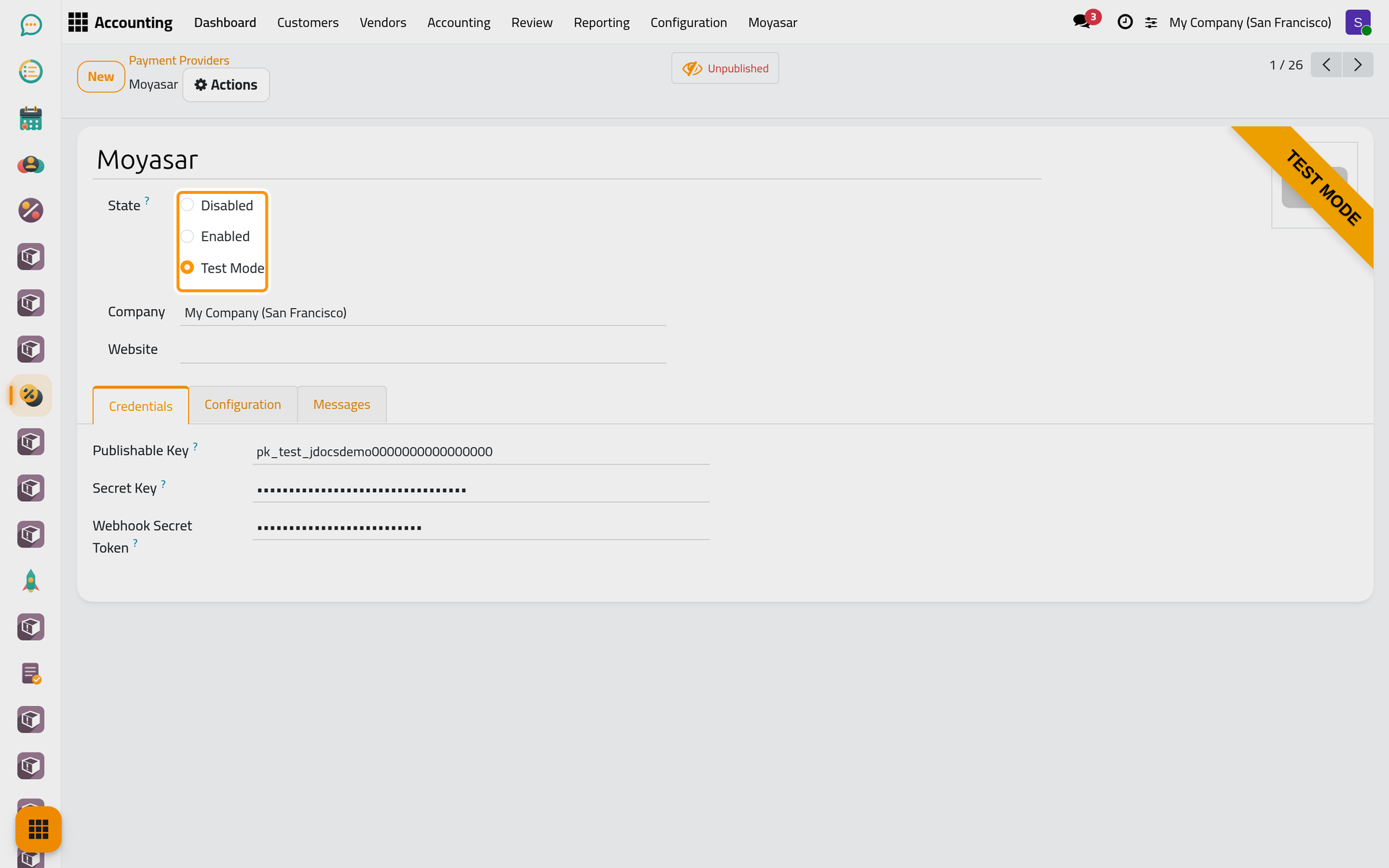
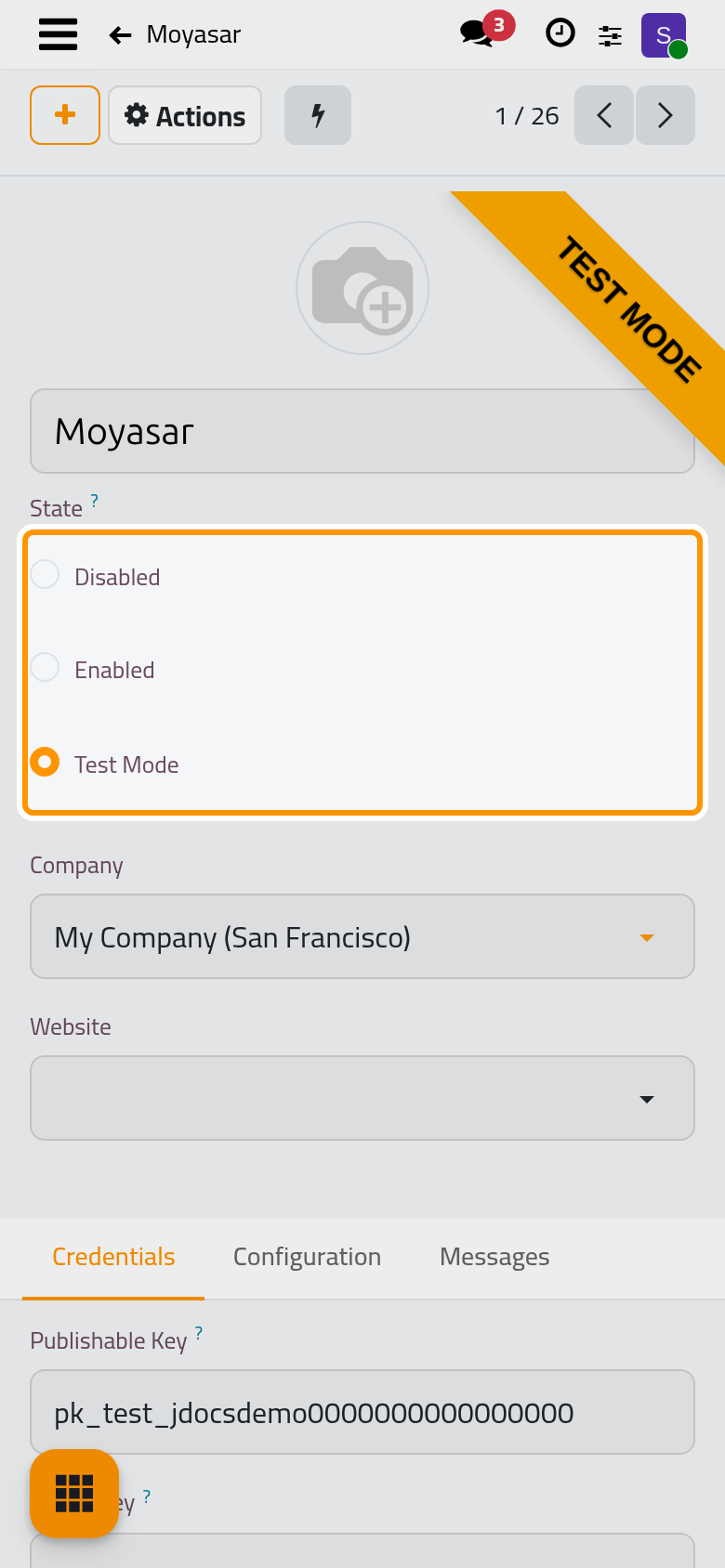
- In the Credentials tab, paste the Publishable Key (pk_), the Secret Key (sk_) and the Webhook Secret Token. Test keys go with Test Mode and live keys with Enabled; any other pairing is refused when you save, and so is a secret key pasted in the publishable field.
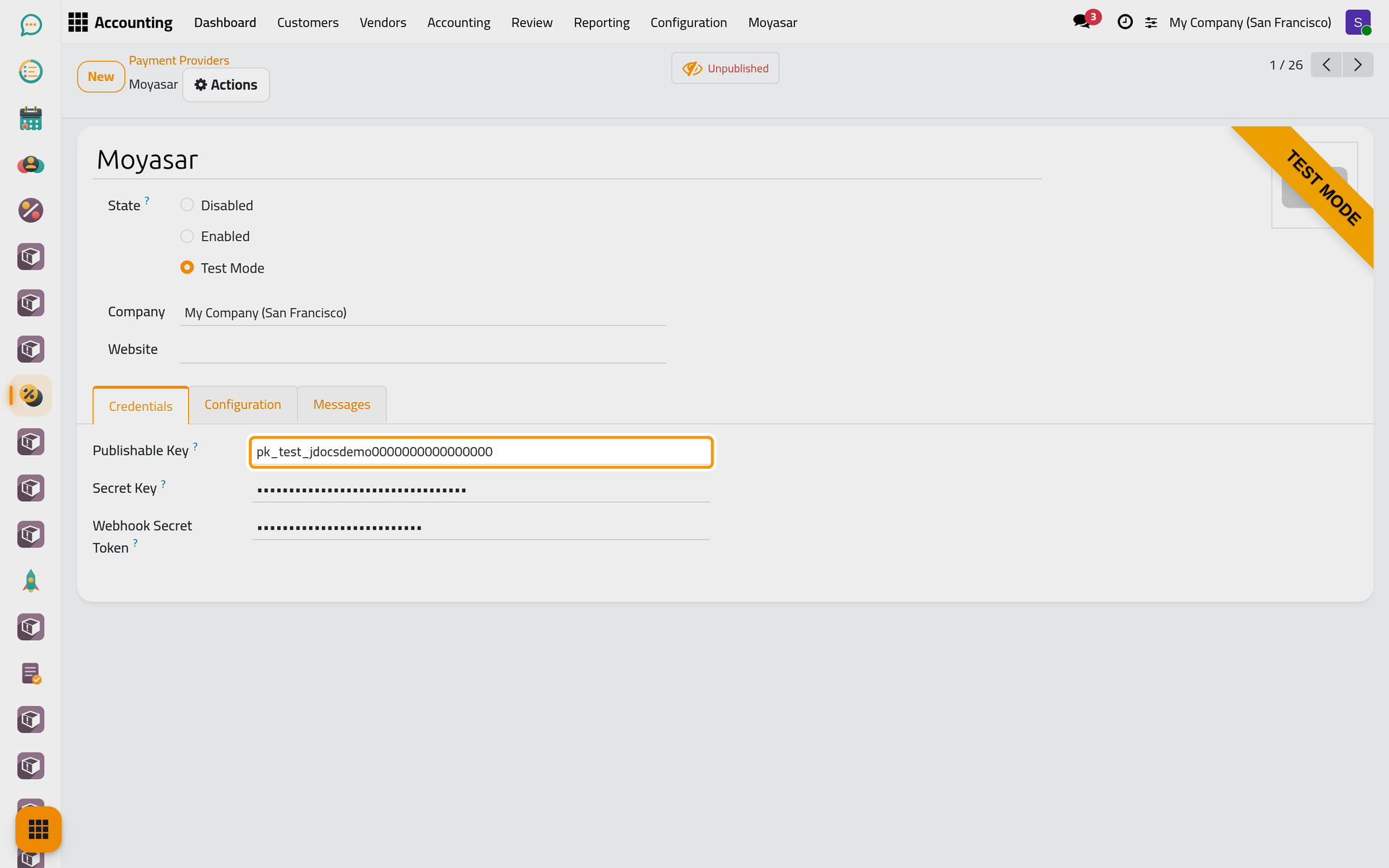
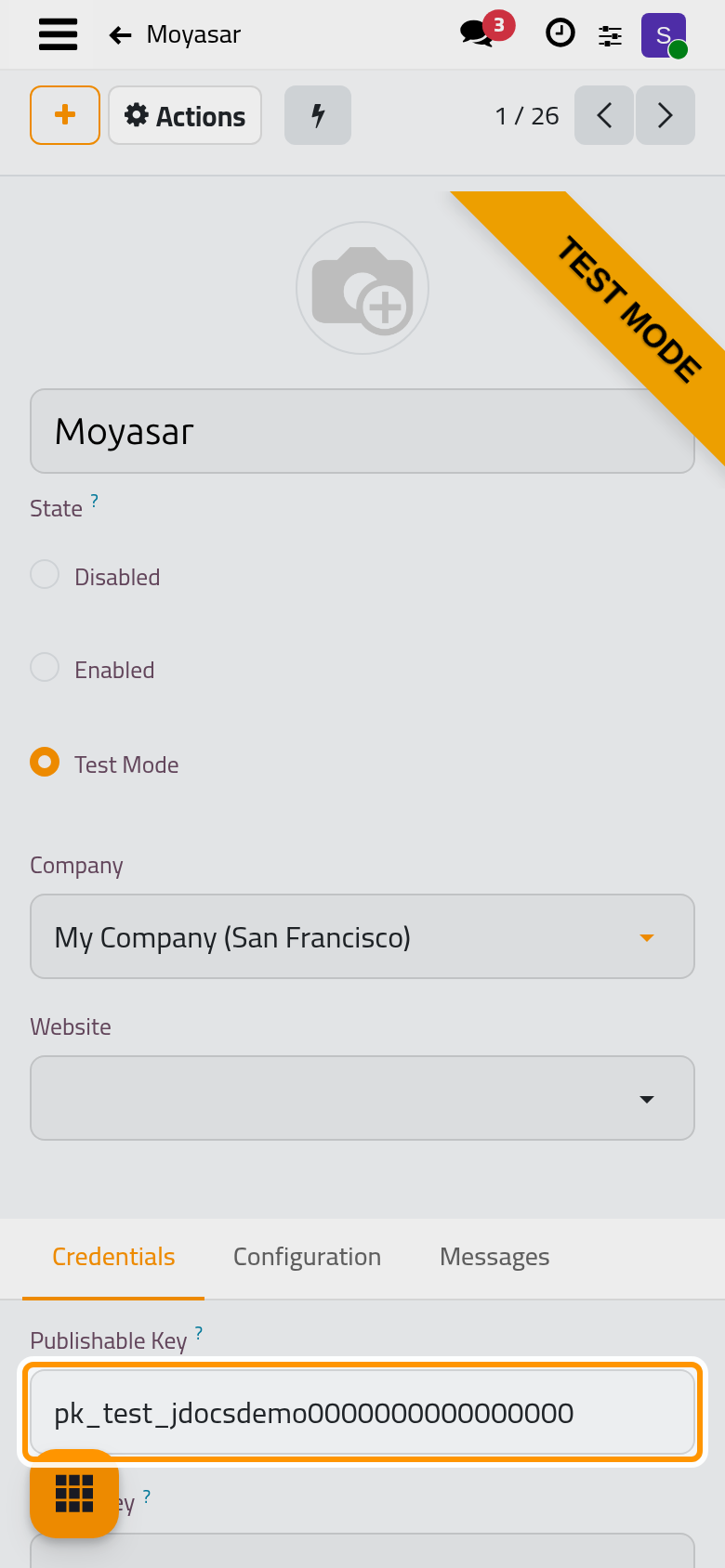
- In the Moyasar dashboard, add a webhook pointing to your site's address followed by /payment/moyasar/webhook, with the same secret token. Moyasar then reports each payment even when the client closes the page before coming back.
Payment form
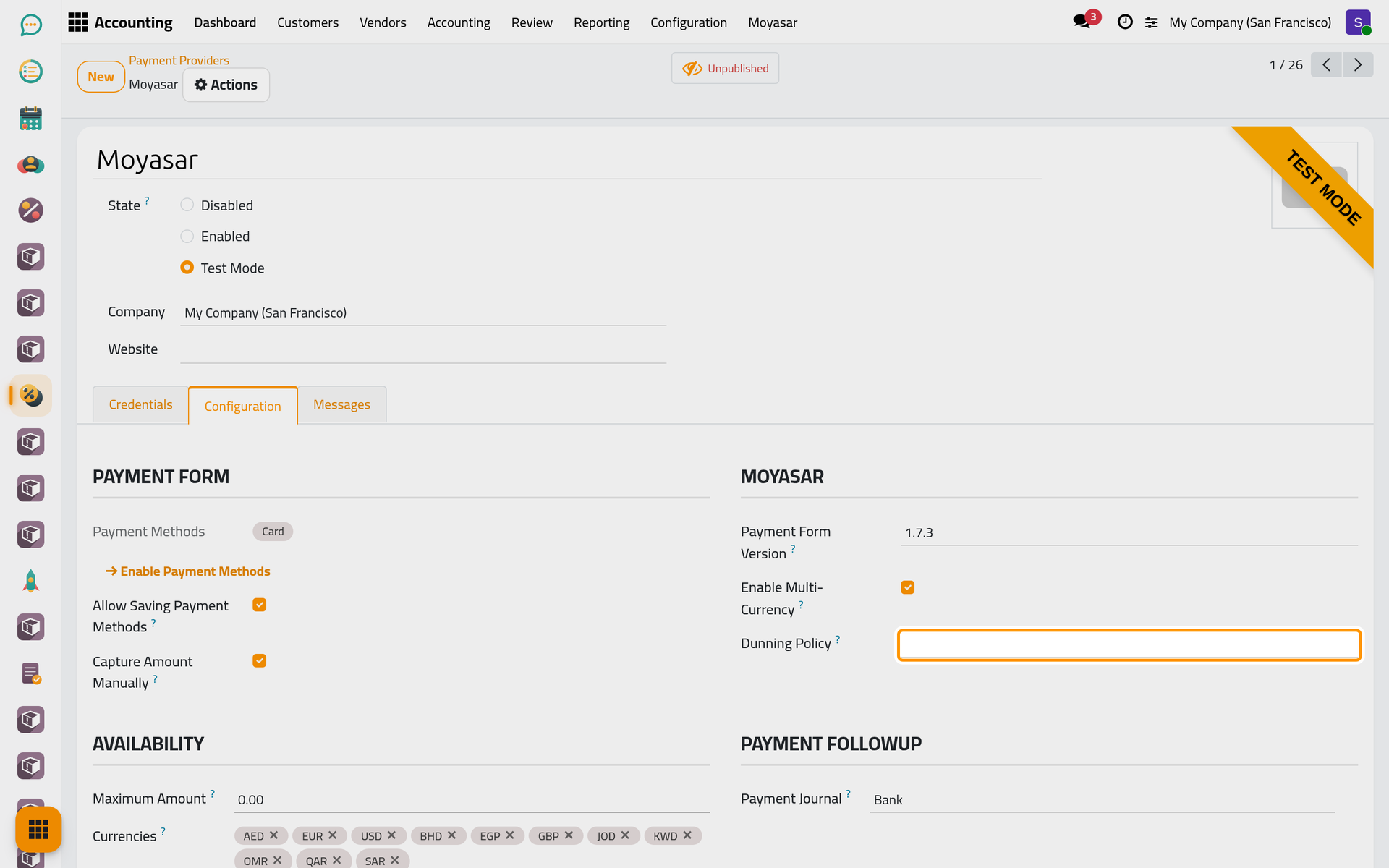
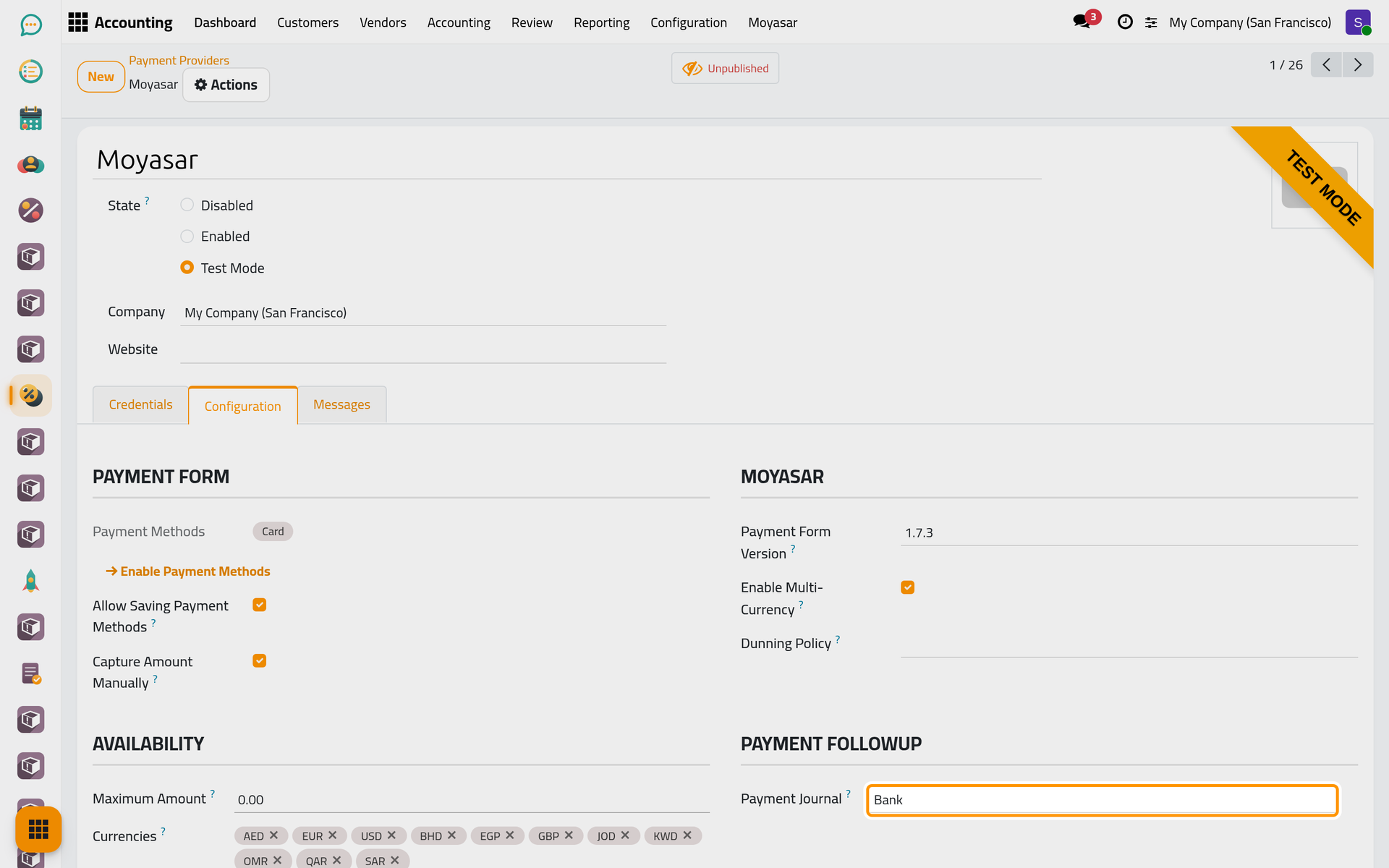
Payment Methods lists what the client can choose: Card, and STCPay once it is switched on. Enable Payment Methods, shown once the provider is no longer Disabled, opens the list of methods where you turn one on or off.
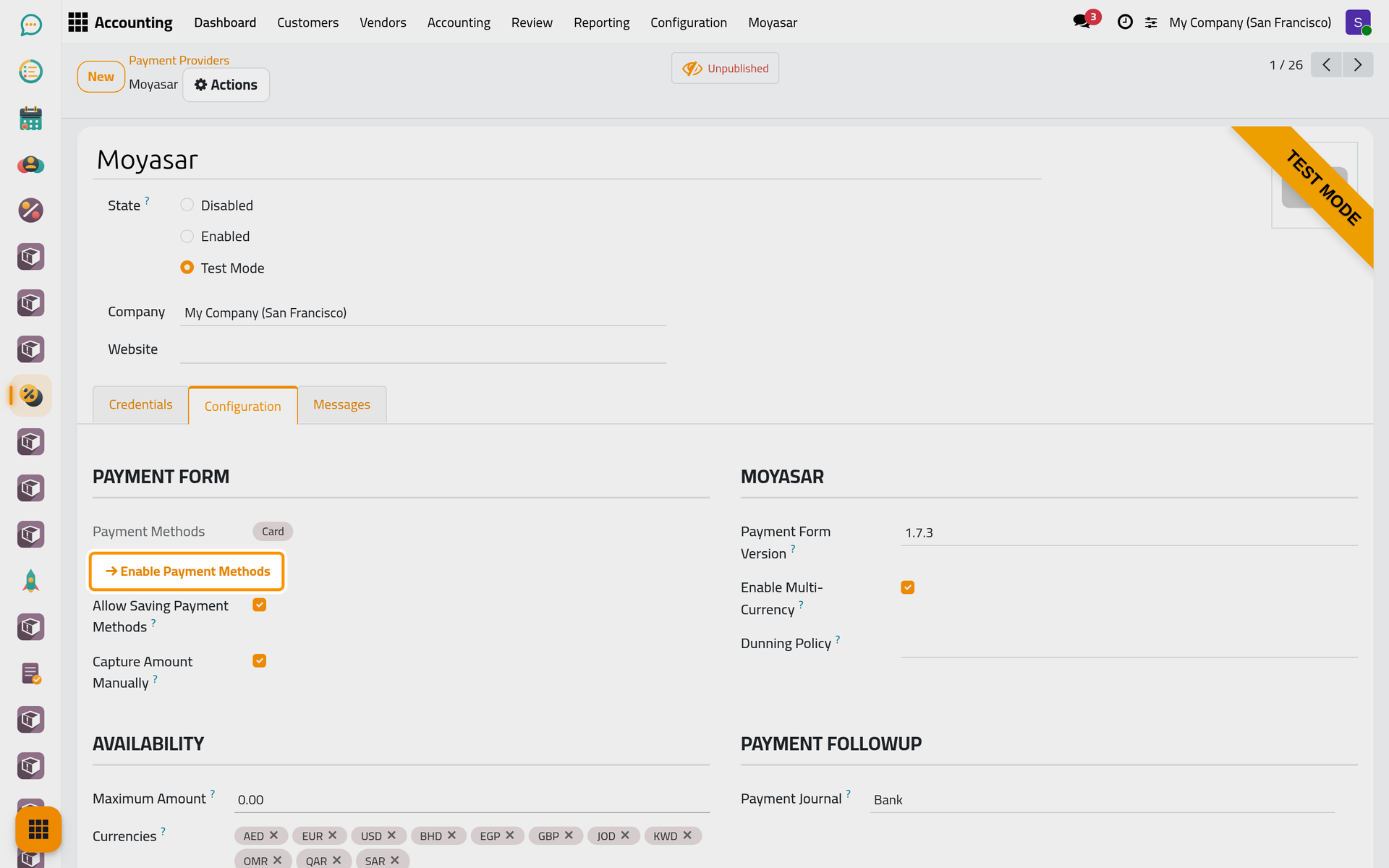
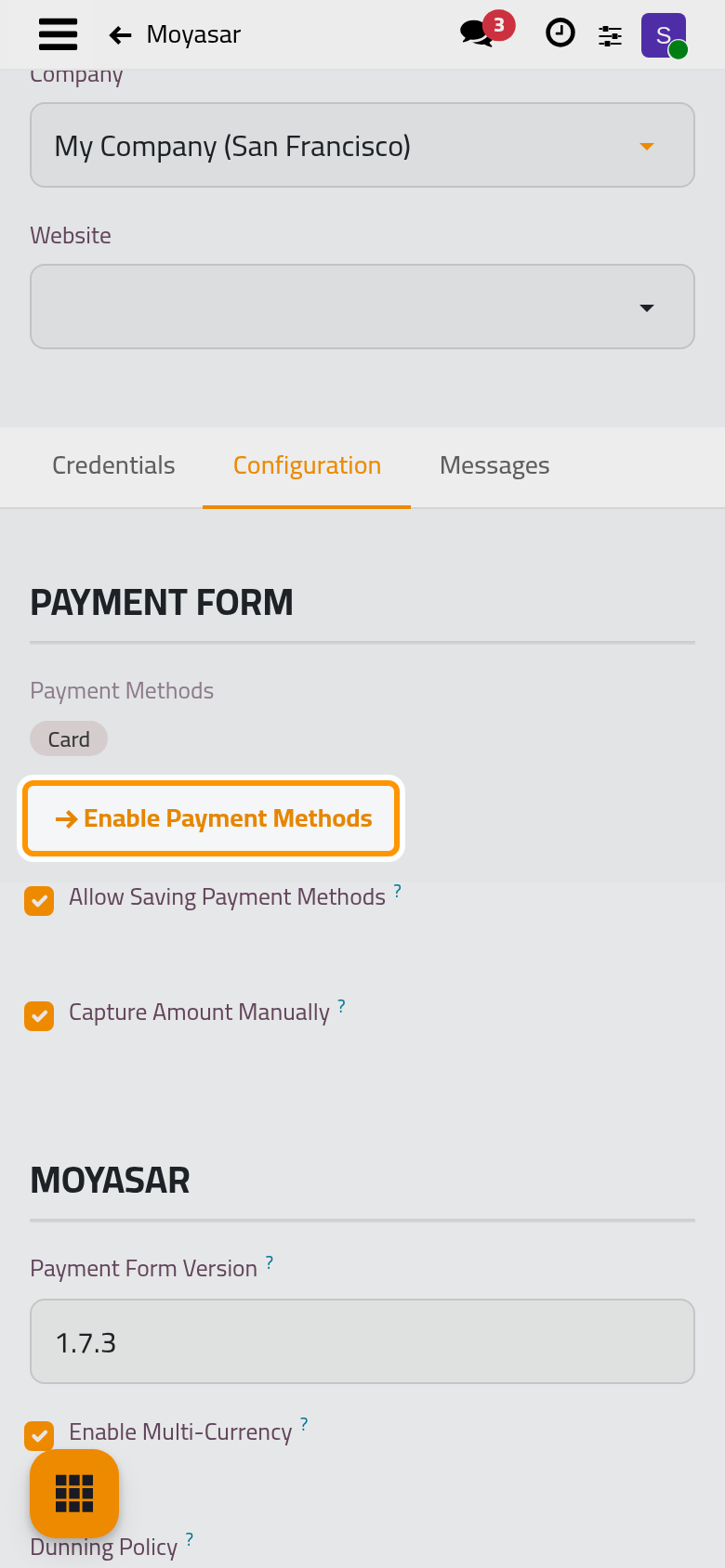
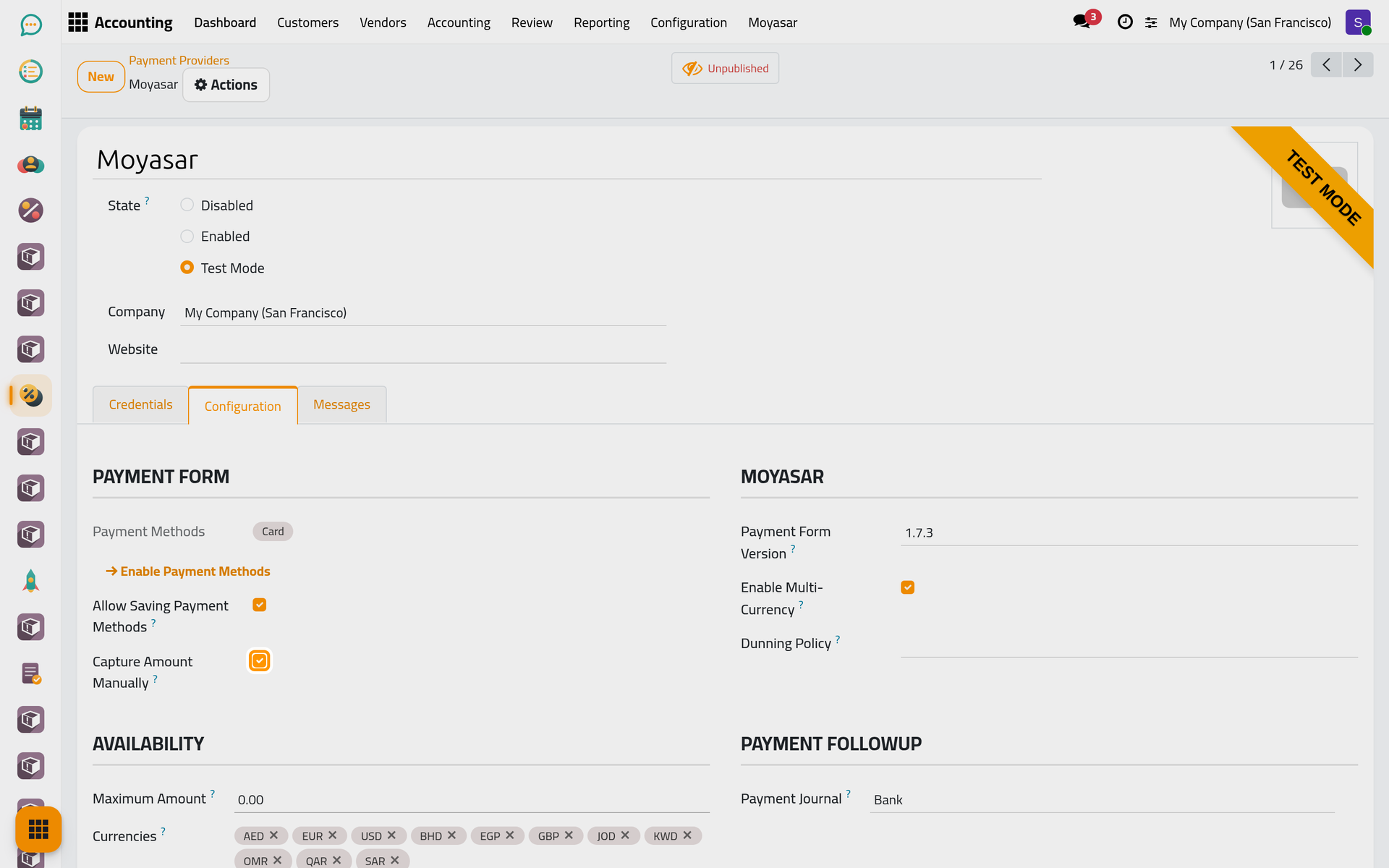
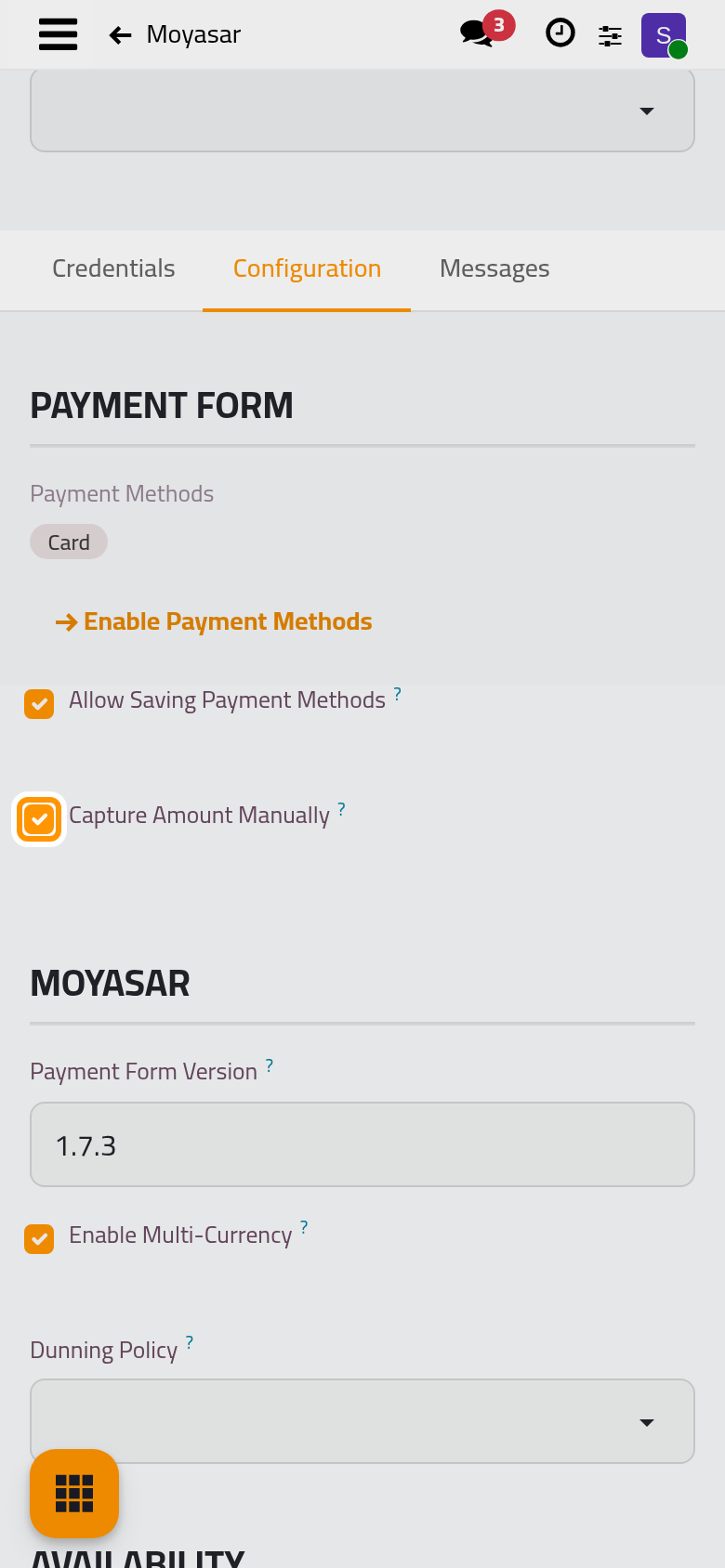
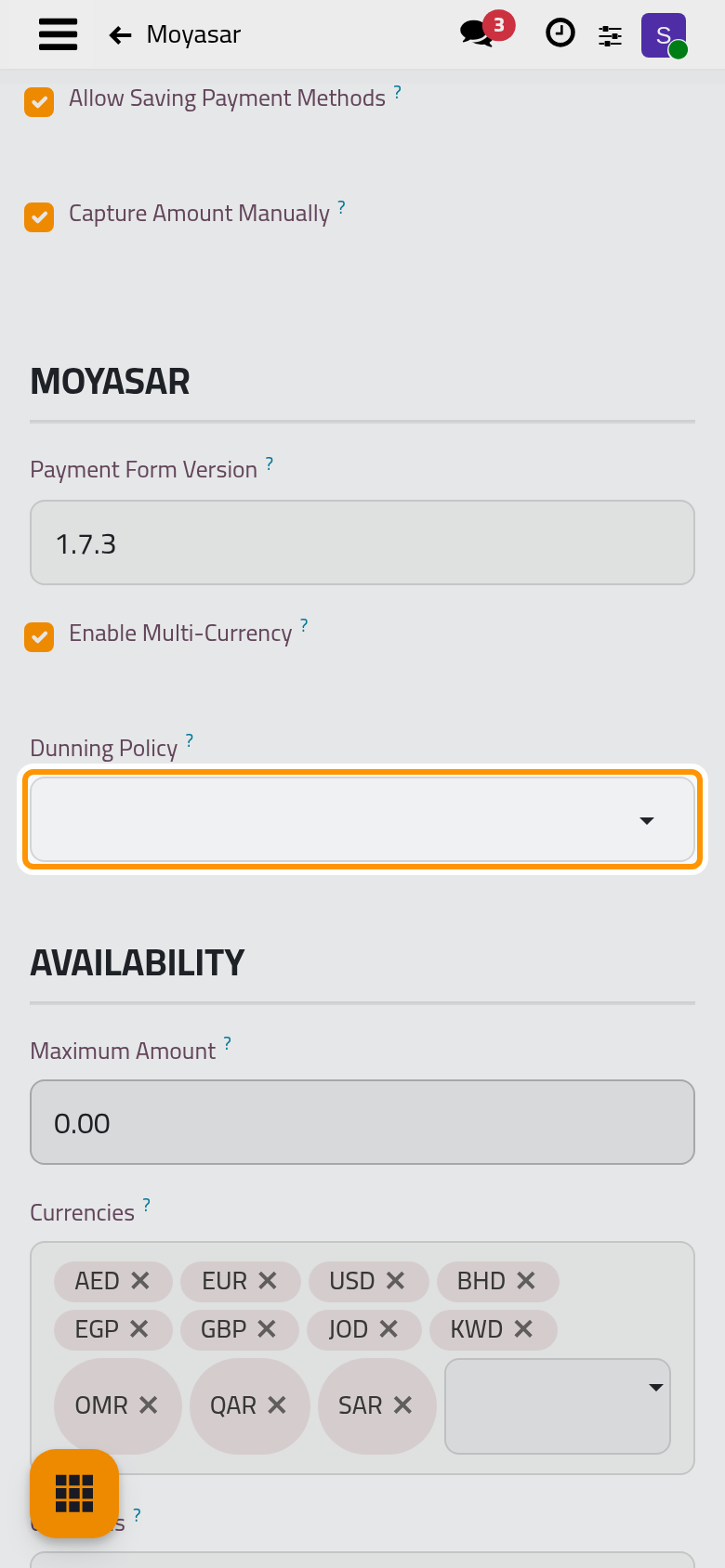
Allow Saving Payment Methods (on by default) lets the client keep the card for a later payment. Capture Amount Manually (off by default, ticked on the demo database) decides whether a payment is taken at once or only held on the card until you capture it from the invoice; Moyasar can also capture or refund part of the amount.
The Moyasar group
- Payment Form Version: the version of Moyasar's card form, 1.7.3. Change it only when Moyasar asks.
- Enable Multi-Currency: Moyasar accepts Saudi riyals only, unless this is ticked; tick it only if multi-currency is active on your Moyasar account.
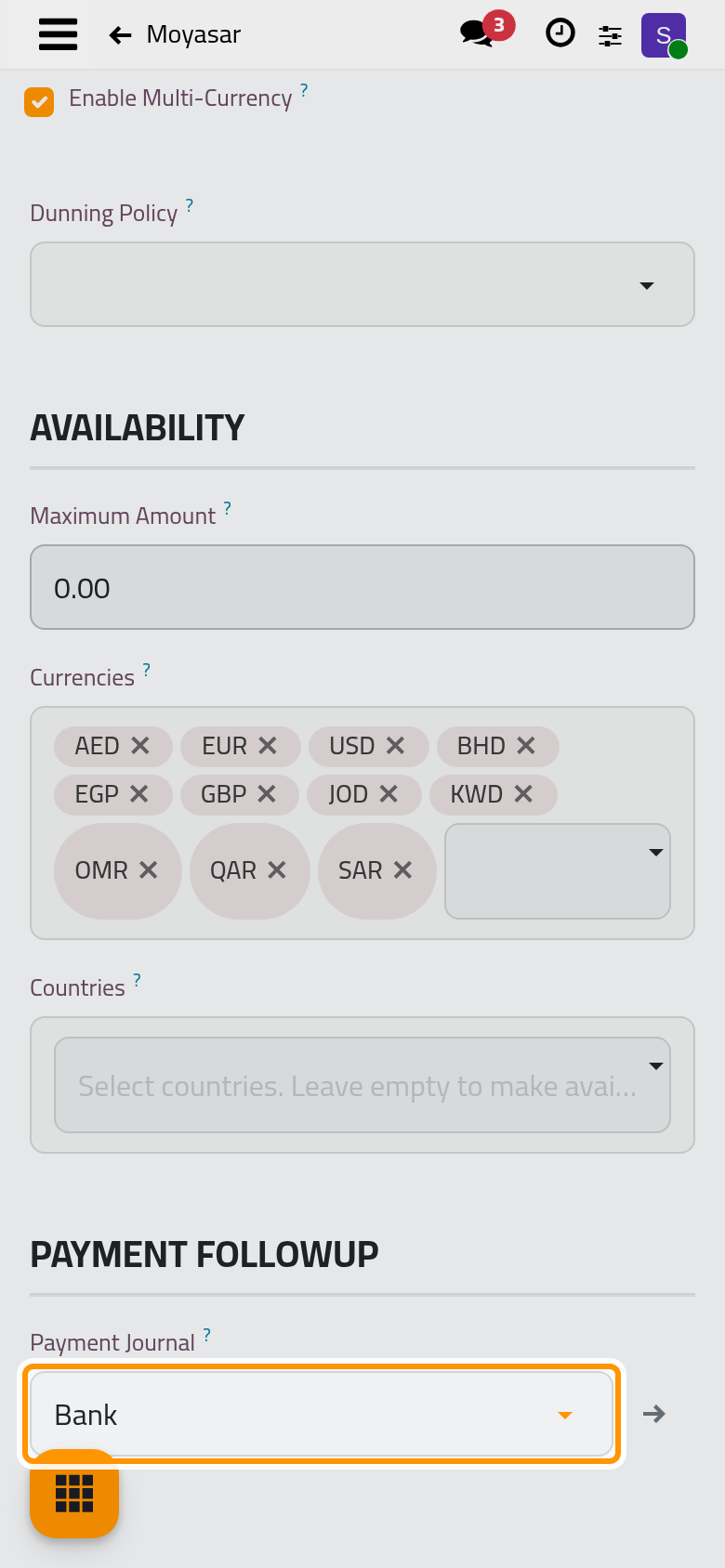
- Dunning Policy: how a failed automatic charge on a saved card is retried. Empty, the default policy applies; see Online payment automations.
Availability
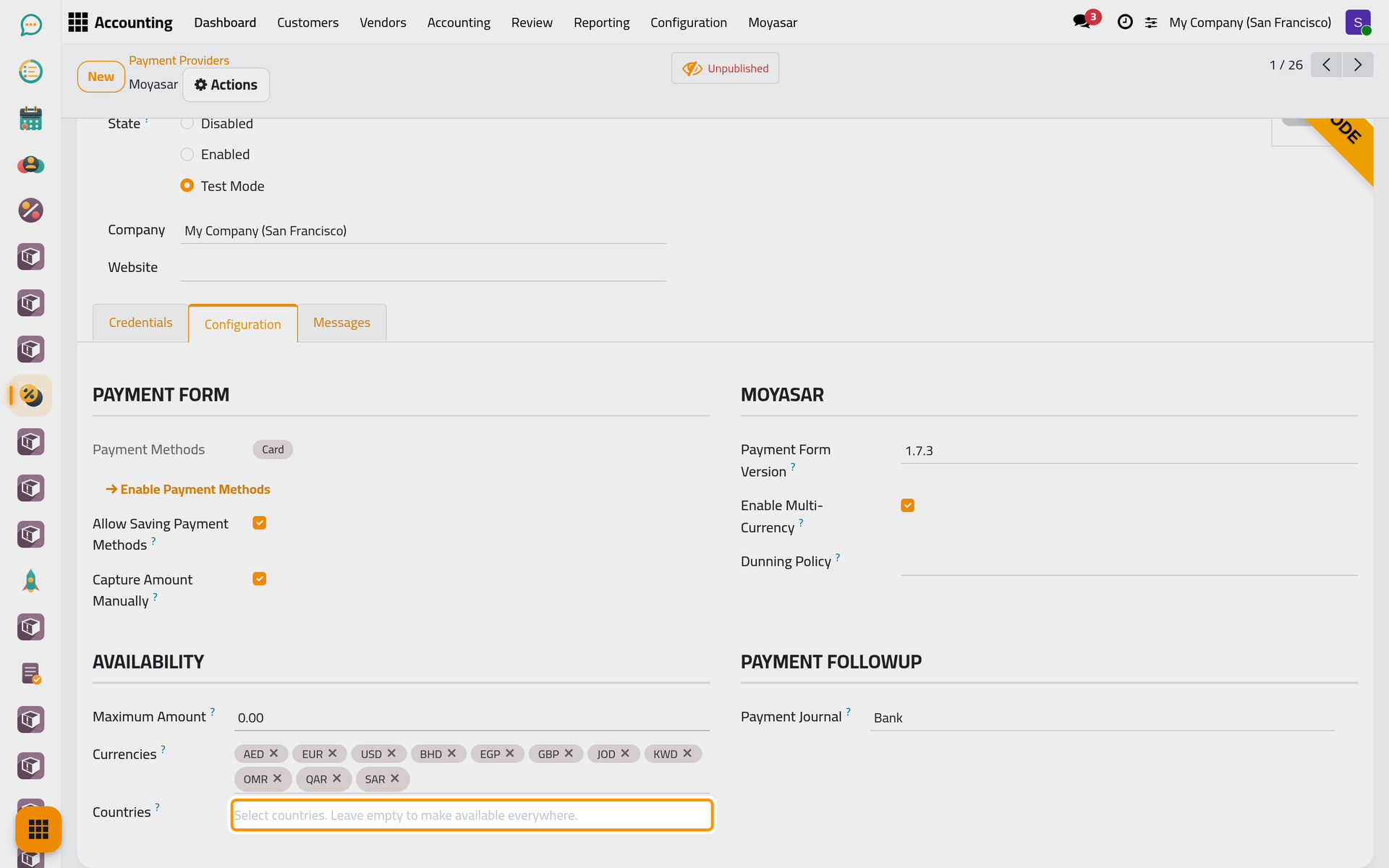
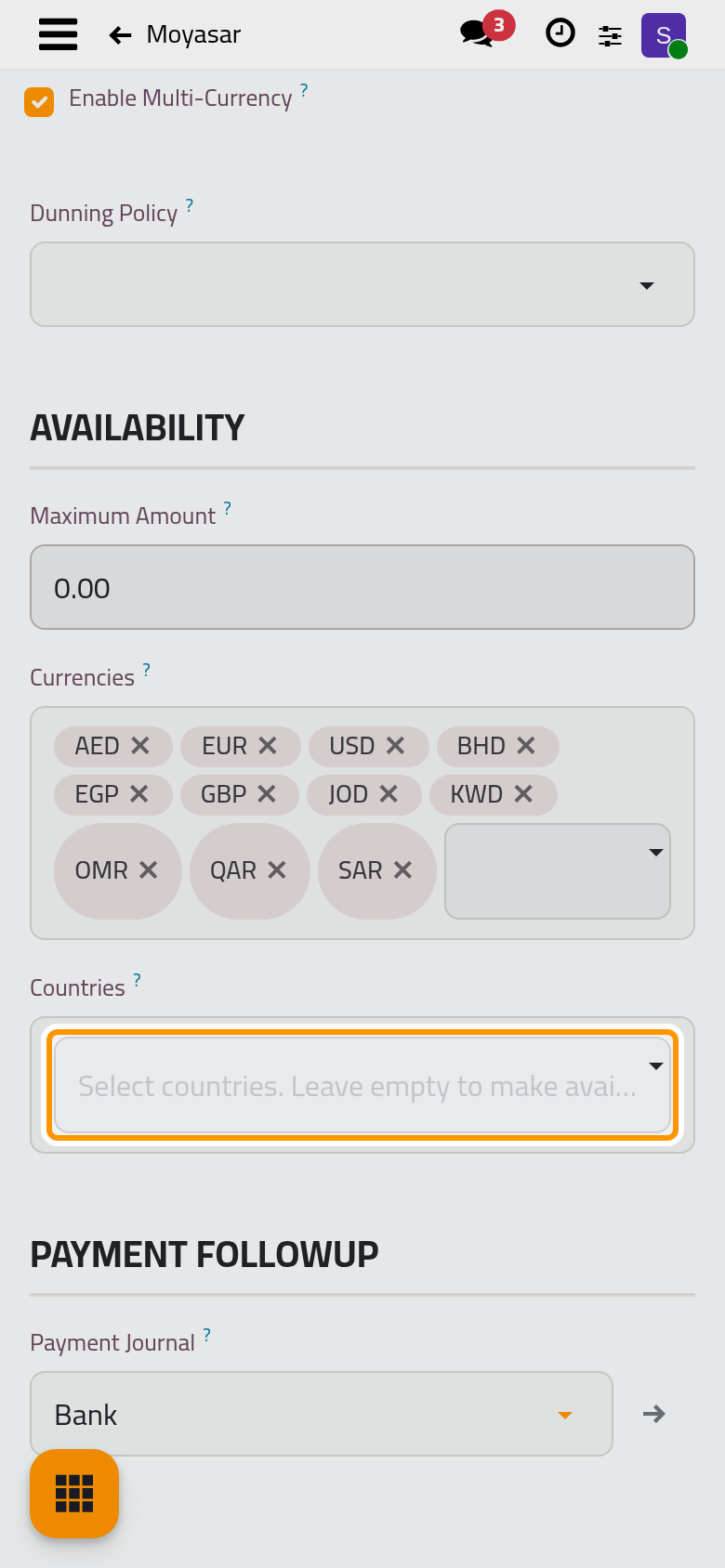
Maximum Amount hides the provider above an amount (0 for no limit). Currencies follows Enable Multi-Currency. Countries, empty, offers the provider to clients of every country; filled, only to clients of the listed ones.
Payment journal
Payment Journal is the bank journal in which successful payments are recorded. It must be filled before the provider leaves Disabled. Journals themselves are explained in Accounting: start here.
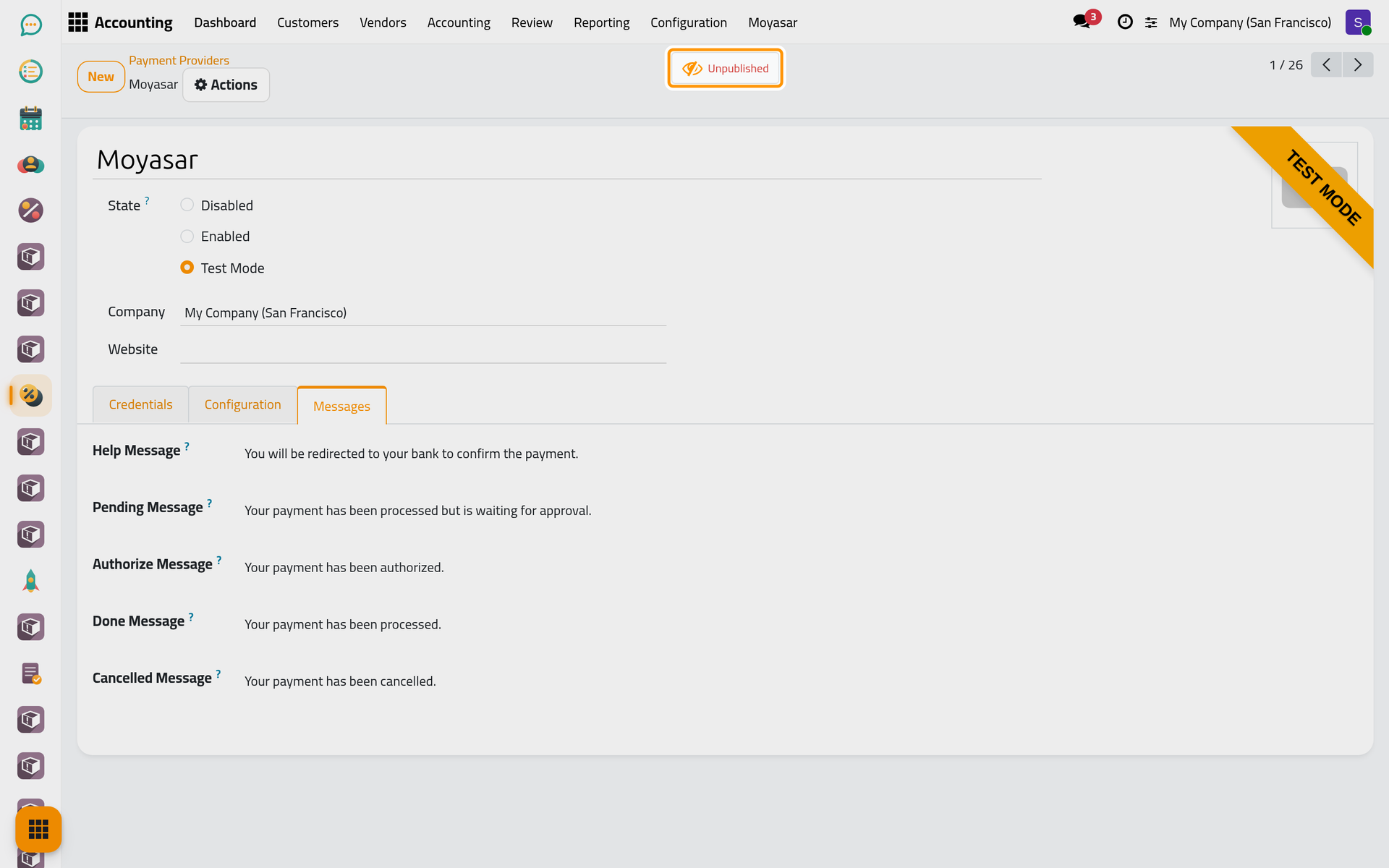
Messages
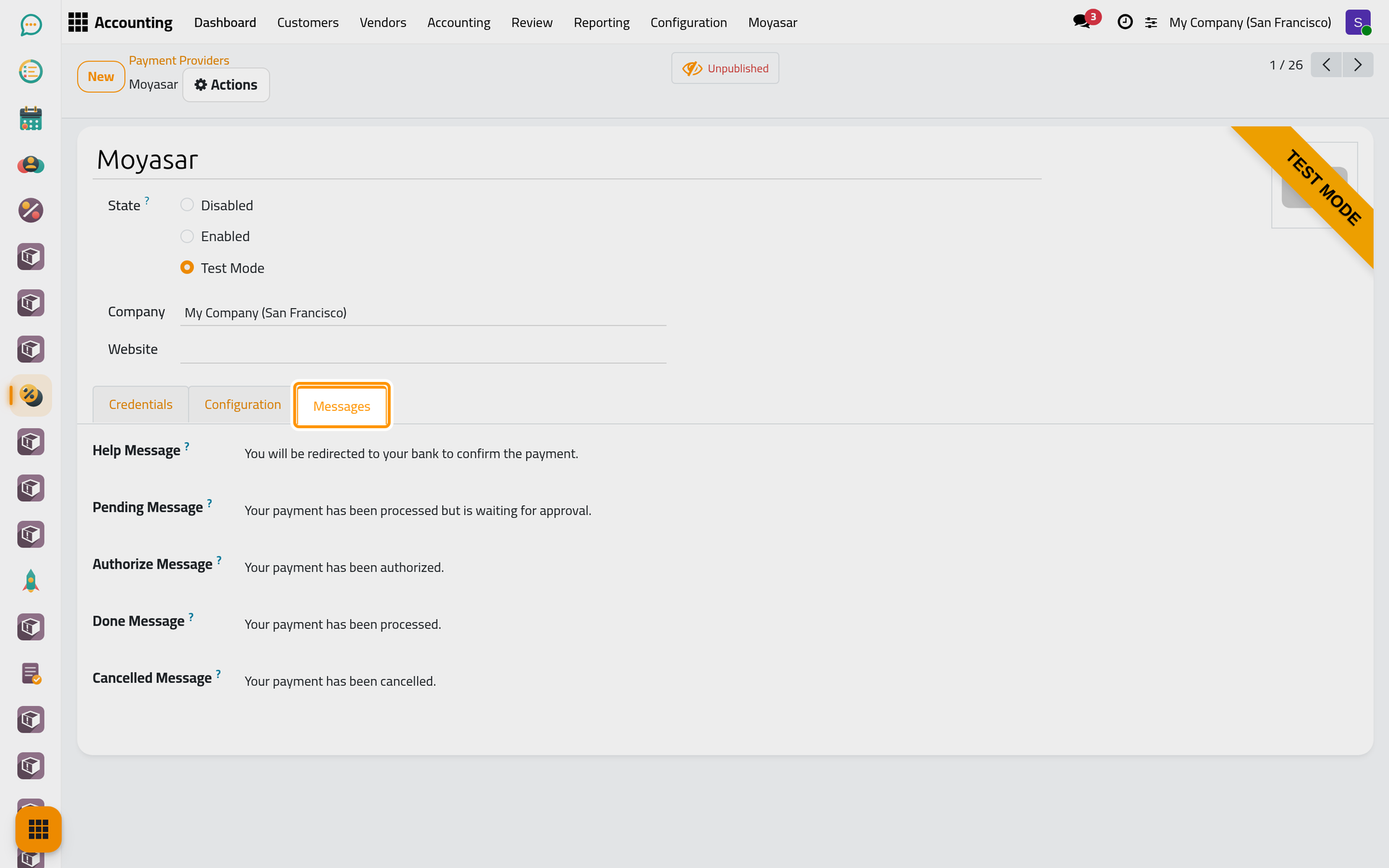
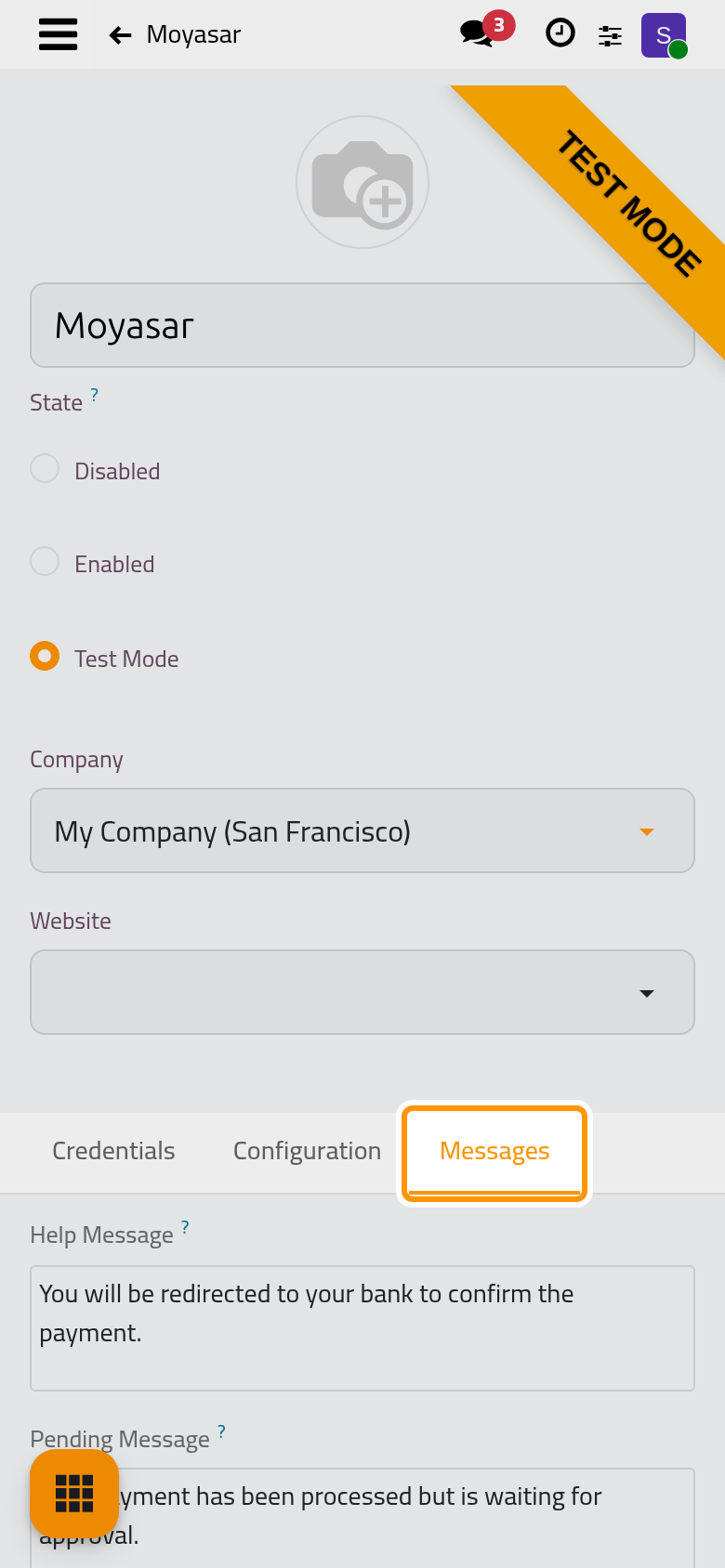
The Messages tab holds the texts the client reads: the Help Message under the payment method, then the message of each outcome (pending, authorized, done, cancelled). Write them in each language your clients use.
Publish
The Unpublished button at the top of the form decides whether clients see the provider. Choosing Enabled publishes it and choosing Test Mode unpublishes it; a disabled provider cannot be published. On a phone the button sits behind the lightning icon. Click the cloud icon Save manually when you are done.
FAQ
Moyasar does not appear on a client's invoice.
Check, in order: the state is not Disabled and the provider is published; the invoice's currency is accepted (riyals only without Enable Multi-Currency); the client's country is in Countries or the list is empty; the amount is under Maximum Amount; and Invoice Online Payment is on in Online payment settings.
Can I try it without charging a card?
Yes. In Test Mode with test keys, payments go through Moyasar's test environment and its test cards.
What happens to saved cards when I change the state?
Disabling the provider, or switching between Test Mode and Enabled, archives the cards saved with it, after a warning that says how many. The cards stay at Moyasar; they are removed there only when the client deletes them.
Was this page helpful?
Thank you for your feedback.