Issue a credit note
On this page
A confirmed invoice stays in the books. When a fee was billed by mistake, a hearing did not take place or the client obtained a reduction, the amount is taken back with a credit note: a document of its own, numbered, that cancels all or part of the invoice and keeps the history of both.
Before you start
- You need the Invoicing access right on Accounting for all documents, or Administrator.
- The invoice is confirmed. A draft is simply corrected or deleted; a confirmed invoice that is wrong before anything was sent can also be reopened with Reset to Draft.
Create the credit note
- Open the invoice from .
- Open the Actions menu and choose Credit Note.
- In Reason displayed on Credit Note, write why the amount is taken back, such as "one of the two hearings was postponed". The reason is printed on the credit note as its reference, after the number of the invoice it reverses. The Reversal date is today and the Journal is the sales journal of the invoice; keep them unless the credit belongs to another date.
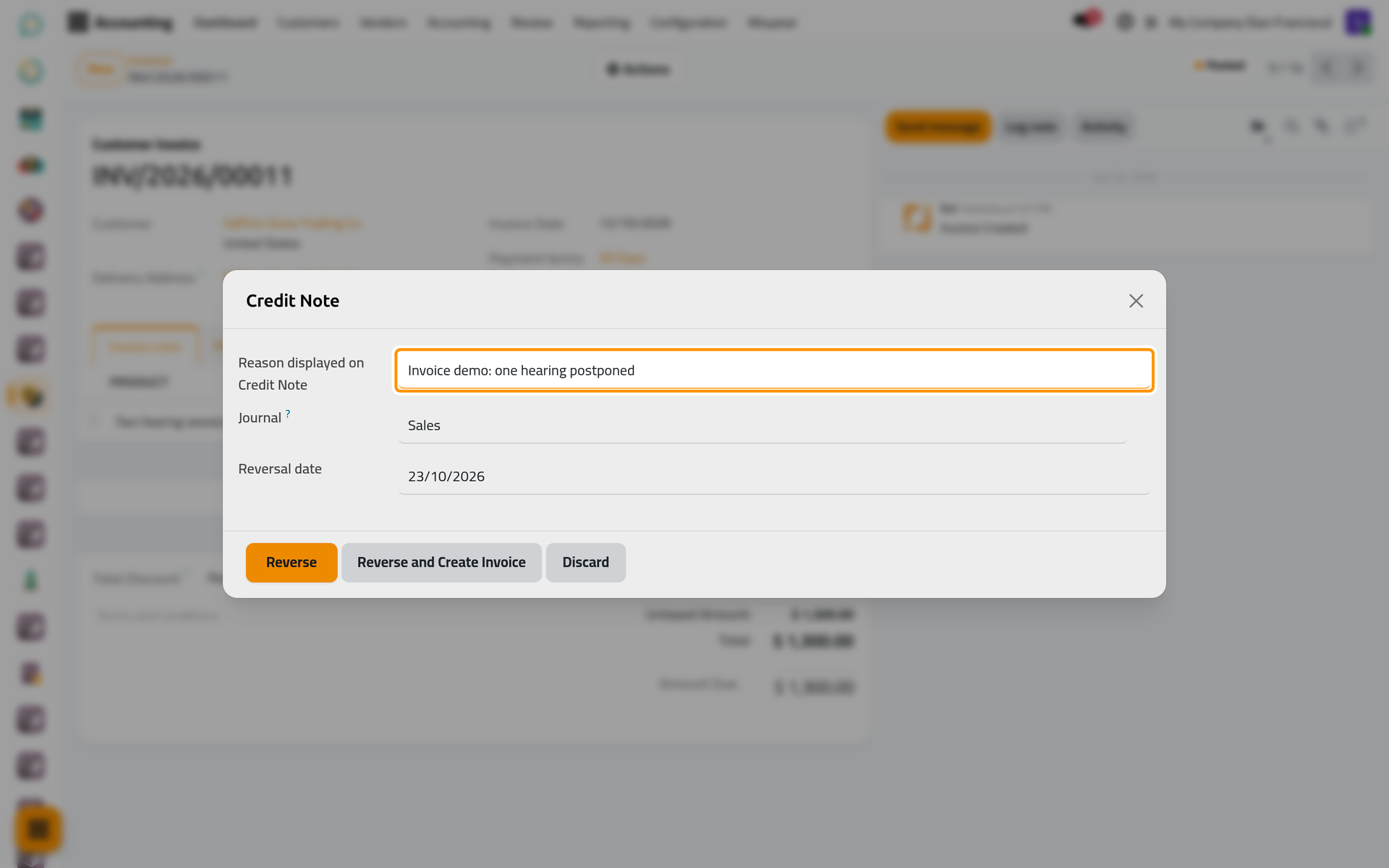
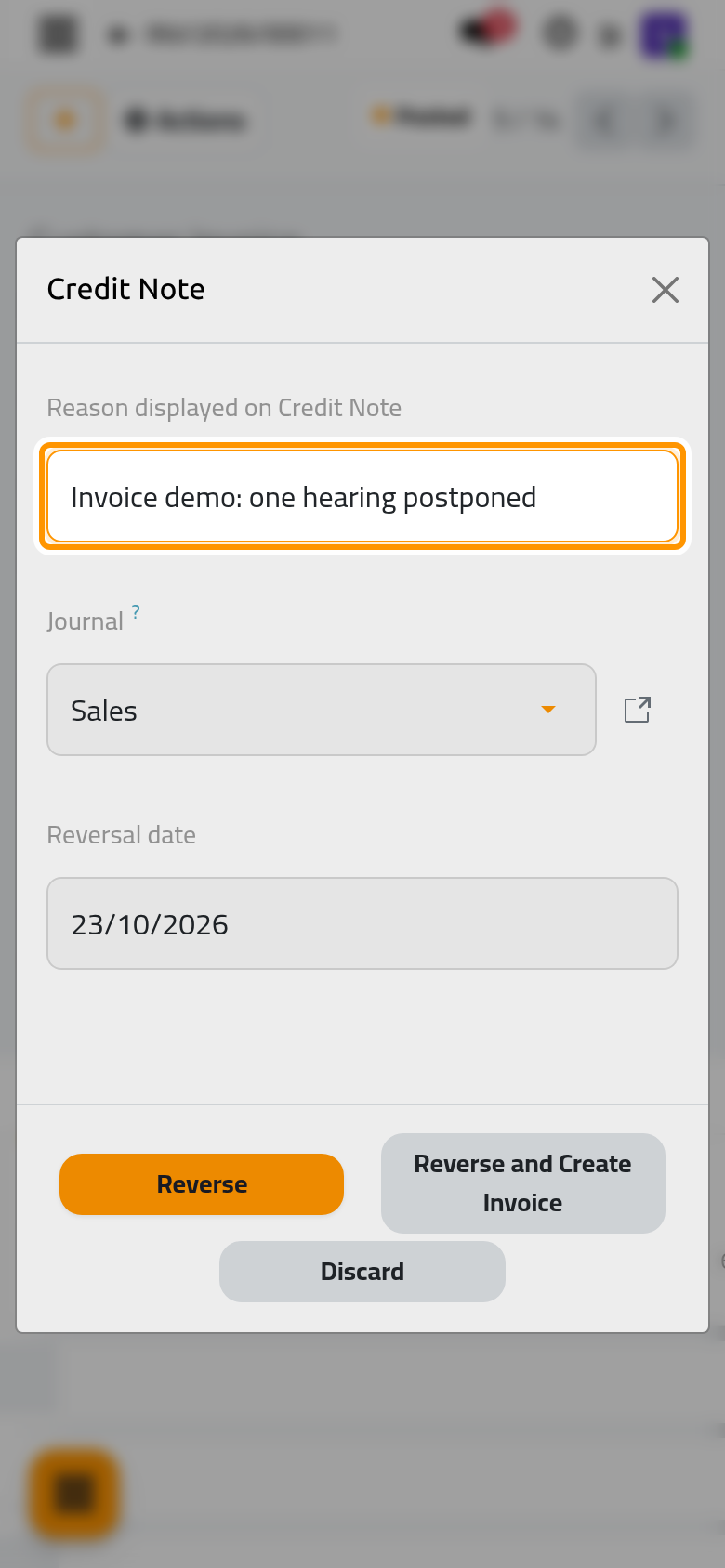
- Click Reverse. A draft Customer Credit Note opens with the client, the reason and every line of the invoice.
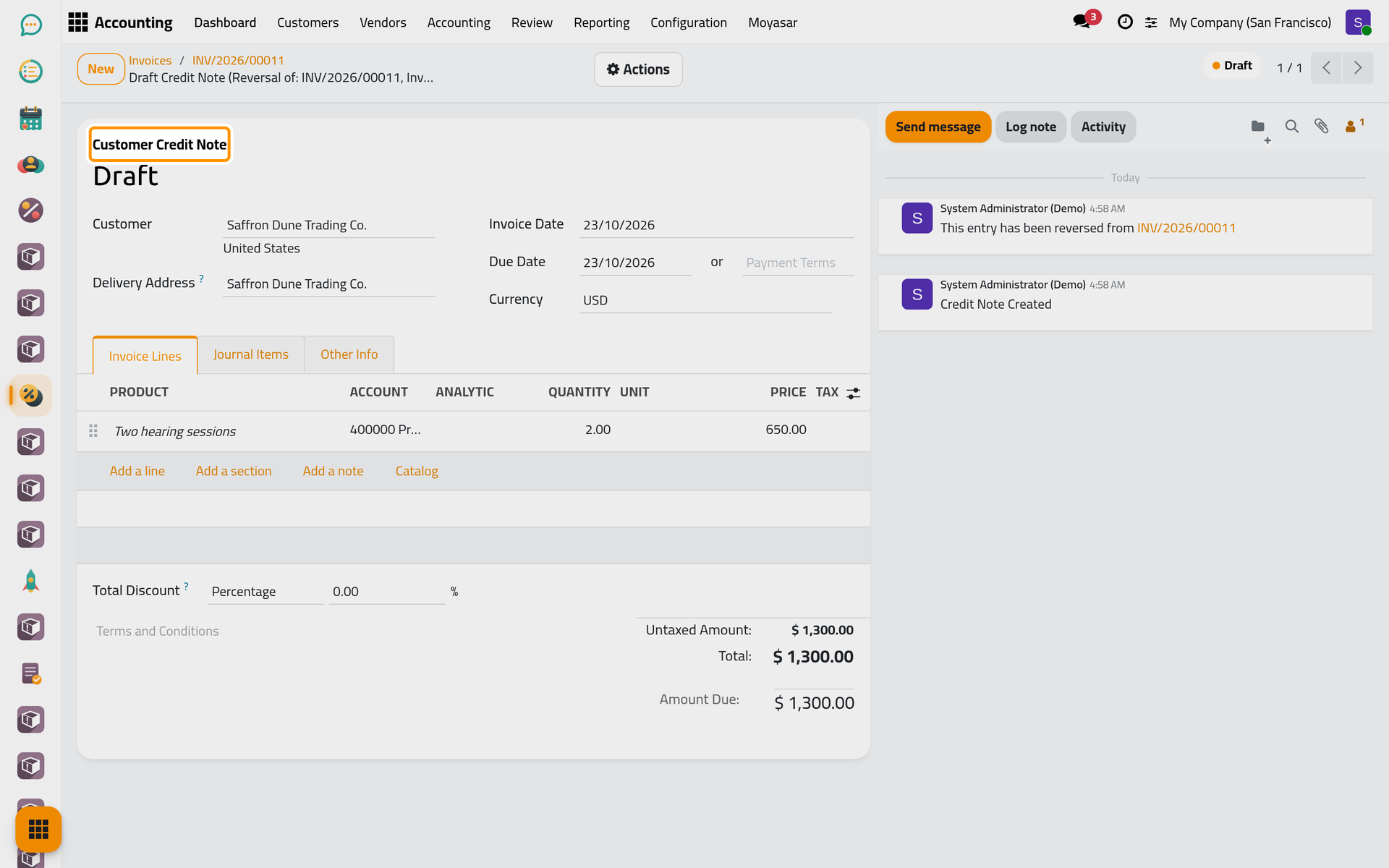
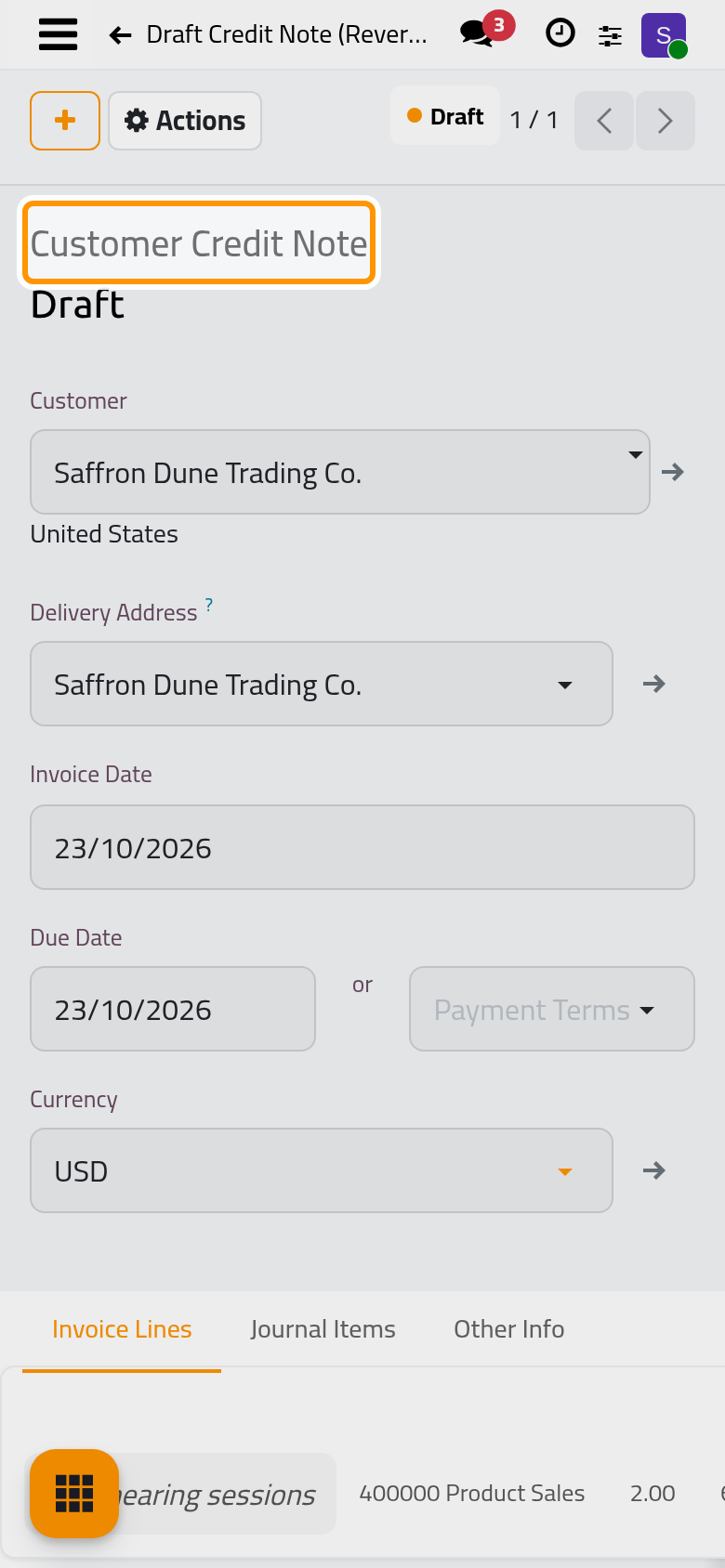
- For a partial credit, change the lines now: lower a quantity or a price, or delete the lines that stay billed. For a full credit, leave them as they are.
Confirm it
Open the Actions menu and choose Confirm. The credit note receives its number, made of RINV, the year and a counter.
When the credit note covers the whole invoice, it settles it at once: the credit note shows a green Paid ribbon, and the invoice shows Reversed, with Reversed on and the date under its totals and nothing left to pay.
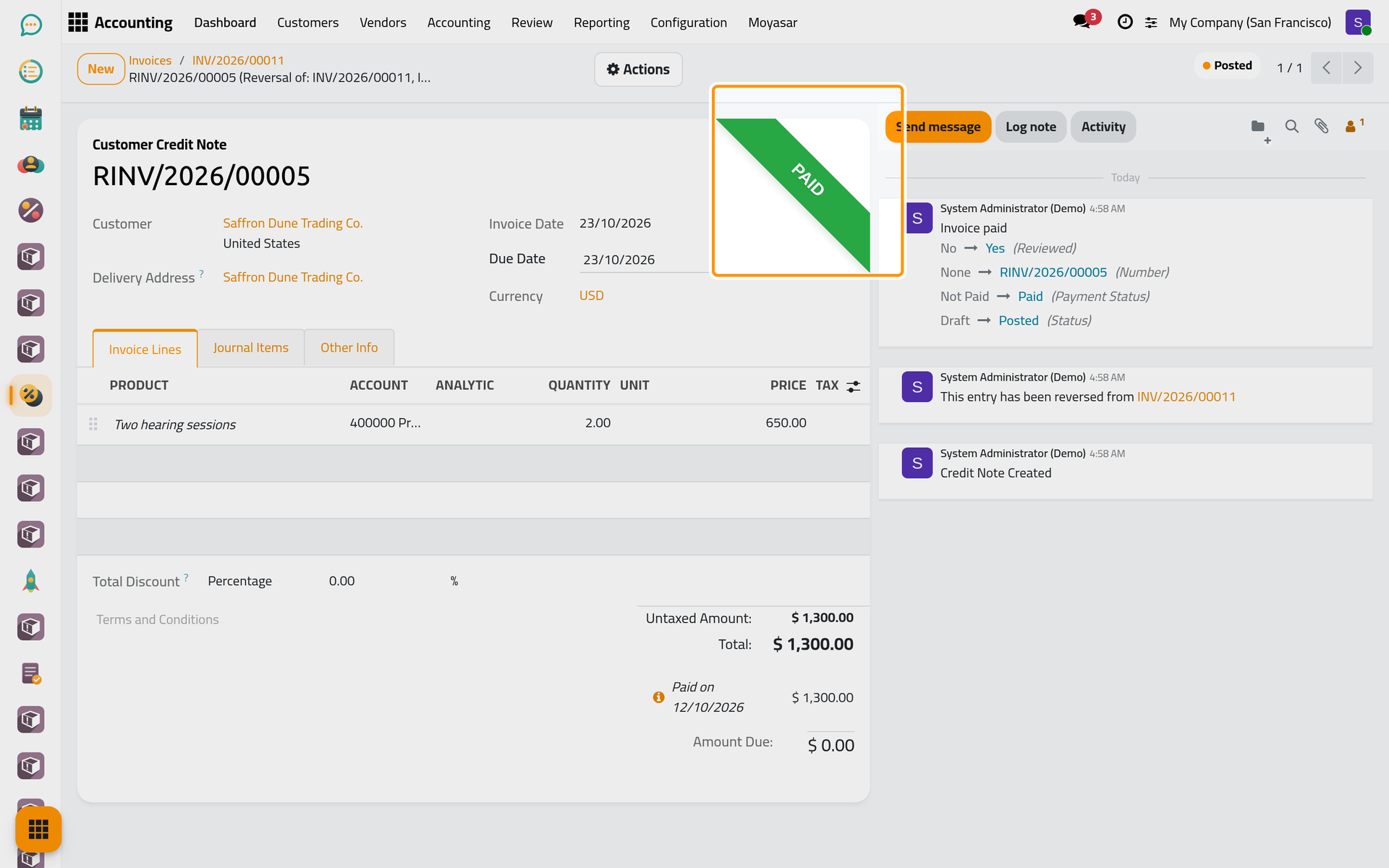
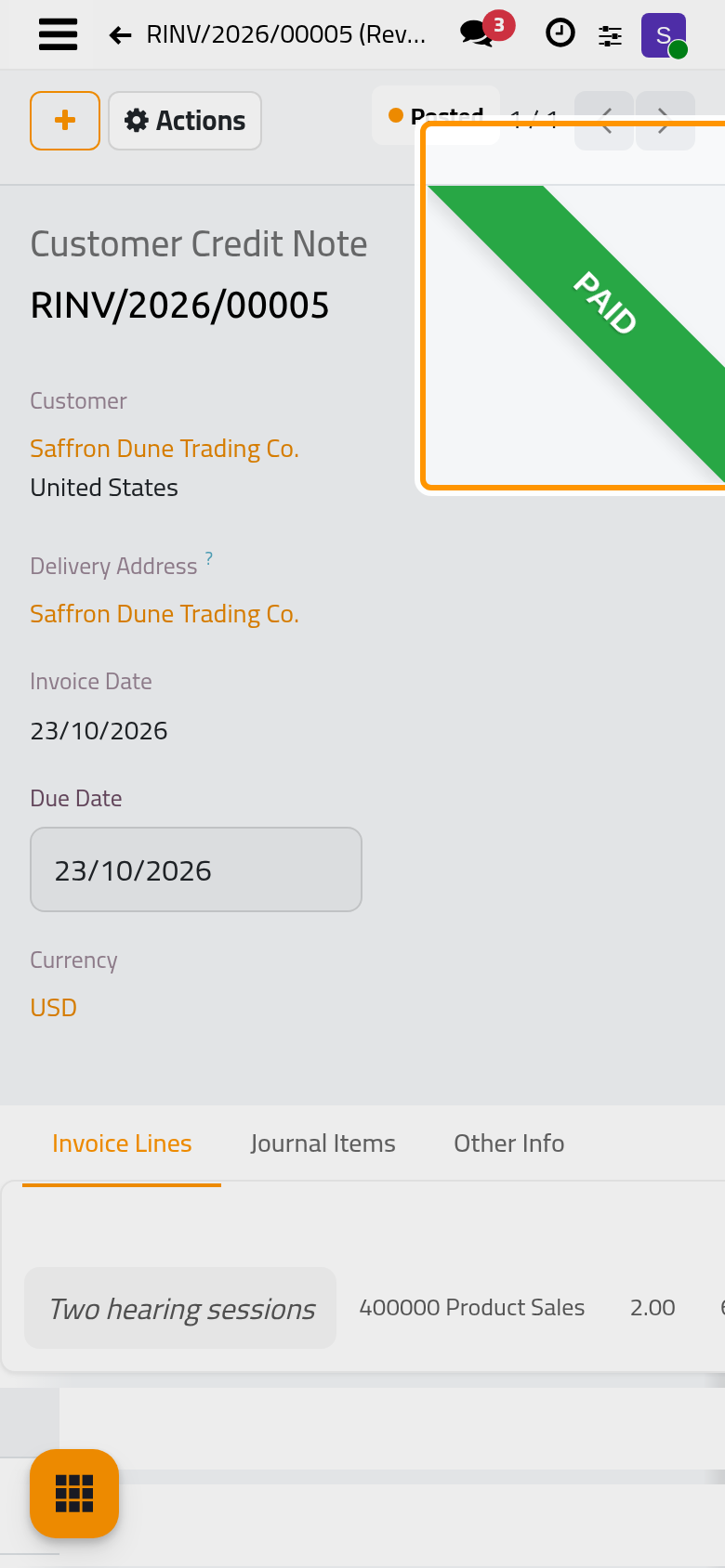
The breadcrumb at the top leads back to the invoice.
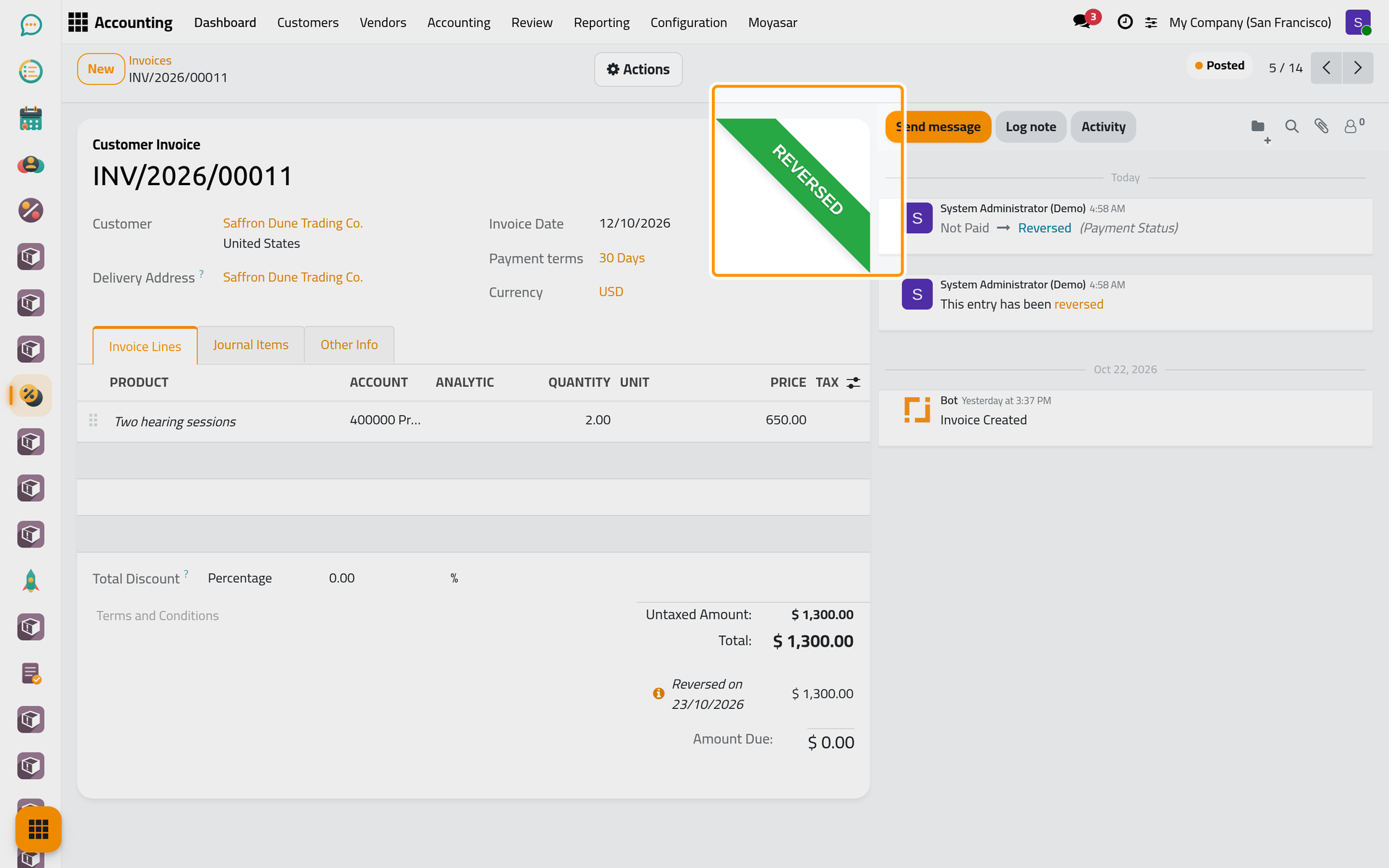
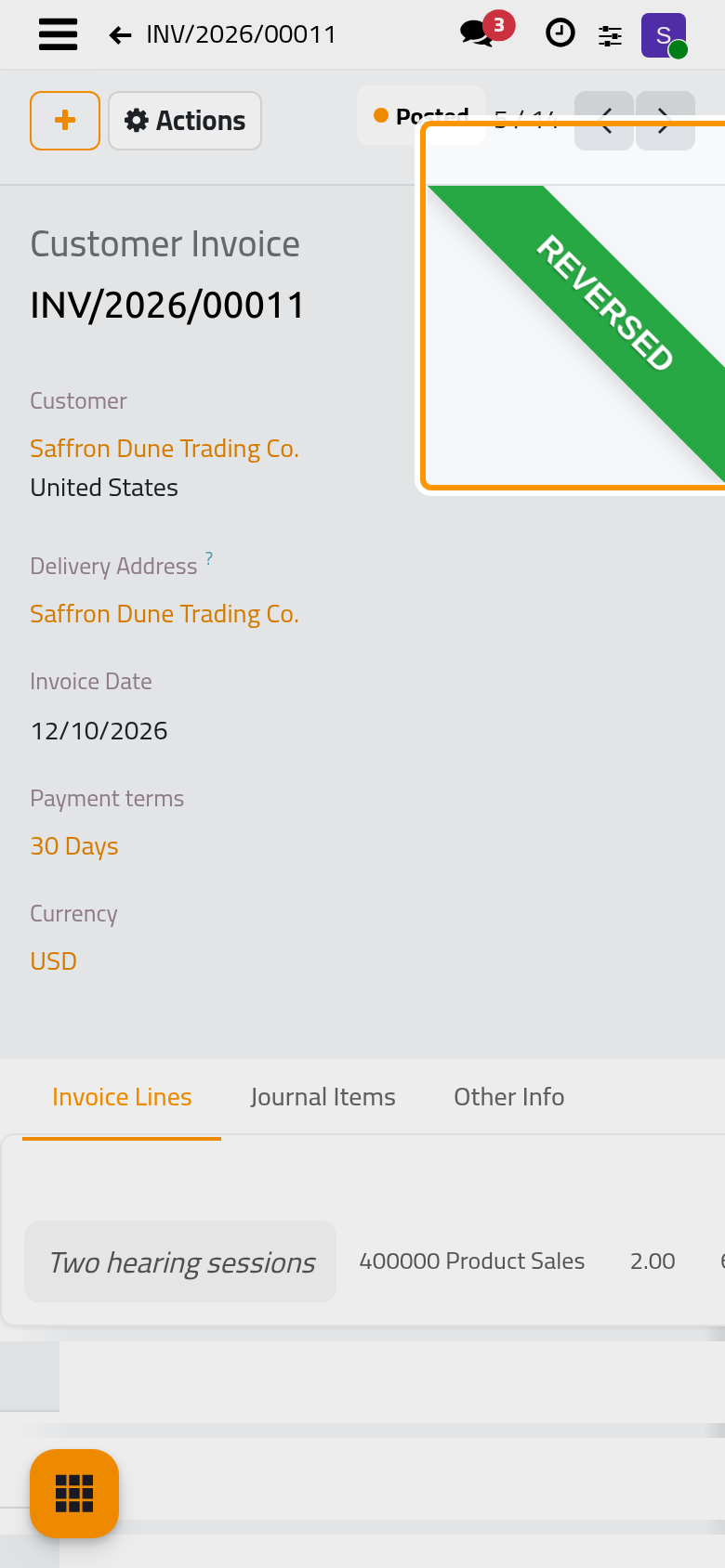
A credit note for part of the invoice lowers what the client still owes. When the client had already paid the invoice, the credit note stays open and appears as an outstanding credit on the client's next invoice (Record a customer payment). Credit notes are listed with the invoices, and on their own in .
Reverse and reissue
Reverse and Create Invoice, the second button of the same window, does two things at once: it confirms a credit note for the whole invoice, and opens a new draft invoice with the same client and lines. Correct the draft (a wrong price, a wrong client) and confirm it. Use it when the invoice must be issued again rather than reduced.
FAQ
Credit note or Reset to Draft?
Reset to Draft reopens the same invoice, with the same number, to correct it before the client relies on it. A credit note leaves the invoice as it was issued and records the correction as a second document, which is the usual way once the invoice was sent or paid.
Can I send the credit note to the client?
Yes. A confirmed credit note has Send in its Actions menu, like an invoice; the e-mail uses the template Credit Note: Sending. See Send an invoice by e-mail.
The client should get the money back.
Confirm the credit note, then open its Actions menu and choose Pay: the payment goes out of the bank journal to the client and settles the credit note.
I do not see Credit Note in the Actions menu.
The action appears only on a confirmed invoice and needs the Invoicing access right for all documents.
Was this page helpful?
Thank you for your feedback.