Record a customer payment
On this page
A client pays by transfer, by card at the office, in cash or by check. Registering the payment on the invoice tells everyone that the invoice is settled and puts the money on the right journal. A client who pays online through a payment link does not need this step: the payment is recorded when the online payment succeeds (Online payments).
Before you start
- You need the Invoicing access right on Accounting for all documents, or Administrator.
- The invoice is confirmed (status Posted). A draft has no Pay action.
Register the payment
- Open the invoice from .
- Open the Actions menu and choose Pay. The action is there while something remains to be paid.
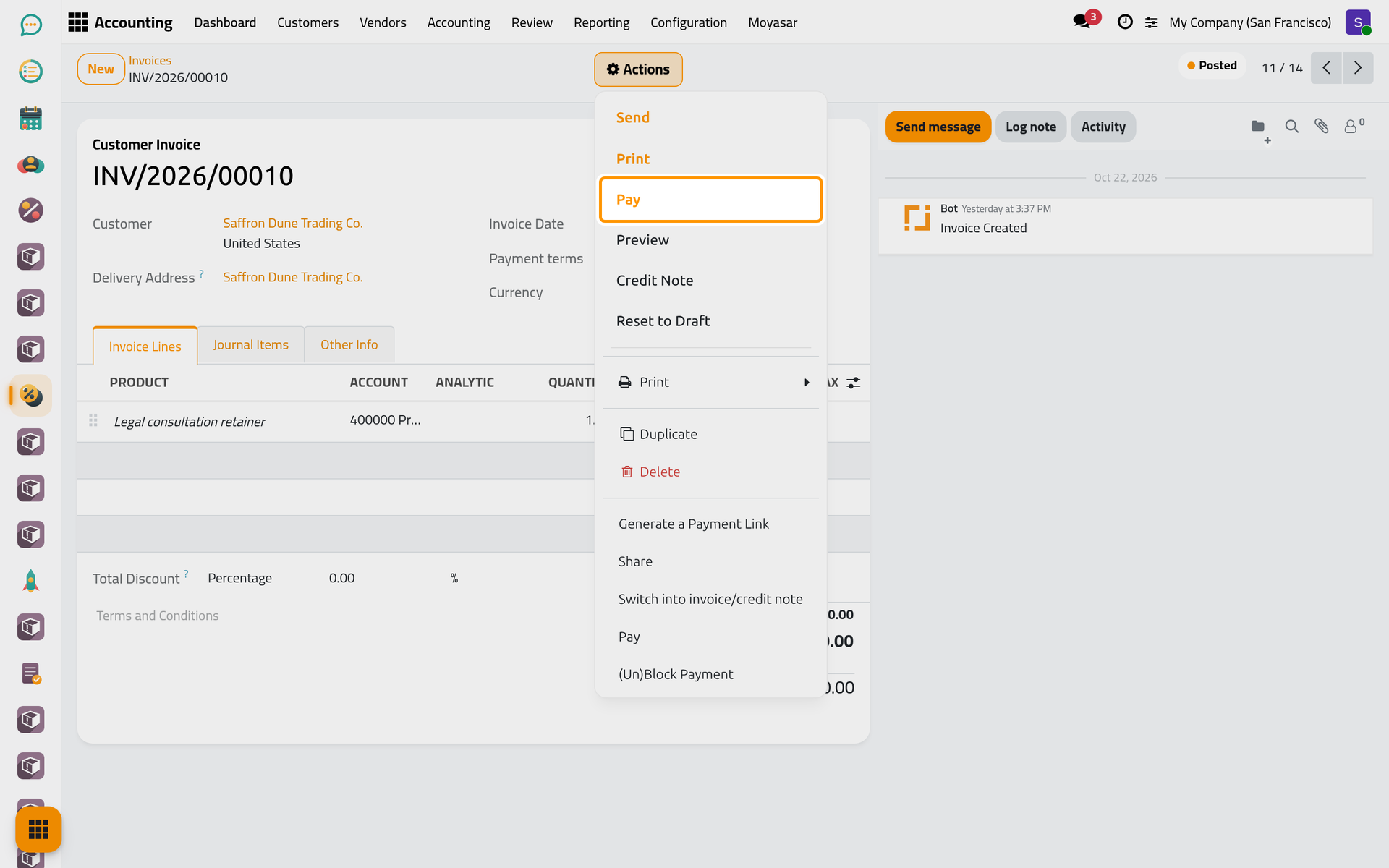
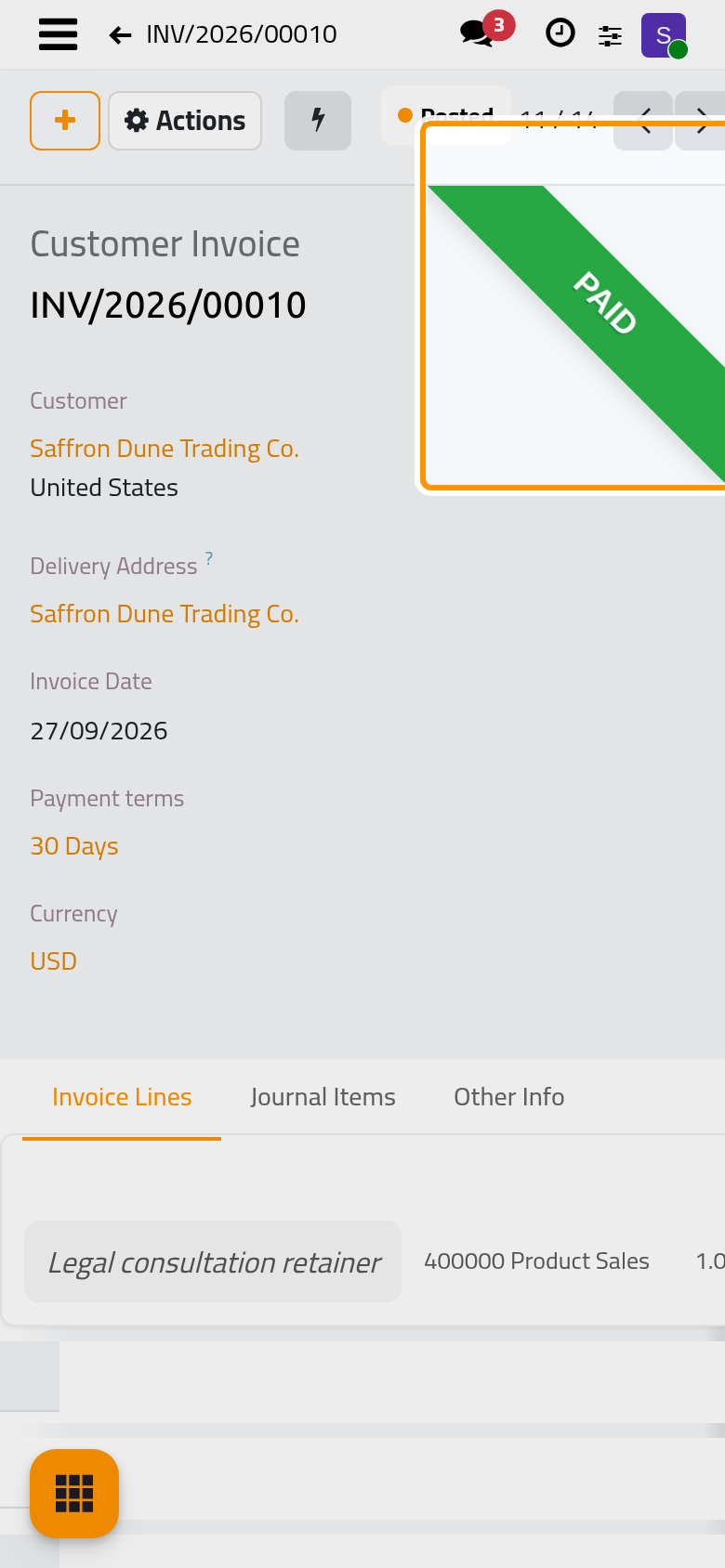
On a phone, the Actions button sits at the top of the screen, next to the plus button.
- Check the Journal: Bank for a transfer or a card, a cash journal for cash. The Payment Method is Manual Payment for a payment received outside the platform. Recipient Bank Account is the company's account the client paid into, as printed on the invoice.
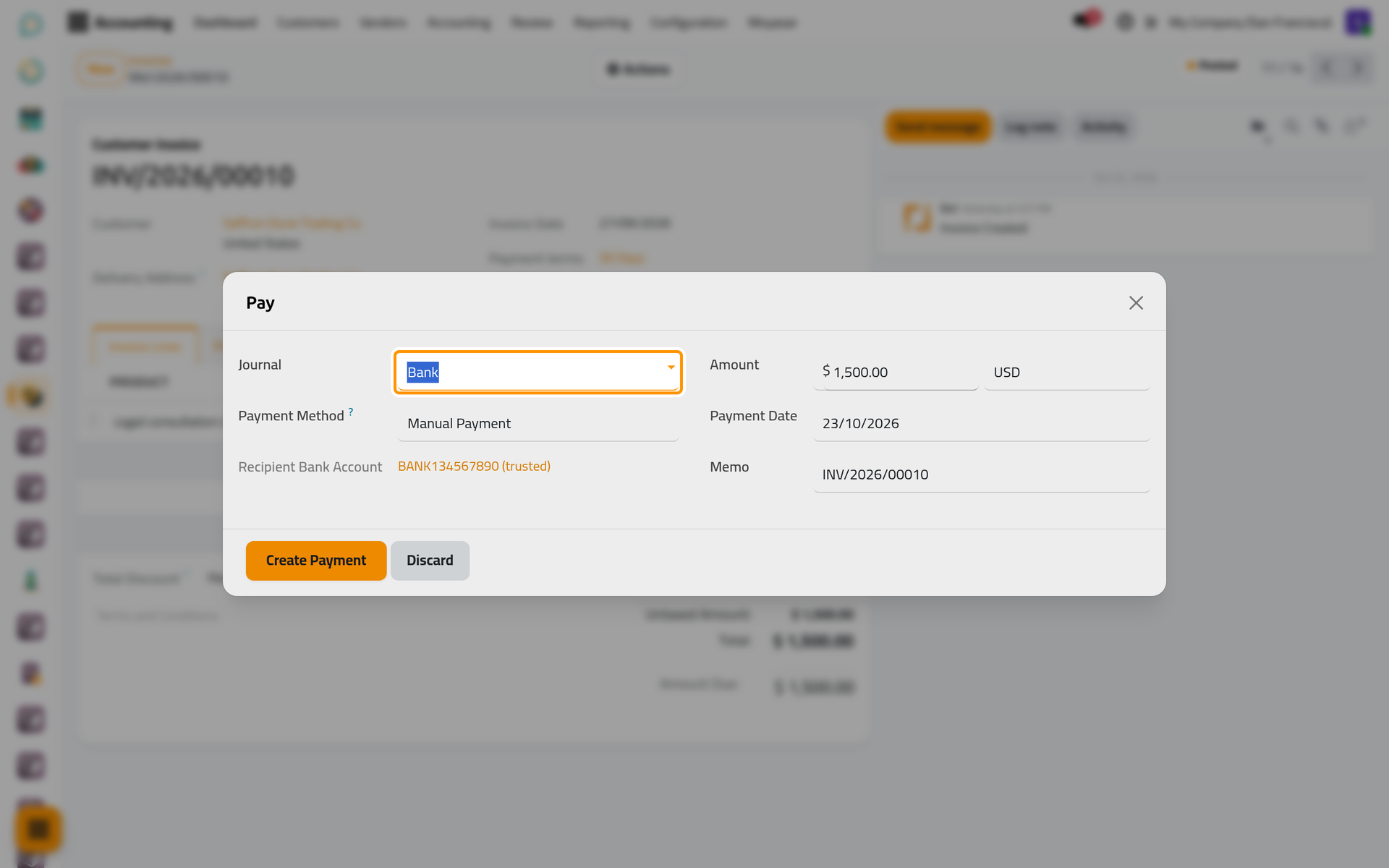
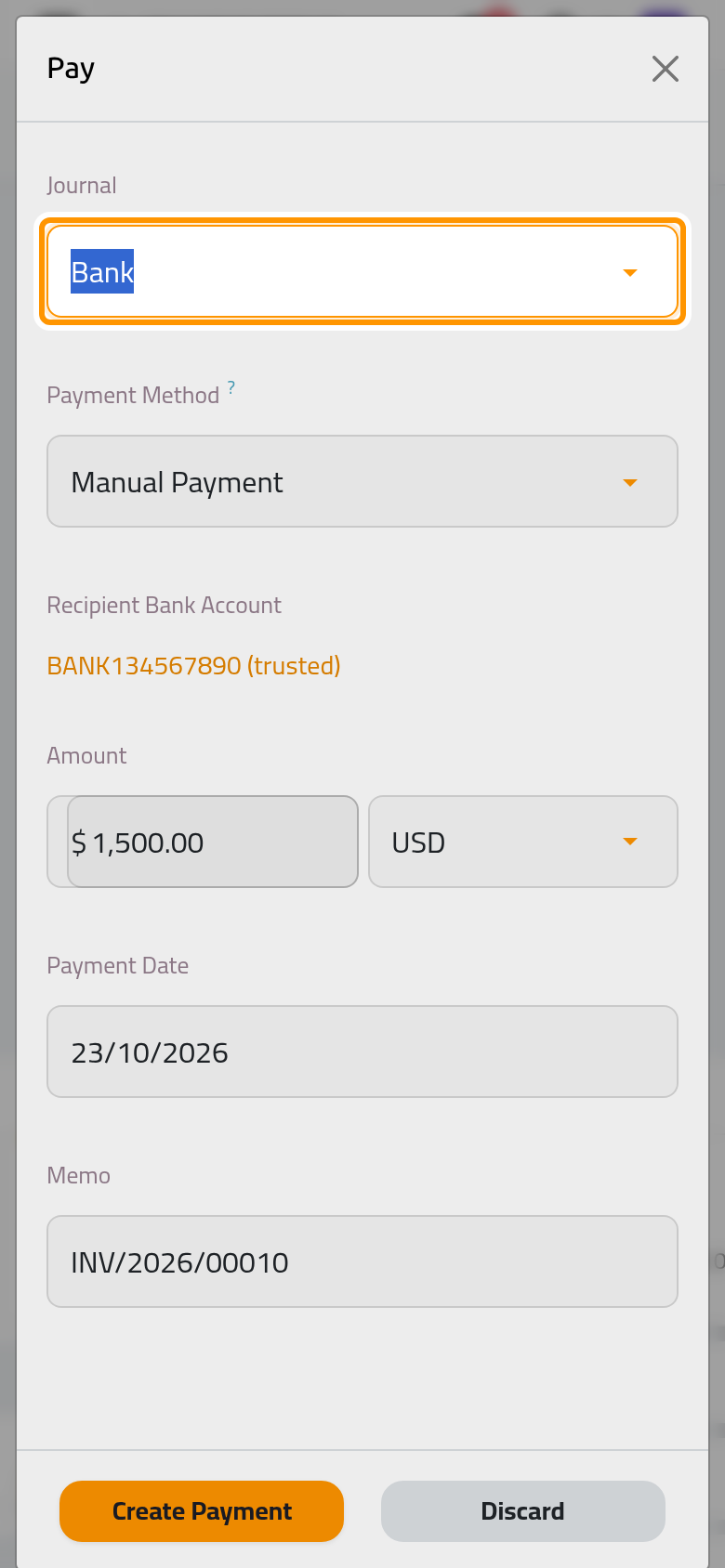
- Check the Amount, which proposes what is still due, the Payment Date (today) and the Memo, which repeats the invoice number so that the payment can be recognised on the bank statement.
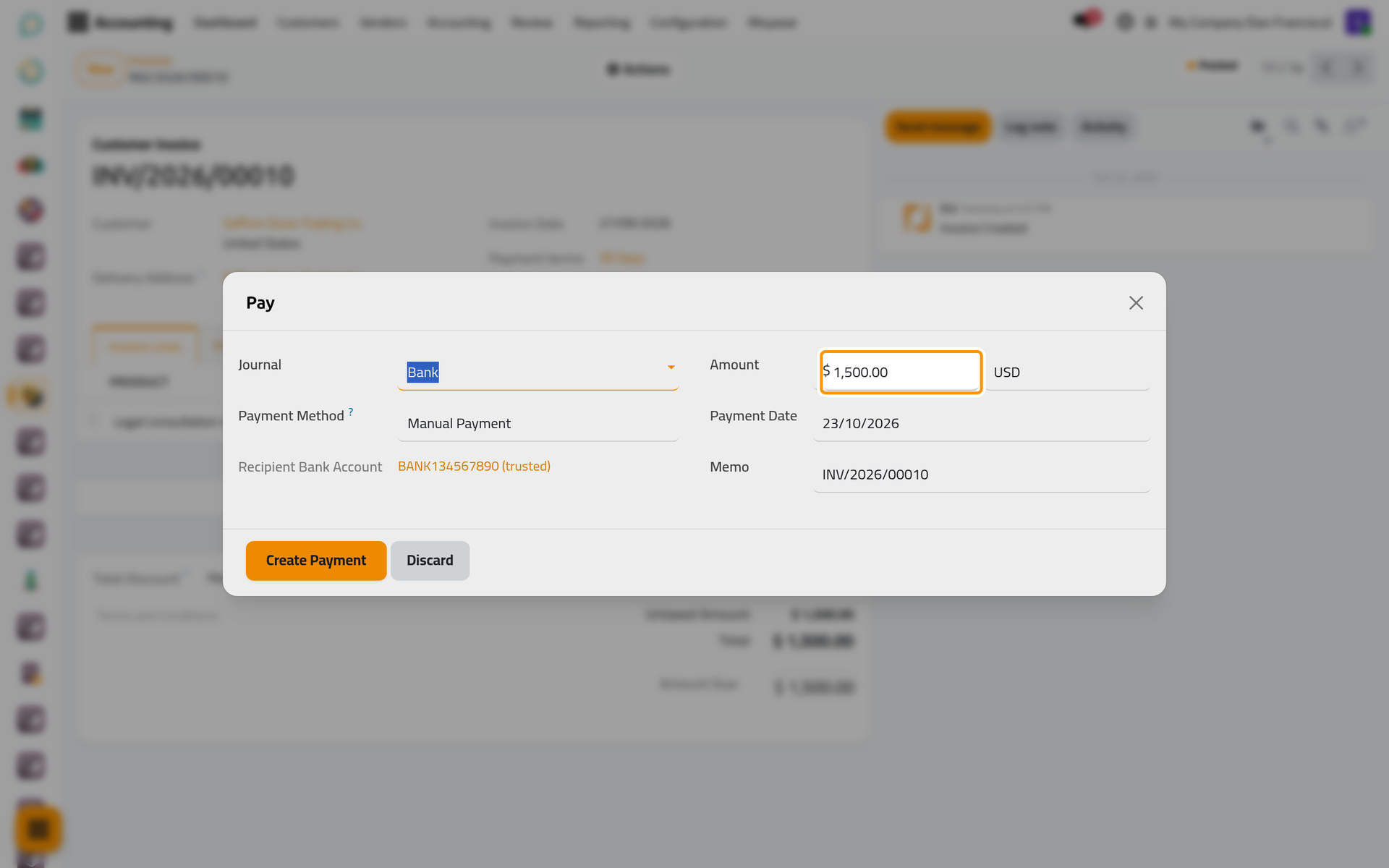
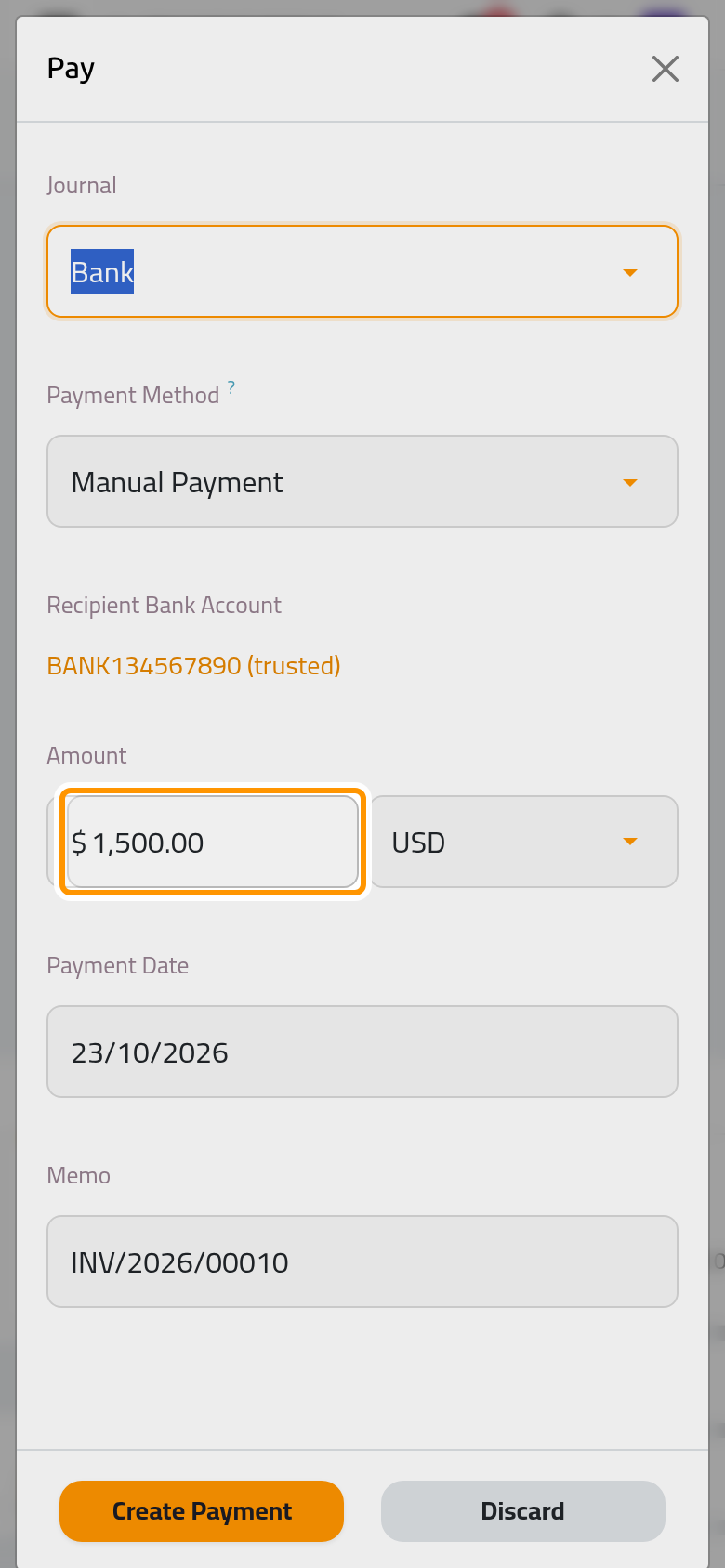
- Click Create Payment. A green Paid ribbon covers the corner of the invoice, and the payment is listed under the totals with its date.
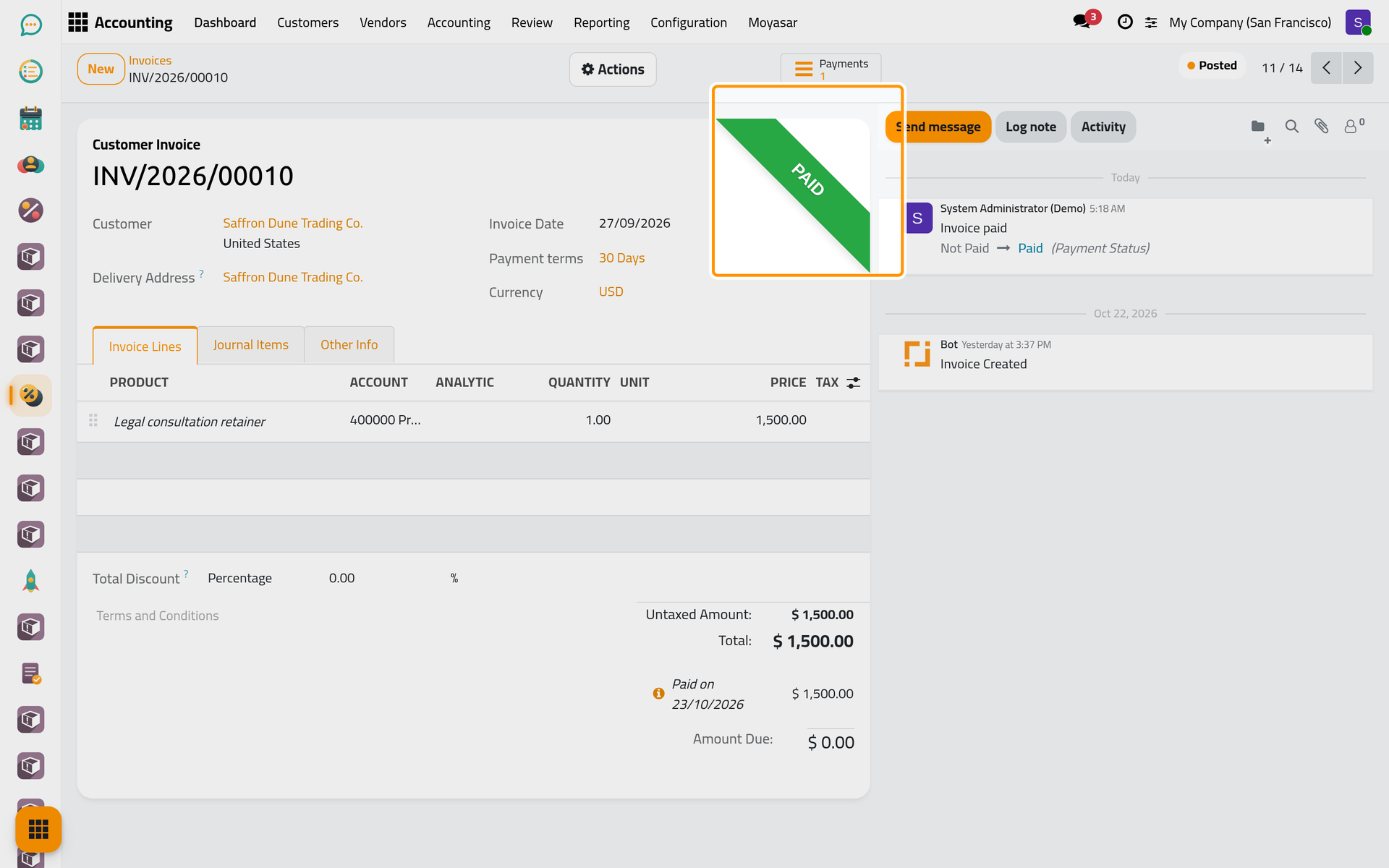
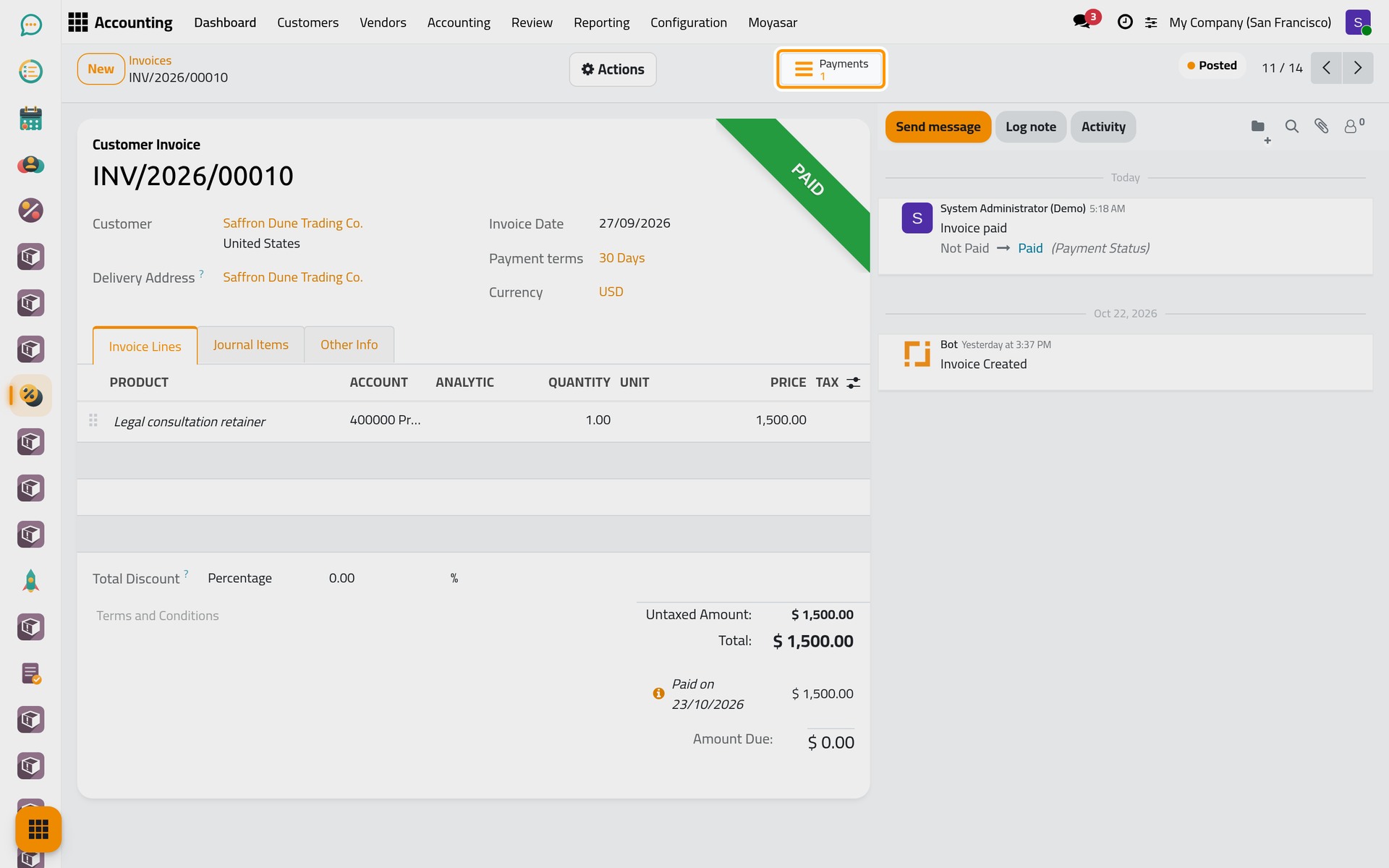
The Payments button at the top opens the payment, which has its own number (PBNK1 and the year for the Bank journal). Every customer payment is also listed in .
On a phone, the Payments button is behind the lightning button next to Actions.
A partial payment
When the client pays only part of the invoice, type that part in Amount before clicking Create Payment. The invoice shows a grey Partial ribbon, the payment under the totals and the rest as Amount Due; its payment status is Partially Paid. Pay stays in the Actions menu and proposes the rest the next time.
A credit the client already has
When the client has a credit note or a payment not yet used, the invoice shows the banner You have outstanding credits listed below for this customer. and lists them under the totals as Outstanding credits, each with an Add button. Add settles the invoice with that credit instead of a new payment.
After the payment
The payment is then matched with the line of the bank statement that shows the money arriving; that matching is done in Banks, cash and currencies. While an invoice is only partly paid, its payment shows In Process on its own form; it shows Paid once the invoice is fully paid. Overdue and partly paid invoices are followed in the receivables reports of Accounting reports.
FAQ
I do not see Pay in the Actions menu.
The invoice is either a draft (confirm it first), already paid, or reversed by a credit note. Paying also needs the Invoicing access right for all documents.
I recorded the wrong amount.
Open the payment from the Payments button. Its Actions menu holds Reset to Draft; a draft payment can be corrected and confirmed again with Confirm, or cancelled with Cancel.
Can I pay several invoices of the same client at once?
Yes. Tick the invoices in the list and click Pay above the list. The window offers Group Payments to make one payment of them; left unticked, Create Payments records one payment per invoice. To let the client pay several invoices online in one go, send them one payment link for several invoices.
Was this page helpful?
Thank you for your feedback.