Send an invoice by e-mail
On this page
Once confirmed, an invoice is sent to the client by e-mail with its PDF attached. The message is prepared from a template, so it already names the invoice, the amount, the payment reference to quote and the bank account to pay into.
Before you start
- You need the Invoicing access right on Accounting.
- The invoice is confirmed, and the client's contact has an e-mail address. Without one, the window warns that the partner should have an e-mail address and does not send.
- Outgoing e-mail is configured for the platform (General settings).
Open the sending window
From the invoice, open the Actions menu and choose Send. From the list, tick the invoice and click Send above the list, as in the pictures.
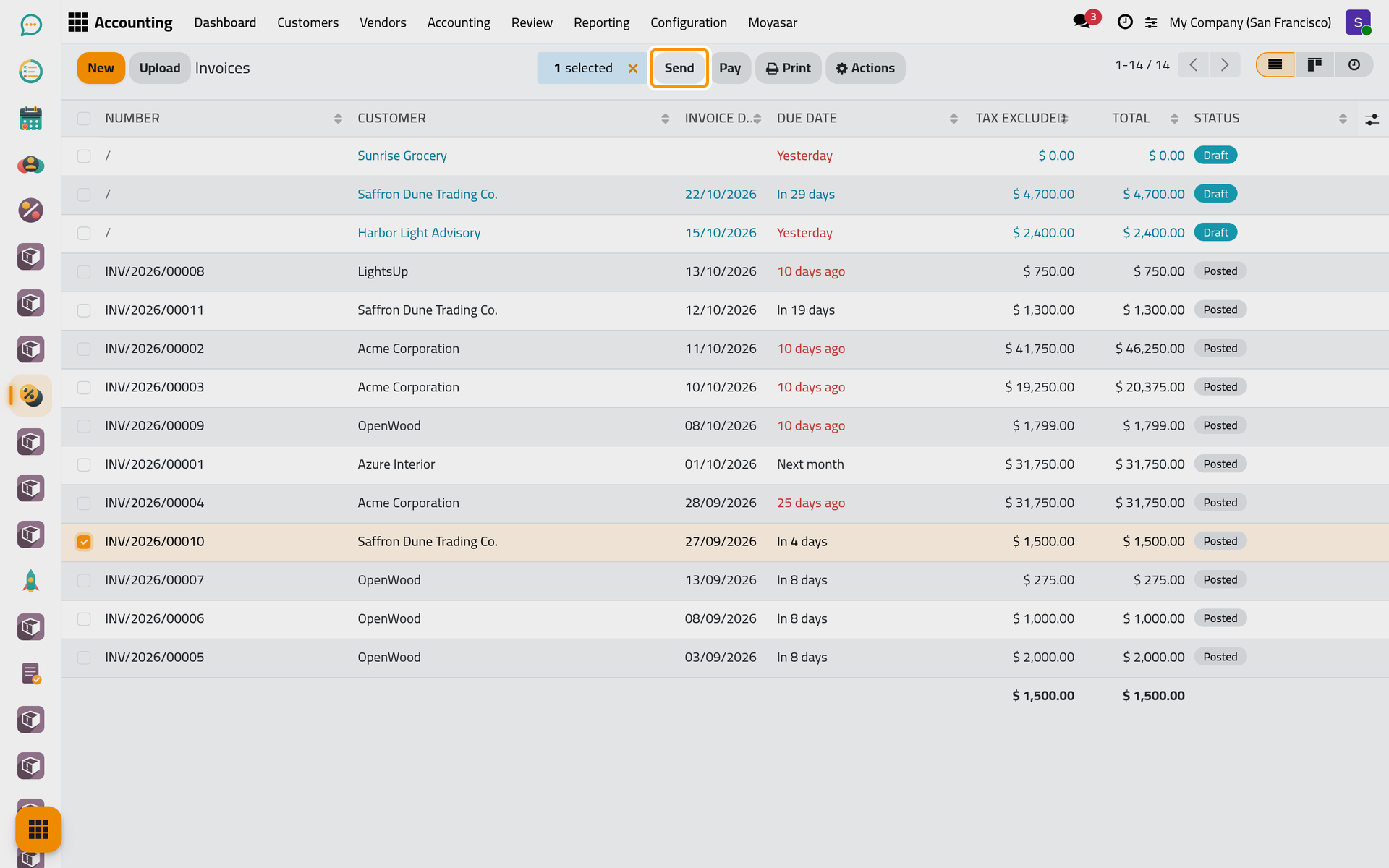
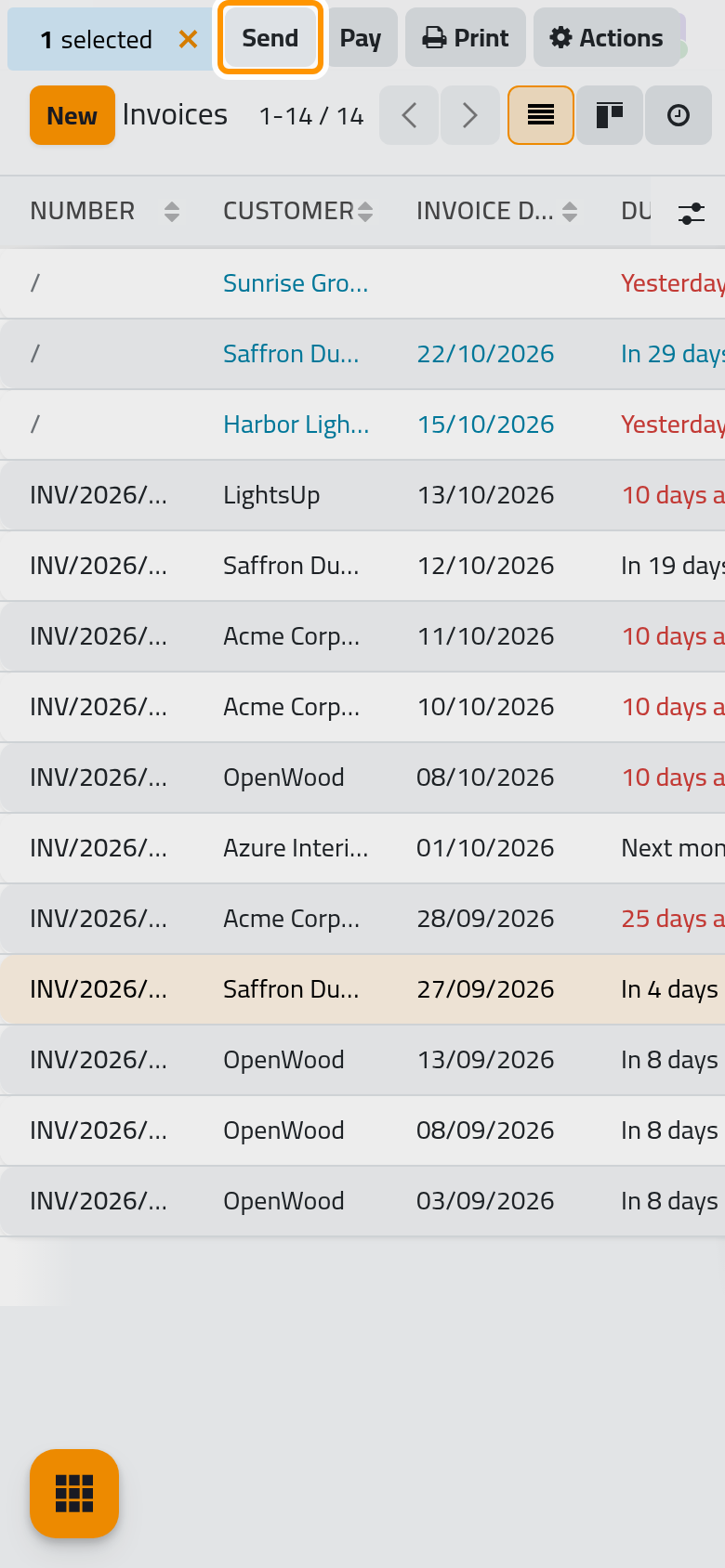
The first time an administrator sends or prints an invoice of a company whose document layout was never chosen, a window Configure your document layout opens first: choose the layout, the colours and the logo of the printed documents and click Continue, and the sending window follows. The layout is kept for every later document of the company.
Check the e-mail
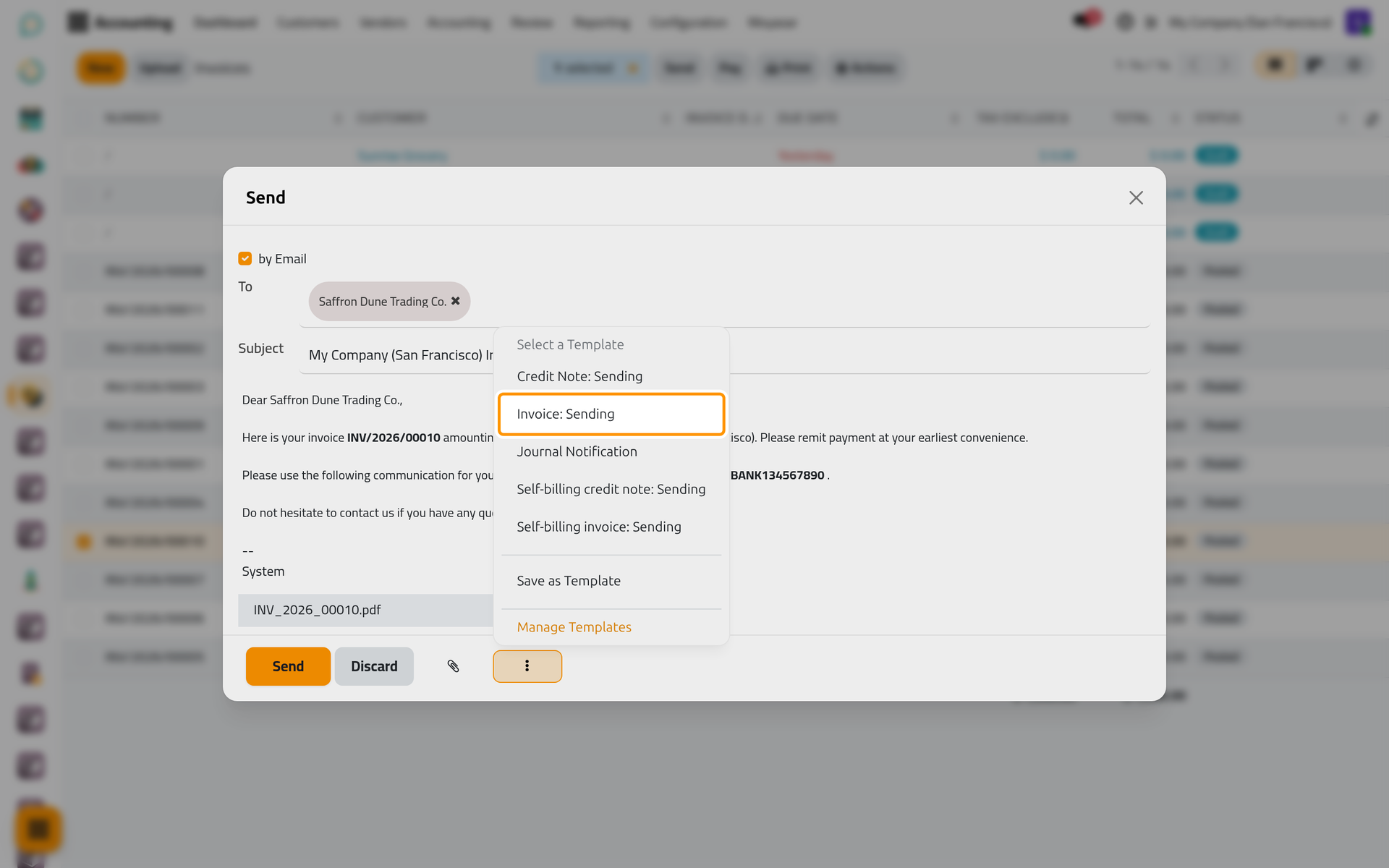
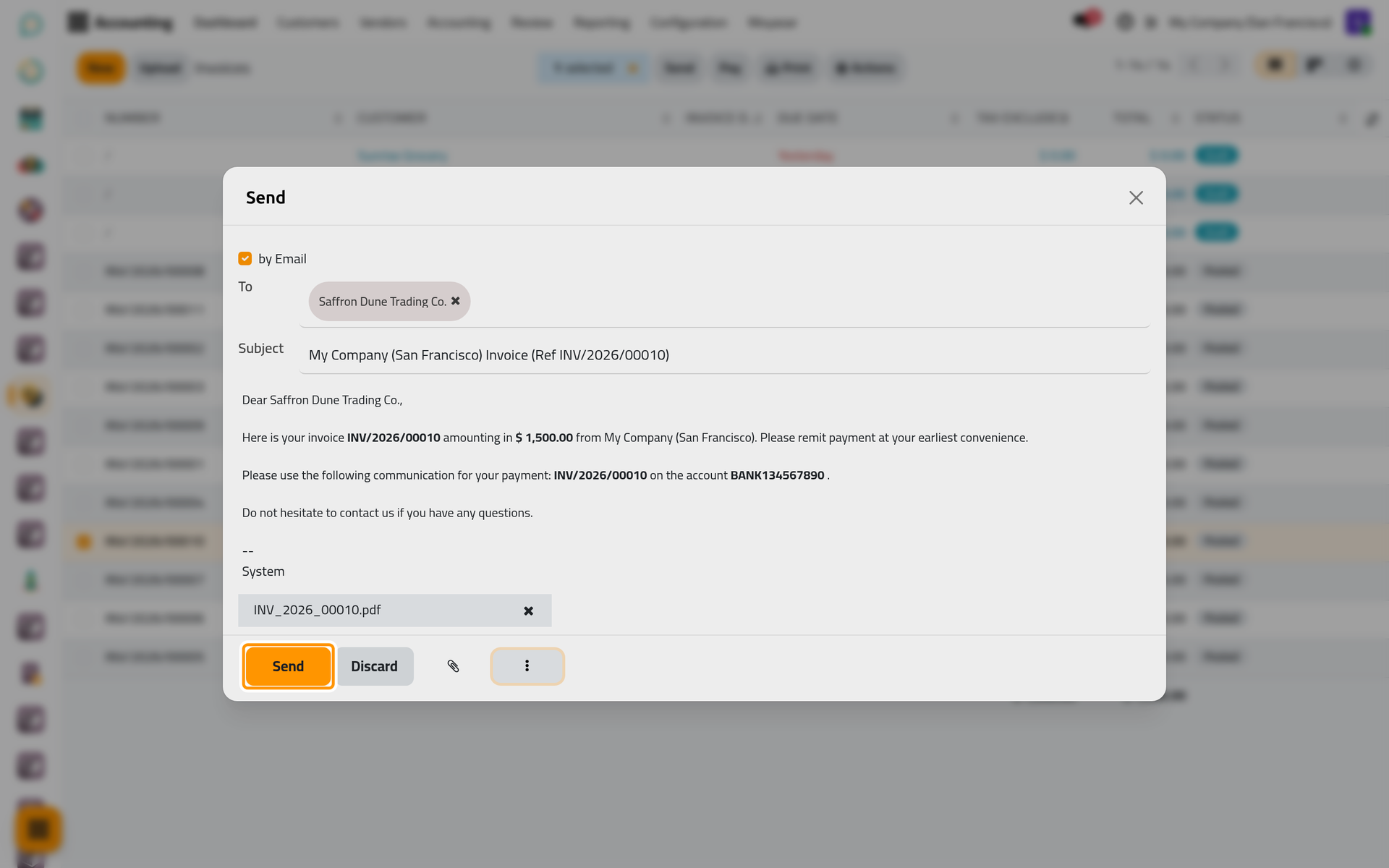
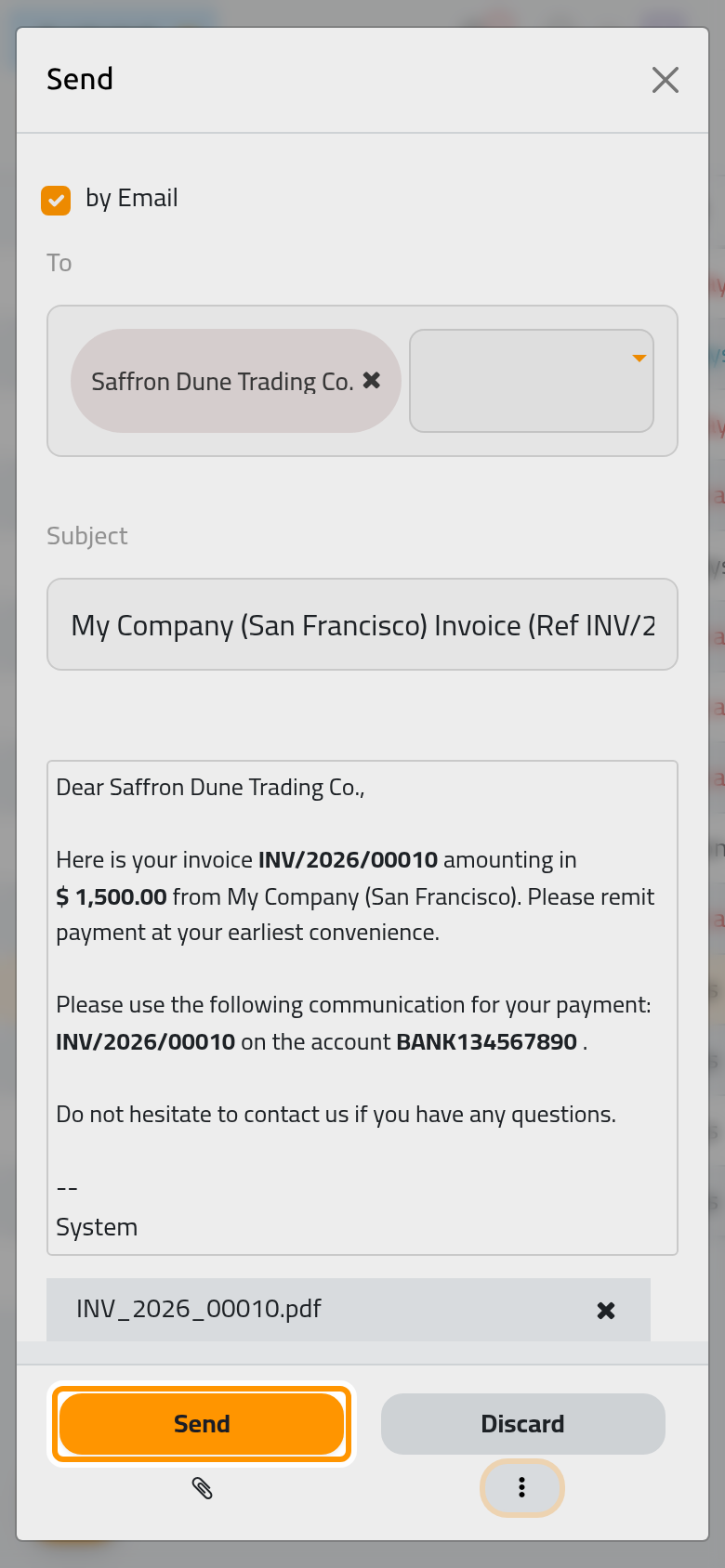
The Send window has by Email ticked. To holds the client; type another contact's name to add a recipient. The Subject names the company and the invoice number, the message gives the amount and the payment reference, and the invoice PDF is attached below it.
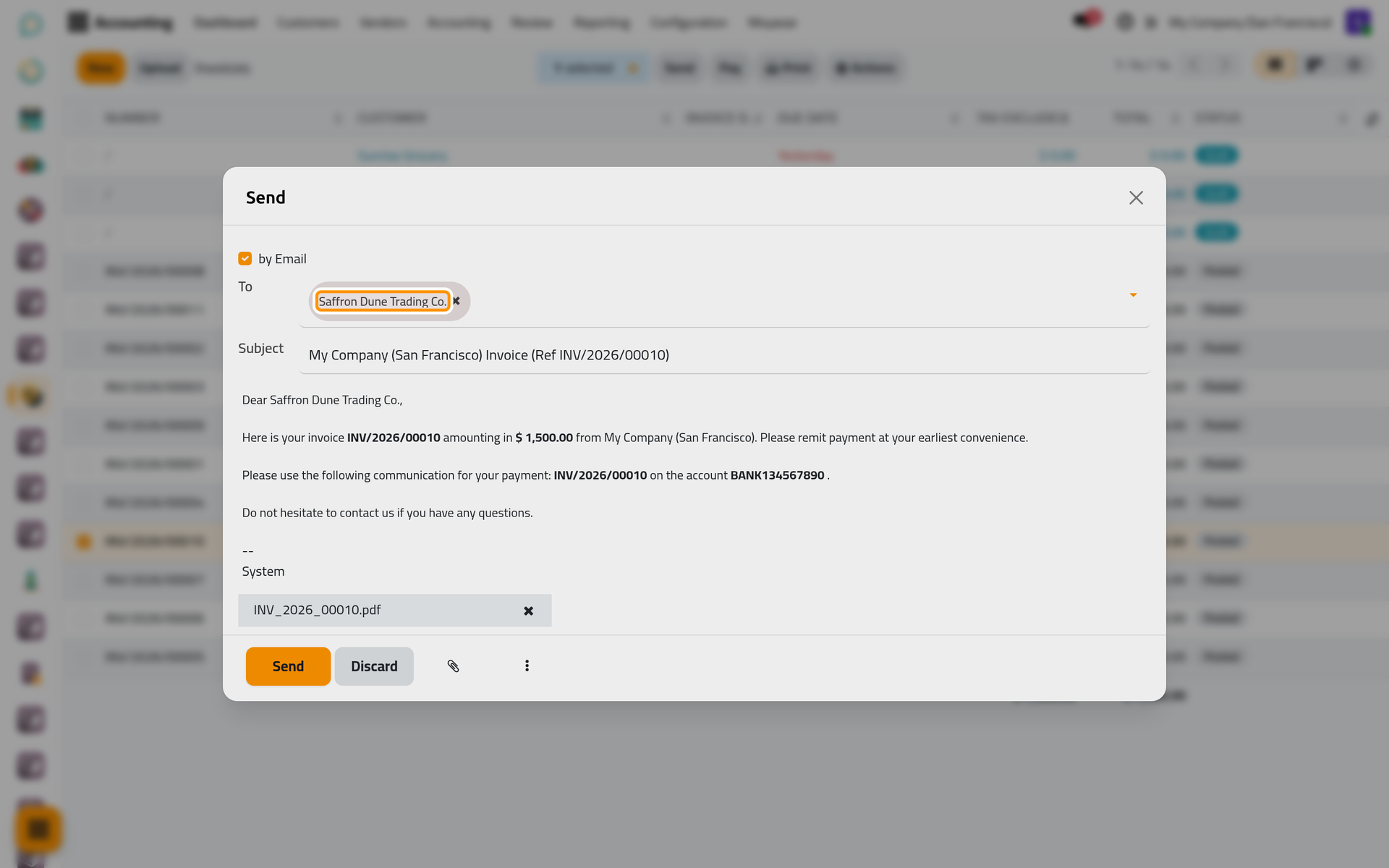
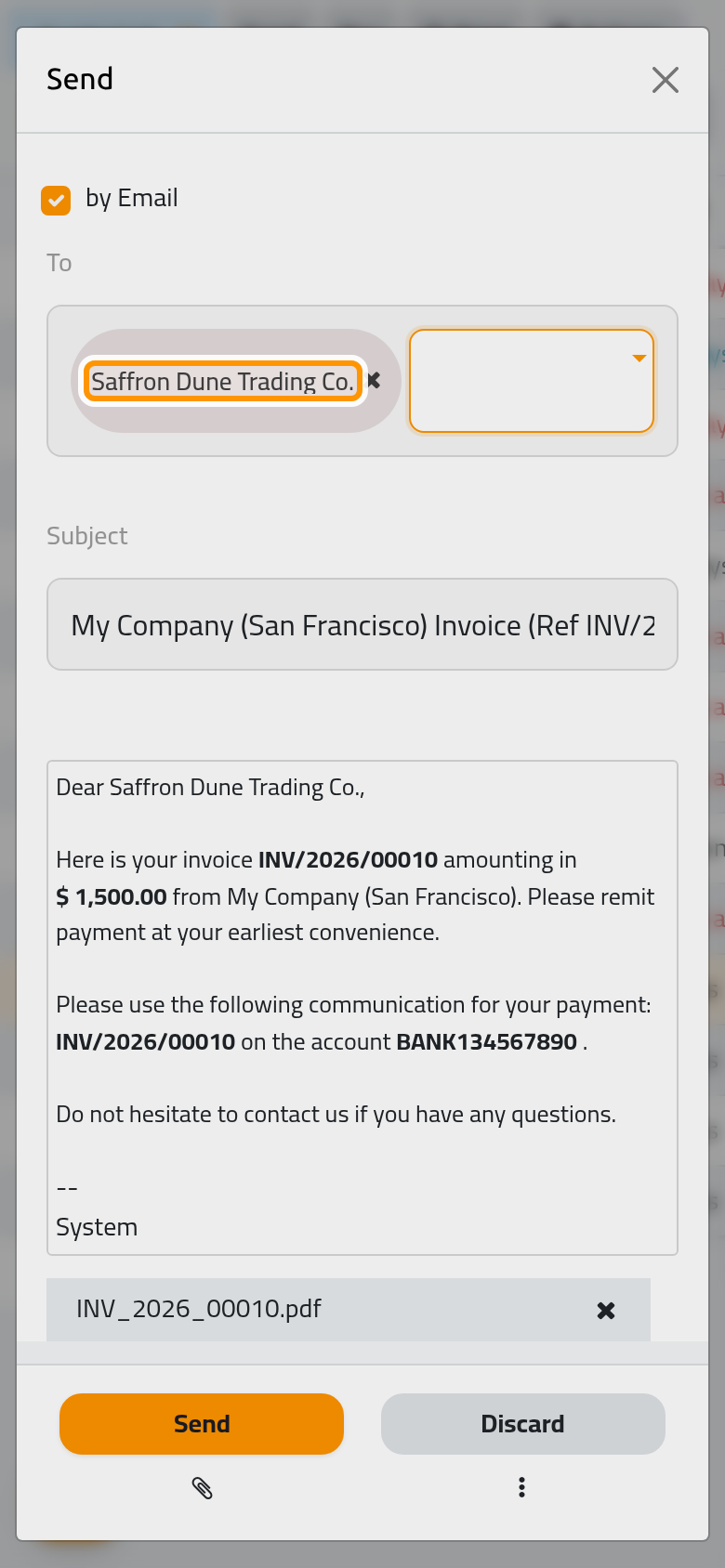
The text comes from the template Invoice: Sending. The templates button at the bottom of the window lists the other templates, such as Credit Note: Sending for a credit note, and Save as Template keeps the current text as a new template. The paperclip button adds another file.
On a phone, the templates button sits under Discard, at the bottom of the window.
Send
Click Send. The e-mail leaves with the PDF, the PDF is kept on the invoice, and the message is recorded in the invoice's chatter. While the invoice is not paid, a grey Sent ribbon shows that it was sent.
Several invoices at once
Tick several invoices in the list and click Send: each invoice is e-mailed to its own client with its own PDF. The sending happens in the background, a few moments later, through the scheduled action described in Customer invoice automations; when that action is switched off, the window says that batch sending is unavailable.
Print instead
Print in the Actions menu downloads the invoice PDF without sending anything. The Print submenu of the same menu offers three formats: Invoice PDF, which lists the payments received under the totals; PDF without Payment, which leaves them out; and Invoice 80mm, a narrow receipt for a receipt printer.
FAQ
The client says the e-mail never arrived.
Open the invoice: the chatter shows the message and its recipients. Check the client's e-mail address on the contact, then send again.
Can the client see the invoice online?
Yes. Every invoice also has a page in the customer portal, where the client can download it and, when online payment is set up, pay it (Online payments). Preview in the Actions menu opens that page.
How do I change the text of the e-mail for good?
Edit the template Invoice: Sending, or write the new text in the window and keep it with Save as Template.
Was this page helpful?
Thank you for your feedback.