One payment link for several invoices
On this page
A client with three open invoices would rather pay once than three times. The payment link for several invoices gathers the unpaid invoices of one client behind a single link: the client opens it without an account, sees each invoice and what is still due, and pays the total online. Each invoice is then settled by the payment.
This is not the same as paying several invoices from the office, which is described in Record a customer payment.
Before you start
- You need the Invoicing access right on Accounting for all documents, or Administrator.
- Invoice Online Payment is on in Online payment settings (it is on by default), and at least one payment provider is enabled. Providers are set up in Online payments; without one, the client sees the page but cannot pay.
- The invoices belong to the same client, the same company and the same currency, and they are confirmed.
Select the invoices
Open and tick the box at the start of each invoice to include. The number of selected invoices appears above the list.
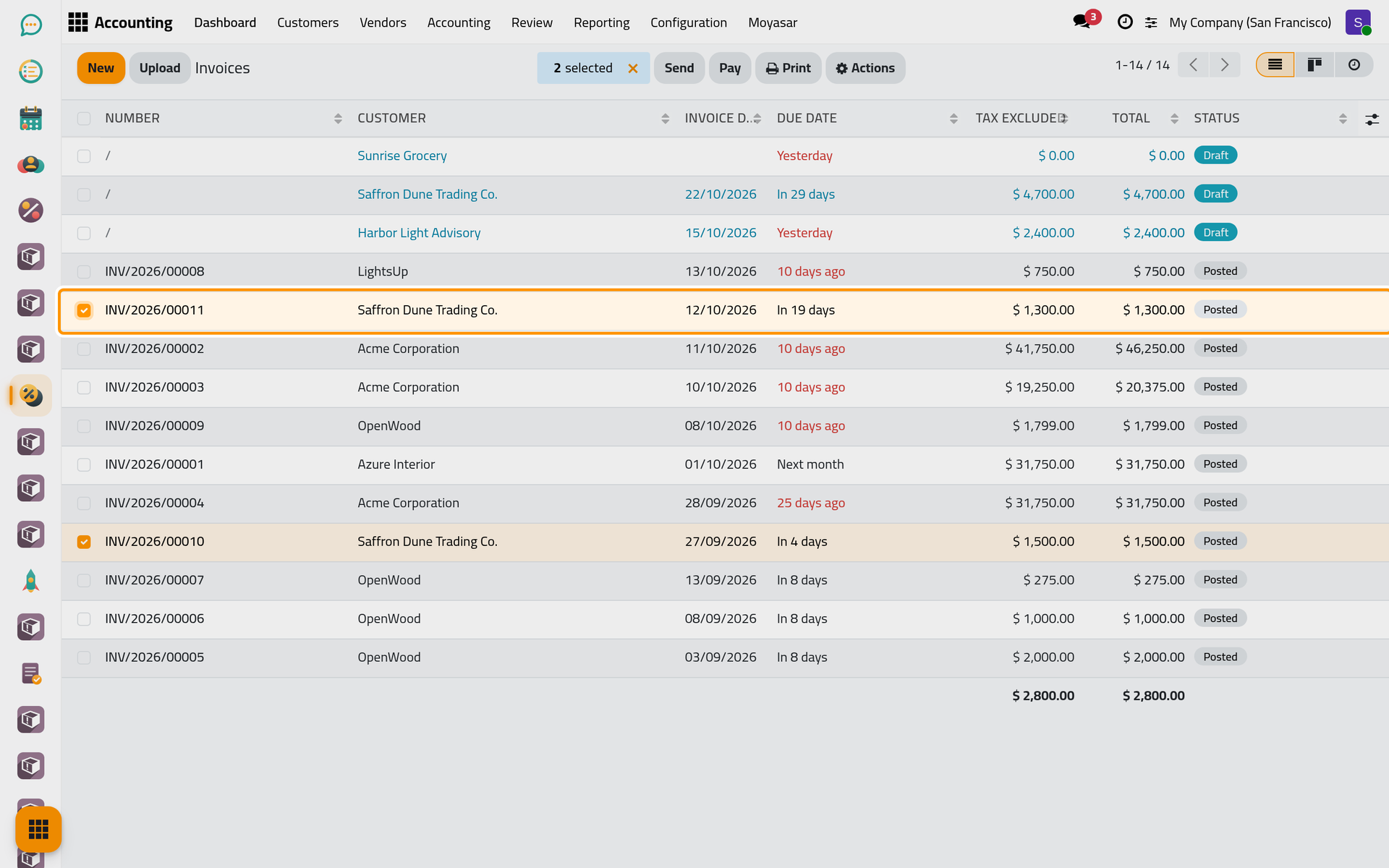
Paid invoices and credit notes in the selection are simply left out of the link. A draft is not left out, so tick confirmed invoices only.
Generate the link
- Open the Actions menu above the list and choose Generate a Payment Link.
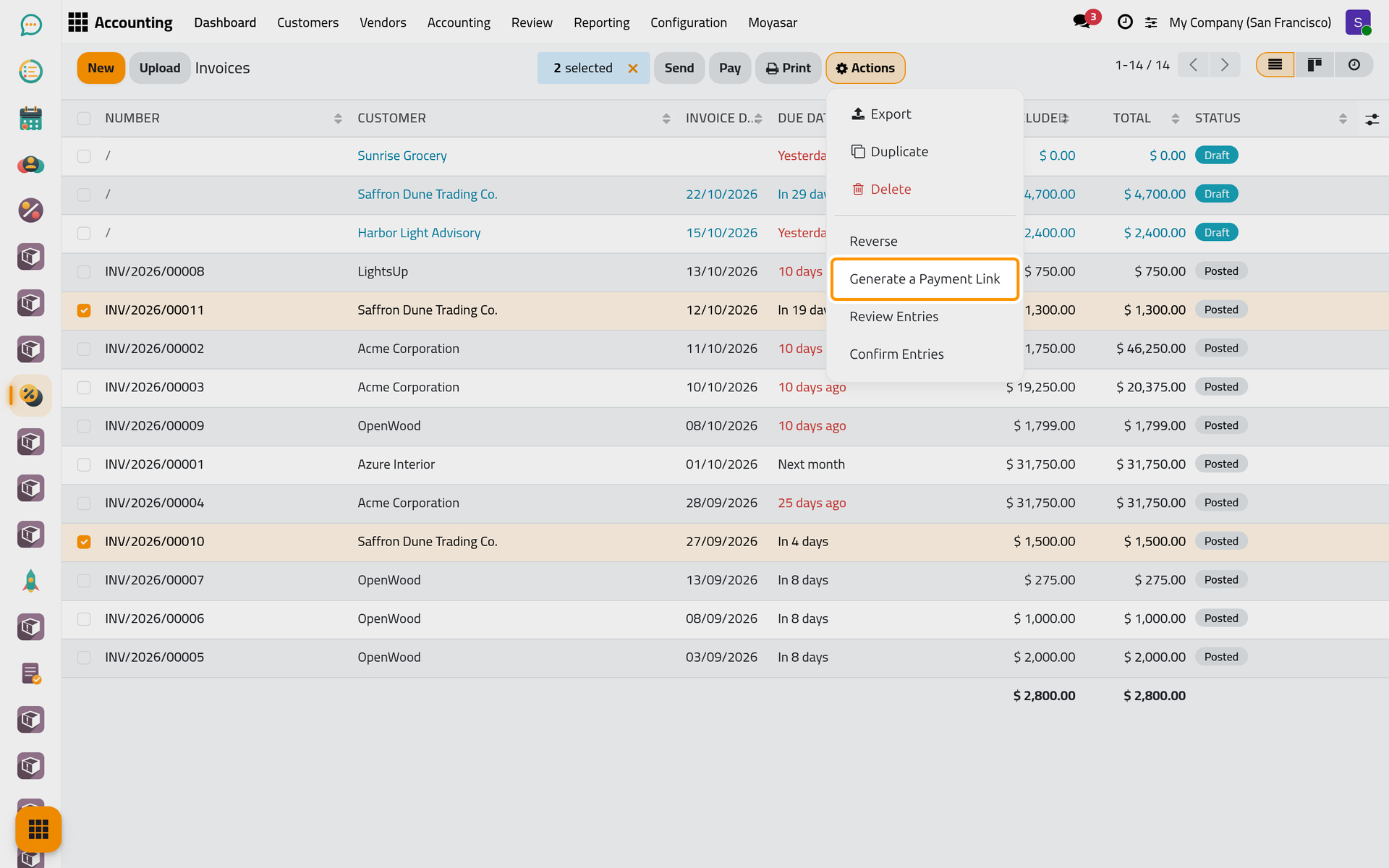
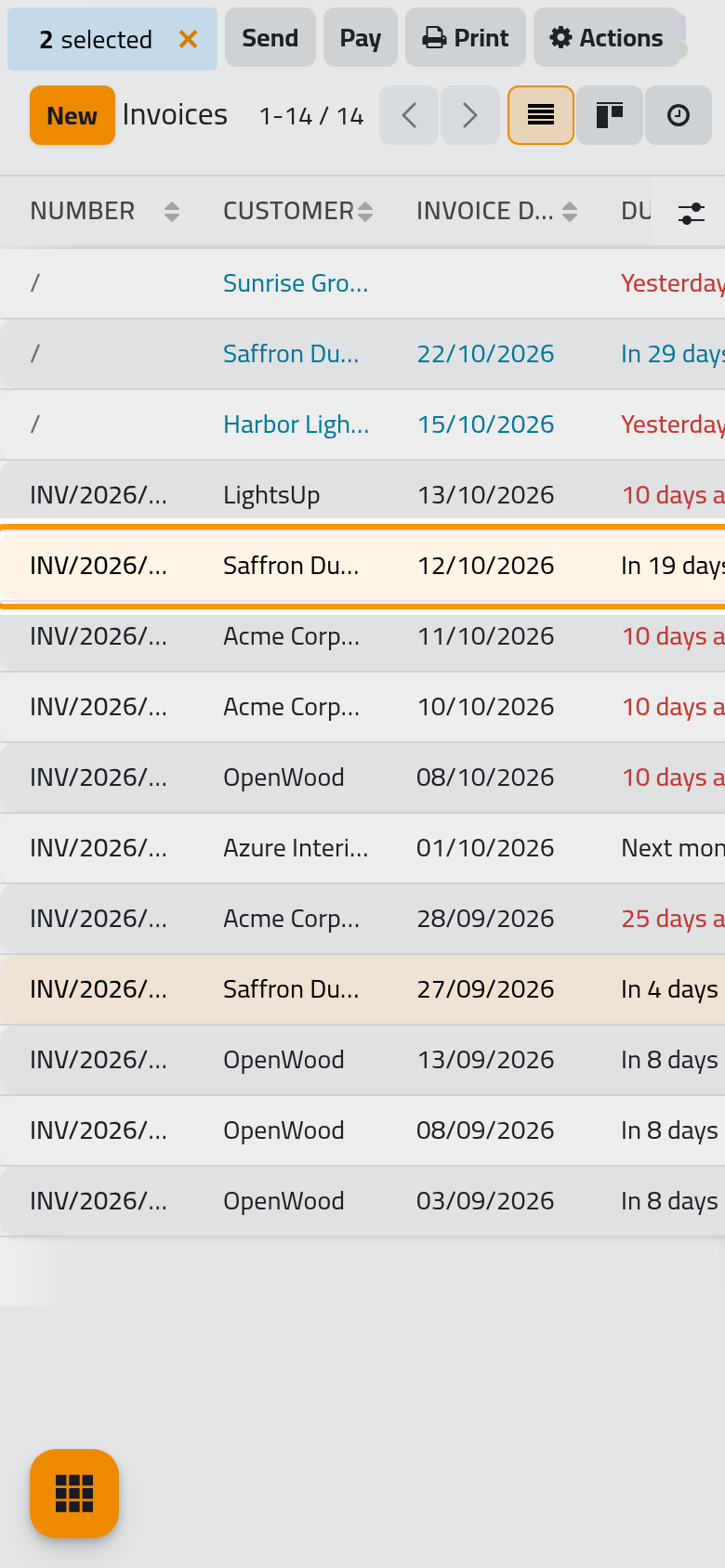
On a phone, Actions sits at the top of the selection bar, after Send, Pay and Print.
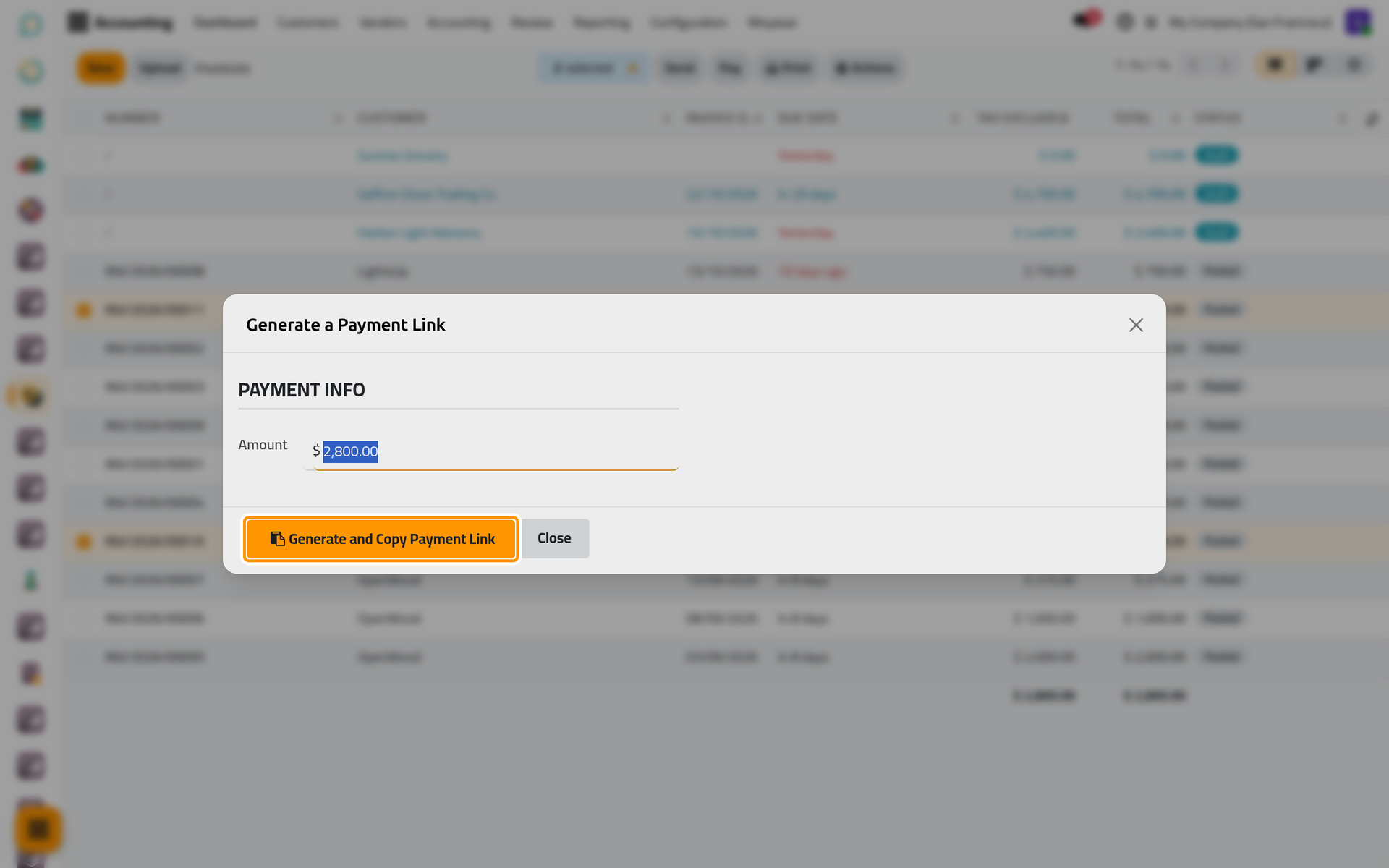
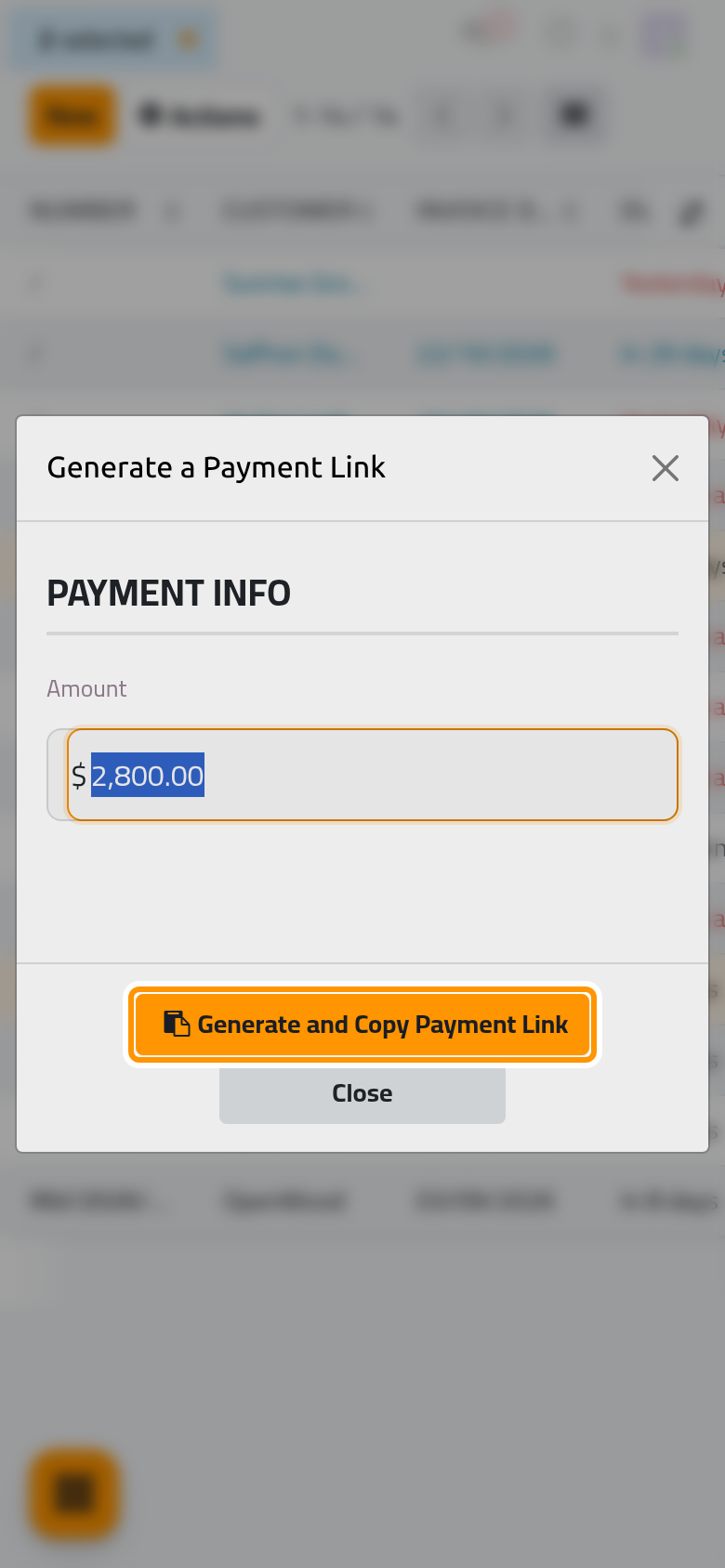
- The Generate a Payment Link window shows, under Payment Info, the Amount: the total still due on the selected invoices.
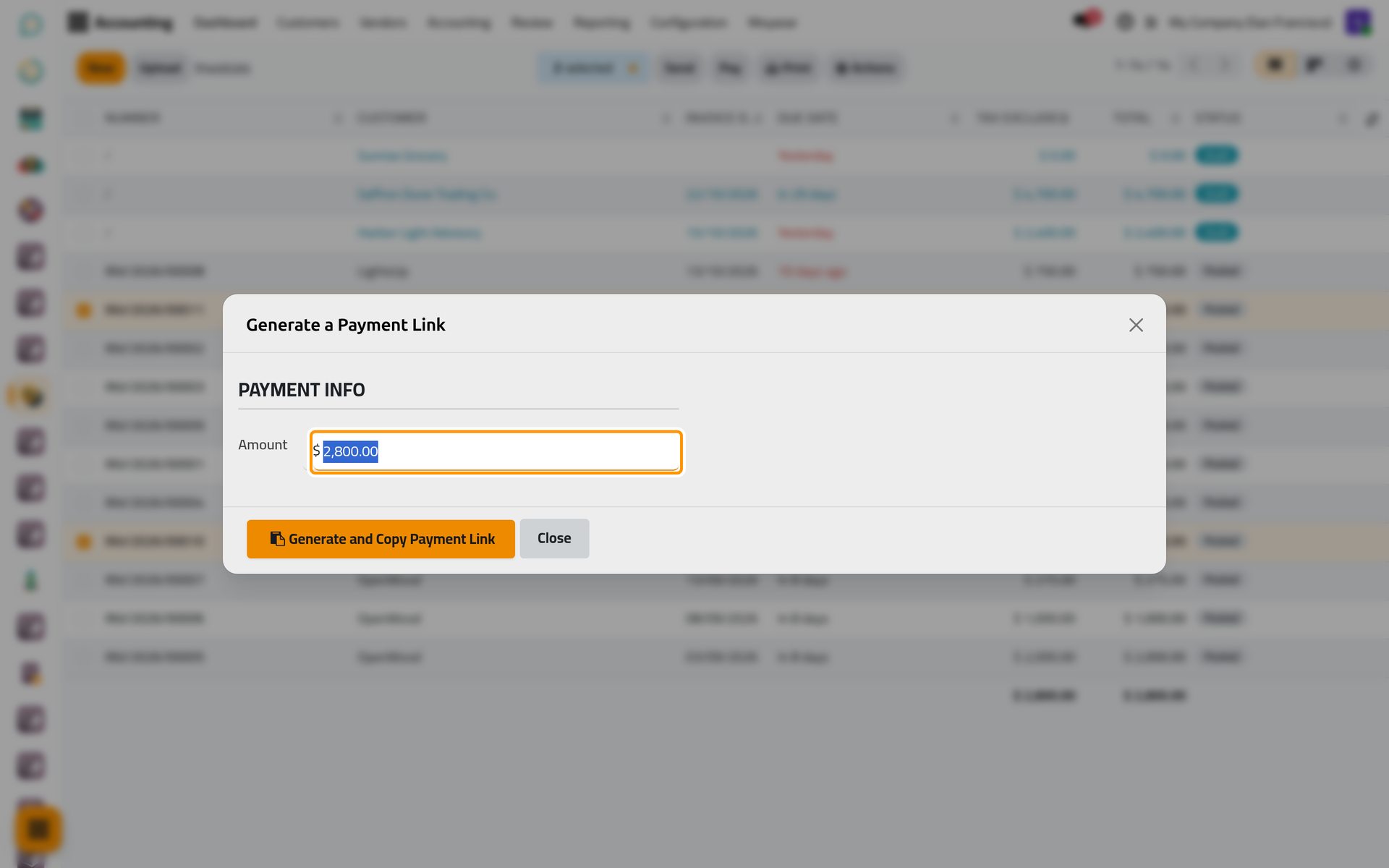
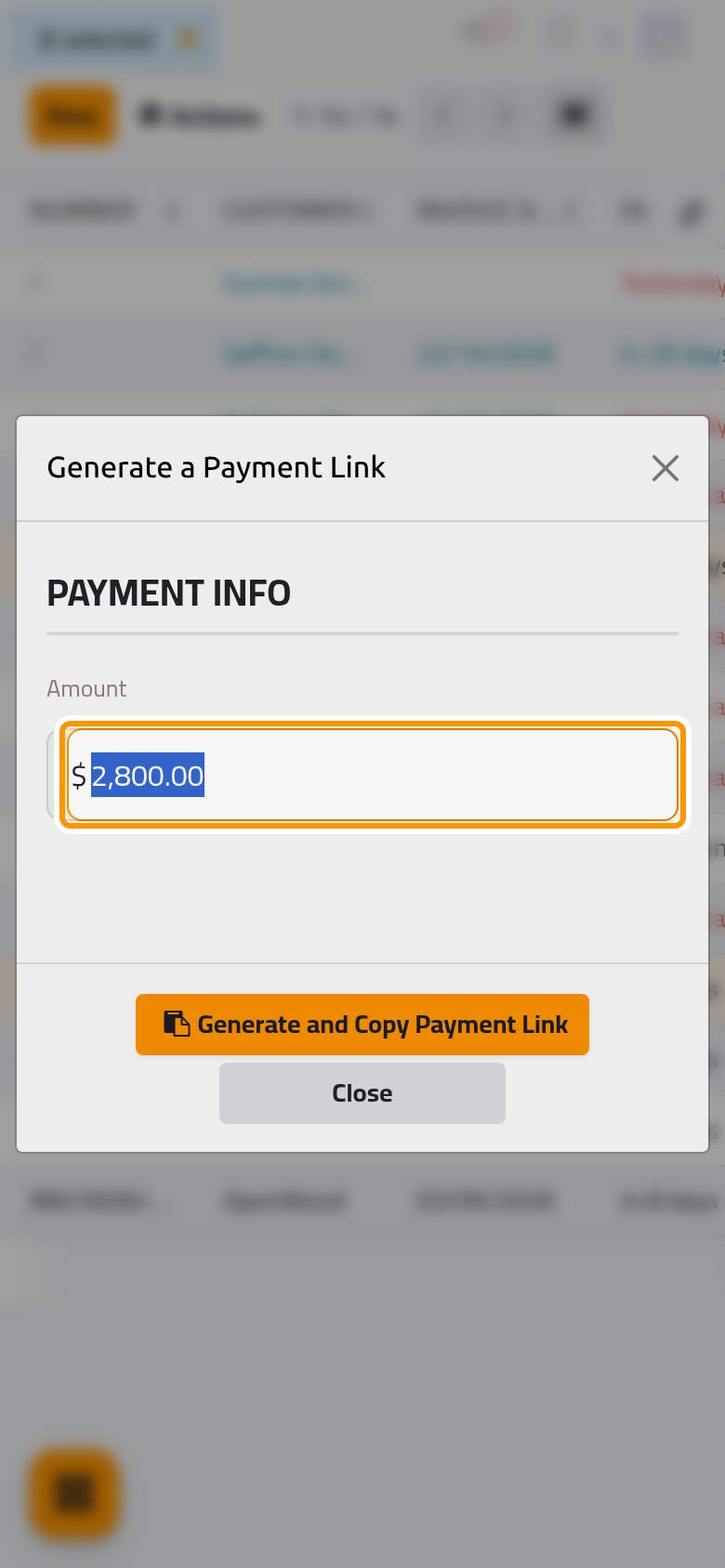
- Click Generate and Copy Payment Link. The link is copied: paste it into the e-mail or the message you send to the client. Close closes the window.
The link always asks for the total still due on its invoices when the client opens it; the Amount of the window is not carried by the link. To ask for part of the total, select fewer invoices.
What the client sees
The link opens a public page titled Invoice Payment, with the company and the client, the reference of the link (BATCH, the year and a counter), and a table of the invoices with their Date, Due Date, Total and what is still Due. Below come the Amount Due, the Reference and the payment methods of the enabled providers, with a Pay button.
When the client pays, the payment is recorded on each invoice of the link, which turns paid. Opened again after that, the page shows Thank you! and says that all the invoices of the link have been paid.
FAQ
The window says the invoices are of different customers.
The message Cannot generate a payment link for different customers. names the clients found. A link is for one client: generate one per client. The same applies to All invoices must belong to the same company. and All invoices must use the same currency.
The window says there is nothing to pay.
No invoices with an outstanding balance found. means every selected invoice is already paid, or the selection holds only credit notes.
Where do I find the links I already sent?
The links are not listed on any screen. A link keeps working after it was sent. To give the client the link again, select the same invoices and generate it: while they are unpaid, the window gives back the same link and reference. A different selection gets a new reference.
Can I make a link for a single invoice?
Yes: Generate a Payment Link is also in the Actions menu of an invoice. With one invoice, it is the usual payment link of that invoice, described in Online payments.
Was this page helpful?
Thank you for your feedback.