Your first invoice
On this page
A customer invoice tells a client what they owe for a service and when to pay it. This walk-through bills a legal consultation to a client, from the empty invoice to the moment it is paid, on the screens a finance team uses every day.
Before you start
- You need the Invoicing access right on Accounting for all documents, or Administrator. The access rights are explained in How customer invoices work.
- The client exists as a contact. The example uses Saffron Dune Trading Co., a client of the demo data.
- The service exists as a product. The legal apps install Consulting Fees, Case Fees, Hearing Fees, Contract Fees and Execution Fees, each with the sales tax of the company.
Step 1: open the invoices
Open . The list holds the customer invoices and the credit notes of the company: the Number, the Customer, the Invoice Date, the Due Date (shown as "In 30 days" or "9 days ago" while it is unpaid), the amounts and the Status. A draft has no number yet and shows a slash.
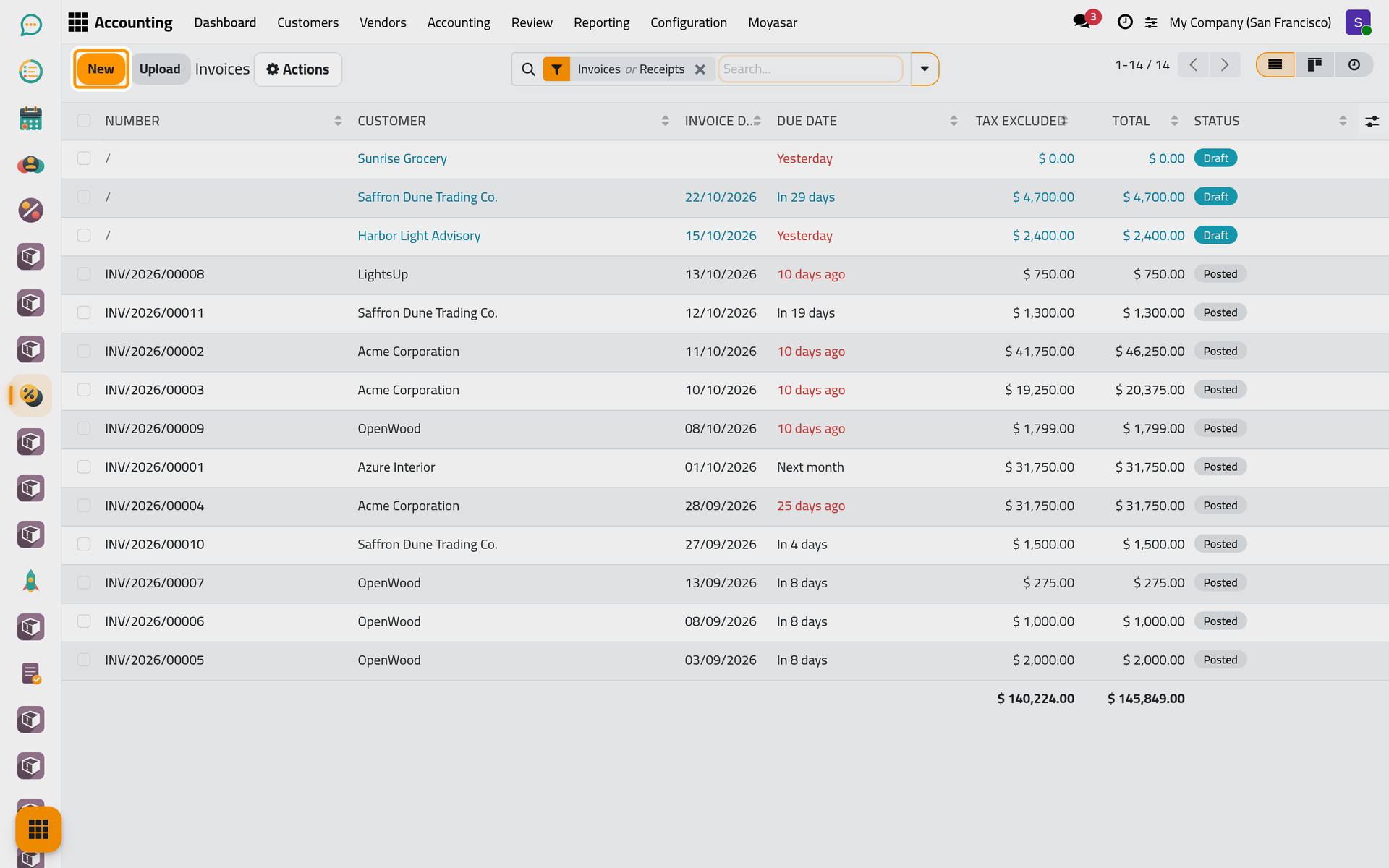
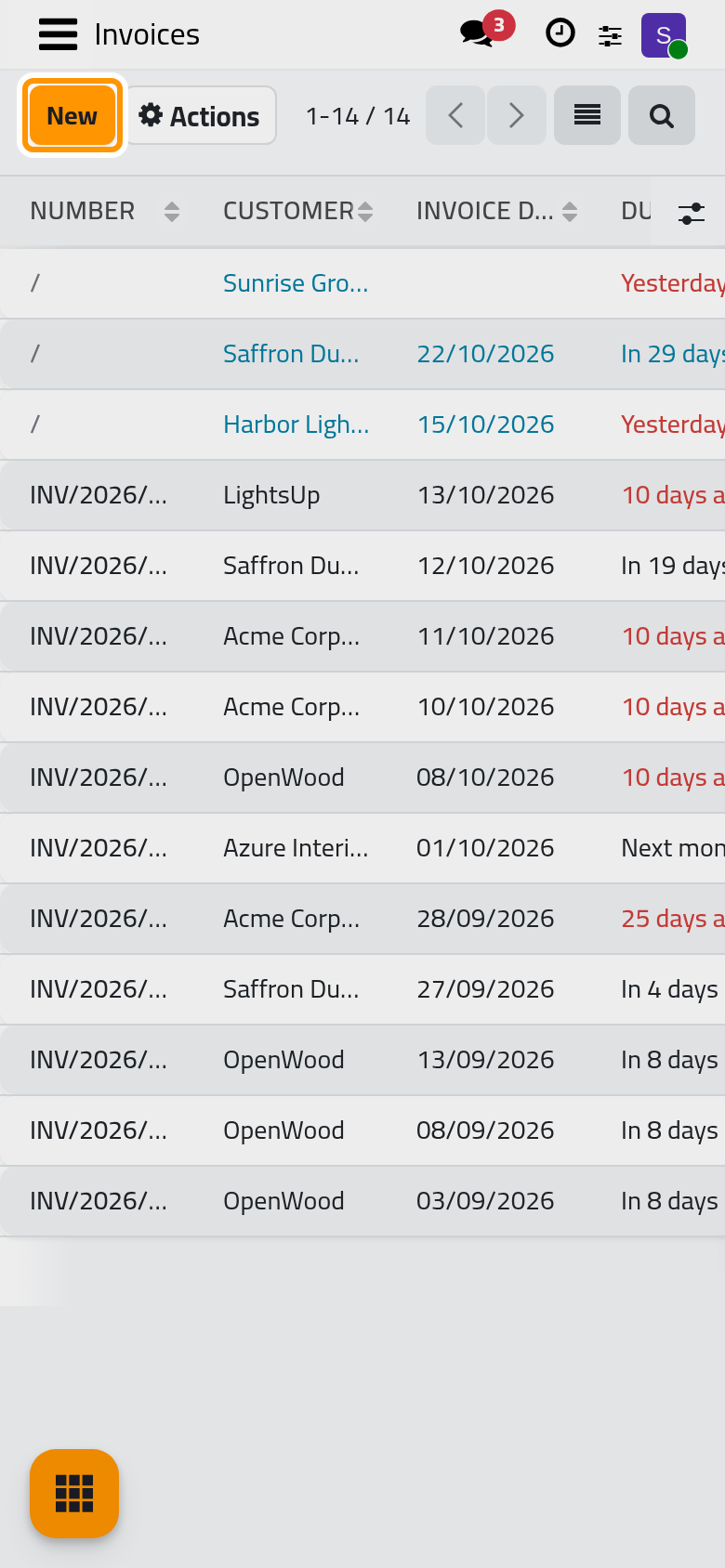
Click New.
Step 2: the client and the terms
- In Customer, type the first letters of the client's name and pick it from the list. The address of the client appears under the name.
- Leave Invoice Date empty: it shows Today and takes the date of the day you confirm the invoice. Type a date only to issue the invoice with an earlier or later date.
- Next to Due Date, choose the Payment Terms, here 30 Days. The terms compute the due date from the invoice date, and the field is then called Payment terms. Without terms, type the due date yourself.
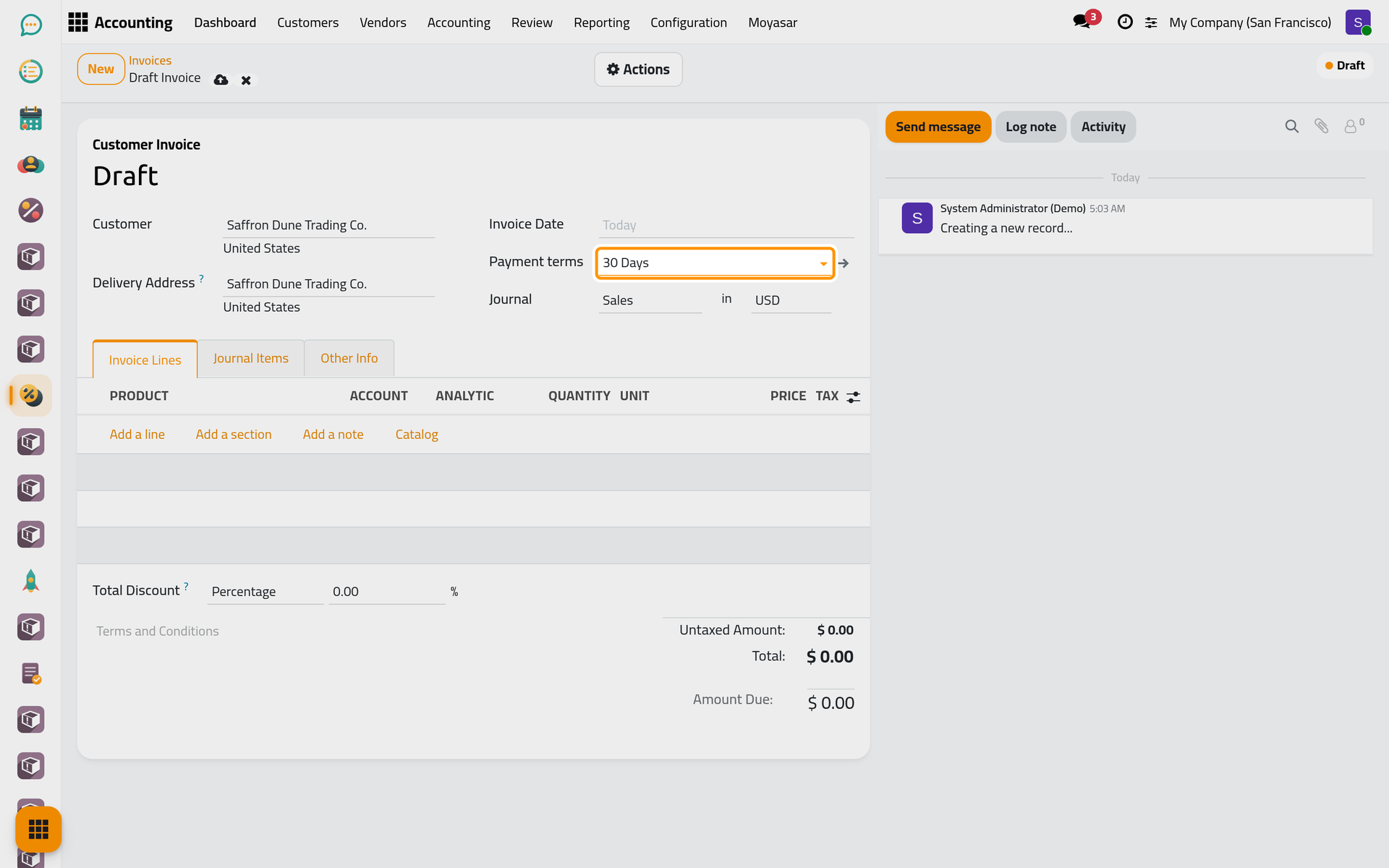
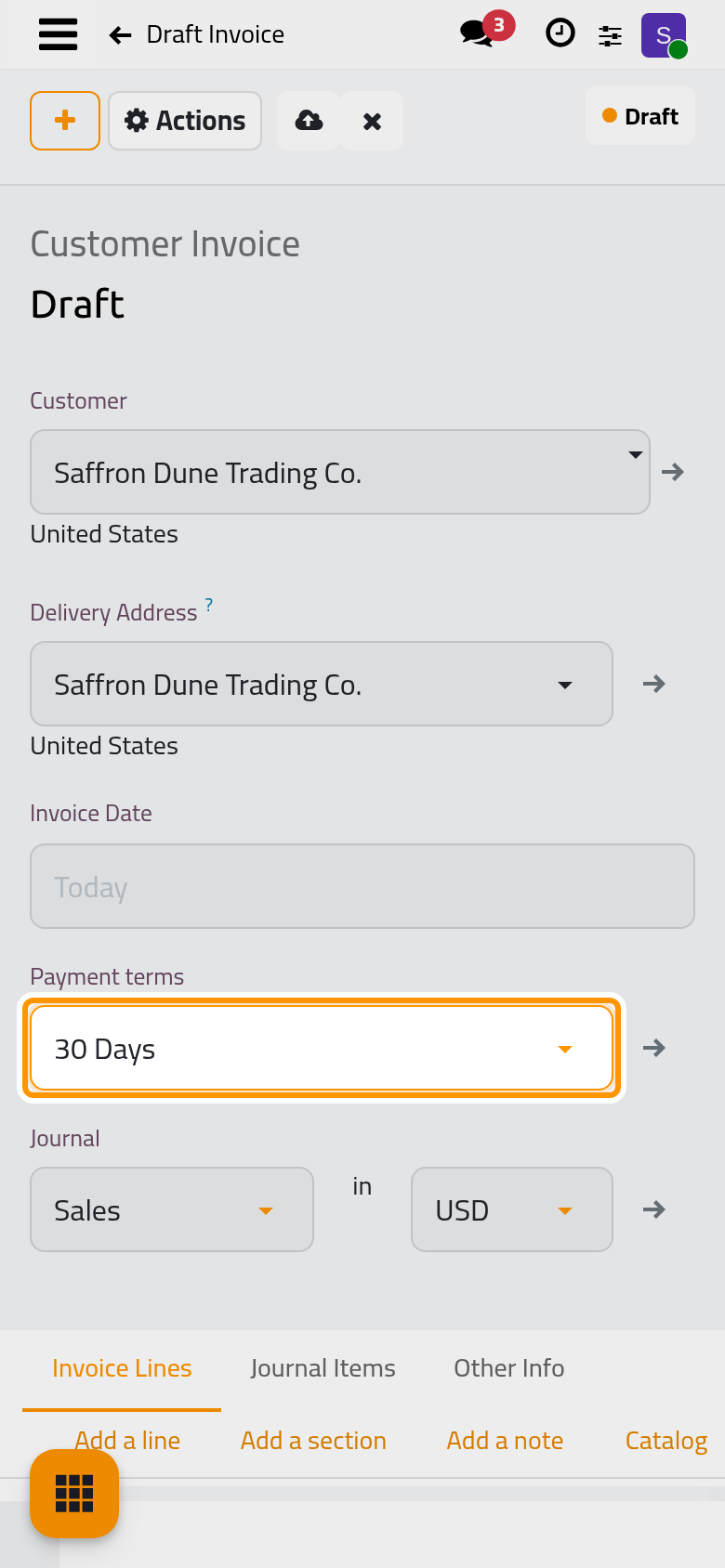
The Journal is Sales and the currency is the company's. Change them only for a client billed in another currency or through another sales journal (Create a journal).
Step 3: the service
- In the Invoice Lines tab, click Add a line.
- In Product, search for the service and pick it: Consulting Fees in the example. The account, the quantity of 1 and the tax of the product are filled in.
- Type the fee in Price, here 1,500.00. The legal fee products carry a price of 1.00, so the fee agreed with the client is typed on each invoice.
- A description can go under the product: it shows as a box under the product name, or behind the lines icon at the end of the product when the client reads the same language as you. Type, for example, "legal consultation on the lease dispute". It is printed under the product name on the invoice.
- Click the cloud icon Save manually.
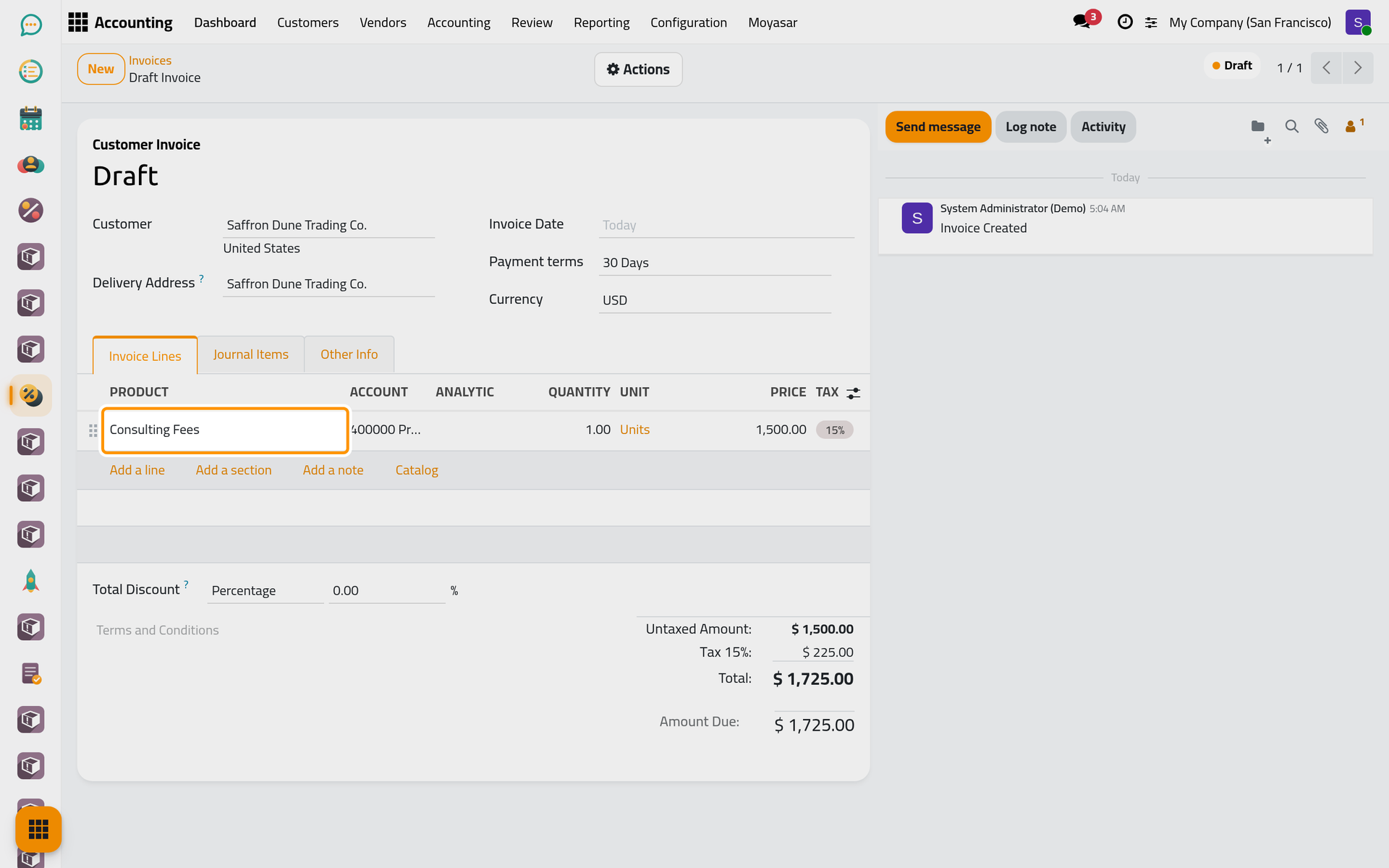
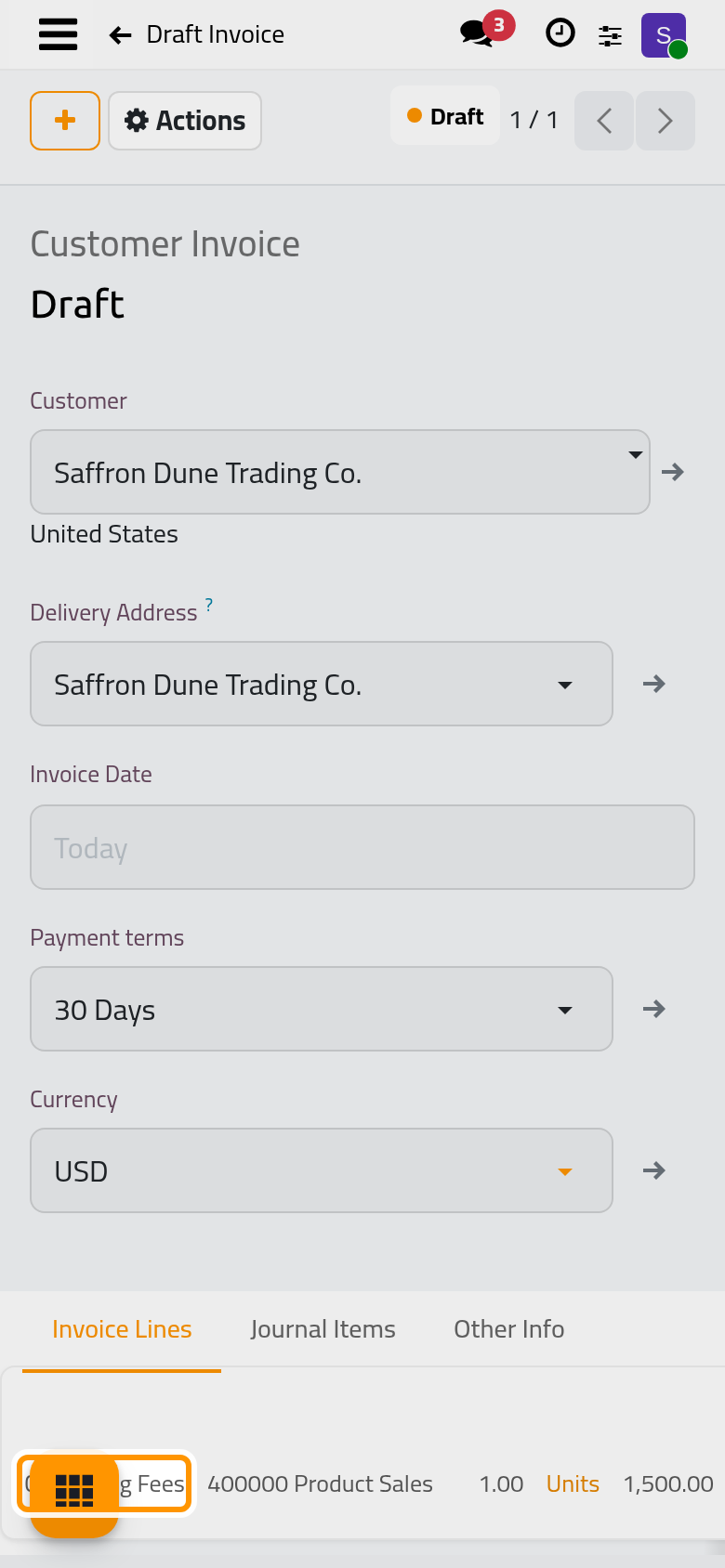
Under the lines, the totals show the Untaxed Amount, the tax of each rate and the Total. To take an amount off the whole invoice, use Total Discount above the totals: see Give a discount on an invoice.
Step 4: confirm
Open the Actions menu and choose Confirm. The invoice receives its number, made of INV, the year and a counter, and its status becomes Posted. From now on the lines, the amounts and the client are locked; the entries of the invoice are in the books.
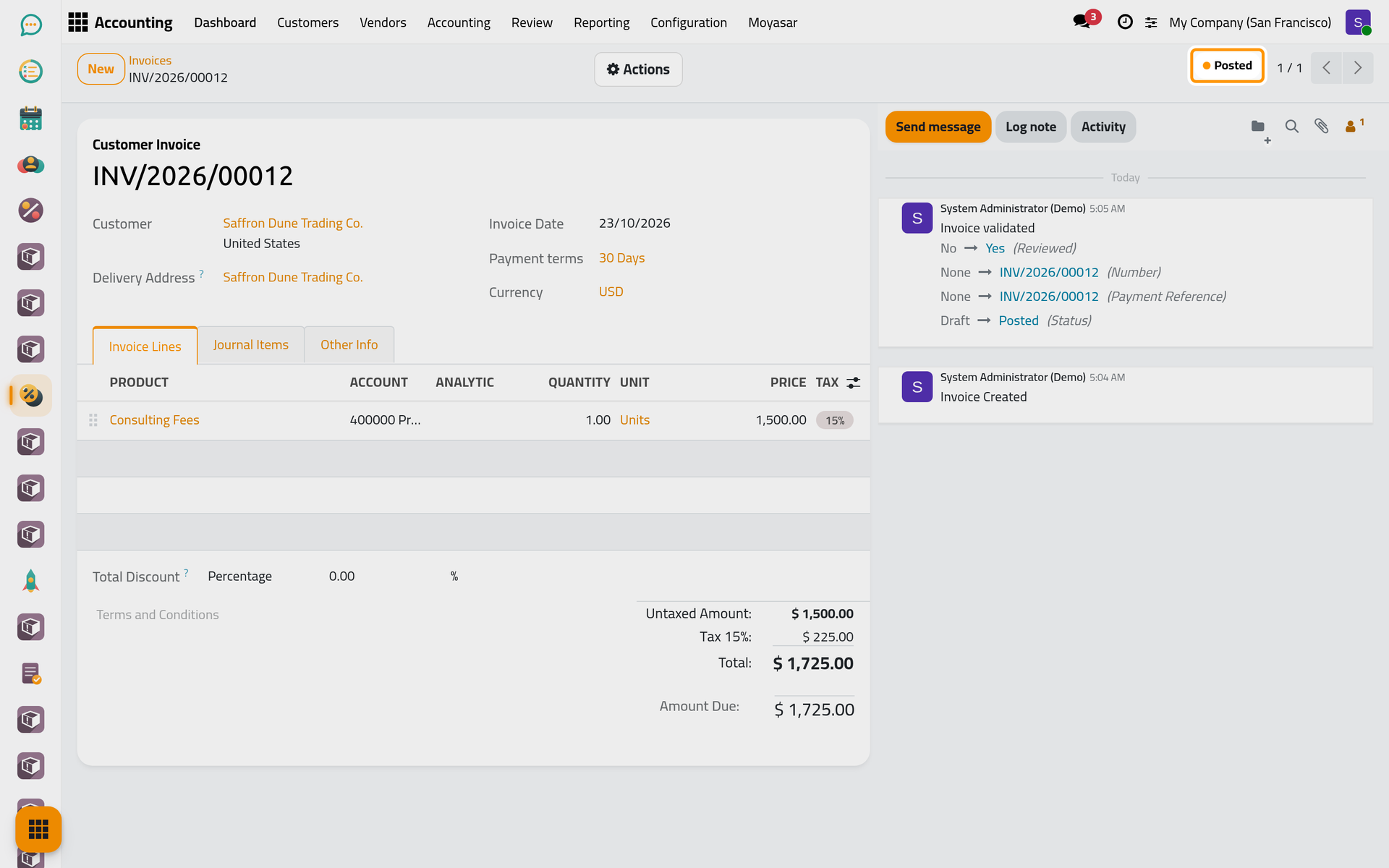
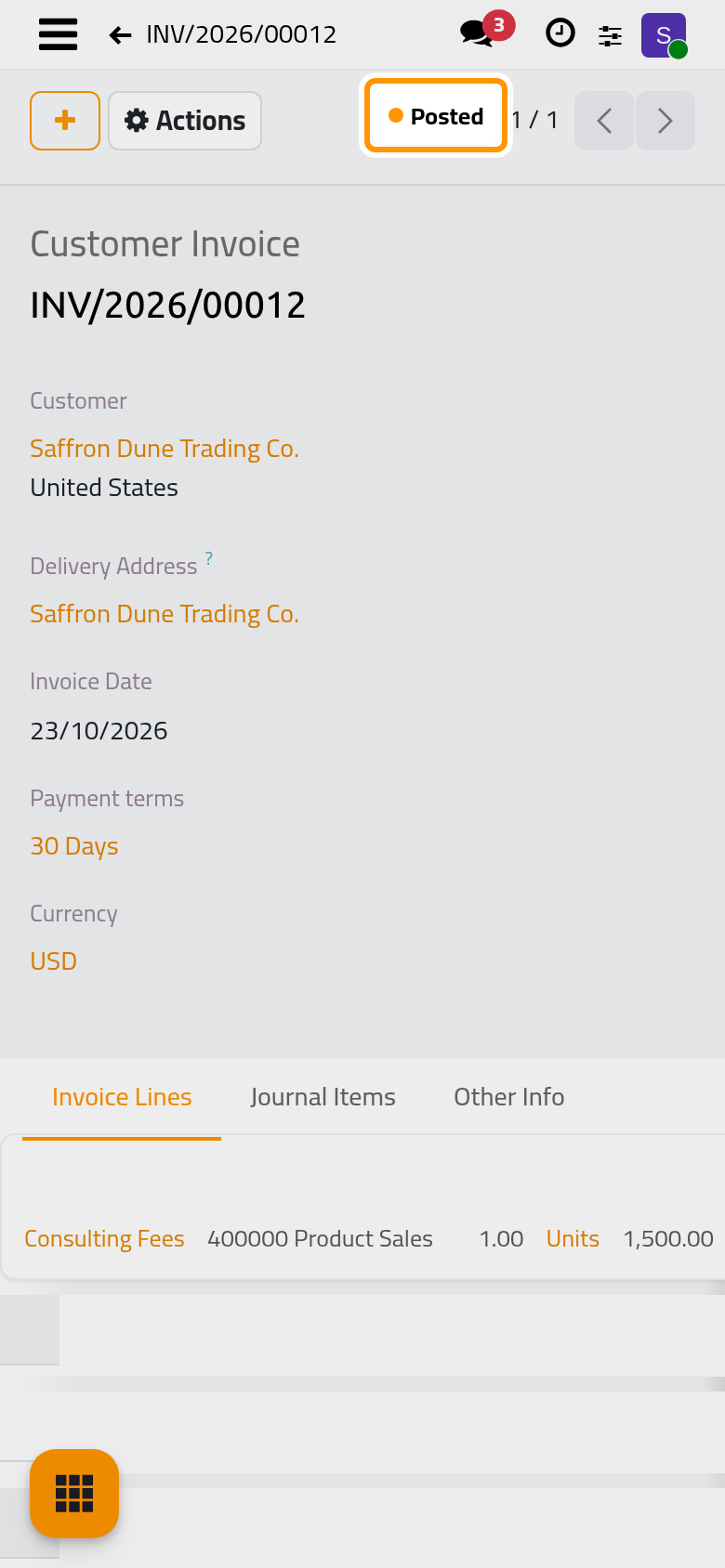
A mistake after this point is corrected with Reset to Draft, which reopens the invoice with the same number, or with a credit note: see Issue a credit note.
Step 5: send it
The Actions menu of a confirmed invoice holds Send, Print, Pay, Preview (the invoice as the client sees it in the customer portal), Credit Note and Reset to Draft.
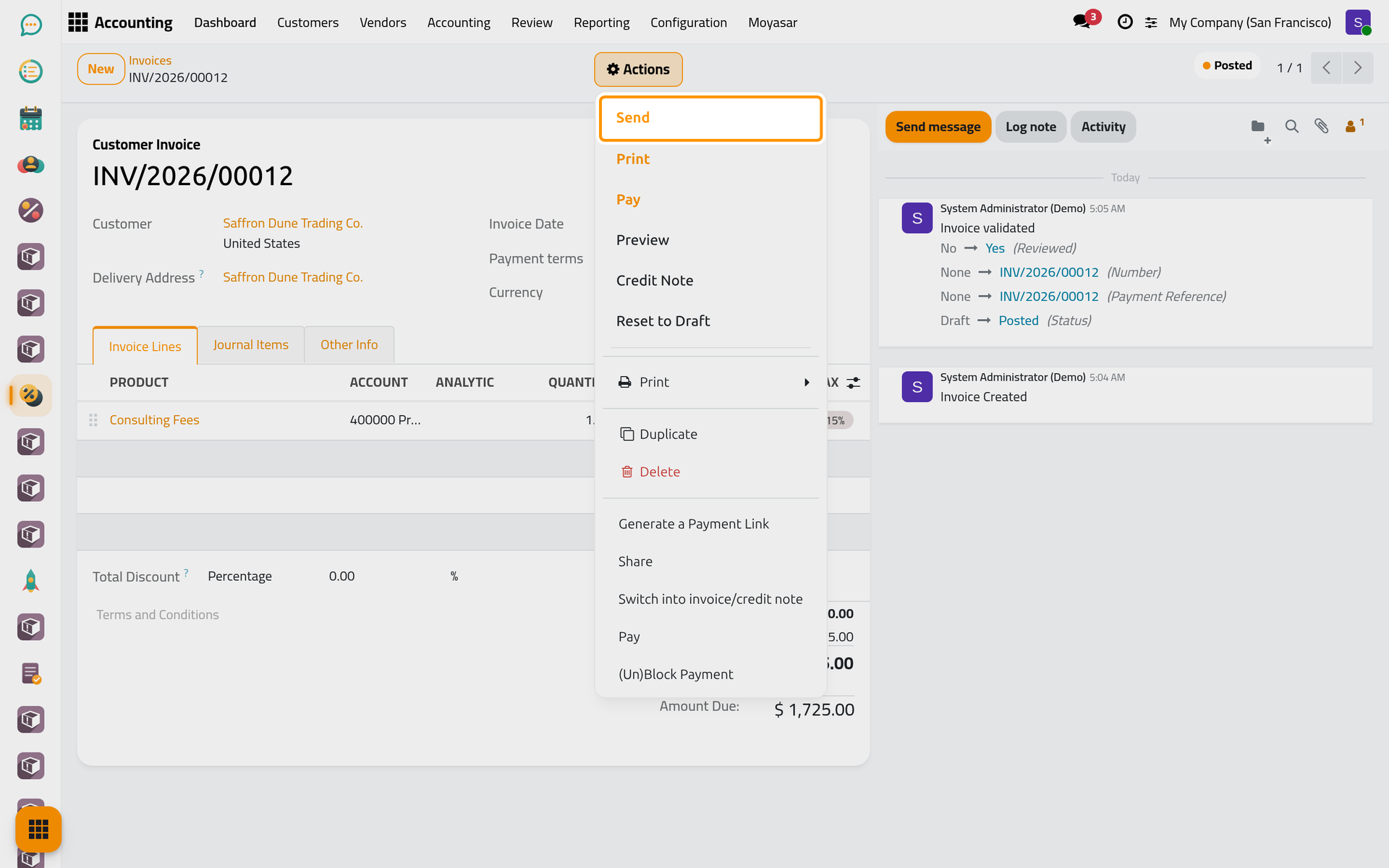
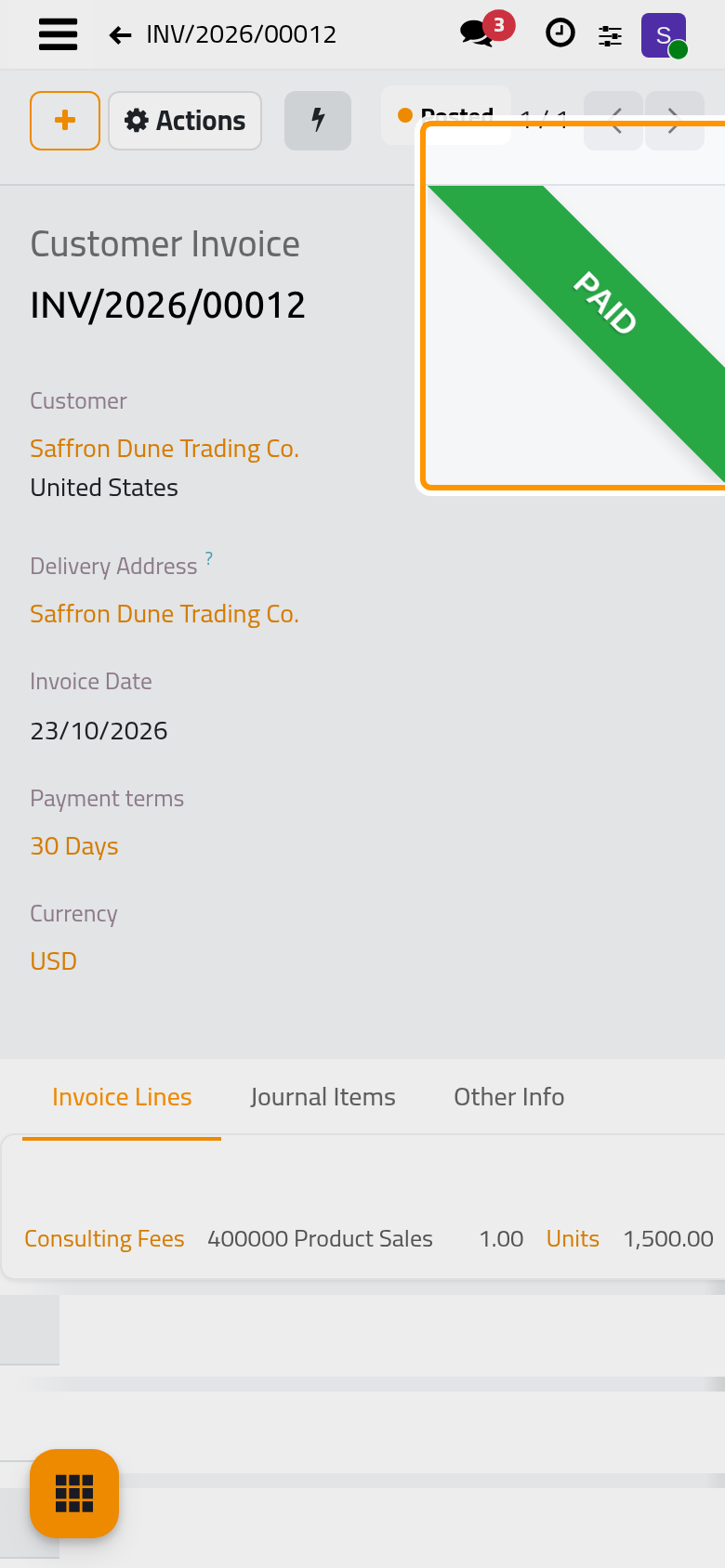
On a phone, the Actions button sits at the top of the screen, next to the plus button.
Send e-mails the invoice with its PDF to the client: Send an invoice by e-mail shows the e-mail and its template. Print downloads the PDF without sending anything.
Step 6: record the payment
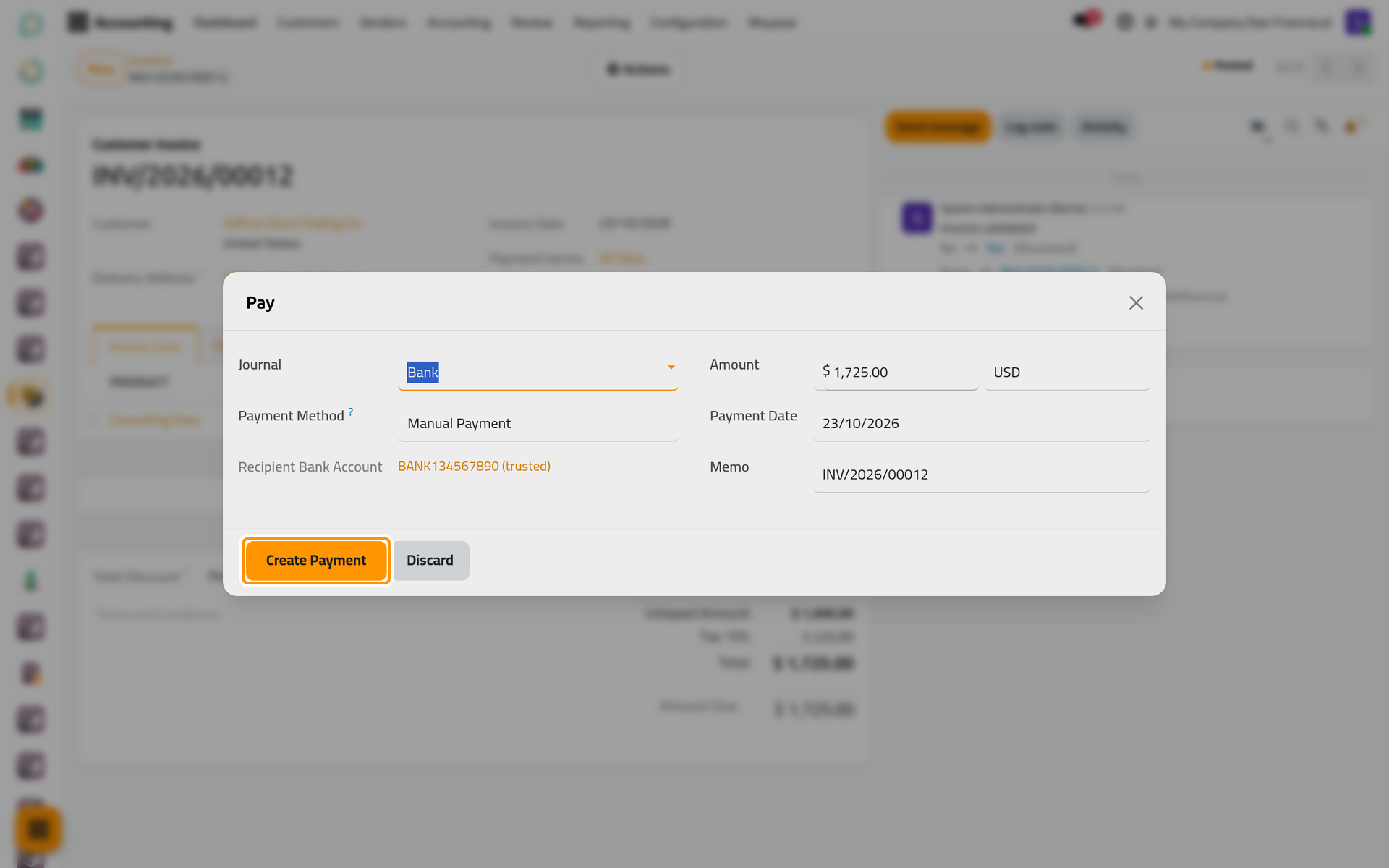
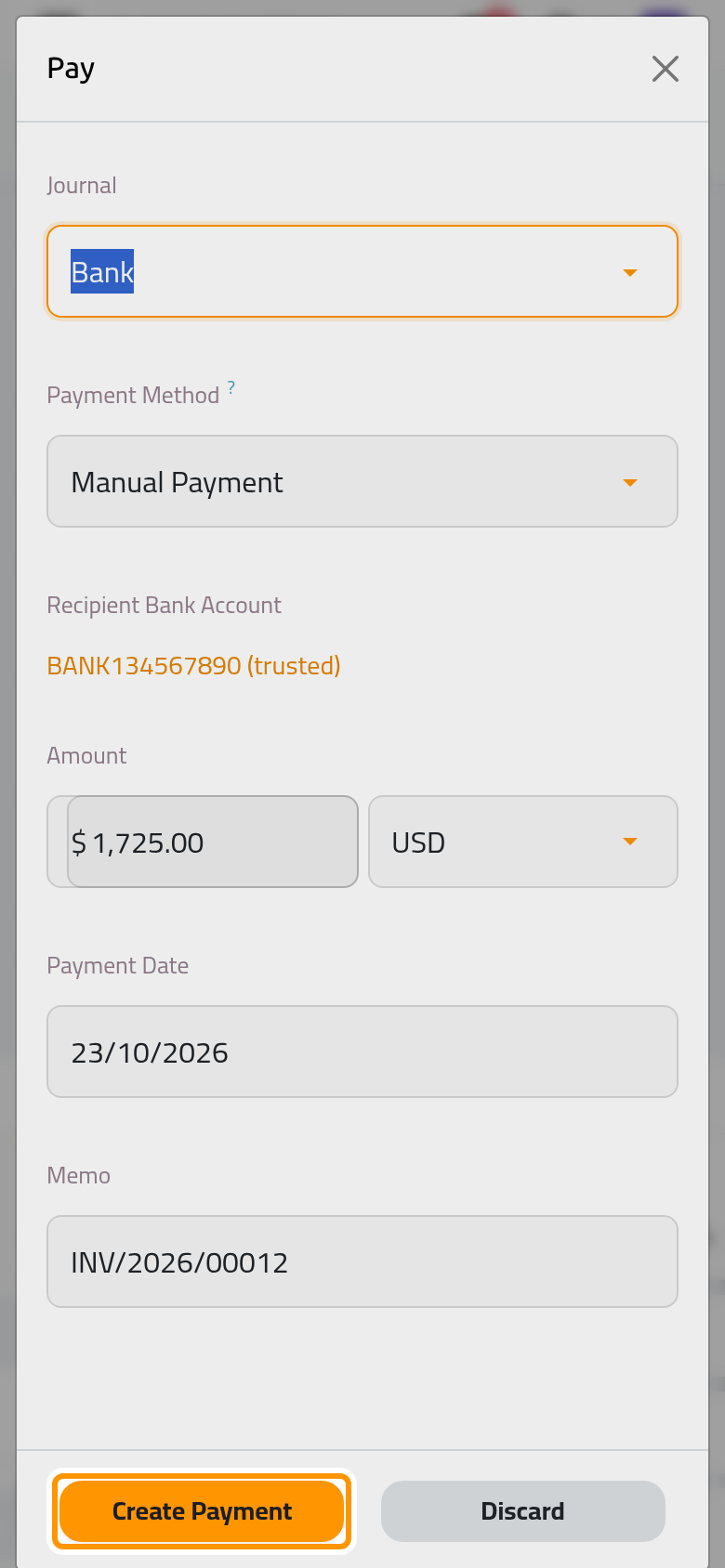
When the client pays, open the Actions menu and choose Pay. The window proposes the Bank journal, the amount still due and today's date. Check them and click Create Payment.
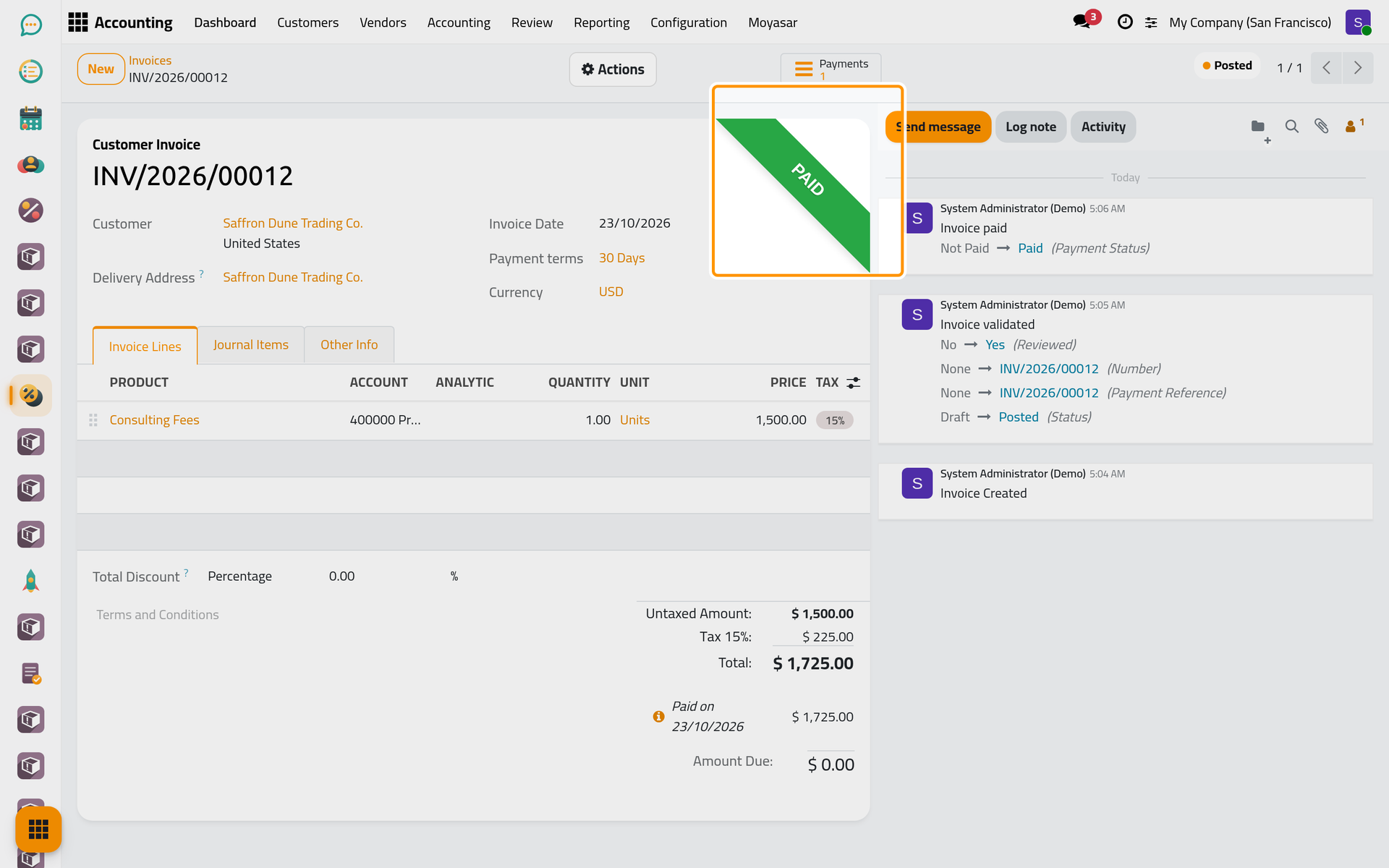
A green Paid ribbon covers the corner of the invoice, the payment is listed under the totals with its date, and the Amount Due is zero. The Payments button at the top opens the payment.
The payment is then matched with the line of the bank statement that shows the money arriving. That matching belongs to Banks, cash and currencies.
What you have done
You created an invoice for a client, gave it a service and a price, confirmed it, saw where it is sent from, and recorded its payment. The user guide takes each task further: Record a customer payment (partial payments and credits), Issue a credit note, Give a discount on an invoice, One payment link for several invoices, Send an invoice by e-mail and Customer invoice settings.
Was this page helpful?
Thank you for your feedback.