Give a discount on a quotation
On this page
A quotation has two places for a discount: the Disc.% column, one percentage per line, and the Discount button under the lines, which treats the whole quotation at once. Both are carried to the invoice made from the order.
Before you start
- You need an access right on Sales.
- The Discounts option of Quotation settings shows the Disc.% column and the Discount button to every user.
Discount one line
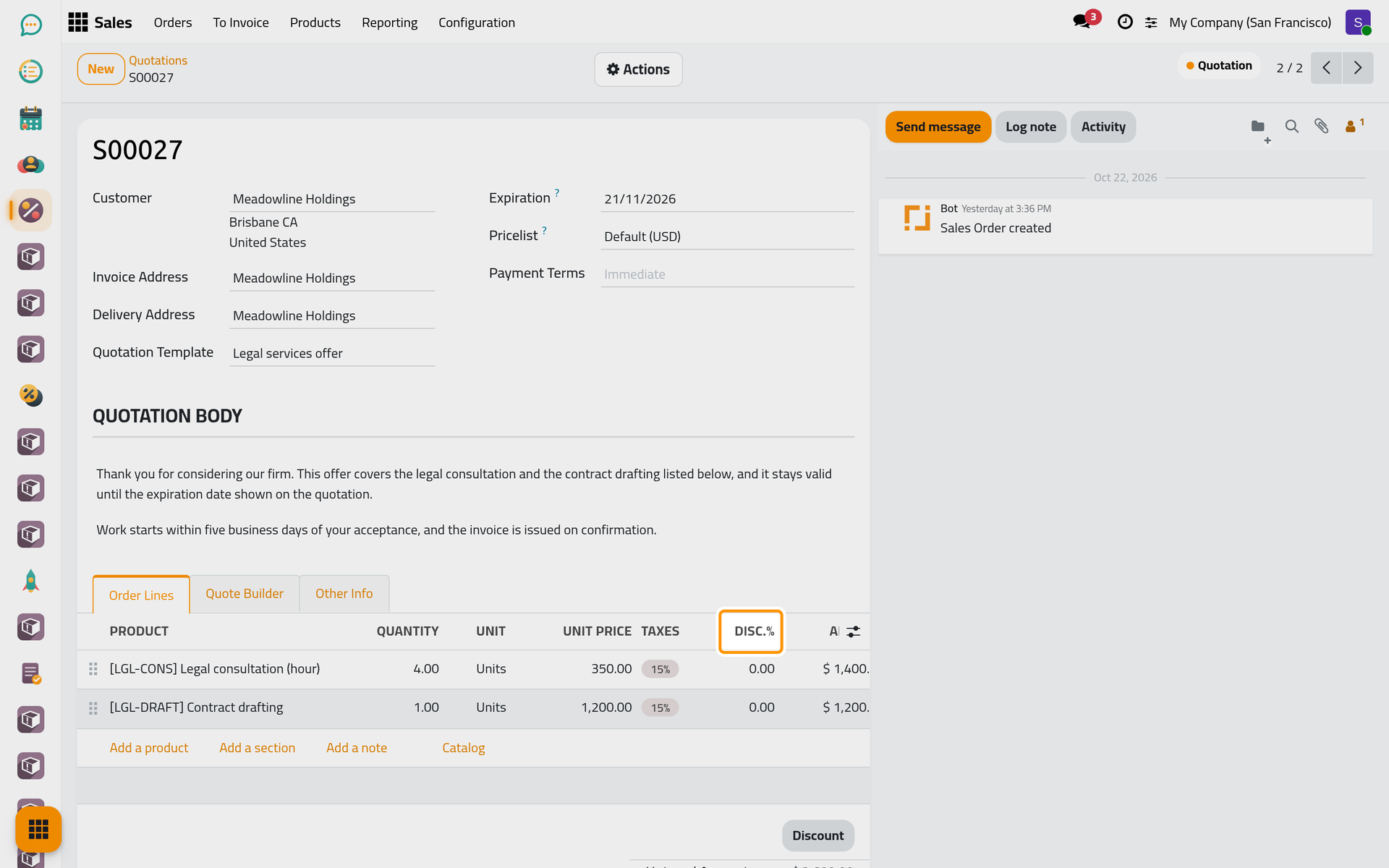
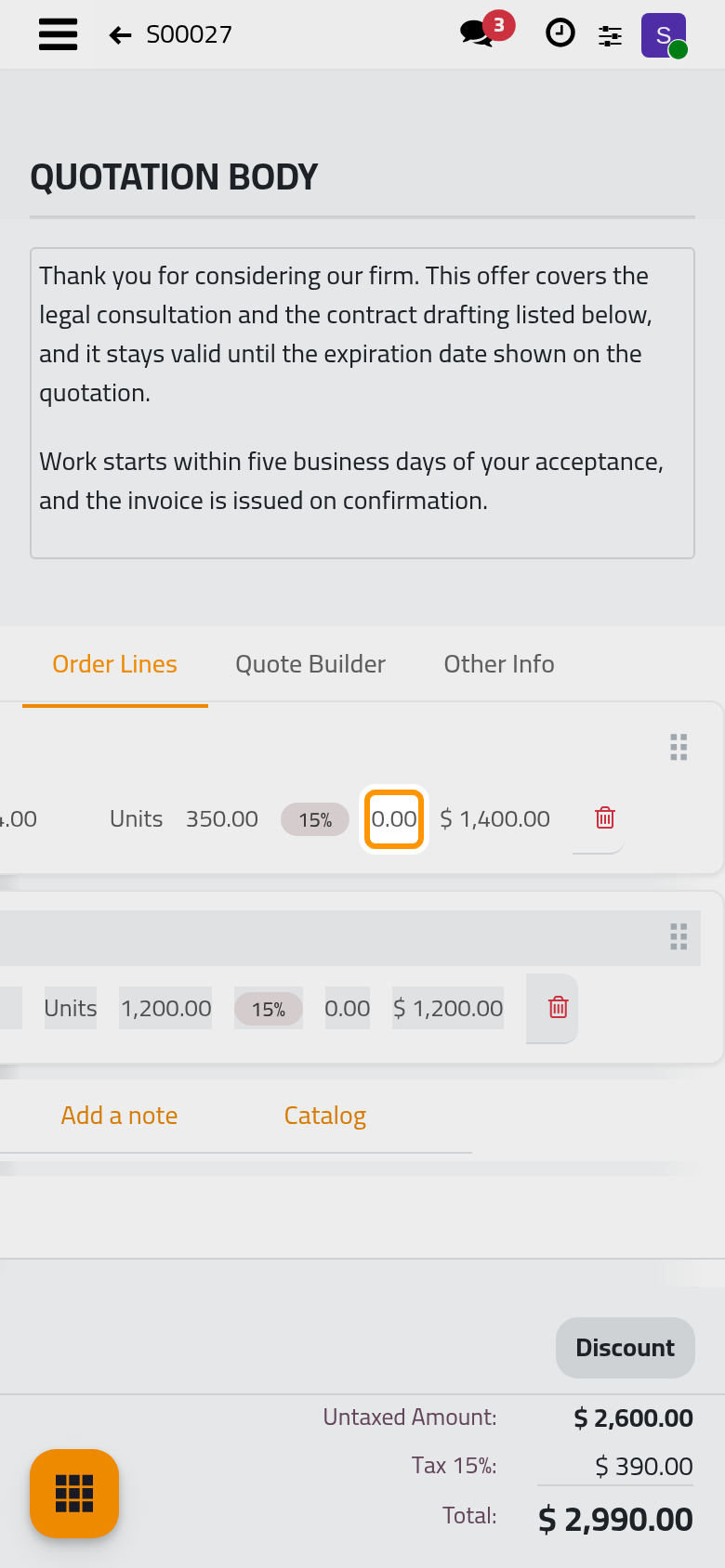
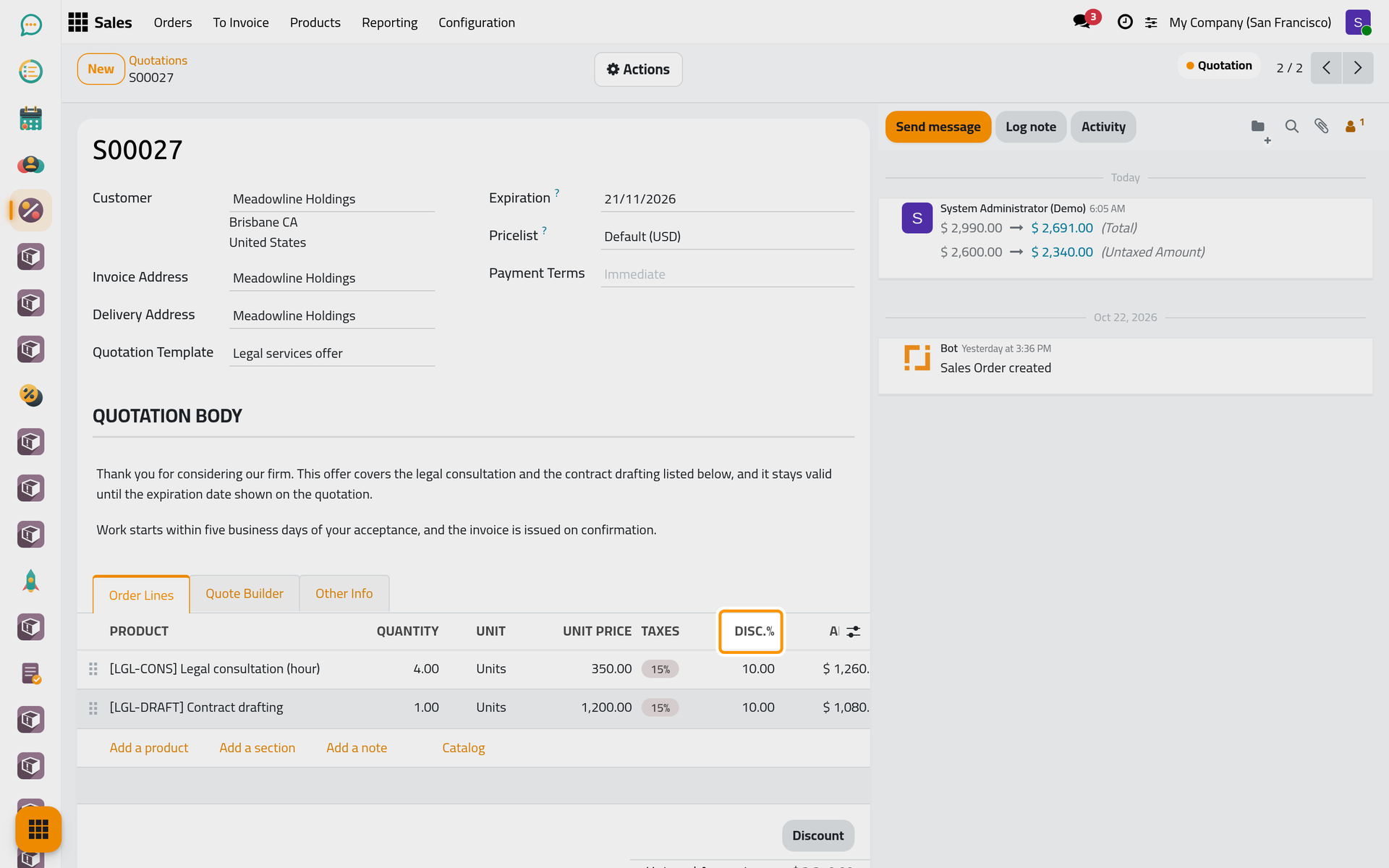
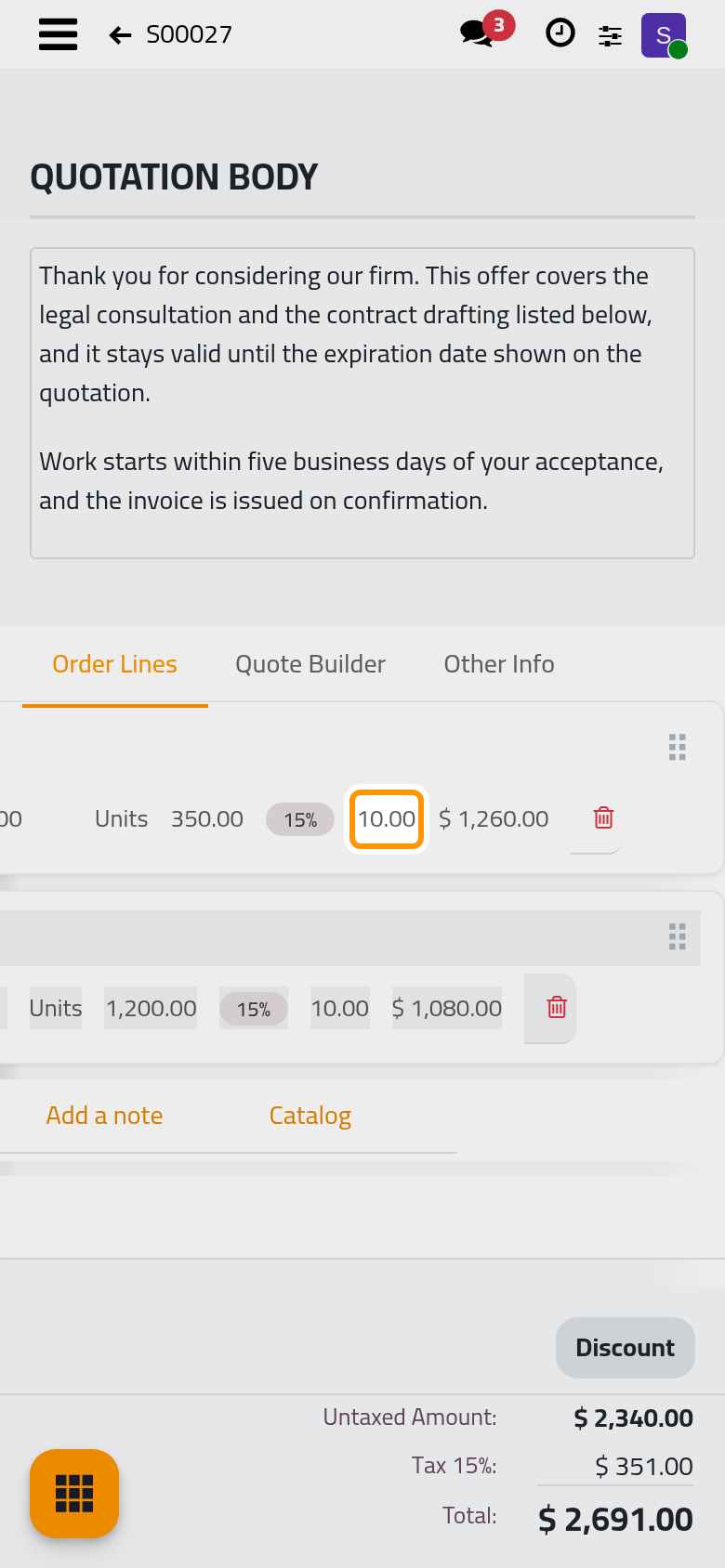
Open and open the quotation, here the one of Meadowline Holdings. In the Order Lines tab, click the Disc.% cell of the line and type the percentage: 10 for ten percent. The Amount of the line and the totals are computed again at once.
Discount the whole quotation
-
Click Discount under the lines. A window opens with the value of the discount and the Discount Type:
- On All Order Lines writes the percentage in the Disc.% column of every line, in place of what was there.
- Global Discount keeps the lines as they are and adds a discount line at the end, with a negative amount equal to the percentage of the lines.
- Fixed Amount adds a discount line for the amount you type, in the currency of the quotation.
When the lines carry different taxes, these two types add one discount line per tax.
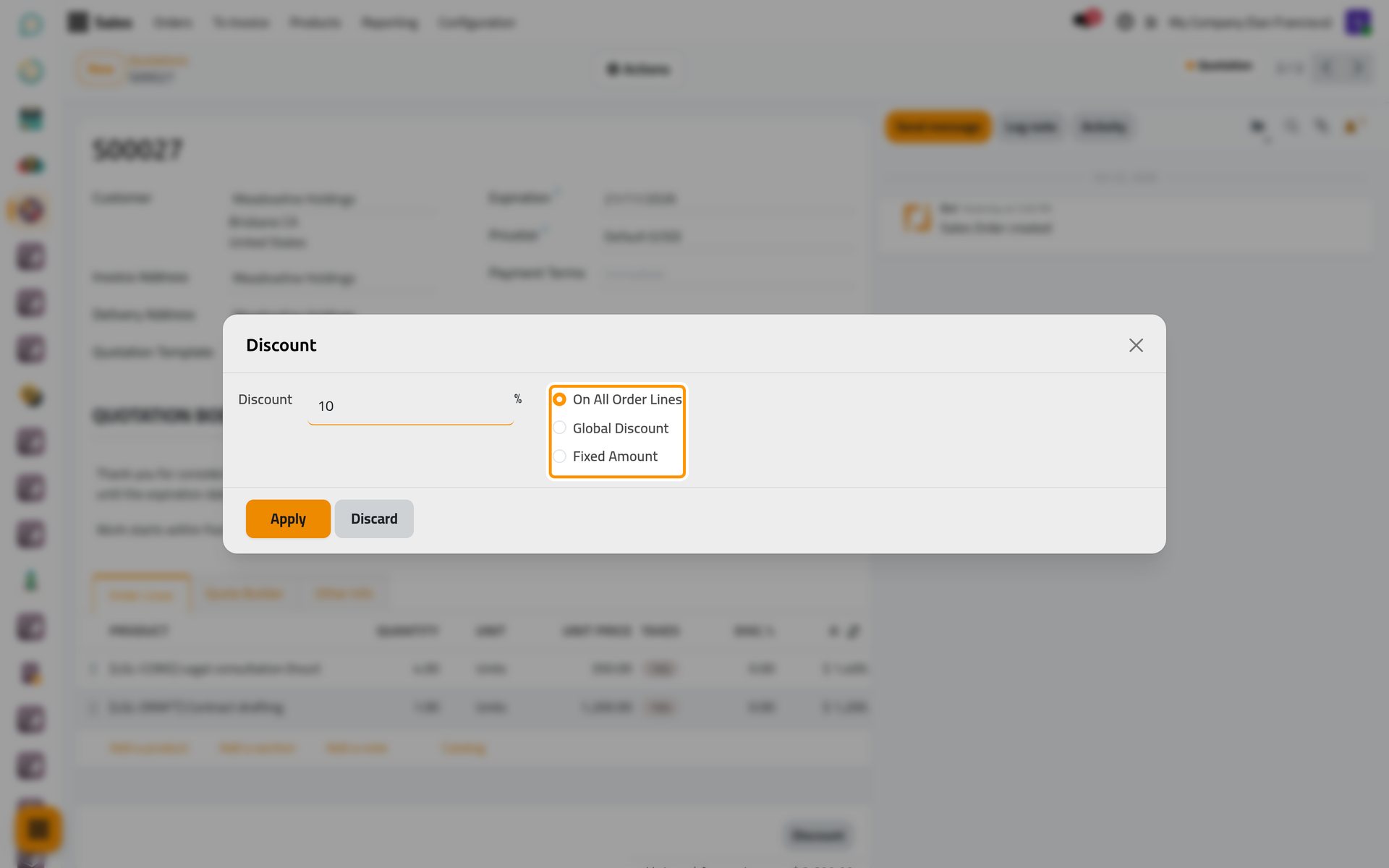
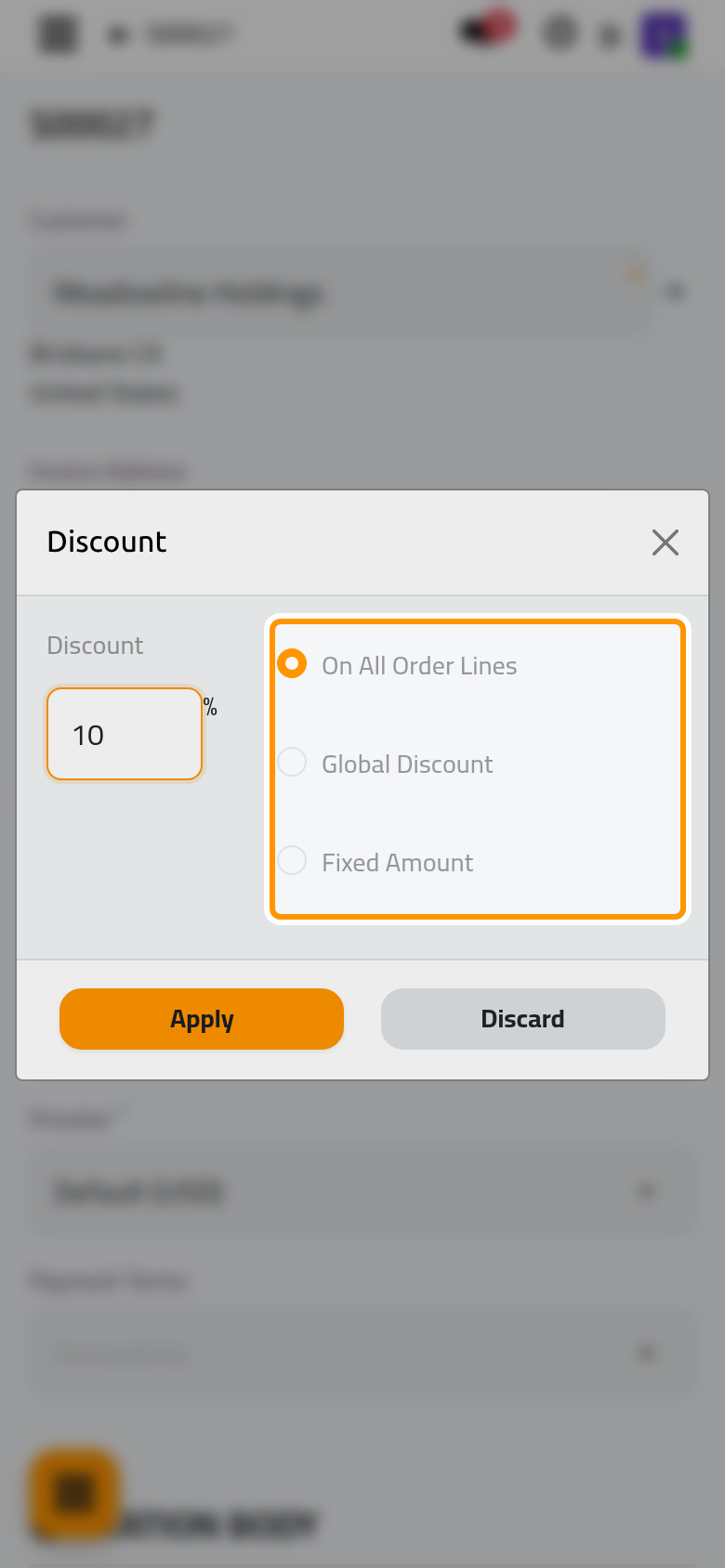
- Choose On All Order Lines, type 10 in Discount and click Apply. Every line now shows 10.00 in Disc.%, and the totals are lower.
The first Global Discount or Fixed Amount of the company creates a service named Discount that carries these lines; it is reused afterwards. A user who may not create products sees a message asking for an administrator to grant that first discount, and can still use the Disc.% column.
What the client and the invoice show
On the client's page, each discounted line shows its price struck through next to the new one, with the percentage, and a box beside the total shows the amount before and after the discount. The printed quotation shows the Disc.% column with each percentage.
When the order is invoiced, the percentage of each line becomes the discount of the matching invoice line, and a discount line becomes an invoice line with a negative amount. The invoice has a Total Discount of its own; setting it replaces the line discounts that came from the order, as explained in Customer invoices.
FAQ
I do not see the Disc.% column or the Discount button.
The Discounts option is off. An administrator turns it on in Quotation settings.
Percentage or amount: which one should I use?
A percentage on the lines keeps the discount visible service by service. A global discount or a fixed amount gives one visible line, which suits a commercial gesture on the whole offer.
How do I remove a discount?
For a percentage, type 0 in Disc.%, or apply On All Order Lines with 0. For a discount line, delete it with the bin icon at the end of the line.
Can a percentage go above 100?
No. The window refuses a percentage above 100 with the message Invalid discount amount.
Was this page helpful?
Thank you for your feedback.