Build a quotation template
On this page
- Before you start
- Create the template
- Add the services
- Offer an optional section
- Use it on a quotation
- FAQ
- Can one template be used automatically for every new quotation?
- Can the opening text exist in two languages?
- I changed the template. Do the existing quotations change?
- Why is a line of my template at 0?
A firm sends the same kinds of offers again and again: a consultation package, a contract review, a yearly retainer. A quotation template holds one of them, with its services, its opening text and its rules, so that a new quotation starts complete and only the client changes.
Before you start
- You need the Administrator access right on Sales: the configuration menu is shown to it only, and the other access rights can use templates but not change them.
- The Quotation Templates option is on in Quotation settings; without it, the menu and the Quotation Template field of the quotation are hidden.
Create the template
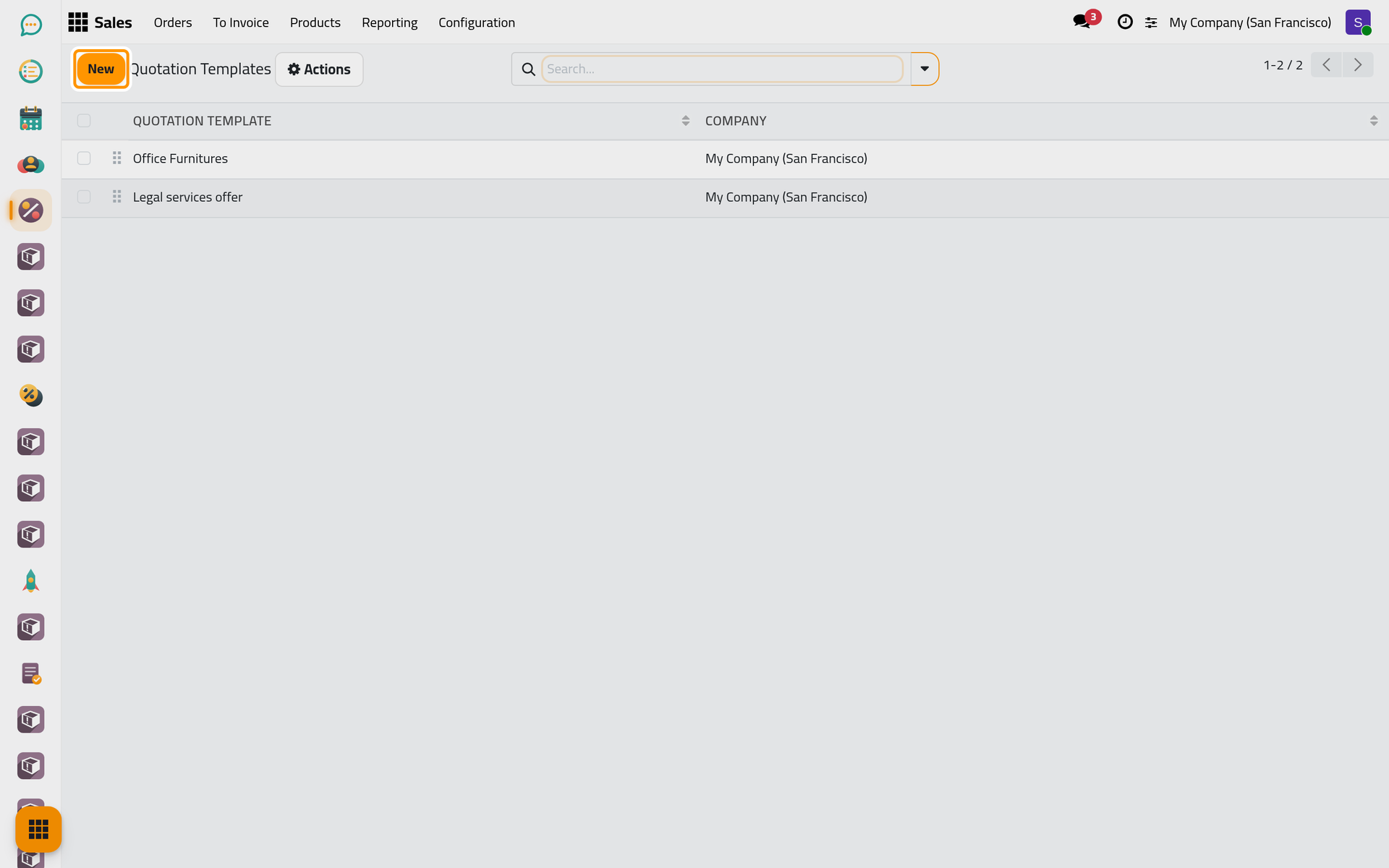
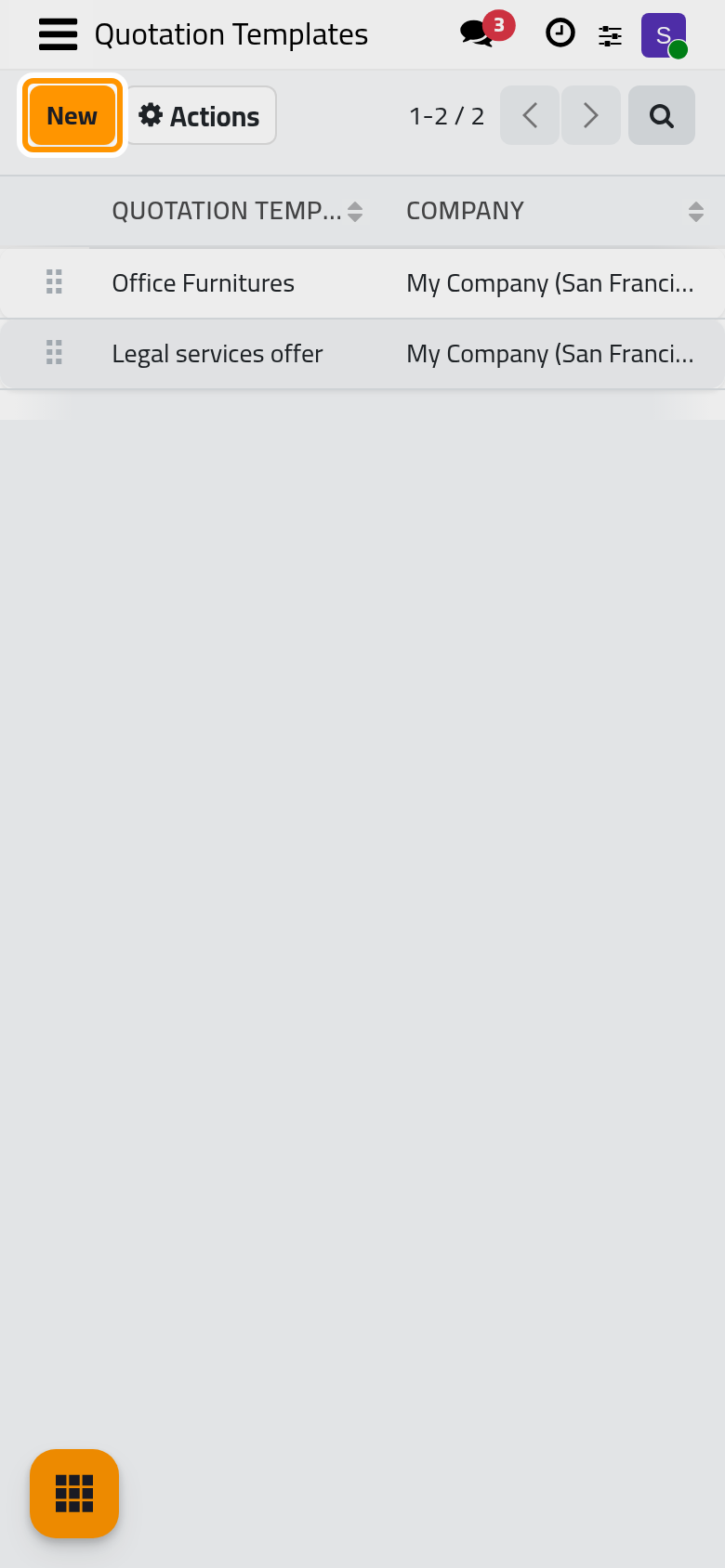
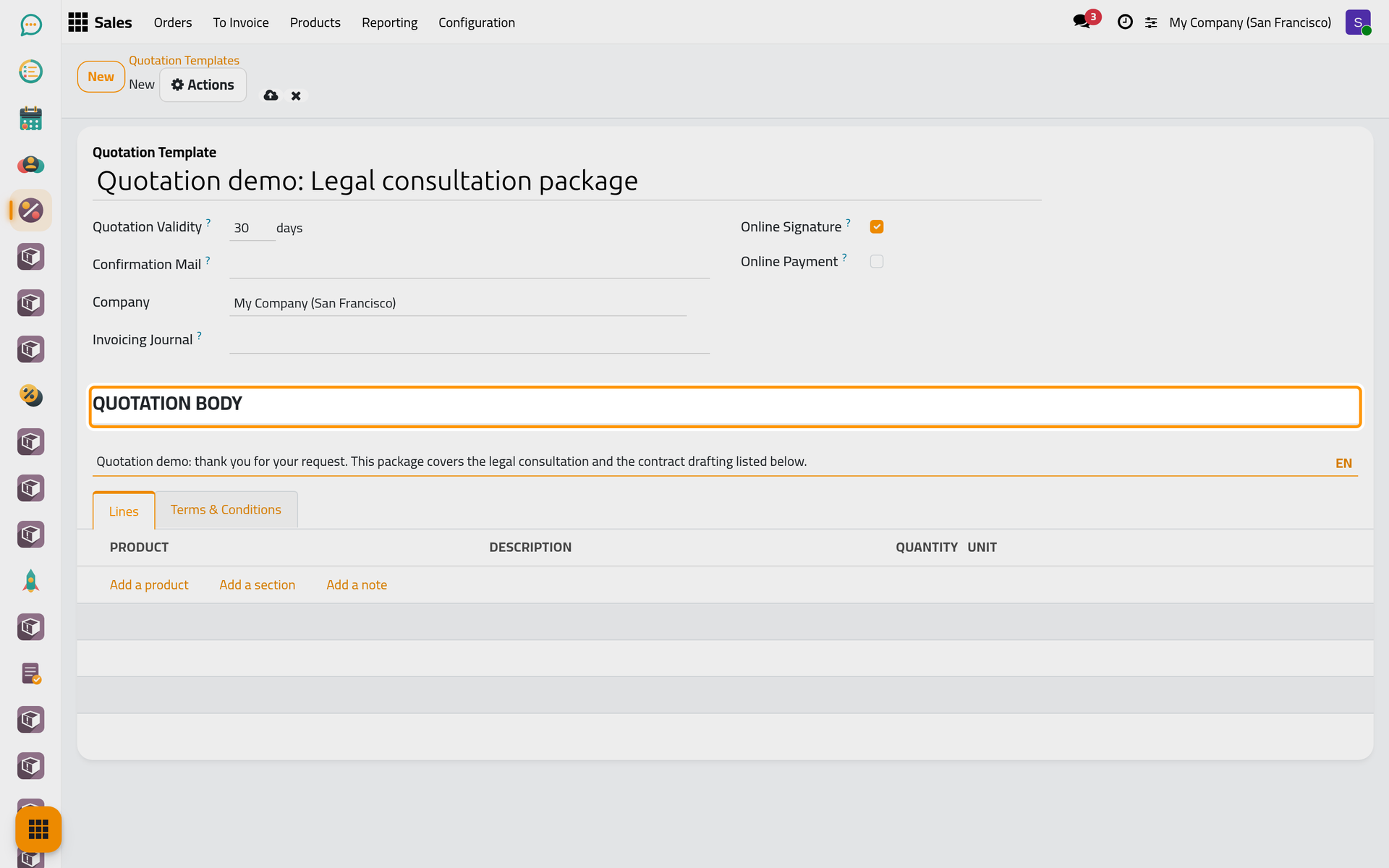
- Open and click New.
- Give the template a name the team recognises in Quotation Template, such as the name of the package.
- Quotation Validity is the number of days the offer stays open: a quotation made from the template expires that many days after it is created. Leave 0 to keep the validity of the settings.
- Online Signature and Online Payment decide how the client confirms, as on a quotation. Here the client signs, and the payment comes with the invoice, so Online Payment is unticked. Confirmation Mail chooses another e-mail for the confirmation of these orders, when needed.
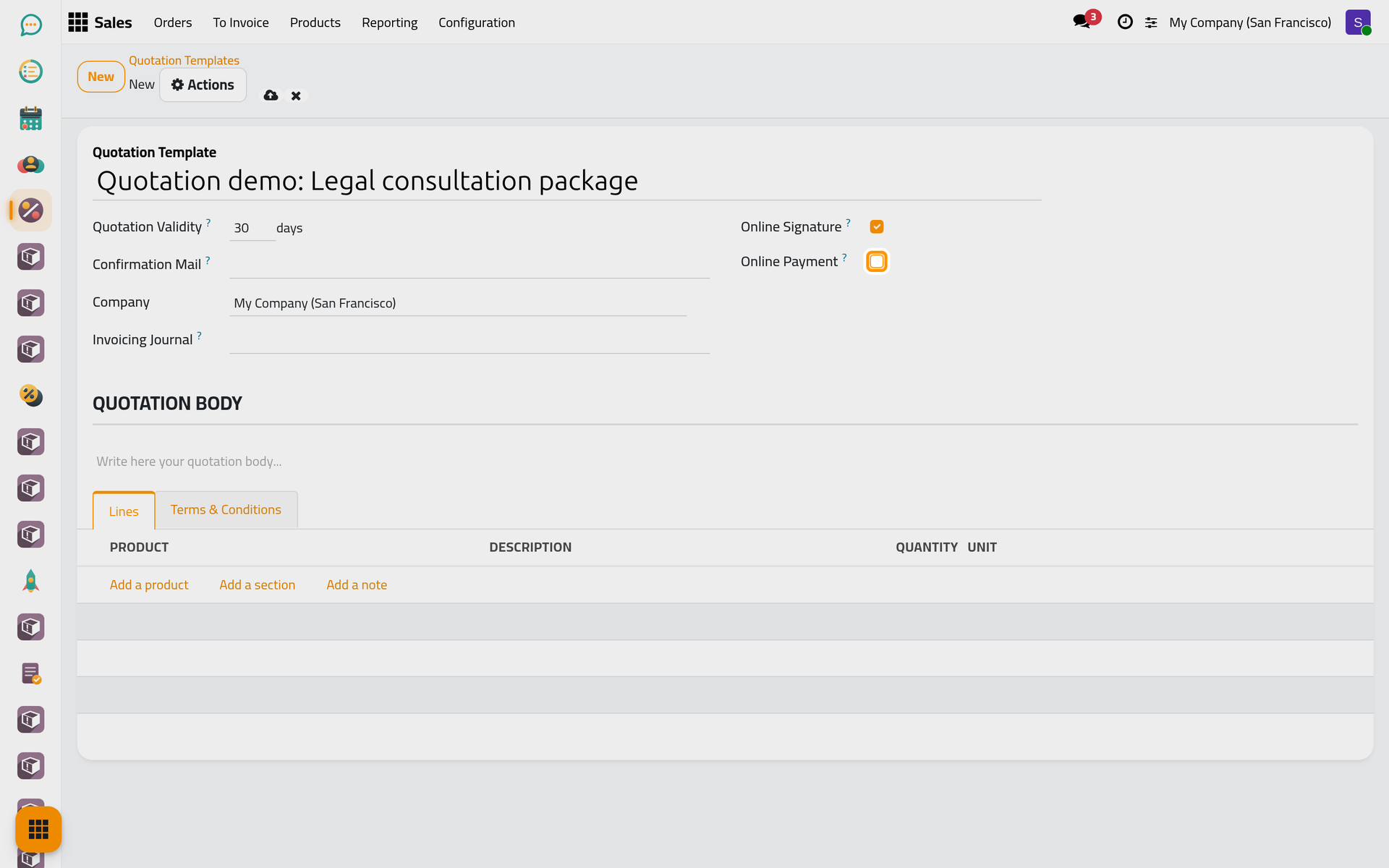
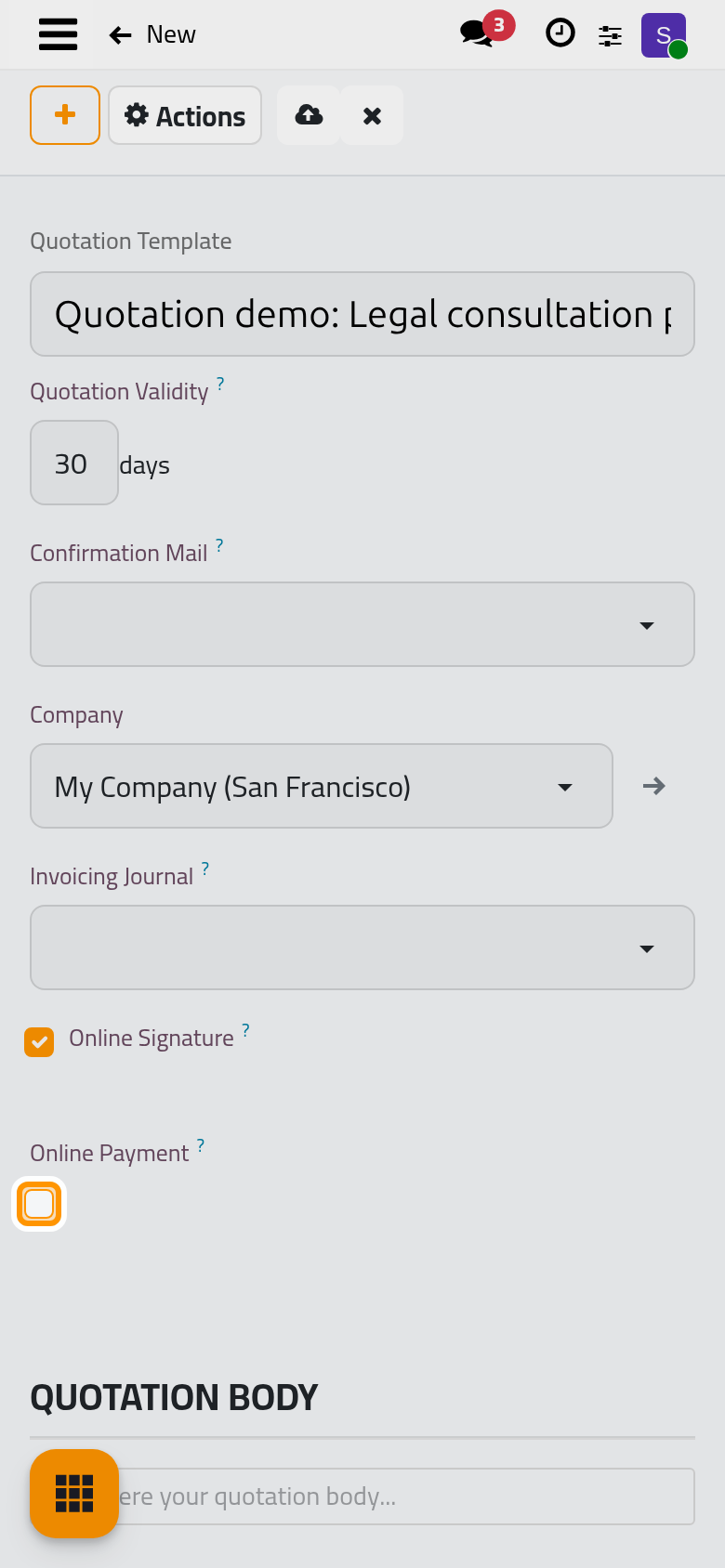
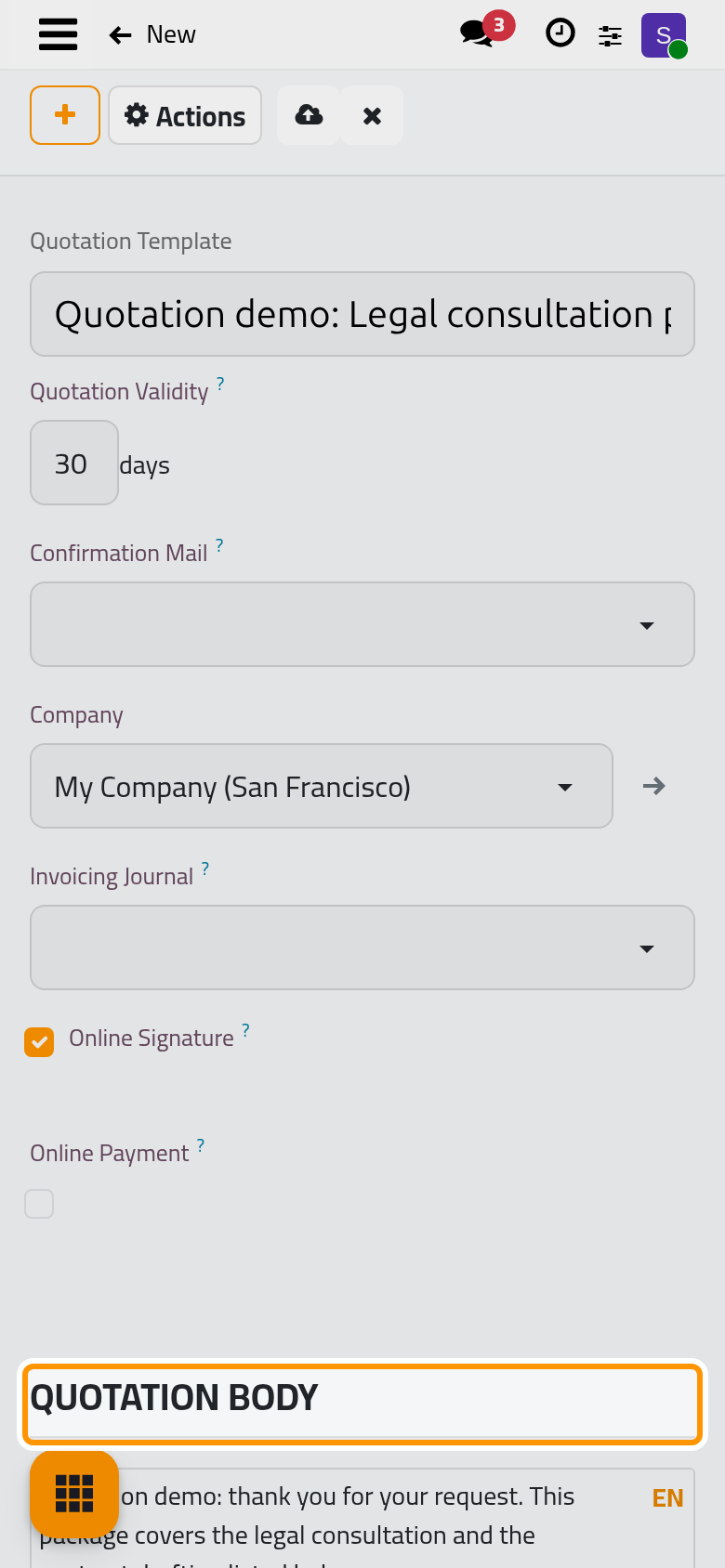
- Click in the Quotation Body area and write the text that opens every offer of this kind.
Add the services
In the Lines tab:
- Click Add a product, choose Legal consultation (hour) and set the quantity to 4.
- Click Add a product again and choose Contract drafting.
A template line holds a service and a quantity, without a price: the price comes from the service when the quotation is made, so a new price list or a changed service price applies to the next quotations.
Offer an optional section
Some services are proposed, not imposed, such as court representation if the matter goes to a hearing.
- Click Add a section and name it, for example Optional services.
- Open the three-dot button at the end of the section line and choose Set Optional. On a phone too, the button is the last thing on the section line.
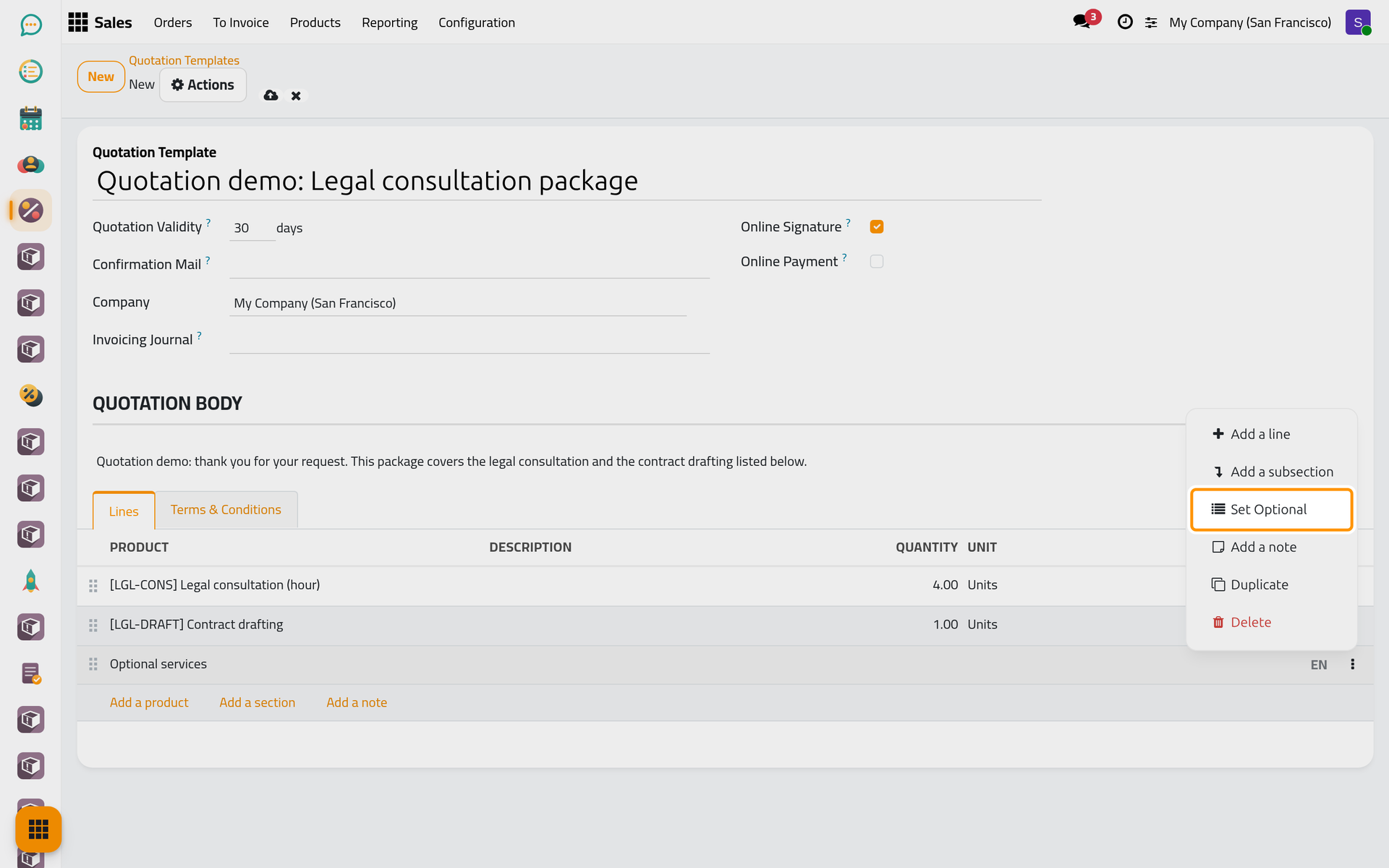
- Click Add a product and choose Court representation (session). A line under an optional section starts at a quantity of 0, so it costs nothing until the client adds it.
Click the cloud icon Save manually. The optional section and its lines are shown in colour.
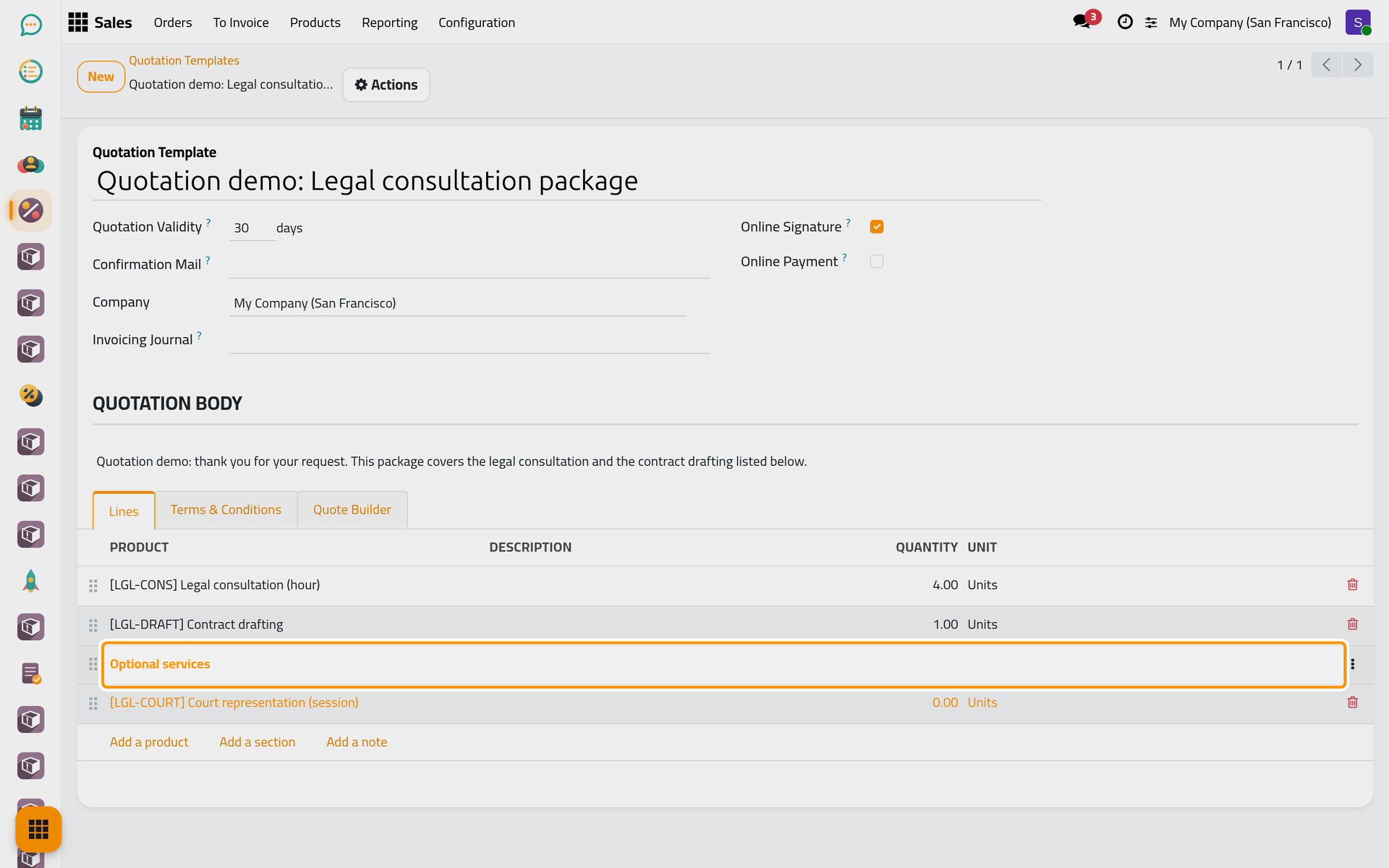
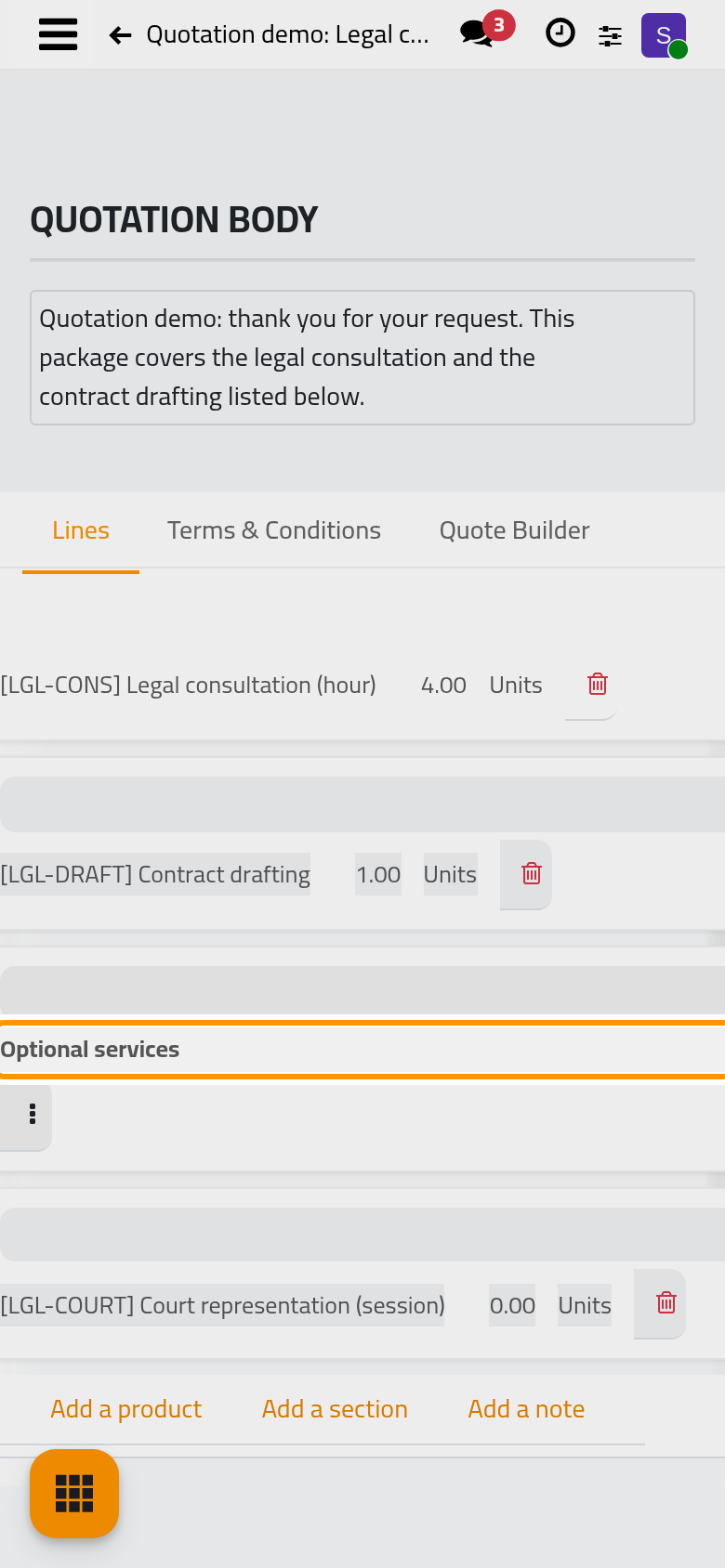
The Terms & Conditions tab holds the conditions printed under the lines of every quotation made from the template.
Use it on a quotation
Open , click New, choose the Customer, then the template in Quotation Template. The quotation receives the lines, the opening text in the language of the client, the terms, the signature and payment rules and the expiration date. Everything can still be changed on this quotation only.
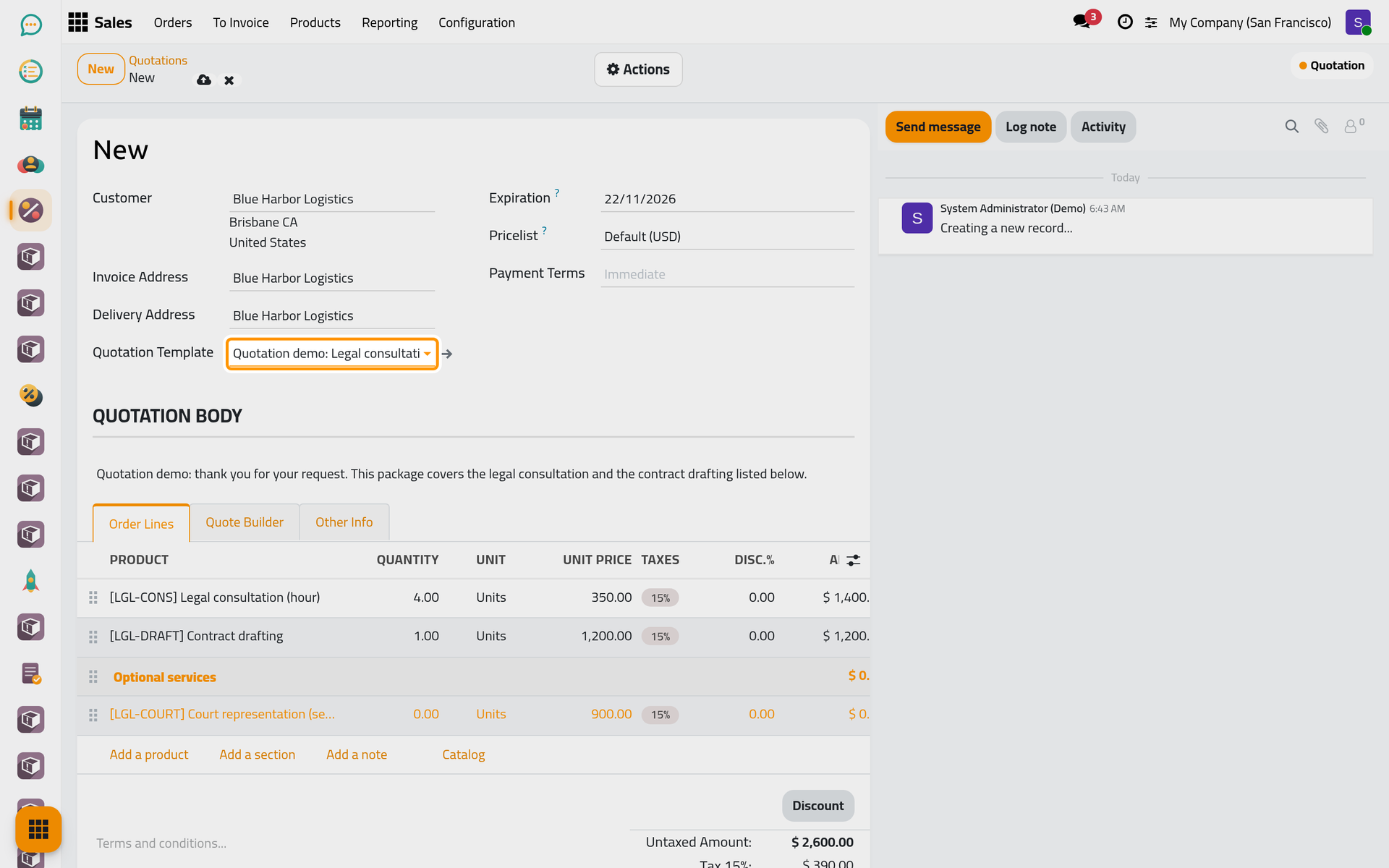
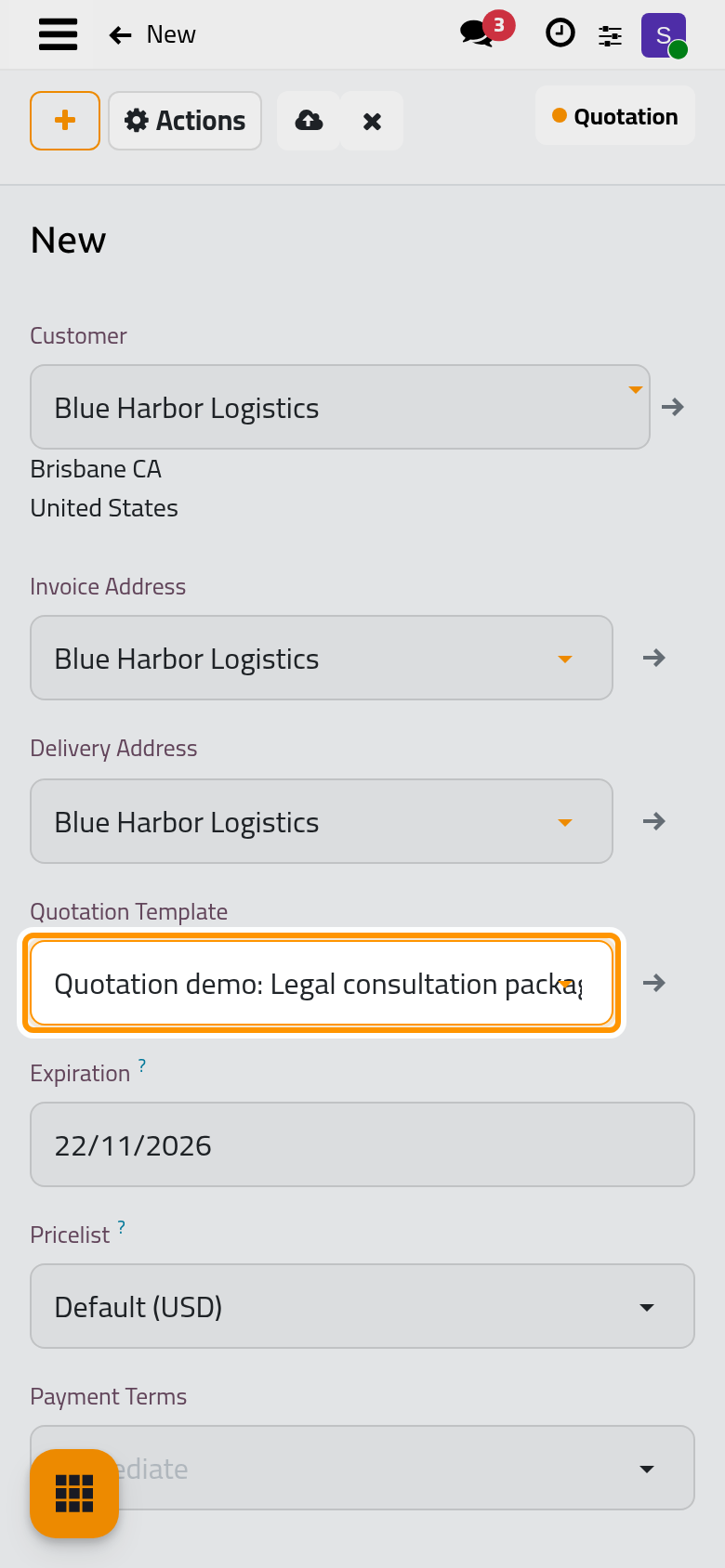
On the client's page, the optional section shows a quantity the client can raise or lower before signing.
FAQ
Can one template be used automatically for every new quotation?
Yes: choose it as Default Template in Quotation settings. Every new quotation then starts from it.
Can the opening text exist in two languages?
Yes. The language button at the end of the Quotation Body opens its translations. A quotation copies the version in its client's language. The name of the template is not translated.
I changed the template. Do the existing quotations change?
No. A template is copied when it is chosen; quotations made before keep what they received.
Why is a line of my template at 0?
It sits under an optional section. Choose Unset Optional in the menu of the section: its lines at 0 come back to a quantity of 1.
Was this page helpful?
Thank you for your feedback.