Your first quotation
On this page
A quotation is the priced offer a client receives before the work starts. This walk-through prepares one for Meadowline Holdings: four hours of legal consultation and the drafting of a contract. It is sent by e-mail, viewed as the client sees it, confirmed, and turned into a draft invoice.
Before you start
- You need an access right on Sales. User: Own Documents Only shows the quotations you are the salesperson of, and those that have none; User: All Documents and Administrator show them all.
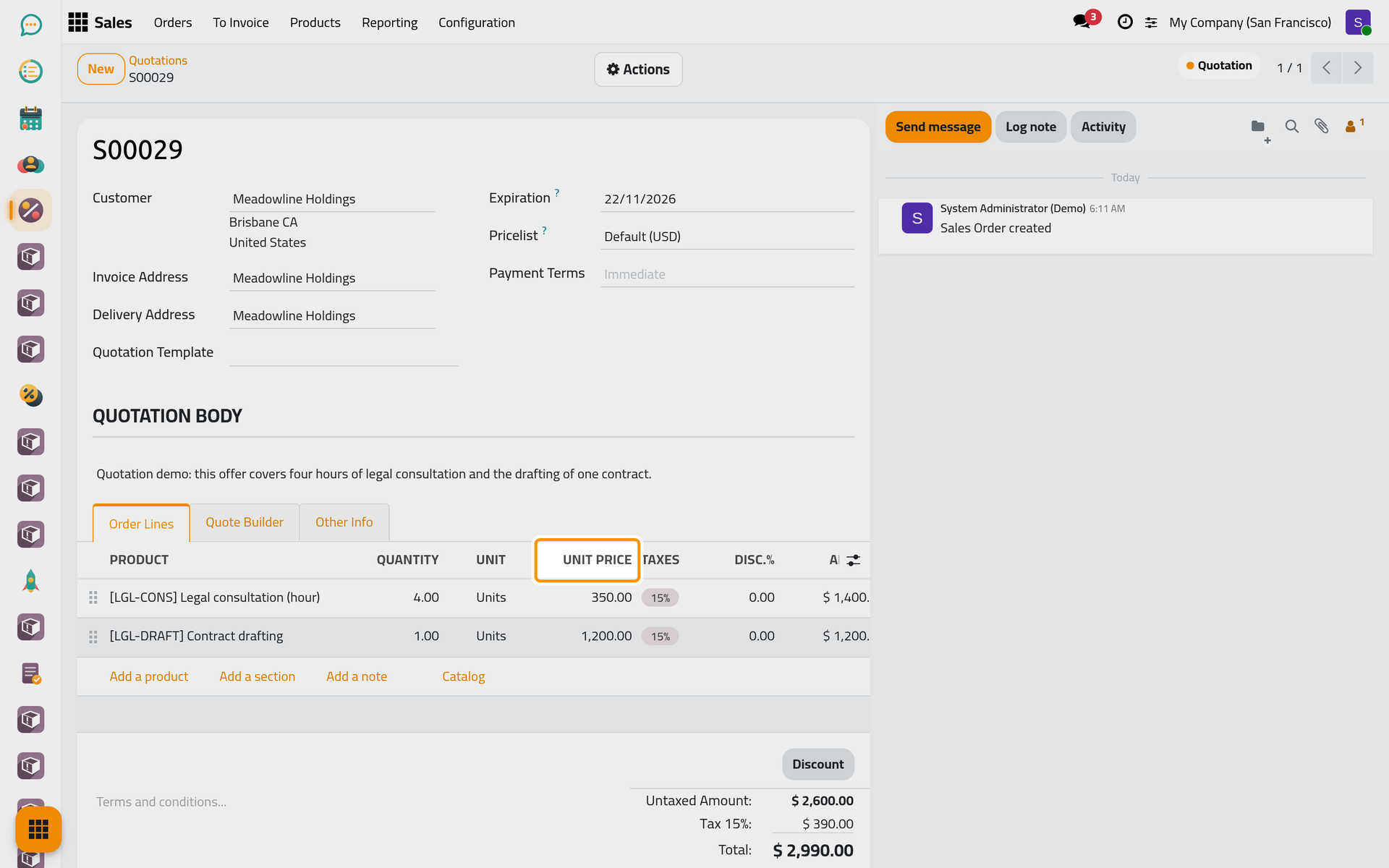
- The services you sell exist as products with a price. The examples use Legal consultation (hour) at 350.00 and Contract drafting at 1,200.00.
Step 1: open the quotations
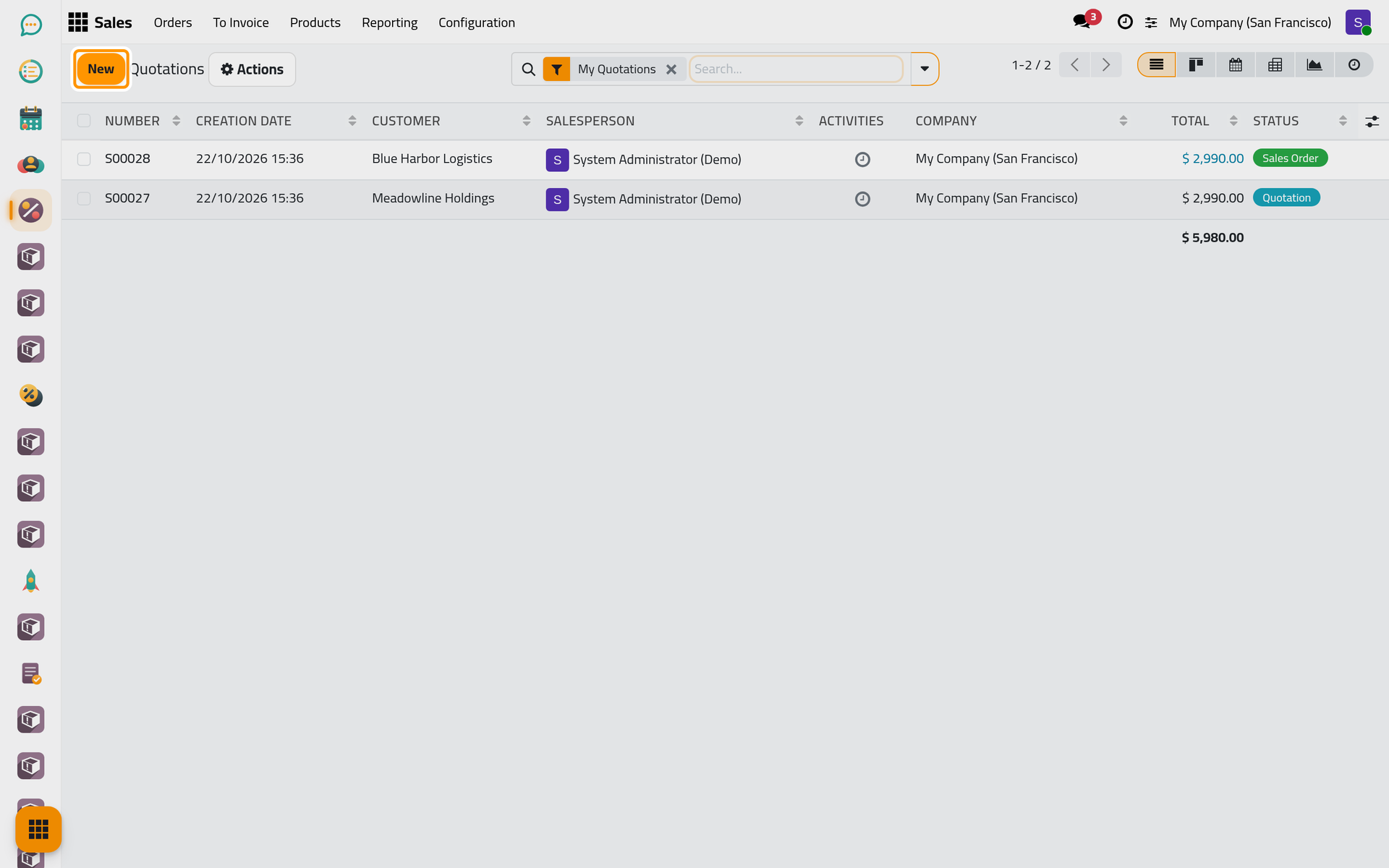
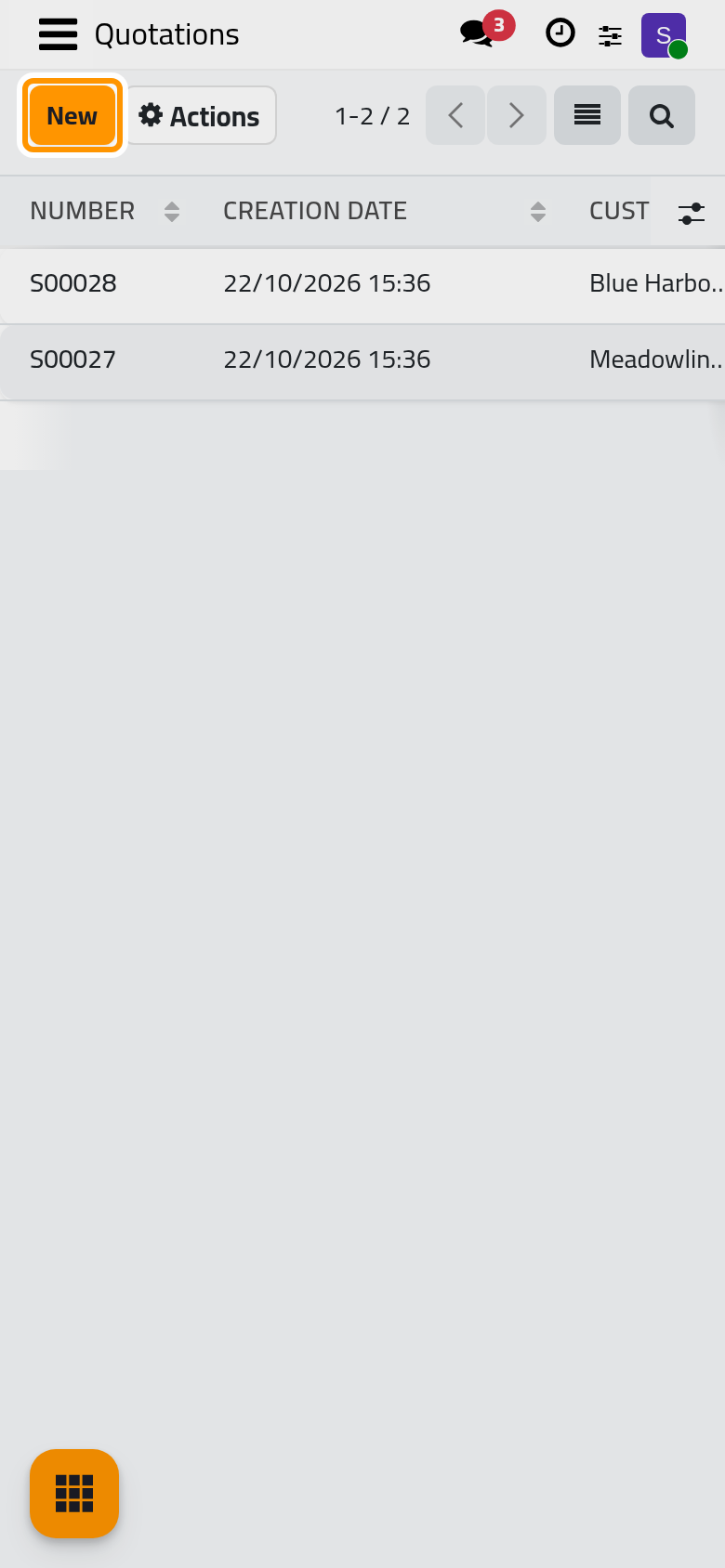
Open . The list starts with the My Quotations filter: the quotations where you are the salesperson. Click New.
Step 2: the client and the services
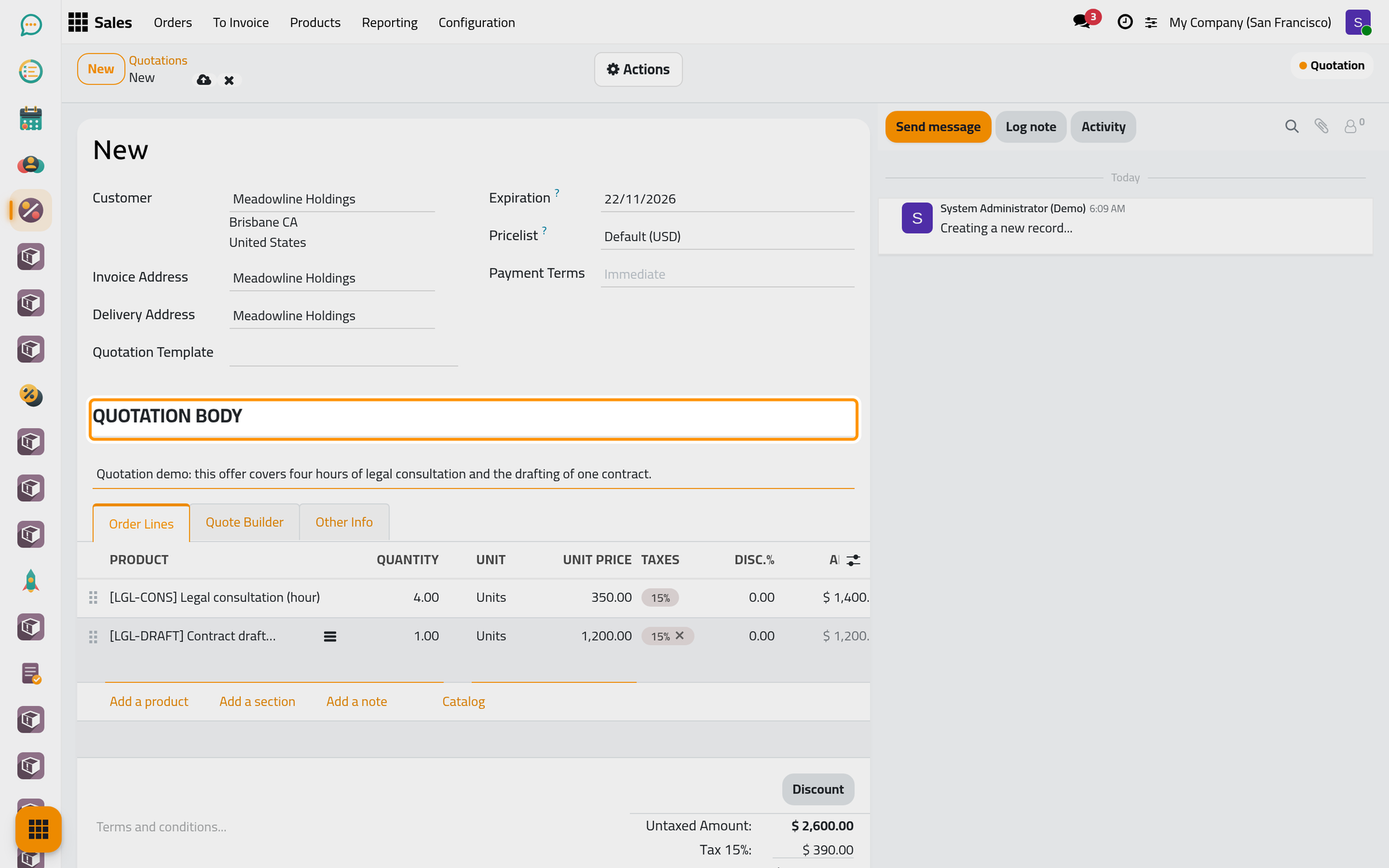
- Choose the Customer. Its address appears under the name, and the Expiration date is already filled: today plus the default validity of the company, 30 days here.
- In the Order Lines tab, click Add a product, search Legal consultation (hour) and set the Quantity to 4.
- Click Add a product again and choose Contract drafting.
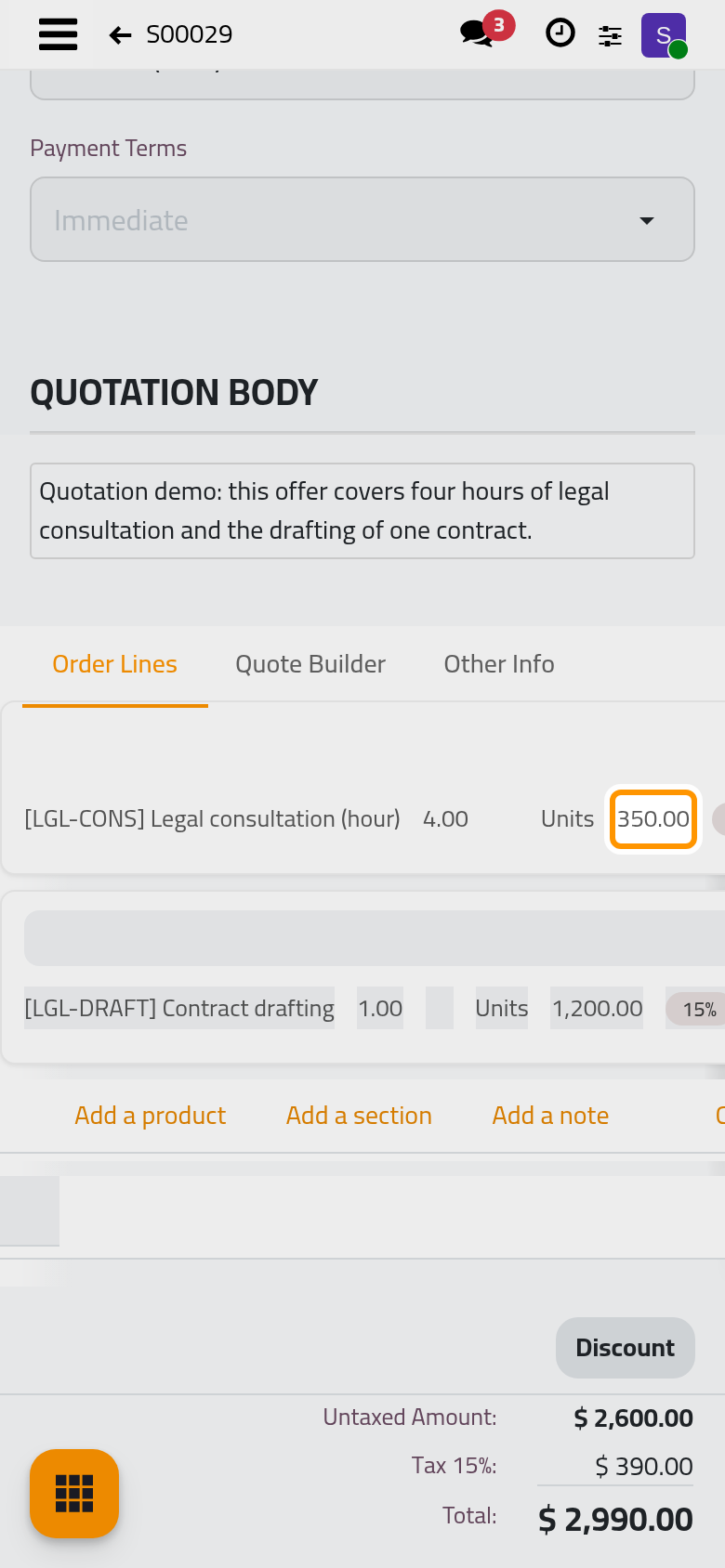
Each line takes its Unit Price and its Taxes from the service; you can type another price on the line for this client. The totals under the lines follow every change.
Step 3: the opening text
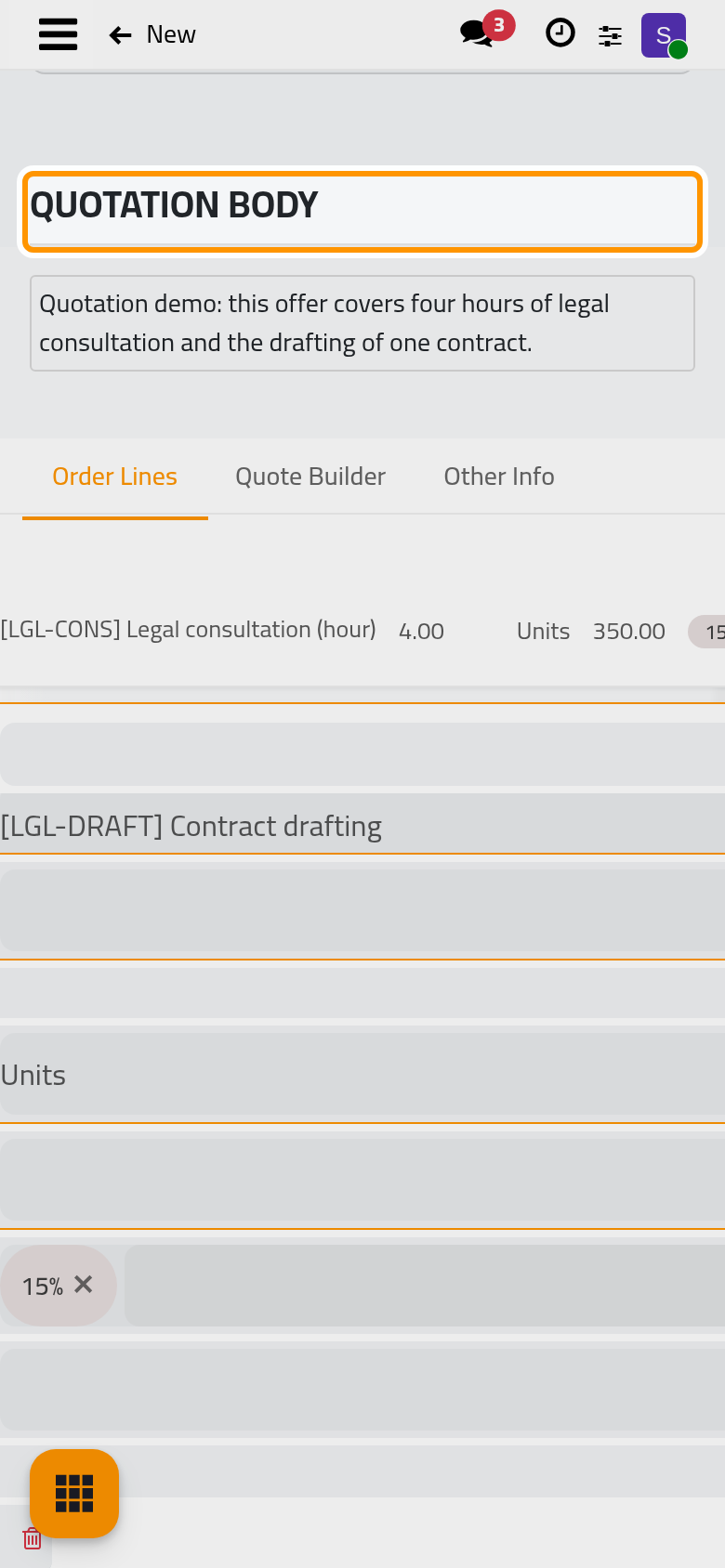
Click in the Quotation Body area, under the client, and write the text that opens the offer: the scope of the work, what the price includes, the next step. This text is printed on the quotation above the prices and shown to the client online. Write the quotation body shows the formatting and the template text.
Step 4: how the client confirms
Open the Other Info tab. Online signature asks the client to sign the quotation online; Online payment asks for a payment before the order is confirmed. Both follow the settings of the company. For this offer, keep the signature and untick Online payment: the client will confirm by signing, and the invoice follows.
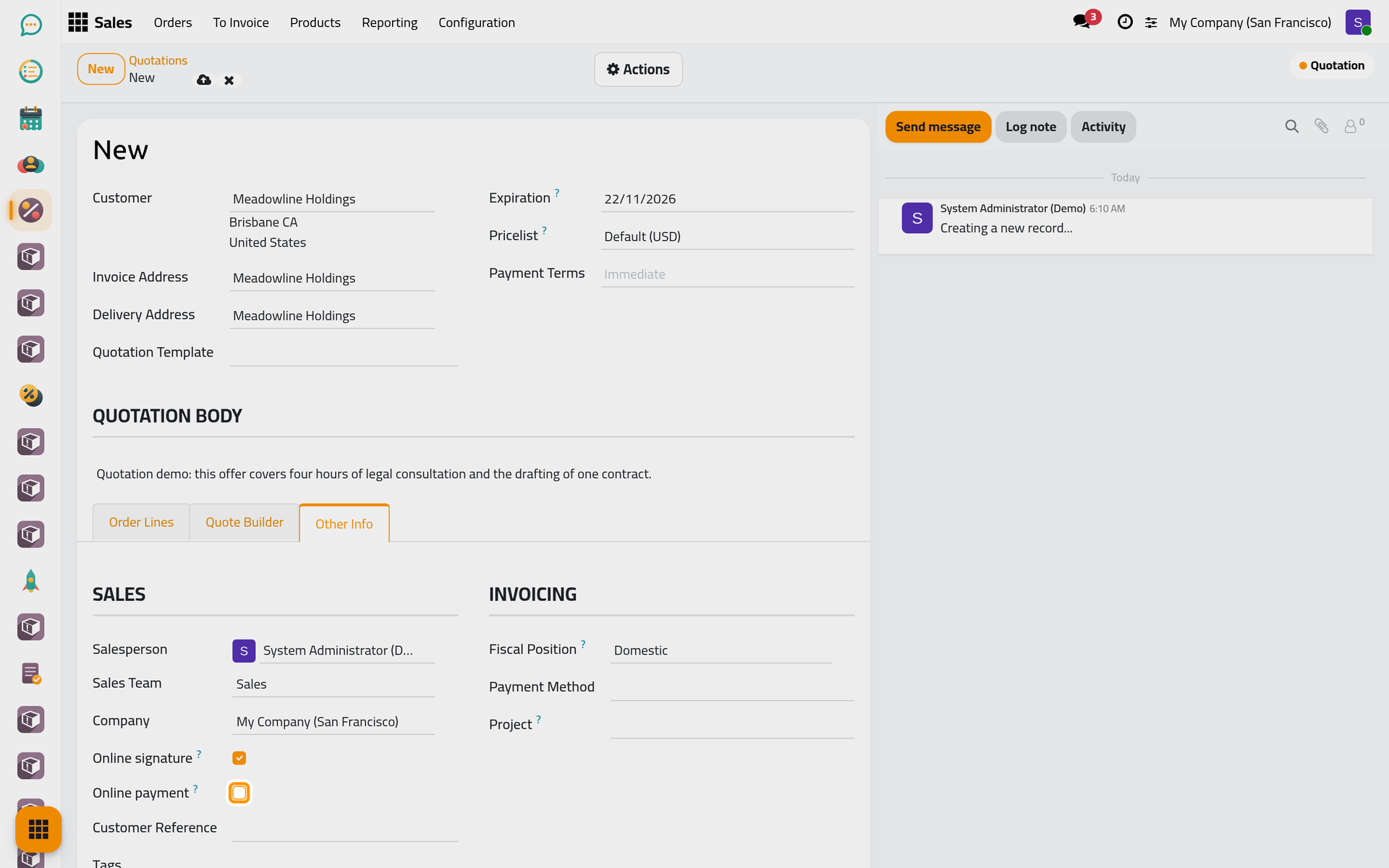
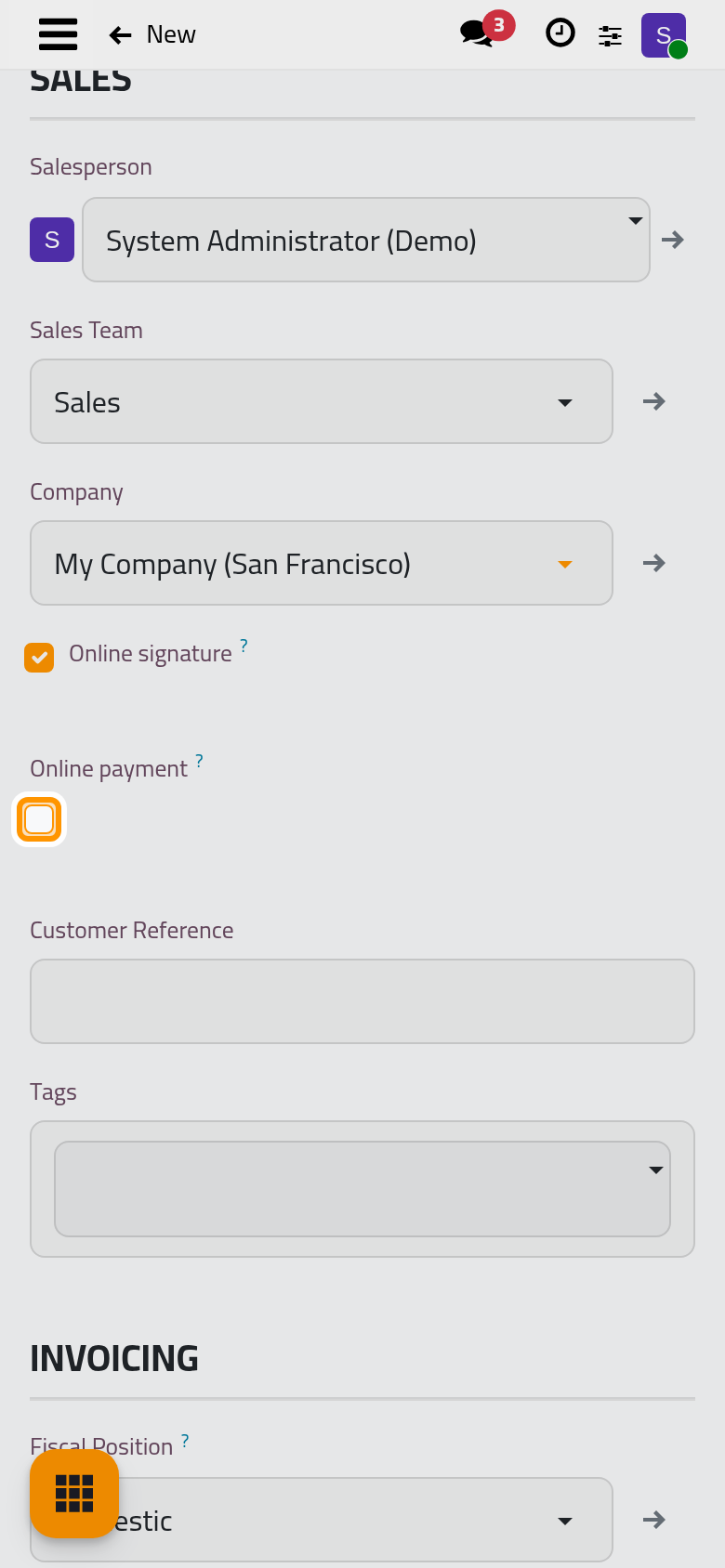
Click the cloud icon Save manually. The quotation takes its number, and the Order Lines tab shows the two services with their prices.
Step 5: send it
- Open the Actions menu and choose Send. On a company that has never sent or printed a document, a window first asks how its documents look (layout, font, colours): keep the proposed layout and click Continue; the choice is kept for every later document.
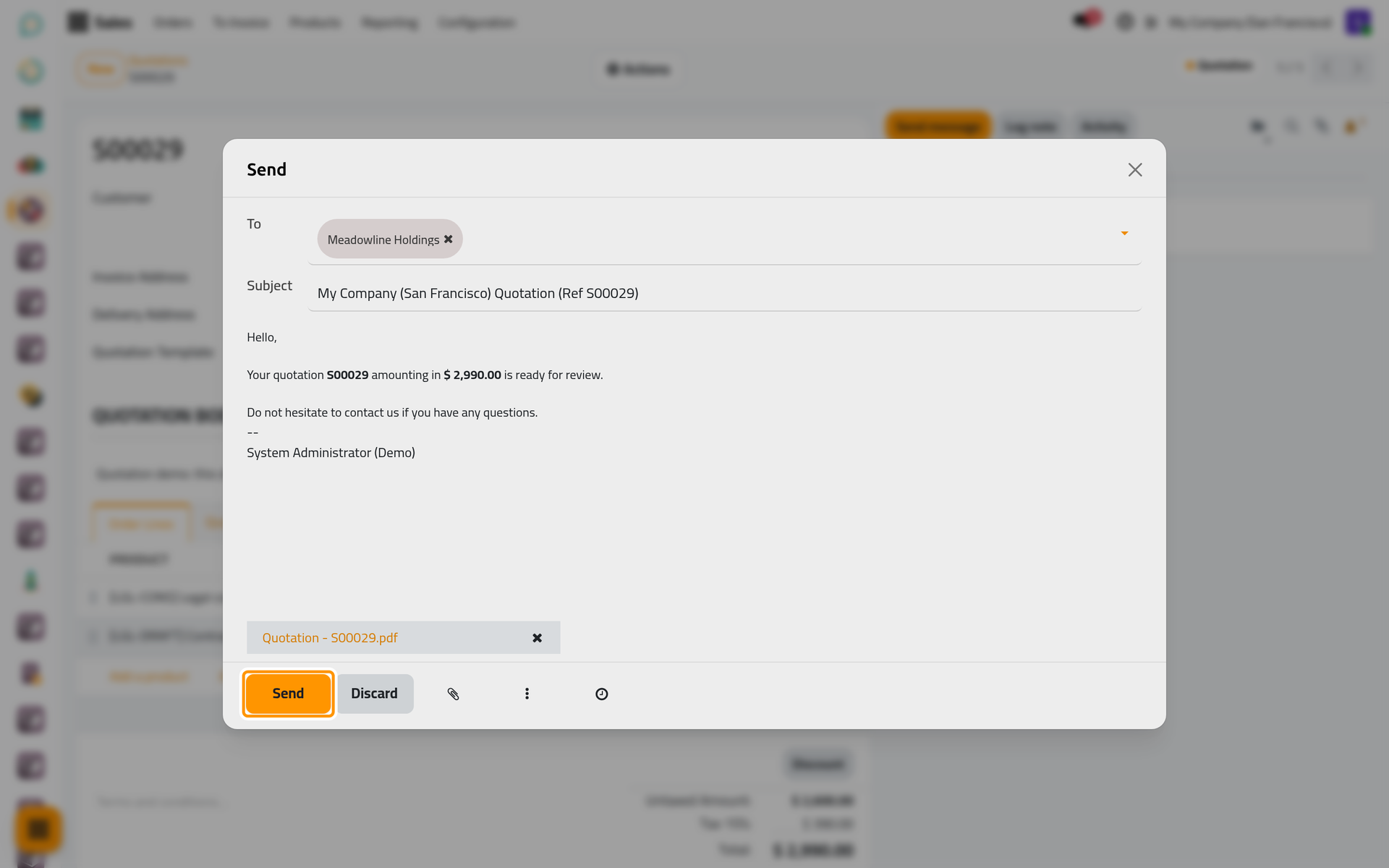
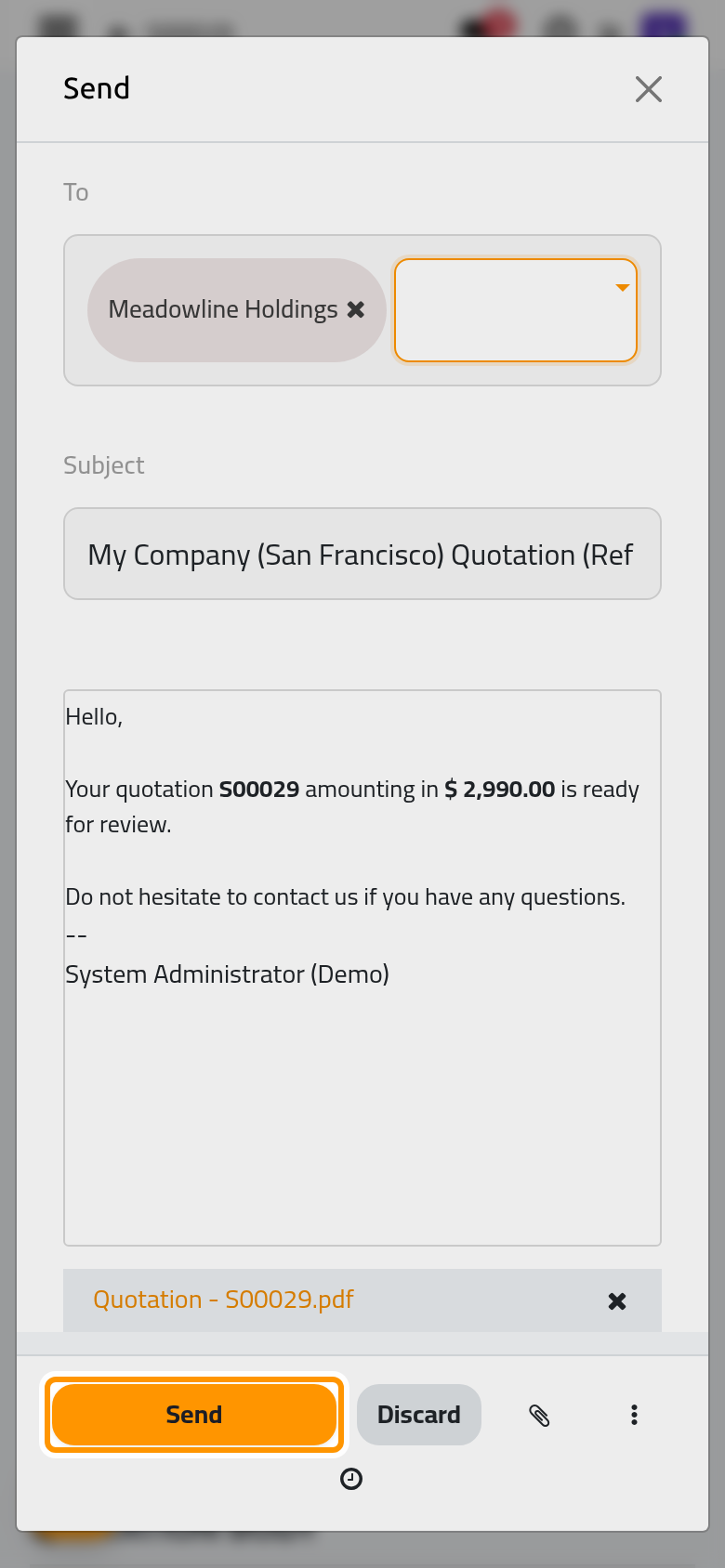
- The message is ready: the client in To, a Subject, a short text and the quotation attached as a PDF. Click Send.
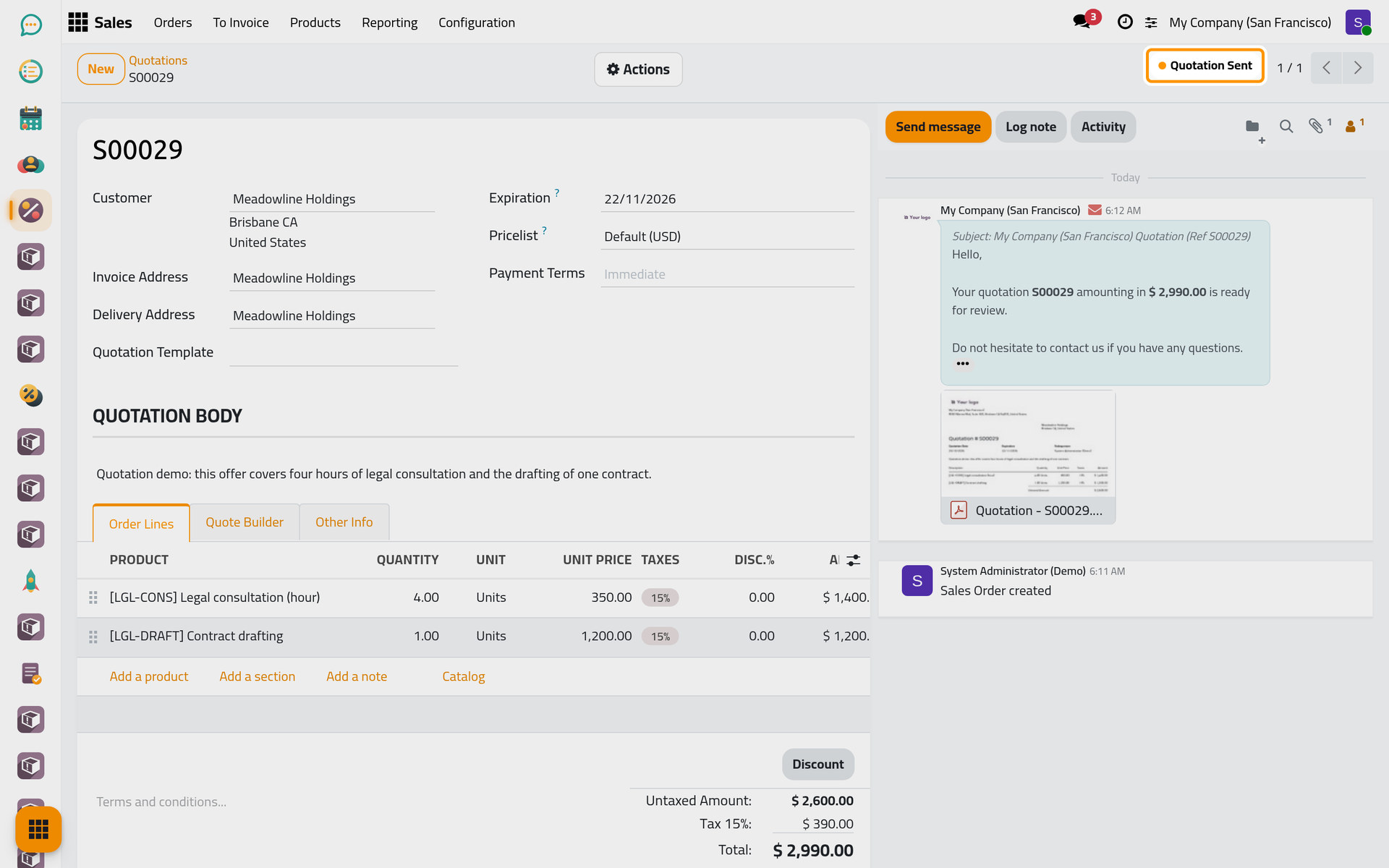
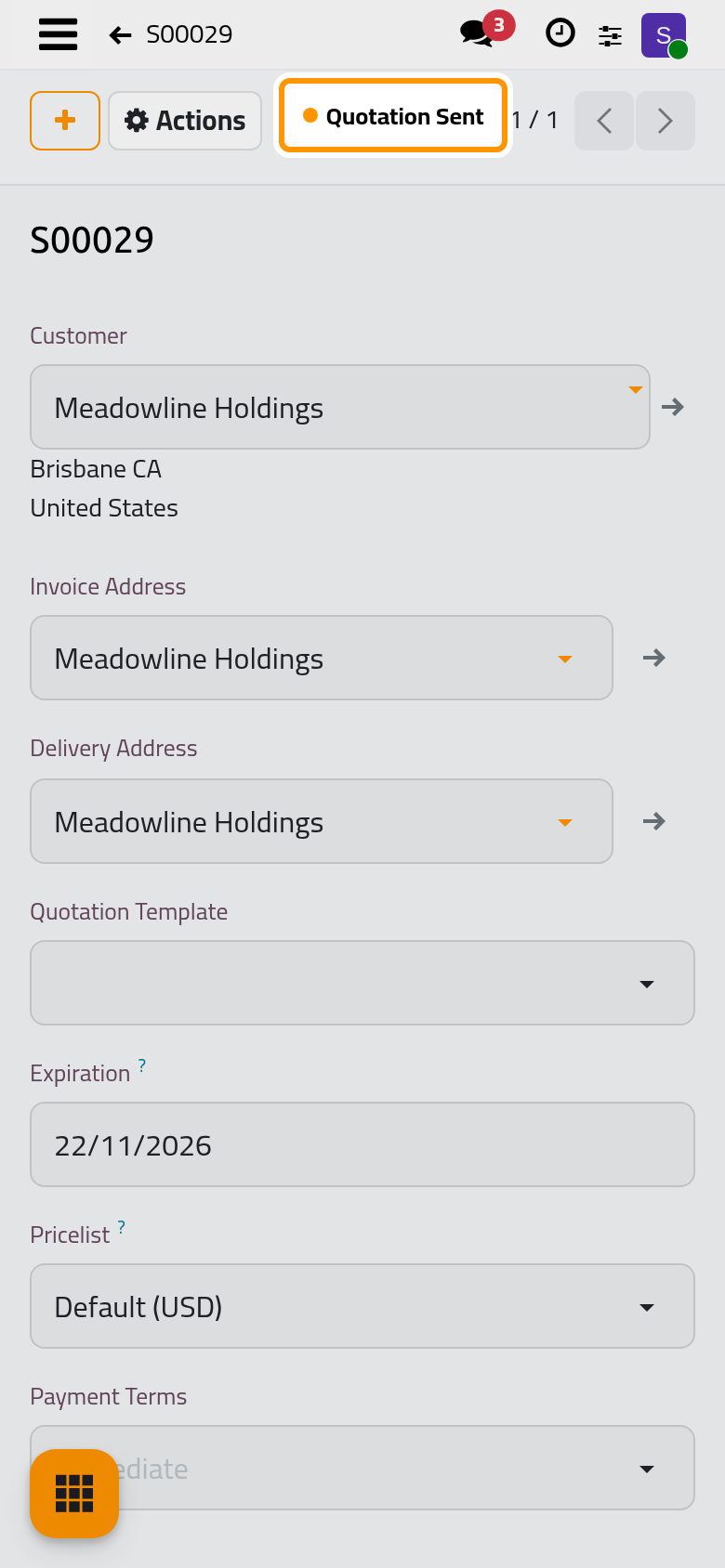
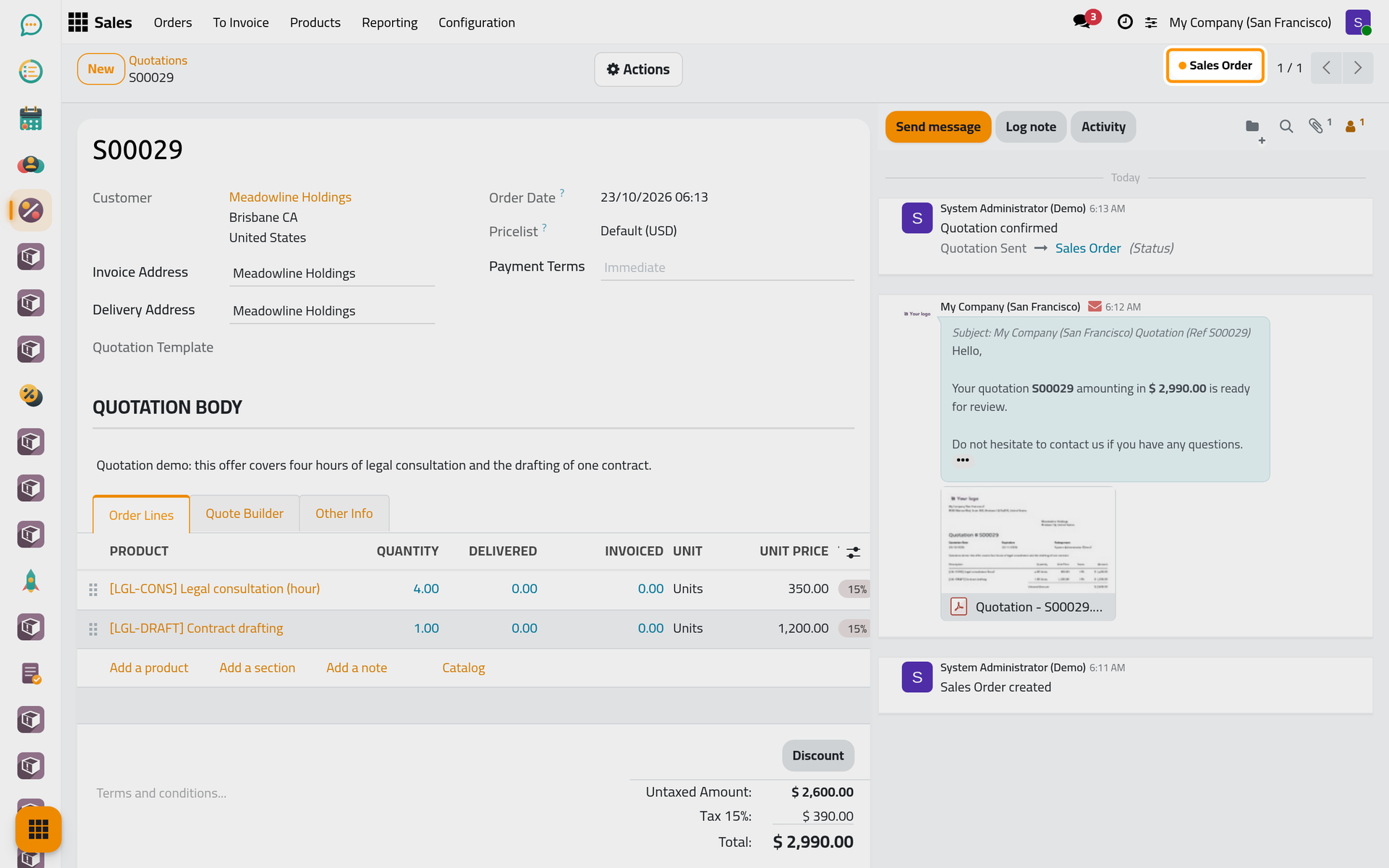
The status at the top of the form becomes Quotation Sent, and the message is kept in the chatter.
Step 6: what the client sees
Open the Actions menu and choose Preview. The page is the one the client opens from the e-mail: the total, an Accept & Sign button, and under Quotation Details the opening text, followed by the services and the totals.
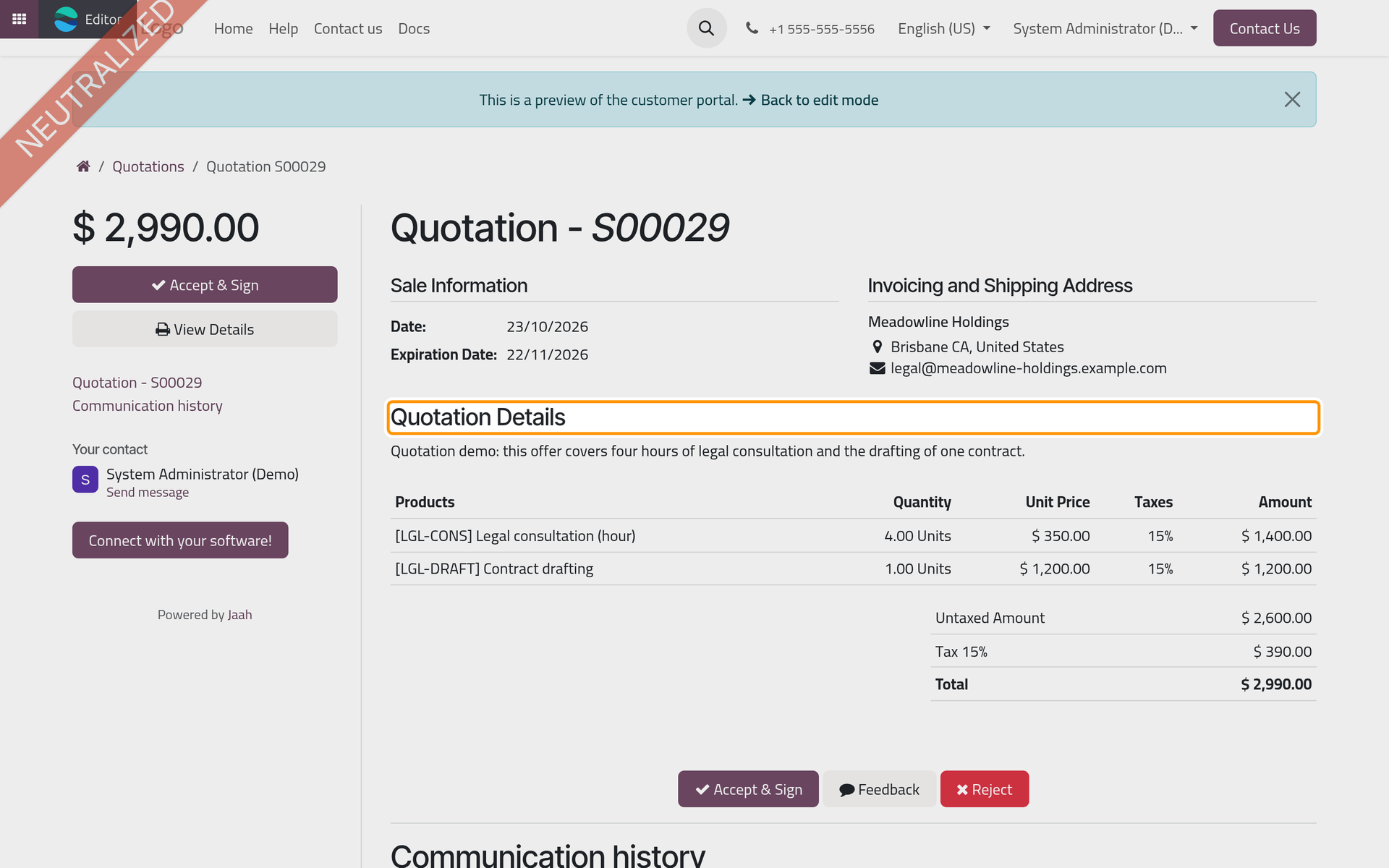
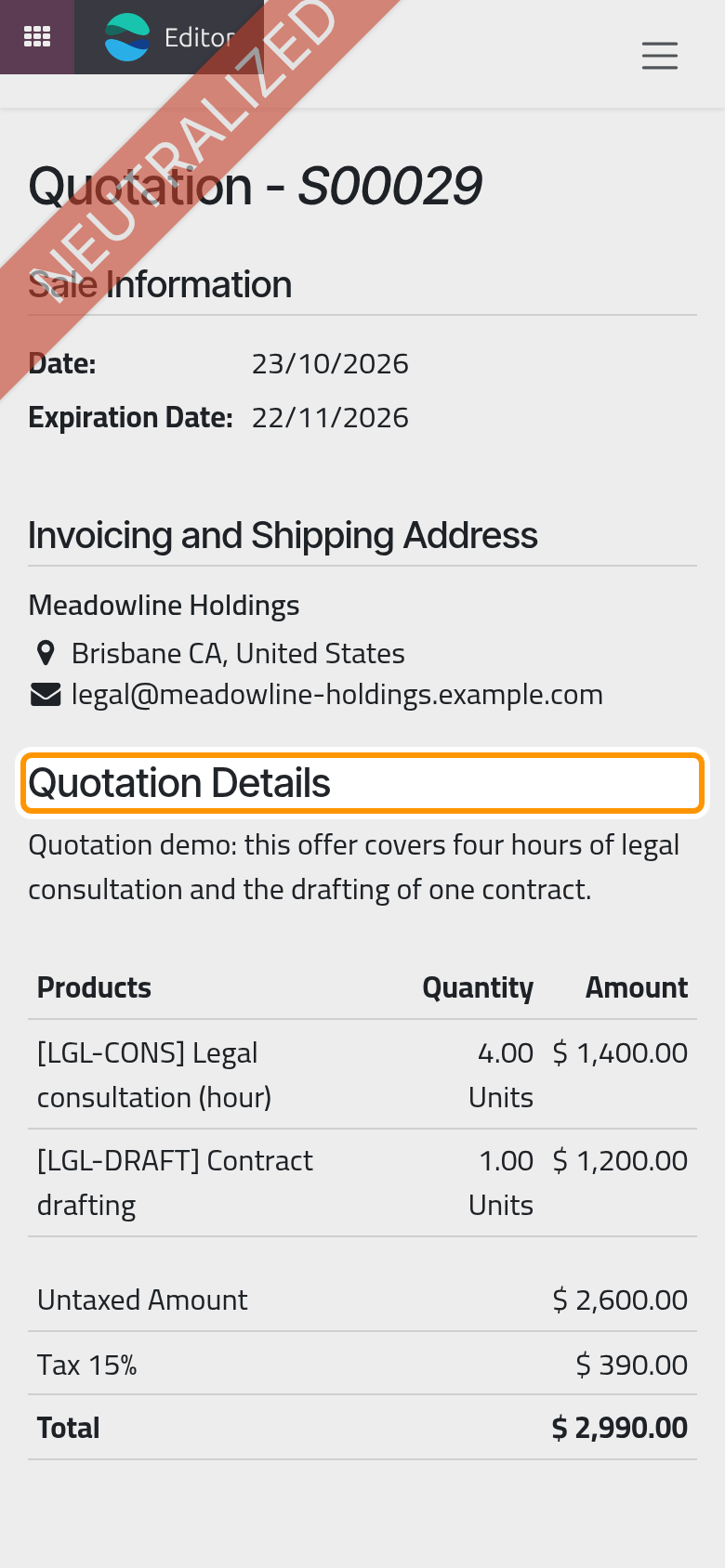
Click Back to edit mode in the banner at the top to return to the quotation.
Step 7: confirm the order
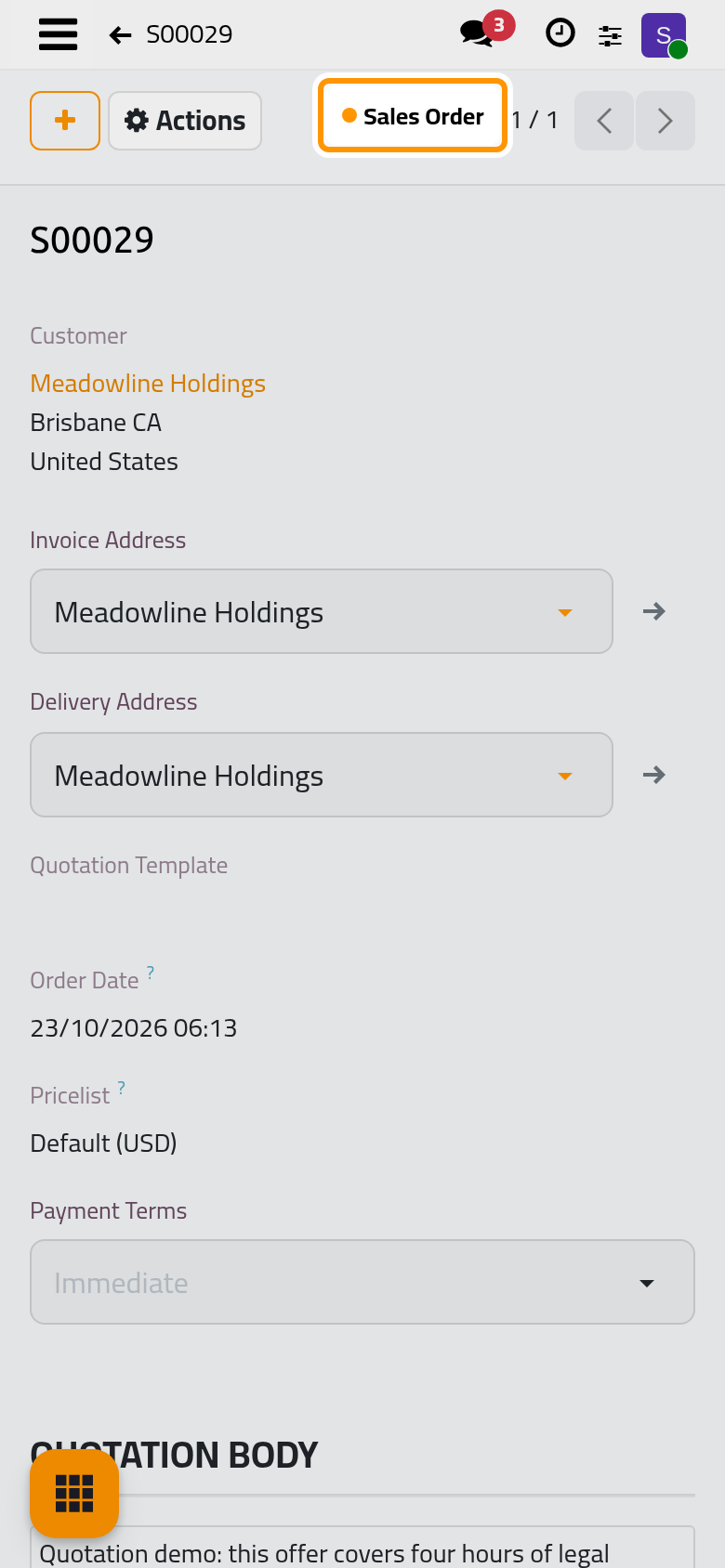
When the client signs online, the quotation confirms itself; Get the client's signature follows that path. When the client agrees by phone or by e-mail, open the Actions menu and choose Confirm. The status becomes Sales Order.
Step 8: prepare the invoice
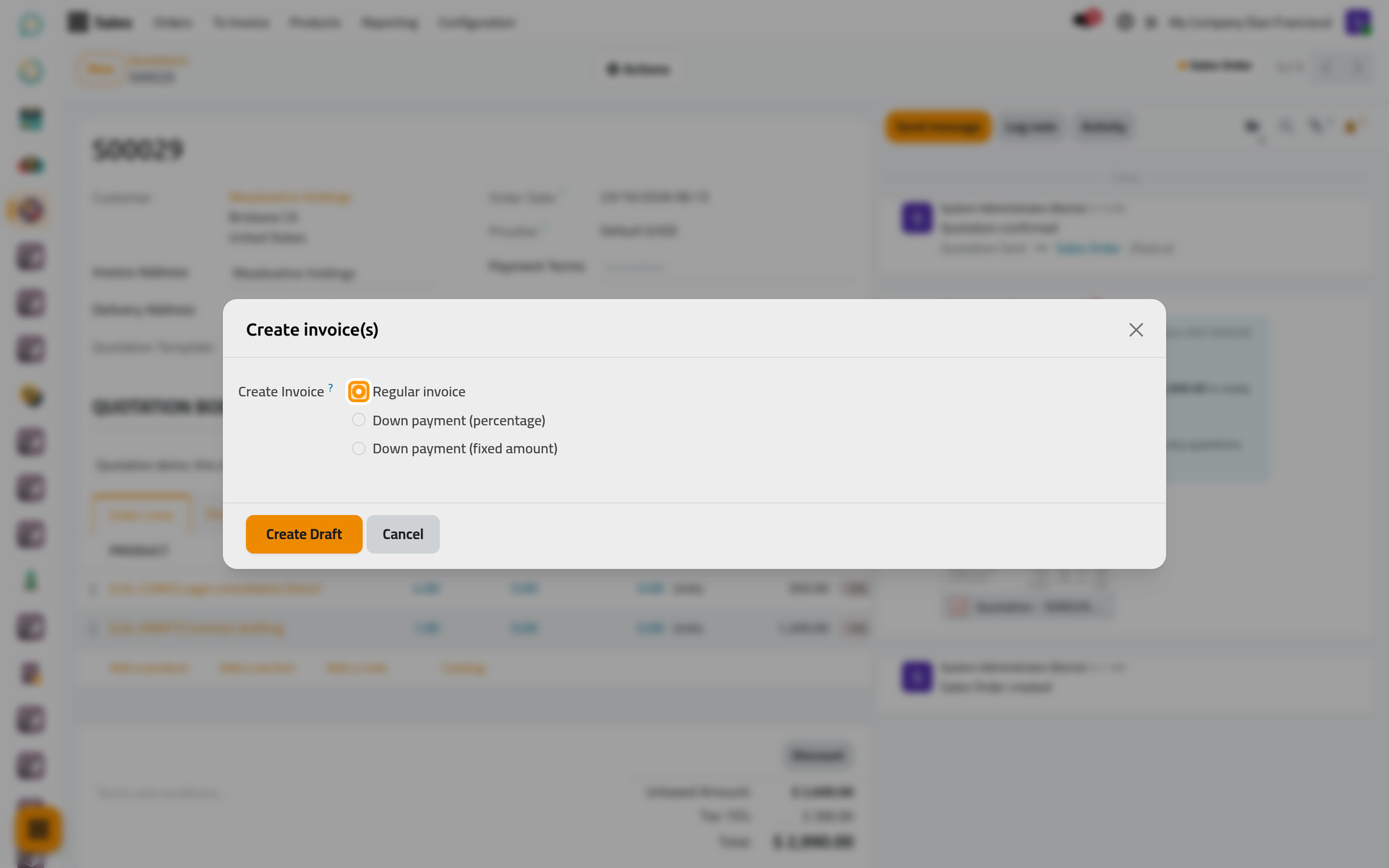
- Open the Actions menu and choose Create Invoice.
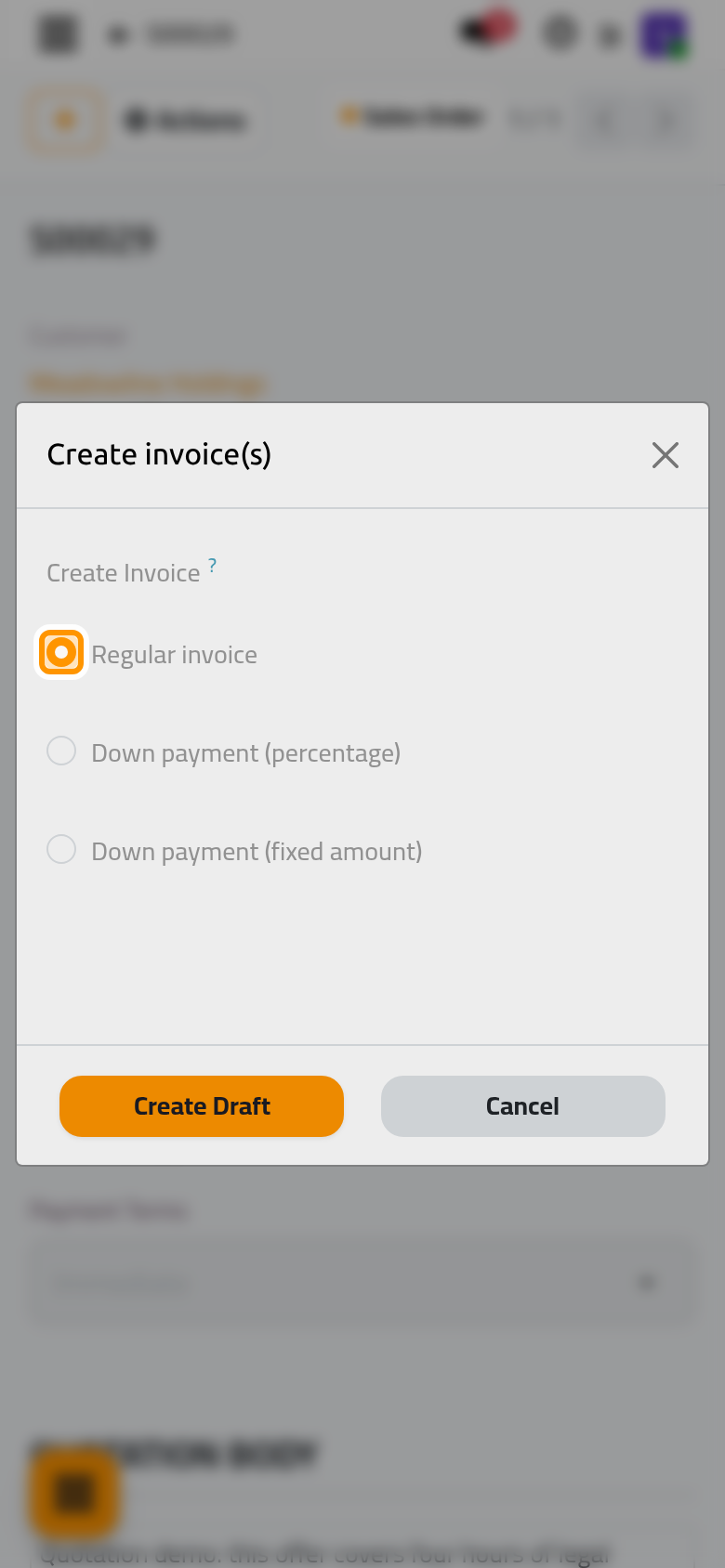
- Keep Regular invoice, which bills the whole order, and click Create Draft.
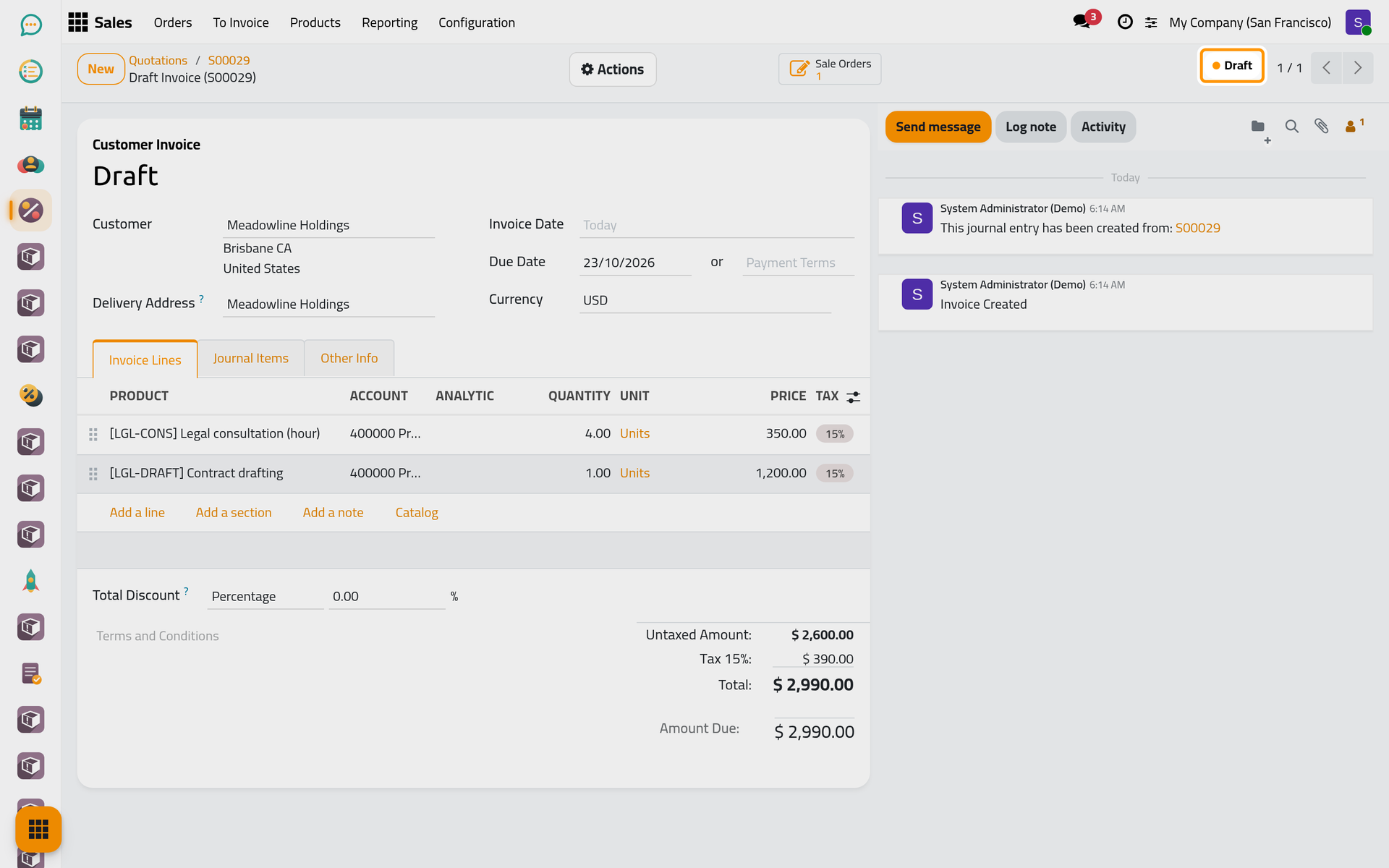
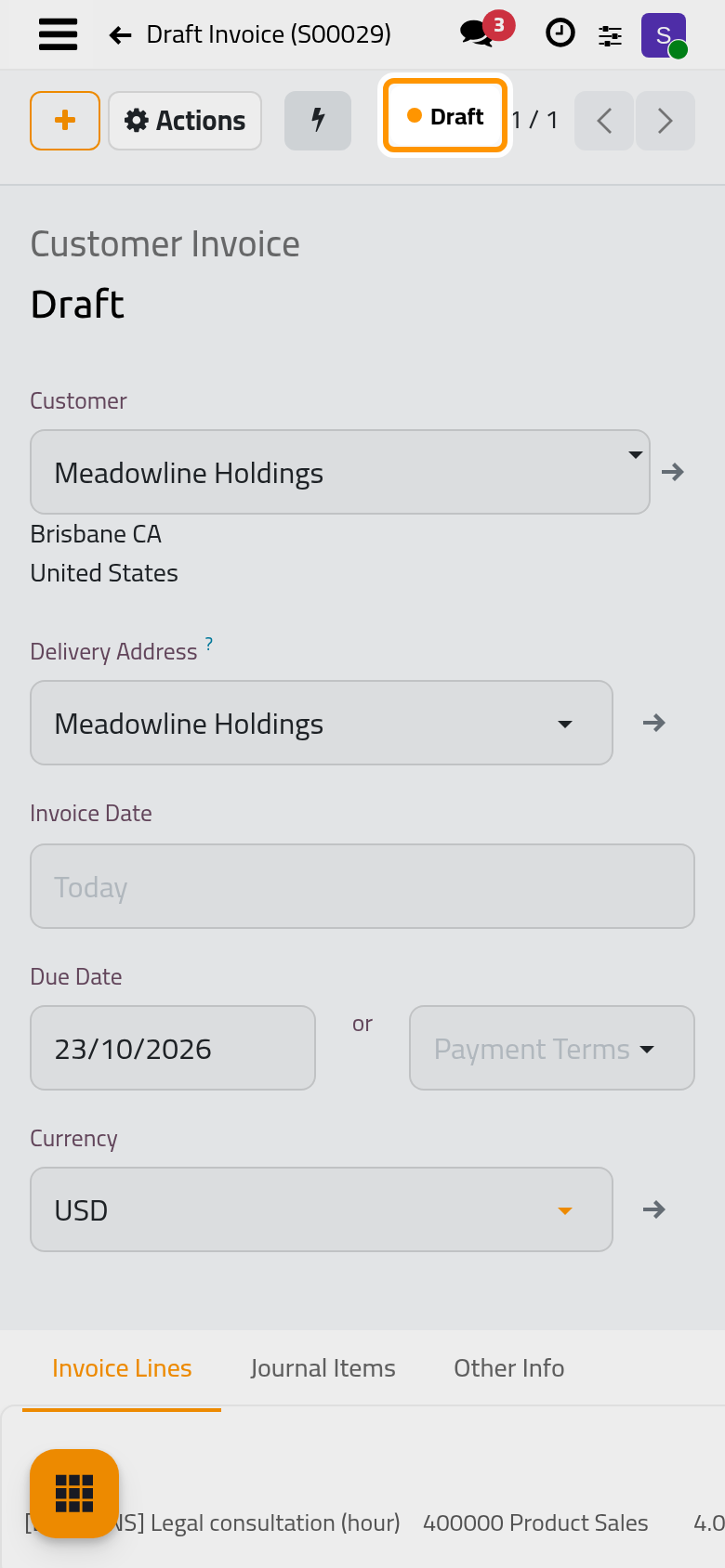
The draft invoice opens with the client and the two services. Checking, posting and sending it, then recording the payment, are explained in Customer invoices.
What you have seen
A quotation moves from Quotation to Quotation Sent when it is sent, and to Sales Order when it is confirmed; the invoice is made from the order. The user guide takes each part in turn: Write the quotation body, Build a quotation template, Give a discount on a quotation, Get the client's signature, Invoice a sales order and Quotation settings.
Was this page helpful?
Thank you for your feedback.