Get the client's signature
On this page
With Online signature, the client accepts the quotation on its own page by signing it: a typed name, a drawing or an image. When no online payment is asked, the signature confirms the order at once and the client receives the confirmation e-mail. Nobody has to retype the agreement.
Before you start
- You need an access right on Sales.
- The client has an e-mail address, so the quotation can be sent with Send as in Your first quotation. The e-mail carries an Accept & Sign Quotation button that opens the quotation's page.
Ask for the signature
Open and the quotation, here the one of Meadowline Holdings made from the Legal services offer template. In the Other Info tab:
- Online signature is ticked: the client is asked to sign.
- Online payment is unticked: no payment is asked before the order is confirmed. With both ticked, the client signs and pays in the same step, which needs a payment provider; see Online payments.
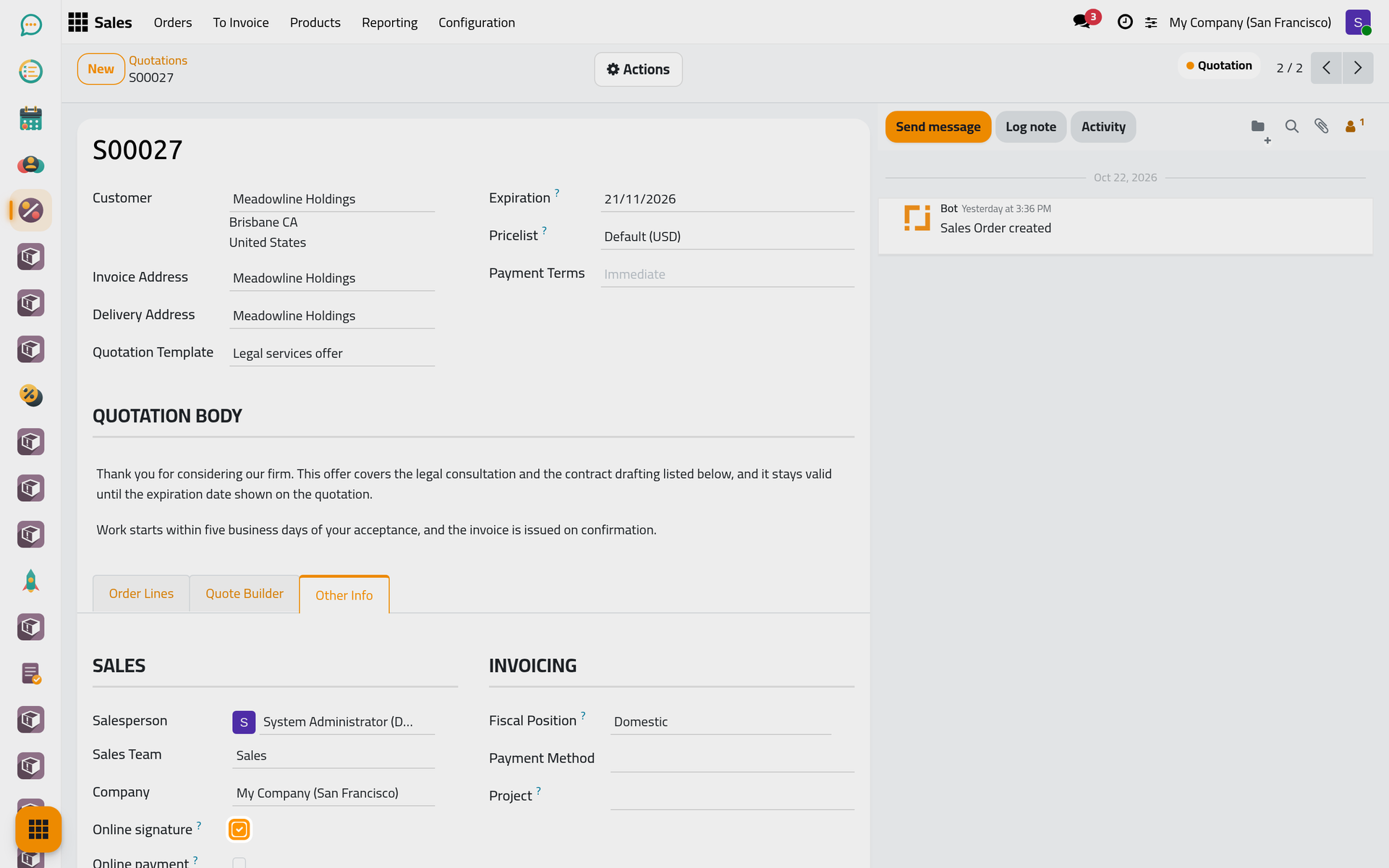
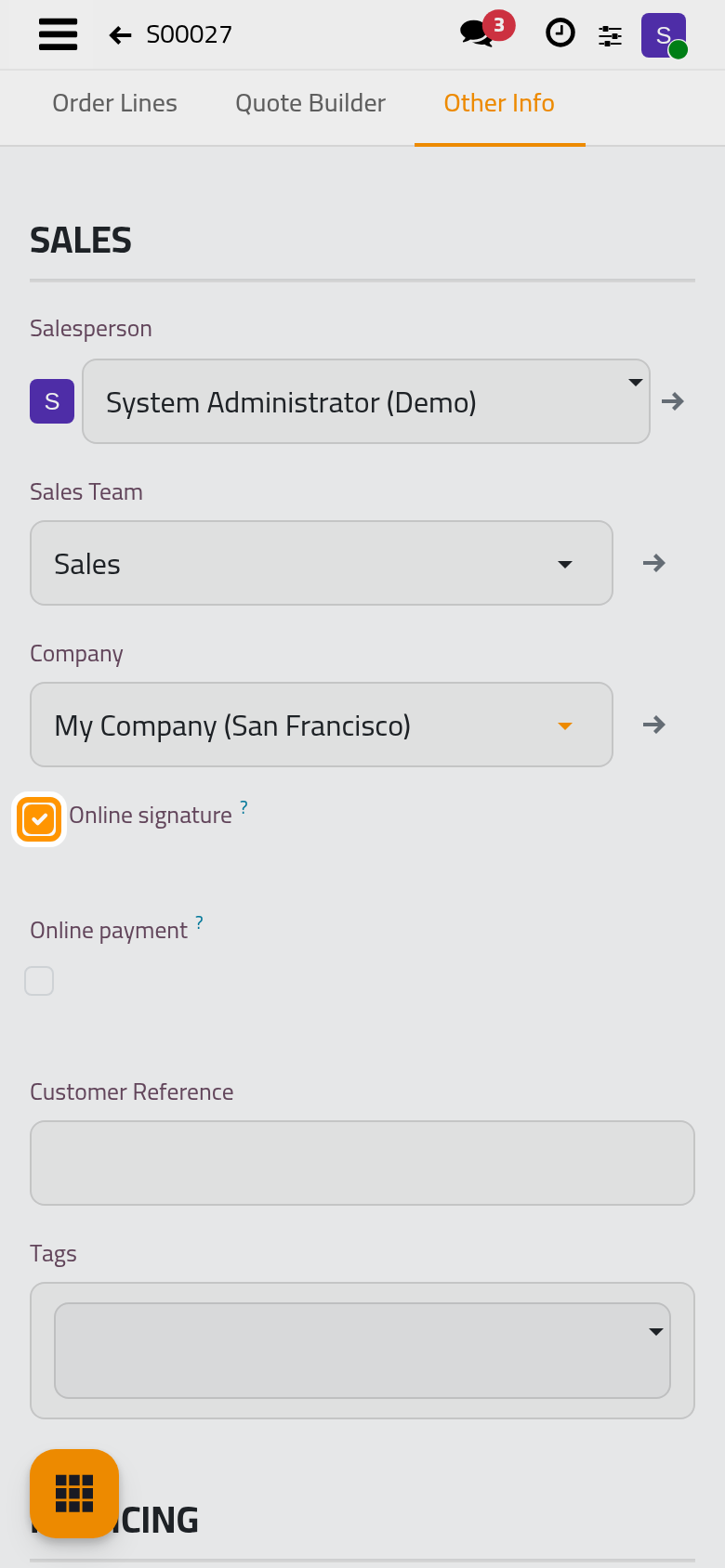
Both boxes come from the quotation template or, without one, from Quotation settings. The Expiration date at the top of the quotation is the last day the client can sign.
What the client does
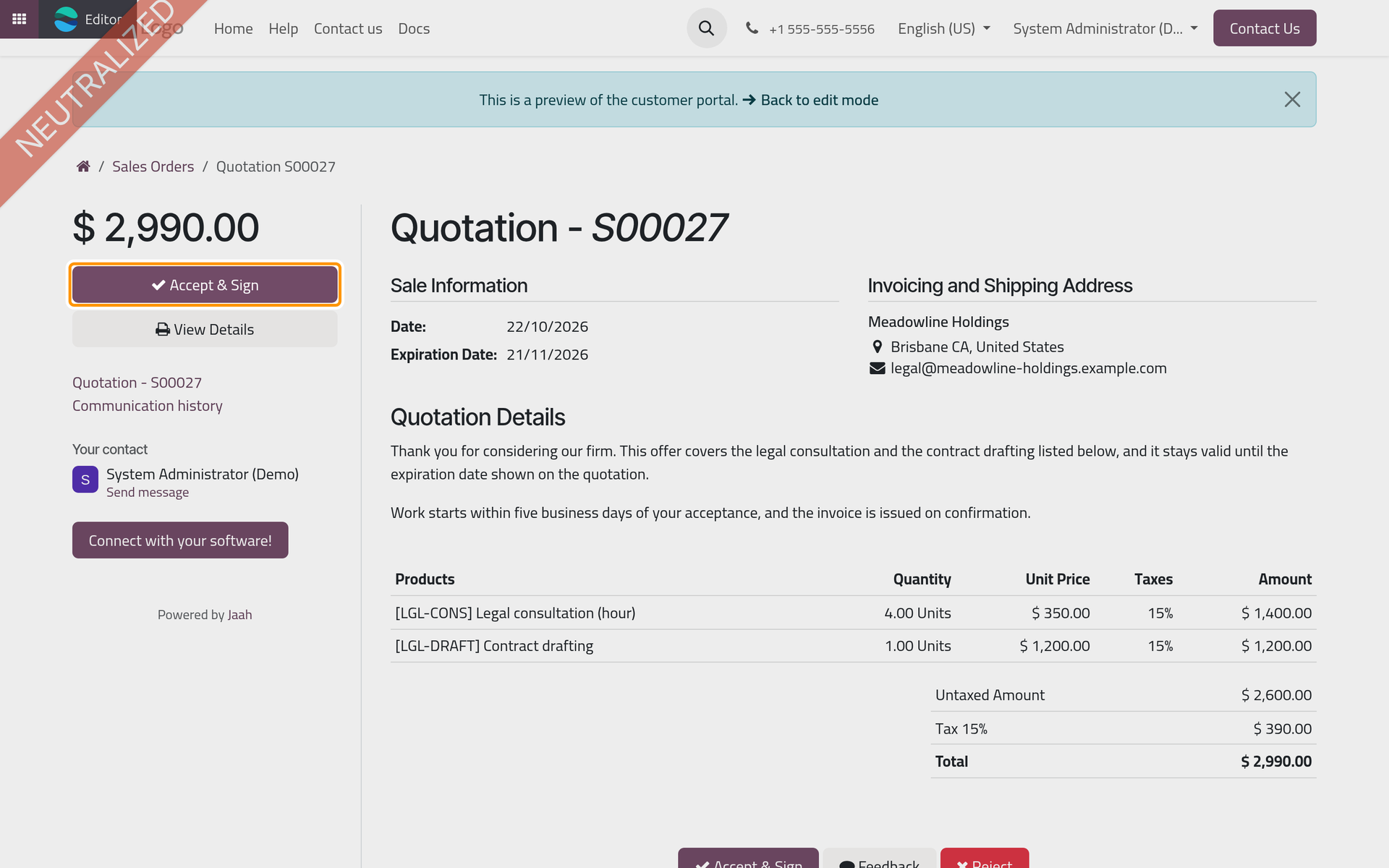
Open the Actions menu and choose Preview to see the page as the client does.
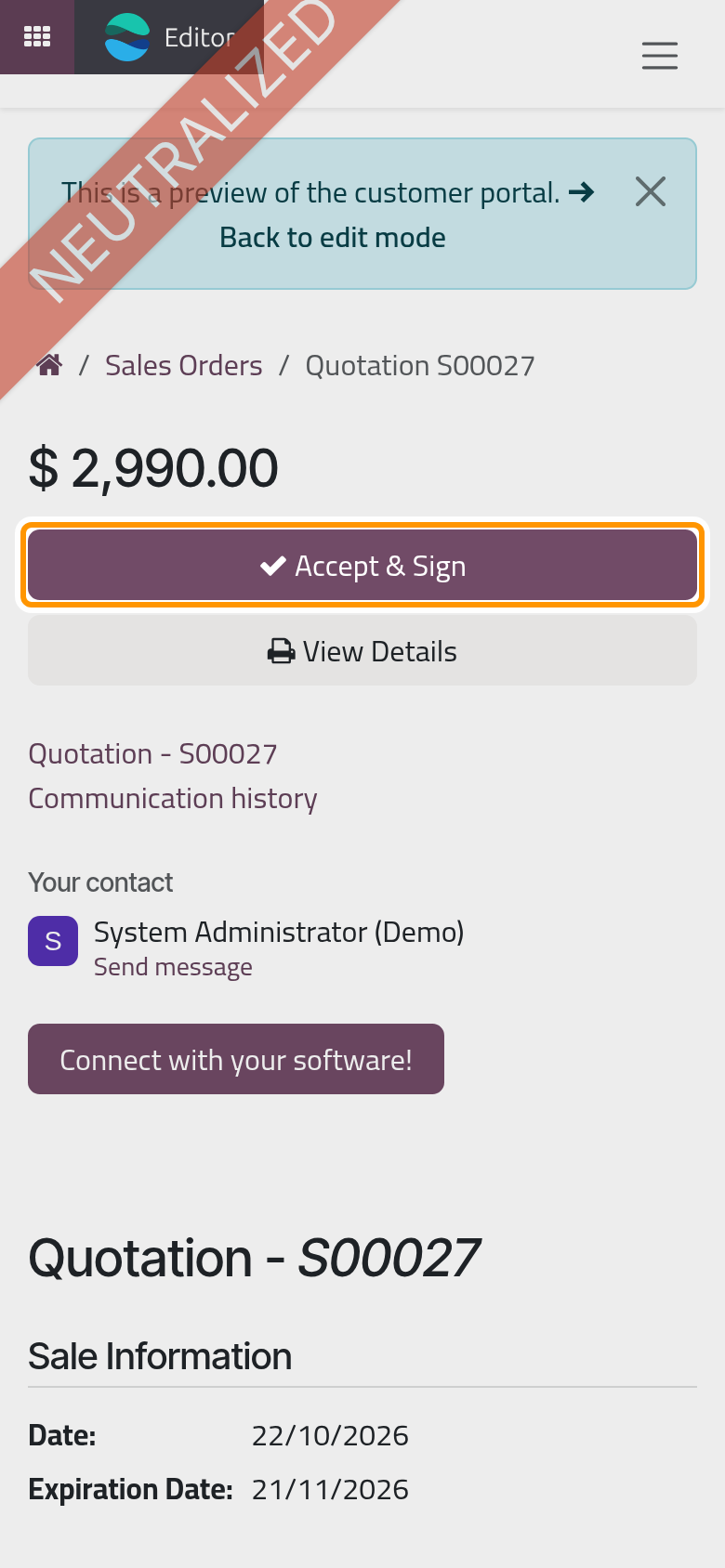
- The client clicks Accept & Sign, at the top of the page or under the prices.
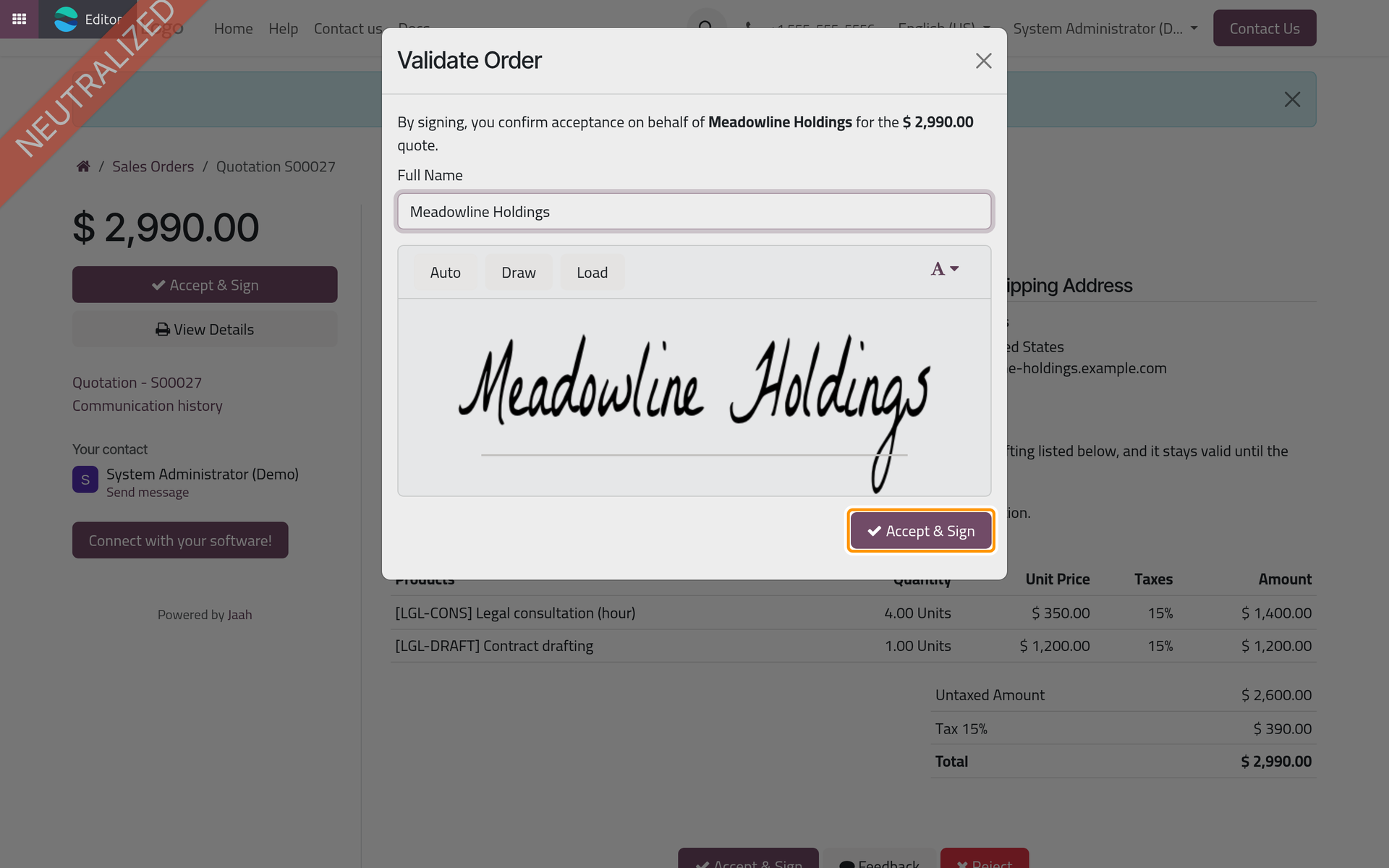
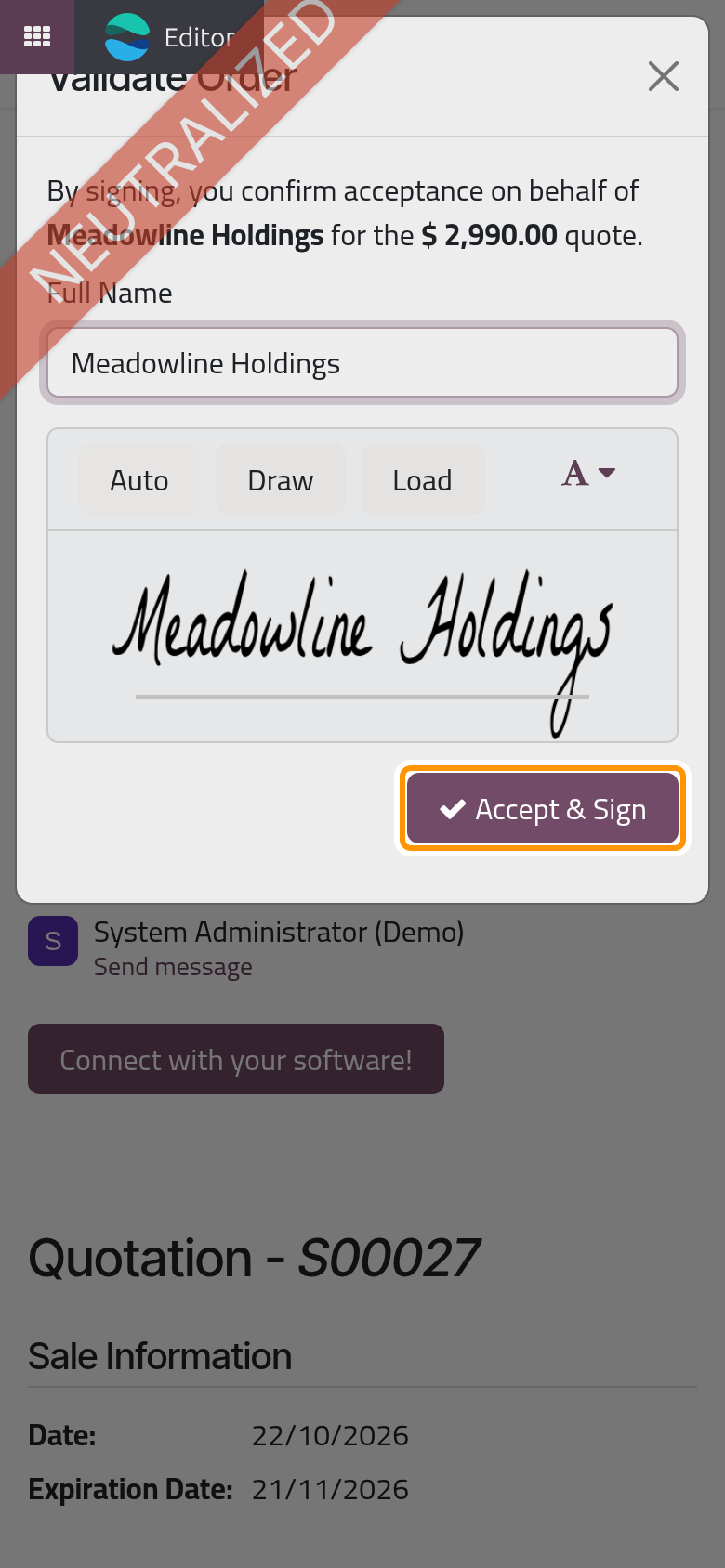
- The Validate Order window recalls the client and the amount. Full Name is filled with the client's name. Auto writes that name as a signature, Draw lets the client sign with the mouse or a finger, Load takes an image of a signature. The client clicks Accept & Sign.
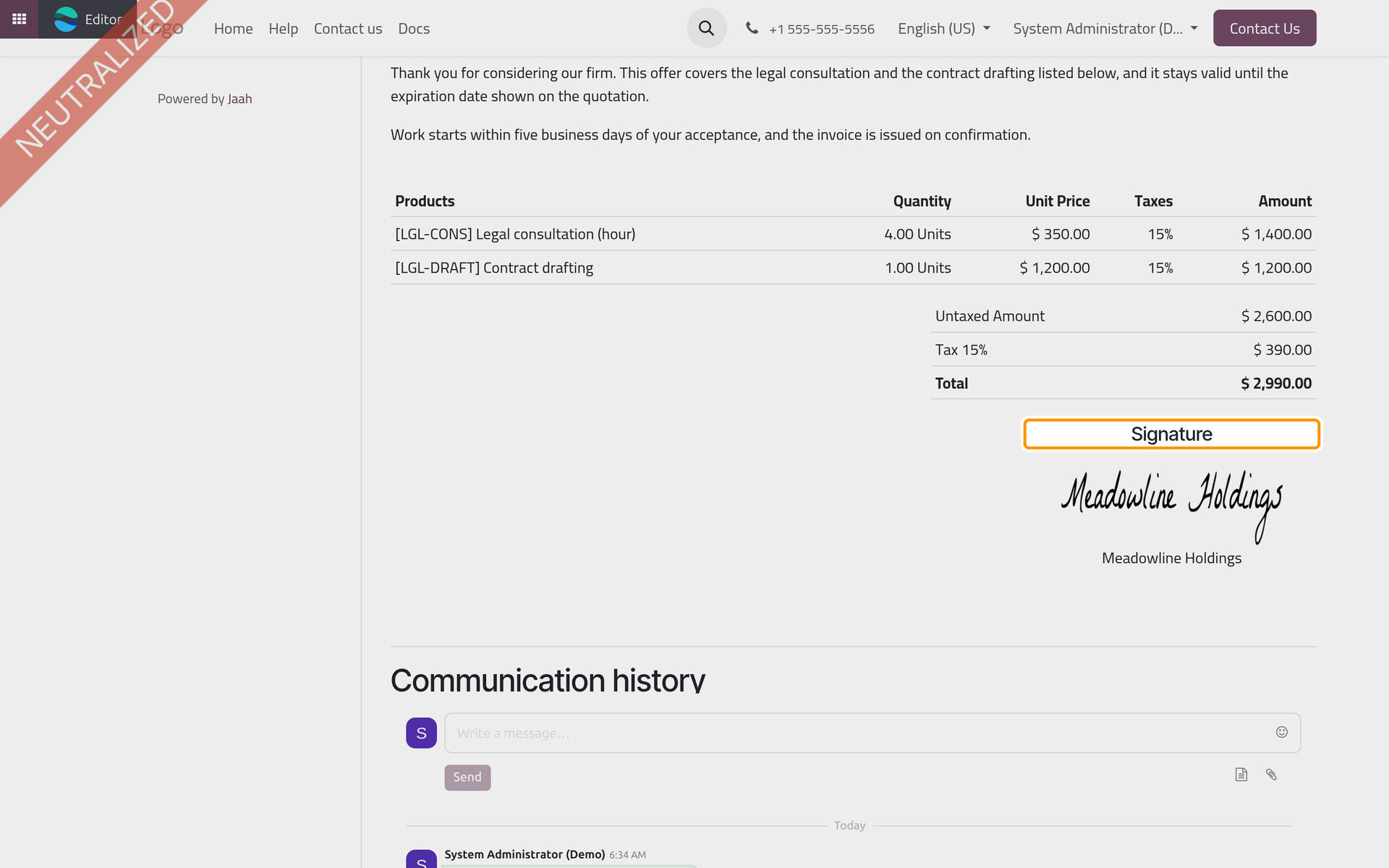
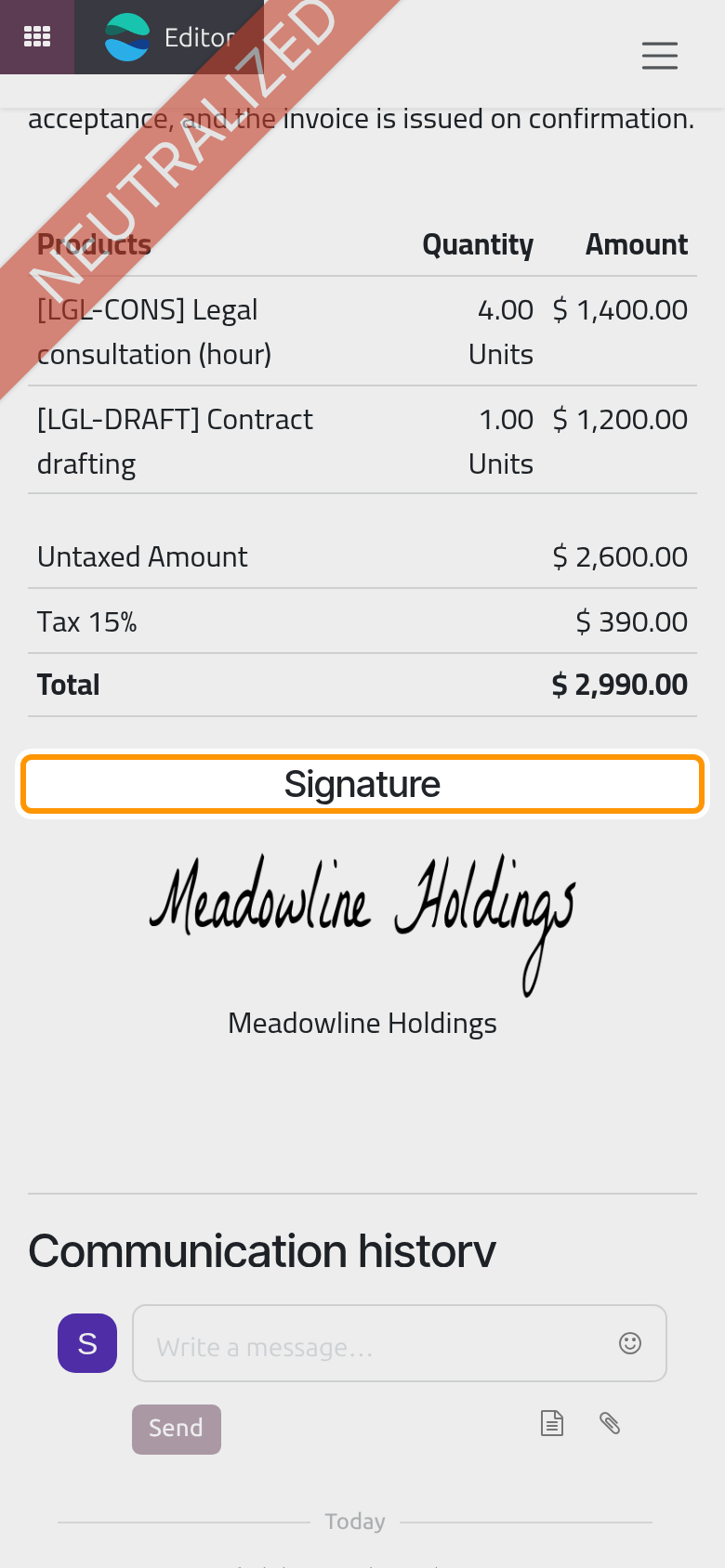
- The page thanks the client and says that the order is confirmed. The Signature section at the end of the details shows the signature and the name.
Instead of signing, the client can write to you with Feedback, or refuse with Reject: the refusal asks for a reason, cancels the quotation and posts the reason in its chatter.
In the back office
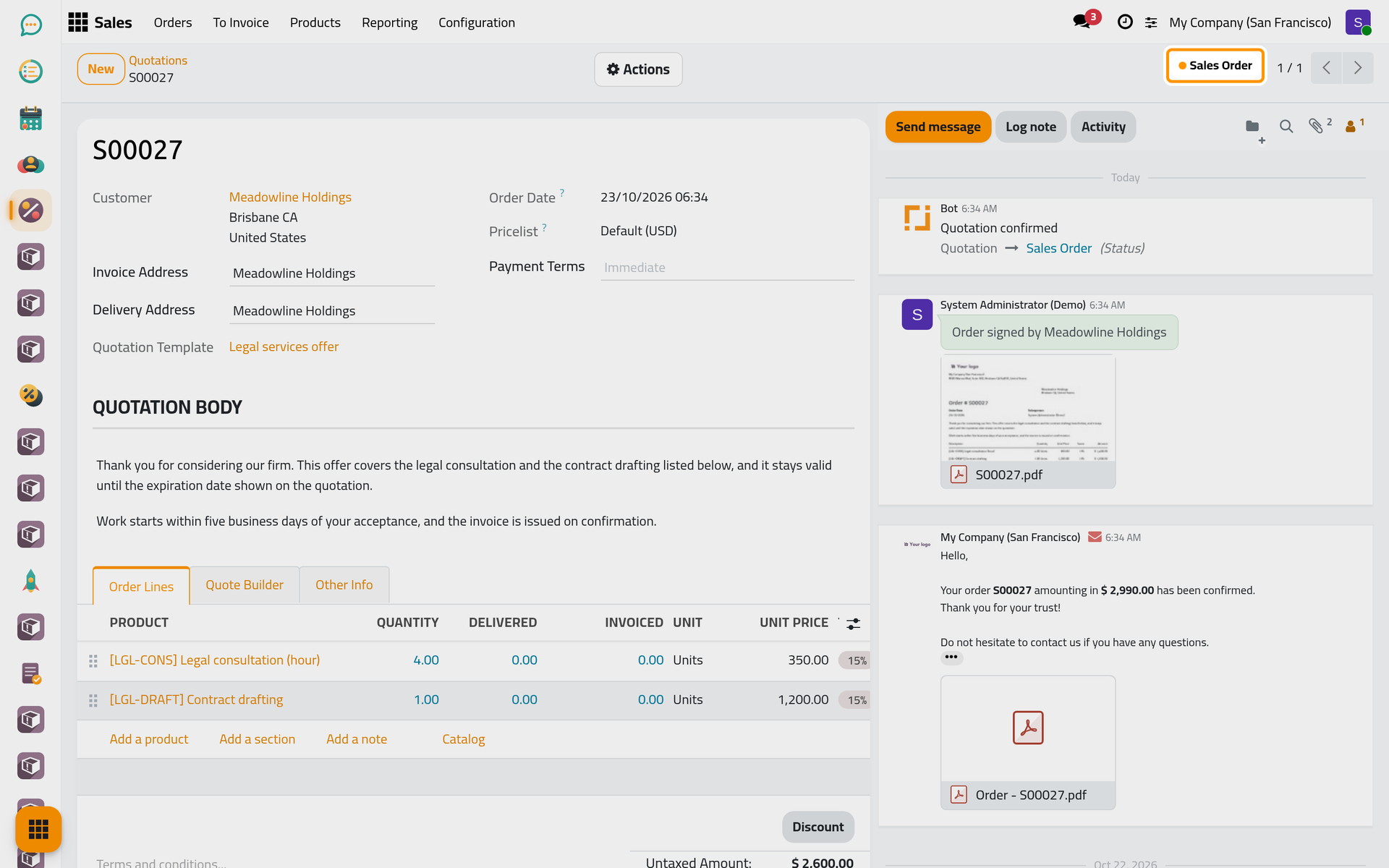
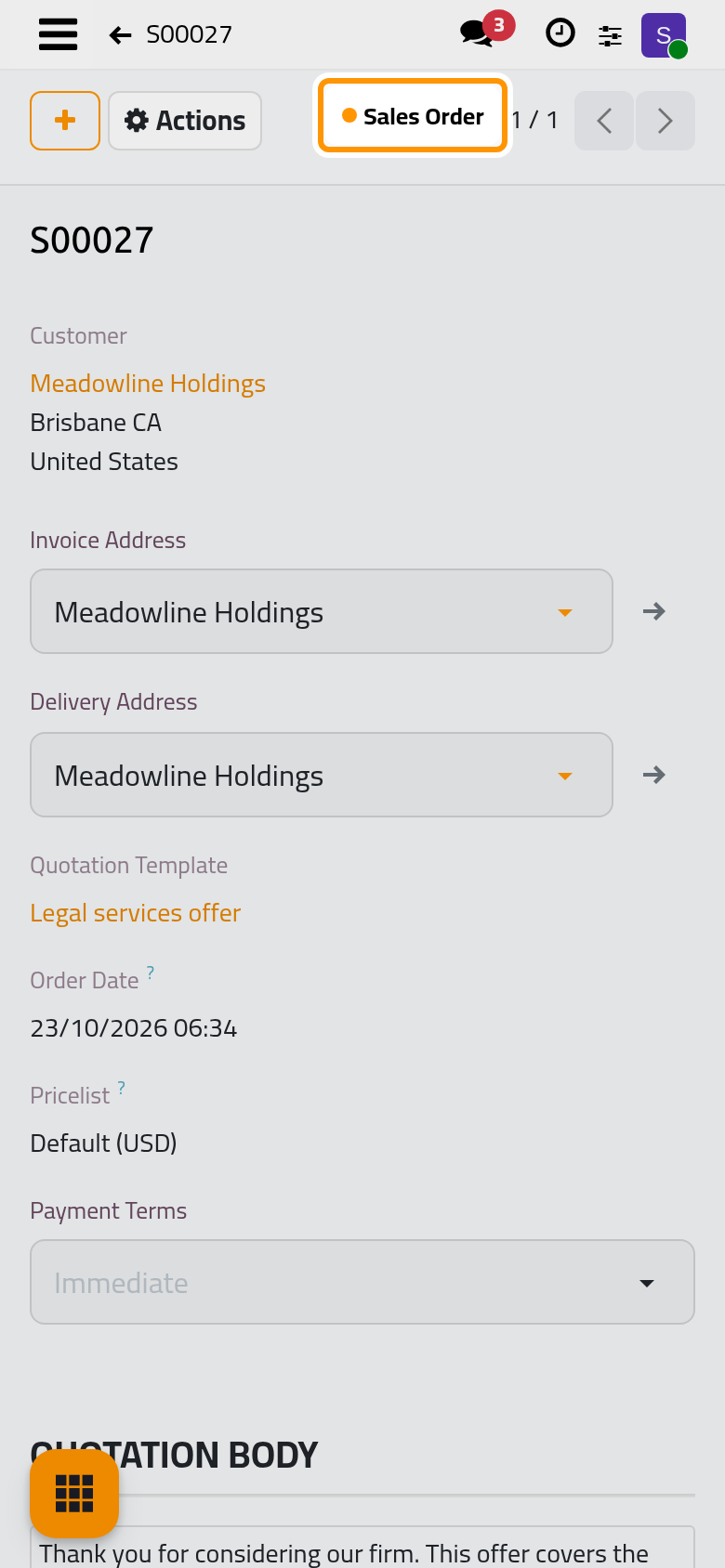
Click Back to edit mode. The quotation is now a Sales Order. The chatter records that the order was signed, by whom, with the signed PDF attached, followed by the confirmation e-mail sent to the client.
The order is ready to be invoiced: see Invoice a sales order.
FAQ
The client says the page does not let them sign.
Check the Expiration date: after it, the page shows This offer expired! and no longer offers to sign. Also check that Online signature is ticked and that the quotation was not cancelled or already confirmed. To give more time, change the Expiration date and send the quotation again.
Can the client change the quotation before signing?
Only the quantities of an optional section, described in Build a quotation template. For any other change, the client writes with Feedback; you edit the quotation and send it again.
Does the client receive an e-mail after signing?
Yes, the order confirmation, with the order attached as a PDF. The e-mails sent along the way are listed in Quotation automations.
Where is the signature kept?
In the chatter of the order, as the signed PDF, and on the client's page under Signature.
Was this page helpful?
Thank you for your feedback.