Approve and reimburse expenses
On this page
A submitted expense goes through two hands: the approver says yes or no, then the accountant posts it to the books. An expense the employee paid becomes a receipt in the employee's name, and paying that receipt is the reimbursement.
Before you start
- To approve or refuse, you need an access right on Expenses: Team Approver for the people you manage, All Approver for everyone, Administrator for everyone and for your own expenses too. Nobody else approves their own expense.
- To post, you need the Invoicing access right on Accounting, for all documents.
Approve or refuse
- Open . The list starts with the Submitted status ticked in the panel on the left; type in the search bar to find an expense or an employee.
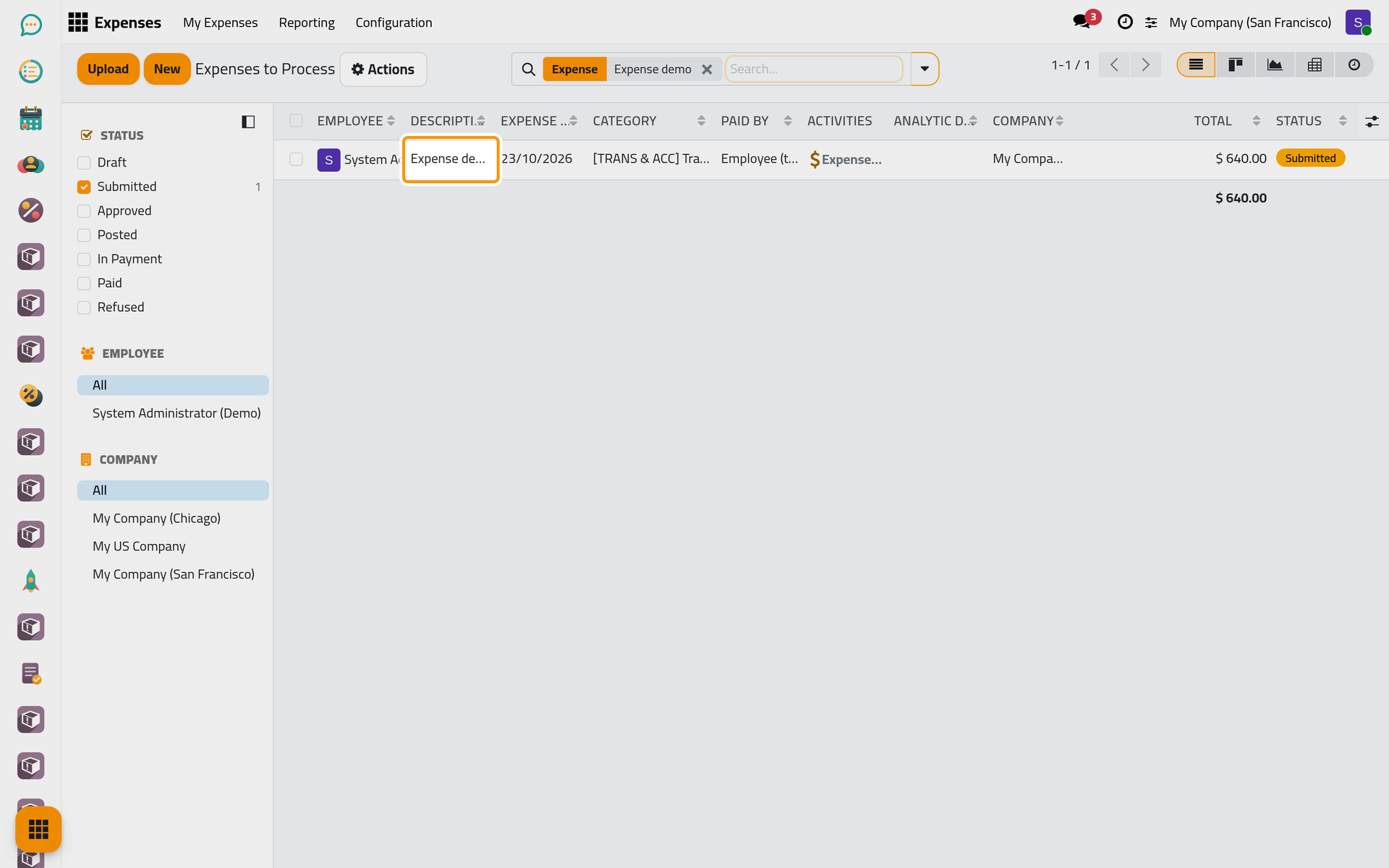
On a phone, the list opens below the search panel: scroll down to reach the expenses.
- Open the expense and check the category, the amount and the receipt.
- In Actions, choose Approve. The status turns to Approved and the approval activity is marked as done.
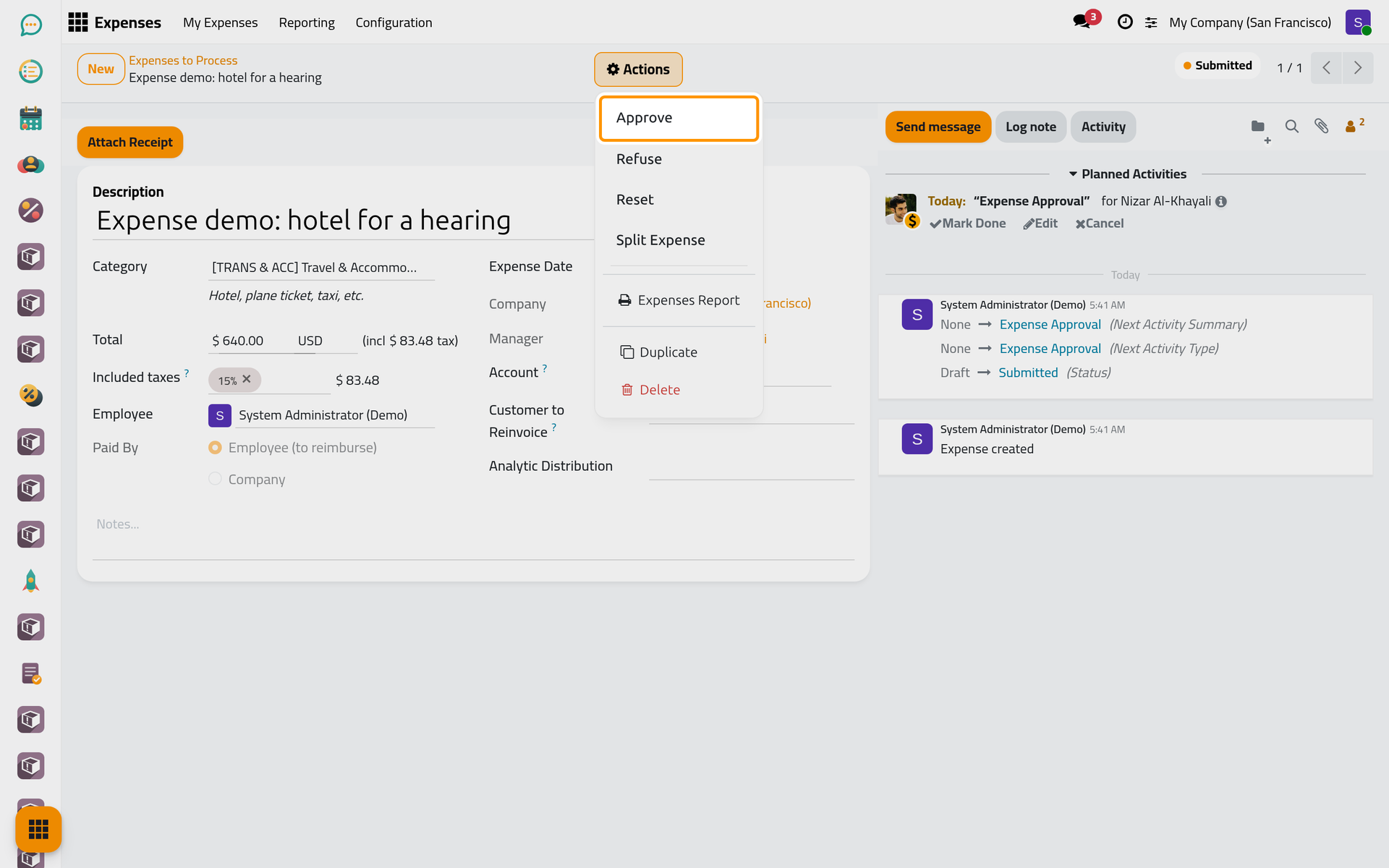
On a phone, Actions is the cog button at the top of the form.
To say no, choose Refuse in Actions instead, type the Reason in the Refuse Expense dialog and click Refuse: the status turns to Refused and the reason is posted on the expense for the employee. On a computer, several expenses can also be ticked in the list and approved with Approve above it.
Post the entry
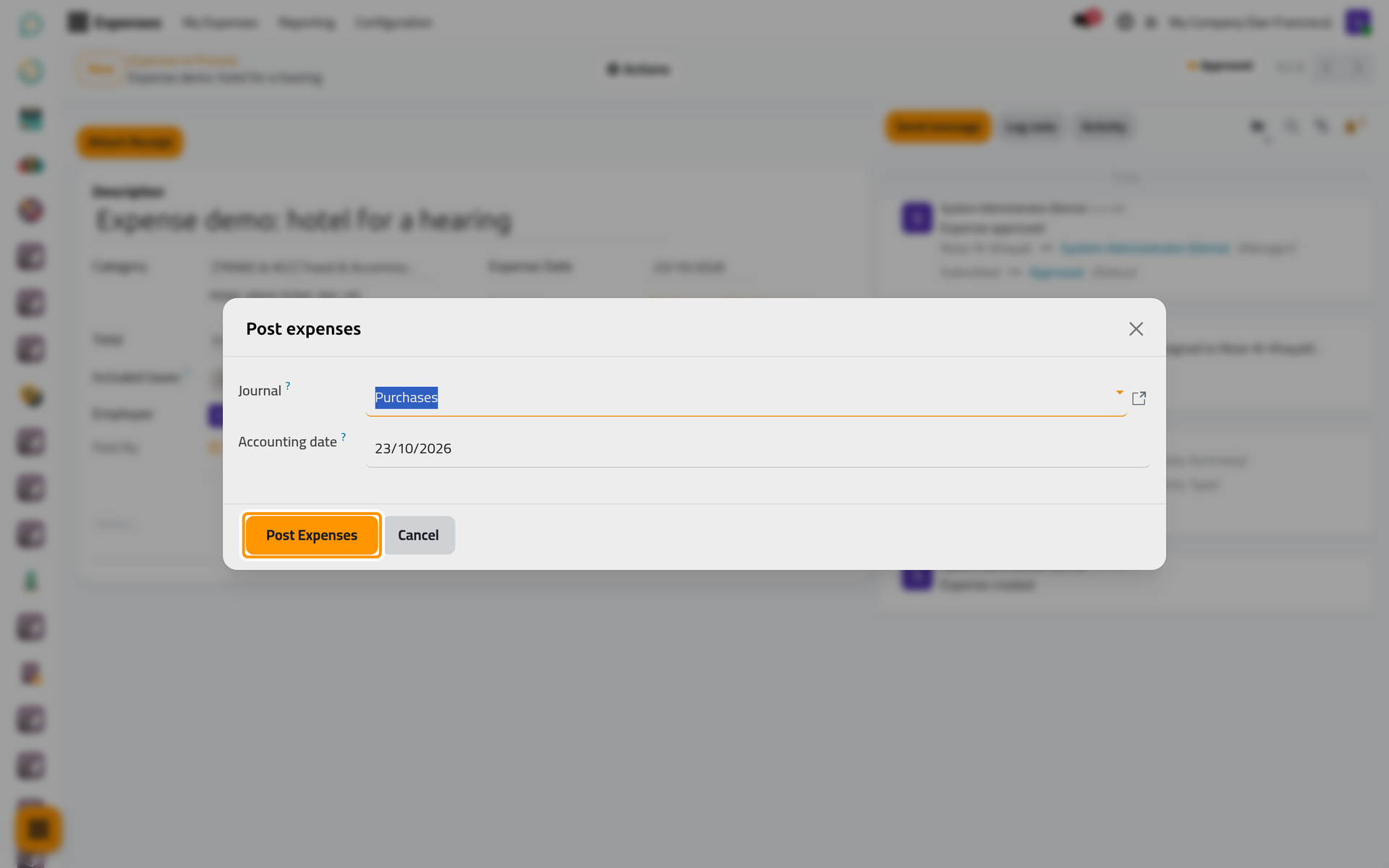
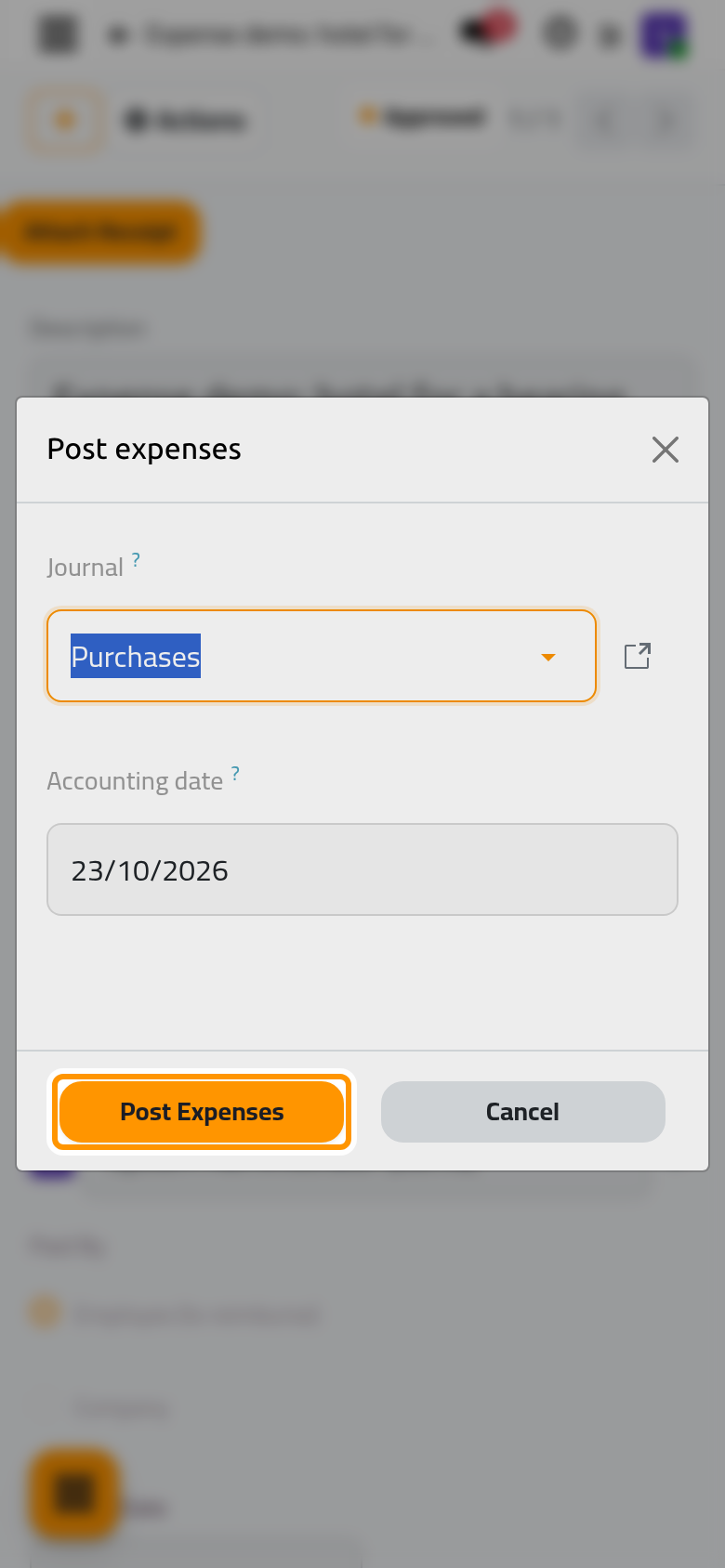
- In Actions, choose Post Journal Entries. The dialog takes the Journal, a purchase journal (the one of Expenses settings, or the first purchase journal when none is set), and the Accounting date, which becomes the date of the receipt. Click Post Expenses.
- The Purchase Receipt opens, already posted: the employee is its vendor, and it is numbered and listed with the bills of that journal.
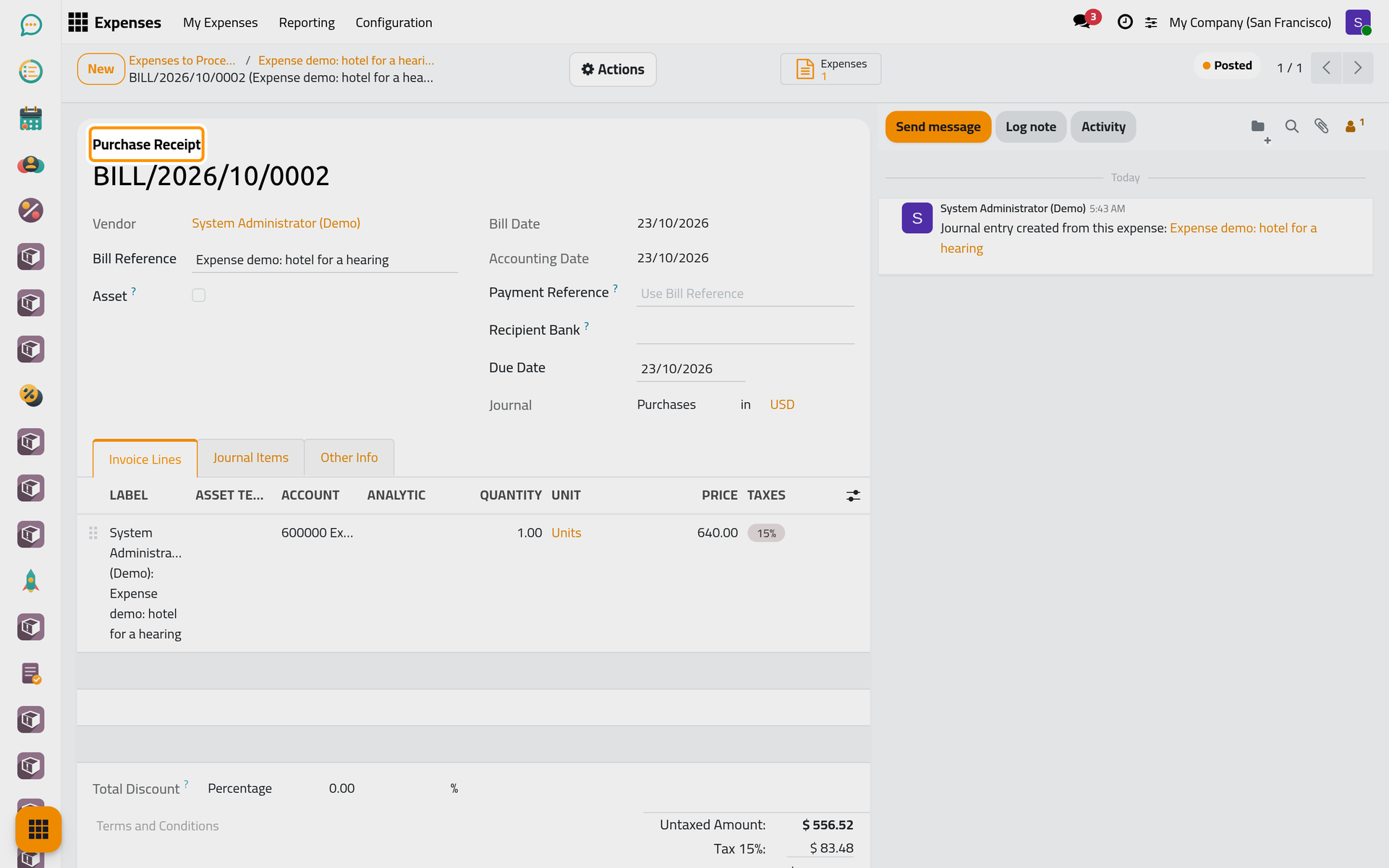
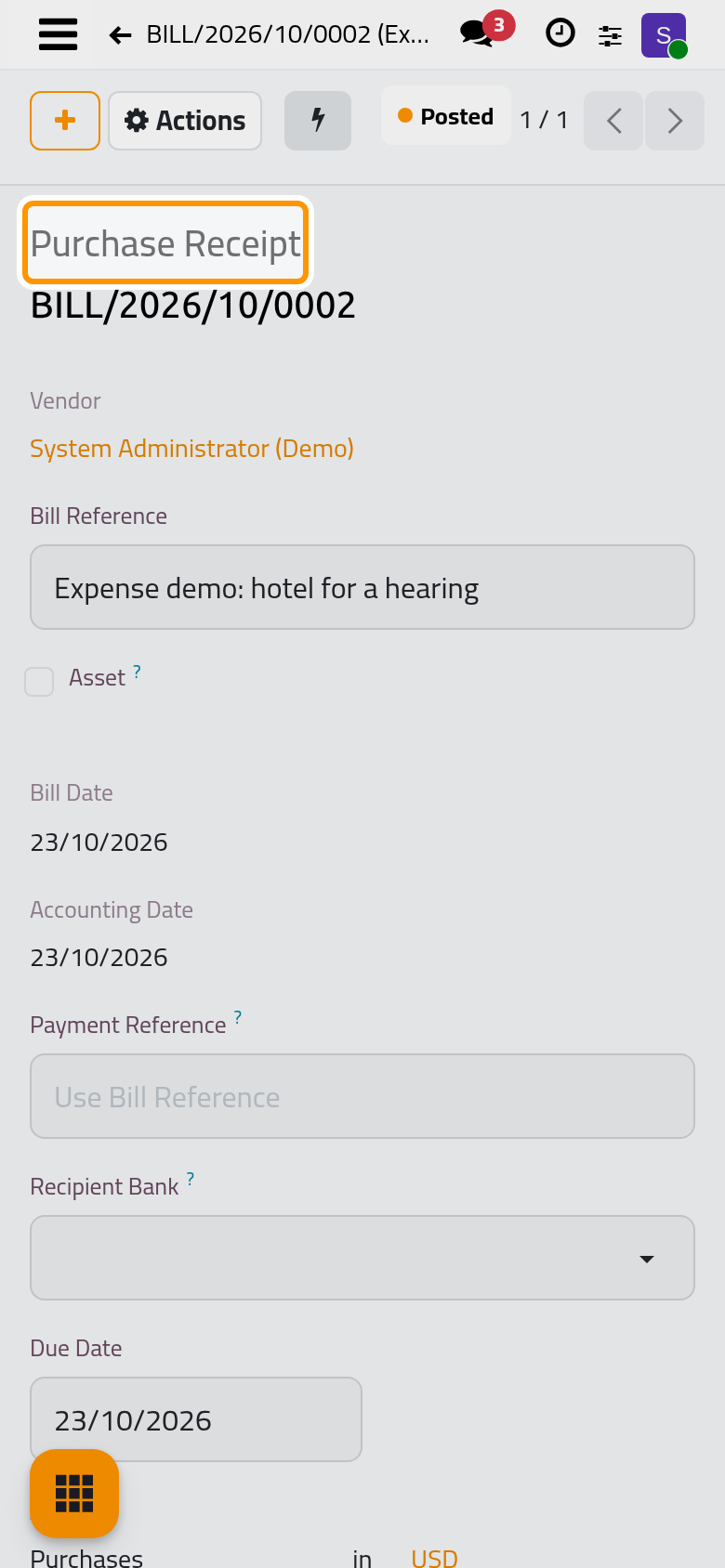
An expense the company paid needs no receipt: posting it creates and posts its payment at once, and its status goes straight to Paid.
Reimburse the employee
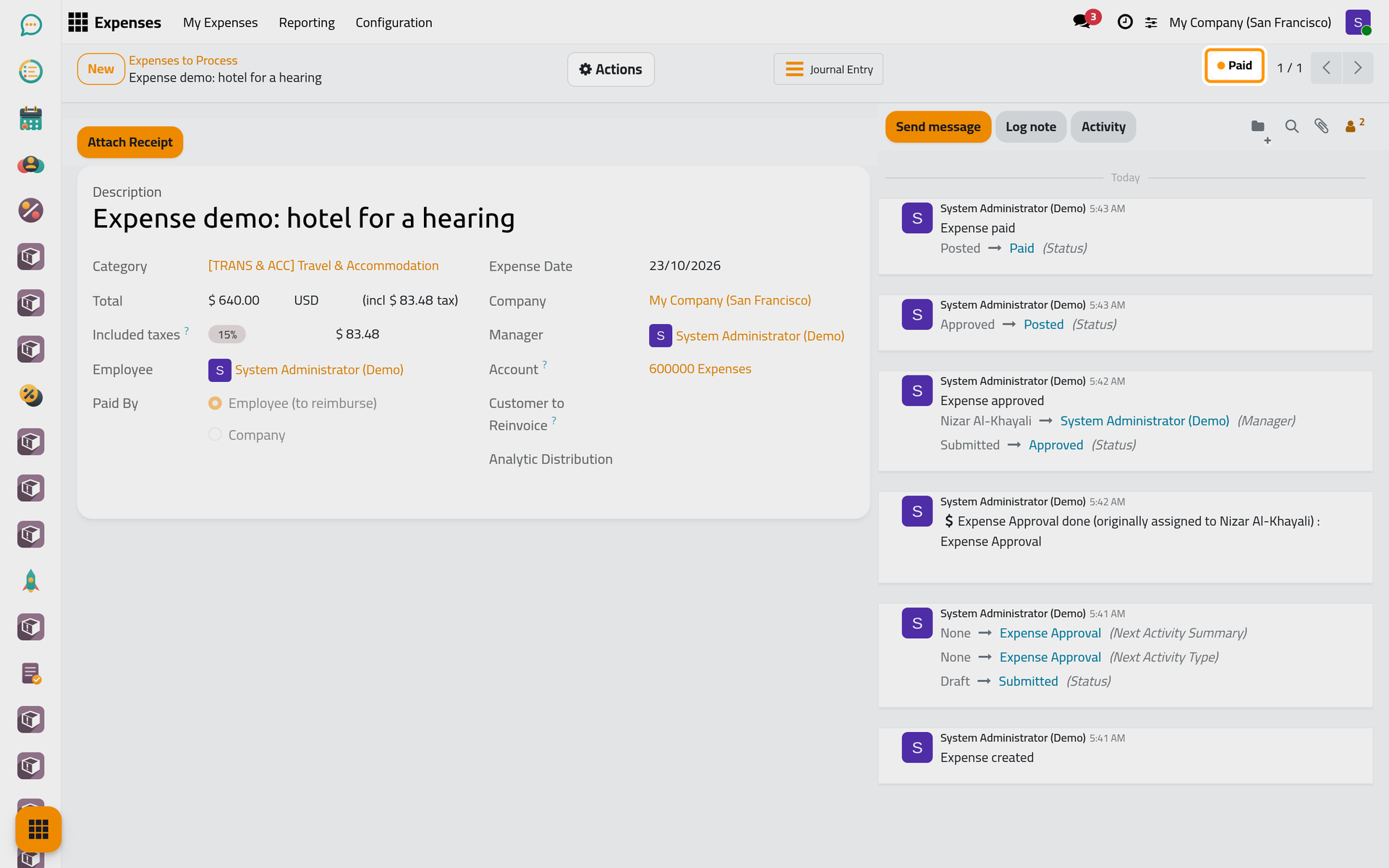
- On the receipt, choose Pay in Actions and click Create Payment, as for any bill. The receipt carries the Paid ribbon.
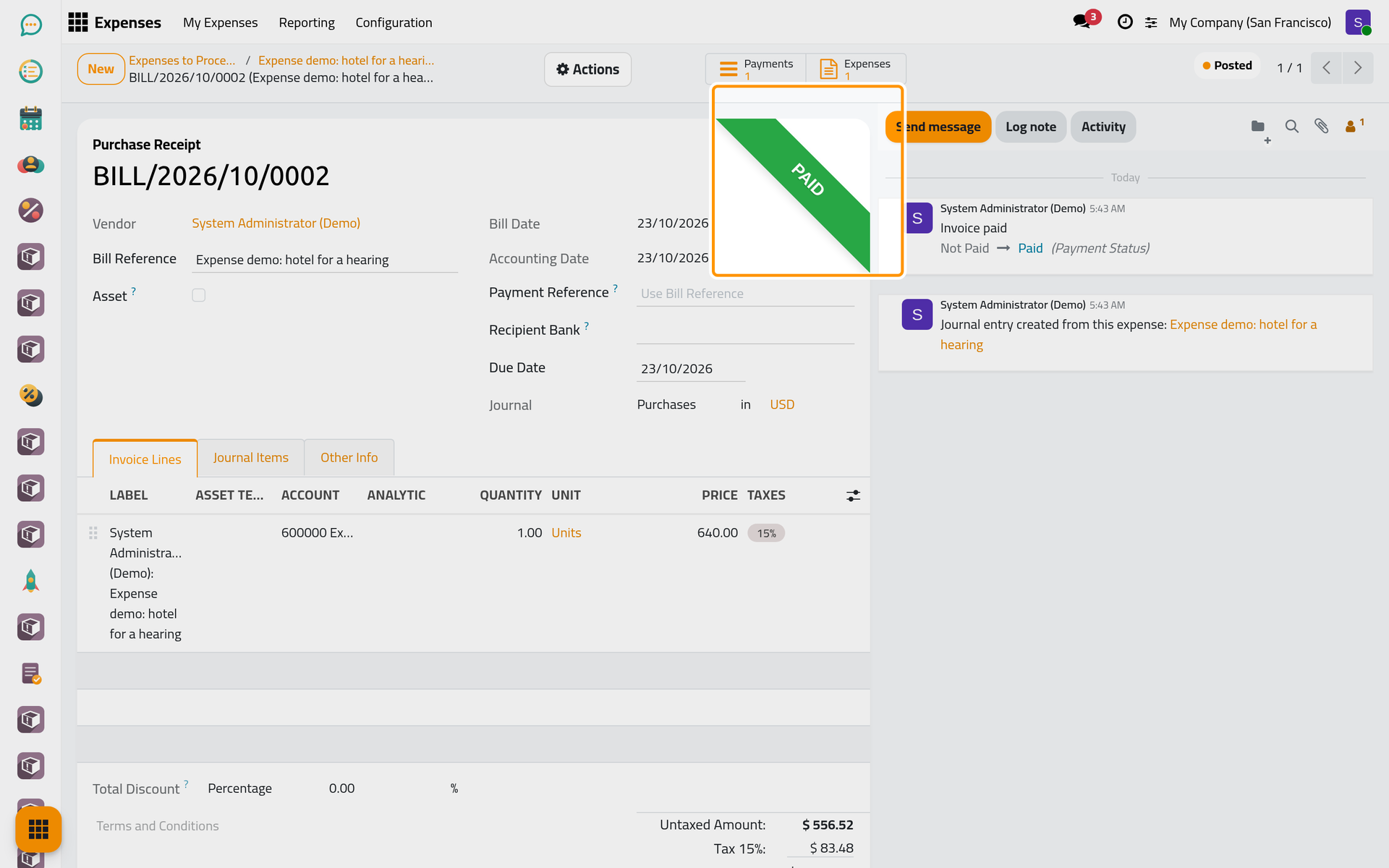
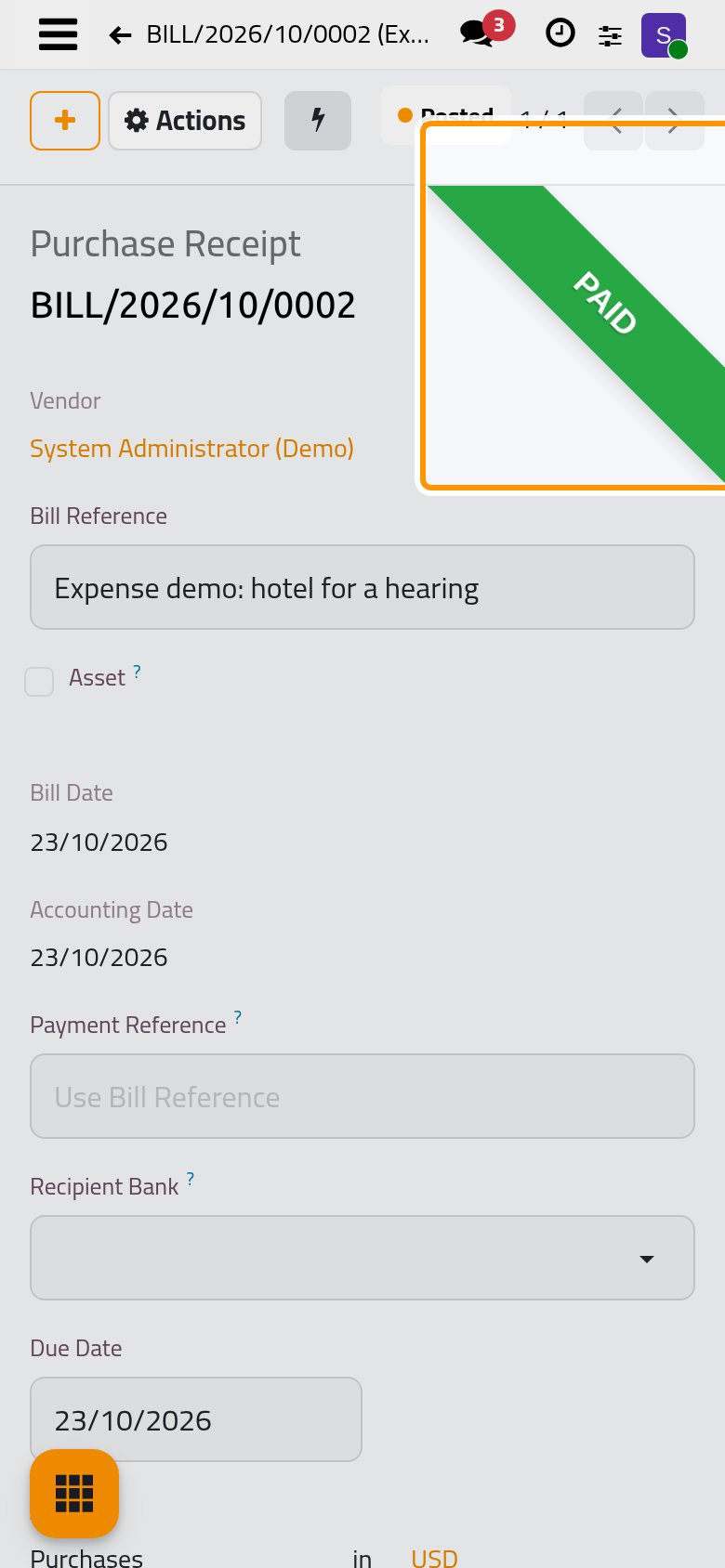
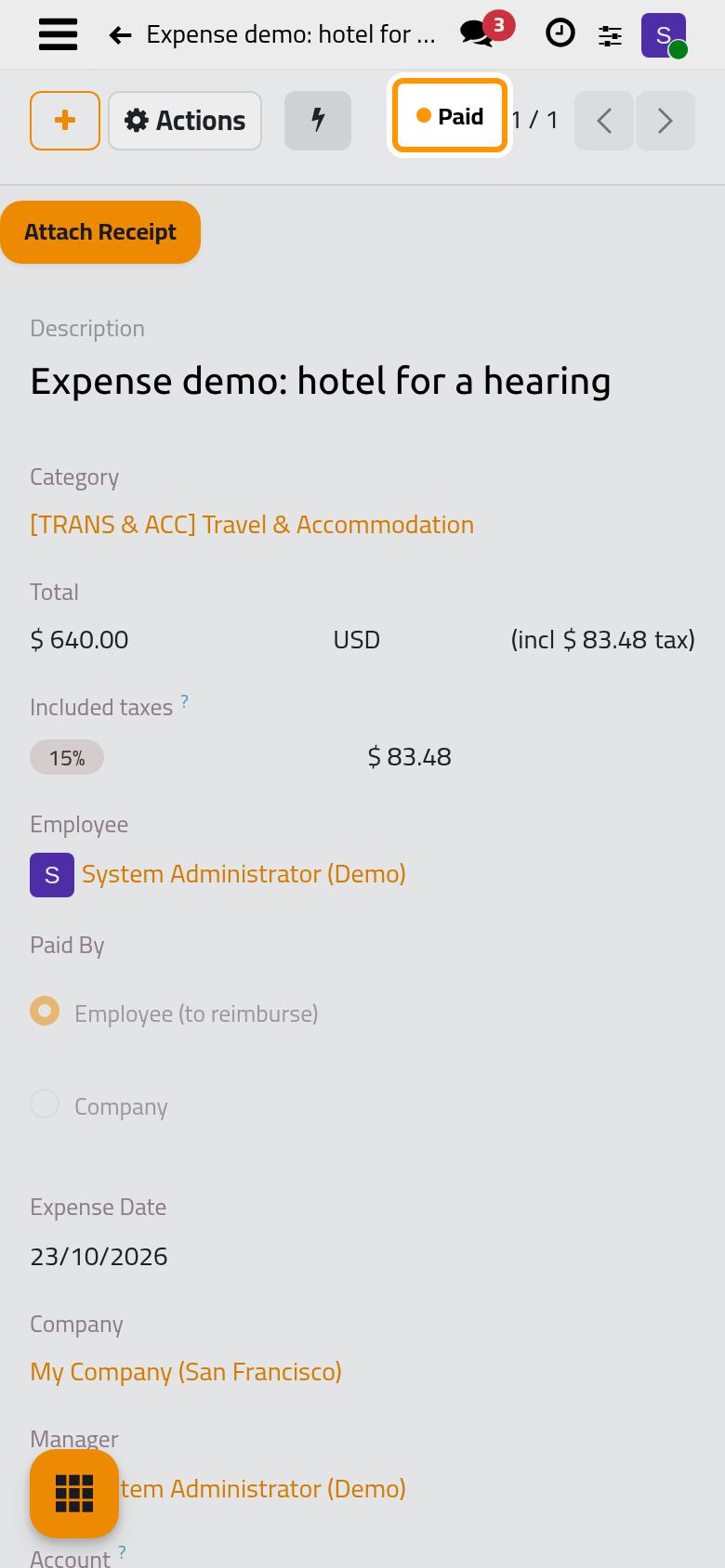
- Go back to the expense with the link at the top: its status is Paid.
Accountants who also have All Approver on Expenses have their own entry point, , which opens with the expenses to post and to pay; several receipts can be paid at once from the bills list, as in Pay vendor bills.
FAQ
Approve is not in the Actions menu.
Your access right does not cover this expense: it is your own, or the employee is not one you manage. Someone with All Approver or Administrator can approve it.
Can I undo an approval?
Reset in Actions takes the expense back to draft, and the employee submits it again. Once the receipt is posted and not yet paid, set the receipt back to draft first with Reset to Draft; Reset on the expense then deletes that draft.
Where do I find the entry of an expense?
The Journal Entry button at the top of the expense opens it.
Do approvers get reminders?
Yes, a weekly e-mail tells each approver that expenses wait, with a link to them; see Vendor bills and expenses automations.
Was this page helpful?
Thank you for your feedback.