Your first vendor bill
On this page
A vendor bill records what the company owes a supplier: the translation office, the court-filing agent, the landlord, the shop that sold the office mats. This walk-through records one bill, confirms it and pays it in full, with the demo vendor Ready Mat. Nothing here needs the accounting configuration: the purchase journal, the expense account and the bank journal are already in place.
Before you start
- You need the Invoicing access right on Accounting. Bills, refunds and payments are open to it; the configuration is not.
- The vendor must exist as a contact. A new one can be created from the Vendor field itself with Create and edit....
Step 1: open the bills
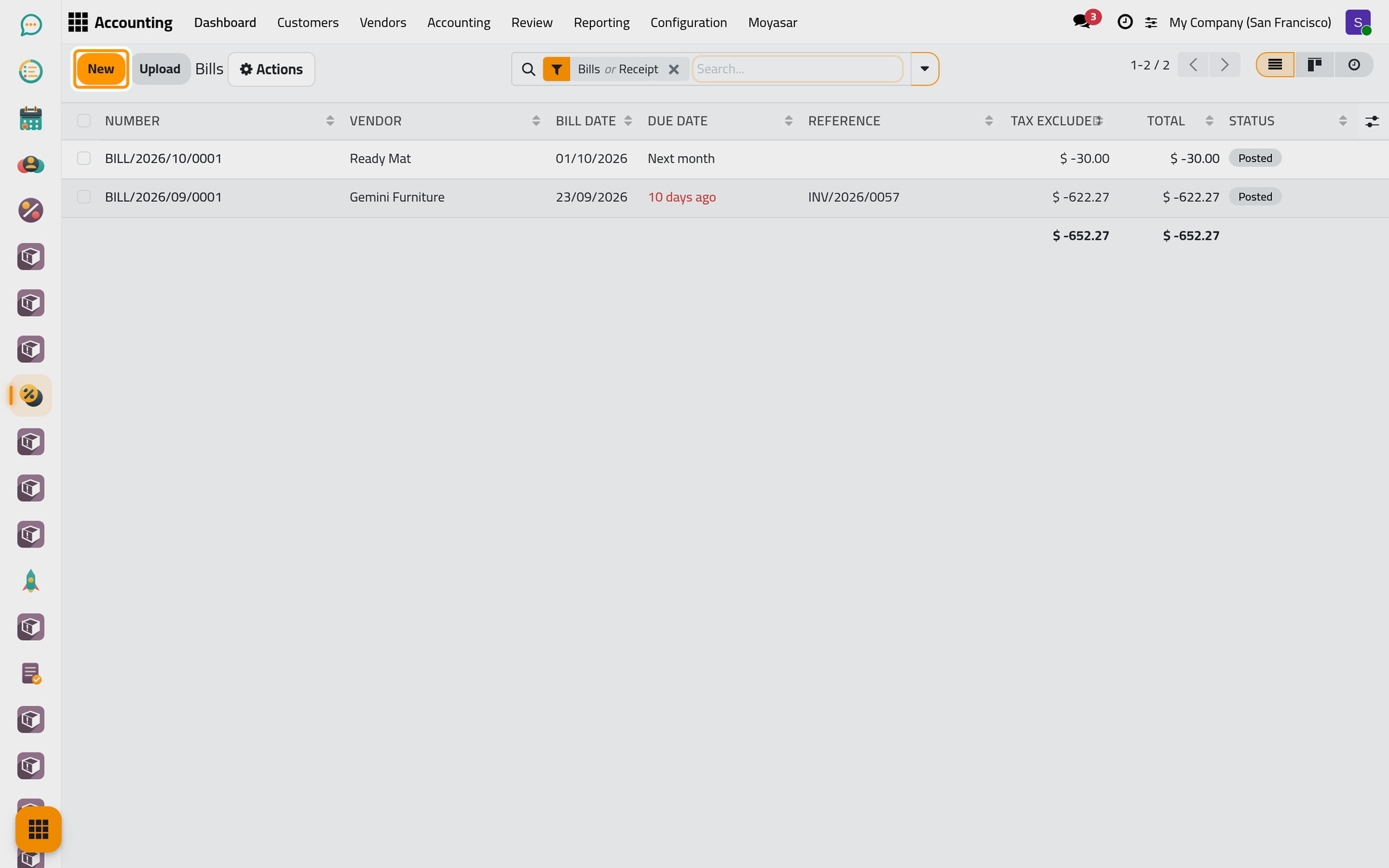
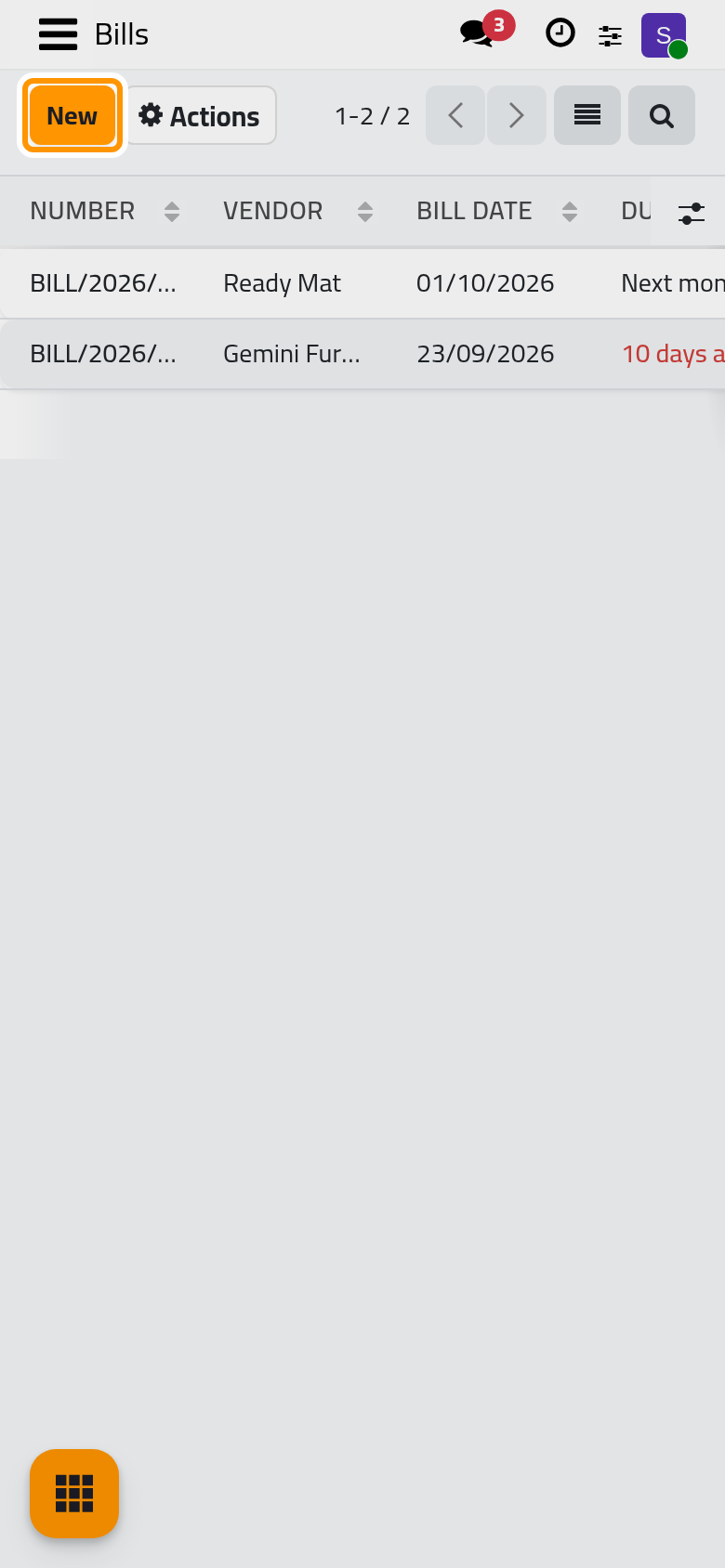
Open . The list shows each bill with its Number, Vendor, Bill Date, Due Date, Reference, amounts and Status; the search starts with the Bills and Receipt filters ticked, so the refunds have a menu of their own.
Upload, next to New, turns a file into a draft bill: an electronic invoice file fills in the vendor and the lines by itself, while any other PDF is attached to an empty draft that you complete by hand. Here, click New.
Step 2: the vendor and their reference
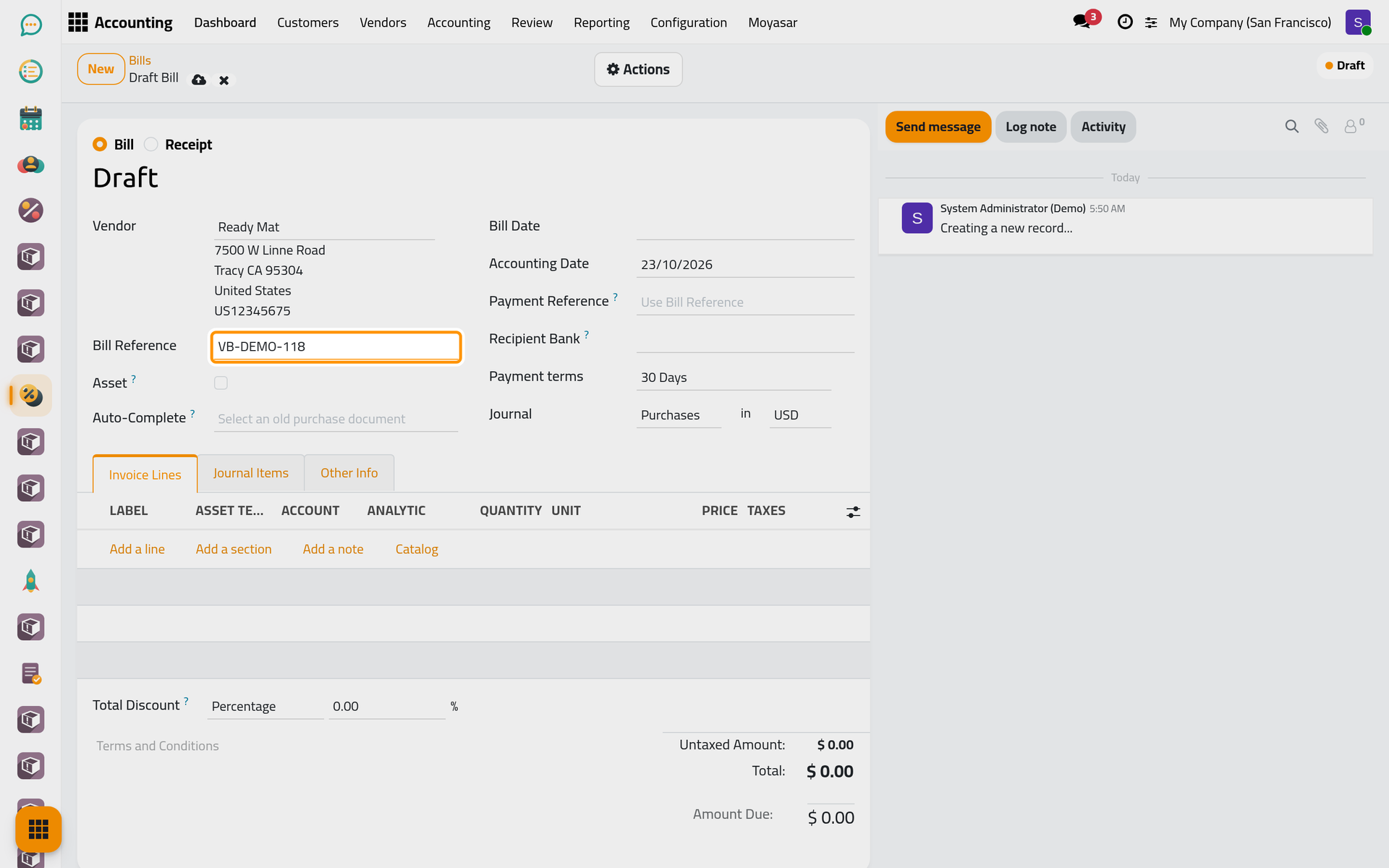
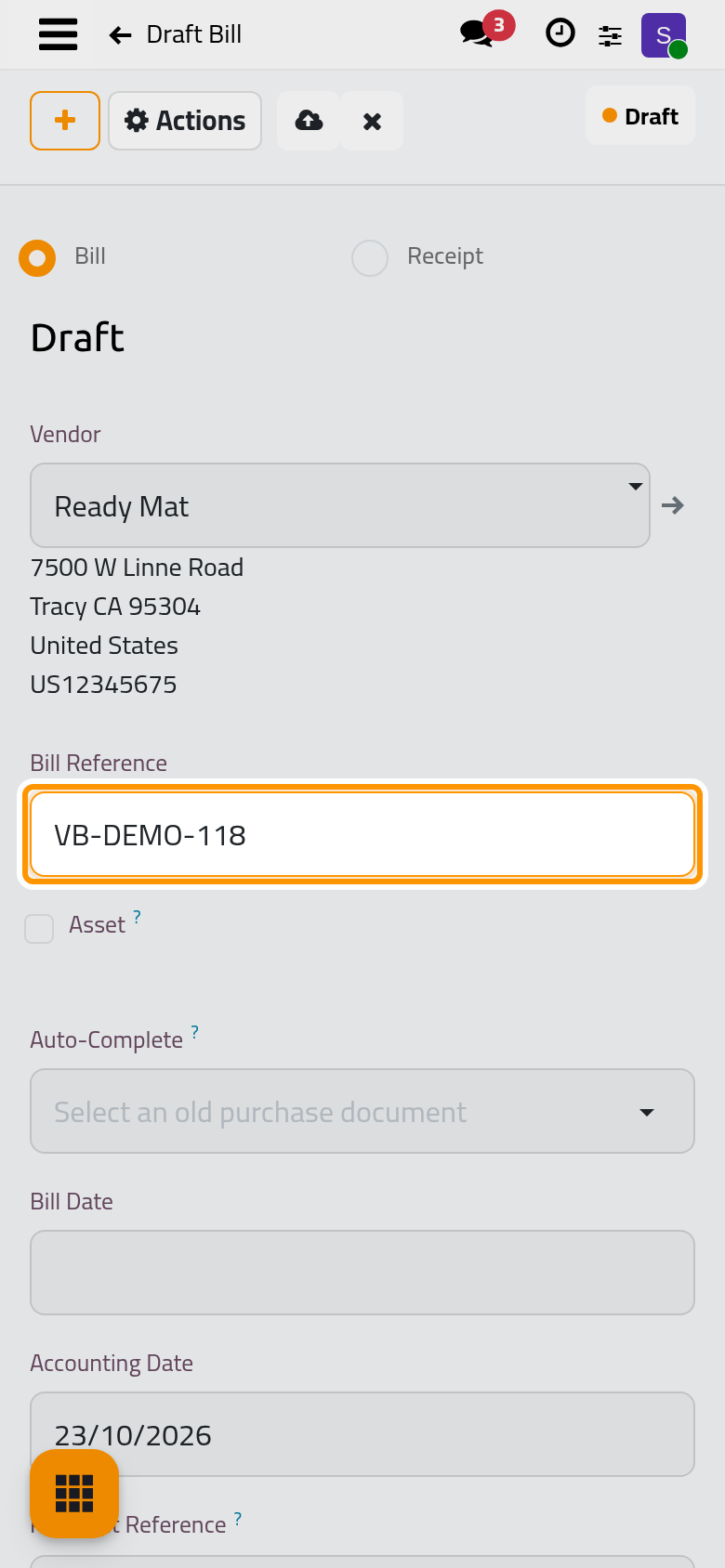
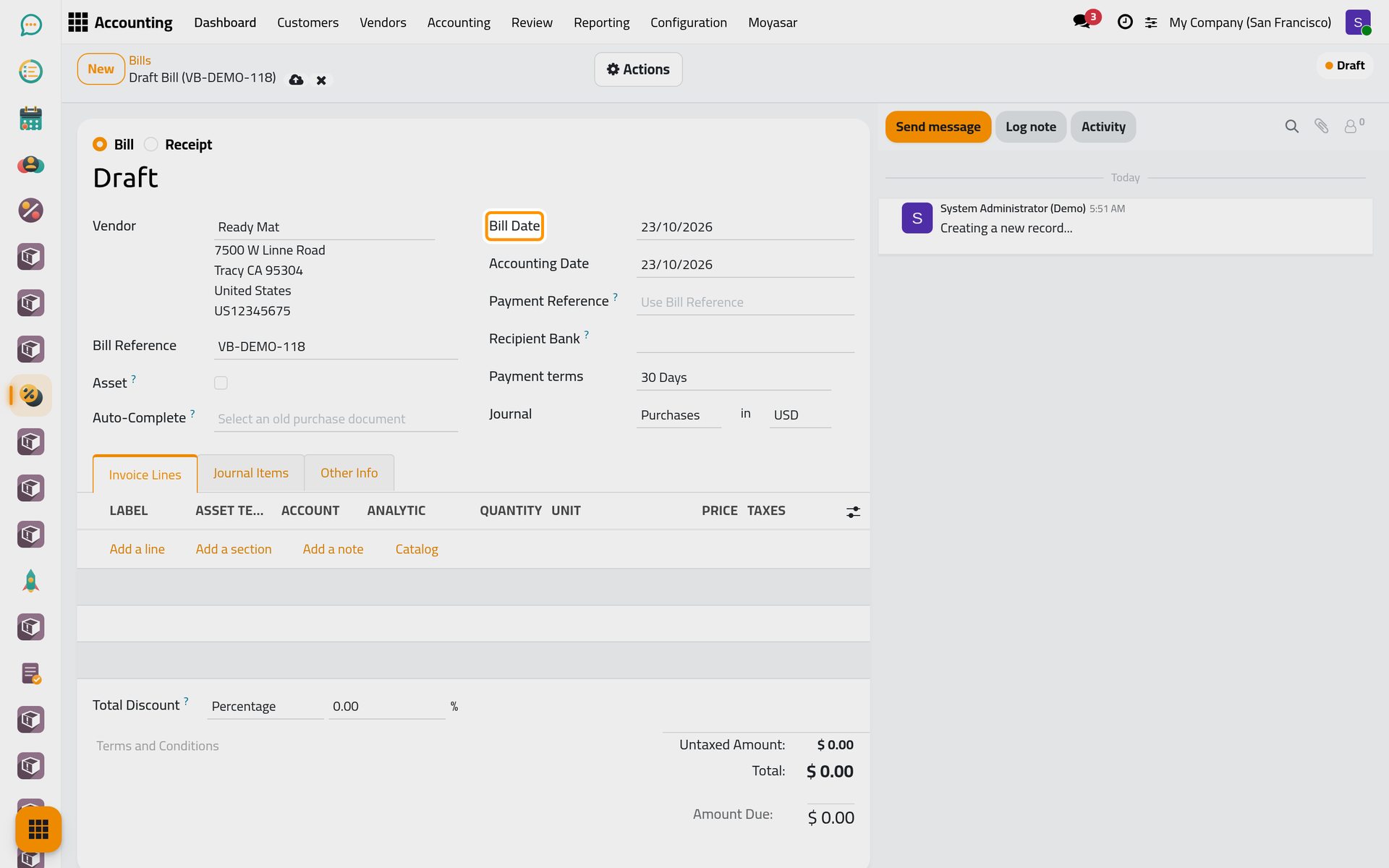
Type the first letters of the vendor in Vendor and pick Ready Mat; its address appears under the name. In Bill Reference, type the number printed on the vendor's own bill. That number is how the vendor will recognise your payment: it is proposed as the memo of the payment later on.
Step 3: the dates
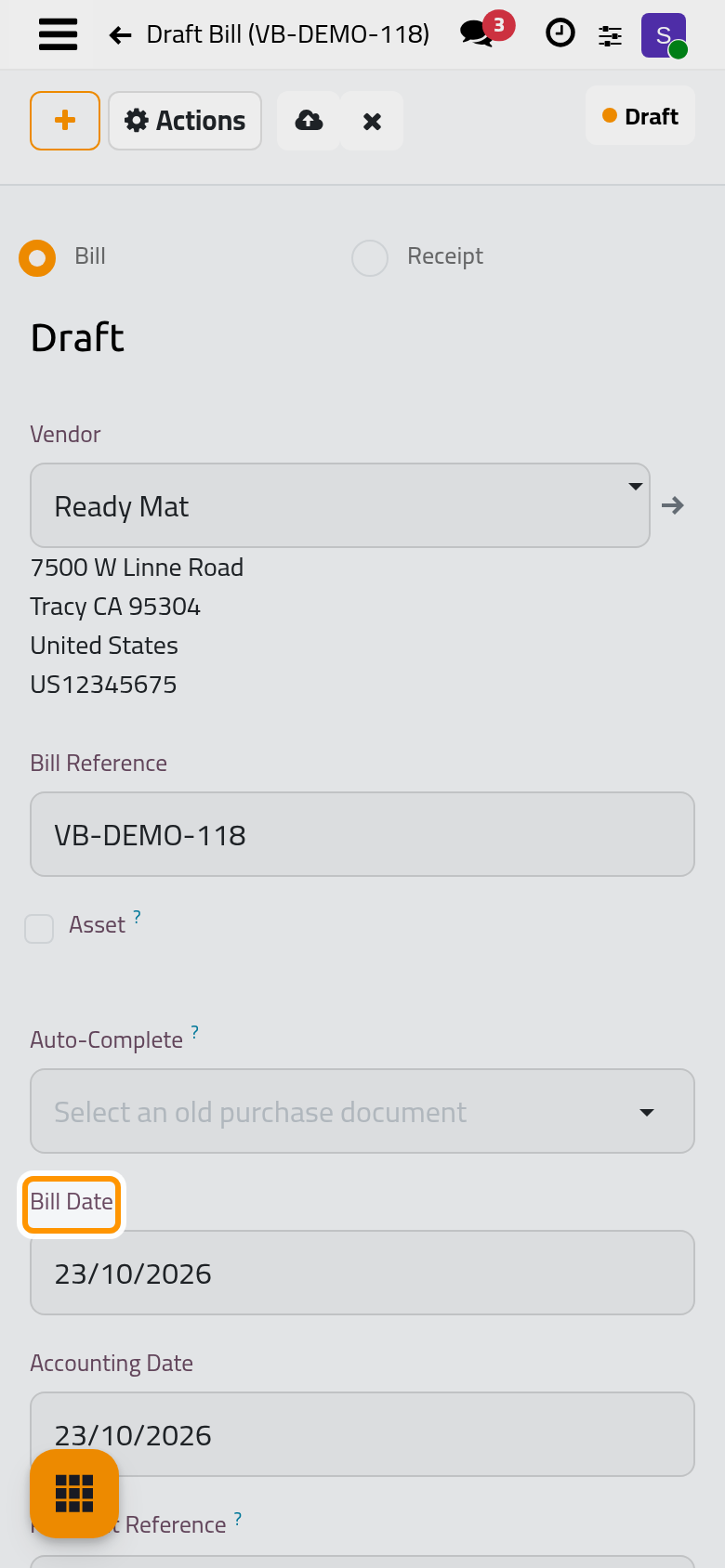
Bill Date is the date printed on the vendor's bill, and it is required: a bill cannot be confirmed without it. Accounting Date follows it unless you change it; it decides the period the bill is booked in.
The due date comes from the vendor. Ready Mat has the payment terms 30 Days, so the form shows Payment terms and computes the due date from the bill date. For a vendor without terms, the form shows Due Date with or next to a payment terms field: fill one or the other.
Step 4: the line
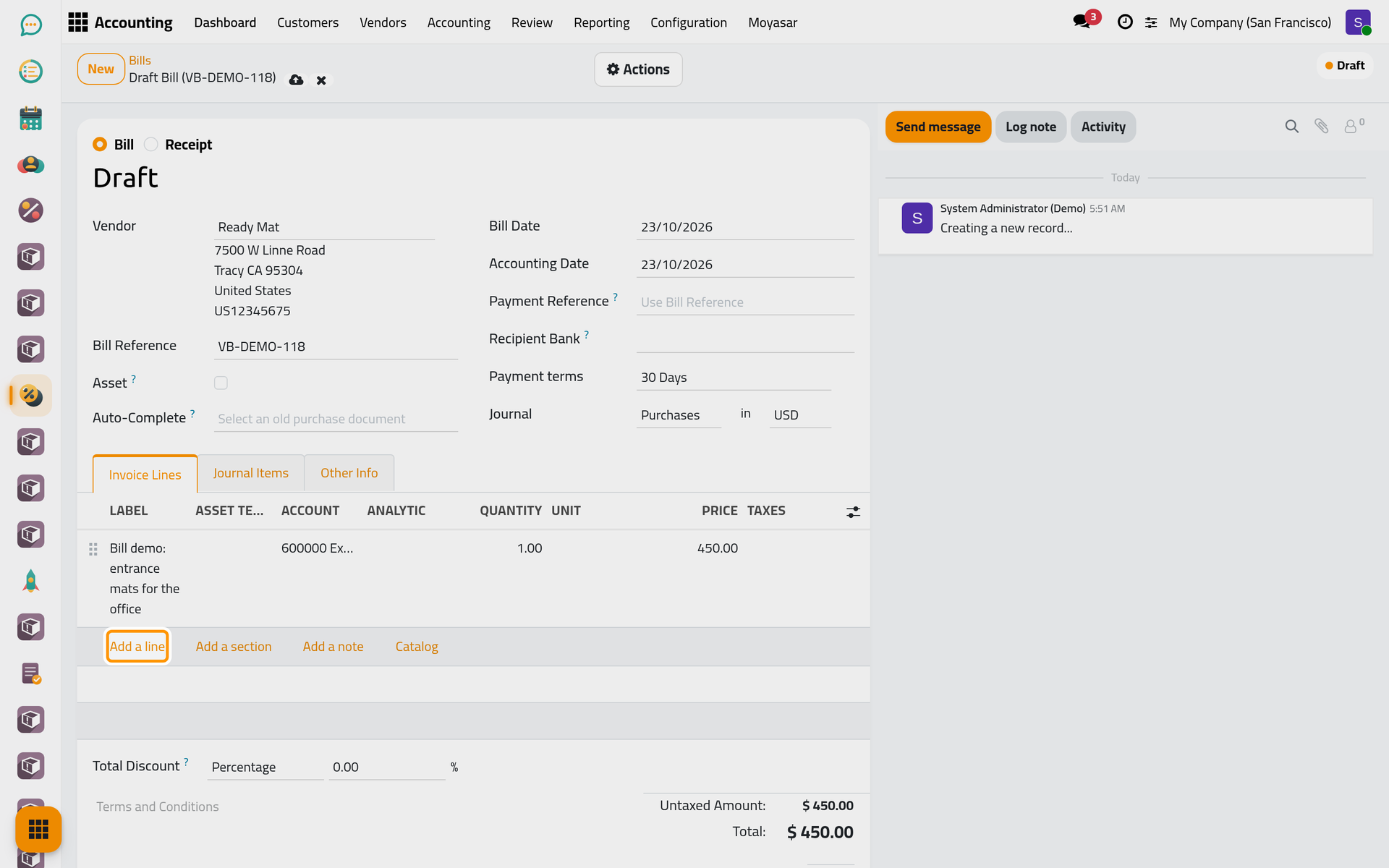
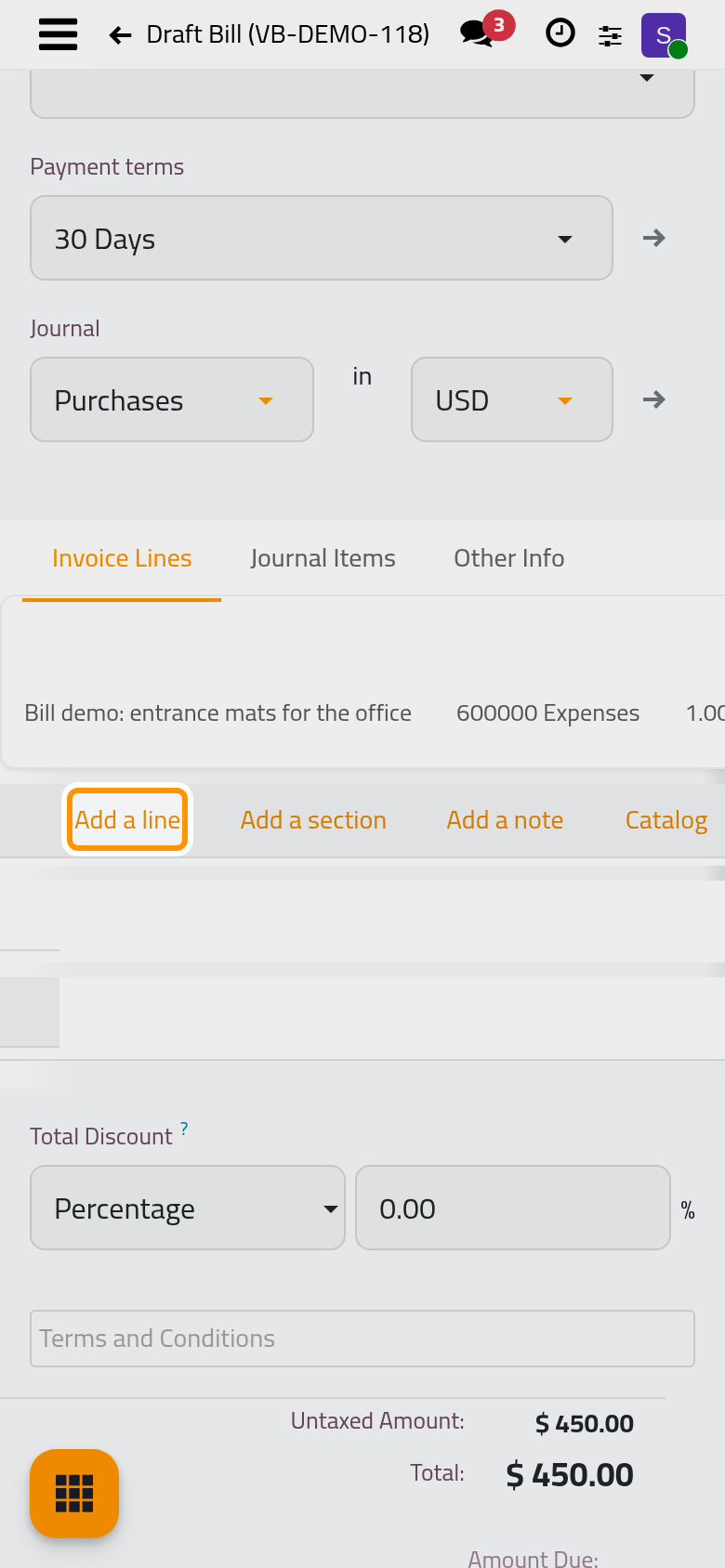
In the Invoice Lines tab, click Add a line, type what was bought in Label, and the amount in Price. The Account is filled from the purchase journal (an expense account), Quantity starts at 1.00, and Taxes takes the purchase taxes set on that account, if it has any; a line with a product takes the product's purchase taxes instead. Add as many lines as the vendor's bill has; the totals under the lines follow.
Taxes, accounts and journals belong to the accounting setup: see Set the default taxes. The Total Discount fields under the lines are explained with the customer invoices, in Customer invoices.
Step 5: confirm
Open Actions and choose Confirm. The bill gets its number (BILL/ followed by the year, the month and a sequence) and moves from Draft to Posted: its entry is now in the purchase journal, and it counts in the amount the company owes the vendor.
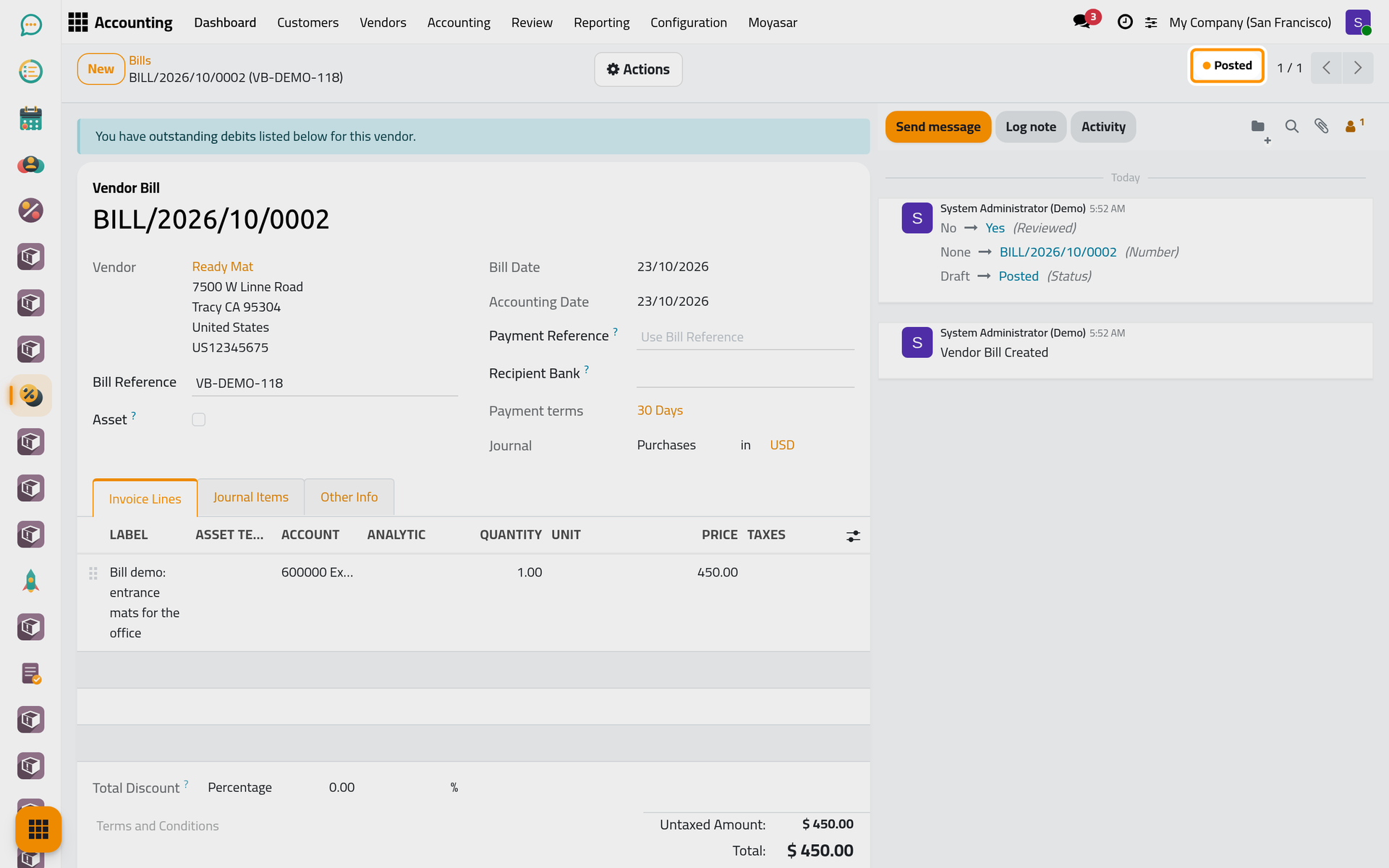
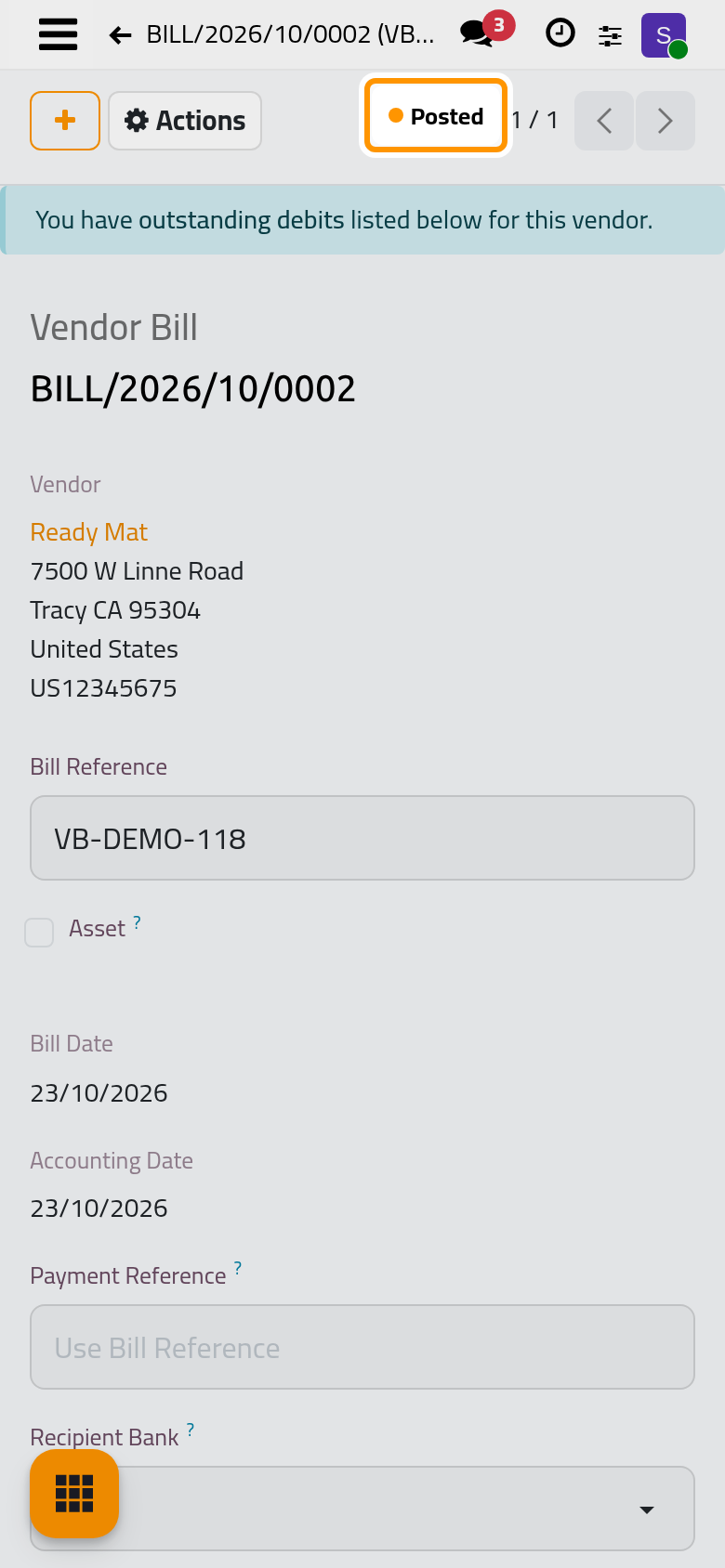
The blue banner at the top appears only when the vendor already owes the company something: here Ready Mat has an open refund, listed under the totals. Record a vendor refund shows how to use it.
Step 6: pay
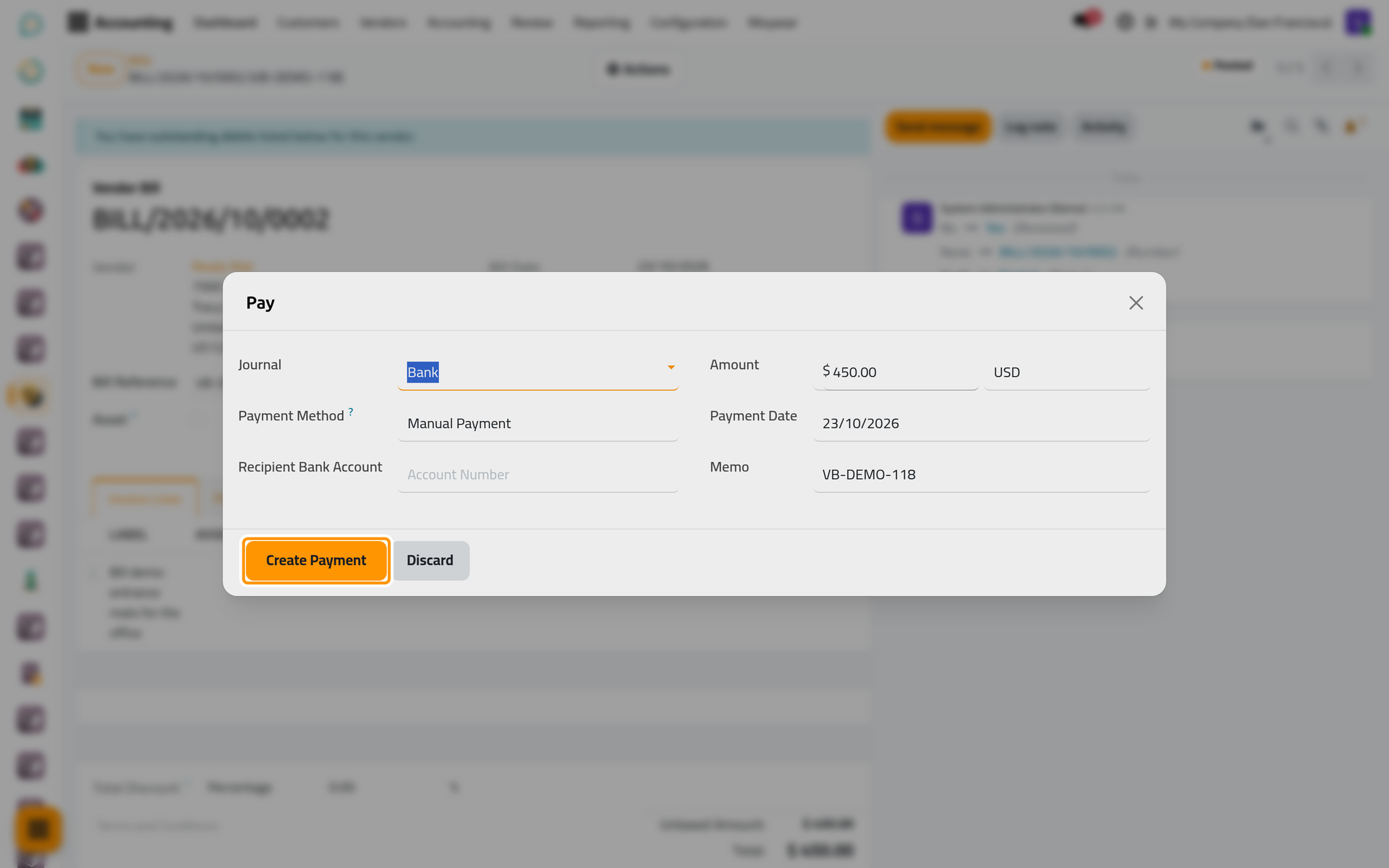
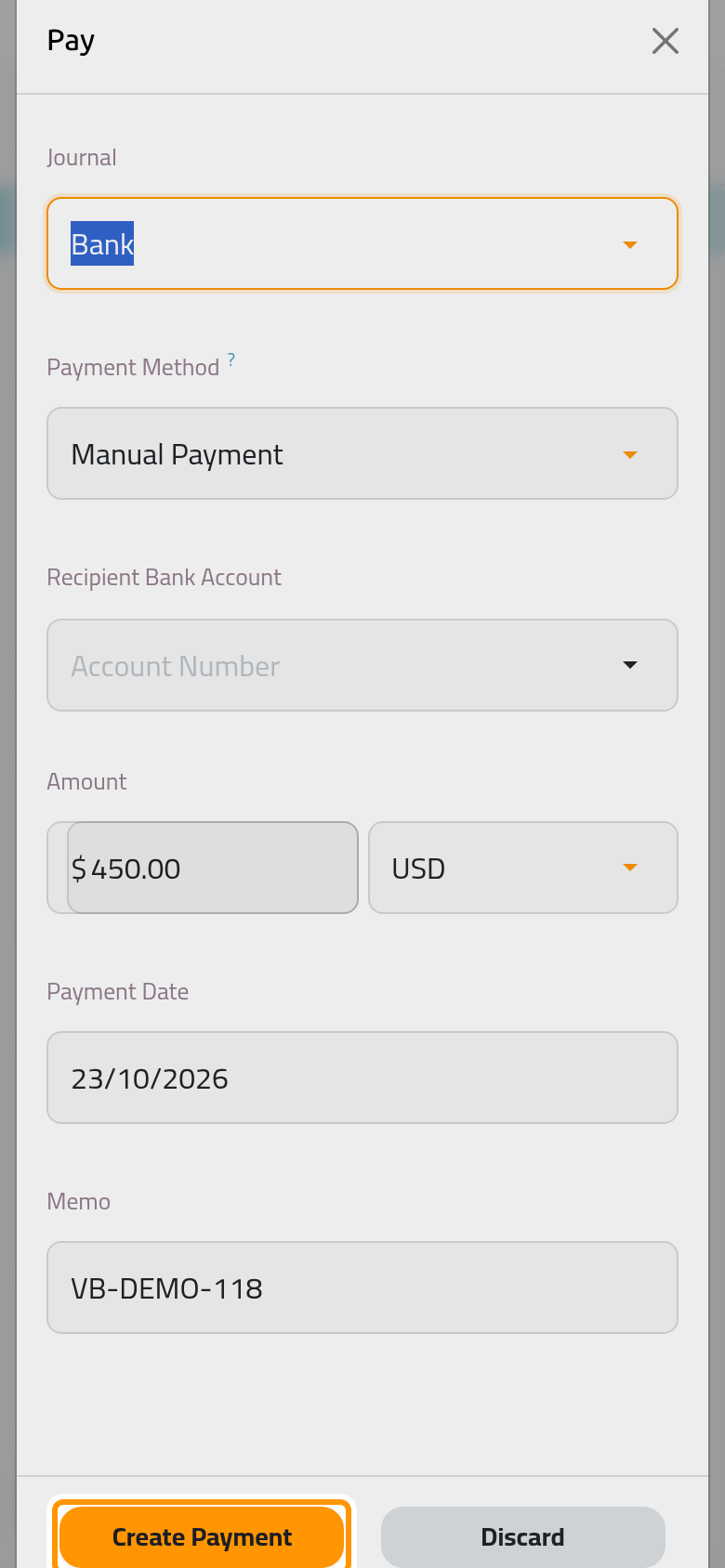
Open Actions again and choose Pay. The dialog proposes:
- Journal: the bank journal the money leaves from (Bank); choose a cash journal for a cash payment.
- Payment Method: Manual Payment, a transfer or a payment made outside the platform.
- Amount: the amount still due, in full.
- Payment Date: today.
- Memo: the Bill Reference typed in step 2.
Click Create Payment.
Step 7: the bill is paid
The bill now carries a green Paid ribbon, and a Payments button at the top opens the payment. The vendor's balance is back to what it was before the bill.
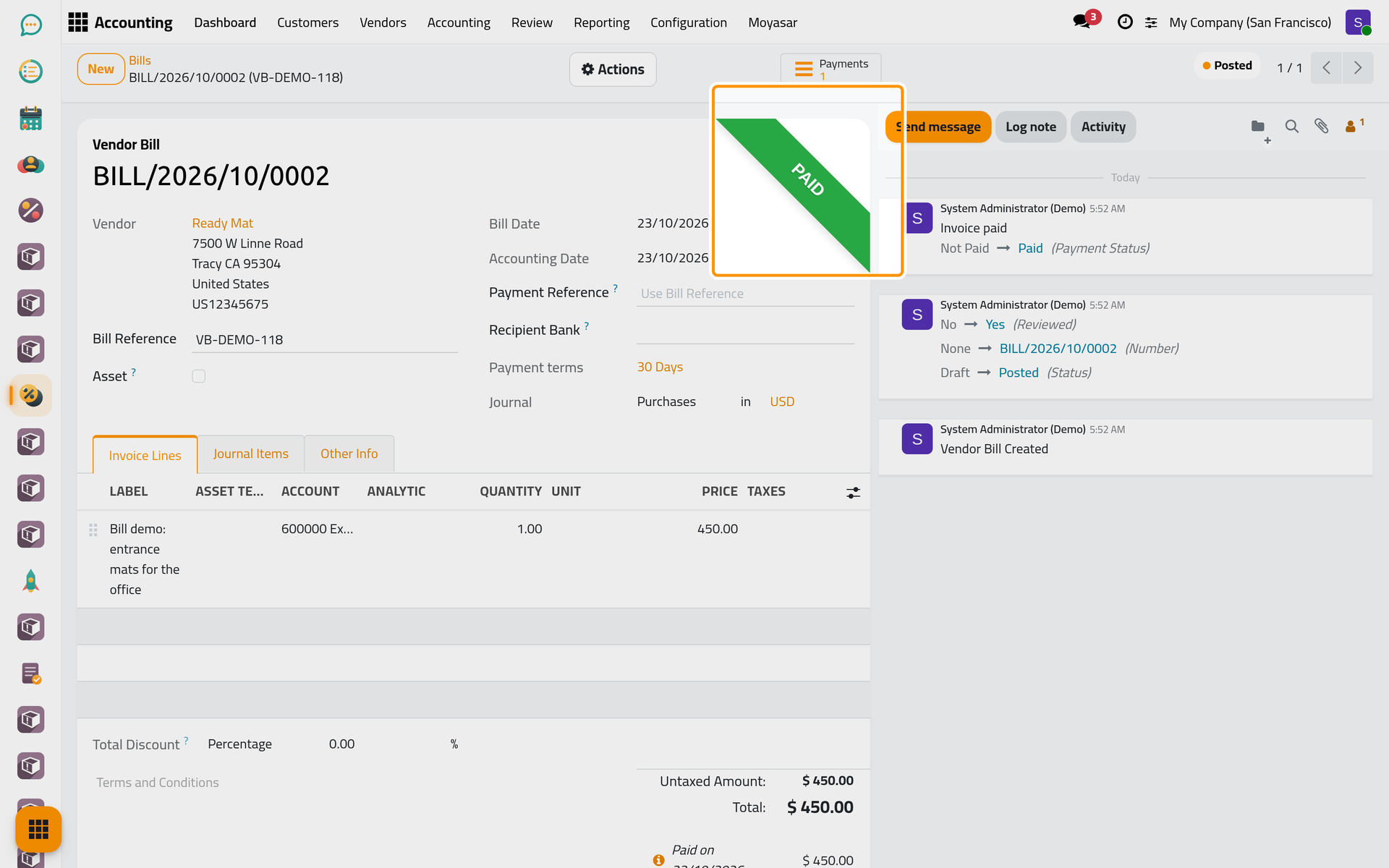
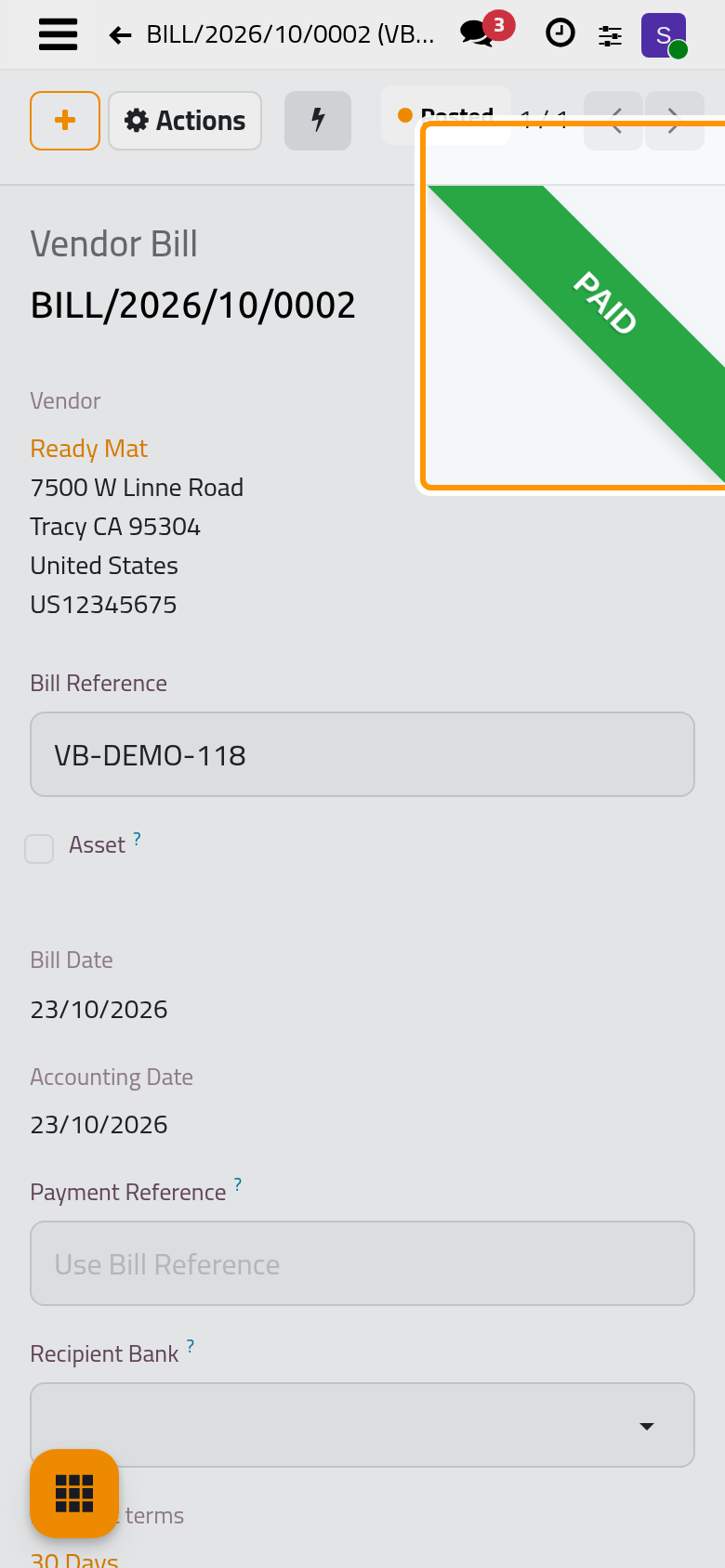
The payment is matched later with its bank statement line, in Banks, cash and currencies; the bill reads Paid from the moment the payment is created, matched or not.
What you have seen
A bill goes from Draft to Posted when you confirm it, and from not paid to Paid when a payment covers it. The user guide goes further: Pay vendor bills pays several bills at once, Record a vendor refund handles what a vendor gives back, and Submit an expense starts the other half of this app, the money employees spend for the firm. How bills and expenses fit together explains the whole picture.
Was this page helpful?
Thank you for your feedback.