Submit an expense
On this page
An expense is money an employee spends for the firm: a taxi to the court, a hotel for a hearing in another city, court fees paid in cash. Each expense is recorded, submitted and approved on its own; there is no expense report gathering several of them.
Before you start
- Every user can record and submit their own expenses; no access right on Expenses is needed for that.
- Your user is linked to an employee: the form fills Employee with it, and the figures above the list follow it.
Record the expense
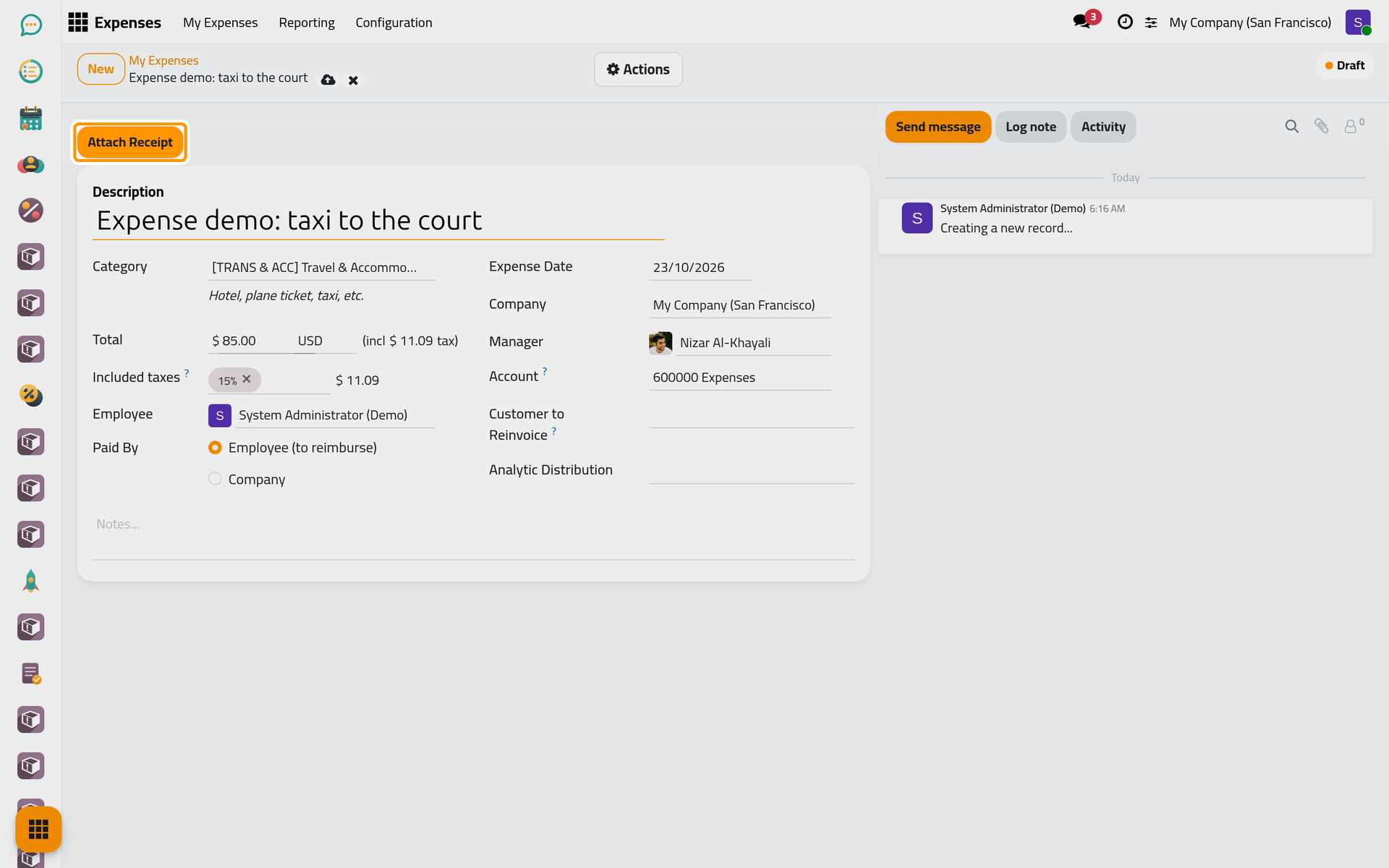
- Open and click New.
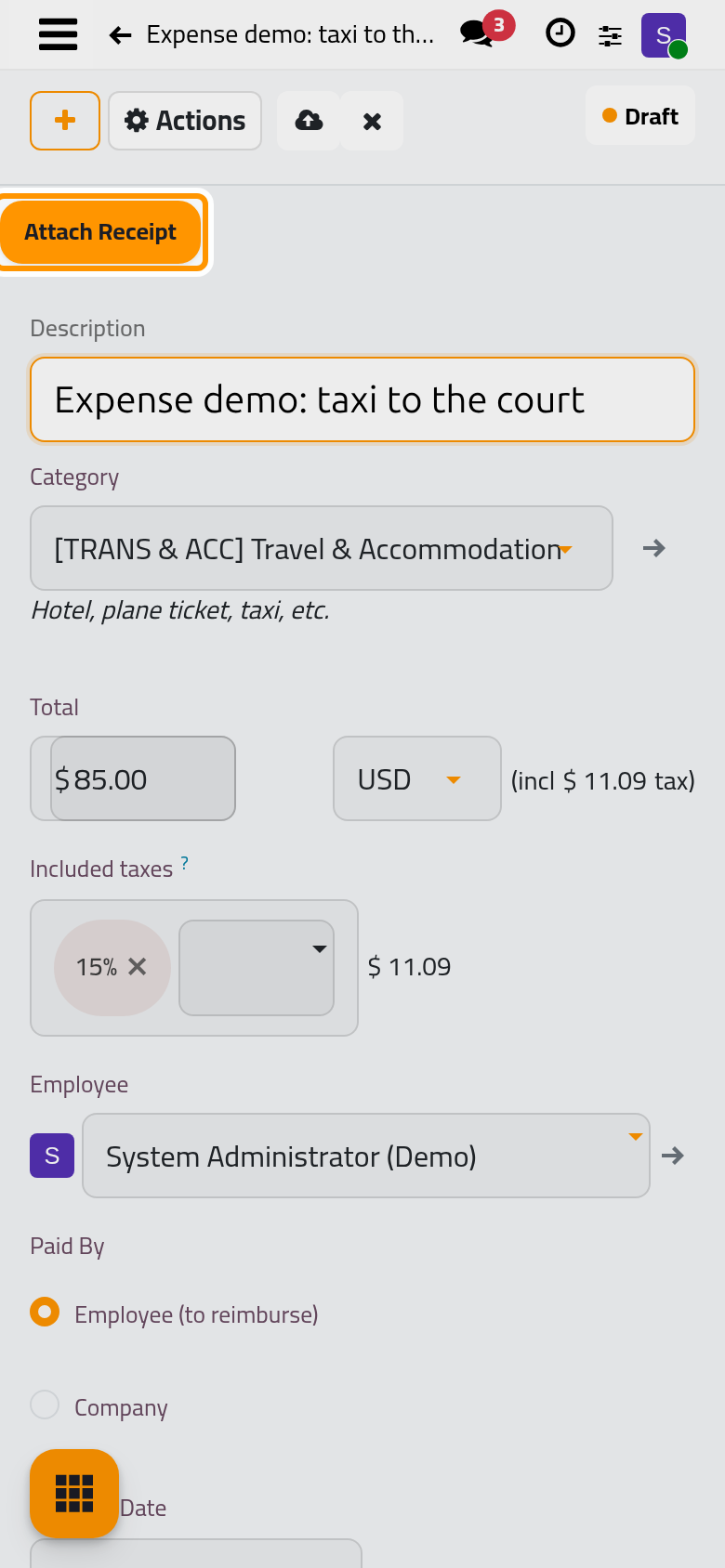
- In Description, say what it was. In Category, choose the kind of expense, such as Travel & Accommodation. The category brings its expense account and its taxes, and may show a guideline under the field.
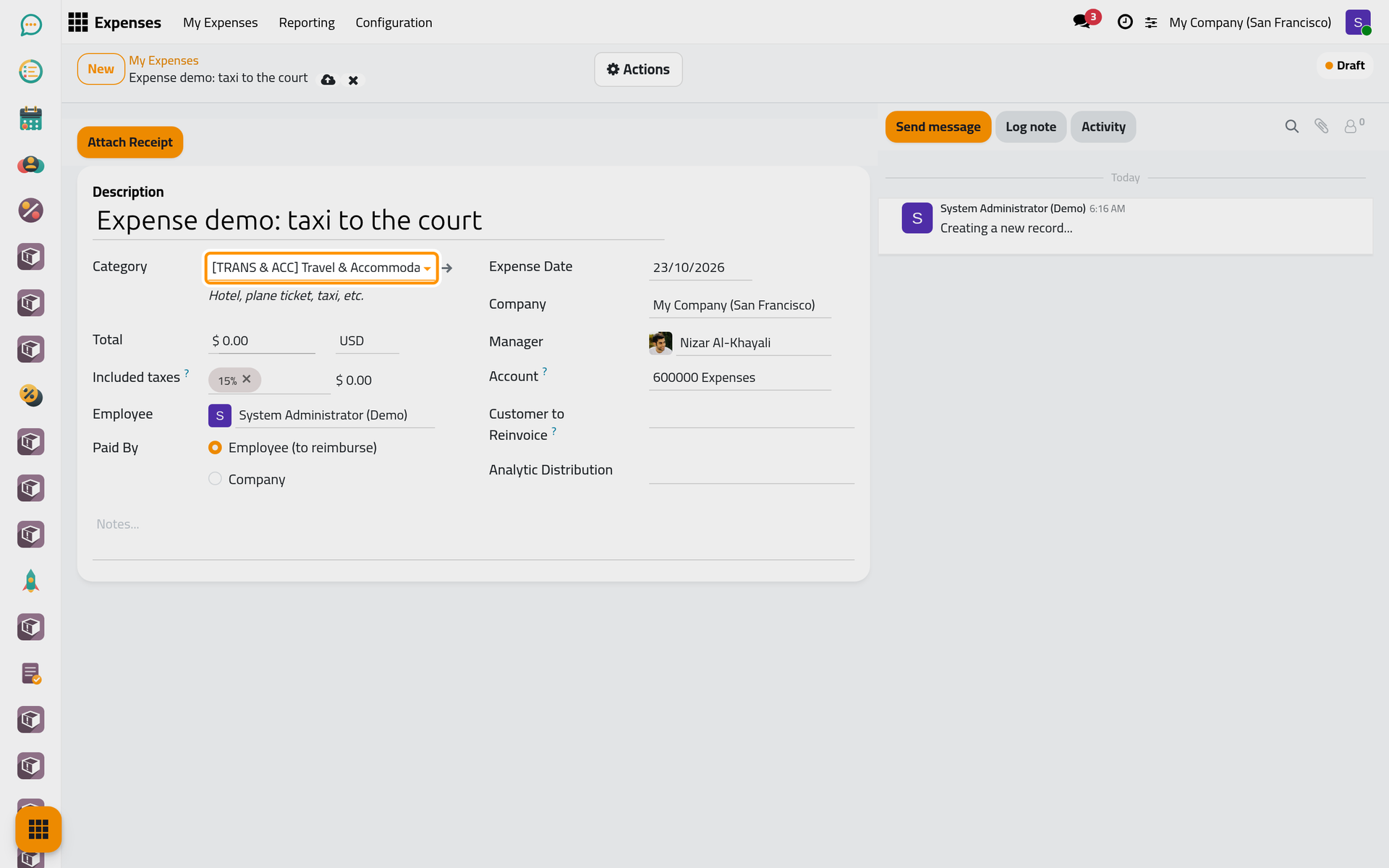
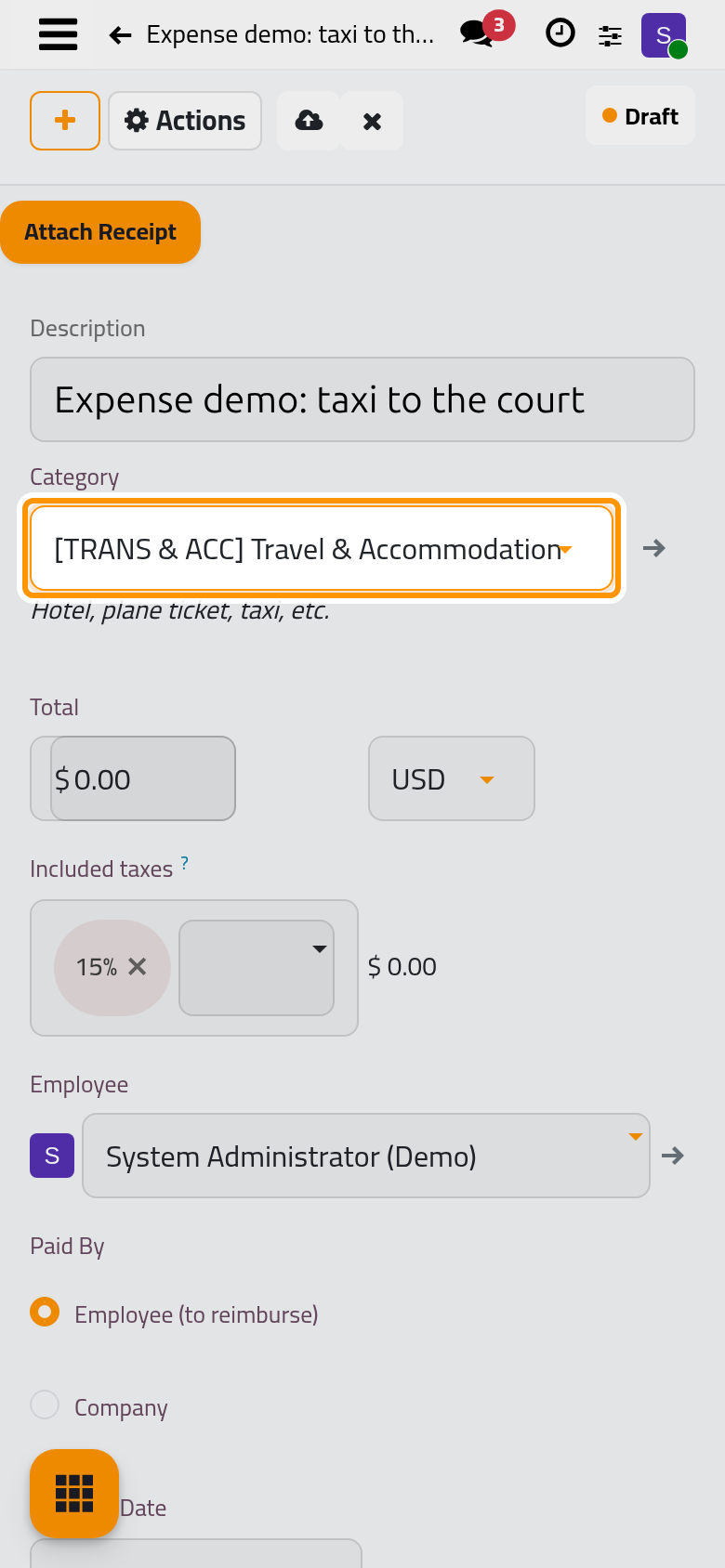
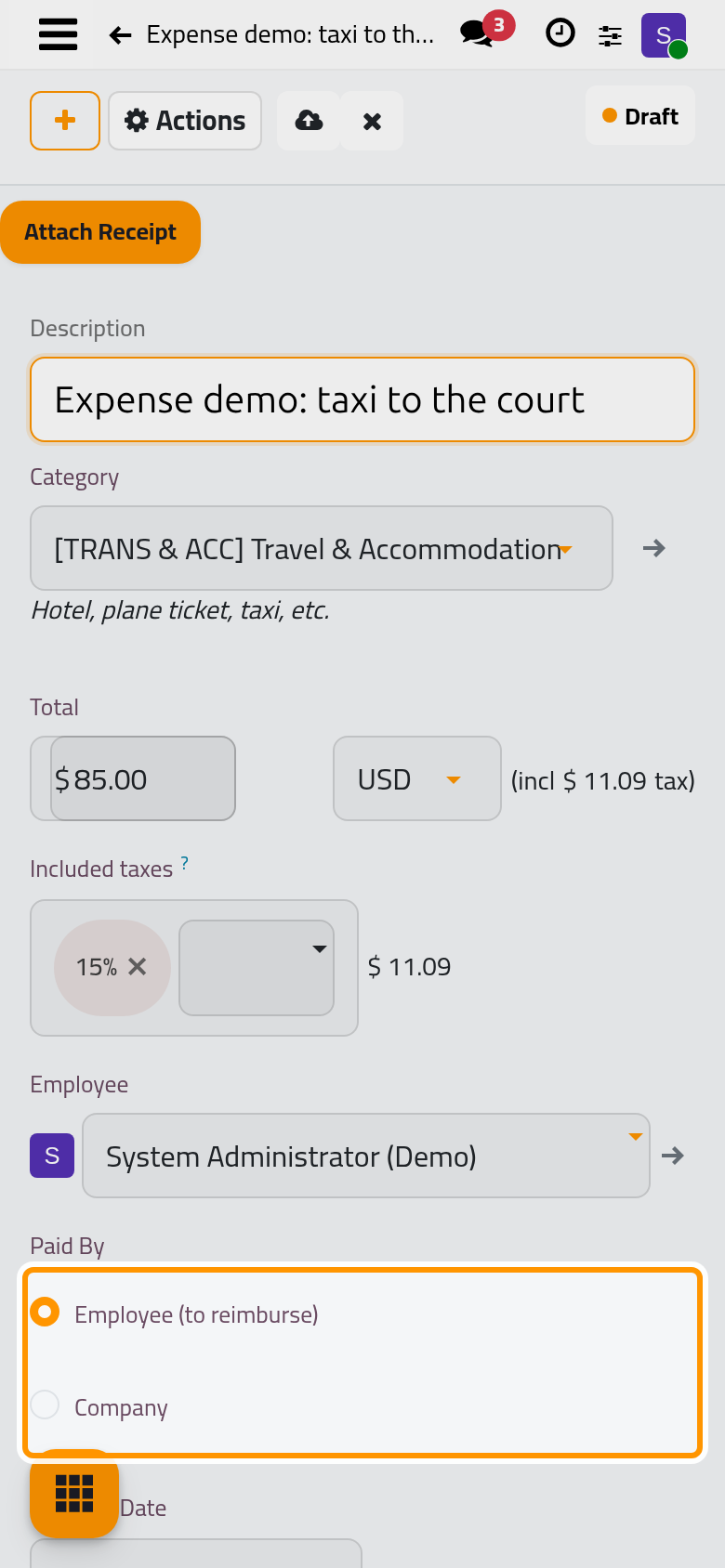
- In Total, type the amount paid, taxes included. Included taxes comes from the category, and the tax part shows next to the amount. A category with a fixed cost, such as Mileage, shows its Unit Price and asks for the Quantity instead.
- Choose who paid in Paid By: Employee (to reimburse) when you paid with your own money, so the firm owes it to you; Company when the firm's money was used, a company card or the petty cash, so nothing is reimbursed and a Payment Method is asked for.
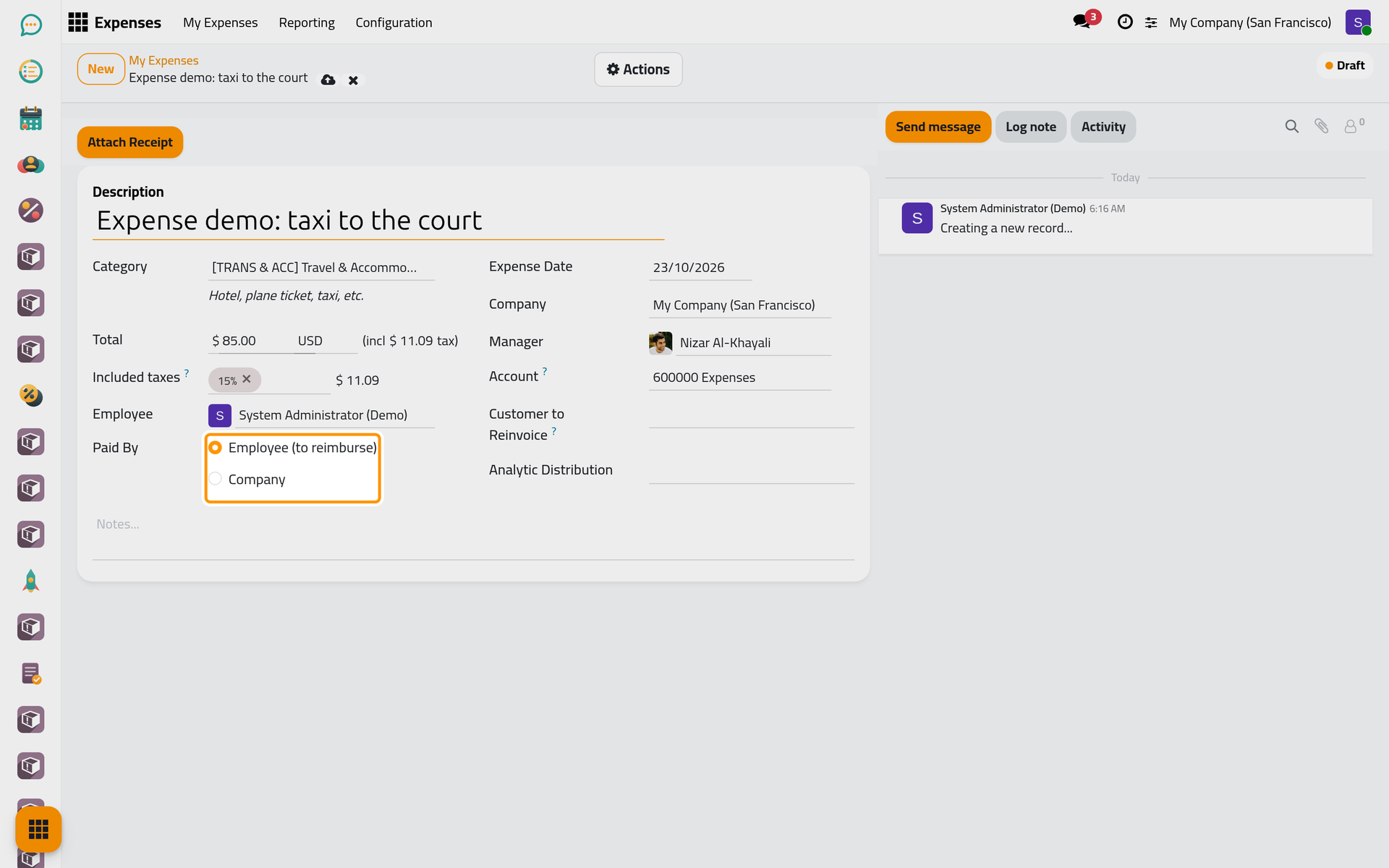
Expense Date starts at today, and Manager shows who will approve the expense. A category that is charged on to clients also shows Customer to Reinvoice, to name the sales order the cost is added to.
- Click Attach Receipt to add the photo or the PDF of the receipt. An expense with a receipt that another expense already carries shows a warning.
Submit it
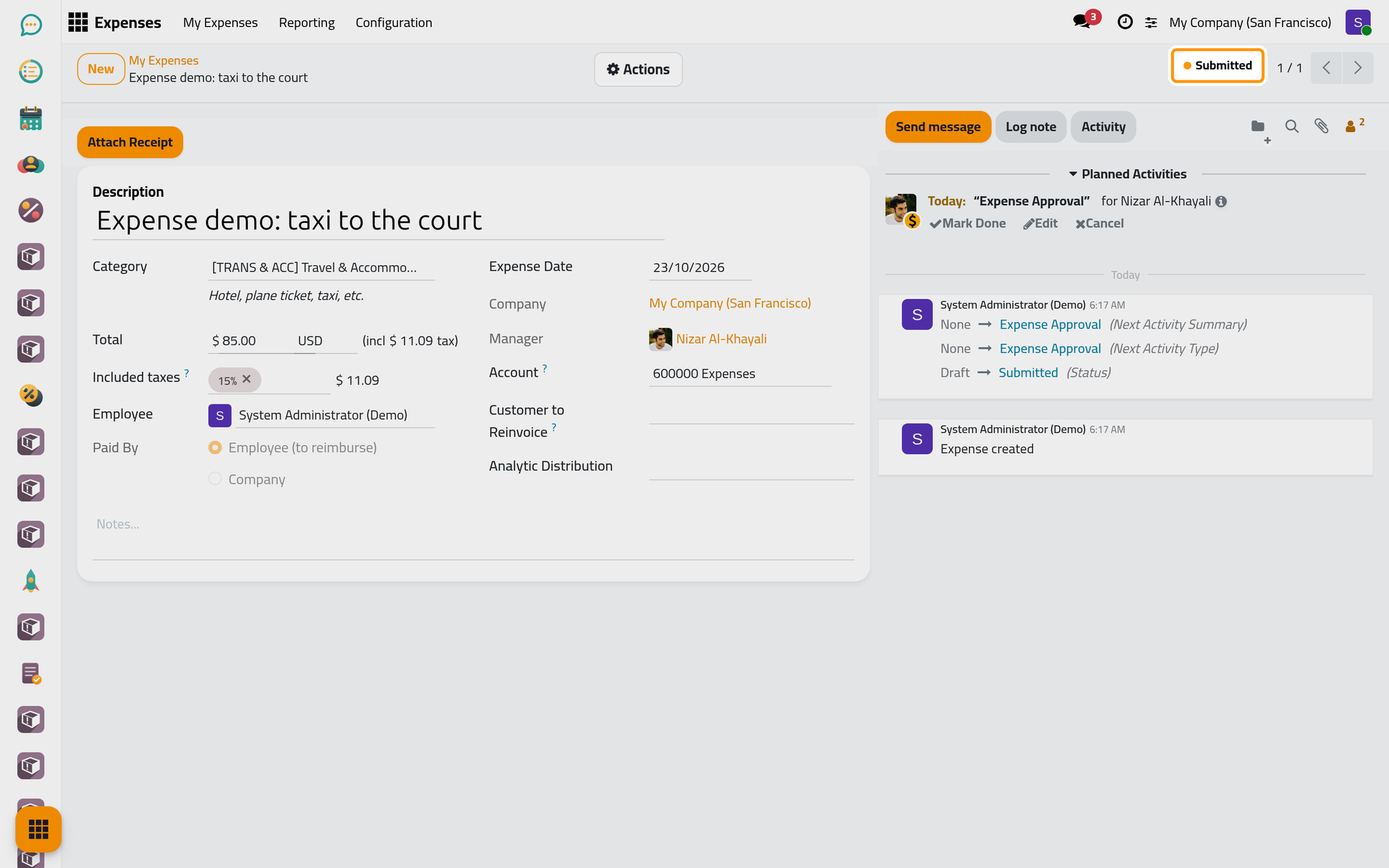
Click the cloud icon Save manually, then choose Submit in Actions. The status turns to Submitted, and an Expense Approval activity is planned for the manager. When nobody would approve it (no manager found for you), Submit approves the expense at once.
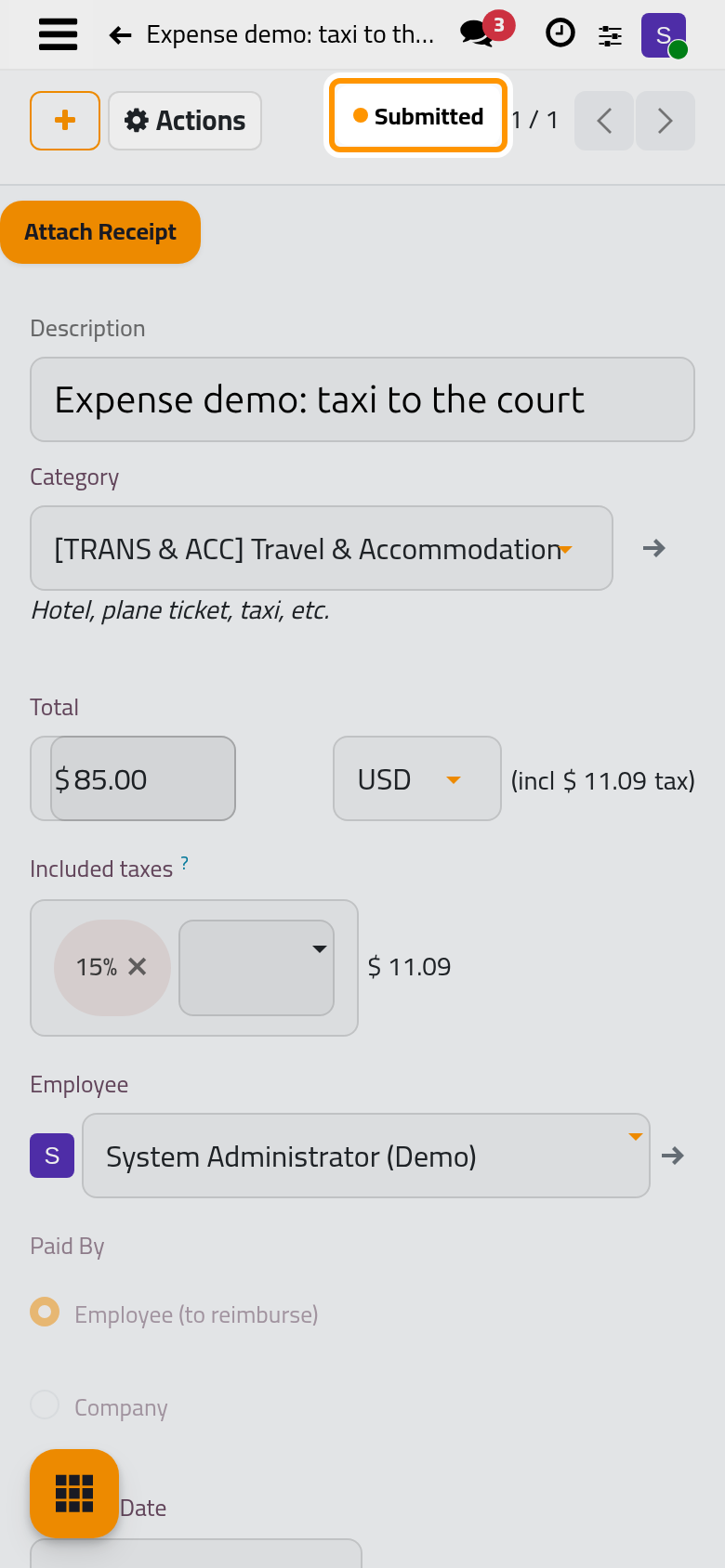
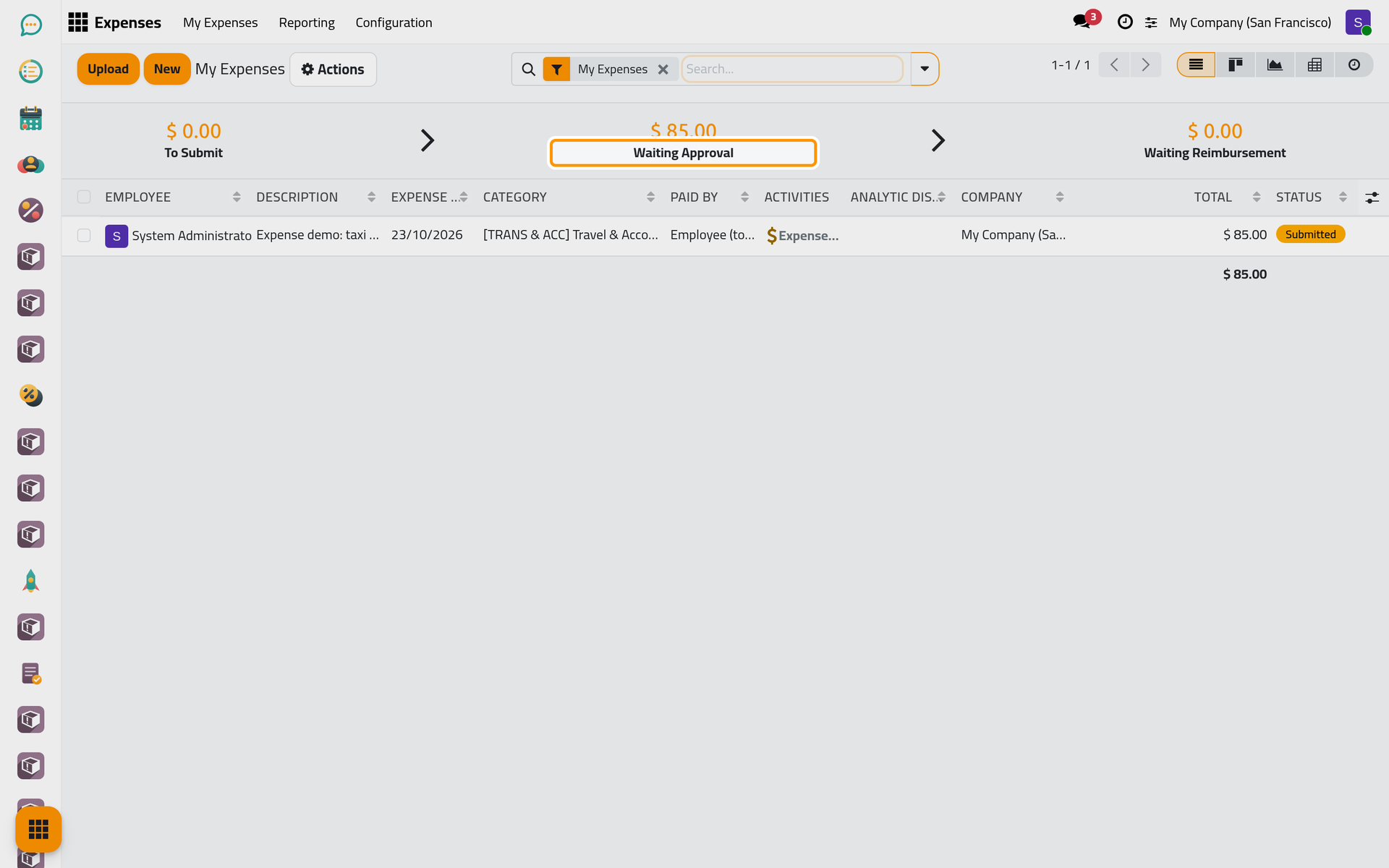
Back on , three figures sum your expenses and those of the employees under you: To Submit (drafts), Waiting Approval (submitted) and Waiting Reimbursement (approved, paid by the employee). They show on a computer only; on a phone, the status of each expense tells the same.
Other ways to record expenses
- Upload above the list (Scan on a phone) creates one draft expense per file, with the file as its receipt; complete the category and the amount, then submit it.
- Employees can e-mail their receipts when the e-mail option of Expenses settings is on and an alias domain exists.
- Split Expense in Actions divides a draft into several expenses, each with its own category and amount, for a receipt that mixes, say, a hotel and a meal.
FAQ
Can I change an expense after submitting it?
Choose Reset in Actions: the expense goes back to draft, and you can change it and submit it again.
A message says the same expense already exists.
Another expense of yours has the same category, amount and date. Click Ok if both are real: the expense is submitted, and a note on the expenses concerned records that you confirmed it is no duplicate.
Why do the figures stay at zero?
They count only the expenses of the employee linked to your user and of the employees under it. A user without an employee sees zeros.
Who approves my expense?
The person in Manager. How bills and expenses fit together explains how it is chosen; Approve and reimburse expenses shows the approver's side.
Was this page helpful?
Thank you for your feedback.