Pay vendor bills
On this page
One bill is paid from the bill itself, with Pay in its Actions menu: Your first vendor bill shows it. When a payment run comes, the bills list pays several bills at once and creates one payment per vendor.
Before you start
- You need the Invoicing access right on Accounting.
- The bills are confirmed: their status is Posted.
See what is due
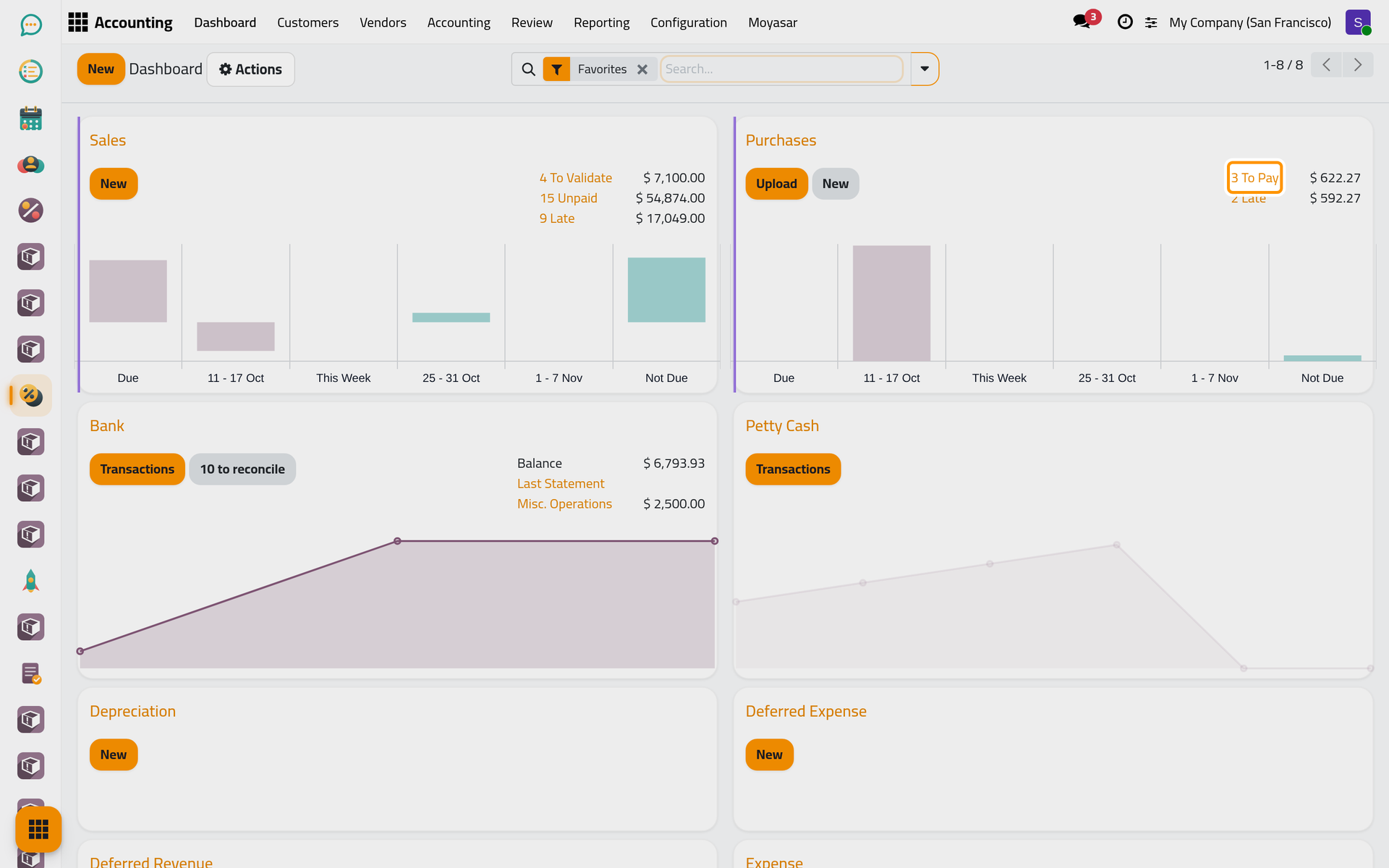
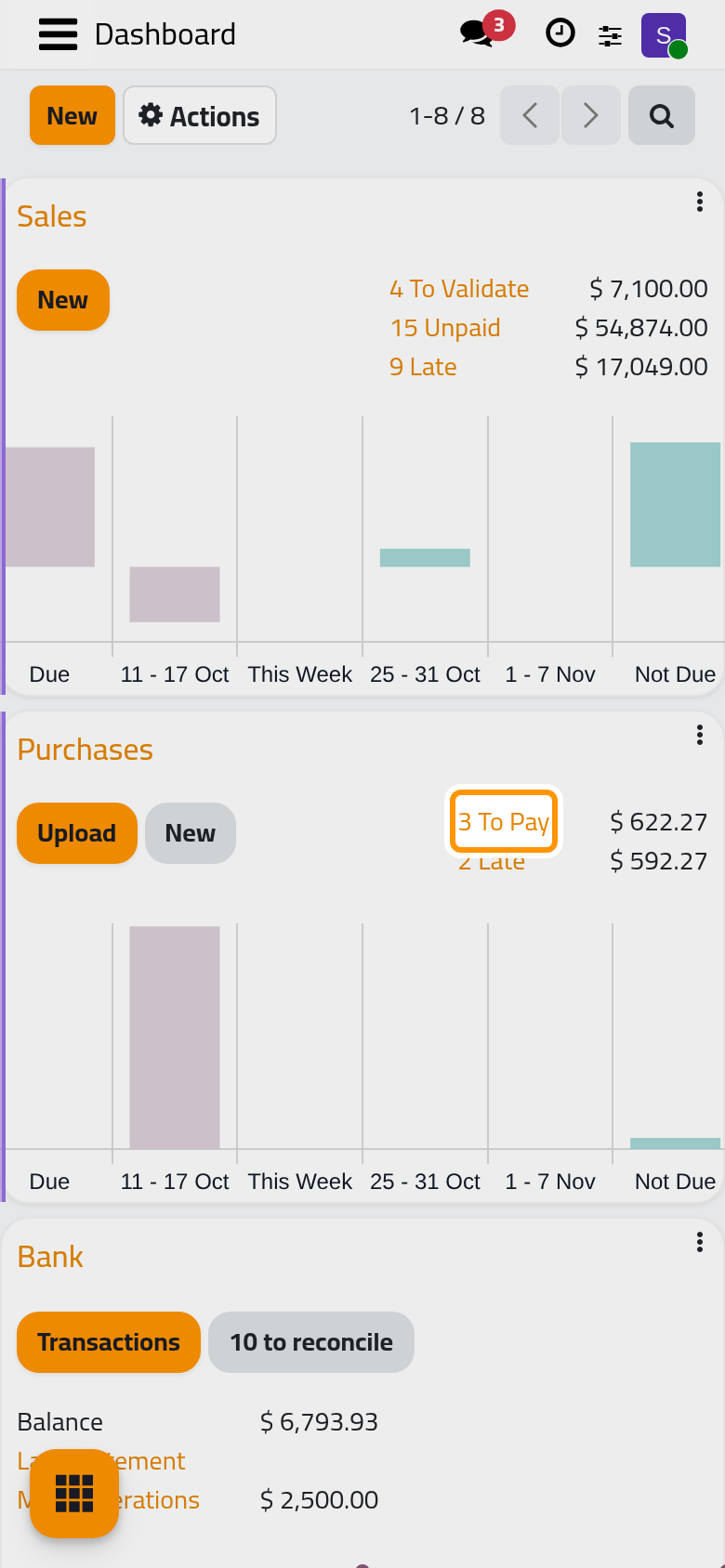
Open . On the Purchases card, To Pay counts the bills and refunds still open, with the amount the company owes; Late counts those whose due date has passed. Each link opens the matching documents.
Pay several bills at once
- Open .
- Open the search options with the arrow at the end of the search bar and choose To pay, next to Bills and Receipt, already ticked. Overdue keeps only the bills past their due date.
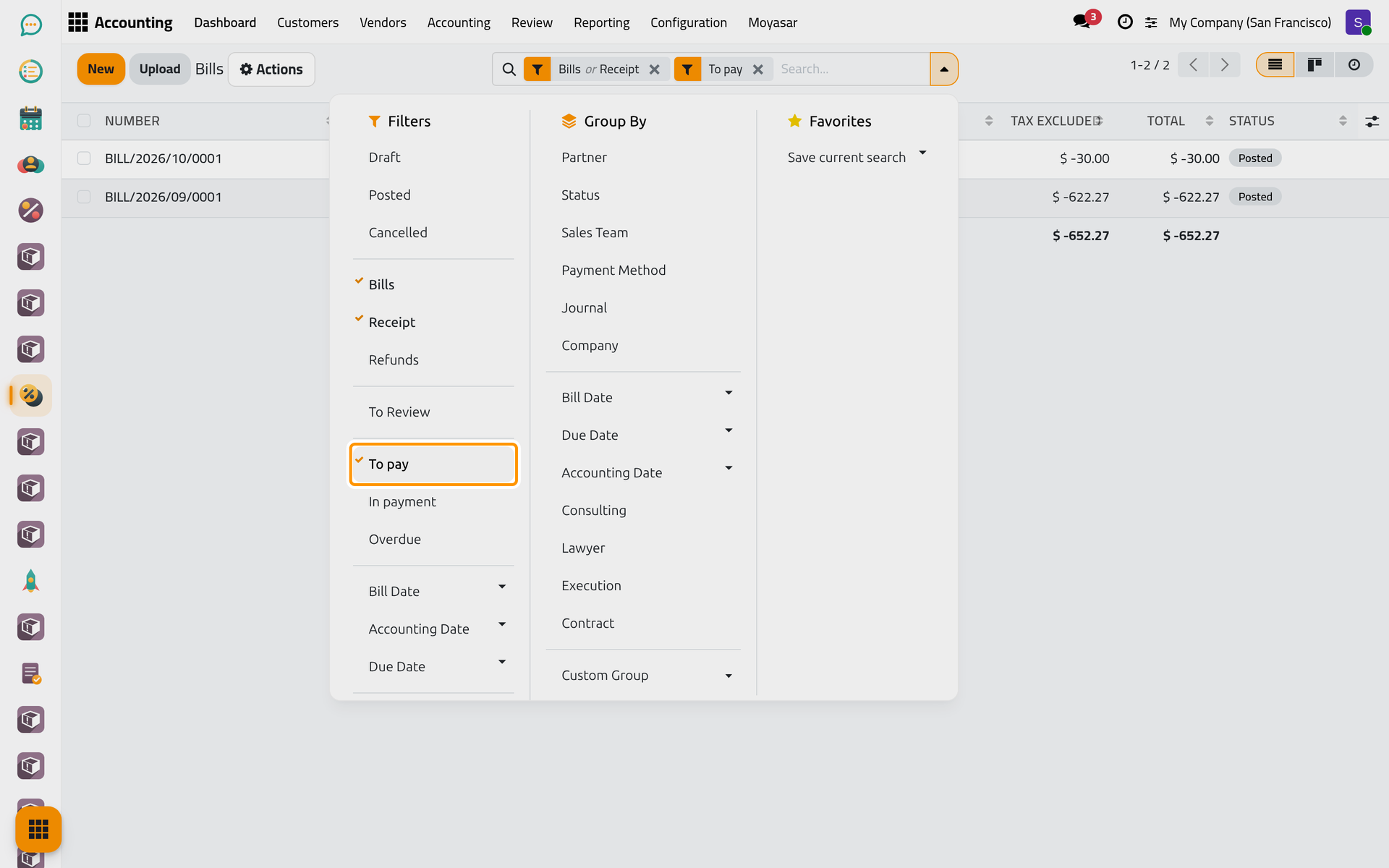
On a phone, tap the magnifier at the top right first: the search bar opens with the same arrow at its end.
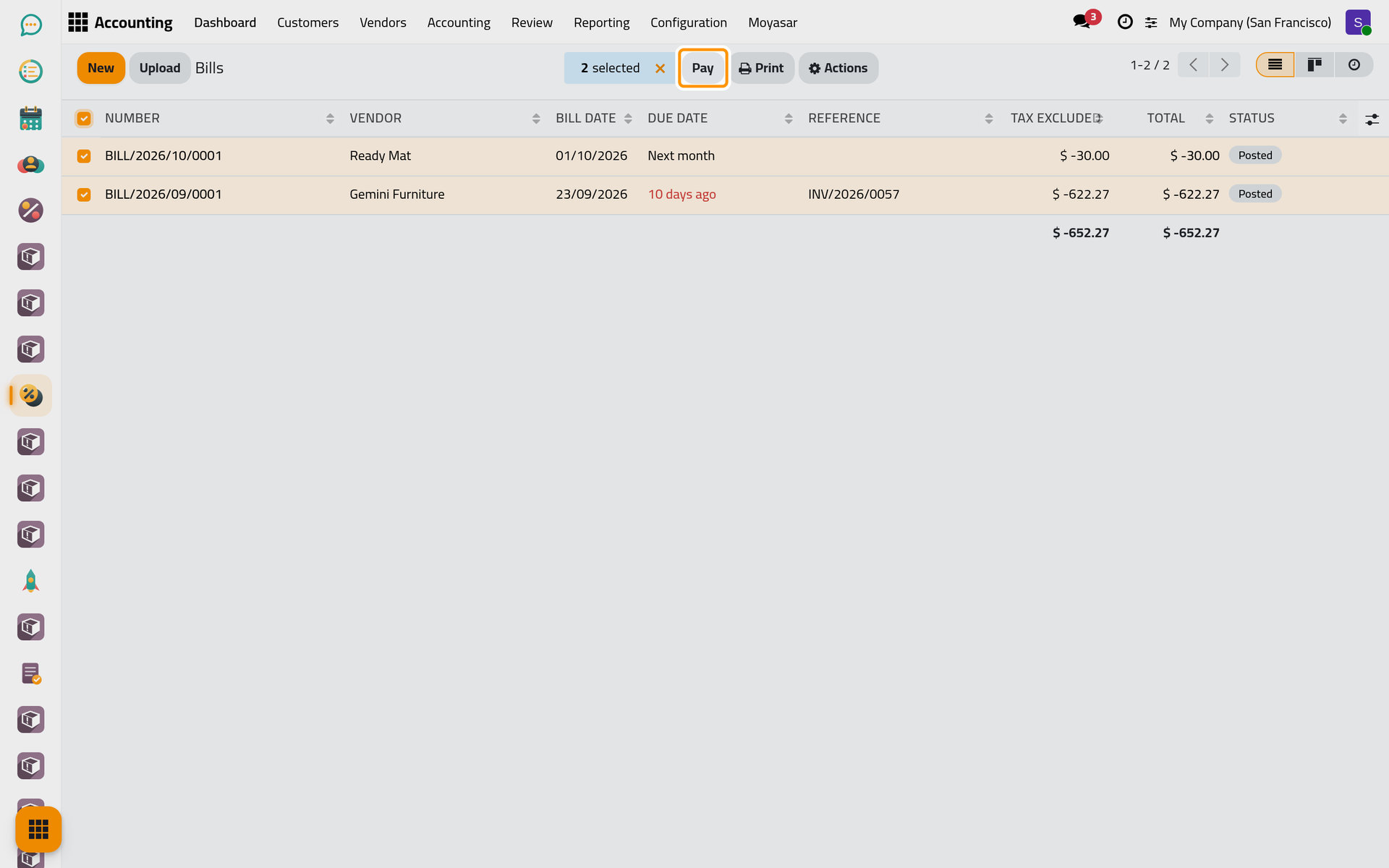
- Tick the bills to pay; the box in the header row ticks all of them. Pay appears above the list.
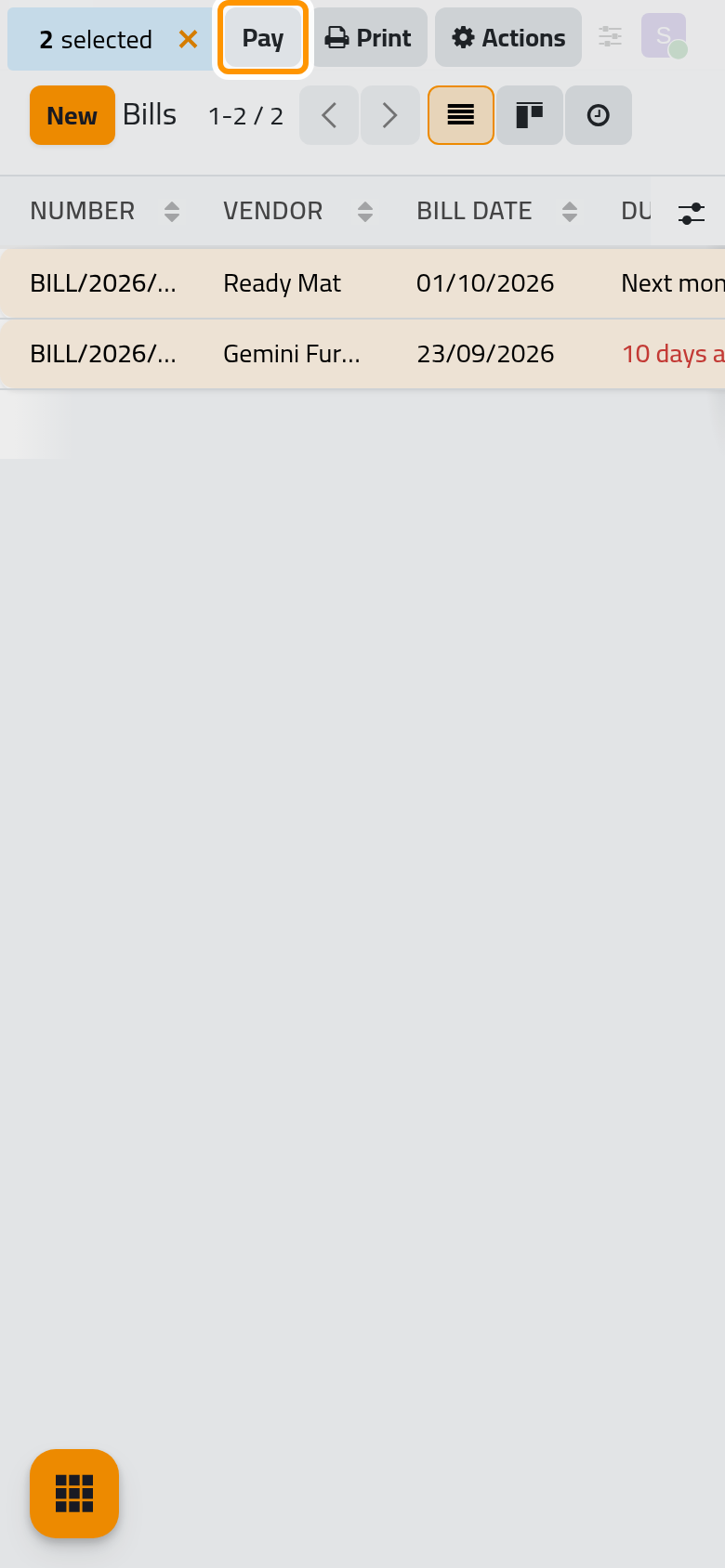
- Click Pay. The dialog takes the Journal the money leaves from, the Payment Method and the Payment Date; the Amount is the total of the selected bills. One payment is created per vendor.
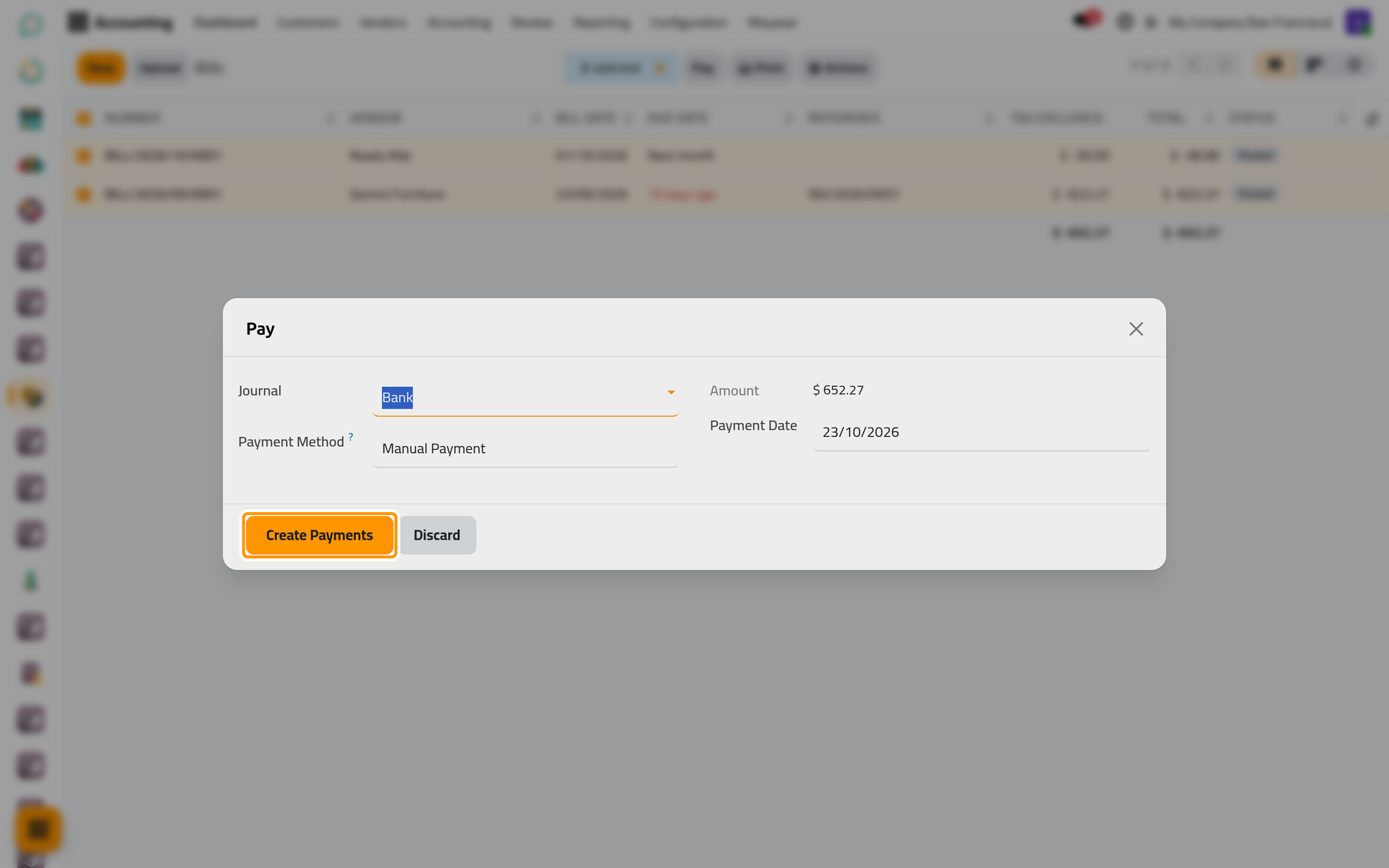
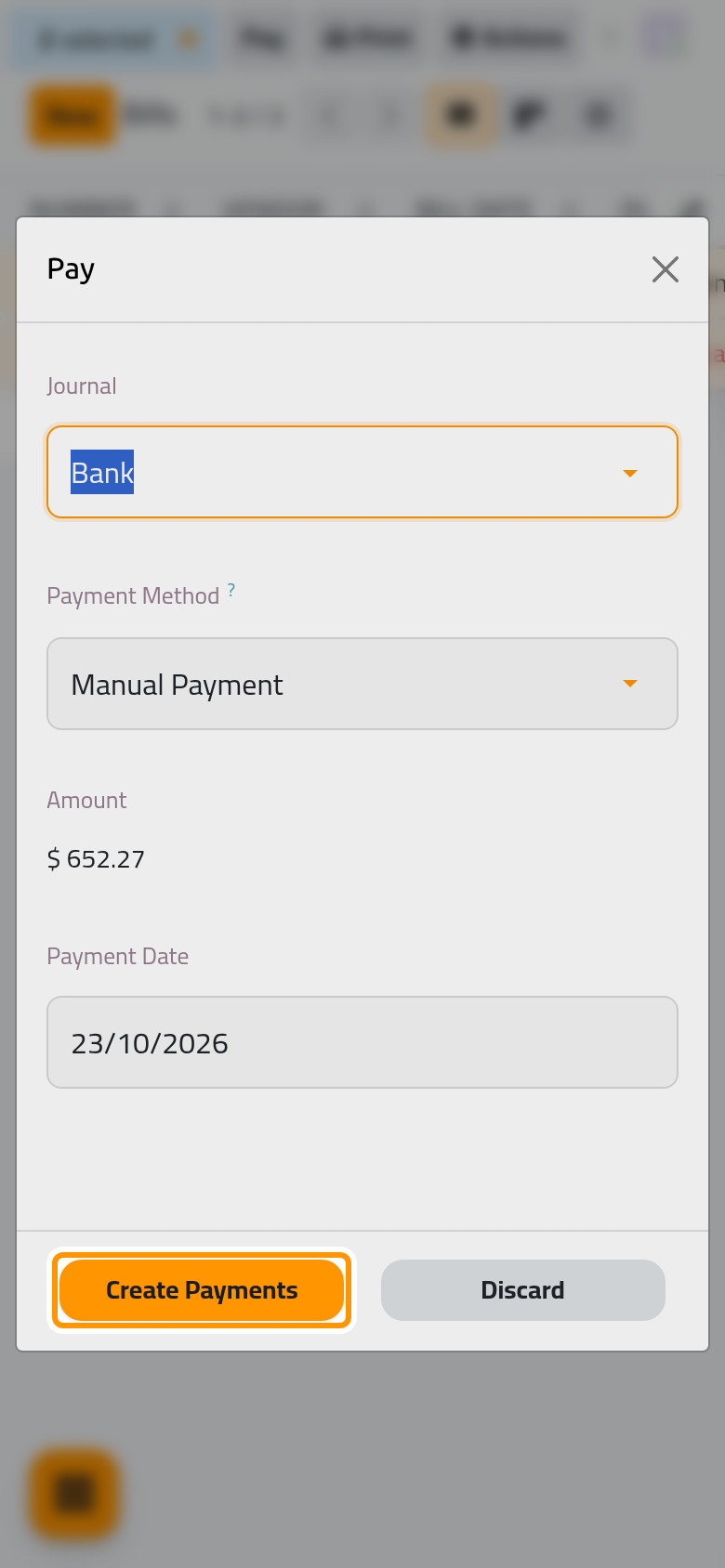
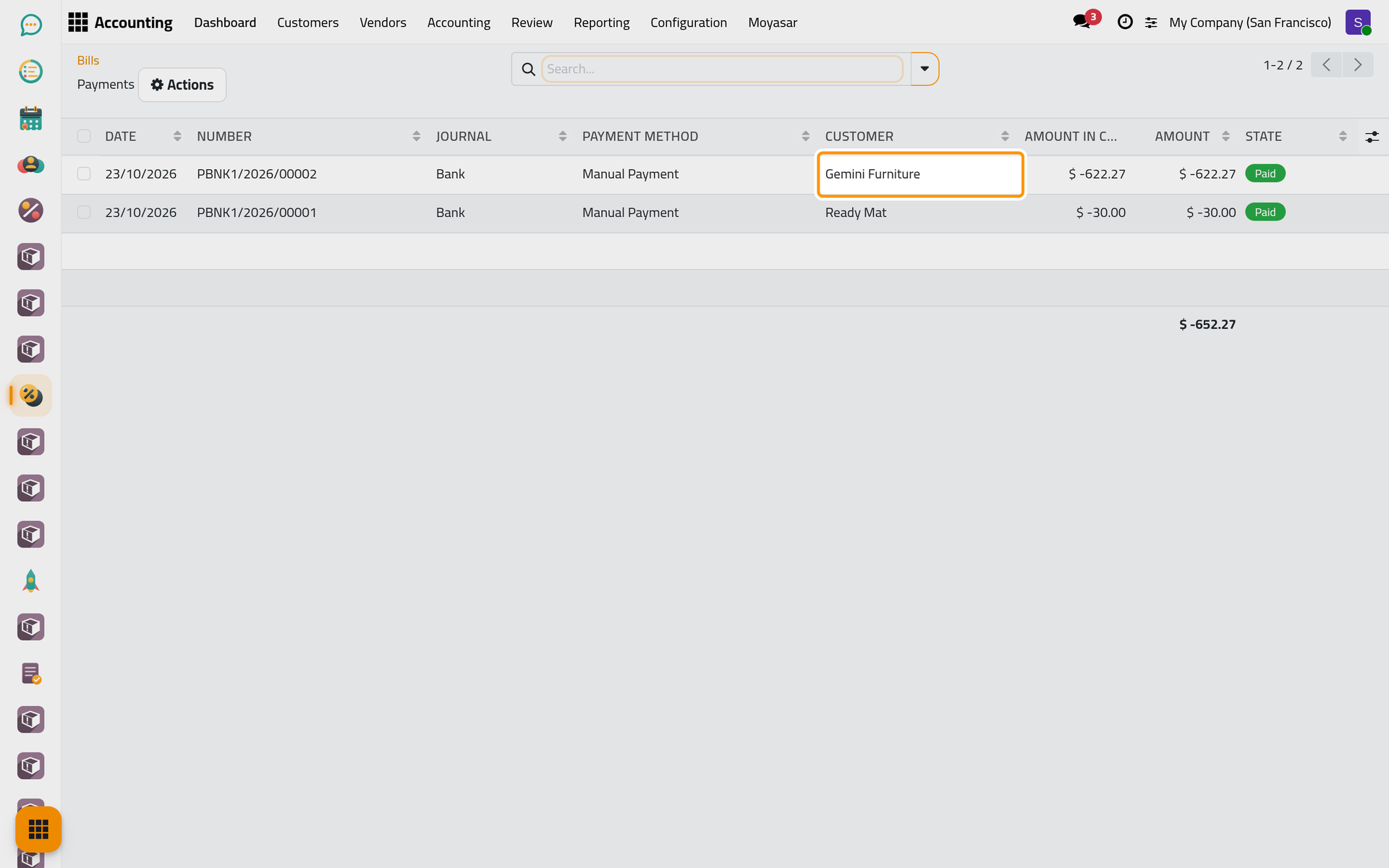
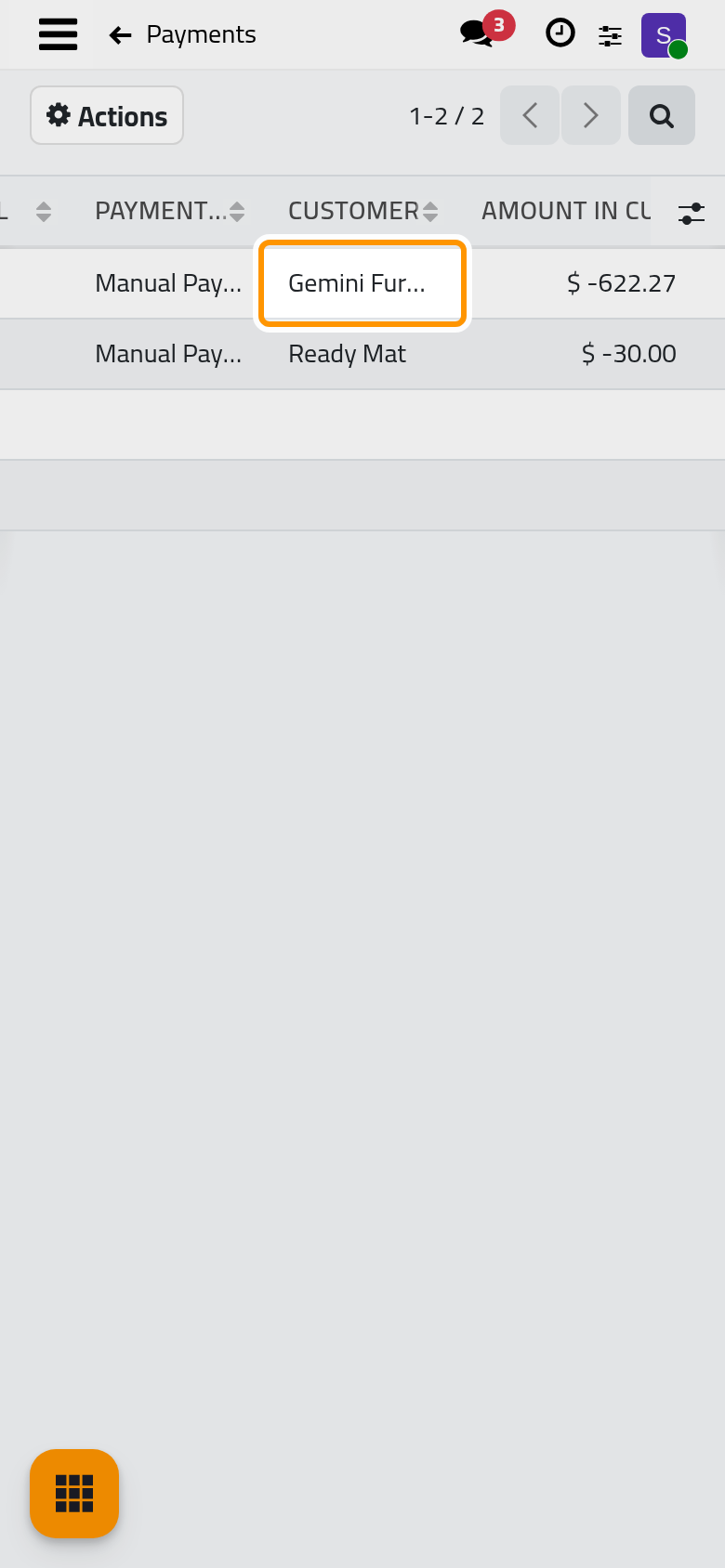
- Click Create Payments. The payments just created open in a list, one line per vendor, with their status.
When two or more of the selected bills belong to the same vendor, the dialog also shows Group Payments. Ticked, those bills are paid by one payment; left empty, each bill gets a payment of its own. The Amount and the Memo can be changed only when every ticked bill belongs to one vendor.
Pay part of a bill
Open the bill, choose Pay in Actions and lower the Amount before clicking Create Payment. The bill gets a Partial ribbon and stays under To pay with the rest due; pay the rest the same way later.
When the payment method of the journal books payments on a waiting account, the dialog also shows Payment Difference: Keep open leaves the rest due, Mark as fully paid closes the bill and books the difference on the account you choose in Post Difference In.
After the payment
Every payment to a vendor is listed in . A payment is matched with its bank statement line in Banks, cash and currencies; the bill already reads Paid before that match.
FAQ
How do I pay a bill in cash?
Choose the cash journal, such as Petty Cash, in Journal. The payment then leaves the cash box instead of the bank account.
Why is Group Payments missing?
It appears only when at least two of the ticked bills belong to the same vendor. Bills of different vendors always get one payment per vendor.
I paid the wrong bill. How do I undo it?
Open the payment with the Payments button of the bill, choose Reset to Draft in Actions, then Delete. Resetting alone keeps the bill marked as paid; once the payment is deleted, the bill is due again.
Where do I see what we owe each vendor?
The Aged Payable report lists the open amounts by vendor and by age; it is explained in Accounting reports.
Was this page helpful?
Thank you for your feedback.